Thursday, 17 May 2018

7 Steps to Creating Successful Content Marketing Campaigns

We are drowning in content.

Every day, millions of blog posts are published, and most of them are fluff. Not that we don't want to find out which Friends character we're most like, but it's not the highest caliber content.

The good news? High-quality, authoritative, in-depth content tends to rise to the top. Here we'll walk you through 7 simple steps that will help you be sure your content is making its mark.

  1. Do keyword research
  2. Do social media research
  3. Craft your headline
  4. Write your content
  5. Edit your content
  6. Create an outreach/link building campaign
  7. Create a social media influencer campaign

The 3 Key Components of Successful Content Marketing

Before we dive into the process, let's look at the 3 key components of successful content marketing:

1. Research

You don't want to write something no one wants to read. That's why it's important to start by figuring out what your users are searching for.

We'll dig into this in more detail below, but it's something we want to drill into your brain: before you start writing, you should do keyword research and social media research to identify what will resonate with your readers and generate both search traffic and social media engagement.

With that info in mind, you can be sure your subject is worth writing about.

2. In-depth content

As marketing influencer Neil Patel tells us, longer content gets more social shares, generates more backlinks, and ultimately generates significantly more organic traffic (traffic that comes directly through search without any paid advertising).

This intuitively makes sense. Google is in the business of giving people the right information. They want to answer people's questions. And those answers are much more likely to show up in a thoroughly researched, in-depth post than a 300-word puff piece.

But it's not just about length—it's about the value of content. In Search Engine Journal, Aleh Barysevich notes that Google is increasingly relying on "semantic search," meaning that they evaluate the overall value of content rather than just looking for keywords:

"Semantic search is here to stay. Algorithm updates like Hummingbird and RankBrain place intense value on semantic relevance and optimization, meaning that an in-depth examination of one topic in easy-to-understand language will always beat out unreadable keyword-dense drivel."

That's generally a good rule of thumb: don't create "unreadable keyword-dense drivel."

3. Promotion

After spending hours crafting a highly valuable piece, you don't want to solely rely on Google to spread the word. You need a strategy for getting your content in front of the right people.

But just as it takes time to research and write content that's going to really resonate with your readers, it also takes time to find and reach out to people who will be interested in that content. You need to promote your post both to social media influencers and websites who will link from their site to your content (usually called "backlinks").

Bottom line: Content marketing is a laborious process that goes far beyond writing.

7 Steps to Creating Successful Content Marketing

I've been in the content marketing trenches for a number of years now and have worked with some of the best in the industry. I've observed how they work, the tools they use, and how they've optimized their workflows. Here I'll walk you through a standard content marketing workflow, with tips and tricks along the way.

Step 1: Do keyword research

If you want people to find your content on Google (which… you do), you need to spend some time doing keyword research. After all, it's not the best use of your time to write an epic, 3,500-word article about the newest high tech kiddie pools if that subject only gets 10 searches a month. Instead, you need to write content that aligns with what your core audience is already searching for.

There are numerous keyword research tools available, but Ahrefs offers the best balance of thoroughness and affordability.

  • It includes both social media research tools and search engine optimization (SEO) tools, which means you don't have to pay for two separate tools.

  • It provides very specific statistics about how difficult it is to rank for keywords, including approximately how many backlinks (links from other sites) you'll need to rank on the first page of Google. Google values backlinks because they demonstrate that a particular piece of content is valuable to other people. Knowing how many backlinks you'll need shows you how much promotional work you'll need to do.

  • It shows whether keywords have featured snippets, Adwords above or below them, or thumbnails, all of which can significantly affect organic traffic.

There are two simple ways to do keyword research.

Method 1: Choose your own keywords

The first is the traditional method, where you simply select keywords and see what their overall search volume and difficulty is.

For example, using the "Keywords Explorer" tool in Ahrefs, you can dig into the phrase "content marketing tools."

Ahrefs keyword explorer

Immediately, you can see a few things:

  • It has a relatively low search volume (300/month).
  • It is moderately difficult to rank for (score of 38).
  • The parent topic, "marketing tools," has a much higher search volume (3,500/month).
Keword difficulty

This data tells you a couple things. First, when you write about content marketing tools, you want to also consider ways you can rank for the search term "marketing tools."

Second, in order to rank on the first page, you'll need quite a few backlinks (if you look closely under the Keyword difficulty score, you'll see it will take approximately 51), which means you'll need to spend a lot of time on the promotional end of things. (Note: this is just Ahref's own best estimate based on their data.)

One last thing: When you look at the "Search suggestions" page, you see more potential search terms, and you also see that "content marketing tools" includes a featured snippet.

ahrefs search suggestions

When writing your article, you'll want to try to optimize it for that featured snippet, as that can drive a huge amount of organic traffic. You'll also want to naturally work in some of the other suggested keywords in order to rank for more than just one. Don't force it—just if it fits.

Method 2: Spy on your competitors

Another effective way to do keyword research is to see what your competitors are ranking for—then you can try to "steal" their traffic. (It's legal, I promise.)

Let's say you're a small business owner who just opened a coffee shop and you want to get organic search traffic to your site. You know that Sprudge is a huge name in the coffee blogging world, and that they get a lot of organic traffic.

sprudge keyword results

If they rank in the top 20 for something that's low in keyword difficulty, you just need to swoop in and create better content.

For example, they rank 11 for the term "french press ratio." A quick peek at that article reveals that it's pretty thin, which means there's an opportunity. If you can create a longer, more in-depth guide to french press coffee and get some solid backlinks to it, you stand a good chance of ranking on the first page.

Remember, Google loves authoritative content that demonstrates expertise. So if you create something like "The Ultimate Guide to French Press Coffee" and include all the french press essentials, there's a good chance Google will be your friend.

Bottom line: identify the content that is already ranking in Google searches, and then create a piece of content that blows everything else out of the water.

Ahrefs pricing: from $99/month

Alternatives to Ahrefs include:

  • Google Keyword Planner (free). This is the free tool Google offers in conjunction with their Adwords program. It gives you basic information about the number of searches around particular keywords, the competition level of people who are trying to rank for a keyword, and other baseline information. It's not nearly as robust as Ahrefs, but if you want a free version, this is a good start.

  • SEMRush ($99/month). SEMRush offers many of the same features as Ahrefs, including keyword research, search volume, and keyword difficulty. But it doesn't offer social media research (more on that below) or information about how many backlinks will be needed to rank on the first page.

Step 2: Do social media research

Social media research will tell you which pieces have performed the best across various platforms. Why does it matter? First, it gives you a sense of what people like to share on any given subject—and if they like to share it, they definitely like to read it. Second, it allows you to see who shared these pieces, which will help you build a social media influencer campaign.

Buzzsumo is a great tool for this purpose. When you search "content marketing tools" in Buzzsumo, you're given a list of the content that has generated the most shares within the past year.

Buzzsumo most shared

A couple insights immediately jump out:

  • Everybody loves lists (which we already knew).
  • The article with the third most shares only lists 6 tools, but it was written in 2018, which suggests that articles geared specifically toward the current year stand a better chance of getting shared.

When you click "View Sharers" next to the article "6 Tools To Transform Your Content Marketing In 2018," you'll see exactly who shared this post on Twitter.

most shares

The goal of your social media research is to get a sense for

  • who is sharing,
  • what they're sharing, and
  • why they're sharing.

Finding out why people are sharing is the hardest part. Did they share it because they tend to share a lot of pieces about content marketing? Were they mentioned in the piece itself? Do they have a connection to the author? Usually a quick glance at their Twitter feed can give you some insight.

Armed with this information, you can create content that will resonate with your audience and generate lots of social media traffic.

Buzzsumo pricing: from $79/month when paid yearly

Alternatives to Buzzsumo include:

  • Ahrefs (from $99/month). Ahrefs has a powerful social research tool that allows you to see what pieces of content were shared most around any given subject. The main downside: you can't interact with people on Twitter directly from Ahrefs.

  • Scoop.it (free plan available). Scoop.it is a robust content creation and curation platform geared toward those who are looking to fill their social media feeds and newsletters with the best content out there. Their "Hawkeye Content Intelligence Platform" offers the same type of social media research capabilities as Buzzsumo and Ahrefs, with an additional focus on identifying content that will soon be trending.

Step 3: Craft your headline

You've already done a lot of work, and you haven't even started writing yet. But that's the point: Creating great content is about more than just writing.

Next step: Craft your headline. Ideally, your headline should do two things:

  1. Tell Google what the content is about
  2. Intrigue people enough that they want to click

The first one is relatively easy. As long as your headline contains relevant keywords, you're good to go. "Take This Fun Quiz" won't do the trick. "Take This Fun Quiz to Find out Which Friends Character You Are" is more like it. (Reminder: please don't write that article.)

The second one—getting people to click—is much harder, but the CoSchedule free headline analyzer will do the hard work for you. You simply type in a headline and they give you a score, as well as suggestions for how to improve your headline.

Let's take a look.

An analysis of the bland headline "8 Content Marketing Tools" shows a low score of 24. No surprise there.

CoSchedule headline analyzer

To improve the score, you need to add more uncommon, powerful, and emotional words to the headline. Changing the headline to "8 Powerful Content Marketing Tools To Improve Your Workflow" yields a significantly improved score of 66.

Changing headline increases score

Of course you want that headline score to be as high as possible, but don't play it too fast and loose with those keywords. You need to be honest about the content of your piece or you become clickbait and risk losing your SEO value.

Step 4: Write your content

There's no shortage of apps for writing, so ultimately it comes down to preference. You probably already have an app of choice, but if you're looking for more suggestions, take a look at our picks for writing apps and editorial apps, which include tips and tricks along the way.

Let's take a look at Ulysses, a distraction-free editor that's feature heavy and free.

Ulysses

Ulysses allows you to write in Markdown and then directly publish your work to a Wordpress site. It also has extra features for setting word count goals for writing sessions, writing in dark mode, and easily organizing all your documents.

But in the end, it just comes down to finding a writing app you like—and getting to work.

Google Docs pricing: Free
Ulysses pricing: $4.99/month

Step 5: Edit your content

There's nothing worse than hitting the publish button and then finding a typo. Or worse—not finding it. Spellcheck is the first step, of course, but there are solid apps to be sure you're catching more than just standard typos.

For grammatical editing, Grammarly is a Chrome plugin and app that scans your content, highlights all the mistakes, and then offers suggestions.

Grammarly

The only downside is that the Chrome extension doesn't work in Google Docs, which means you have to highlight your text and paste it into the app.

For more stylistic issues, the Hemingway Editor helps you eliminate all the unnecessary fluff from your writing. (Ernest Hemingway was known for his sparse writing. He'd have been a Twitter superstar.) Remember that your audience is made up of regular humans who don't want to sift through dense, flowery writing. They're looking to learn, not to award the next Pulitzer.

Hemingway app

Grammarly pricing: Free
Hemingway Editor pricing: Free

Step 6: Create an outreach/link building campaign

But once you've written and published your content, it's time to hit the promotional circuit. Sure, good content might rise to the top on its own, but with so much content out there, you need to put in the effort to make yours stand out. And there's a surefire way to make that happen:

Backlinks.

Google's original algorithm was called PageRank, and it ranked websites based on how many links there were to that page. For example, if your content was linked to from 100 other sites, it was a signal to Google that people cared about what you had to say—so it moved up higher in the search results than if your content was only linked to from 50 sites. Google now uses multiple algorithms, but PageRank is still a major player.

But here's the thing: Google also cares that those links come from the right people.

If your coffee shop blog is getting links from an industrial manufacturing website, Google won't place much value on those backlinks. In fact, they may suspect that you're using some sort of shady link acquisition method and penalize you instead. Google wants to see relevant and high-quality sites linking to your content in order to prioritize you in its search.

So how do you get the right people to link to your content? There are numerous ways, but many of them involve reaching out to people directly via email.

It's daunting, but it works.

There are essentially two ways to promote your content: the wrong way and the right way. The wrong way involves blasting people via email to say, "Hey, I wrote this awesome content! Link to it pls!"

…Don't do that.

The right way involves developing a relationship with someone: Follow what they do, comment on their materials, and eventually ask if they might be willing to share your content. It's a tedious process, but an app like Ninja Outreach can make the entire process more efficient.

Here's how it works:

  1. You start by creating a list of websites you know you want to reach out to. This could include sites you want to write guest posts for, sites that do resource roundups and would be willing to include the content you just created...anything like that.
  2. Once you've created your list, you'll search for content related to yours. For example, a search for "content marketing tools" in Ninja Outreach brings up hundreds of relevant blog posts and shows you the author name, email, and social media numbers; the site domain and page authority (measures of how authoritative the sites are); and a host of other information.

    Each of these people represents an opportunity to promote your content, so you'll want to add them to your outreach list.

  3. Once you've selected people and added them to your list, it's time to contact them. The beauty of Ninja Outreach is that it allows you to use pre-made email templates so that you're not typing a version of the same thing over and over. They've done the bulk of the work for you (using tried and true methods), and you can then customize however you'd like.

    For link building, you're probably going to use the "Link Request" template.

    Ninja Outreach
    Notice how Ninja Outreach automatically pulls in certain variables, such as the name of the author and the post in question. It makes it feel much more personalized—and you can go ahead and personalize it even further to stand out.
  4. Once you've created created the template, you'll send it to the people on your outreach list. Simply click on their name, select the template, adjust as necessary, and hit send. From there you can manage all resulting interactions directly in your personal inbox.

Ninja Outreach pricing: from $69/month

Alternatives to Ninja Outreach include:

  • Pitchbox ($195/month). Pitchbox is a powerful outreach tool that offers all the features of Ninja Outreach and more (like being able to interact with people within the software itself instead of in your email client). Unfortunately, Pitchbox is much more expensive than Ninja Outreach, making it cost prohibitive for smaller businesses.

  • BuzzStream (from $24/month). BuzzStream has many of the same features as Ninja Outreach, but it's not quite as intuitive or user friendly.

  • Mailshake ($19/month). Mailshake is a little different in that it's only an email outreach tool. In other words, it doesn't help you identify the people you should be emailing. But if you already have a list of contacts, Mailshake is an excellent, cost-effective option.

Step 7: Create a social media influencer campaign

You can see the finish line, but you're not quite done. The last step in the content marketing workflow is creating a social media influencer campaign. Essentially, this boils down to finding people who might be interested in your content and then connecting with them via social media.

Buzzsumo makes this whole process simple. We'll use Twitter as an example. Using Buzzsumo, you'll search for content related to yours, find out who shared it on Twitter, and then engage with them—on Twitter.

It's really that simple.

Don't forget: You're not simply blasting out social media messages. Rather, you're trying to engage with influencers in a meaningful way. Follow them on Twitter first. Comment on and retweet what they share. Be part of their conversations. Then, when the time is right, you can reach out.

To do this, simply go to your influencer list, click on the profile icon, and then click "@ Tweet [TwitterHandle]."

Buzzsumo

From there, you can mention the content you created and ask, if they like it, if they'd be willing to share it.

Alternatives to BuzzSumo include:

  • Ahrefs. Ahrefs doesn't allow you to interact with people from within the app, but it does allow you to export a CSV list of everyone who shared a particular article. You can then upload that list to Twitter and create a list of influencers to engage with.

In a perfect world, you'd create a high quality piece of content and people would automatically flock to it. Unfortunately, it doesn't work that way. To be successful in content marketing, you need to research, write, edit, and promote your content.

And then you need to do it all over again for the next piece.

But once you get the hang of it—and if you're using the right tools—your content marketing workflow will become second nature. And most importantly, you'll get your content read.

Title image by geralt.


source https://zapier.com/blog/content-marketing-workflow/

Tuesday, 15 May 2018

Beyond Decision Fatigue: How Managing Decisions Can Help or Hurt Your Productivity

We all make important decisions, sometimes daily, yet there's a mystique about being called a decision maker. That label crowns one with power, especially when used in the workplace. It signals authority, leadership status, and influence. Decision makers shape the business, and the most successful ones seem to get stronger with each decision they make.

For the rest of us, however, making decisions doesn't always leave us feeling empowered. There's a dark side to decisions: Making too many of them can suck us dry, leading to lower productivity and greater unhappiness.

Decision paralysis
Decision paralysis, courtesy of xkcd, https://xkcd.com/1801/

Decision fatigue is real. Researchers have documented it in office settings, judges' chambers, and elsewhere.

People often summarize the decision fatigue phenomenon like this: The more decisions we make, the more it depletes us and therefore decreases our ability to make good decisions. Therefore, the logic goes, if we make fewer decisions of any kind, we'll be better off.

While there's a nugget of truth to it, decisions aren't simple and neither is the human behavior wrapped up in making them. By knowing the different types of decisions and how to approach them, you can feel empowered when making decisions, rather than drained.

Not All Decisions Are Equal

There's tremendous variety in the decisions we face. Any one of the following questions is a call to make a decision, but they require vastly different amounts of thought and energy to answer:

  • Would you prefer still or sparkling water?
  • How can we cut 15 percent of the budget, given this financial audit?
  • What should the organization's primary goals be this year?

Rule-Based Decisions

Sometimes, we're asked to decide on something that has a clear-cut answer. Often, it's a rule-based decision, meaning if you drew up a rubric, you'd be able to make the decision quickly and usually with little room for deviation. With the question, "Would you prefer still or sparkling water?" I always prefer sparkling water when it's complimentary, but I'd rather have still water if the sparkling water is too expensive. What's considered "too expensive" in this particular establishment? I can work my way through this rubric and come to an answer quickly.

If it truly doesn't matter, don't dedicate any of your brain power to it

Rule-based decisions are all over the workplace. Think of a telephone support person who follows a script to provide help to customers or someone who processes invoices. Even a question as routine as, "Should I archive this email?" can be answered with rules or a flowchart. If the contents of the email are resolved, then yes. If the contents are not resolved, then no. Your decision-making tree might have more branches, but that's the general idea.

Higher-Order Decision

What about the examples of cutting a budget or shaping the goals for an organization? These are tough decisions that require more than a rubric to answer. To make these decisions, we need not just more time but also higher-order skills, such as judgment, creativity, and emotional intelligence. There's no snappy name for these types of decisions, so let's just call them higher-order decisions.

  • Can I trim a little funding from each department, which will add stress across the entire organization, or should I eliminate positions, which will hurt morale?
  • In creating goals for the organization, how do I make them achievable while also keeping board members and investors happy?

Group Decisions

Another difference among decisions comes down to how many people must agree on them. The question of still or sparkling is a no-brainer if you're alone, but it's likely to become a group decision if you're at the table with friends.

Anyone experienced at working on a team knows that group decisions can be double-edged swords. Certain decisions benefit from groupthink, while at other times it's more a case of too many cooks spoiling the broth. It's hard to know when a team lead or senior team member should be decisive for the sake of the group or if making decisions as a committee would lead to a better outcome.

Your Willpower Is a Muscle

Willpower plays a large part in decision-making. In one experiment, researcher Roy Baumeister, who coined the term "ego depletion," shows how willpower is like a muscle. He and his colleagues found that the more we use our willpower in a short period, the more we tire it out. When our willpower is tired, we're more likely to make choices that are not in our best interest, because willpower takes a backseat to desire.

One of the most famous experiments Baumeister and his colleagues did is known as the chocolate and radish experiment. The participants were made to see and smell chocolate chip cookies alongside other sweets. One group was asked not to eat them and instead have some radishes. Another group was told they could eat the cookies. And a control group skipped the food part entirely.

Afterward, the subjects took a test that measures their persistence, measured in part by how many attempts they made at solving puzzles.

On average, the radish eaters made fewer attempts and gave up faster than the other groups. The theory is that their willpower had already been exercised and made tired by not eating the cookies, leaving them with less resolve for the other task.

When our willpower is tired, we're more likely to make choices that are not in our best interest

(Speaking of cookies, Baumeister has gone on to study the role of glucose in our ability to exercise willpower. It doesn't negate his work on ego depletion, but it does indicate that in some situations, we're able to boost willpower by simply drinking a glass of sugary lemonade.)

Willpower can play a role in making some types of decisions, but not all decision rely on it. Think again about trimming a budget. That kind of decision doesn't rely on willpower at all. But when willpower is needed, it's good to know that using it affects our ability to continue using it.

Too Many Options Makes Us Unhappy

Barry Schwartz's book The Paradox of Choice goes to great lengths to explain why having too many choices can lead to greater unhappiness. The thrust of his argument centers around consumerism and the belief in the U.S. in particular that an abundance of options is a manifestation of freedom. "I can have anything I want."

"Choices" here means options, not decisions. For example, you can have your choice of 50 salad dressings, or you can choose which universities to apply to among the thousands around the world.

When we face too many options, we become prone to decision paralysis

Numerous studies show, however, that having too many choices rarely results in better outcomes. Columbia University researchers found, over several experiments,that having fewer choices leads to better results and greater satisfaction. In one of the experiments, students could opt in to writing an essay for extra credit after choosing from either six or 30 potential topics. Those who faced fewer choices from the outset were more likely to take on the assignment, and they wrote higher quality papers on average than those who faced more choices. In another one of the studies, subjects got to choose gourmet chocolate from either a small or extensive selection. After some time had passed, those who picked from the smaller pool were more satisfied and felt less regret about their decision.

TLDR: When we face too many options, we become prone to decision paralysis and we worry more about whether we made the right choice. It creates unnecessary stress, and guess what happens when we cope with more stress? Our resources get depleted. We go into resource-protection mode. And our resulting decisions and overall productivity suffer as a result.

So how can we make better decisions, in light of all of these obstacles?

Should You Minimize Trivial Decisions?

One way to combat decision fatigue is to eliminate the tedious, regular decisions you have to make every day. Former President President Obama, for example, shared in a Vanity Fair article, why he only wears gray or blue suits:

I'm trying to pare down decisions. I don't want to make decisions about what I'm eating or wearing. Because I have too many other decisions to make.

The late Oliver Sacks, a neurologist and author who helped humanize neurological diseases through storytelling, used to eat exactly the same foods in precisely the same quantities every day. This tactic eliminated not only needless choices, but also the need to self-regulate when eating. By making the quantity the same at each meal, there was never an option to overeat.

Author and former business executive Seth Godin similarly recommends cutting out choices, noting that he believes the difference between a choice and a decision is that a choice is trivial. The suggestion is if it truly doesn't matter, don't dedicate any of your brain power to it at all.

The point is not to throw out all your clothes or dump all the lovely condiments from your refrigerator, but rather to consider what kinds of routine decision you make that are trivial to you, and which you could be better off eliminating.

How to Make Better Decisions

How can we take what we know about decisions, choices, stress, resources, and willpower to create some guidelines that will direct us toward better decision-making skills?

Steer Clear of a Wealth of Choices

It might be impossible to avoid the wealth of choices we have in the world, but we can improve how we interact with them. If you can narrow down your list of options before you even consider any of them, you'll start with a smaller pool. Maybe you'll decide to only apply to universities in your home state. Or perhaps you can narrow down the options on a menu by deciding to eat vegetarian today. Make the pool smaller before you consider the choices.

Rely on Rules and Rubrics

When rules exist or you can create them, use them! Decision made by rubric use up very few resources. One study showed that when people were sleep-deprived, their decision-making powers weren't significantly affected, so long as they were making decisions that weren't complicated, such as rule-based decisions and planning.

That wasn't the case for decisions that used higher-order thinking.

Keep in mind, too, that when rules don't exist, sometimes you can create them. "New rule: I only wear black or blue suits," or "Every workout starts with 15 minutes on the treadmill."

Delegate When It Makes Sense

You can delegate decisions the same way you delegate tasks. By giving responsibility for decision-making to other people, you reduce the number of decisions on your plate. Managers can delegate some decisions to employees. Parents can delegate to children. There are even times when we can delegate to friends and family. "I'd love if you would choose the playlist for the party." "We went to a restaurant I picked last time, so why don't you choose this time?" When done right, delegating decision-making can empower people and show them that you trust them.

Take Breaks

Taking breaks, including short internet surfing breaks refreshes our mental facilities. Breaks help us manage stress by giving us a moment to rebuild resources. The ability to surf online for a few minutes has also shown to give people a feeling of autonomy and increases loyalty. When you're pushed to make a lot of decisions in succession, give yourself pause by taking a few minutes to yourself from time to time.

Sleep Well, Stay Comfortable

Whether you get sufficient sleep affects your ability to make tough, higher-order decisions. Sufficient sleep means an adequate amount of restful sleep for your body and during hours that are suitable to your internal clock. It also means getting enough rest consistently, as sleep deficits can impair judgment. Similar to getting sufficient sleep, we tend to be more productive when we're in a comfortable environment. That may sound like common sense, but people easily get inured to offices that feel too cold or too hot. If you're distracted by your discomfort in the environment, it's worth it to move to a different space.

Expend Energy on Hard Decisions

Spend your energy making hard decisions that require emotional data and promise high payoff. Then let unimportant decisions go so that you have the reserves to make the tough decisions.


When It's Choice or No Choice, Something Is Better Than Nothing

Despite our fraught relationship with decision-making, we humans still cherish having options. We enjoy it! The key to making good decisions is knowing how different types of decisions affect us, day in and day out, and which ones deserve more attention than others so we can stay productive.

Title image via totemisottapa


source https://zapier.com/blog/decision-fatigue-productivity/

Monday, 14 May 2018

How to Find Records Automatically in Google Sheets, Excel, and Zapier

Spreadsheets excel at crunching numbers. Add a column of figures—your sales or expenses, perhaps—and a quick formula =SUM(A1:A10) can add them up or =AVERAGE(A1:A10) returns the average price. They’re flexible yet powerful.

Databases are better at connecting enormous amounts of data across different tables. You could have a list of your product details in one table, a list of your orders in another, and have each order linked to the products people purchased. Then, instead of typing the price in each time, you’d link the product name in the order table to the product details table and let the database pull in the data on its own. That interconnectivity makes databases more confusing—but also more powerful if you have time to tame the beast.

What if you could get the best of both worlds, a way to look up data when you need it in the simplicity of a spreadsheet—or even something easier? That’s what Excel's VLOOKUP and Zapier’s Formatter Lookup Tables offer. Here’s how to use them.

The Database Way: Linked Records

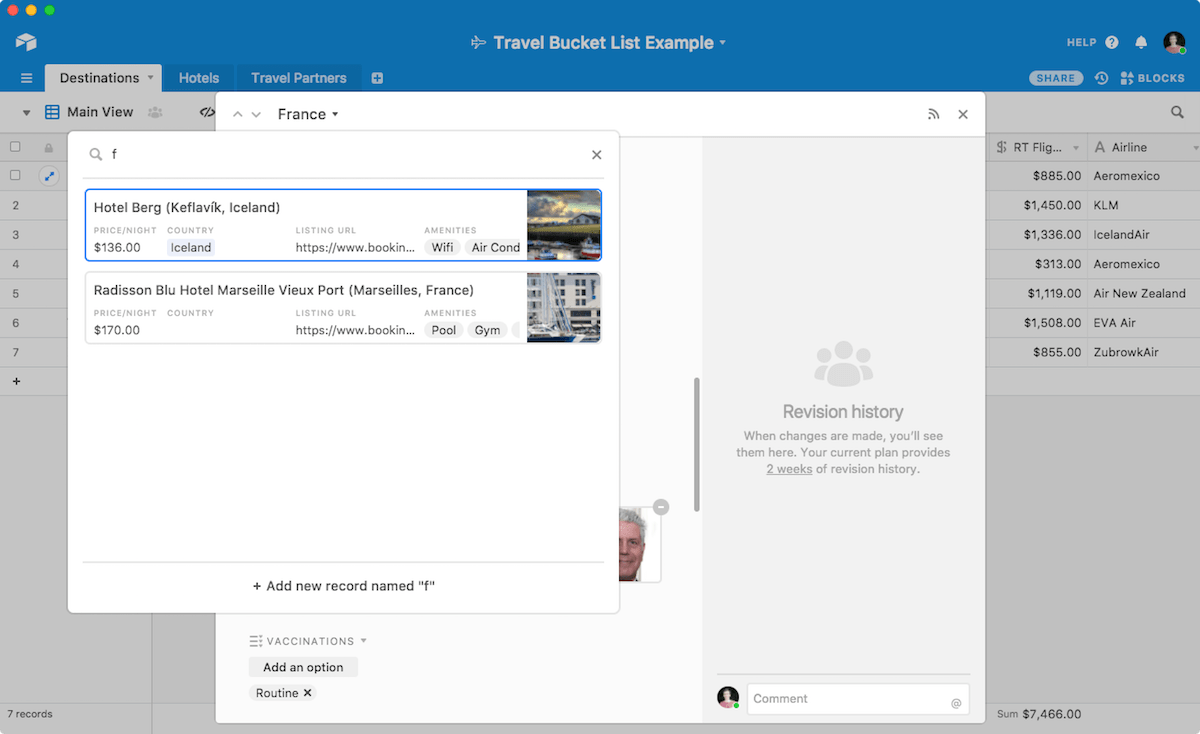
Airtable link record
In a database, you can link records and view all of their data inside one table (Airtable pictured)

Every time you go through checkout at a store, the point of sales software is looking up everything you purchase in a database. The clerk scans the barcode on an item, turns that into a number, looks up that number in the database, and adds its name and price to your receipt. No one needs to enter the same data multiple times—the database takes care of that.

In developer-focused database management systems like MySQL, you’ll do that with JOIN commands that link records across tables. Visual database apps like Airtable and Microsoft Access make things a bit easier.

In Airtable, say, you’ll add a Link to Another Record field to your table. Then, to link records, select that field and type in the name of an item from the other table—and Airtable will show a preview of that record’s details. That’s an easy way to pull in one data item from another table. Need to tag authors in your editorial calendar database from your author table or select hotels from a database for a trip plan? Airtable’s Link fields are perfect for that.

The Spreadsheet Way: LOOKUP Functions

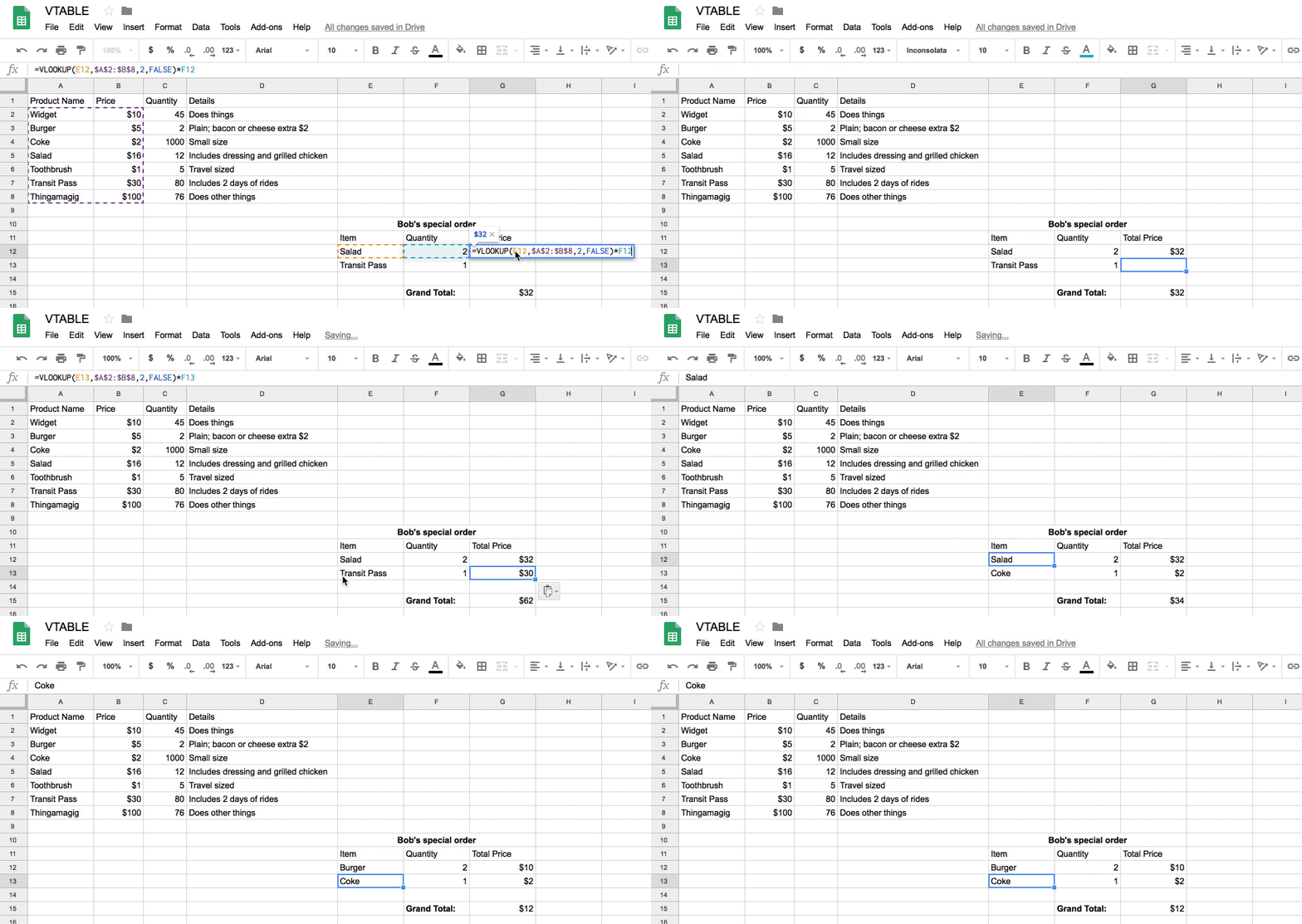
VLOOKUP Function in a Google Sheets spreadsheet
LOOKUP functions are the best way to find related data in spreadsheets (Google Sheets pictured)

Spreadsheets aren’t as interconnected as databases. They’re designed to list data in one place and calculate SUMs and AVERAGEs. And they can also search through your data and find related values—just in a slightly different way than databases.

All you need are LOOKUP functions, and most spreadsheet apps including Excel and Google Sheets come with three:

  • LOOKUP to match sorted data in one range with data in the same position in another range (Documentation: Google Sheets, Excel)
  • VLOOKUP to match data in one column with data on the same row in another column, whether sorted or not (Documentation: Google Sheets, Excel)
  • HLOOKUP to match data in one row with data on the same column in another row, whether sorted or not (Documentation: Google Sheets, Excel)

The LOOKUP function is more flexible if your data is sorted—but the VLOOKUP or HLOOKUP functions are more likely to get the results you need since they specify exactly how you want to search your spreadsheet.

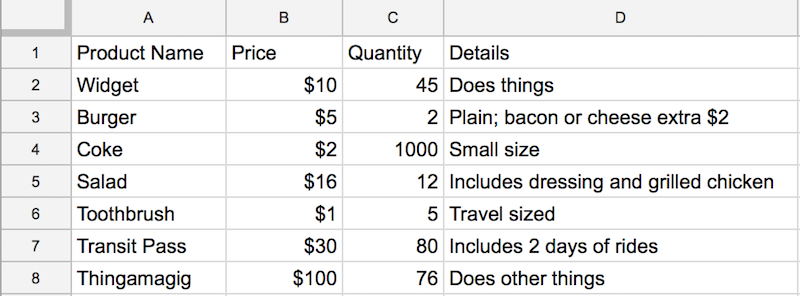
Example spreadsheet

Let’s try it out. Say you have a product table like the one pictured above, with columns for item name, price, quantity, and description. Underneath are rows including each of your items and their details, in the order you added those products to your store.

Want to find an item’s price? A VLOOKUP function is your best option. That lets you search column A for a product name, and return a price from column B. Here’s how to set it up:

  • Type =VLOOKUP( into an empty cell
  • Add your search key—the item you want to search for. typically here you’ll click on a cell in your spreadsheet with the text you want to search for like D7. Or, you could type in some specific text in quotes. Then add a comma.
  • Add your search range—the area of your spreadsheet that contains the data to search for and the matching data to return. You could click and select the range, or could type in a range—A2:B8 for this example. Want to make sure the range stays the same even if you move or copy the formula? Add $ before each number and letter, e.g. $A$2:$B$8. Then add a comma as before.
  • Add the column number that includes the results. Your spreadsheet will always search the first column to find the item you’re looking for—that’s column 1. If your results are in the column right beside it, enter 2 for the second column—or 3 for the next column, and so on. Add a comma at the end again.
  • Finally, if your data is sorted, type TRUE; otherwise (and this is the best option for most spreadsheets), leave the last option blank or type FALSE if it’s unsorted.
  • Add the closing round bracket ) to finish the function.
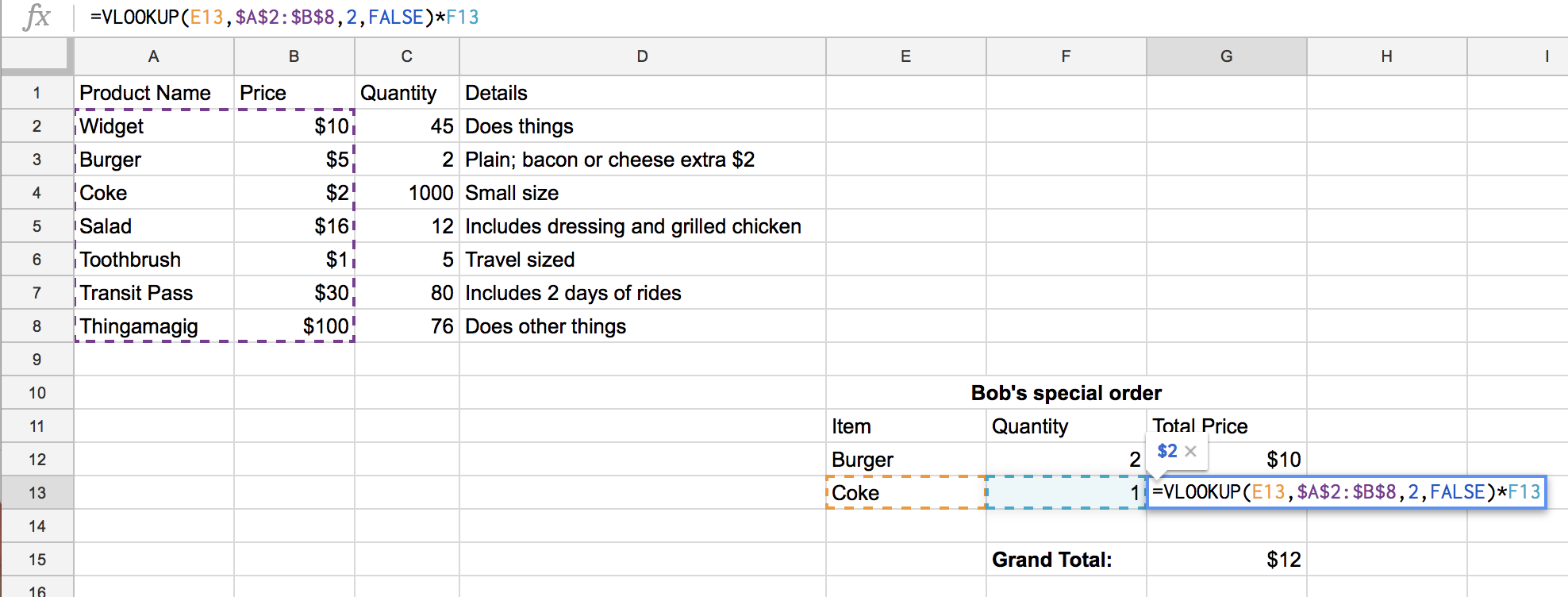
Finished VLOOKUP Function

For our example table, here’s the finished function: =VLOOKUP(E13,PRODUCT!$A$2:$B$8,2,FALSE). That will find the product name that you typed in cell E13 and return its price. It’s a handy way to find the price from your product table—or to find any other related data you need in your spreadsheets.

The Zapier Way: Automatically Find and Match Related Data Across Apps

Zapier Formatter Lookup Table
Zapier's Lookup Tables are a great way to match usernames, account numbers, and more

When all of your data is in one database or spreadsheet, linked fields or LOOKUP functions are a great way to link things together. But what if your data is split between multiple apps?

Say you have a customer support form that lets customers pick the product they’re having trouble with—but your inventory app lists the product with an ID number instead of its real name. Or perhaps you want to automatically assign tasks to specific team members, but one app uses their real name and another uses a shorter username. How can you match the two?

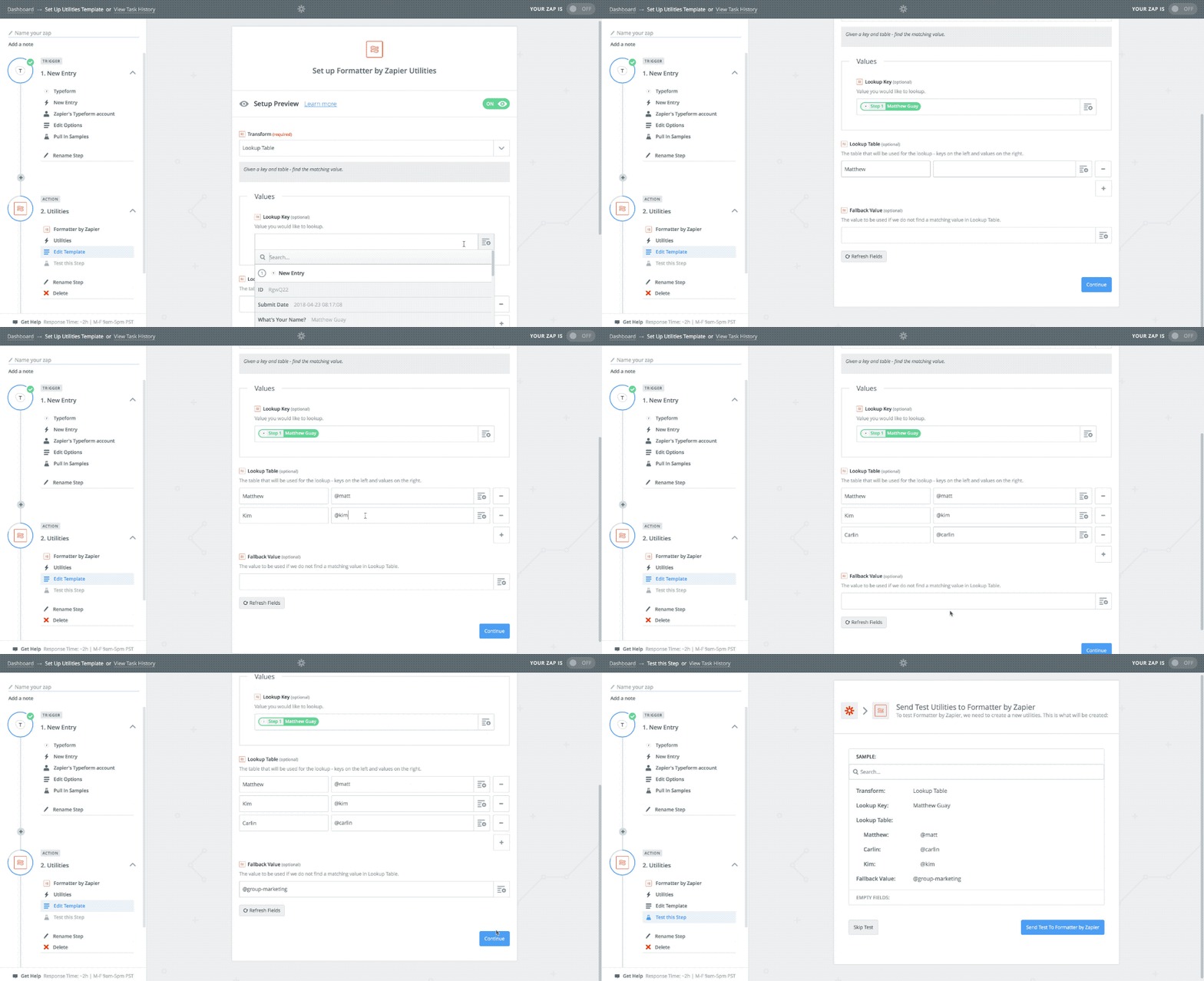
Zapier’s Lookup Table tool is the best option. It’s like a mini spreadsheet designed specifically for LOOKUP. Here’s how to use it—with the GIF example above looking up Slack usernames for real names from a form:

  • Start your Zapier workflow with the trigger app that has the data you want to lookup.
  • Add a Formatter action, select the Utilities option, then choose the Lookup Table transform.
  • Click the + icon beside the Lookup Key field and select the text you want to lookup from your trigger app
  • Underneath that you’ll see two boxes under the Lookup Table heading. In the box on the left, type in the text that will come in from the first app (a name in our example above).
  • In the box on the right, type in the value you want to use in the next app (a Slack username in our example).
  • Click the + icon under that to add a new row, then enter a new lookup item and its replacement text. Repeat that until you’ve added all of your options.
  • Finally, add a Fallback Value if you want to have Zapier use an alternative if no match is found on your table, then add your next steps to your Zap to finish building the workflow.

Say you want to look up Slack usernames. You’ll add real names in the first column on the left, and the Slack usernames on the right. Then, when the trigger app includes the name Matthew, say, Zapier’s Lookup Table will check for the text on the right column beside that name and return @matt in our example. That’d work to find many things: part numbers, product prices, day or month abbreviations, country codes, email addresses, time zones, and more. Put the item you want to search for on the left, its equivalent on the right, and Zapier will do the rest. You can even use it creatively, perhaps entering work shifts beside team member names to schedule tasks for the right time based on names, say.

Want more details? Check out our in-depth video to get the most out of our Formatter Lookup Tables:


Whether you’re working with multiple apps or have all of your data in one place, LOOKUP functions are a great way to get database-like features in almost any app. They help you link data in spreadsheets and even make apps connect better in Zapier even when their data doesn’t exactly match.

Do More With Zapier Formatter

Want Zapier to do more with text automatically? Check out our other tutorials for more ideas on how to use Formatter—and how to do those same things in spreadsheet and word processor apps:


source https://zapier.com/blog/lookup-data-excel-google-sheets/

Thursday, 10 May 2018

Our Favorite Zaps This Month: Automate Your Slack Status Updates

At Zapier, we're a fully remote team and use Slack heavily to communicate. The first week or two after I joined the team, I found myself updating my Slack status way too often. When I was generally free, I set the icon to the Romanian flag and typed my time zone in the status field to indicate to others where I was in the world. When in meetings, I'd change my status to reflect it. Out to lunch, coffee break, and running an errand all meant yet more status changes.

Perhaps as expected, I'd forget to clear my status after the meeting ended or once I returned from making coffee. "How long has it been that way? What if all my colleagues think I haven't been working this whole time?"

I know I'm not alone, as one of my colleagues spotted someone on Twitter lamenting about the same problem, and he suggested making a Zap [an automated workflow between apps you can create with Zapier]. I quickly did the same and then began building on them.

The Zaps here are ordered in terms of their level of difficulty. If you consider yourself a beginner, you might prefer reading these more detailed instructions for setting up Slack status Zaps from Zapier senior editor and writer Matthew Guay.

Beginner Level: Clear Slack Status

This simple but imminently handy Zap automatically clears your Slack status at whatever time you set. I created two of this variety: One that clears my status at 6:30 a.m. and one at 6:30 p.m. every weekday. The idea is to reset my status before and after the workday in case I forget and leave up an incorrect status for too long.

Beginner Level: Update Slack Status for Google Calendar Events

To build on what I had started, I created another Zap to show whenever I was in a meeting or had an appointment, as dictated by Google Calendar. Whenever a Google Calendar event starts, my Slack status changes to say "In a meeting" and show the calendar icon. After two or three meetings with successful Slack status updates, I realized I should also clear the status once the meeting or appointment ends. So I copied the first Zap, made a few changes, and ended up with the automations I needed.

Beginner Level: Push From Chrome, Slack Status for Focus Mode

When I need to focus, but also want to leave Slack notifications on in case something important arises, I update my status to say Focus Mode and use the headphones icon. But when I get into a good flow state and am focused, the last thing I want to do is pop into Slack to update my status and possibly get distracted while I'm at it. So I created a Zap that lets me update Slack to a predefined status (in this case, :headphones: Focus Mode) in two clicks using the Zapier Chrome Push extension instead. It's more efficient and less interruptive than doing this manually.

Another riff on the same idea is to update to Focus Mode, or whatever you like to call it, whenever you start a timer in a time-tracking app supported by Zapier, such as Toggl or Harvest. And with that, you never have to think about telling your colleagues when you're working.

Intermediate Level: Generate and Send a Meeting Link at Meeting Start Time

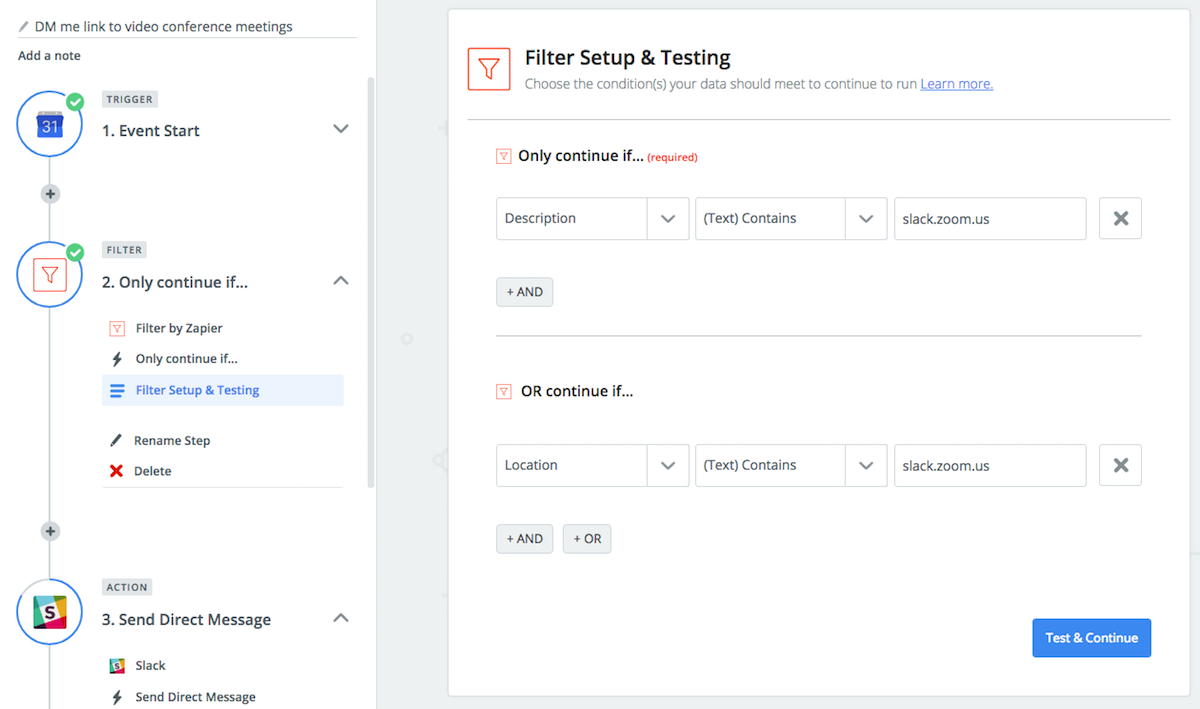
Just as I was digging into Zaps for Slack statuses and meetings, I got wind of a tip from Matt Haughey, who writes the Office Hours blog at Slack. He created a Zap that looks for Google Calendar events containing slack.zoom.us, which indicates the event is a virtual meeting using video conferencing system Zoom. The Zap pulls the URL for the video conference and, right as the meeting starts, sends it to him as a direct message. He says it "literally saves me 2 to 3 minutes before every meeting, all day, every day." You could easily tack onto this Zap another rule that updates your Slack status to show the video camera icon, letting others know you're in a virtual meeting.

Advanced Level: Clear or Update Slack Statuses for Multiple Accounts From iPhone

This next Zap is a huge time-saver for anyone who has multiple Slack accounts and needs to update the status across all of them quickly from an iOS device. After it's set up, you push one button on your iPhone or iPad, and all your statuses across all your Slack accounts update to whatever you set. The Zap might look complicated, but it took me only around 10 minutes to set it up from start to finish. A nod to Michael Luchen of Crema Lab for his Medium post with instructions for setting up this multistep Zap.

Here's a summary of how to create it, if you don't need Luchen's detailed instructions:

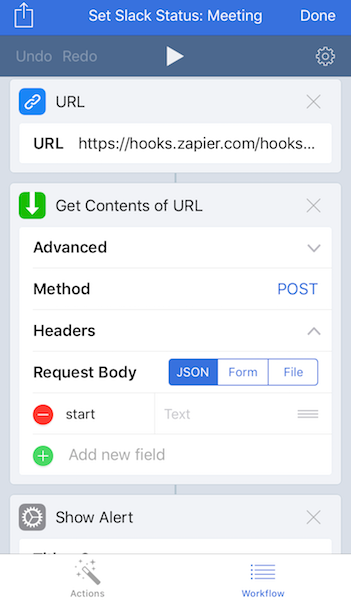
  • First you'll need to install the iOS app Workflow by Apple.
  • Then in Zapier, create a new Zap by starting with Webhooks as the trigger (Catch Hook option).
  • Connect whatever Slack accounts you want as Steps 2, 3, and so forth, and enter whatever status update you want to show for each one.
  • Now, from your iOS device, you can either build an automation in Workflow using the URL > Get URL Contents function; or you can use this template for updating Slack using Zapier via Workflow (open the link on your iOS device).
  • Return to your Zap, visit Step 1 again, and copy the URL that's generated from the View Webhook option.

Look for new lists of Our Favorite Zaps every month.


source https://zapier.com/blog/favorite-zaps-slack-status-updates/

Tuesday, 8 May 2018

All I Really Need to Know About Management I Learned from Parenting

Let's get something straight: I'm not about to tell you that you need to be a parent to be a good manager. I'm also not about to tell you that your employees are anything like children. (If they are, stop reading and go take care of that problem.) And I'm certainly not telling you to cut the crusts off your employees' PB&Js.

Instead, I'm here to reflect on all the ways that being a parent tweaked, honed, and sometimes reinforced my management style. I've managed dozens of employees over the past 6 years, and I'm currently in charge of a rather squishy 1-year-old. The lessons I've learned—and continue to learn—from parenting have helped me grow as a manager. Some are pretty concrete while others are a little less tangible, but here are the 9 lessons that stuck out the most.

1. Your Accountability Helps Others Take Risks

Kids count on their parents. They may not be explicitly grateful for it—or even aware of it, honestly—but they expect you to clothe them, feed them, comfort them, and buy them things they'll stop caring about 4 days later.

And it's that unspoken accountability that allows your kids to take risks.

Even with a tiny tot, it's abundantly clear. When my 1-year-old climbs on the foam mats in our living room, he looks back at me before crawling up to the highest mat. I don't have to do anything—no encouraging, no spotting, nothing. In that moment, he just wants to know I'm there before he goes out of his comfort zone.

Kid climbing on a playground
Not my kid.

The same goes for your employees. If they know you have their back, they'll take more risks and produce better work. When I managed a support team, I would always hop on a ticket to mitigate if a customer became aggressive. Because my team knew I was there to do so, they started to be more assertive with their responses, which usually took care of any issues—and in the end, I had to intervene less and less. Because they knew I was there as a backstop, they went out of their comfort zone.

Show them, tell them—whatever works. But if you're accountable on the daily, it'll have a ripple effect through your employees' work.

2. Make It a Habit to Give Effective Feedback

Wouldn't it be great if you could just tell an employee "do better" and they'd magically internalize it and grow? Well, that's not the way the world works.

I never realized the value of descriptive feedback until I had a kid. Just saying "no" to a kid does precisely nothing. Why "no"? What effect did their action have? What can they do next time to turn it into a yes?

I'm already trying to do this with my 1-year-old. When he starts crawling full speed ahead toward the dog food bowl, instead of just saying "no," I tell him "no, that's Winston's food. If you knock it over, he won't have any breakfast and he'll be hungry." Sometimes it spirals into a story about a hungry Winston morphing into Hulk Dog, but…you get the gist.

Deb's dog eating a cupcake.
This might be why my kid wants my dog's food.

Now I map that on to professional feedback. Instead of asking my direct reports if they can "pay more attention to detail" or "be more engaged in meetings," I provide context. "Grow through feedback" is one of the core values at Zapier, and we practice it every day:

"When you miss things while proofreading, it can reflect poorly on the quality of our core product. If someone spots a typo in our copy, they'll probably expect that our product is also less than perfect."

"When you're disengaged in meetings, it makes the rest of the room feel like you don't care about what they have to say. That'll make it hard to build a rapport with them, which is only gonna make your work life harder, not to mention being detrimental to company morale."

Kids love to ask "why," and we can all learn a lesson from that. Usually, it's the "why" that'll make the impact. This can be challenging as a parent: Sometimes the answer is just "because I said so." But when given effective feedback, kids—and employees—will start to answer the "why" for themselves.

3. Facilitate Routines and Schedules

I've never been a spontaneous person. I've always relied on routines and schedules, so that aspect of parenting didn't faze me. I sleep trained my son as soon as I could, I observed his sleeping and eating habits to find patterns, and I made sure to have a consistent bedtime—for him and for me. As he grows up, that kind of routine will be even more important.

"It's called 'authoritative parenting,'" says Colin Johnson, early childhood educator and dad (to my kid, coincidentally). "The predictability offered by structure gives children a sense of comfort, which leads to more flexibility and independence. Of course, too much structure—or, on the other end of the spectrum, too much freedom—can backfire, so you want to find a balance."

As a manager, I like to give my employees lots of autonomy, but I also make sure to provide them with enough structure to thrive within that autonomy. For example, instead of "write the newsletter," I'd say "write the newsletter, which should focus on back-to-school and highlight at least three LMSes."

Jim from The Office giving his rundown.
Never ask for a rundown.

The best part about giving my employees structure is actually selfish: It helps me be able to predict their behavior a bit more. I know where they tend to veer off from routine (which, again, totally fine) and I'm better able to manage that ebb and flow. Turns out that's also true in parenting. Colin adds:

"Rules and structure also help kids predict what other people are going to do. So when they're working with a team or in a group, it's easier for them to figure out how everyone else will behave. For kids—who don't have a lot of experience with the world around them quite yet—that's incredibly important."

4. Everyone Has a Different Style

Hot off the presses: No two people are the same.

Obvious, yes, but it's never clearer than with siblings. One might be shy while the other's outgoing. One's into books and the other prefers TV. Or maybe it's a subtler difference: They both love basketball, but one is better at offense and one at defense. (You've always excelled at bench-warming.)

When that's the case, it can mean adjusting your parenting style for each kid.

Unsurprisingly, when I asked the Zapier team about their experience with siblings, everyone had the same answer: They're all so different.

Muness Castle, Zapier data team manager and father of six, knows what that's like: "Our 8-year-old gets ready in the morning, reminds us to pack her lunch if we forgot, and always has appropriate clothing ready (she checks the weather the night before). Our 14-year-old still forgets to pack a lunch and often wears boots on nice warm days and sandals in snow (and no, she’s not just being cool)."

He continues: "You give each kid what they need: Some need structure; others need flexibility. Some need lots of extrinsic reinforcement to, say, eat apples or use the restroom; others just do those things and adding a reward to them just means they’ll refuse to sans reward next time."

My favorite child pie chart

Map that on to management, which isn't a one-size-fits-all kind of situation. Each of your employees needs something different from you. Some need you to be more hands on, others more hands off. Some need recognition, others respect. Some want smiley faces in emails, while others run don't walk at the mere sight of an exclamation point.

When it comes down to it, we need to adjust to our employees' work and communication styles. That doesn't mean we can't be ourselves or work according to our own values; we just need to be willing to accommodate. For example, I had an employee who was a zombie until 11:00 a.m. Instead of spiking their morning coffee with Red Bull, I just made sure not to schedule 9:00 a.m. meetings with them.

5. Don't Forget to Take Care of Yourself

If you've been on a plane, you know that you're supposed to put your oxygen mask on before helping someone else. There's a reason for that: You won't be able to help the person sitting next to you if you're oxygen-deprived yourself.

The same rule applies to parenting. It's easy to get wrapped up in your kids to the point where you, uh, forget to shower…or eat or sleep. But that doesn't end well for anyone. You get hangry and tired—not to mention smelly—and then you can't take care of your kids as well as you should.

When my son was still a bi-hourly alarm clock, my husband and I would both wake up for every middle-of-the-night feeding. We're a team! We should support each other! Who needs sleep anyway! As you can imagine, that led to two overtired parents who weren't as engaged or focused for their kid during the day. When we switched things up, each owning alternating feedings, things immediately improved. We were each more well rested and were able to enjoy those first few months as they flew by.

When it comes to management, I apply the same practice. It's hard not to prioritize your employees' needs—that's your job, after all. But burnout is a real thing. It's hard to measure, of course, but studies show that it affects up to 85% of workers in certain industries. If you focus on your direct reports at the expense of yourself, you won't be able to do best by your employees.

So take care of yourself. And don't forget to shower.

6. Delegate Whenever You Can

There's a lot of pride involved in parenting. "I don't need help. I can do this on my own." Spoiler alert: You can't. Raising kids is no walk in the park, and you need to accept help wherever you can get it.

Once I was able to swallow that pill, it made it a lot easier to see the same situation in my management style. It's tough to relinquish control, and you might think you're protecting your employees by bearing the burden for them, but…you're not. In fact, delegating benefits everyone:

  • You don't overwork yourself. See: not burning out.
  • Your employees gain valuable skills. It's your job as a manager to help your employees grow, and allowing them to try new things will do just that.
  • The company gets a fresh perspective. Even if you're the best in the biz, having fresh eyes on a task will help. (Plus, with all the newfound time you have, you can be those fresh eyes on other projects.)

7. Balance the Desire to Be Liked with the Need to Be Respected

If you're working with like-minded individuals, it can be tough to keep your distance in regards to friendship. But when it comes time for performance reviews or salary negotiations, you'll be happier if you're not emotionally involved. Plus, if you get too chummy, your direct reports might expect special treatment.

Until I had a kid, this one kind of slipped me by. Being friends with your employees seemed like the best of both worlds. If you have to spend 40+ hours/week with these people, you might as well like them, right? But once my son was born, I started to rethink it.

Yes, I'd love to be the fun mom whose kid thinks they're hilarious and awesome in every way and who serves as a best friend and partner in crime. But it's probably better for my kid if I'm able to provide the necessary support that their friends can't give them—particularly of the limits and discipline persuasion.

Your employees have friends. They have family. They have their social media newsfeed that will tell them which celeb couple broke up that day. So while it's great to be friendly with your employees—no one wants to work for a misanthrope—it's probably best to leave the socializing at home.

8. Incentivize

We'd all love to live in a world where everyone did their best just because it was the right thing to do. We'd also love to live in a world where Reese's Pieces were a health food. But, hey, you can't win 'em all.

I never loved the idea of bonuses: Shouldn't my employees just be working at 110% all the time? Why do they need a bonus to make them go above and beyond? Answer: Because they're human. I finally came around to the concept of bonuses by observing the power of incentive in parenting.

"Our newest thing is getting raffle tickets for doing household chores, which they can exchange for new toys." - Adam DuVander, developer marketing at Zapier

Of course, incentives don't work for everyone:

"One of them has been extremely motivated by this and the other kind of shrugs." - Still Adam

But if you identify that your employees would benefit from incentives, go for it. And remember, the incentives don't have to be monetary (or toy-based). An extra vacation day or company swag can do the trick.

9. Take Some Credit—on the Inside, at Least

Every once in a while, my kid—like everyone else’s kid—does something…good. And occasionally, people give me credit for it. Whenever that happens, I always shoot back with some version of "yeah, we really got lucky." And let's be clear: We did get lucky.

But recently, someone told me I should give myself more credit for how my kid is turning out. And while it's hard to do—especially since there are so many factors involved that have nothing to do with parenting—I'm working on it.

And that's seeped into my management style, too. Your employees are the ones doing the work—you didn't inject them with their skills and smarts—but they wouldn't be able to do it without you there. So, yes, you're lucky to have amazing employees, but remember that you play a major role in their success.


It's no surprise that being a parent leaks into all parts of your life—including the professional. But what I realized recently is that being a manager in my pre-kid life also prepared me for parenting. Being partly responsible for the professional growth of another human being as a manager made it a lot less scary to become mostly responsible for the personal growth of another human being as a parent.

Hero image from Pixabay. Image of child on playground from Pixabay. Pie chart image from Someecards.


source https://zapier.com/blog/management-lessons-from-parenting/

Monday, 7 May 2018

Automate Your Inbox with these Tips, Tools, and Templates

Email helps us connect, communicate, and collaborate—but does it help too much? We receive an average of 94 business emails every day and devote almost one-third of our time at work to email management. Bottom line: the benefits of email often come at the expense of productivity.

To reclaim your time, automate your inbox. Here are the tips, tools, and templates you need to get started.

An Introduction to Inbox Automation

Let's start with a definition:

Inbox automation is the process of setting up workflows that complete repetitive email tasks automatically—so you don't have to.

When you think about it, a lot of the emails we receive are redundant. We answer the same questions over and over again, go back and forth looking for a good time to schedule a meeting, and move newsletters into a folder of emails we'll get around to reading… one of these days. These tasks are necessary, but they're usually repetitive and mindless.

They're ideal for automation.

Even if you're just automating the process of moving newsletters into a to-do folder—a task that takes no more than five seconds—the time you save adds up. And the more inbox automation workflows you create, the more time you save, and the more time you have to focus on the important tasks that happen outside of your inbox.

Start by Deciding What Tasks You Should Automate

Before automating your inbox, you need to determine what types of inbox management tasks to automate. There are a couple ways to do this:

  1. Scan through a month's worth of emails in your archive to look for examples of repetitive tasks you completed recently.

  2. Track the types of tasks you complete in your inbox for a month. Take notes on the types of things you do regularly.

Here are some examples of common time-wasting emails:

  • Frequently answered questions: Questions you answer over and over again.
  • Availability requests: People looking for openings in your schedule to set a meeting.
  • Newsletters and marketing emails: Things you want to read or review… later.
  • Unsolicited requests: Strangers who want you to do something for them.
  • Tasks: To-dos that belong in your task management system.

Reviewing a month's worth of emails probably won't catch every task you should automate, but it will help you identify the ones that eat away at your time most often.

Once you know the types of emails you want to automate, it's time to set up your automated workflows. Follow the instructions below to set up workflows for the most common time-wasting inbox management tasks, and start reclaiming the time you waste in your inbox.

Automate Responses to Frequently Answered Questions

Back when I worked as a product manager, I was the go-to subject-matter expert (SME) for my product. Being an SME sounds much fancier than it is: For the most part, it just means answering the same questions over and over again—usually via email.

There are a few ways to deal with responding to FAQ's. You could

  • recreate and retype the answer every time.
  • find an old answer and copy-paste it into the new email.
  • use a tool to save commonly used responses and add them to new emails with one click.

Door #3 requires the least amount of time and effort. And with the right tool, it's easy to set up. Here are several options to consider.

TextExpander

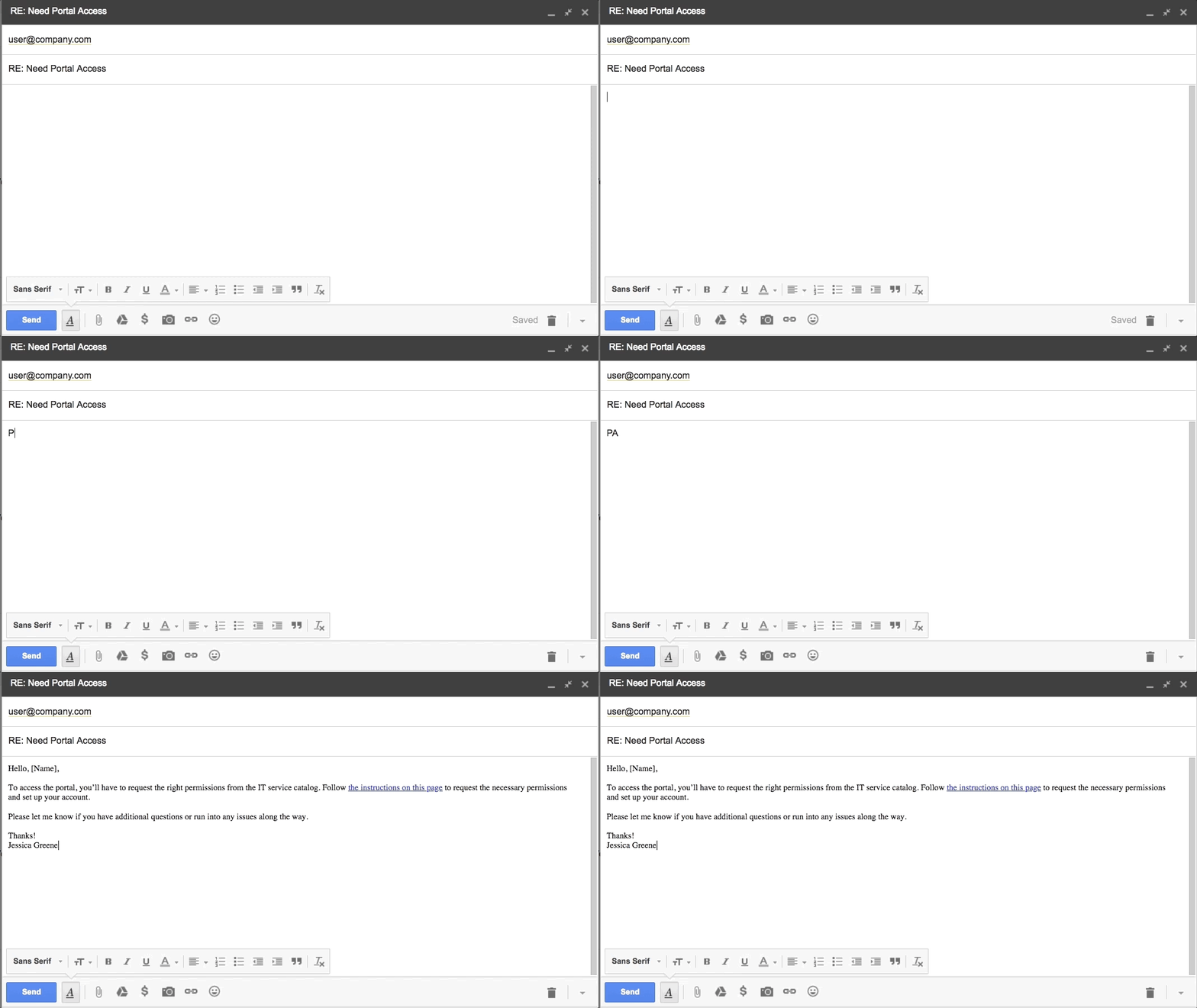
TextExpander lets you create and save snippets of text and insert them into new emails and replies instantly using a keyboard shortcut.

Here's how to set it up:

  1. Create an account and download the app from the TextExpander website.
  2. Create a snippet in the TextExpander app for each response you send frequently. Make sure to give your snippet a name in the "Label" field and create a keyboard shortcut in the "Abbreviation" field.
    TextExpander set up
  3. After creating your snippets and keyboard shortcuts, just type the appropriate abbreviation into an email response, and TextExpander will automatically insert the snippet.
TextExpander inserting snippet

Magic.

The best thing about TextExpander is it works in every application—not just email. So if you also answer questions in Slack or over IM, you can use TextExpander in those programs too.

TextExpander pricing: From $3.33/month for the Life Hacker plan after a 30-day free trial.

Outlook 365 Quick Parts

If you use Outlook 365 and don't want to pay a monthly fee for TextExpander, use Outlook's Quick Parts feature to create and insert default responses. Here's how to set it up:

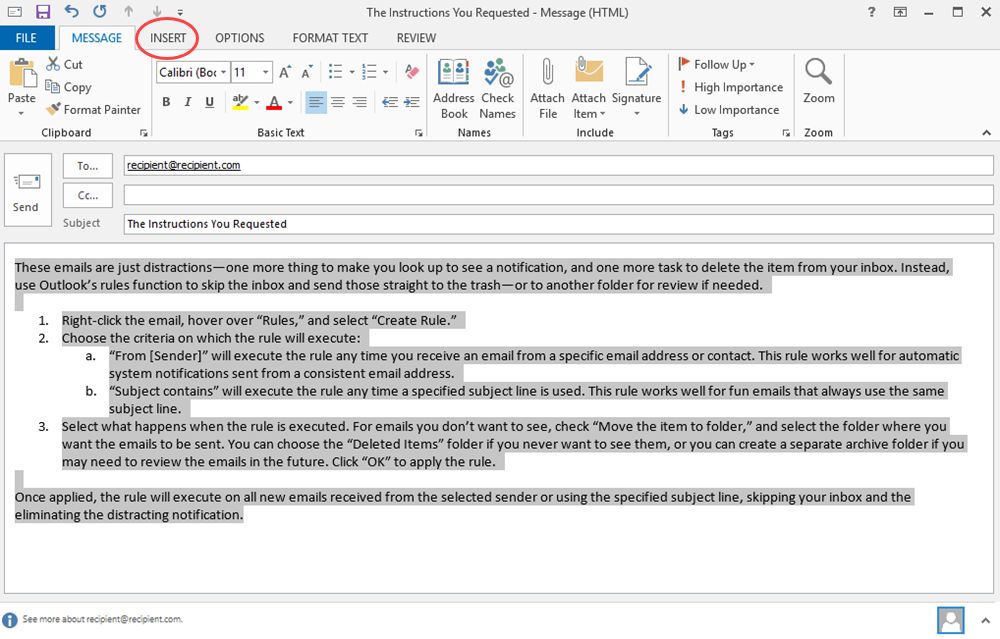
  1. Find a pre-typed response you want to save, or type a new response into a new email. Highlight all of the text, and click the "Insert" tab.
    Choose Quick Parts text
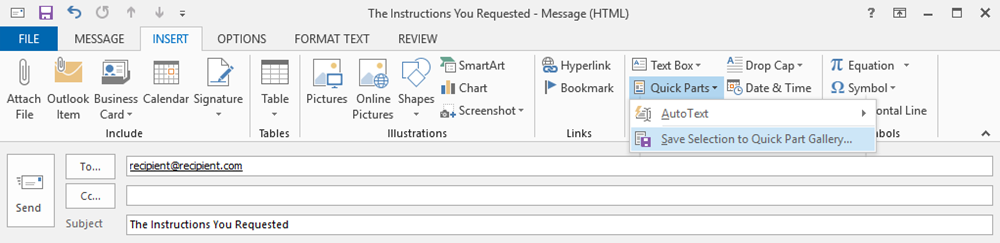
  2. Click "Quick Parts," and select "Save Selection to Quick Part Gallery."
    Save Selection to Quick Part Gallery
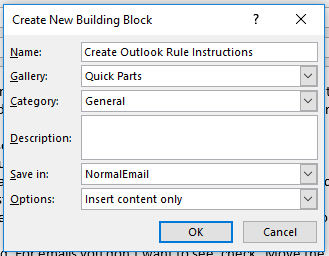
  3. Name your Quick Part for easy identification later, and click "OK."
    Save Selection to Quick Part Gallery
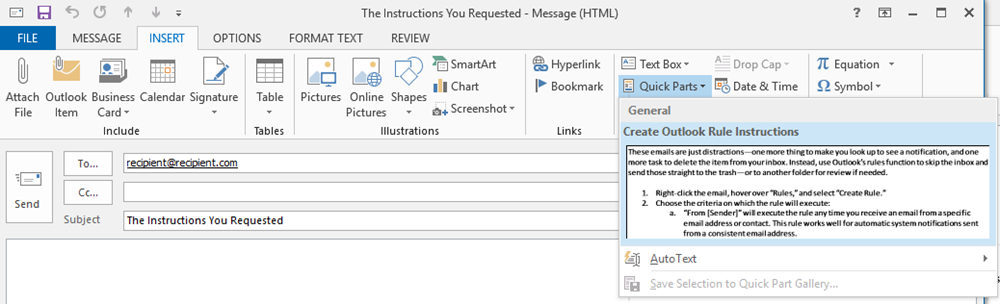
  4. Now, when you want to insert that response into a new email or reply, click the "Insert" tab, click "Quick Parts," and select the response you want to insert.
    Insert saved text

    The text will automatically appear in the body of your email.

Quick Parts pricing: Quick Parts is a free, default feature of Outlook 365.

Gmail canned responses

Gmail also offers a solution for repeat responses: canned responses. Canned responses is a free, optional feature available in Google Labs. Here's how to set it up:

  1. Log in to your Gmail account.
  2. Click the gear icon, and select "Settings."
    Click settings
  3. If you're using the 2012 version of Gmail, click the "Labs" tab. If you're using the new 2018 interface, click "Advanced." Next to "Canned Responses (Templates)," select the "Enable" radio button. Scroll down to the bottom of the page to save your changes.
    Enabling canned responses
  4. With canned responses enabled, start creating your snippets. Find the text you want to save, or type it into a new email. Click either the down arrow (2012 Gmail) or three vertical dots (2018 Gmail) at the bottom-right of the compose email form, hover over "Canned responses," and select "New canned response."
    Creating new canned response
  5. To insert a saved canned response into a new email or reply, click the down arrow (2012 Gmail) or three vertical dots (2018 Gmail) at the bottom-right of the compose email form, hover over "Canned responses," and select the title of the response you want to insert.
    Selecting saved canned response

    You guessed it: The text will automatically appear in the body of your email.

Gmail canned responses pricing: Canned responses is a free Gmail feature available through Google Labs.

Share Your Availability Automatically

Most companies offer a way for coworkers to view each other's availability, which makes scheduling internal meetings a breeze. But when you're trying to schedule time with someone from another organization, well, that's a different story.

It usually goes something like this:

  • Do you have time this week to jump on a call?
  • Sure! I'm available today from 2-3 p.m.; tomorrow from 8-9 a.m., 11-noon, and 3-4 p.m.; and Friday from 9-11 a.m.
  • Sorry, none of those times work for me. How about next week?
  • I can meet anytime on Monday, but I'm out of the office for the rest of the week.

And so on.

You review your calendar, type all of your open slots into an email, and hope both parties have one shared open hour. It's not a good use of anyone's time.

Instead, reclaim your time by adopting a tool that automatically shares your availability for you.

Calendly

Platforms: Google, Outlook 365, and iCloud

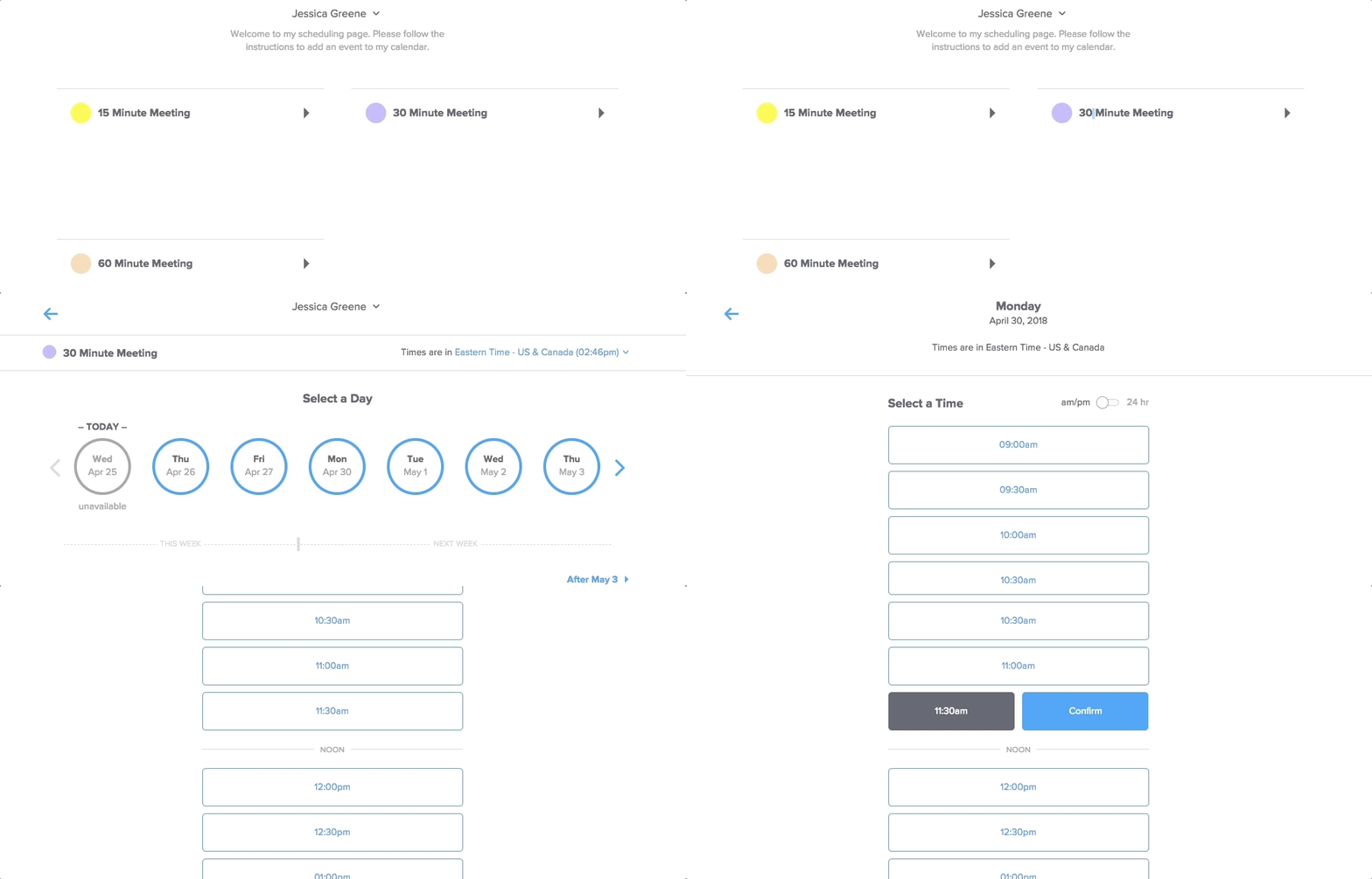
Calendly automatically pulls your availability from your calendar and shares openings in your schedule with anyone who has your Calendly link. It integrates directly with Google, Office 365, and iCloud calendars so you never again have to send out a diary of your availability.

Here's how to set it up:

  1. Sign up for an account on the Calendly website.

  2. Follow Calendly's guidance to set up your account and meeting types.

  3. Grab the link to your scheduling page, and send it to anyone who asks for your availability.

  4. People can select a meeting day and time from your Calendly scheduling page, and Calendly adds the meeting to your calendar and sends notifications to all participants.

Calendly view

Calendly also has an option to embed your scheduling page on your website—a useful feature for salespeople looking to schedule calls or demos with leads and avoid email altogether.

Calendly pricing: Free for the Basic plan that includes one event type and a personalized Calendly scheduling link.

Mixmax

Platforms: Gmail and Google Inbox

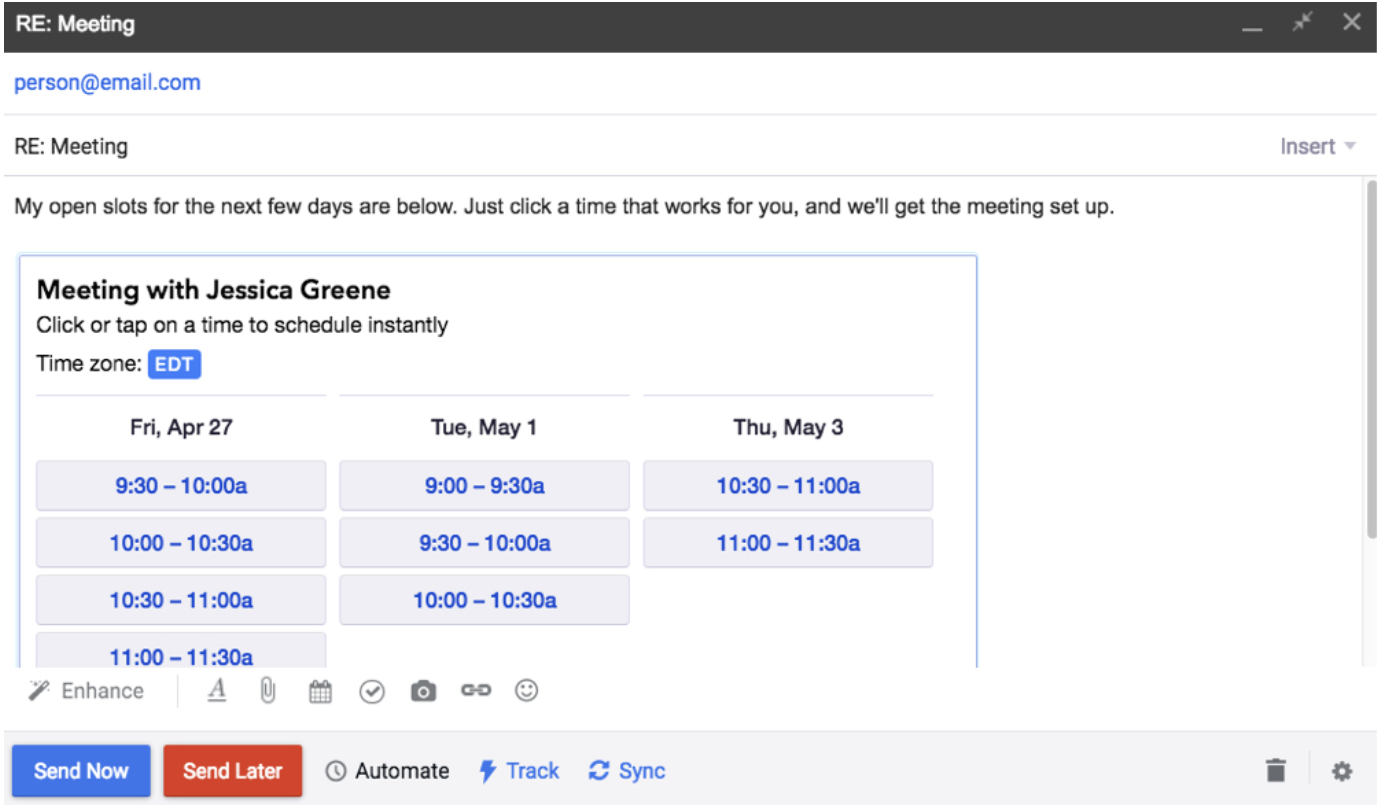
If you don't want to make your entire calendar available to strangers, Mixmax offers a different solution: It allows you to choose available times and embed a schedule of those times directly into an email.

Here's how to set it up:

  1. Click the "Install for free" button on the Mixmax home page, and accept Google's confirmation that you want to install the extension.
  2. Open your email account, and click the "Activate Mixmax" button.
  3. After navigating through the installation and welcome workflows, open a new email, click the calendar icon, and select "Share availability."
    Clicking share availability
  4. Select the times you want to share, and click "Insert times." Mixmax embeds the times you selected into the email. Recipients just need to click the time they prefer, and Mixmax schedules the meeting and sends out notifications automatically.
Mixmax view within email

Mixmax also offers an email template feature, so if you decide it's the right scheduling tool for you, use it for FAQ's too in lieu of the tools listed in the previous section.

Mixmax pricing: From $9/month per user for the Starter plan that includes unlimited scheduling.

x.ai

Platforms: Google, Outlook.com, and Outlook 365

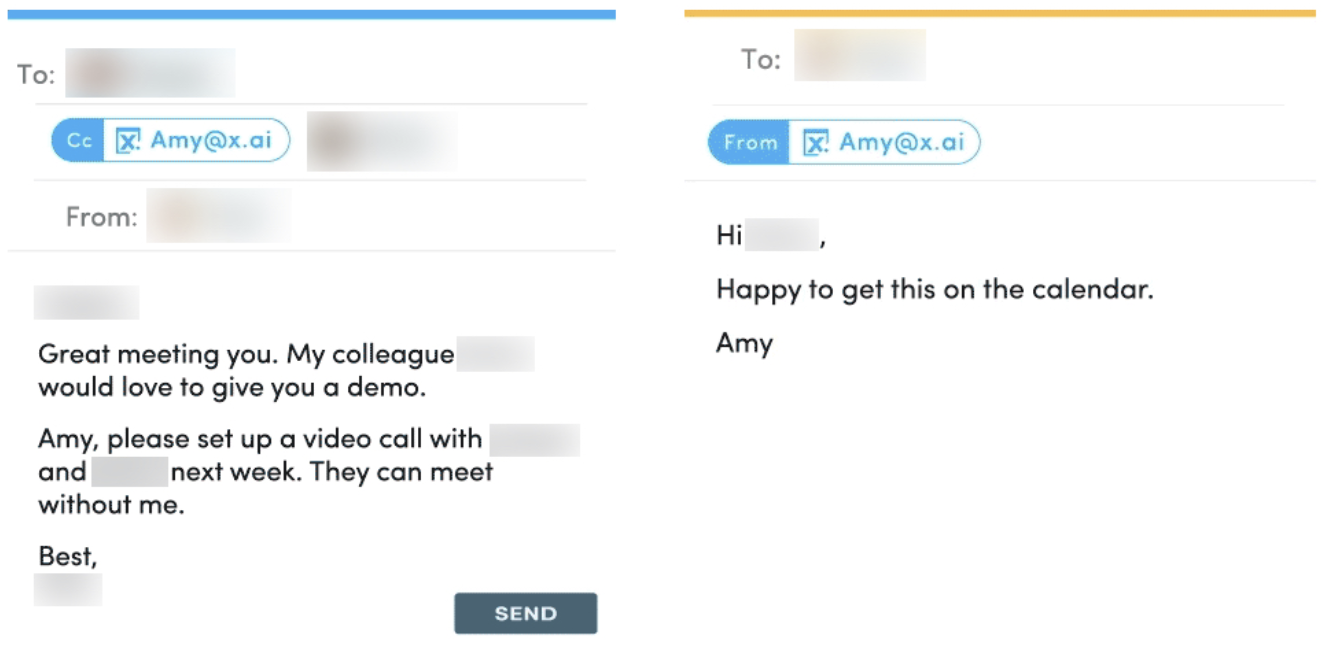
View of x.ai

If you want to provide a more personalized experience, use X.ai. X.ai's Amy is an AI-powered personal assistant that communicates with you and your email recipients in the same way a real person would. Just copy Amy on any email and ask her to set up a meeting, and she handles all of the coordination and scheduling for you.

Sure, it's a little HAL-like, but it does the trick.

X.ai pricing: From $17/month for the Individual plan that includes all scheduling features for a single user.

Get Promotional Emails out of Your Inbox Automatically

When I see a notification that I have an email, it takes a whole lot of self control not to check it immediately. My favorite description of this phenomenon comes from Jocelyn K. Glei, author of Unsubscribe. She says email is like a slot machine: Most of the time, you lose, but sometimes, you find something amazing.

And that's why it's addictive.

The amazing emails come to mind when you see a new notification, but often what you find is a marketing email, some company's newsletter, or an Amazon receipt for something you literally just ordered and still managed to forget about.

Handling these types of emails doesn't take a lot of time, but each one you receive is a distraction. And considering it takes 16 minutes to refocus after an interruption, incoming email notifications have a bigger impact than just the 5 seconds it takes to deal with them.

To prevent promotional emails from taxing your productivity, use the following tools and tricks to get them out of your inbox and into a more appropriate queue.

Gmail filters

Set up a few filters in Gmail to move promotional emails into a to-do folder, archive them, or delete them automatically. Here's how to do it:

  1. When you receive a promotional email, click either the down arrow (Gmail 2012) or three vertical dots (Gmail 2018) at the top-right of the email, and select "Filter messages like this."
    Selectiing filter messages like this
  2. Gmail will auto-populate the correct details in the "From" field of the create filter form, so on the screen that pops up, just click "Create filter with this search" (Gmail 2012) or "Create filter" (Gmail 2018).
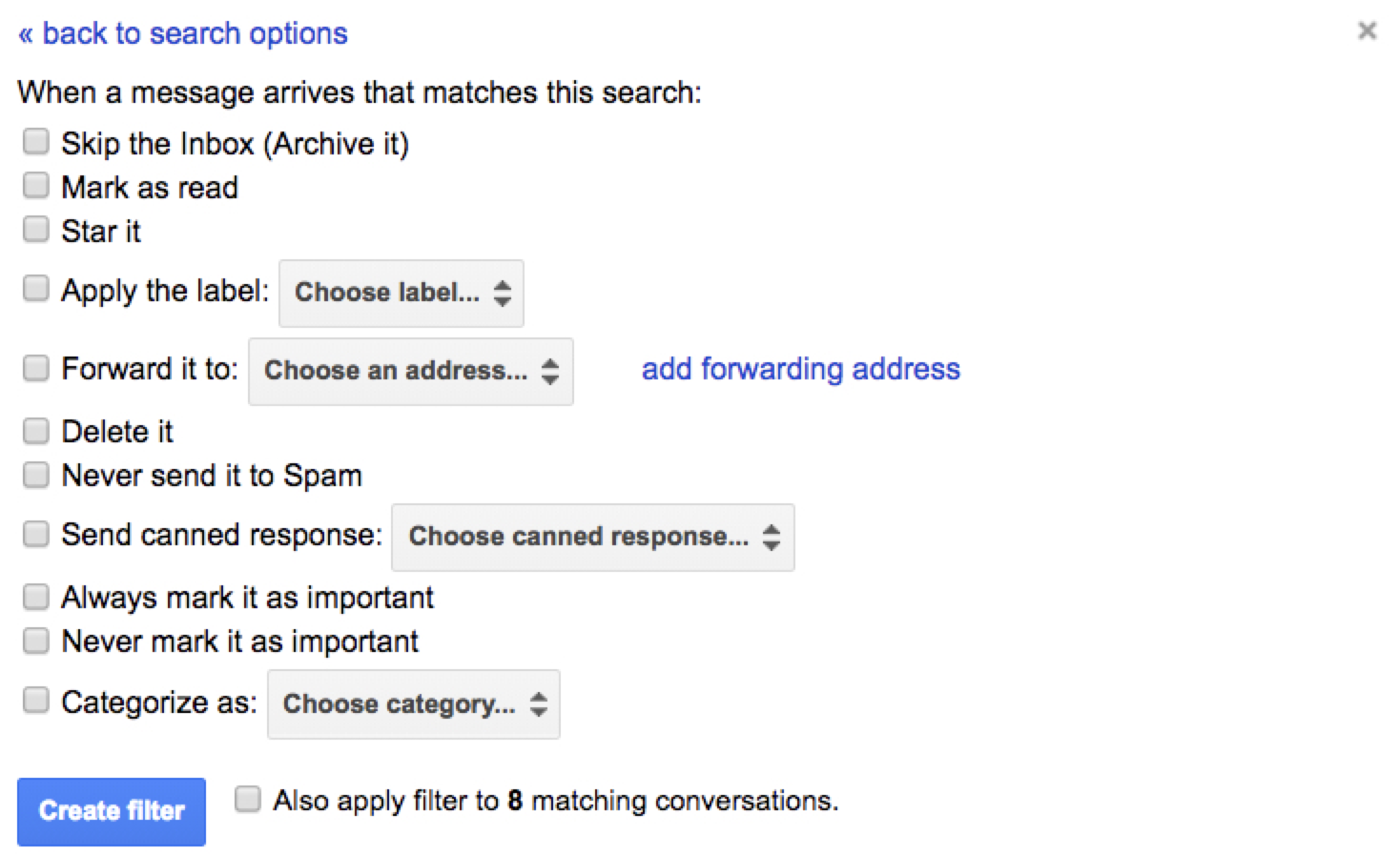
  3. On the next screen, choose what you want Gmail to do with emails from that sender. Select "Skip the Inbox (Archive it)" to automatically archive those emails, "Delete it" to automatically delete those emails, or "Apply the label" to automatically move emails from that sender into your to-do queue. Finally, click "Create filter" to apply your changes.
Creating the filter

Do this for each marketing email you receive to ensure that future emails skip your inbox and go to the right place, or check out our guide to Gmail filters to discover additional tips on using filters to keep your inbox organized.

Gmail filters pricing: Filters are a free, default Gmail feature.

Outlook rules

Outlook rules do the same thing as Gmail filters: They let you establish workflows for automatically deleting or moving emails. Here's how to set them up:

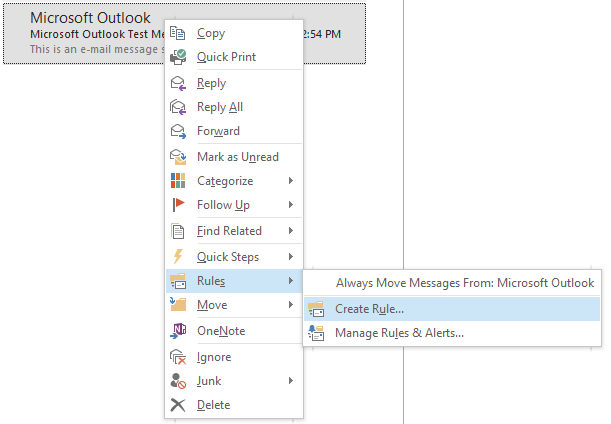
  1. Right-click a promotional email you want to apply a rule to, hover over "Rules," and select "Create Rule."
    Selecting create rule
  2. Choose the criteria for the rule, and select "Move the item to folder." Next, select the folder where you want the emails to go. Choose "Deleted Items" to automatically delete future emails from that sender, or select a to-do folder to move future emails into a to-do queue. Click "OK" to apply your changes.
    Choosing criteria

    Do this for each promotional email you receive to make sure future emails skip your inbox and go to the right place.

    Outlook rules pricing: Rules is a free, default feature of Outlook.com and Outlook 365.

    Rules in Mail for Mac

    If you manage your email with Apple's Mail program, set up rules to automatically handle incoming promotional emails. Here's how to set it up:

    1. From the main program menu, click "Mail" and select "Preferences."
      Choose preferences
    2. Select "Rules," then "Add Rule."
    3. Give your rule a title, select the criteria for the rule, and select what should happen when applying the rule. To automatically delete the email, select "Trash" in the "to mailbox" dropdown. To move the email into a to-do queue, select your to-do folder in the "to mailbox" dropdown. Click "OK" to apply your changes.
    Selecting criteria

    Do this for each promotional email you receive to make sure future emails skip your inbox and go to the right place.

    Rules in Mail pricing: Rules is a free, default feature of Apple's Mail program.

    Respond to Fewer Unsolicited Requests

    Not too long ago, I received an email from someone asking me to link to one of their articles—from my writing portfolio. I didn't bother writing back to explain that the page is a list of links to things I've written. Even the smallest amount of effort on the sender's part would have made that clear.

    Mass emails and lazy senders generally don't deserve a response, but there are times when people send emails that were obviously written just for you. I hate to be rude and ignore these emails. But every response I send takes time away from my work—the stuff that pays the bills.

    Unsolicited requests are a real challenge for many industry influencers and company executives. These people get frequent interview requests from journalists, requests for advice from marketers looking to build influencer roundup articles, and general queries from other professionals looking for help from the experts they admire.

    To minimize the number of unsolicited requests you have to respond to, use Earn.com to charge a fee for every email reply.

    That's right: make them pay.

    Earn.com lets you earn bitcoin for every email you reply to. Set up an Earn.com profile, and choose the amount you want to earn for replying to emails ($1, $5, $20, or $100). You can choose to keep the money you earn for yourself or donate it to charity.

    View of earn.com

    Once you have your account set up and verified, you can start redirecting unsolicited email senders to your page on Earn.com to ask them to pay for a reply.

    If you use Gmail, Earn offers an extension that automatically bounces emails from unknown senders to your Earn.com profile. Here's how to set it up:

    1. Log in to Earn.com, and select the "Bounces" link.

    2. Click the "Enable" button.

    3. Connect Earn.com to your Gmail account.

    4. Customize the response that unsolicited senders receive when the extension bounces emails to your Earn.com profile. See the suggested templates below for ideas on how to politely ask senders to pay for a reply.

    5. Choose whether or not you want to automatically bounce unrecognized senders. Note: If you turn this feature on, any sender that's not in your Gmail contacts—or that you haven't manually whitelisted—will receive an auto-bounce email. This could cause problems if, for example, you get an unanticipated email from someone offering you a job or from a customer you haven't corresponded with before.

    6. Whitelist specific senders or domains that you don't want to auto-bounce to Earn.

    Whitelisting specific senders

    If you don't use Gmail—or if you just want complete control over which senders bounce to Earn.com—create a default response template for unsolicited emails using one of the tools/features in the frequently answered questions section above, and reply with it to any sender you want to bounce through Earn.com.

    Asking people to pay for your time may go against your nature, but if you're an influencer in your field, it helps limit the number of unsolicited requests and questions you have to spend time replying to. Most people won't be willing to pay for a reply, reducing the number of to-dos in your inbox, and helping you identify the people who really need a response.

    Earn.com pricing: Free to create an Earn.com profile and accept messages on the platform.

    Suggested templates

    Use this template if you're donating your Earn.com proceeds to a charity:

    Hello,

    Thanks for reaching out!

    Unfortunately, my current workload prevents me from responding to every request I receive. However, I do respond to all paid emails sent through Earn.com, and I donate all of the proceeds to [name of charity].

    If you're still interested, feel free to resend your message using the following link: [Earn.com profile URL].

    Sincerely,
    [Your Name]

    Use this template if you're keeping your Earn.com proceeds:

    Hello,

    Thanks for reaching out!

    Unfortunately, my current workload prevents me from responding to every request I receive. However, I do respond to all paid emails sent through Earn.com. This helps me manage my time better and gives you the assurance of a guaranteed response.

    If you're still interested, feel free to resend your message using the following link: [Earn.com profile URL].

    Sincerely,
    [Your Name]

    Automatically Move Tasks out of Your Gmail Inbox

    Most people receive to-do items via email, but many of us manage our to-do lists in a separate application.

    For example, I work with most of my editors over email, but I manage my assignments and due dates in Trello. I could manually copy and paste all new assignment requests from Gmail to Trello, but it's not a great use of my time. Instead, I use Zapier to automatically create a card in Trello for any emails I label as to-do.

    And it's not just for Trello. Zapier offers integrations from Gmail to most popular project/task management applications:

    To use these Zaps, create a label in Gmail that you'll use to trigger the workflow. To create a new label:

    1. Click the gear icon, select "Settings," and choose the "Labels" tab.
    2. Click the "Create new label" button, give your label a name, and click "Create."
      Create new label
    3. Next, visit Zapier, log in to your account, and select Gmail and your preferred task management program to see available Zaps.
      Choose preferred program
    4. Look for a Zap that triggers on new, labeled Gmail emails, and follow the instructions to set up the Zap.

    Now, when you receive an email that contains a to-do, just apply the right label, and your Zap will automatically copy the details into your task management system.

    Zapier pricing: Zapier's Free plan lets you use up to five Zaps and run up to 100 tasks each month.


    Regardless of whether you work for a corporation and receive nearly 100 emails a day or are a freelancer who receives fewer than 100 over the course of an entire month, every email is a distraction. Each one takes your attention away from more important work. And even if it only takes a few seconds to deal with it, that small distraction impacts your overall productivity.

    Automating your inbox and letting technology take care of repetitive and time-consuming tasks frees you up to focus on more important work—to accomplish more every day.

    Title photo by ribkhan via Pixabay.


source https://zapier.com/blog/automate-email-inbox/