Thursday, 7 June 2018

How to Secure Your WordPress Website for Free

Almost one in every three websites you visit is powered by WordPress. WordPress is generally a secure platform, but if anyone is able to exploit its weaknesses, a third of the internet might be in trouble. Not to mention those websites' users.

As the founder of a web design agency, I've built and managed many websites—including six of my own—using WordPress. And as a consumer, I understand the value of security when I provide personal information online.

In order to keep your WordPress site secure, you'll want to go the extra mile: Keep your site updated, use plugins to prevent attacks, and back up your site consistently. There are services that will do all this for you, but there are also ways to keep your site secure without spending a dime.

Keep Your Site Updated

WordPress itself consistently releases new versions, as do most WordPress plugins and themes. While some updates are released to fix a bug or add a new feature, others address potential security risks. If your site isn't updated, it becomes more vulnerable to an attack.

WordPress releases updates sporadically—there were 22 total updates in 2017—and the frequency of plugin and theme updates will vary based on the developer. Regardless, it's best practice to check for updates regularly.

How to update your site, themes, and plugins

WordPress will automatically update your site for minor security releases, but unless you use a plugin, there's some code involved in making sure your whole site—themes and plugins included—is always up to date.

Easy Updates Manager is the top-rated automatic update plugin, and over 100,000 websites are actively using it as a set-it-and-forget-it way of ensuring that their site is updated. Here's how it works:

  1. Once Easy Updates Manager is installed, click Update Options in the WordPress left-hand navigation menu.
    Updates dashboard
  2. There, you can enable updates on your website.
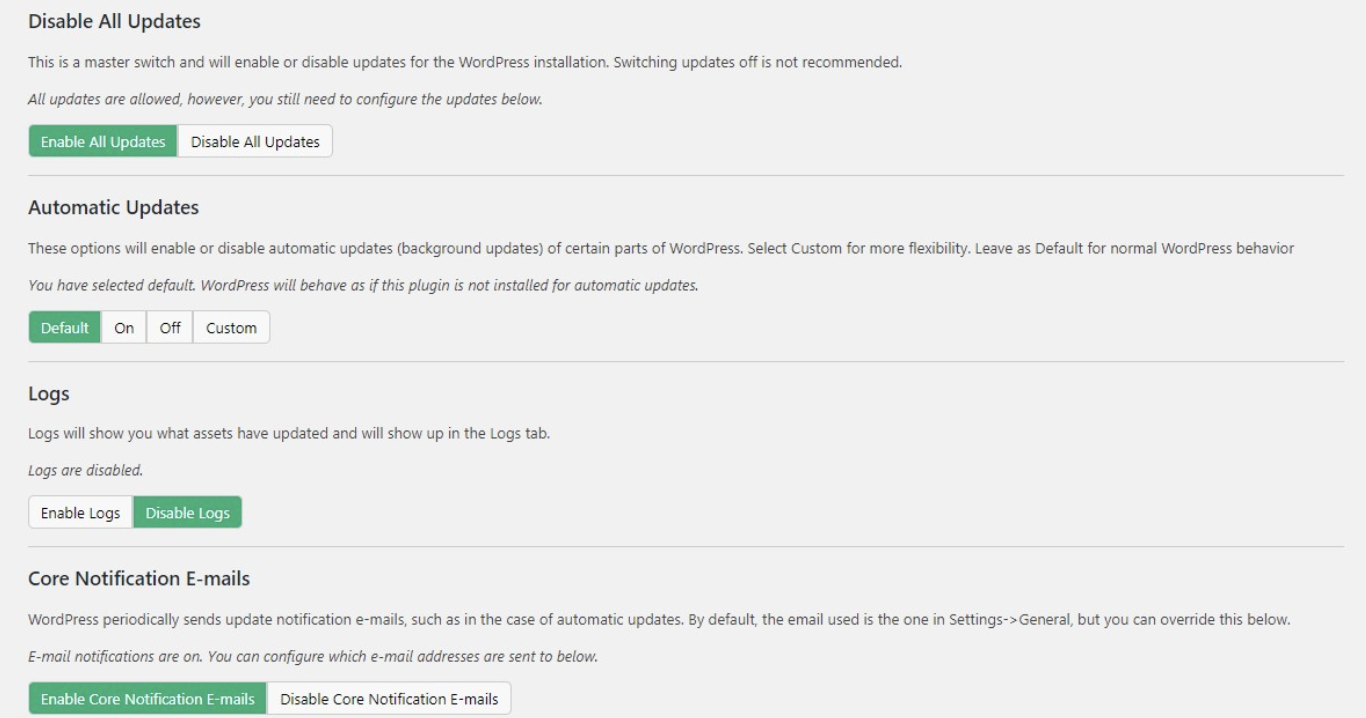
Updates dashboard

If you'd rather have control over which updates you receive, you can also do the process manually.

  1. Log in to your site and click Updates in the left-hand navigation menu.
    Updates dashboard
  2. On the Updates page, select which themes and plugins to update. You can also update WordPress itself if there's an update available.
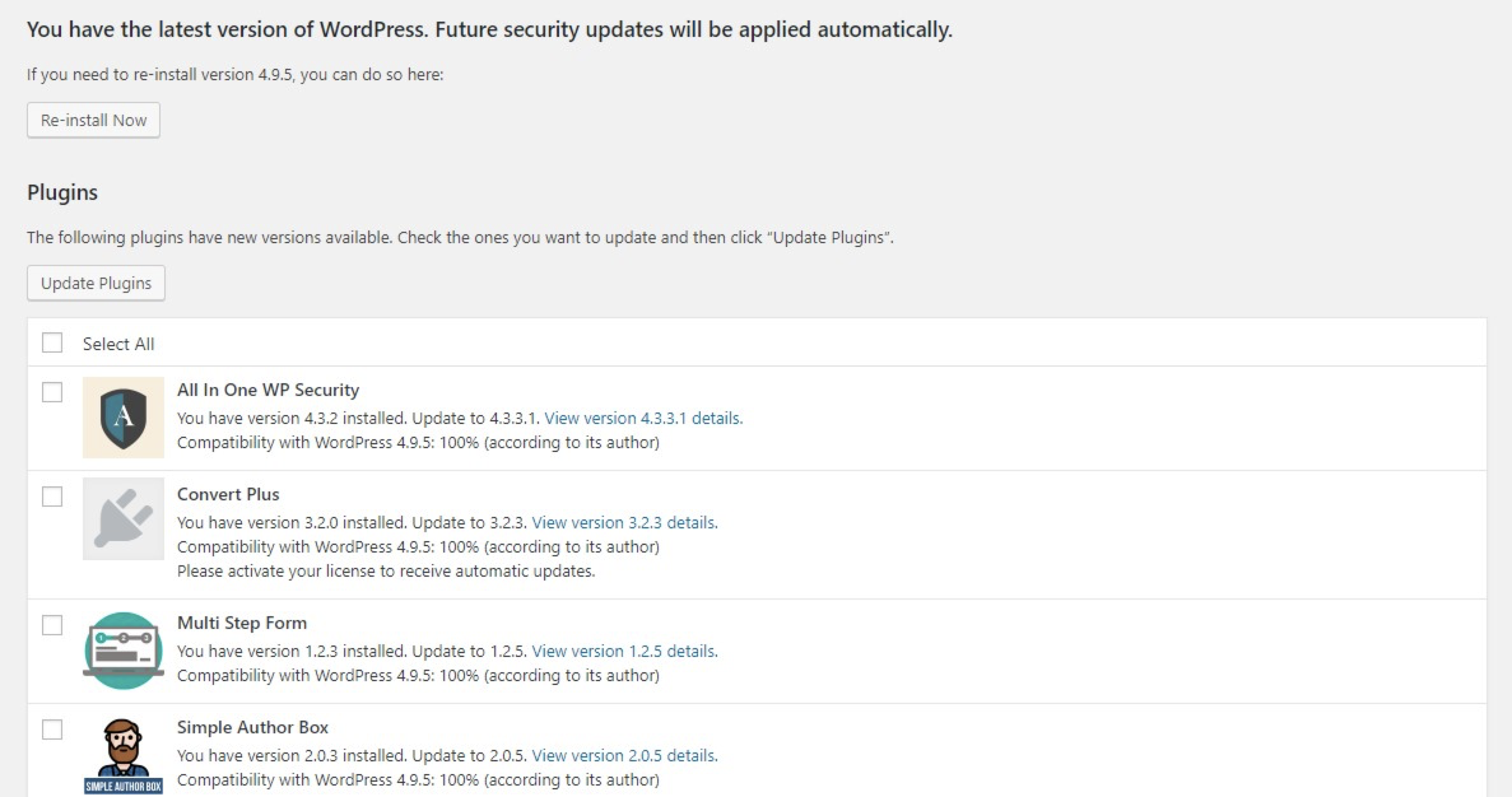
Choose updates

How to check the changelogs for your site, themes, and plugins

You'll also want to check the changelogs for each release to get information on what was included in the update—specifically, whether the update was released to address a security issue. Details on the latest WordPress releases can be found on the WordPress news site, but finding the changelogs for your plugins and themes is more difficult. Sometimes it's not available at all: It will depend on the specific plugins and themes your site uses and if the developers have decided to publish this information.

Here's how to check for details on your plugins' updates:

  1. Go to the Plugins page and click View details next to the plugin you want to check.
    View details
  2. From there, an information box will pop up with details about that plugin. Often, developers will include a Changelog tab that you can click to view details on the plugin's past releases.
    Changelog
  3. If this box doesn't include a specific tab for the plugin's changelog, check the plugin description. Some developers will include a link to the changelog there.

A similar process can be used to check the changelogs for your themes. Go to the Themes page and hover over the theme you'd like to check. Click Theme Details.
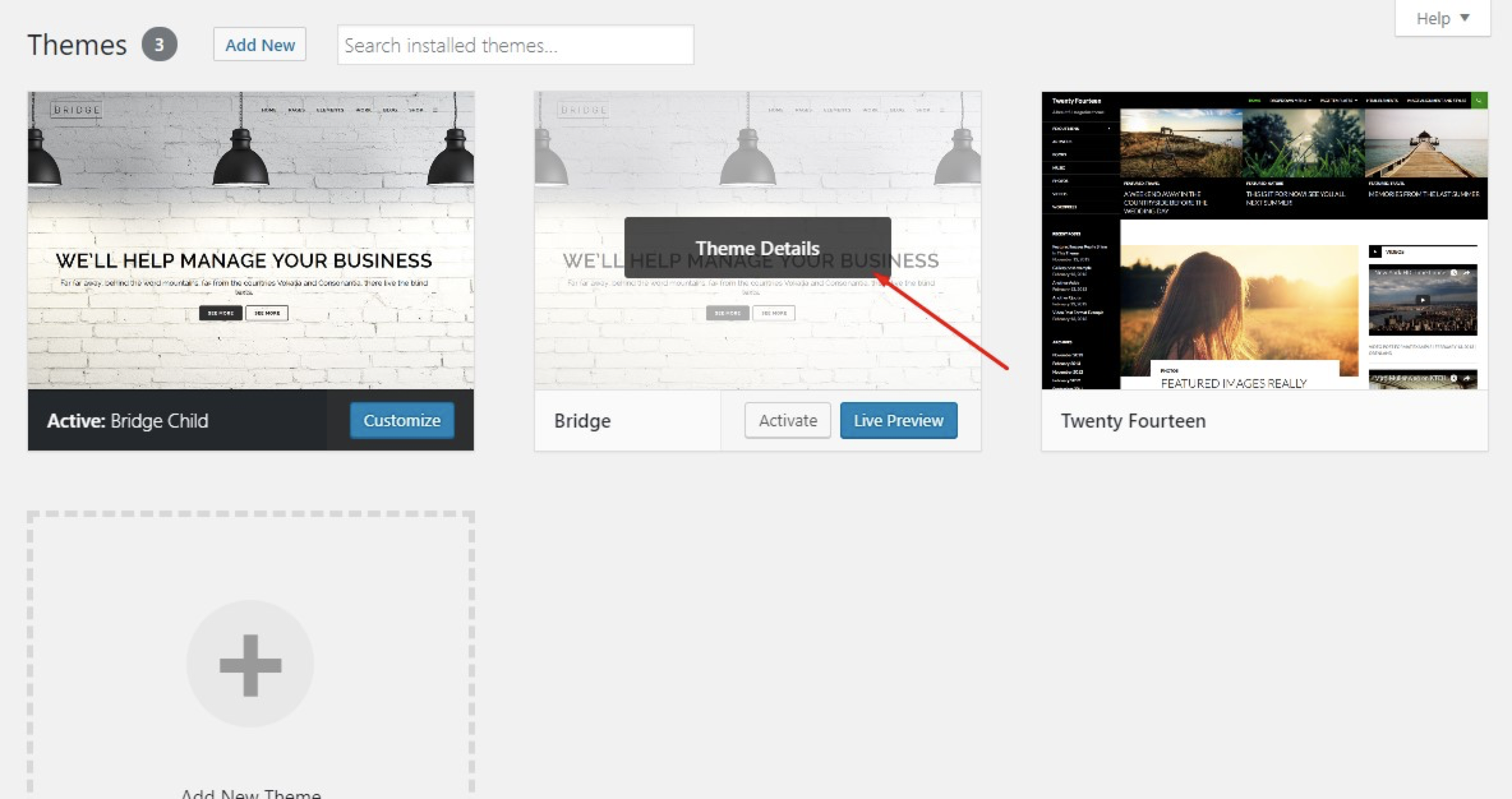
Theme details

In most cases, you'll need to navigate to the theme developer's website to find the changelog.

When it comes down to it, clicking update and then moving right along isn't the end of the world. But really understanding the updates you're installing will give you a better sense of how secure your site is.

Use Plugins to Prevent Attacks

Any website is vulnerable to an attack, but there are common types of attacks on WordPress sites that we'll run through before suggesting some plugins to help prevent these attacks.

Brute force attacks

Even when your site is up-to-date, there are still back doors for hackers. In fact, there are sometimes even front doors: your log in information. Brute force attacks—where someone logs in using your information—are more common than you'd think: Sometimes there are tens of thousands of attacks a day.

SQL injections

These types of attacks generally occur when a hacker uses an input field on your site to input harm-causing SQL (a database language). The hacker can then access your database, messing with your site and users' information and even making themselves administrators of your site.

File inclusions

File inclusion attacks occur due to vulnerabilities in your WordPress site's PHP code. File inclusions can be used to load remote files into your WordPress installation, allowing the hacker to control your site.

Malware

Malware is a malicious script installed to your website with the goal of stealing sensitive data—personal information, credit card numbers, etc.—from you or your visitors. The scariest part? Your site may be infected with malware without you realizing.

Using these attacks, there are countless things a hacker could do to your website: make changes that reflect poorly on you, steal user information, delete your site—you name it. Hackers can even hold a site ransom, forcing you to pay to regain access to your website.

The best WordPress security plugins

Developers can increase security on their websites via code. But for the rest of us, the simplest way to implement additional security protocols is via a WordPress plugin. Security plugins will include the following features:

  • Firewall protection. This feature will help identify and block malicious web traffic.
  • Brute force attack protection. This feature will allow you to change the default login page of your website so that hackers won't be able to easily find it. You'll also be able to limit the number of login attempts on your site and enforce strong passwords.
  • Malware scanning. This feature will help you identify if there's malware on your site. Some plugins may even be able to delete this malware by replacing your site's files with a previous version.
  • File change detection. This feature will identify any unexpected changes to files on your website; i.e., ones you didn't make yourself.

We'll take a look at the two most popular security plugins to show you how they work.

Wordfence Security - Firewall & Malware Scan
Wordfence marketing image

Wordfence is the most popular security plugin (with over a million websites using it) likely because of its simple dashboard. At a glance, you can see how well protected your site is.
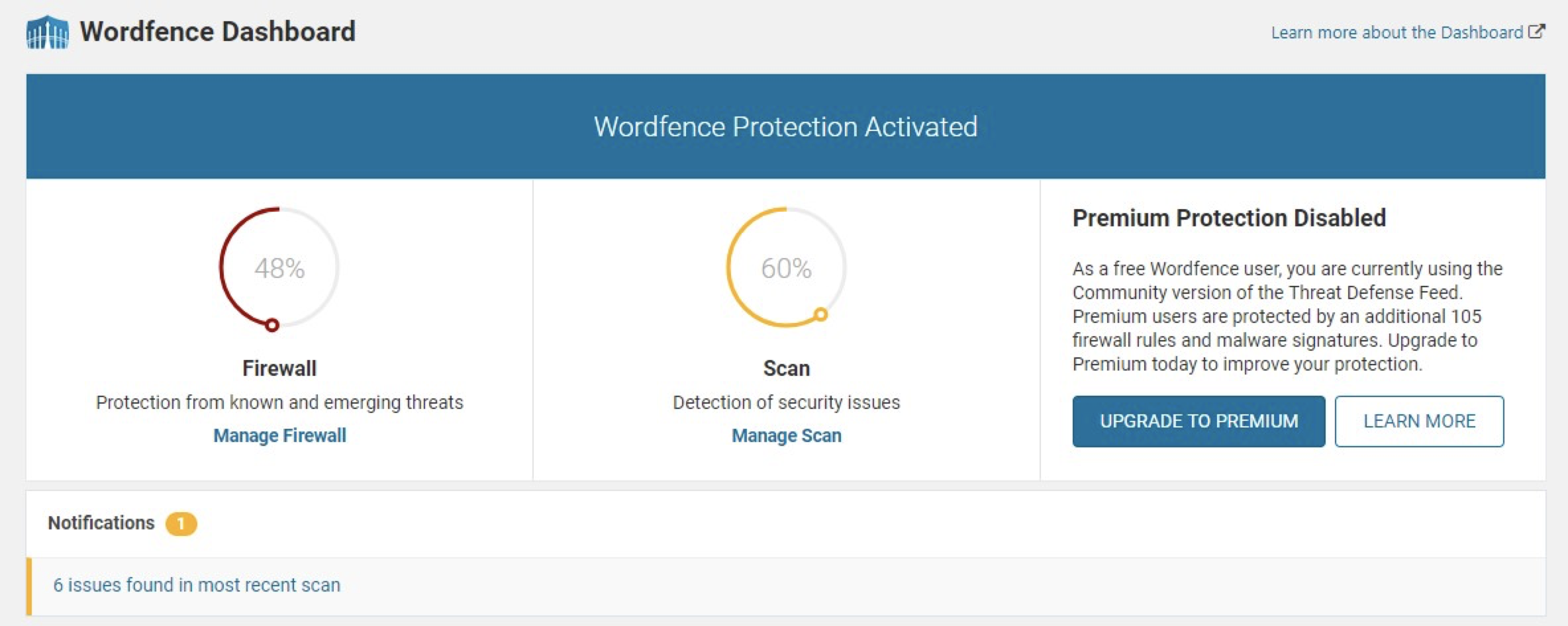
Wordfence dashboard

The Firewall and Scan percentages are calculated based on how many of Wordfence's security features you have set up. By hovering over these icons, Wordfence will display a pop-up that indicates additional steps you can take to improve your site security. And that little Notifications box lets you know how many potential security issues Wordfence has found on your website.
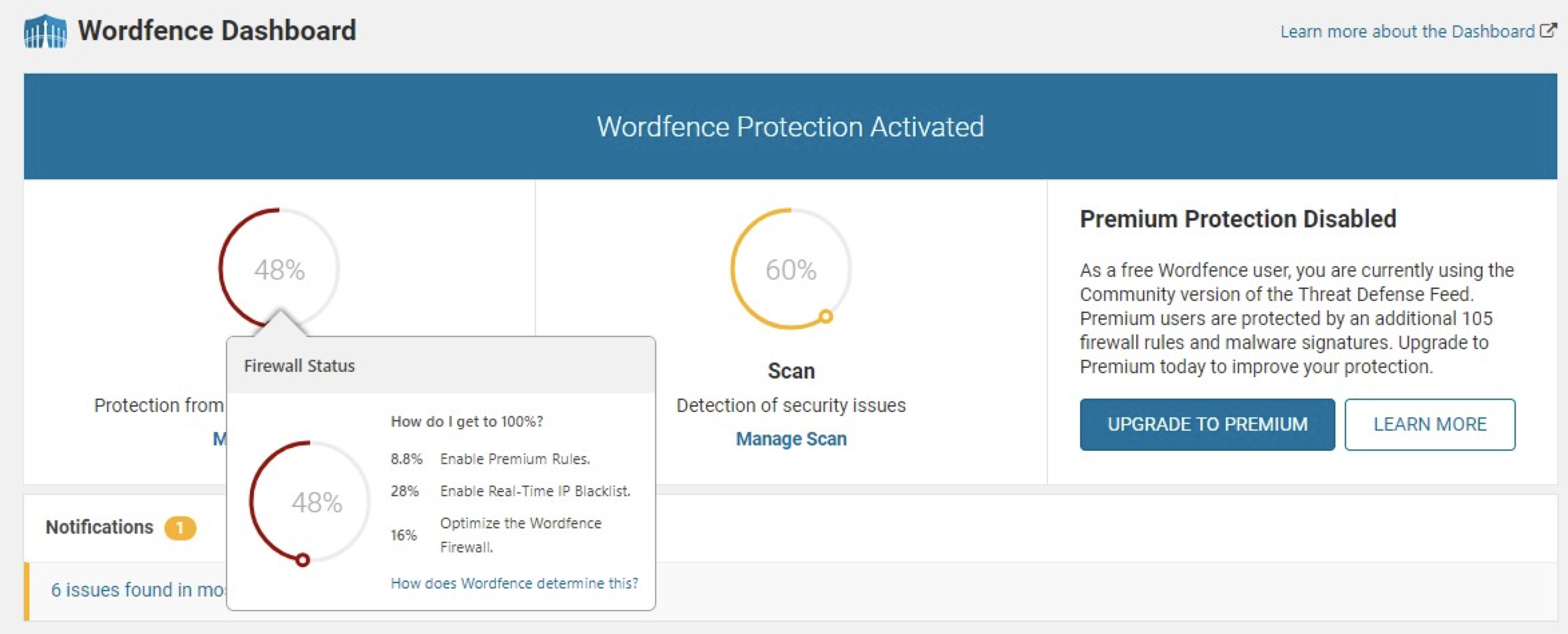
Additional steps to take popup

The scan itself can be set to run automatically to check file changes and to search your site for malware.
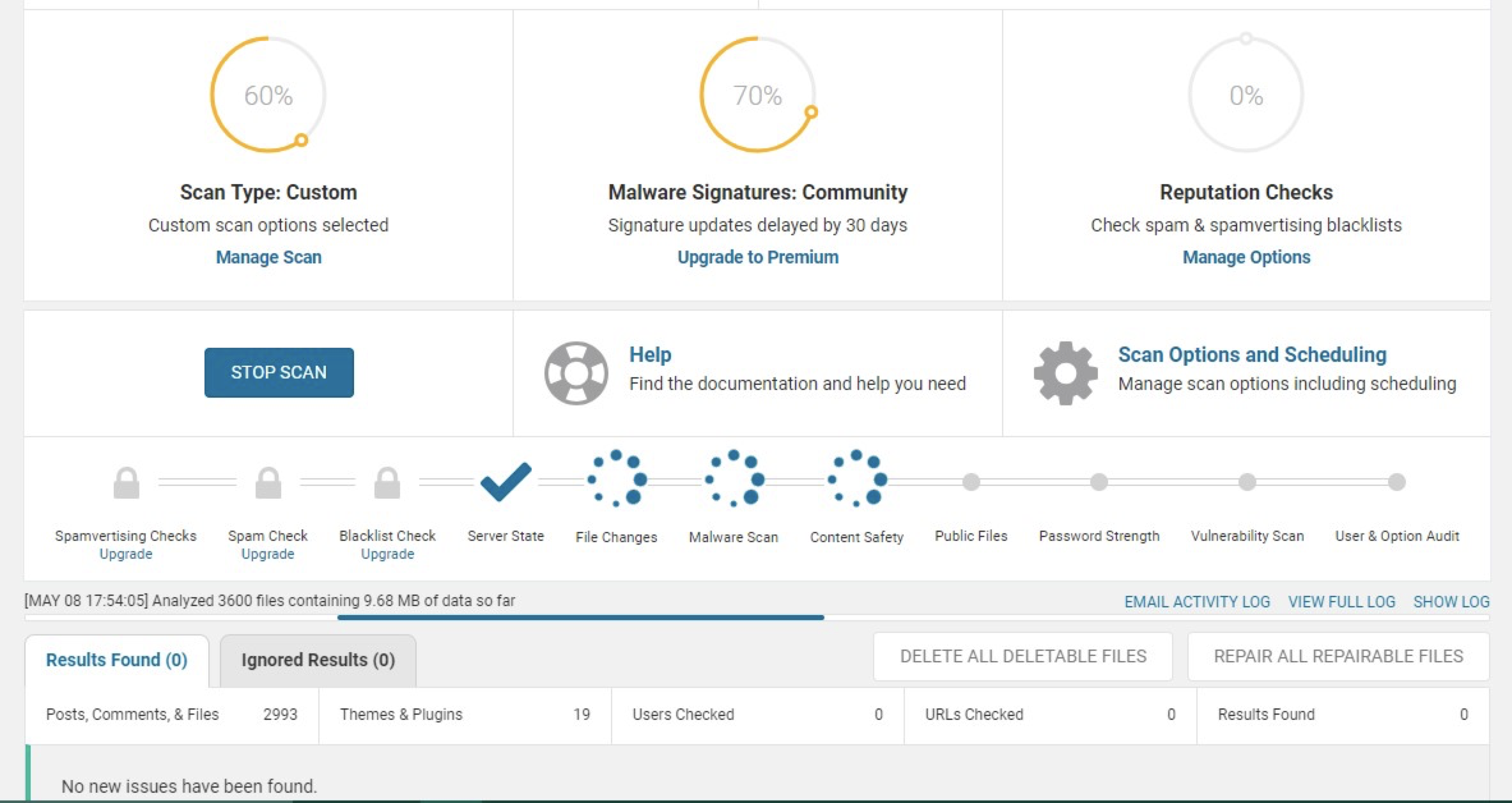
Automatic scan

Further down, you'll find information on the number of potential attacks that Wordfence has blocked.
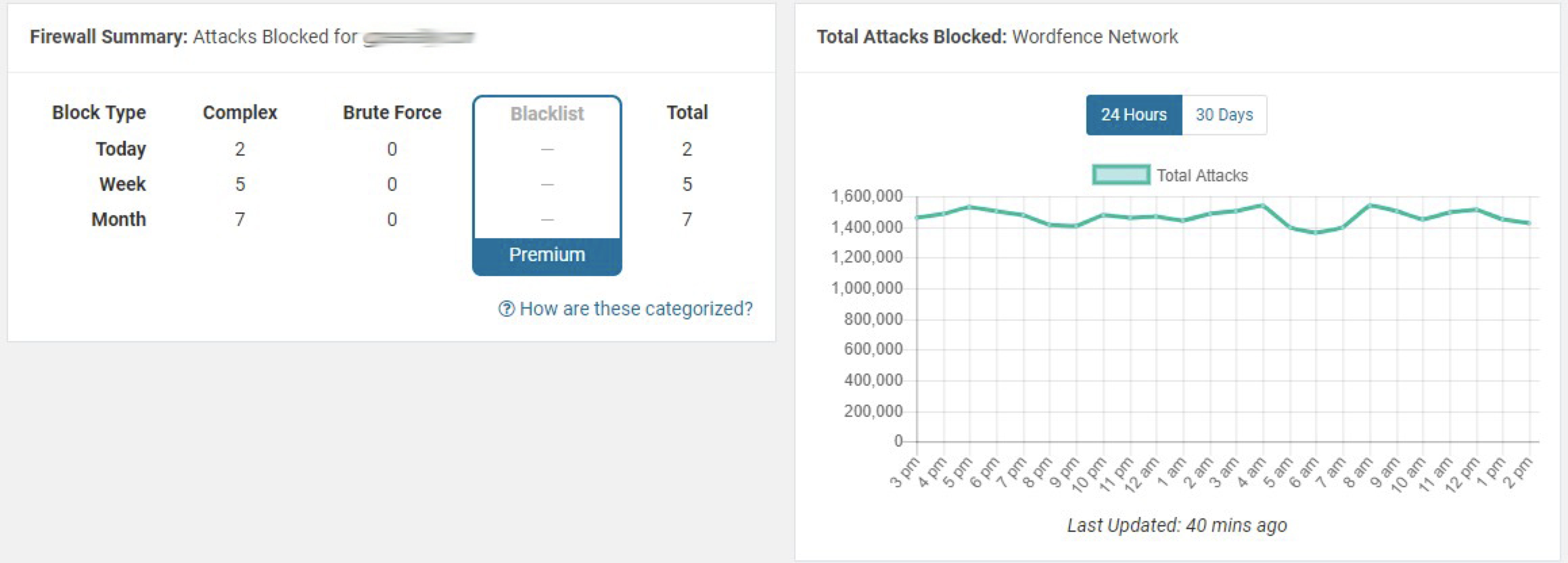
Blocked attacks

To make things even simpler, Wordfence offers email notifications regarding potential issues. For example, an email notification is sent to your inbox immediately after someone logs in to your WordPress backend. If it wasn't you, then you know you may have been hacked. Other email alerts can be enabled to tell you when someone is locked out from logging into your site, when a visitor from a bad IP address has been blocked, or when files have been changed.
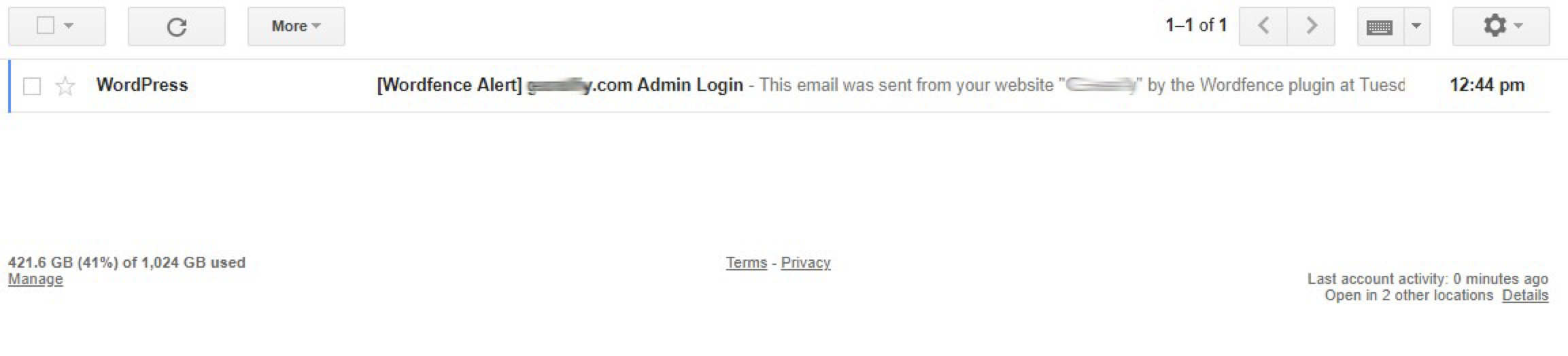
Email alerts

Wordfence pricing: Free; premium version available, which includes added security measures such as two-factor authentication

All in One WP Security & Firewall
All in One marketing image

All in One WP Security is transparent in its user experience: All of its settings appear in the WordPress left-hand navigation menu.
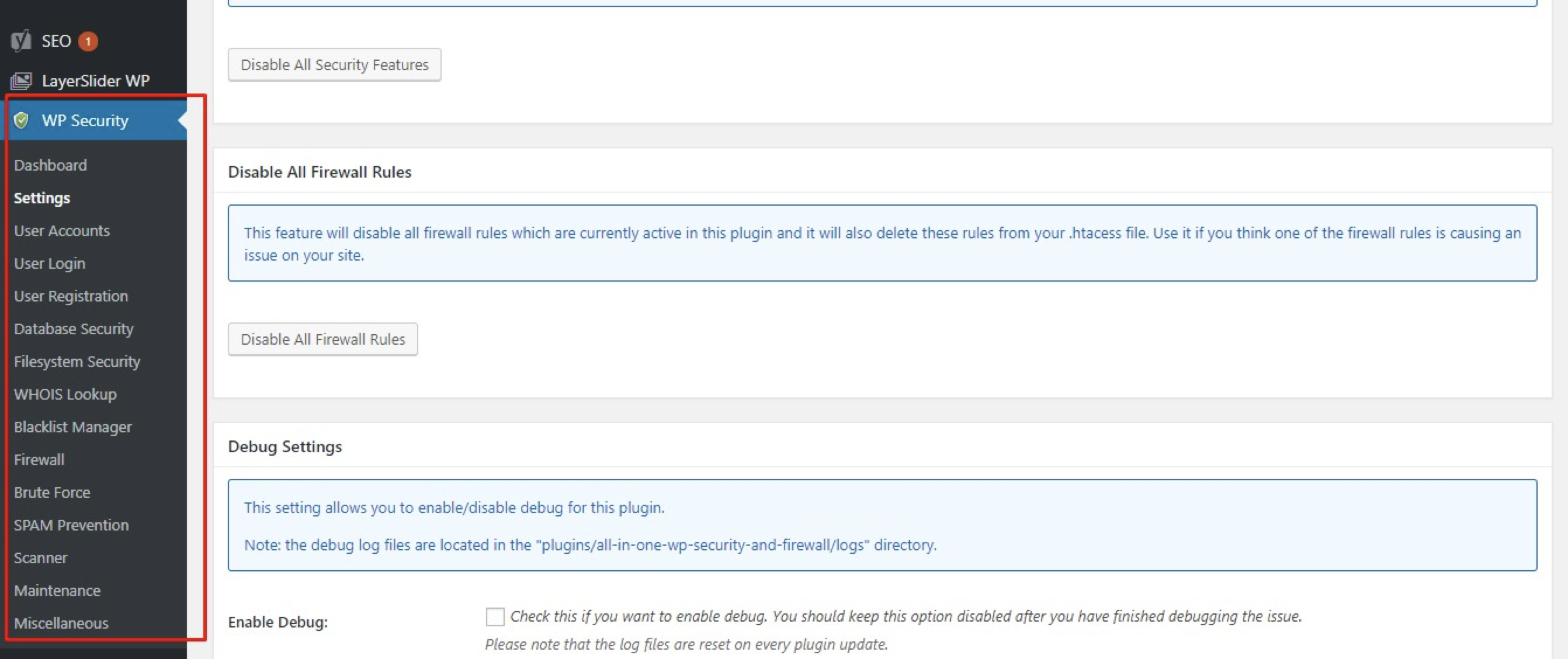
All in One security settings

Above each security setting, it displays a text box to describe what that setting does and how it works to secure your site, making is easy even for the security amateurs.

On top of the standard security features, All in One WP Security also features a Maintenance mode that allows you to display a custom message when you're working on the site. That way you can keep your site secure without upsetting or confusing potential visitors during the outage.
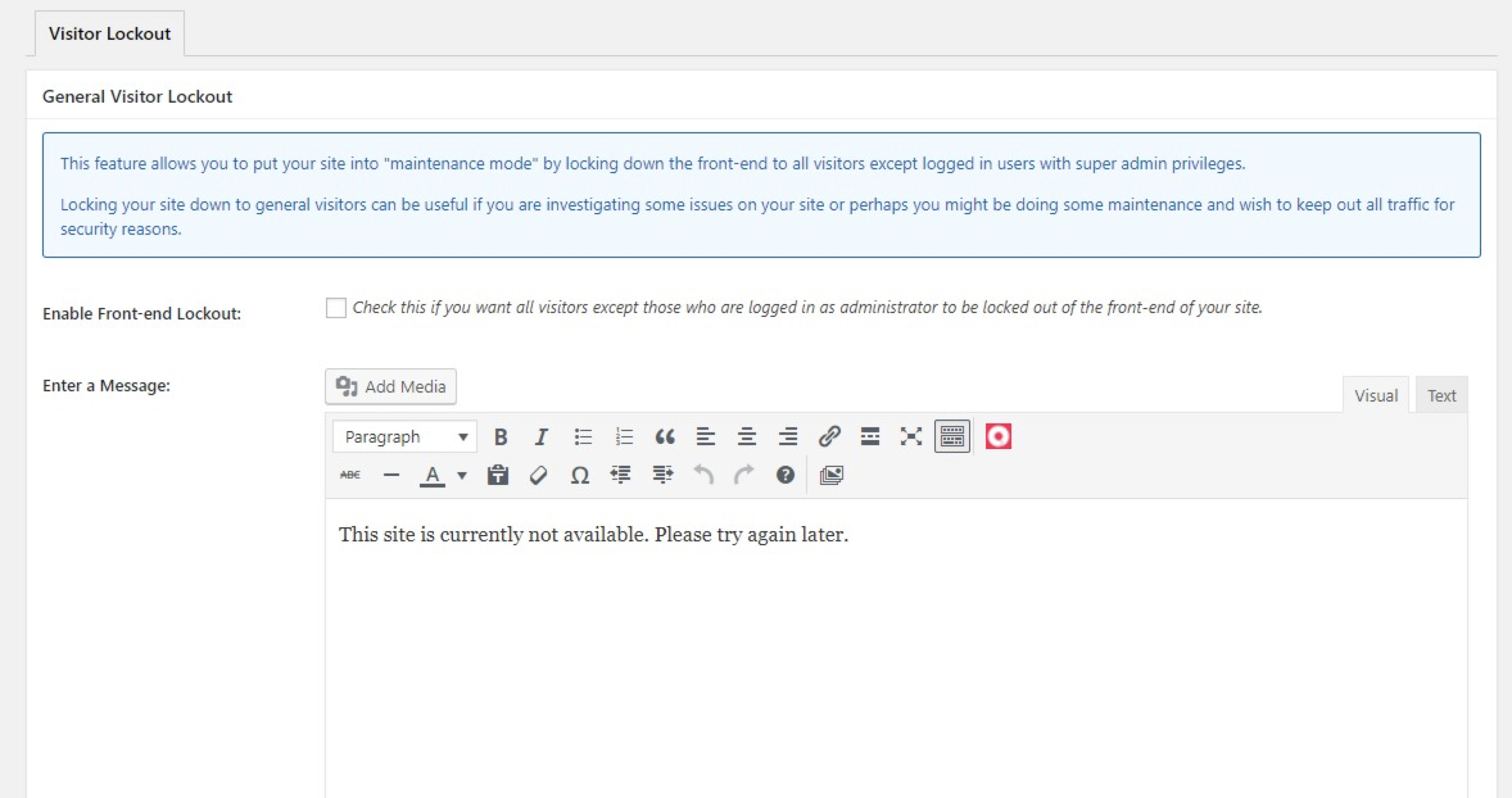
Maintenance message

All in One WP Security & Firewall pricing: Free

Back Up Your Site

One of the major concerns of an attack is that your entire website could be deleted. Just like that, your site—along with all its data—would be gone. But if you run regular backups, you can bring it back to life with just a few clicks.

It's possible to back up your site manually using the Export tool. In the WordPress navigation menu, hover over tools and click Export.
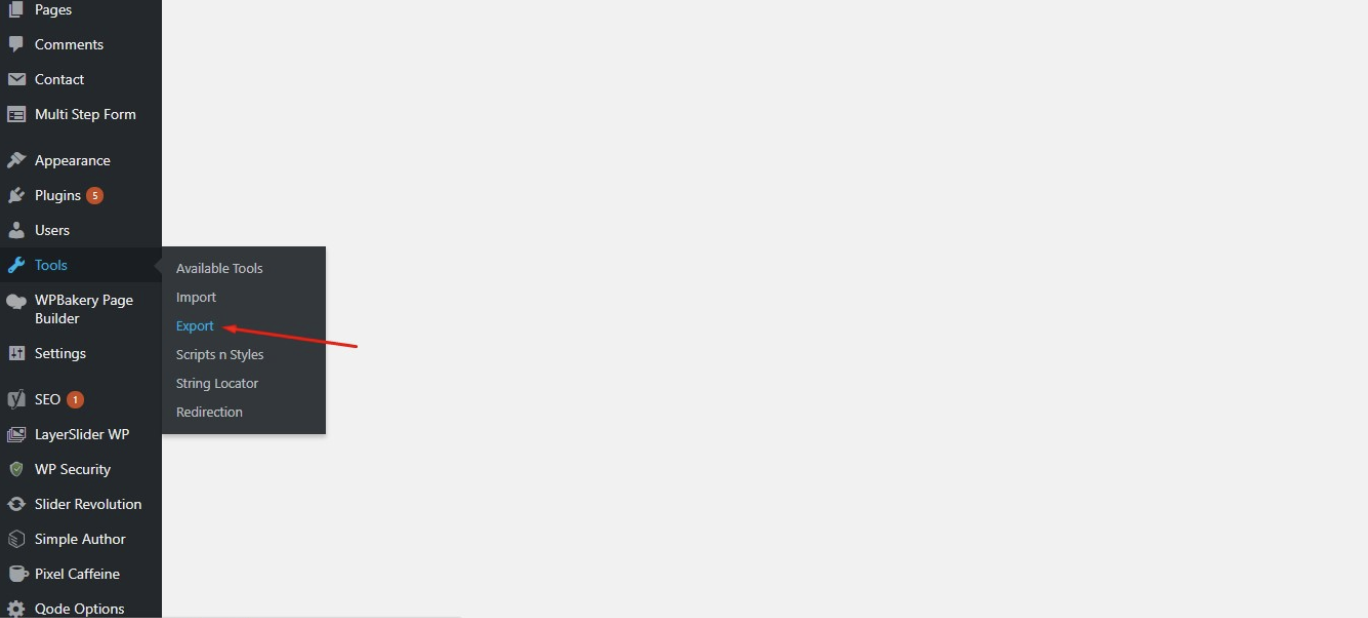
Maintenance message

Then, on the Export page, choose the option for All Content and click Download Export File.
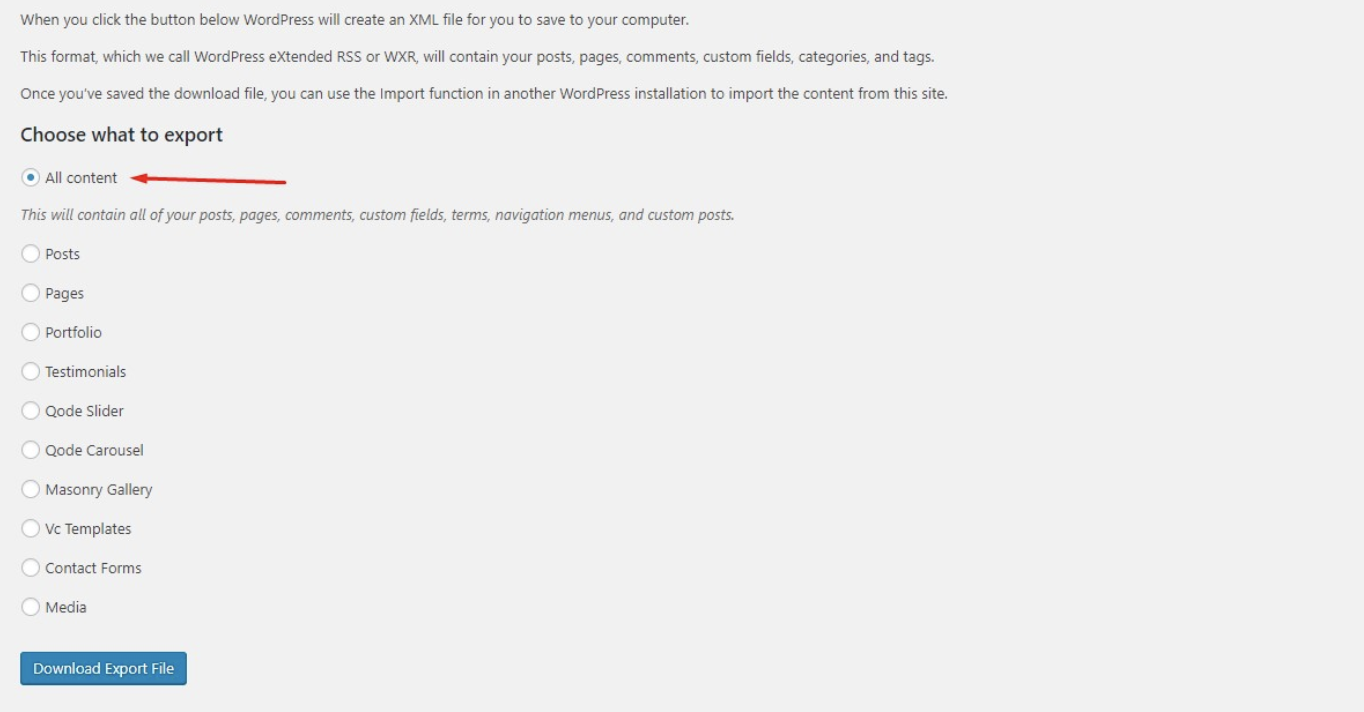
Maintenance message

Once you've downloaded the file, you can later import it back into a new WordPress installation.

Some people prefer to have more control over their security—in which case, exporting is the way to go—but if you feel comfortable relying on a third party, WordPress offers a plugin that'll do the dirty work for you.

UpdraftPlus
UpDraft Plus marketing image

With UpdraftPlus, you can back up your site at any time by going to the plugin dashboard page and clicking Backup Now, or you can set automatic routine backups.
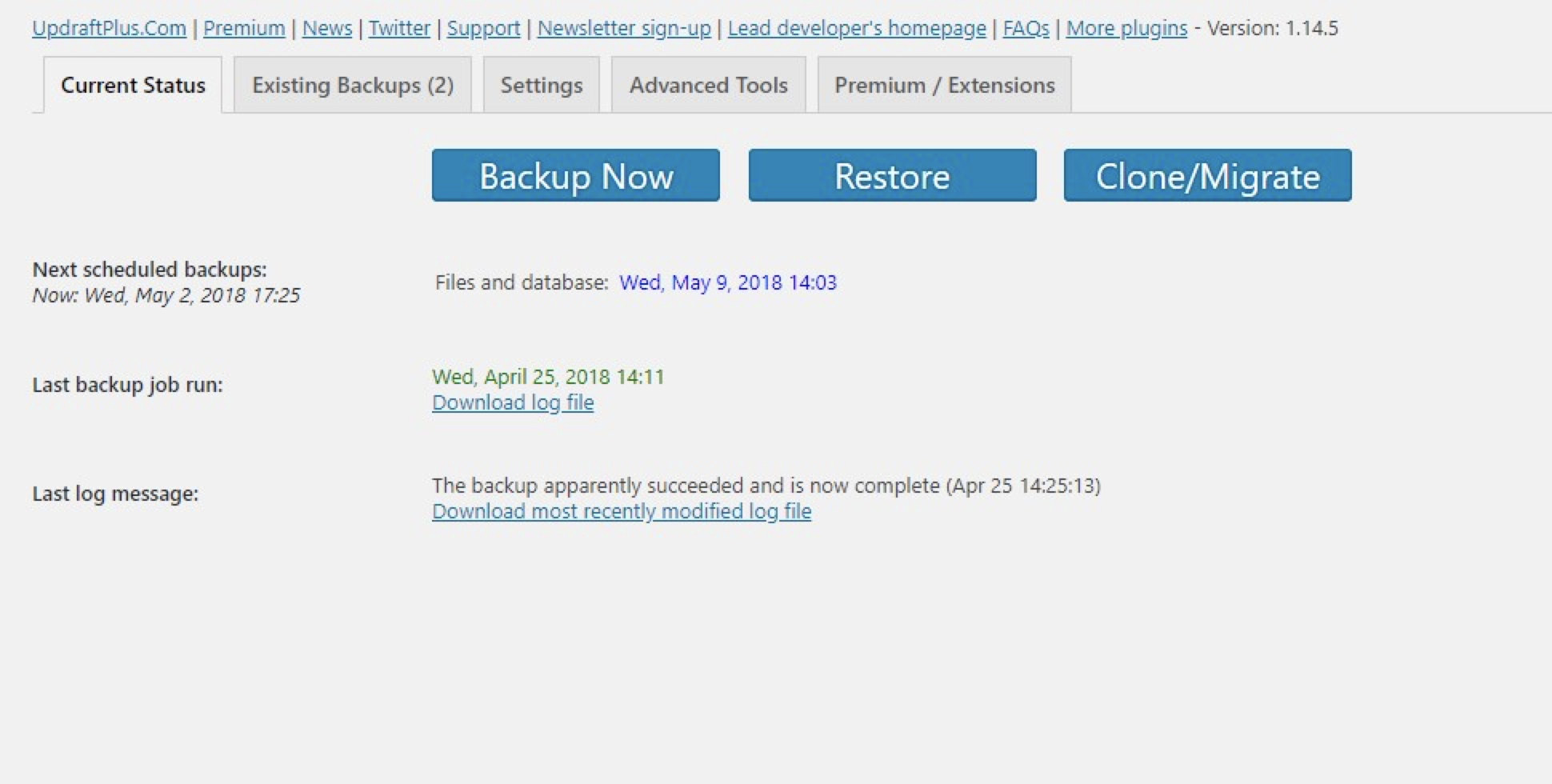
Backup now manually

Automatic backups can be set to run every 4 hours, 8 hours, or 12 hours or daily, weekly, bi-weekly, or monthly. If your site is mostly for marketing and isn't updated much, the monthly option should do the trick. But if you're adding or changing data regularly—e.g., receiving orders from customers—you'll want to choose the daily option, if not one of the hourly options.

The backups are stored either on your server or in your preferred cloud storage account like Dropbox or Google Drive. It's all automated, and you can choose how many backups you want to keep stored at any given time. Once you reach that number, it will automatically delete the previous versions.
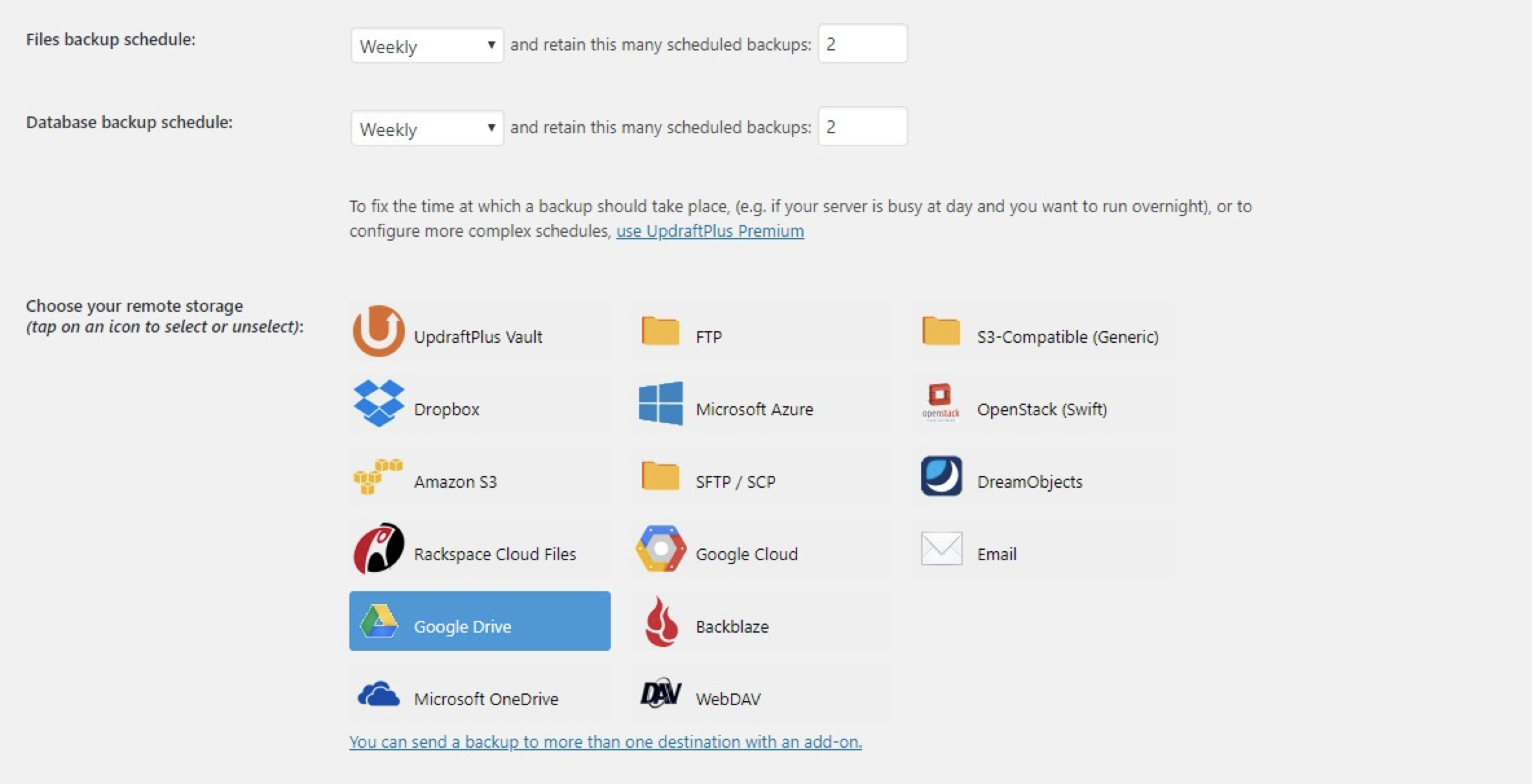
Automatic backups

So if something happens to your website that can't be fixed—due to an attack or otherwise—you won't lose your site or its data. Instead, you'll just delete your entire WordPress site and install a new one. Then install UpdraftPlus, upload the backup files, and the website will be restored to whatever it was at the last backup (all by clicking Restore in the UpdraftPlus dashboard).

UpDraft Plus pricing: Free with feature add-ons available to purchase


Whether you're hosting a portfolio for your freelancing business or you're collecting the personal information of thousands of visitors to an e-commerce site, you need to keep your site secure. It's better to take precaution now than risk catastrophe down the road.


source https://zapier.com/blog/wordpress-security-plugins/

Wednesday, 6 June 2018

A Pest Control Service Created a MVP With No Coding

When lightning strikes and you have an irresistible idea, you don't want to wait to launch it. You want to create a minimum viable product (MVP) and deliver it to your audience now. If you don't have an engineering and development background, though, building your idea on the internet becomes a lot harder and more expensive.

Thankfully, we live in a world full of problem-solvers. Not everyone with an idea can code, so coding shouldn't be a barrier for entry. That's how Miguel Domínguez, founder and head of tech and online business at pest control service MrBug feels.

"We were creating a new startup from scratch," Miguel explains. "From previous experience, I wanted to validate creating a pure MVP and reduce development times. So instead of coding everything from scratch, we signed up for a lot of SaaS [Software as a Service] products that fit our needs."

"Zapier allowed us to make it possible with zero lines of code, saving us months of development and thousands of euros."Miguel Domínguez, Founder, Head of Technology & Online Business, MrBug

In place of lines of code, Miguel and MrBug uses app automation tool Zapier. And in just three weeks, MrBug launched with Zapier as their backend.

About MrBug

Operating in Spain, MrBug pairs pest control and technology, partnering with leaders in Spain's pest industry to provide service across the country. Utilizing scheduling apps, team chat tools, customer relationship managers (CRM), and online payment processors, Miguel ensured that MrBug could provide clients with a seamless online experience for their real world pest problems.

How MrBug Built Their Business Without Months of Development Work

Since MrBug is built without a lot of code of its own, Miguel took his time finding the apps and tools he'd use as the framing of the business. The foundation had to be Zapier. With Zapier, Miguel connected his handpicked apps to each other in automated workflows called Zaps.

With a series of Zaps, MrBug's processes—from feedback requests to payment processing to scheduling appointments—became automated.

The Tools MrBug Uses

The Workflows

"If we need a new feature or to improve something, we just create or modify a Zap. That's amazing."Miguel Domínguez, Founder, Head of Technology & Online Business, MrBug

Miguel and MrBug coordinate with their partners across Spain to send out exterminators wherever they're needed. To handle their appointments and keep their team updated, Miguel paired Acuity Scheduling with Slack.

These three Zaps let the team know about new appointments, rescheduled appointments, and canceled appointments—so no one accidentally sends out a team at the wrong time.

To handle payments, MrBug uses Stripe. With Stripe's flexibility, the client can pay when they make the appointment online or once the job is finished. Once the payment goes through, a few Zaps trigger: One sends a notification in Slack, letting the team know the client has paid in full.

The other Zap builds a payment database in Google Sheets, creating rows for new payments, and adding customer details along the way. With an easily searchable database in Google Sheets the MrBug team can build reports, track repeat customers—anything they need.

To keep their team learning and evolving, MrBug sends out a request for feedback after each appointment. They use Google Forms to collect the responses and, with Zapier, send the responses to a few locations.

First, Zapier sends the team a notification for each new response in Slack. This transparency runs through all of MrBug's processes, from appointments to payments to feedback.

And, as with the payments, MrBug builds a database in Google Sheets to house all the feedback. This helps identify running themes, see how teams perform, and more.


These Zaps—and a few more—gave Miguel and the MrBug team the power and flexibility they needed to launch an MVP in only three weeks' time. As Miguel puts it, "If we had chosen to do everything on our side, it'd have taken us months—maybe more than a year—and a lot of money."

Now, after a year from launching, MrBug is already profitable and continues to keep their costs low.

Thinking of creating your own MVP without code like MrBug? Give Zapier a try for free.

All images courtesy of MrBug.


source https://zapier.com/blog/build-google-sheets-databases/

Tuesday, 5 June 2018

The 5 Best New iOS and macOS Work Features in 2018

Apps help us get work done every day, but we still need an operating system to run them. Hidden in the background much of the time, they're what power our keyboard shortcuts, run our favorite tools, and keep us productive.

Each year, Apple launches new versions of its operating systems, iOS for iPhones and iPads, and macOS for Macs. At Apple's World Wide Developer Conference or WWDC yesterday, the company announced the upcoming macOS 10.14 Mojave and iOS 12 that will launch this fall. iOS 12’s main focus is on speed, with the keyboard opening 50% faster and new apps opening twice as fast as before. macOS Mojave brings a design refresh, with a dark theme for apps, a new App Store, and new folders on your desktop to automatically keep your desktop clean.

The most important new features are those that will help you work faster. Here’s what to look forward to, with the top features you’ll use in your work:

iOS: Siri Shortcuts

Let your iPhone do sets of tasks for you automatically

Siri Shortcuts iOS 12

The biggest productivity boost from Apple’s new releases in 2018 might come from iOS’s new Siri Shortcuts. It lets your iPhone do sets of actions for you automatically. Want to add a reminder and send an email at once? Or want to text meeting participants when you'll arrive, and get directions at the same time? With iOS 12, you can build workflows for that and more in Siri Shortcuts. You'll add steps from built-in and supported 3rd party apps, add a name for the shortcut, then run the workflow from the Shortcuts app or say your shortcut to Siri to run the workflow. Apple’s demos focused on home automation, but the most powerful workflows will help you get work done without touching your phone, thanks to Siri.

Siri Shortcuts is similar to Workflow, an iOS automation app that Apple acquired early last year. You can use it to share photos, send messages, and more today—and then build even more detailed workflows that work with Siri later this year when Siri Shortcuts is released.

iOS and macOS: Group FaceTime

Team video chat with up to 32 people, for free

Group FaceTime

FaceTime is one of the best apps for quick video calls with anyone else on a Mac, iPhone, or iPad. It’s built-in, streams high quality video, and works quite well most of the time.

With iOS 12 and macOS Mojave, you can use the new Group FaceTime for team video calls, too. Group FaceTime will let you include up to 32 people on one call—though it doesn’t seem to include a way to share your screen. Like other FaceTime calls, group calls are free. Group FaceTime will be a handy way to stay in touch with your team.

macOS: New Screenshot Tools

Edit and annotate screenshots as soon as you capture them

macOS Mojave

When you need to make a software tutorial or show a coworker a bug in an app, screenshots are the way to go. macOS has long included a number of screenshot tools, hidden behind easy-to-forget keyboard shortcuts.

macOS Mojave includes a new screenshot tool to help showcase anything on your screen. Press the same Command+Shift+4 shortcut to take screenshots, and this time, macOS will show on-screen buttons to capture a window or your full screen, include your cursor if you want, or record a video of your screen. The new screenshot will then show in a thumbnail on the bottom right corner of your screen, similar to when you take a screenshot on an iPhone. Click that thumbnail to crop or annotate your screenshot before sharing it.

Best of all, those same editing and annotation features are coming to all Quick Look windows this year. Click on a file, press your spacebar to preview it, and you can crop images, sign PDFs, and more directly from the preview.

iOS and macOS: Voice Memo

Voice Memos for Mac

The iPhone has long included the Voice Memo app to record audio. Much like a reporter’s tape recorder, it's a handy way to save voice notes about your day, project ideas, or even a bit of a song you’re trying to write or remember.

That app is getting a redesign in iOS 12 and is finally coming to the Mac as well. It’s the same simple tool. Press record, talk, then stop and listen to the recording anytime. The new iOS and Mac app both sync recordings via iCloud and let you trim the recordings to save just what you want. It’s a new handy way to record interviews and calls through your built-in mic as you can on the iPhone—and we’ll have to see if it can record in-app audio plus your mic at once when it's released this fall.

iOS: Password App Integration and One-Time Passcodes from SMS

One of the most annoying parts of using two-factor authentication is having to copy the code from one app into another or from an SMS message into an app with two step authentication. iOS 12 simplifies this process with security code autofill suggestions. If you log into an app and get an authentication code via SMS, iOS will recognize the code, copy it from your message, and let you use it in the app or site with one tap.

iOS 12 also simplifies entering passwords into websites with an API that brings password suggestions from password management apps into websites. The 1Password team already put together a demo showing how 1Password find accounts you have on a site, let you authenticate, and then automatically fill in the details without needing to open another app. It's a few less steps than it takes today to add passwords from the Safari share menu.


When Will macOS Mojave and iOS 12 Be Released?

macOS Mojave and iOS 12 will be released in fall 2018—and likely in late September. The past two years, Apple has launched new iOS releases on September 13 and 19, and macOS on September 20 and 25, respectively. Apple’s only promising the new versions will come this fall, as usual, but odds are you’ll be able to upgrade by October.

If you're a developer, you can install beta versions today from Apple's Developer site. It's best to install them on a secondary device for testing as beta versions may have bugs. If you do install the betas, be sure to backup your devices first before installing them.

Screenshots and graphics via Apple’s macOS Mojave and iOS 12 sites and press kits.


source https://zapier.com/blog/ios-12-macos-mojave-work/

Get More Space: The Best Free Cloud Storage and File Syncing Apps in 2018

Thanks to cloud storage and file syncing apps, you can create a file on your computer at work, edit it on your phone on the subway home, and then finish working on that same up-to-date file from your laptop in your living room. Or, in minutes, you can share a 20 GB folder of photos and videos with colleagues who are halfway around the world. This is the virtual hard drive on the internet that ensures the latest version of your files are at the ready on all your devices.

You're probably already using one, if not more, of these services, such as Dropbox or Google Drive. But there are dozens of cloud storage and file syncing apps available today, and each has its own special features. If you're looking for additional free space or wondering what's the best place online to stash your files without having to buy a plan, here are your top options today.

What Makes a Great Cloud Storage and File Syncing App?

At their core, cloud storage and file syncing apps all do the same thing: copy files in your selected folder or folders to an online server—and then to any other device where you've installed the apps. Any new files you add or changes you make are instantly replicated across your computers, phone, and tablet. While these apps all act similarly, however, some are more generous with the amount of free storage space they provide and are easier to use than others.

We researched over 30 cloud storage and file syncing services, looking for the most important features for most people:

  • Free plan: We're sticking with services that offer free plans, in the interest of showcasing options that will benefit the most people. (A guide for cloud storage for small businesses/teams is in the works.)
  • Fast syncing: For these apps to be truly useful, any changes you make in the files or folders on one device should be immediately available on your other devices. We tested syncing performance across these services and different devices with a 1 Gigabyte (GB) folder containing 95 files of various types and sizes.
  • Easy to use: If the app is hard to use or the interface clunky, you're less likely to use it. The point of apps like these is they should just work in the background without you having to fuss with them.
  • Generous file size and transfer size limits: The last thing you want to see is a notification that a file you tried to save and sync with your other devices is too large or exceeds your bandwidth limits. The apps we've chosen here should give you confidence that all your files will be synced.
  • Security and file access control: The best cloud storage apps let you share files but also control exactly how others can access them, such as whether others need to enter a password to see the file.

We also took into consideration how much free storage space each service provides and how much it would cost per GB to upgrade to their lowest-cost free plan.

The Best Free Cloud Storage and File Syncing Apps

  • Google Drive for unlimited storage for photos, videos, and Google Docs, Sheets, and Slides
  • Sync for advanced security features and unlimited file sizes
  • OneDrive for Microsoft Office and Windows users
  • Dropbox for fast syncing over your local network

Honorable Mentions:

  • Box for teams who need more access control options
  • Cozy.io for automatically importing bank statements and bills from service providers in Europe
  • iCloud Drive for keeping your iOS and Mac apps up to date

Google Drive

Best for unlimited storage of photos, videos, and Google Docs, Sheets, and Slides

Google Drive screenshot

If you want to use just one cloud storage and file syncing app, we recommend Google Drive, for several reasons. If you have a Google Account, you've got Google Drive already. It offers the most amount of free storage space of the apps on this list—15 GB, shared with your Gmail and Google Photos. Photos and videos stored using the "high quality" setting—up to 16 megapixels for photos and 1080p for video, rather than the original resolution—don't count towards your storage quota, nor do any of your Google Docs, Sheets, Slides, Forms, or Sites files.

Beyond the generous amount of storage space, though, Google Drive had the fastest syncing speed from desktop to web in our tests. And once in the web app, you can work with your files and folders much like you can on your desktop computer: search within folders, share multiple files at once, right-click for contextual menus, and add a description or notes. You can even color-code folders and disable downloading, printing, or copying of files you share with others. Many of these features are unique to Google Drive. And the new storage plans, which you can share with your family, are competitive, particularly when you need a large amount of space (e.g., $9.99/month for 2 TB compared to Dropbox's same price for 1 TB).

Google Drive Pricing: Free for 15 GB; from $1.99/month for 100 GB

For a deeper look at features and pricing, see our Google Drive overview.

See Google Drive integrations on Zapier

Sync

Best for advanced security features and unlimited file sizes

Sync screenshot

If security is your top concern for files you store in the cloud, give open-source Sync a look. The Canadian-based company offers end-to-end encryption, which means that all your data is encrypted at all times: on your computer, while in transit, and on their servers. Sync's "zero knowledge" privacy means that your password is never stored by the company and it can't access your encryption keys.

You get 5 GB of storage for free, plus the ability to gain more space via referrals (1 GB per referral). The web app and other apps are basic (no starring folders or sharing files directly from your computer's file menus), but on the plus side there's no individual file size or bandwidth limits.

Note that you'll need a Pro plan to get Sync's more robust security options—setting expiration dates on links, limiting downloads, getting link activity via email, HIPPA compliance, and more.

Sync Pricing: Free for 5 GB; from $49/year for 500 GB (no monthly plan options)

OneDrive

Best for Microsoft Office and Windows Users

Onedrive screenshot

If you buy a Microsoft Office 365 subscription, you get 1 TB of storage space on OneDrive and premium features like password-protected sharing links and expiring links. So it's a no-brainer to use OneDrive if you need to use Microsoft Office software anyway and want seamless syncing and storage with Microsoft products.

For free cloud storage, OneDrive is still a solid option. You get 5 GB of free storage space to start and up to 10 GB additional space for referring others to OneDrive. You can edit and annotate Office files within OneDrive and access some unique nifty features. For example, if you have a Windows PC with the OneDrive desktop app installed, you can remotely access your files and folders on that computer—even if you haven't stored them in the OneDrive folder. This is a setting you'll need to enable in the desktop app, but it makes sure the files you need are always at the ready, no matter where you store them.

OneDrive Pricing: Free for 5 GB; from $1.99/month for 50 GB storage only or $6.99/month for 1 TB plus Microsoft Office 365

For a deeper look at features and pricing, see our OneDrive overview.

See OneDrive integrations on Zapier

Dropbox

Best for fast syncing over your local network

Dropbox screenshot

Founded in 2007, Dropbox was one of the first services to make saving and syncing your files dead simple. Store a file in your Dropbox folder and it's instantly available on all your devices. The app hasn't changed much since then, except for integration with Dropbox Paper, a collaborative word processing tool.

Compared to the other apps on this list, Dropbox offers the least amount of free storage space out of the gate: 2 GB, but you can earn up to 16 GB on the free account by referring new members and completing other tasks. Also, files and folders shared with you count towards your storage space, which is a bummer.

File sharing is easy with Dropbox because it's been around so long that most people already are familiar with it. And perhaps the biggest advantage Dropbox offers is that it shaves time off of syncing over your local network. Transferring a 1 GB file from desktop to web, for example, took about four minutes, but it was about a quarter of that time faster when syncing between two computers on the same Wi-Fi network, thanks to Dropbox's syncing technology.

Dropbox Pricing: Free for 2 GB; from $9.99/month for 1 TB

For a deeper look at features and pricing, see our Dropbox overview.

See Dropbox integrations on Zapier


Honorable Mentions

Google Drive, Sync, OneDrive, and Dropbox are our picks for cloud storage and file syncing for most people, but there are a few others that you might want to consider if you need more space or are looking for other features:

  • Box: You get 10 GB of free storage space with Box and the service offers more access control for files and folders than most cloud storage services. For example, you can specify if people you share a file link with can download the file and can even set a custom URL for your shared files. Box is also well integrated with other apps (for example, you can create a Word Doc or Google Doc straight from Box.com), and you can embed Box files on a web page using its widget. However, with a 250 MB file size limit on the free plan, Box is more ideal for teams on a paid plan, where that file size limit is raised to 5 GB.
  • Cozy: Cozy is a unique cloud-storage-meets-personal-finance app. You get 5 GB of free storage, plus it can automatically import your bank statements and bills from service providers in Europe. This open source app also offers end-to-end encryption. Sharing, however, is more limited—links only and no access controls, so this is best for personal versus collaborative file access.
  • iCloud Drive: If you have a Mac, iPad, or iPhone, you've got 5 GB of free storage space on iCloud Drive. That's great for backing up your iOS device and sharing your iTunes purchases with your family with the app's file sharing feature. It also can keep your apps (such as Mail, Calendar, Contacts, and Safari, along with many third-party apps that store files in iCloud Drive) up to date across your Apple devices. It's a bit more limited when it comes to sharing features, however, and not as user friendly compared to other cloud storage apps.


When it comes to cloud storage and file syncing apps, there's no right or wrong answer. Often, the choice you make boils down to what ecosystem you're invested in: Google (Google Drive), Microsoft (OneDrive), Apple (iCloud). Or if you're looking for additional storage with an app dedicated to cloud storage, Dropbox, Box, and Sync are solid options.

Each app has its unique strengths and weaknesses, and hopefully the above will help you decide where to stash your files in the cloud.

Title image by Freepik.


source https://zapier.com/blog/best-cloud-storage-apps/

Monday, 4 June 2018

The Zapier Guide to Automating Your Phone With Drafts

Your smartphone’s the perfect place to start work. Its small screen and smaller keyboard might not exactly be the best for typing out an extensive report or outlining every step in a new project. But when inspiration strikes or you shake hands on a deal, your phone’s the computer you’ll have with you. No reason to wait until you’re back at the office to send a detailed email complete with a half-dozen attachments—your phone’s ready to do it now.

Except, phone apps aren’t the easiest way to get work done. Ever tried to tap out a formatted email complete with attachments from your phone? Want to build your next invoice or start a template project on mobile? Want to give your social messages just a bit more thought before you post them?

Here’s how, with Drafts for iOS.

A Drafts Intro

Drafts for iOS

Drafts is a tool that turns text into anything you want. Say you’re walking and think of something you want to add to your notebook. Or you think of tasks you want to add to your to-do list. Or you think of something witty to share online. Or you meet someone, and want to write their email address down—and then email them later.

Each of those—and countless other things we do every day—are essentially text. We use a half-dozen different apps to accomplish them all, from a notes app to an email app, but they all start out as text.

Instead of deciding which app is needed for the task, then opening that app and typing in something new, Drafts lets you start with text, then decide what to do with it. You open the app and write down anything on the blank screen. Or, use dictation—which works on Apple Watch, too—for a simple way to jot something down even if you’re running. If you’re not sure what to do yet, just close the app and go on with your day. Open Drafts later, and you’ll again have a blank screen to start a new note.

Ulysses Actions

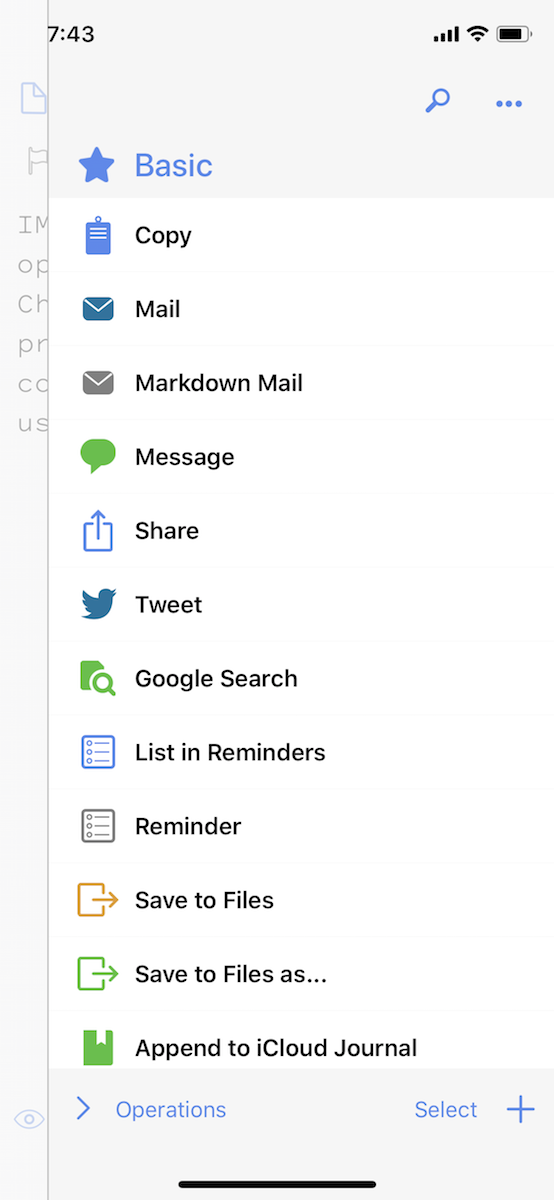
Or, if you want to do something with the text, swipe in from the right of your screen to see Drafts’ Actions. These can send an email with your text, append text to an Evernote note, create a new to-do list, print the text with Markdown formatting, post it on Twitter, and much more. Tap the action you want to run with your note. There’s an entire directory of actions to do almost anything you want with text—or, with a paid subscription ($1.99/month or $19.99/year), you can create your own actions.

It’s somewhat similar to Alfred for Mac—only here, the focus is on notes, where Alfred is focused on search.

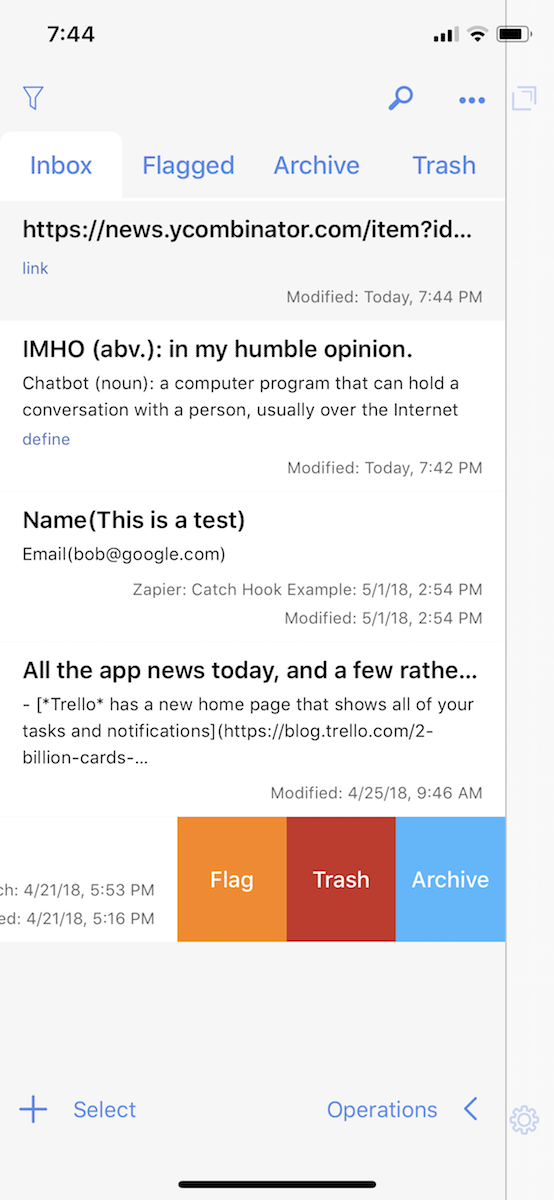
Drafts Inbox

Then, for the times when you write something down but don’t do anything, Drafts saves every note you write in its inbox. Swipe in from the left of your screen to see the list of everything you’ve written in Drafts. Tap a note to open it again, then swipe from the right to run an action. Or, you can organize notes with folders and tags to keep track of everything you’ve typed on your phone.

Start using it, and it’ll make sense. Download Drafts free on your iPhone or iPad, and the next time you need to write something, do it in Drafts. Then swipe from the right and see if there’s an action for the thing you need to do with that text. Then read on to get the most out of Drafts.

Capture Text in Drafts

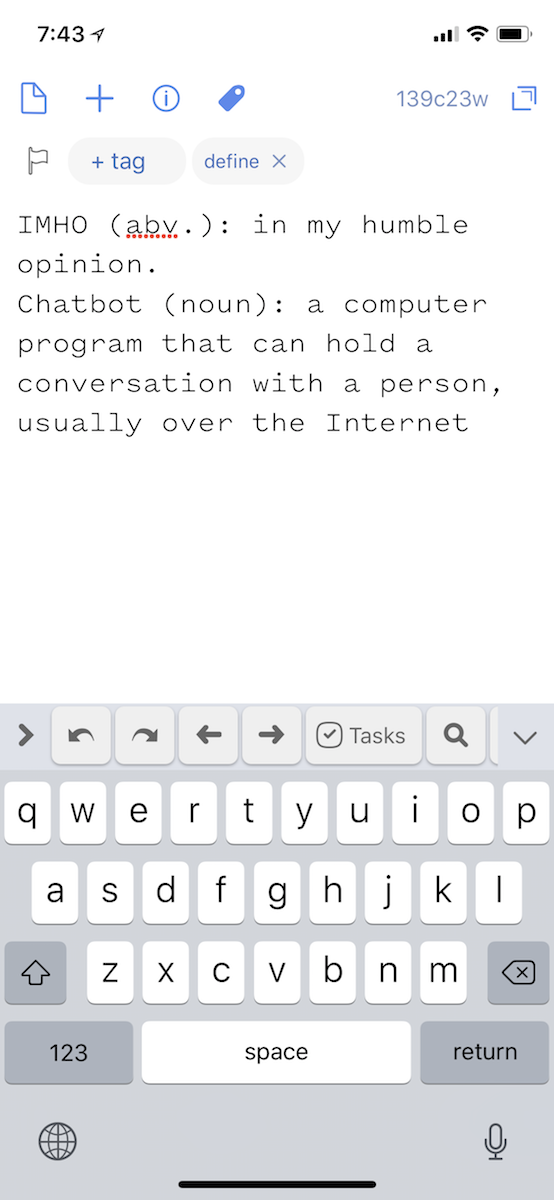
Drafts for iOS Keyboard

On your phone, you’ll likely type text into Drafts by default. The app greets you with a blank screen every time you open it.

There’s a setting to choose how long you want Drafts to wait after you close the app before it creates a new note (60 seconds is the default). That way, if you switch to another app—say Safari to copy something—and back to Drafts, the note you just typed will still be there for you to add details, but if you put your phone away for a while and re-open it, you’ll have a blank space to type again.

Dictate text into Drafts

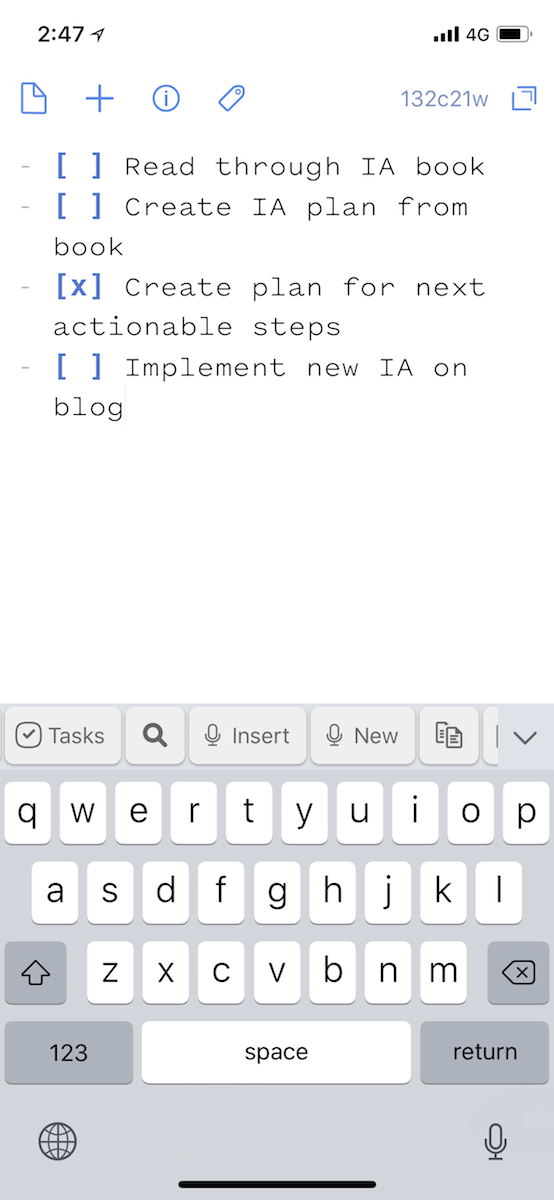
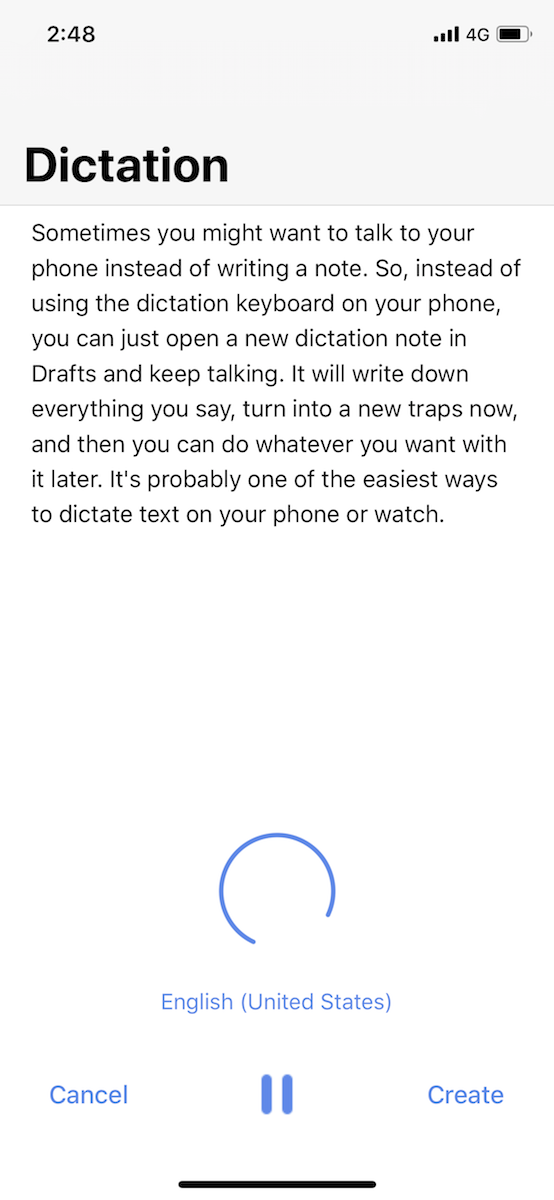
Or, you could talk. For all of Siri’s shortcomings, iOS dictation is surprisingly good, and Drafts makes it better. To dictate text, swipe to the left on the toolbar above the keyboard to reveal two mic buttons: Insert to add dictated text to this note, and New to create a new note from dictated text.

Start talking and Drafts will use iOS dictation to write what you said. Keep talking, and it keeps up—there doesn’t appear to be a time limit like the one in the default dictation keyboard. That works on Apple Watch, too, for one of the few ways to do work from a 1.3” screen.

Say punctuation names like period to add them, or include light formatting with commands like new line (backspace or delete don’t work, however).

Drafts keyboard options

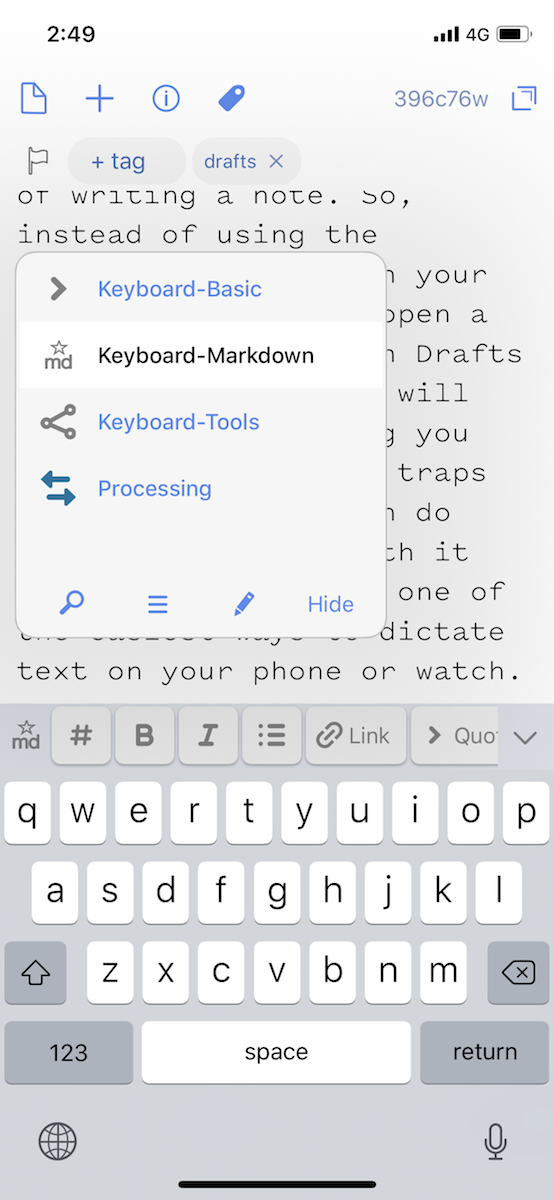
The default keyboard’s toolbar includes arrows to edit text, a search tool, and more. Tap the > icon to reveal a menu where you can switch the toolbar. There’s a Markdown keyboard to help you write with Markdown formatting; a Keyboard Tools keyboard to make text upper, lower, sorted, and more; a Processing keyboard to file your notes from your keyboard; and an option to add your own keyboard toolbar. With the latter, you can create new actions or add any of your favorite actions to the toolbar for one-tap access.

Drafts iOS options

Poke around and you’ll find a ton of crazy hidden features in Drafts:

  • Minimize the keyboard, and are arrow buttons to open your last or next notes.
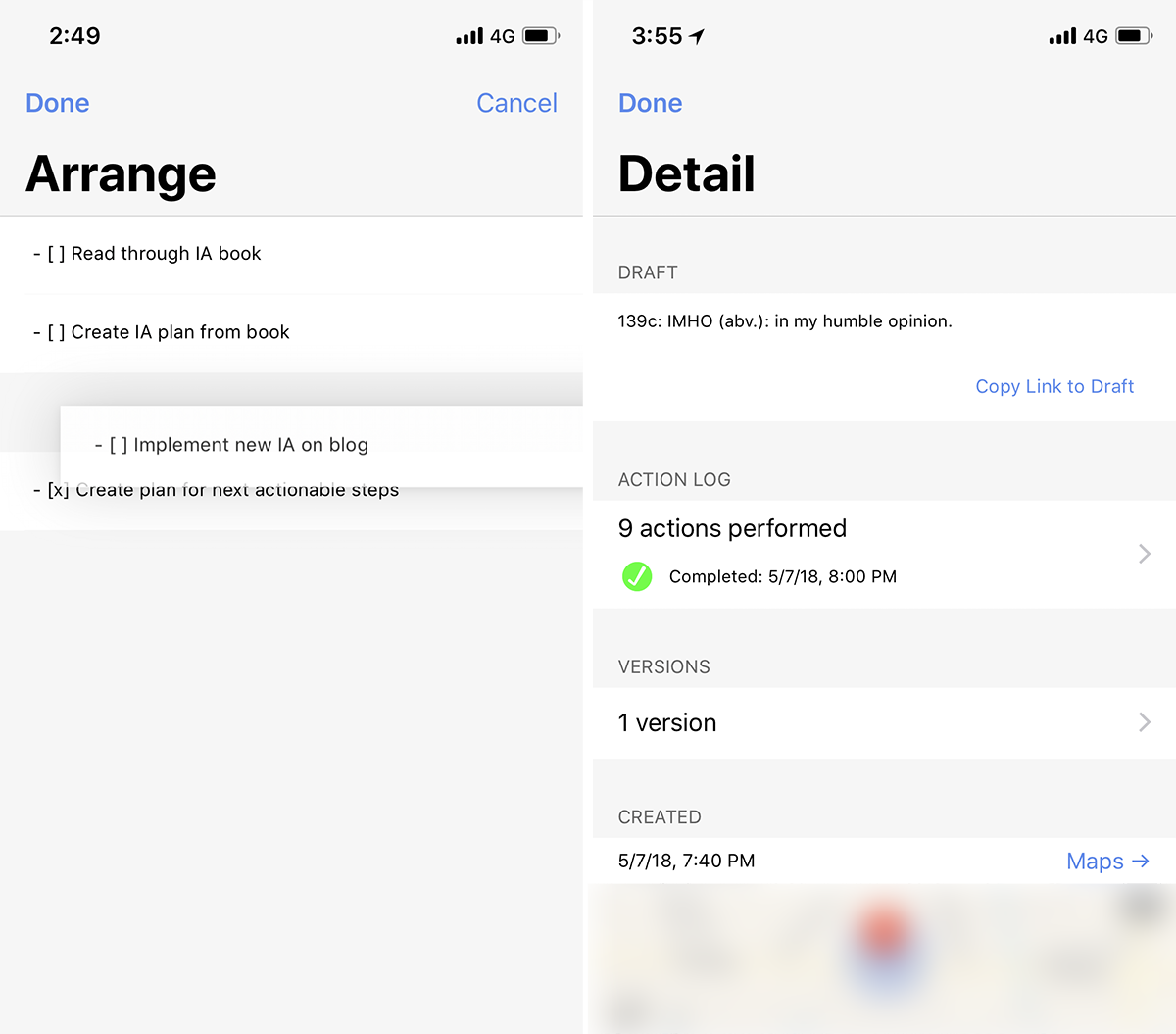
  • There’s also a 3-line button beside those arrows, which opens the Arrange pane where you can reorder individual lines or paragraphs of your text.
  • Want to tap links to open them—or not? There’s a chain icon to turn that on or off.
  • Need a different font or background color? Tap the Aa button and customize away.
  • The i button in the top left includes a list of every action you’ve run on that note, previous versions to restore your old edits, and the location where it was created and modified.

Organize Text in Drafts

Filter by tag in Drafts

Ok. You’ve written a bunch of stuff, all the things that pop in your head while you’re out and about. Time to make sense of the mess.

Drafts keeps all your notes in an Inbox as seen above, much like your email inbox. With a few notes, that’s plenty. Swipe in from the left of your phone to see your inbox and scroll through each of your notes. Tap the search icon to search through your notes.

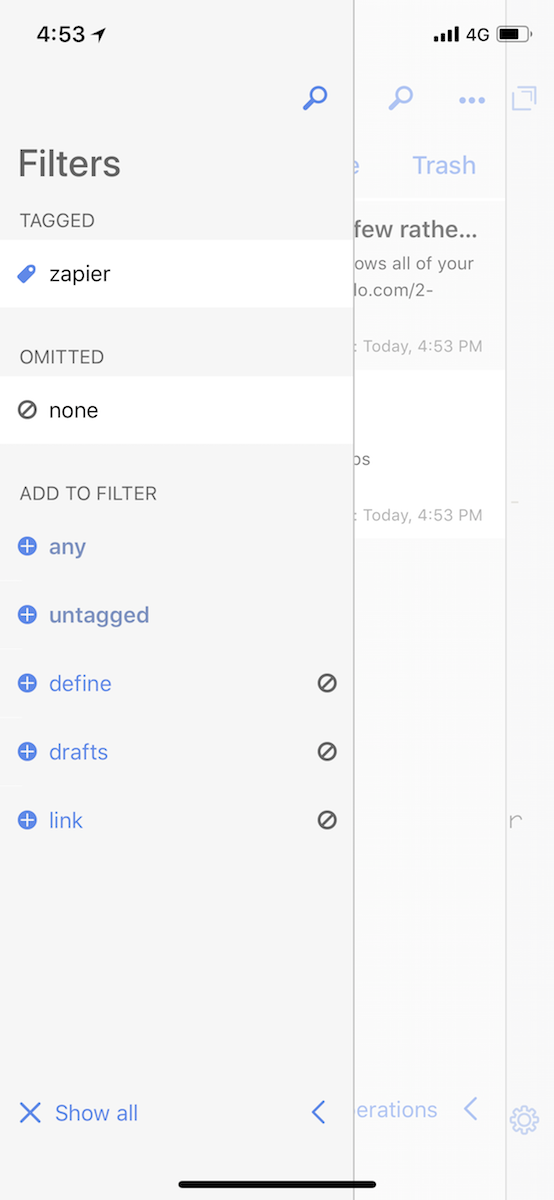
For a bit more order, tap the flag on the top of a note to mark it as Flagged so it’ll show up in the Flagged column. Or, tap the tag button and type in a tag, then when you have your Inbox open, swipe in from the left again to filter your notes by tag. Much like Gmail, there are no folders—but you can add multiple tags to each note so they’ll show up for both of those tags.

Drafts add new workspace

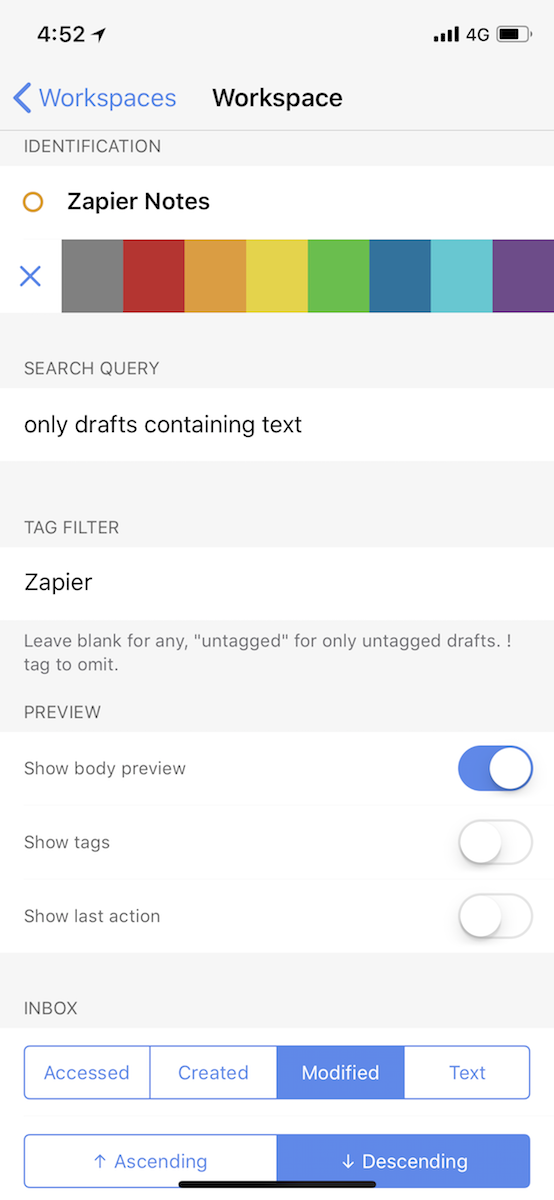
As your library of notes grows, you can create separate workspaces to organize text even more (with a paid Drafts subscription). Tap the menu in the Inbox view to add and organize your workspaces. Each new workspace can show only notes that have or don’t have specific tags, or that include specific text. You can then customize how the notes appear to make it easier to find what you want.

Those tools are helpful if you rely on Drafts as your default notes app. What’s far more common, though, is that you’ll send the text to other apps from Drafts. That’s where Actions come in.

Automate Text With Drafts Actions

Drafts Actions

Here’s where things get fun. You’ve written stuff down and organized them. Now it’s time to do stuff with that text.

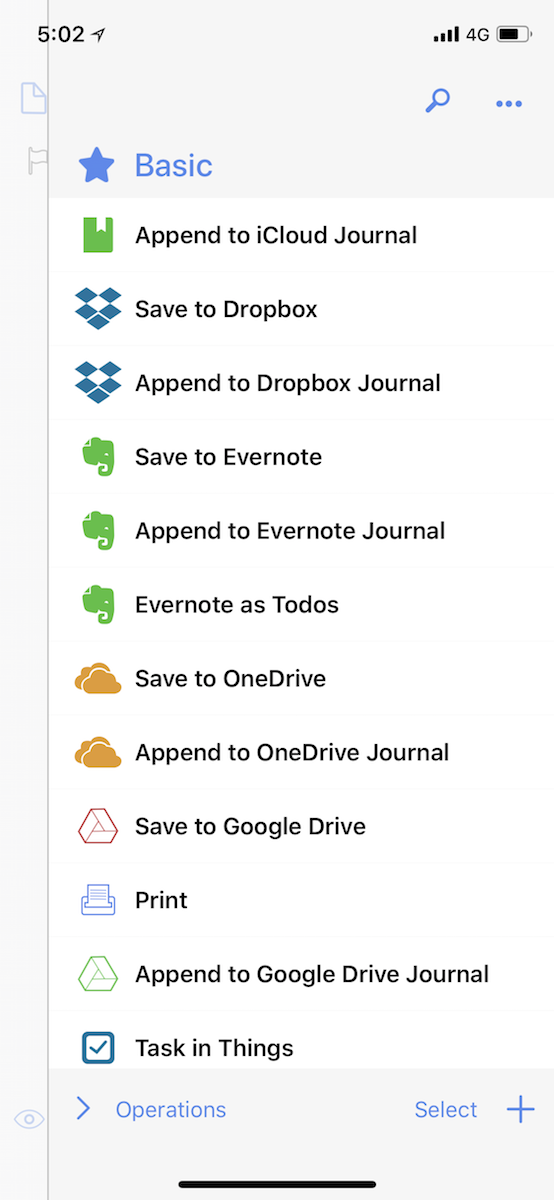
Swipe in from the right of your screen to see all of your actions—and swipe in again to switch between action groups. There’s tons by default. Drafts comes with actions to add notes to Evernote, lists of tasks to Reminders, files to Dropbox, and more. You can search Google from Drafts, Tweet text, send an email, look up a definition. Just tap the thing you want to do.

Install Drafts Action

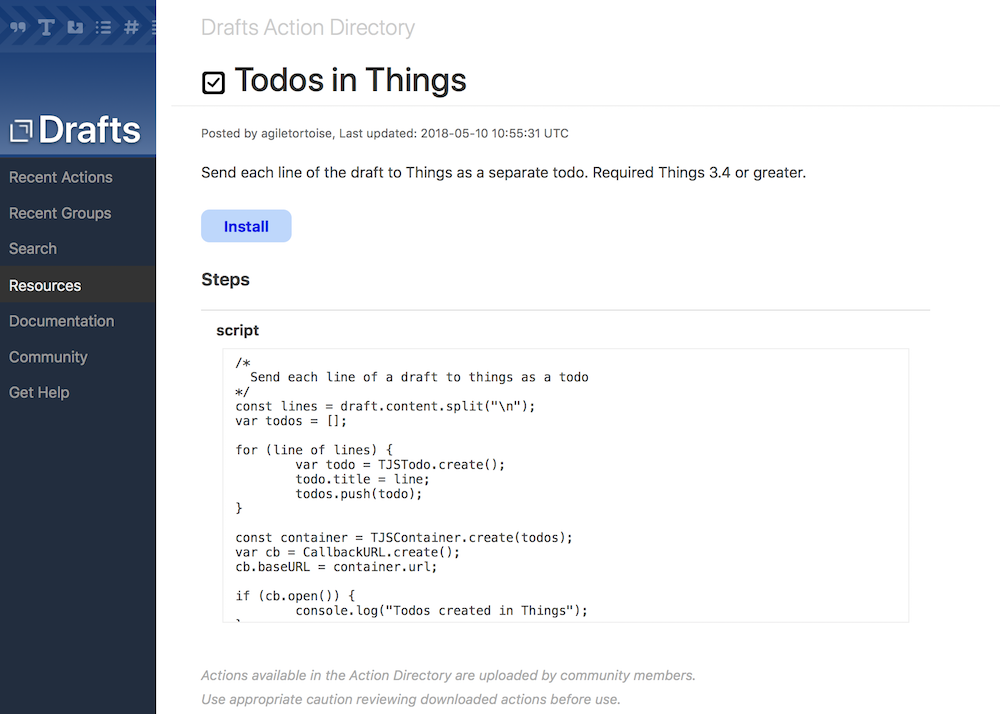
Can’t find the thing you want to do? Tap the + icon to browse through dozens of Drafts Actions, both from the Drafts team and fans who upload their own actions. Tap Install on an action to add it to Drafts, where you can choose which group to save the action in for easy access.

Build Drafts Action

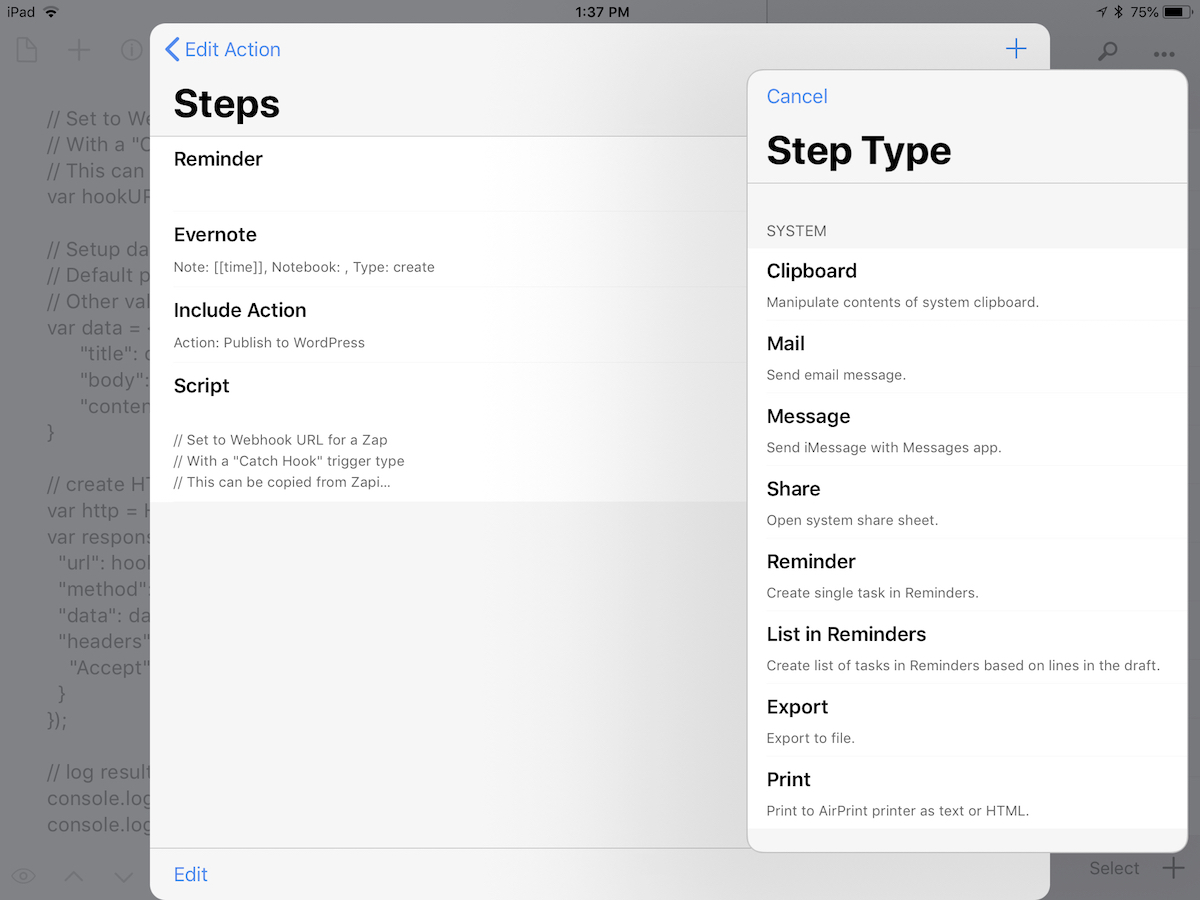
Or, with a paid Drafts account, you can edit existing Drafts Actions or create your own. Just as with Workspaces, you can add a name, icon, and color for your Action. Then, you can add as many action steps as you want. The built-in ones are the easiest. You can use those to open a URL (perfect for a custom search engine), send an email or iMessage, save a file locally or in Dropbox and Google Drive, run another Action for Drafts inception, or open a callback URL. The latter is the best way to connect to other iOS apps if they support x-callback-url, a popular way to send data to other apps. For example, the following x-callback-url would add a new task from Drafts to the Things to-do list app: things:///add?title=%5B%5Btitle%5D%5D&notes=%5B%5Bdrafts%5D%5D

The most powerful option is to add a script to your Drafts action, which lets you do far more than the built-in Actions and x-callback-urls allow. You can write your own Javascript code—or copy code from existing Drafts actions and tweak it to work the way you want.

Either way, you can add individual action steps to accomplish one task, or build a full workflow with multiple Actions and scripts to do an entire project in one tap.

Connect Drafts to 1,000+ Business Apps With Zapier

Want to build more advanced actions without coding? Drafts is a timesaving way to work in a text-first way, and with Zapier’s 1,000+ app integrations, it can also be a powerful way to get work done on the go.

It works the same, only with far more apps and detailed workflows to help you do more with your apps. Type a note in Drafts, then tap your Zapier action, and Drafts will start your Zap with whatever you typed. All you need is Drafts, and a Zap using Zapier’s Webhooks trigger.

1. Create a Webhooks Zap

Zapier Webhooks

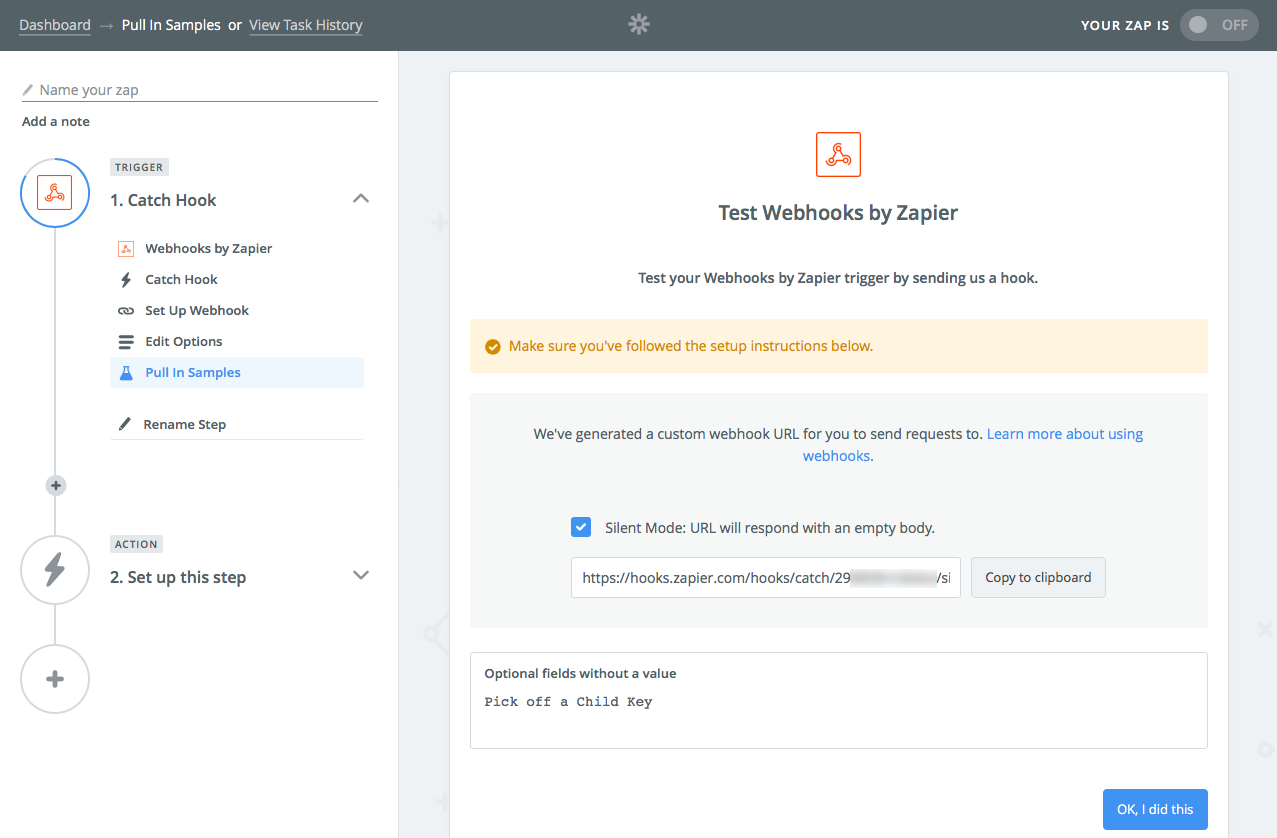
Here’s how it works. First you’ll want to build a Zap. Open the Zapier editor and choose the Webhooks Catch Hook trigger. Click the Silent Mode box and copy the URL.

2. Add Zapier to Drafts

Drafts Zapier Webhooks URL

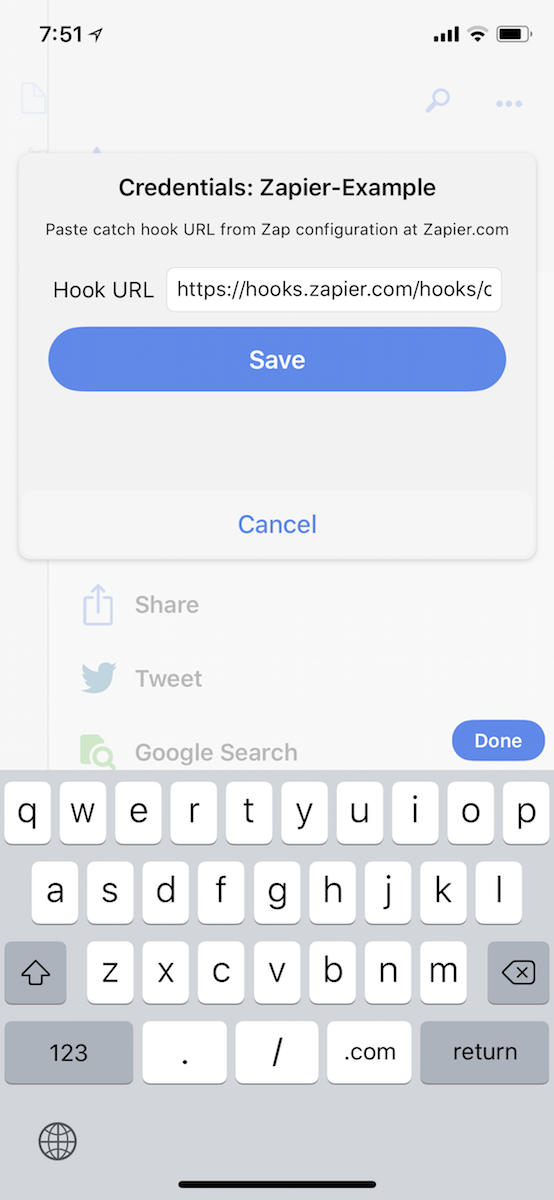
Then, install Drafts on your iPhone if you haven’t already. The easiest way to add Zapier to Drafts is to use the Drafts Zapier Catch Hook With Credentials action. Open that link, tap the Install button, and choose where to add it in Drafts.

3. Run the Zapier Action in Drafts

Now, type a note in Drafts, swipe over and tap the Zapier action, and Drafts will ask you to paste in a URL. Paste the Webhooks URL you copied before—and seconds later, you should see a confirmation that Drafts sent the text to Zapier.

Drafts text in Zapier

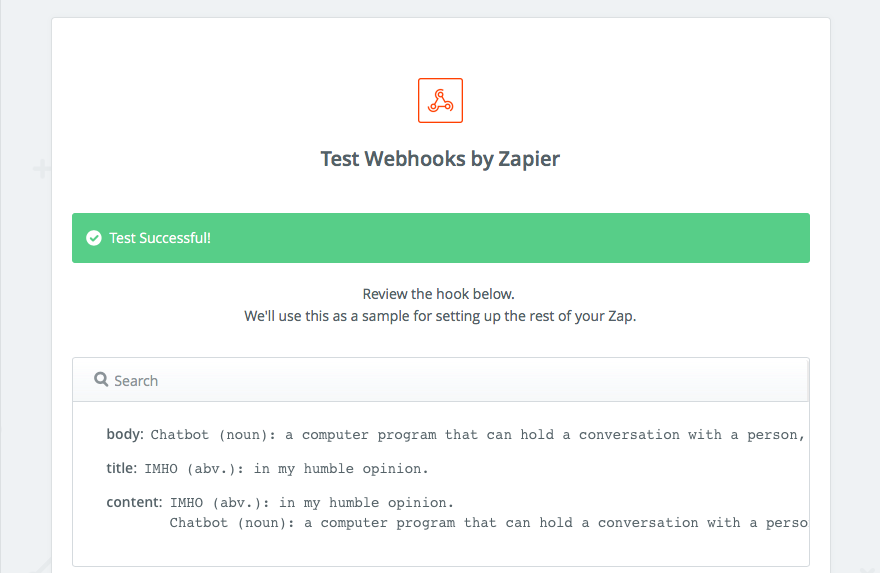
Back in Zapier, click the Ok, I did this button and Zapier will pull in the text from Drafts. Now, add an action step to create notes, files, contacts, projects, and more in over 1,000 apps with Zapier. Say you want to email this note to everyone subscribed to your MailChimp list. You’d select MailChimp as the action app in your Zap, choose the Create Campaign action, then tap the + icon in the editor to pull your Drafts note into the email.

You can then add another step to your Zap if you want. With multi-step Zaps, you can use your Drafts text to do multiple things at once. Zapier could, say, create the draft email, log that email to your Evernote notebook, and add a reminder to your Todoist to-do list to send the email this Friday. All that from one swipe-and-tap in Drafts on your phone.

Send Multiple Items to Zapier in Drafts

Drafts named variables Zapier

What if you want to add details to your Drafts note? Perhaps you met someone new and want to add their name and email address to your address book. Or maybe you wrote all your project details in one note. Zapier can handle all of those with Named Variables.

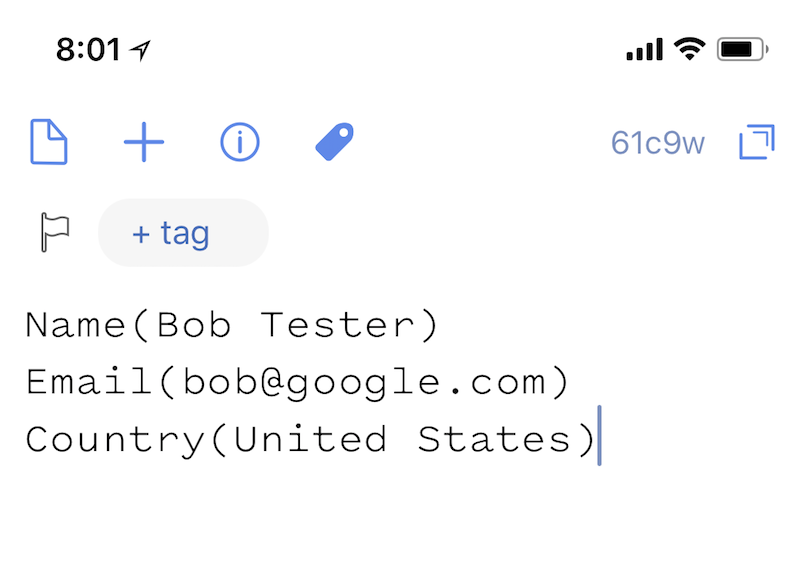
All you’ll need to do is write your note with the name of the variable (say, Name or Email Address or any other type of data you want to add) first, followed by a parenthesis with the text you want to add on the inside (perhaps Bob Tester or bob@gmail.com), as in the screenshot above.

Named Variable in Zapier

Then, in Zapier, you can copy the full note or each of the individual parts. That way you can add the name and email of a new contact individually. Just make sure to format text with the same variables every time you add a new note for this action in Drafts.

Add Multiple Drafts Zaps

Want to add another Zap to Drafts? Just install the Drafts for Zapier Action again, this time adding a new webhook URL to it for the new Zap. You can swipe to the right on a Drafts Action to rename it, give it a new icon and color, or tweak the action with a paid Drafts subscription.

Or, if you need to change the Webhooks URL your Drafts action uses, tap the gear icon in Drafts, select Credentials, then tap Forget beside your Zapier entry. The next time you run that action, Drafts will ask you for a new Webhooks URL.

Add Drafts to Popular Zaps

How can you use Drafts for iOS? Here are some of the most popular ways to use use Zapier with text snippets—and you can get more ideas for advanced workflows in our Automation Inspiration book:

Log Data

Editing spreadsheets and databases on the go is tough, but you could write details in Drafts and let Zapier add them to your database.

Send Messages

Even if your work phone number and email don’t work on your phone, Zapier can send messages through them for you—and can send a message to your team just as easily.

Create Tasks

Think of something to do or come across a bug that needs fixed while you’re out? Add it to Drafts, and Zapier can do the rest.


The best part of Drafts comes when you start to rely on it as the default way to type text on the go. Whenever you think of something, open Drafts first and type it there. Or open Drafts on your phone or watch, tap the record button, and talk through your thoughts.

Perhaps it’ll become a note that you want to leave in Drafts. Something to reference later, an idea, a memory in text. Far more likely, it’ll end up being something you want to do more with.

That’s where your Drafts actions come in. Swipe in, tap the action or Zap you want to run, and Drafts does the heavy lifting for you. You might start with a few favorite actions that come with Drafts, and slowly add more workflows until it’s the primary app you use to get stuff done on iOS.


Looking for more great apps for your iPhone and iPad? These Zapier roundups are a great place to start:

Header photo by Marjan Grabowski via Unsplash


source https://zapier.com/blog/drafts-ios-guide/

A Growing Startup Uses Automation to Keep Their Team Small

On the cosmic scales, the benefits of having a growing company far outweigh the negatives. It means your product resonates with an audience, that you're doing something right. But it also means you need to make hiring decisions, sometimes for roles not essential to your core product, but to running a business. It means dedicating large chunks of money away from essential practices.

But what if you didn't have to? What if, instead of hiring an engineer or a team of engineers, you could build with automation? That's what business travel software company TravelPerk opted to do. To keep costs down and their team small, TravelPerk automated as many of their processes as they could.

"Zapier saved us from hiring a full-time engineer."Gidi Pridor, VP Marketing & Growth, TravelPerk

Instead of bringing on engineers to help build custom software or connections between apps, Gigi Pridor, VP of marketing and growth at TravelPerk, realized they could use app automator Zapier to connect their apps—at a fraction of the cost of an employee.

About TravelPerk

Traveling is hard. Organizing travel for an entire company is even harder. In the eyes of TravelPerk's founders, most business travel companies operate with outdated technology and poor support. Founded in 2015, TravelPerk aims to simplify travel for companies, saving them money, time, and of course, stress.

With a focus on stellar customer support and easy-to-use tools, TravelPerk brings business travel into this century. It's no surprise they utilize automated workflows to make their processes as efficient as their product.

Connect Apps Without an Engineer

"We needed to integrate a plethora of tools and systems to run TravelPerk lean and efficiently—and not lose ourselves in code," Gidi explains. To keep their coding to a minimum, and free their marketers to craft the tools they need, Gidi brought Zapier into the fold.

In Zapier, Gidi transformed his marketing team into de facto-developers. By constructing Zaps, our word for automated workflows, TravelPerk's marketers connected apps on their own, without relying on developer resources.

"The moment we understood that we could remove the engineering bottleneck from the process and do it ourselves, I felt liberated."Gidi Pridor, VP Marketing & Growth, TravelPerk

With a few clicks, Gidi and his team automated their work and connected apps that otherwise couldn't.

TravelPerk's Tools

The Workflows

The simplest Zaps tend to alleviate the most manual work. Whether that's updating contacts in Intercom or notifying your team on Slack about new Salesforce leads, Zapier's automation saves the TravelPerk team from the monotony of repetitive actions. Here are a few of their biggest time-, and dev-, saving workflows:

"The native Unbounce to Autopilot integration is too basic to do the job we want it to do," Gidi says. "Through Zapier, we can enrich the data that we send to Autopilot and have a more relevant follow-up flow after people opt-in through one of our resources."

"It's hard to let these apps talk to each other natively—you need developer resources to get this done, but Zapier allows us to bypass certain things, so we can create powerful segments in Intercom," Gidi explains.

TravelPerk likes to share their sales numbers and new leads with the entire company. To do that, they connect Intercom and Salesforce to Slack, keeping everyone in the know.


TravelPerk utilizes automation to keep their costs low and only hire when they have to—and even better, they get to hire only the rolls they need to advance their product.

Since they don't have to spend time, resources, and brain power on creating integrations from scratch, Gidi and his team spend more time growing the company with growth campaigns and learning data insights.

Want to save yourself time and money like TravelPerk? Give Zapier a try for free.

All images courtesy of TravelPerk.


source https://zapier.com/blog/automate-leads-salesforce-intercom/

Friday, 1 June 2018

Financial Planners Save $200 Every Week with Zapier

How much is your time worth? Here's a thought experiment: If you offered out your services—maybe that's editing, support, sales, engineering—at an hourly rate, what would you charge?

Now that you have a number, what are some of the tasks that take you the most amount of time? If you're part of a small business, there's a good chance data entry, like creating contacts or adding emails to a newsletter, swallow a few hours of your week. Those lost few hours mean even less time to dedicate to the core of your job.

Take those hours and multiple them by your new hourly rate. That's how much money you're spending on administrative or menial work. The financial planners at Quarry Hill Advisors went through this exercise themselves.

They found that they were losing anywhere from an hour to two hours each week. And for a team of two, time spent moving contacts around is time spent away from clients.

So when Kyle Moore, Certified Financial Planner and co-founder of Quarry Hill Advisors, discovered app automator Zapier, he immediately set out to mark these tasks off their to-do lists.

"Zapier saves me at least an hour per week, which at my billing rate of $200 per hour, has quite an impact on my bottom line!" explains Kyle.

Automate Contact Creation and Emails

Generating new clients is the fun part of any business—you stretch your marketing and sales legs and (potentially) create new revenue streams for your livelihood. But a big pitfall comes around once you need to organize the new clients in your client relationship manager (CRM) or newsletter. It's plain tedious. You're lucky if you have a CSV or spreadsheet to import; otherwise, you're stuck with copy and paste.

To manage their clients, Quarry Hill Advisors use Wealthbox CRM, a CRM made specifically for financial advisors. With tight security and integrations with online portfolio systems, it helps the Quarry Hill team work efficiently in their CRM. They just needed a faster way to add contacts to it. Enter Zapier.

With a few Zaps—our term for automated workflows—Kyle automates contact creation, building an email list, and sending introduction email. These three tasks used to contain an immense amount of mundane manual work—a lot of copy and paste. Now, Zapier instantly sends emails, contacts appear in Wealthbox, and Quarry Hill's newsletter list grows bigger every day, without a single touchpoint.

Let's see how they're doing all this:

It all starts with an appointment. To make scheduling easy, Quarry Hill Advisors use appointment app ScheduleOnce. When that new booking is created, Zapier takes the client's information and makes a contact in Wealthbox.

Once the contact exists in Wealthbox, another Zap runs to add them to a list in MailChimp. But that's not all: With a third Zap, Zapier creates an introductory email draft in Gmail. With a drafted email ready to go from Zapier for each new booking in ScheduleOnce, Kyle provides a personal touch before he ever gets on the call—and without having to write out each individual email.

"I don't need to remember to send this or look up the prospect's email address," Kyle says. "It's just there waiting for me to personalize and click send."

Want to put money back in your pocket and time on your clock? Try using some of Quarry Hill Advisors' Zaps in your workflows:

Check out some of our most popular Zaps featuring Gmail, ScheduleOnce, MailChimp, and Wealthbox, too:


Your Zaps don't have to be complicated to be helpful. Quarry Hill Advisors shows that with 3 simple Zaps, they're saving time and money every single week—enough time to get a full work-week back every year, plus a little extra. And if you take a little of that time and use it to improve your workflows, the results are undeniable.

"The investment of time on the frontend to create or find Zaps that automate tasks will yield incredible time savings in the future," says Kyle.

All images courtesy of Quarry Hill Advisors.


source https://zapier.com/blog/automatically-create-contacts/