Wednesday, 5 December 2018

The 9 Best Meeting Scheduler Apps for 2019

Good meetings happen when people prepare for them. One way to eke out a little more time for that is to be more efficient with how you schedule your meetings. How you choose a time and date when everyone can meet and get it onto your calendar matters because it can be either a smooth and quick process or a time-consuming one, usually involving an unnecessarily long email chain. Meeting scheduler apps take the pain out of getting meetings on the calendar. They let you poll colleagues and friends on the best date and time to meet, make your availability known to others, and ensure you don't double-book a time slot.

There are quite a few different flavors of meeting scheduler apps, from email plugins to websites you can use anonymously. Knowing the range of options benefits you because you might end up needing different apps for different situations.

What Makes a Great Meeting Scheduler?

The best meeting scheduler apps are easy to use, offer good value, and either provide something unique or do it better than others. Those criteria were the main points of consideration when choosing apps for this list of the best meeting schedulers.

Most (though not all) meeting scheduler apps connect to your online calendar, such as Google Calendar, iCal, or Outlook. They look at your schedule to help you identify times when you're free for meetings. Often, they have tools for sending invitation to the people with whom you need to meet so you can find out when would be best for them. Many scheduling apps also write new appointments on your calendar for you.

But not all scheduler apps contain such rich features, and you wouldn't necessarily want them to. For example, some apps are more pared down but excel at speed. Others are available on mobile platforms. One app that made this list has very few features but is free and anonymous to use, and that may be ideal if you're meeting with people who have security and privacy concerns. Imagine trying to organize people in your community to meet about some sensitive topic and asking everyone to register with their name and email address. You could end up driving people away before your meeting takes place.

The apps that made this list represent the diverse needs people have when looking to arrange meetings and events.

The Best Meeting Scheduler Apps

  • Boomerang Calendar (Gmail plugin)

    Best Gmail plugin meeting scheduler app
  • Calendly (Web)

    Best meeting scheduler app for letting others schedule meetings with you
  • Doodle (Android, iOS, Web)

    Best meeting scheduler app for Best meeting scheduler app for mobile use
  • FreeBusy (Outlook, Web)

    Best meeting scheduler app for coordinating inside and outside an organization
  • Meetin.gs (Android, iOS, Outlook, Web)

    Best meeting scheduler app for managing and preparing for meetings
  • MeetingBird (Web)

    Best meeting scheduler app for using with Front email client
  • Rallly (Web)

    Best free meeting scheduler app for anonymous use
  • Vyte.in(iOS, Web)

    Best meeting scheduler app for seamless scheduling in Google Calendar
  • X.ai (Web)

    Best AI assistant meeting scheduler app

Boomerang Calendar (Gmail Plugin)

Best Gmail plugin meeting scheduler app

Boomerang Calendar

Boomerang Calendar (from the same team who created the email assistant app Boomerang for Gmail), is a browser extension for Chrome and Firefox that plugs into Gmail and Google Calendar, giving it direct access to your schedule as well as your email. It gives you a few ways to figure out agreeable meeting times and get them onto both your calendar and your colleagues'.

For example, one option is to pull up a view of your calendar while you're composing an email and select spans of time when you're free. Boomerang Calendar then embeds a view of your calendar showing the options so that you can send them to the people you need to meet. Your recipients have the option to click on a time that works to confirm the meeting in one shot. Once finalized, the meeting details show up in a Google Calendar event.

Another options is to embed into an email a calendar view of your free and busy times over the next few days or the following week.

Boomerang Calendar does not display the details of other events that are on your calendar to your recipients. Rather, it only shows when you are busy or free, and crucially, the times you've suggested to meet. Still, some people may find Boomerang a bit intrusive, seeing as it has access to your calendar, email, and contacts. Be sure to comb through Boomerang Calendar's privacy policy if you're on the fence.

Boomerang Calendar Pricing: Free

Calendly (Web)

Best meeting scheduler app for letting others schedule meetings with you

Calendly

Calendly lets other people schedule meetings with you by showing them your availability and offering them different types of appointments they can create. It's an ideal app for anyone who gets a lot of meeting requests and needs a simple but clear reply.

You start by giving Calendly insight into when you're free by connecting it to your calendar, which can be Google Calendar, iCal, Microsoft Office 365, or Outlook. Then you create different meeting options for the types of meetings you offer, such as "30-minute phone interview" or "initial client intake meeting." Calendly has a slew of details you can add to each meeting type you offer. Finally, you send a link to people who need to schedule meetings with them so that they can see when you're available and request the meetings they need.

Calendly syncs all the confirmed appointments to your calendar and offers to create an event on your invitees' calendars as well. There are tools for setting up an automatic reminder email to attendees, too.

While Calendly works well for scheduling meetings with individuals or team members within an organization, its custom events and outgoing links make it ideal for connecting with external clients, customers, and colleagues. Calendly integrates with Zapier, which expands the number of integrations you have between it and other apps and software.

Calendly Pricing: Free with limited features; paid plans from $8/month

Doodle (Android, iOS, Web)

Best meeting scheduler app for mobile use
Doodle

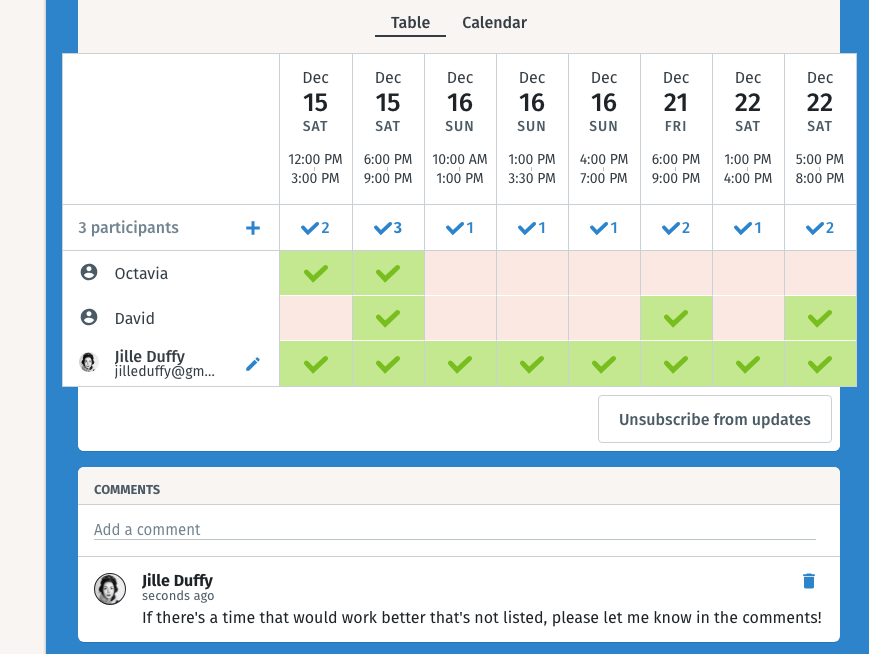
Doodle works well for picking a time and date for both professional and personal events, and for sharing your availability with others. Whether you're organizing a family dinner or an all-hands meeting, Doodle has a friendly interface and the right options to make planning simple for everyone. It's also one of the few meeting schedules with mobile apps for both Android and iOS.

At its core, Doodle is a polling app, but it's specifically for choosing times and dates. When you set up a poll, you don't have to limit people to replying to each suggestion with only a yes or no, as you can add "if need be" for instances when the timing isn't ideal but could work. You can also limit the number of yes votes each respondent gives. Additionally, you can invite people to your poll by email, or generate a link to a public URL and share it however you like.

Doodle also lets you create a unique URL where you can permanently display your availability based on a connected calendar, known as your MeetMe page. Google Calendar, Microsoft Office 365, and Outlook are supported, with an option to add other calendars via ICS feed. People who visit your MeetMe page can request a meeting by marking out a free time slot that works for them.

With a paid Doodle members, you get advanced meeting scheduling features, such as the ability to quickly see who hasn't answered a poll yet, based on those you've invited, as well as custom branding for MeetMe pages.

Doodle Pricing: Free with limited features; paid plans from $49/year

FreeBusy (Outlook, Web)

Best meeting scheduler app for coordinating inside and outside an organization
FreeBusy

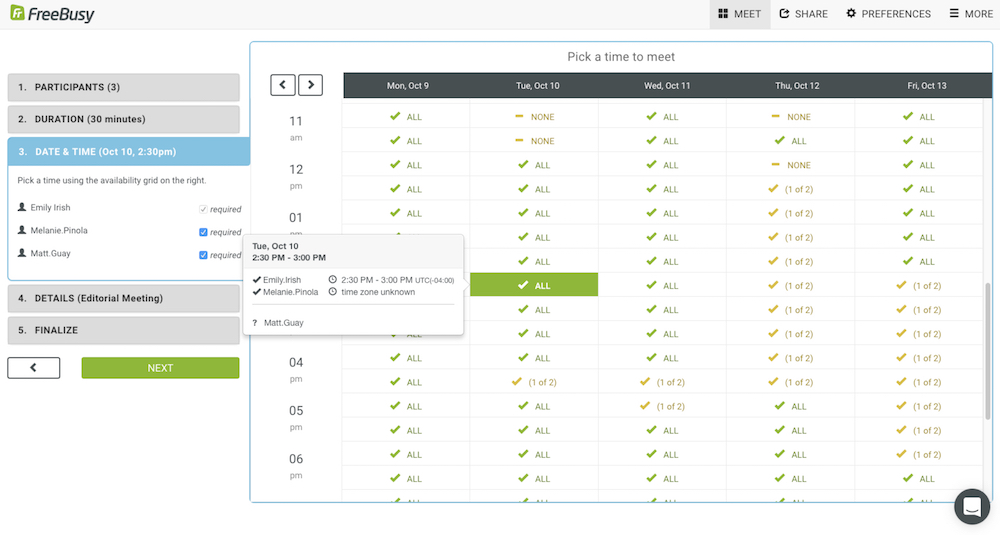
If you want a meeting scheduler that you can use both inside and outside your organization, FreeBusy is the app for you. It works well across organizations because it integrates with just about any calendar that someone might use. You can connect to calendars hosted in Facebook, Google, IBM Verse, iCloud, Microsoft Exchange, Office 365, Outlook, Oracle, OwnCloud, Salesforce, Yahoo, and Zimbra. It also integrates with several popular video conferencing systems, such as BlueJeans and Zoom. There's a plugin for Outlook and an extension for Chrome as well.

With FreeBusy, you have two options for scheduling a meeting. One option is to create a specific meeting, add participants (either by email or from a list of contacts you regularly meet), and suggest a time when you're free. If the suggested time doesn't work for everyone else, they can view your availability over the next week and suggest a new time based likely to suit you, too.

The other option is to share a link to your unique FreeBusy page, which shows when you're available. Anyone with the link can request a meeting with you in just a few clicks. You then accept or reject the proposed meetings. The FreeBusy page also has settings that let you build in buffer time between meetings and restrict the list of people who can request a meeting.

Because it offers so many integrations, FreeBusy works extremely well across organizations who might use different tools. Its friendly interface and extensions make it a helpful too internally for company use, too.

FreeBusy Pricing: Free with limited features; paid plans from $6/month

Meetin.gs (Android, iOS, Outlook, Web)

Best meeting scheduler app for managing and preparing for meetings

Meetin.gs

Meetin.gs is an all-in-one meeting tool for creating meetings and managing your meeting schedule. The app lets you create a personal meeting page where visitors can request a meeting with you by viewing available time slots on your calendar. You can also create different types of meeting requests, such as a 30-minute interview by Skype or a 15-minute debrief at a specific location, so that when people request a meeting, they know your preferences for where and who long you'll meet.

The app also has a dashboard where you see all your upcoming meetings and relevant details on a timeline. One of the best aspects of Meetin.gs, however, is that it guides you toward holding better meetings because it includes tools for creating agendas and recording action items that result from your meetings. The web app lets you connect to Google Calendar easily, and you can create connections to other calendars by setting up an ICS-calendar feed. You'll need the iOS or Android mobile app to connect with other online calendars, including Outlook, Yahoo, and AOL.

Meetin.gs Pricing: from $12/month per person

Meetingbird (Web)

Best meeting scheduler app for using with Front email client

Meetingbird
Meetingbird

Meetingbird is a full featured meeting scheduler app from the same company that created Front, a shared email inbox for teams. It's for people who have frequent meetings and who use either Front or Gmail, as there are integrations for those two email clients via a Chrome extension.

With the Chrome extension installed, Meetingbird shows you your calendar alongside your email, letting you see times when you're available to meet with others. You can also generate calendar invitations and share a link that shows your availability, all without ever leaving your inbox. The app also has a polling tool as well for finding the best time and date to meet with a large group of people. Meetingbird also lets you create meeting templates that you and other people in your organization can use to quickly set up a commonly held meeting, such as a 15-minute phone screening for new job applicants. Another excellent feature in Meetingbird is the ability to reserve time for tentative events and block out times when you don't want to take any meetings at all.

Note that to create a Meetingbird account, you need a Google or Office 365 account. There's no option to sign up using an email address and password. It's the right app to pick, however, if you use the Front email app because it integrates so well with it.

Meetingbird Pricing: Free for up to 25 meetings a month; $9/month for Pro

Rallly (Web)

Best free meeting scheduler app for anonymous use

Rallly meeting collaboration

Show of hands: Who's available Monday? How about Tuesday? That's the concept behind the very simple web app Rallly (with three 'l's), which helps you and your associates find an agreeable date to get together.

The real secret sauce for this tool is that the person who creates the poll and everyone who answers it can be completely anonymous. You enter a few suggestions for when you'd like to meet and invite people to answer your poll by either entering their email addresses or sending them a link. For every poll you create, a discussion box appears below it where anyone can leave comments.

The main drawback to Rallly is it only lets you suggest dates, not times. It doesn't have any management tools or advanced scheduling features, either, much less offer connectivity with your calendar. But it does offer anonymity, and in certain circles, that's a critical component. It's free and open source, too.

Rallly Pricing: Free

Vyte.in (iOS, Web)

Best meeting scheduler app for seamless scheduling in Google Calendar

Vyte.in meeting app

Vyte.in is a meeting scheduler app for web and iOS that offers two main services: scheduling by polling and a custom booking page. You can invite people to vote on a meeting time and date by email, and they can reply via email with the times that work for them just as easily, without requiring them to create an account. Vyte.in then tracks who chooses which time and lets you know when is best to schedule your event.

When you create a personal booking page with Vyte.in, you get a custom URL where people can see your availability and request an appropriate time and date for a meeting. With a Pro account, you can set a default time for meeting requests and automatically build in buffer times between meetings.

The app offers a few special features when you use it with other people who also have Vyte.in accounts and use Google Calendar. For example, the app can show your colleagues' availability alongside yours whenever you're searching for a time to meet. When everyone who's invited to the meeting confirms the time, date, and place, Vyte.in automatically schedules the meeting on your calendar and sends invitations to attendees. The app also blocks of tentative meeting times before they're set in stone to prevent you from accidentally double-booking your time. Vyte.in integrates with other tools such as Slack and Webex video conferencing to make it as easy as possible to get your meetings started.

Vyte.in Pricing: Free with limitations; from $10/month for Pro; custom pricing for enterprises

X.ai (Web)

Best AI assistant meeting scheduler app

X.ai artificial intelligence as your personal assistant

X.ai is an unusual meeting scheduler app that works by acting as your personal AI assistant when you use email to create meetings. First, you create an account and give x.ai access to your calendar, phone number, Skype ID, and other information. Then, whenever you need to schedule a meeting by email, you CC a unique x.ai email address that corresponds to an AI bot. You get two, called Amy and Andrew, to start. The bots become your personal assistants.

In the email body, you give your bots instructions by starting a fresh paragraph with their name. For example, you can write, "Amy, set up a 30-minute phone call with Jill. I'll call her." Your assistant will make sure the event gets onto your calendar with all the correct details.

You can also kick off an email thread by asking one of your bots to set something up with another person on the chain. After that first message, your bot takes over and replies to the meeting attendees suggesting dates and times that work for you based on your current calendar. As people reply, your bot locks in the details and eventually sends a calendar invite to all the meeting attendees.

While x.ai also offers a booking page and a few other tools, the main attraction here is the AI assistance. X.ai is the meeting scheduler app to choose if you just can't shake your colleagues from scheduling via email. Note that you'll need to sign in with Google, Outlook, or Okta, even if you create an account using an email address and password.

x.ai Pricing: from $8/month


Make Meetings Better

The right meeting scheduler tool helps you get meetings onto your calendar quickly and efficiently, and that helps keep you productive. But you don't have to stop there. Another way to stay productive is to automatically have notifications sent you before a meeting occurs in whatever app or device suits you best. For example, by using Zapier, you get SMS notifications however far in advance you like before events in your Google Calendar start. Or you might send a link via Slack to all meeting participants a few minutes before a web conference.

Anything you can do to make your routine of scheduling meetings more efficient is a win for everyone because it allows you to focus on preparing for the meeting instead of finding the right time for it.

This article originally appeared in 2014 and was updated in 2017 and 2018. Emily Irish, Joe Stych, and Paula DuPont contributed. Calendar icon courtesy of Edward Boatman, The Noun Project.


source https://zapier.com/blog/best-meeting-scheduler-apps/

Tuesday, 4 December 2018

The 14 Best Wireframe Tools for 2019

You wouldn't build a house without a blueprint. Likewise, you should never embark on a design journey without first creating a wireframe.

A wireframe is a visual mockup that outlines the basic structure of your website, app, or landing page. Traditionally, a wireframe is fairly simplistic. Basic shapes and elements are used to block out where each piece of content and UI element will go. And the power of the wireframe lies in that simplicity: Elements can be rearranged quickly and easily for iteration and approval before moving on to a higher-fidelity prototype.

Finding a wireframe tool that fits your team's needs can give your design process the strong foundation it needs to get everyone on the same page and streamline the design process from start to finish. Here, we'll present the best wireframing tools for a variety of use cases.

What Makes a Great Wireframe Tool?

There's no such thing as a one-size-fits-all solution for wireframing. The tech tools you choose need to fit with your unique setup and design process.

For some companies with a large design team, an hour spent in front of the office whiteboard might be enough to work through the basic wireframe process. For distributed teams, the wireframe must be digital and easily shared virtually with multiple collaborators. And then there's the approval process to consider, since iterations and revisions might be requested before you can move on to the next stage in the design process.

We reviewed and tested dozens of wireframing tools, and selected the 14 best options available. We considered a variety of factors including ease of wireframing for responsive design, seamless approval process, and flexibility for various design team sizes. We also made sure that each of the apps met some basic wireframing criteria:

  • Stable, up-to-date software: Some of the "big names" included in a lot of roundups haven't been updated for several years. We only considered apps with an active dev team.
  • UI kit or ability to upload one: In each of the following apps, you can either take advantage of a built-in UI component library or upload pre-designed kits from third parties.
  • Various levels of mockup fidelity: Whether you prefer to stick with basic, low-fidelity wireframes or move toward more high-fidelity mockups, the apps on this list represent a full range of capabilities.

The 14 Best Wireframe Tools

  • Sketch (macOS) for passing wireframes off to third-party apps
  • InVision Studio (macOs) for wireframing for multiple screen sizes
  • Adobe XD (macOS, Windows) for a complete wireframe > prototype tool
  • Figma (Web, macOS, Windows, Linux) for real-time collaboration
  • UXPin (Web, macOS, Windows) for handing off design documentation to developers
  • InVision Freehand (Web) for collaboration on a whiteboard-like canvas
  • Balsamiq (macOS, Windows, Web) for beginners
  • Proto.io (Web) for user experience testing
  • Moqups (Web) for wireframing interaction design flows
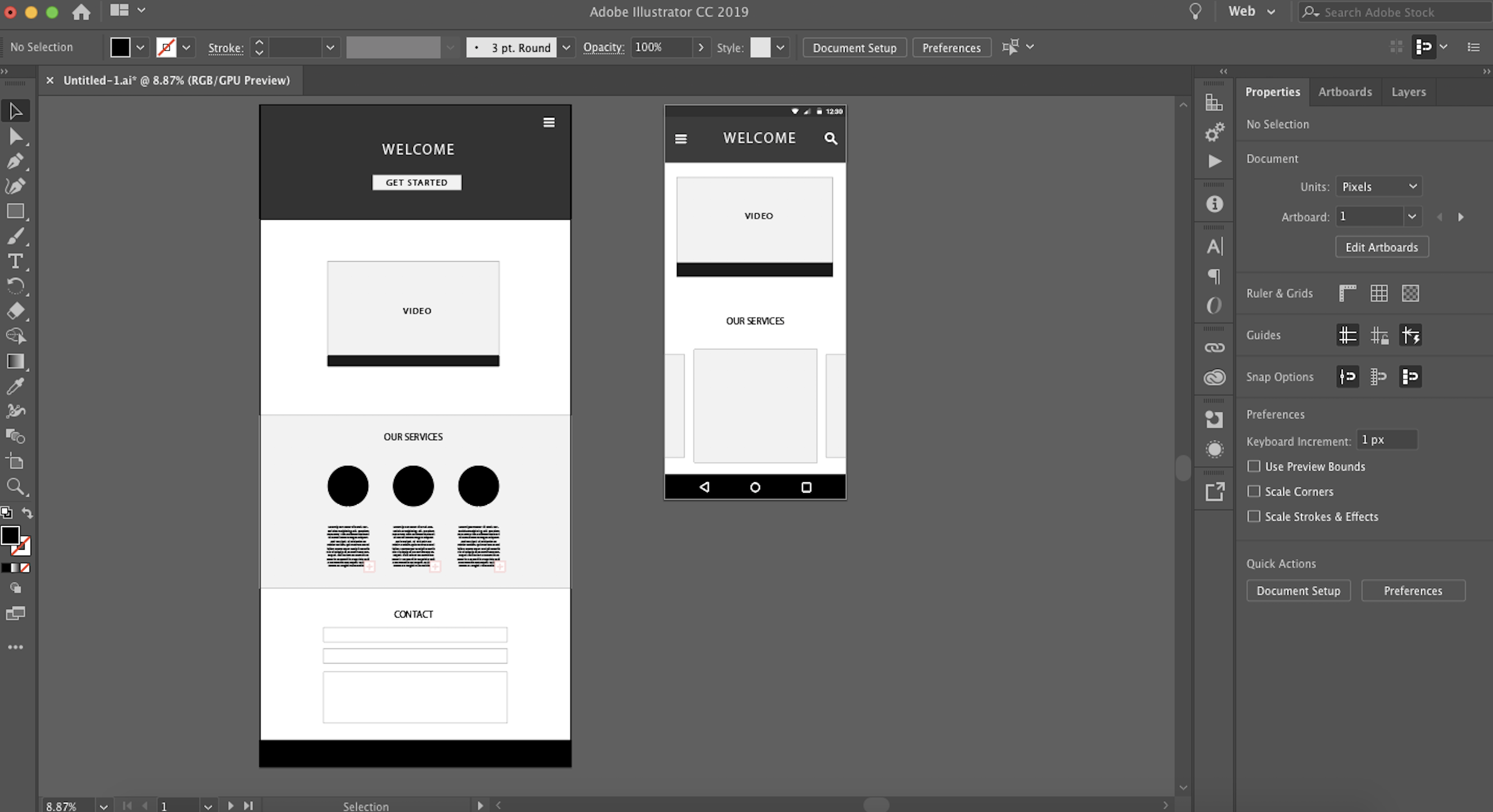
  • Adobe Illustrator (macOS, Windows, iOS) for detailed vector wireframes
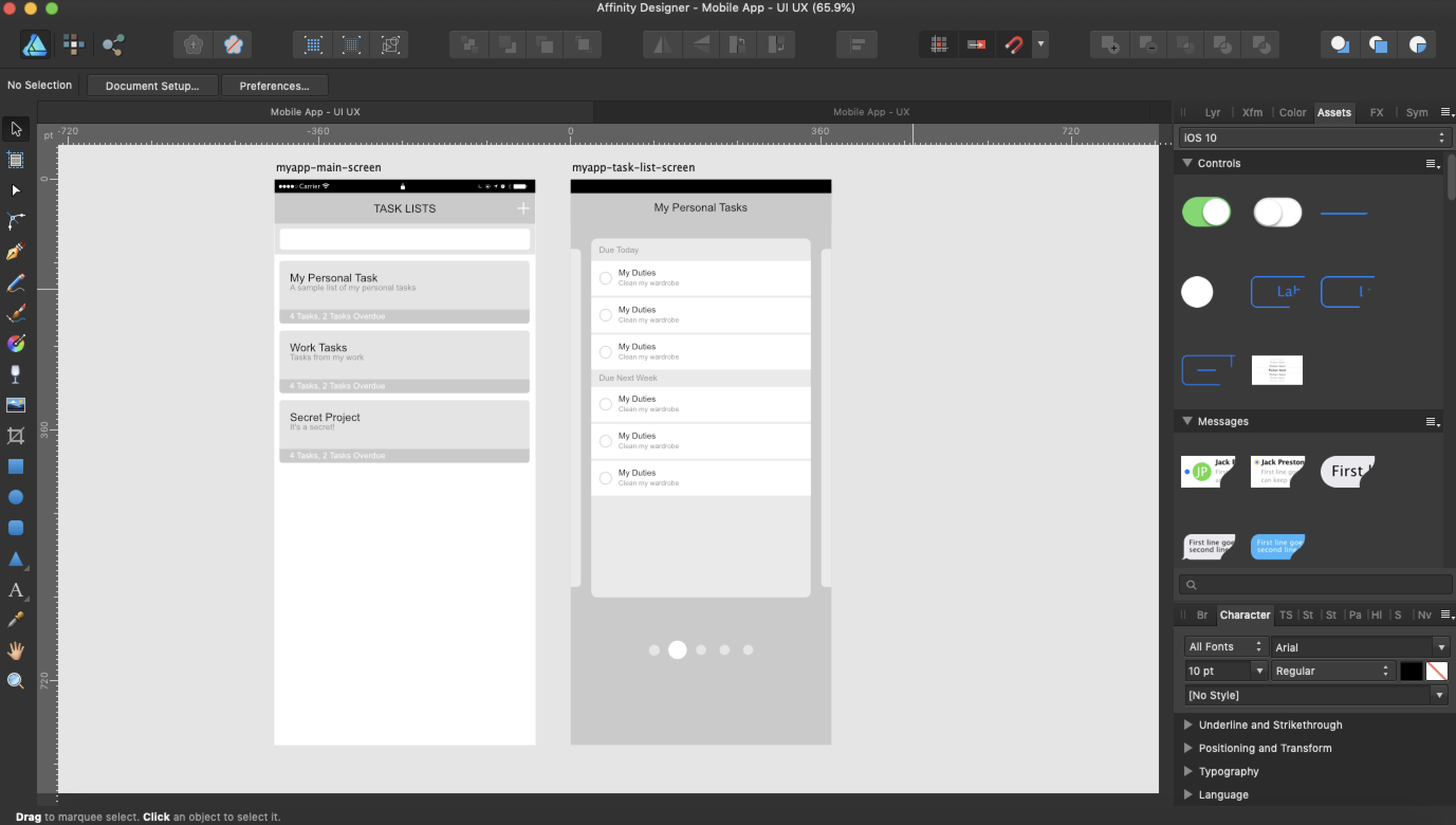
  • Affinity Designer (macOS, Windows, iOS) for a lightweight alternative to Adobe Illustrator
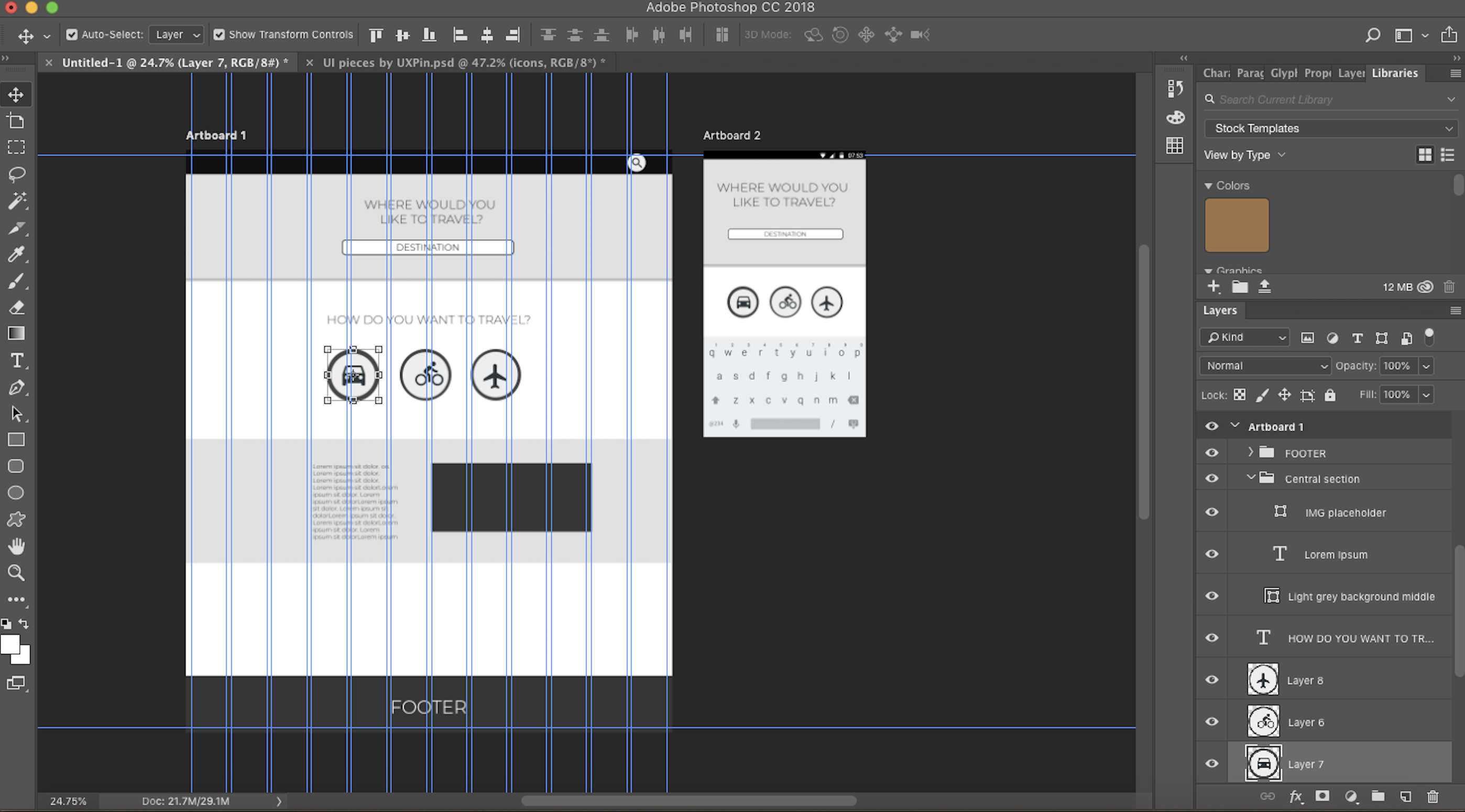
  • Adobe Photoshop (macOS, Windows, iOS) for detailed pixel-based wireframes
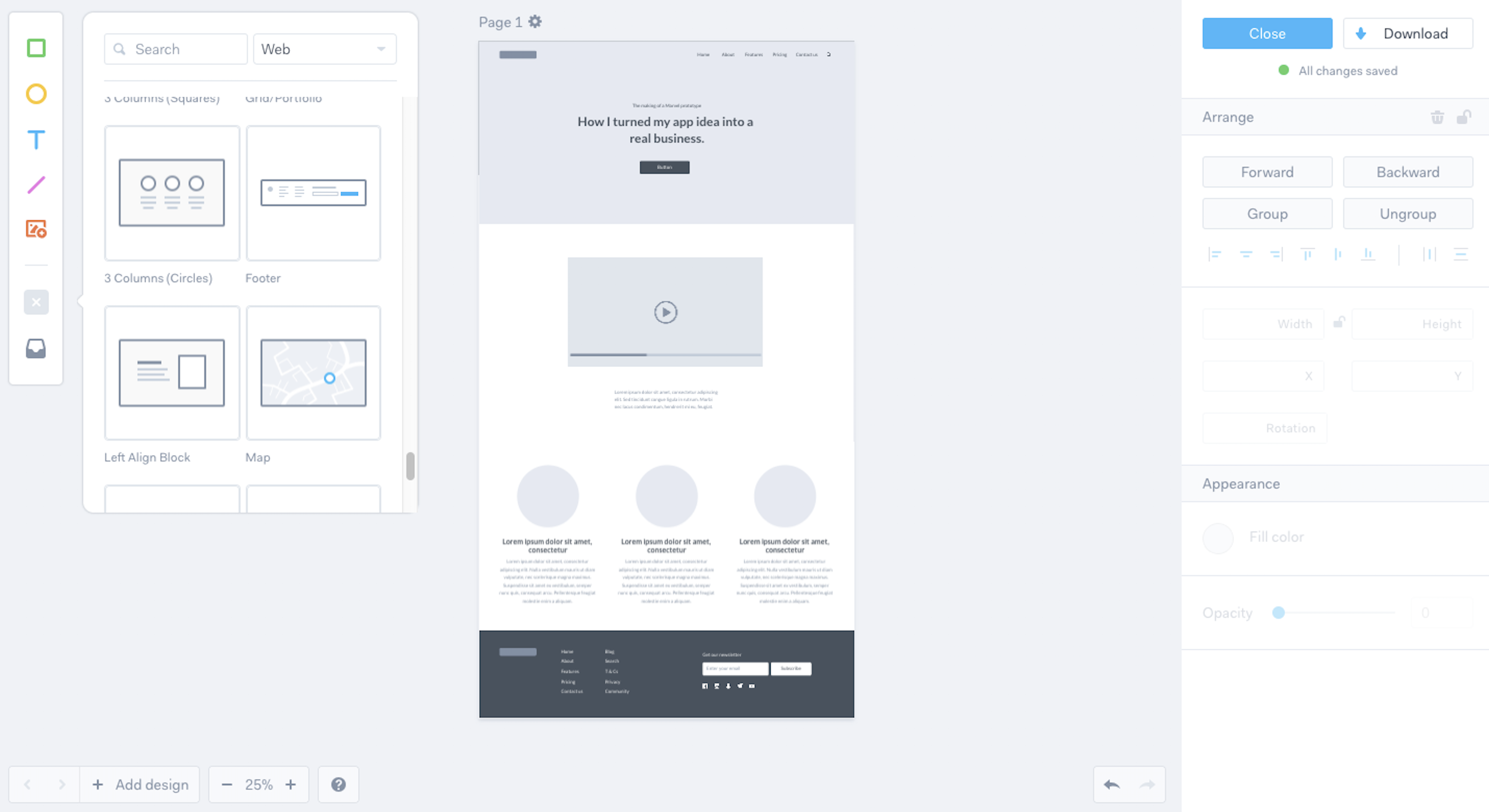
  • Marvel (Web) for pre-designed wireframe templates
  • Canva (Web) for quick marketing wireframes and visual hand-offs

Sketch (macOS)

Best wireframe tool for passing wireframes off to third-party apps

Sketch interface

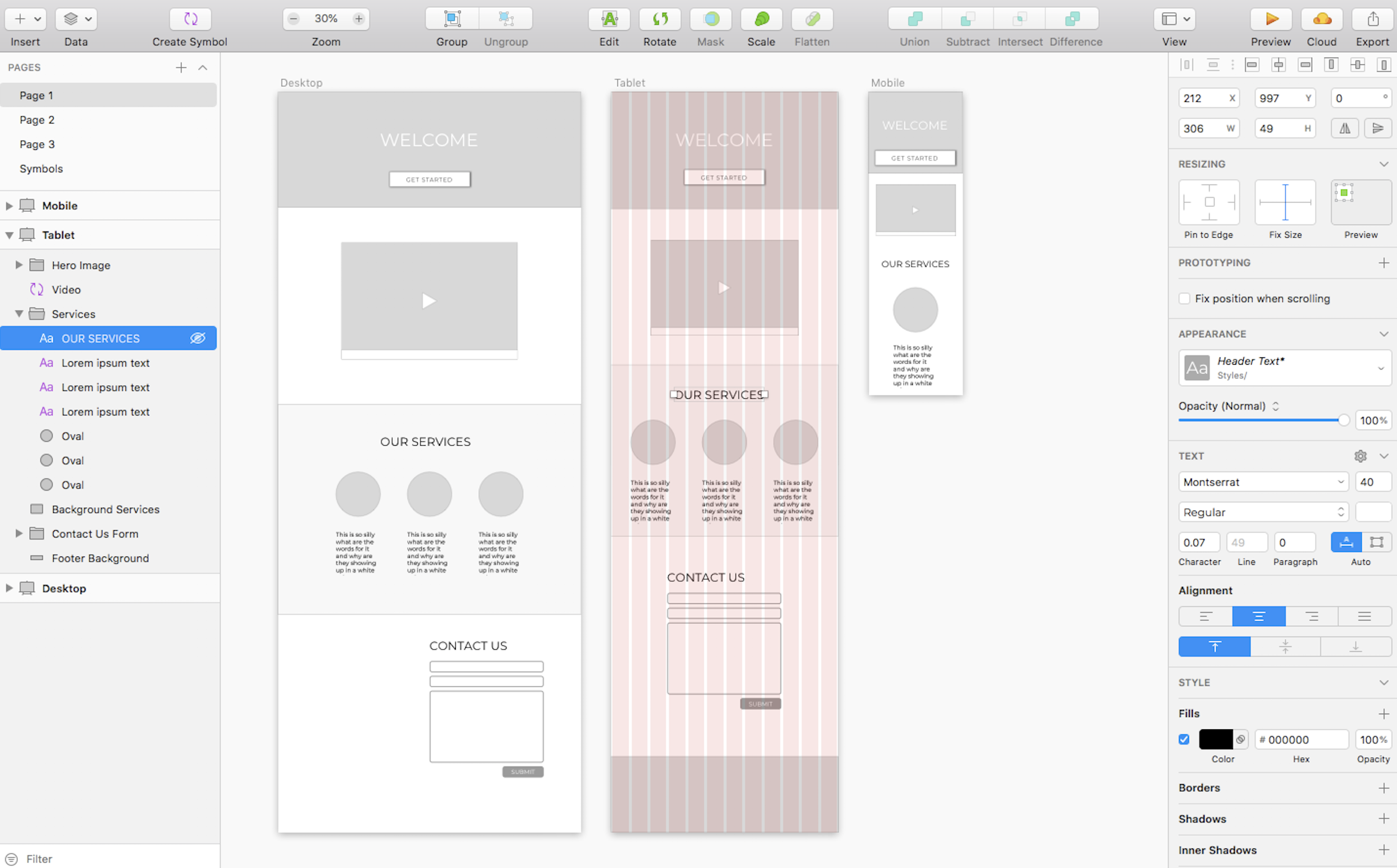
Since it was first released in 2010, Sketch has stolen the show as a lightweight vector design tool for macOS users. By itself, it's a fairly basic app that can be used for modern UI and icon vector design (on a pixel-based canvas, no less). Its interface is far simpler and more intuitive than vector design heavyweight Adobe Illustrator and can be used to create wireframes quickly with a combination of artboards and vector design shapes.

Although Sketch doesn't include ready-made UI components, like buttons and checkboxes, you can design your own inside the app itself and even reuse them with the handy Symbols feature. Or, if you want more detailed wireframes, you can always download a UI kit from a third party to quickly add basic elements and inject some life into your wireframes.

Like most desktop apps, Sketch makes collaboration a bit tricky, as there's no way to allow multiple designers to work simultaneously within a design file. But extensions like Abstract, which tracks design changes and can merge multiple versions into a single file, can make collaboration and version control a lot easier.

When it's time for hand-off, you can use the Export option to save your full designs and/or individual elements. Or, you can seamlessly integrate Sketch with tools further down your design process (including prototyping apps Principle, Framer, and Marvel, to name a few). Sketch has developed a reputation for encouraging and supporting an entire developer community devoted to building integration plugins. This has opened up a world of opportunity for Sketch users to quickly transport their designs to the "next step," allowing dev and design teams to communicate much more easily. While other wireframe tools, like InVision and Adobe XD, have also opened themselves to plugin integrations, Sketch currently owns that space simply due to its longevity.

We did experience a few bugs in the interface, like font colors that wouldn't change and a lag in duplicating simple shapes. While frustrating, these glitches were just a blip on the radar in an otherwise excellent app.

Sketch Price: $99/year; when the year is over, you can continue to use the tool, but you'll no longer receive software updates.

InVision Studio (macOS; Windows coming soon)

Best wireframe tool for creating responsive designs for multiple screen sizes

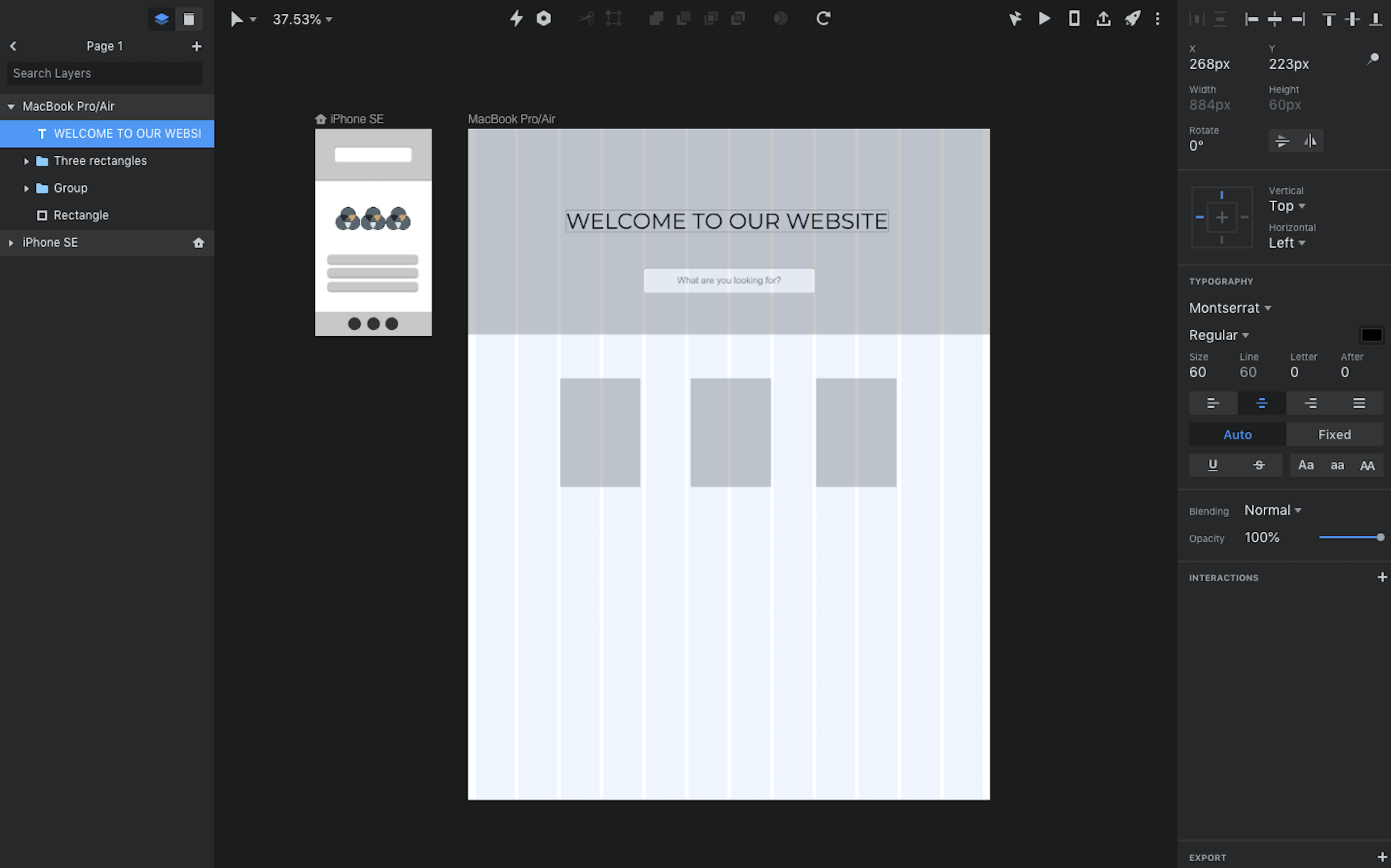
InVision Studio interface

Before its beta release in early 2018, InVision Studio was a long-anticipated app in the wireframe and UI design niche. Created by the same team that gave us the popular InVision prototyping tool (utilized by over seven million users), Studio has gained a lot of traction and continues to grow. Before its release, many UI designers used Sketch to create an interface, before uploading files to InVision for prototyping. Studio gives designers the option to stay totally within the InVision product suite.

When building the wireframe itself, you can create elements by adding basic shapes from the toolbar, or use the pen tool to create custom vector shapes. If you're looking for ready-made UI components, you can browse through InVision's free design library.

What impressed us most as we were working with InVision was the amount of thought they put into making responsive design easy. For example, Studio allows you to determine an object's position and size separately, so you can more easily manage exactly what happens to an icon or text box when the screen size changes from desktop to mobile.

When you're ready to flesh out the wireframe, you'll love that Studio integrates with Freehand for real-time collaboration with your team. And when it's time to send your design over to the dev team, you can use the Inspect tool to grab relevant design specs and add them to your documentation.

While no software is perfect, InVision Studio is still in its early stages and has has a few recurring bugs to work out. For example, when we tried to publish our Studio project for presentation purposes, the file was corrupted and had to be re-saved multiple times before it would work. But when we reached out to their tech support with these concerns, they responded with impressive speed and successful troubleshooting tips.

InVision Studio Price: Free for one prototype; from $15/month for the Starter plan that includes three prototypes.

Adobe XD (macOS, Windows)

Best wireframe tool for a one-stop-shop wireframe > interactive prototype solution

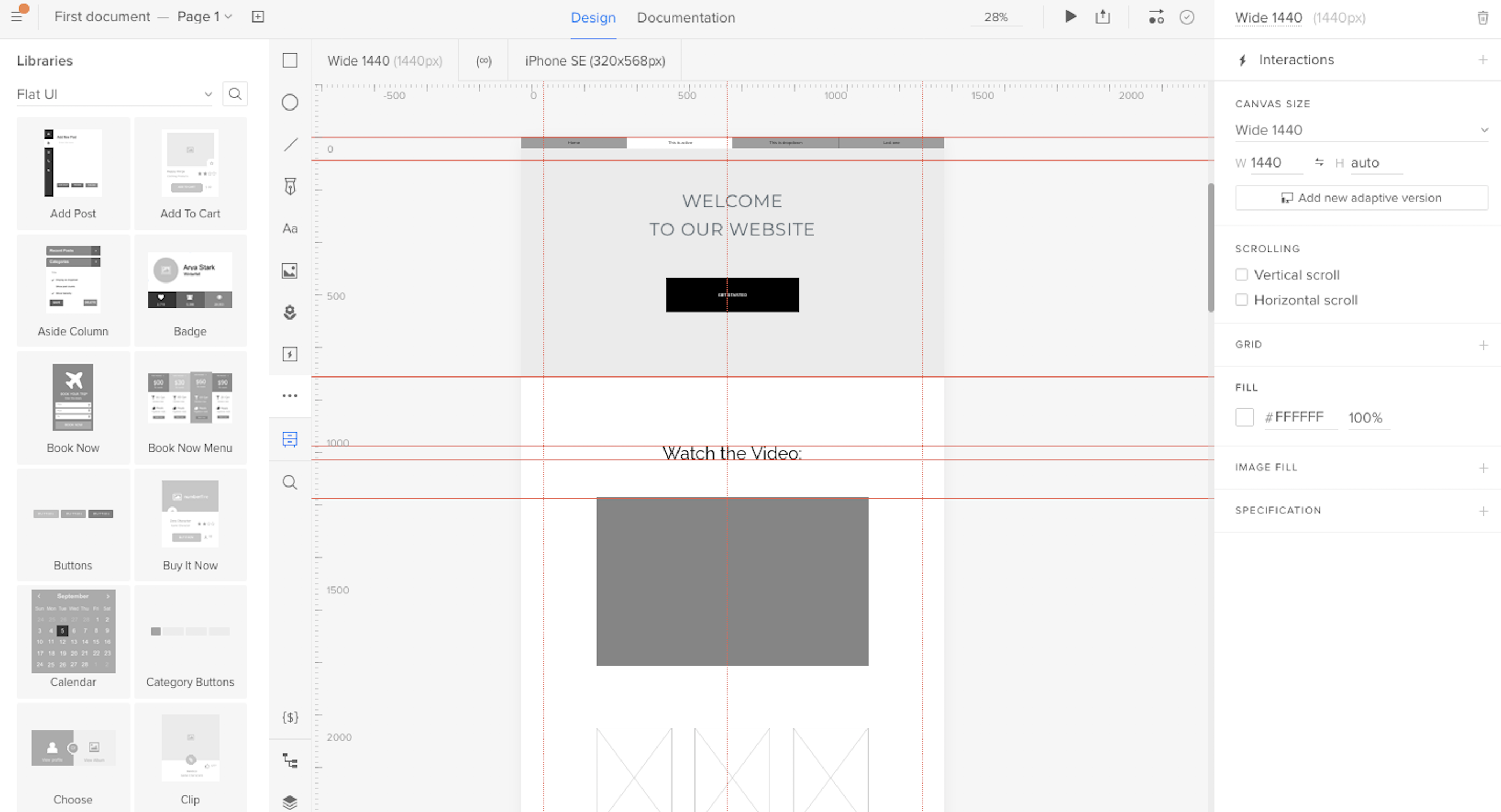
Adobe XD interface

Adobe XD is a new tool in the Adobe suite of products. It's meant to be a competitor to Sketch—and it holds its own.

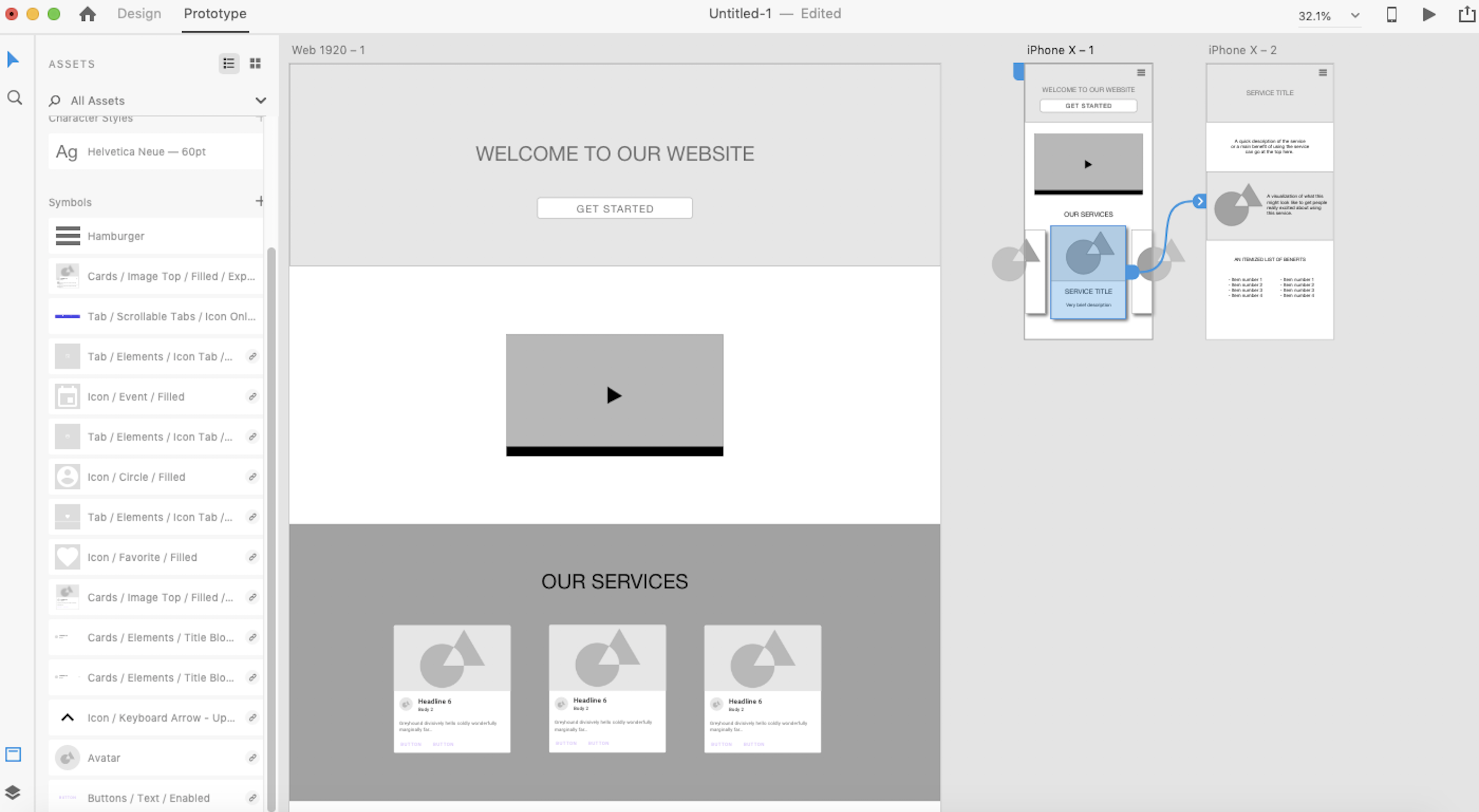
Everything from wireframing to basic prototyping can happen within XD. And compared to other feature-rich Adobe tools, XD's minimal interface stands out, with a set of interactive onboarding lightboxes to get you oriented quickly.

Basic wireframe vector design tools are easily found in the left-hand navigation. UI elements aren't included, but you can find a variety of free options with a quick Google search. XD is full of responsive design aids, whether you choose to create multiple artboards, overlay a Bootstrap 12-column grid, or use the responsive resize tool to create variations of each element.

For many apps, the interface design files must be exported into a different tool before you can create an interactive prototype. Adobe XD makes it possible to create the wireframe, mockup, and prototype in the same design file, so you don't have to integrate multiple tools or re-export dozens of times with each iteration. Then, you can use XD to publish your prototype—whether it's a basic wireframe or a full interactive prototype—and share the link with others so they can view and make comments.

As a bonus, AdobeXD also keeps track of the basic CSS and HTML for your designs, so you can grab the code directly inside the interface when handing it all off to your programming team.

Adobe XD Price: Free for one prototype and 2GB of storage; from $9.99/month for the Single App plan that includes unlimited prototypes and 100GB of storage.

Figma (Web, macOS, Windows, Linux)

Best wireframe tool for real-time collaboration

Figma interface

Figma stands out as a powerful cloud-based alternative to tools like Sketch, Studio, and XD. Not only is it extremely affordable compared to some of the other apps, but it also has a suite of features that work well whether you're a standalone designer or part of a bigger team.

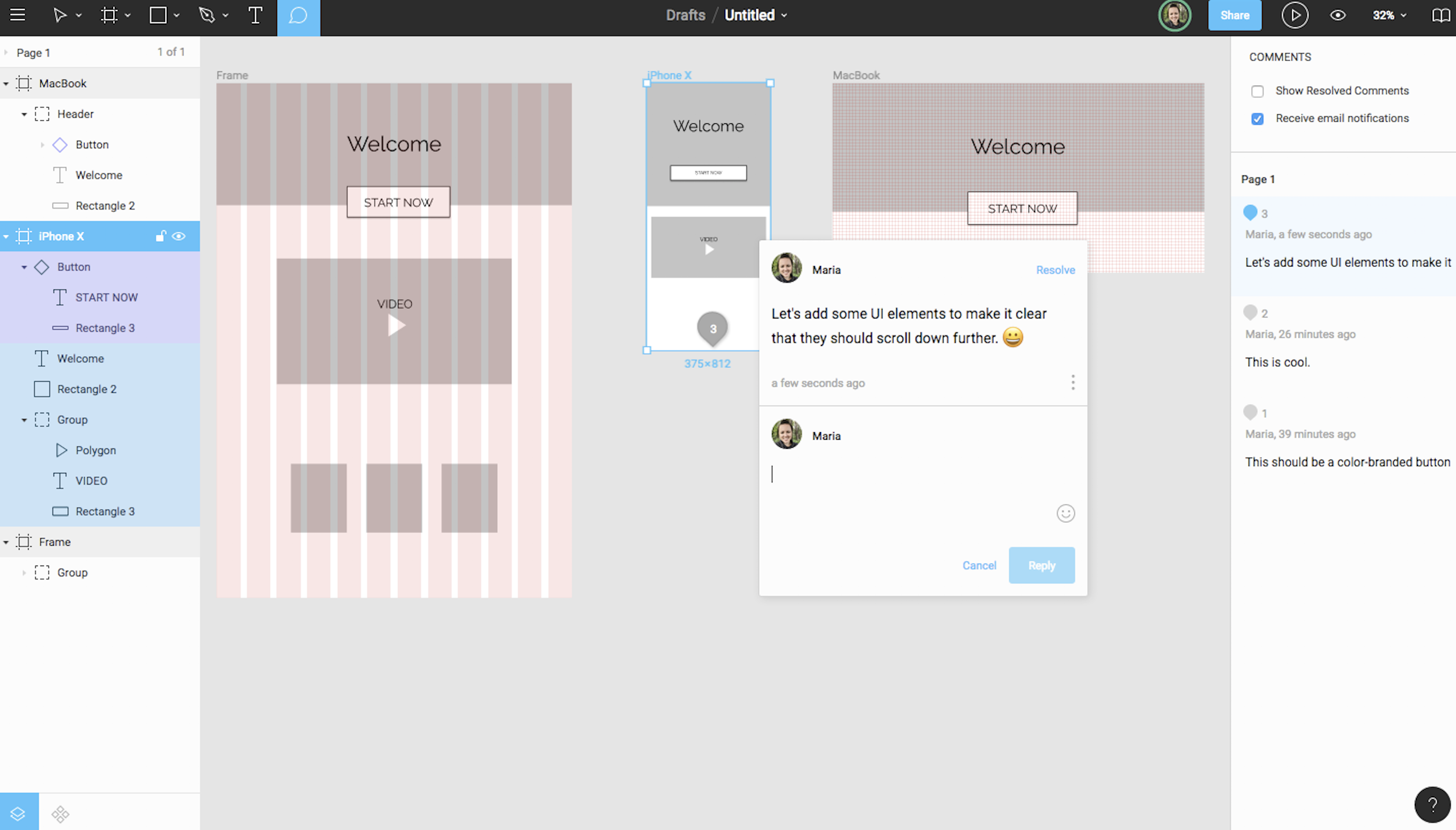
Wireframing with Figma is straightforward and quick. You'll have to design your own UI components (or upload them separately from a kit), but it's easy to create your artboards, add shapes and text, and keep it all organized with the Layers panel on the left. For responsive design, you can apply a column overlay (if you prefer the Bootstrap grid system), or you can use the Figma constraints, which tell each element how it should respond when the design is resized to mimic various screen sizes.

Where Figma stands out is in its team collaboration opportunities. Because it's a web-based app, multiple team members can log in and access the design file simultaneously, whether to tweak the design or add content. The most compelling feature is the ability for a team can carry on an entire conversation inside the design file, leaving sticky note-like comments that other teammates can then reply to or mark as complete.

When it comes time for your dev team to take over, developers can grab CSS code from inside the design file and export individual elements to use as needed.

Figma Price: Free for up to three projects; from $12/user/month (billed annually) for the Professional plan that includes unlimited projects.

UXPin (Web, macOS, Windows)

Best wireframe tool for handing off design documentation to developers

UXPin interface

UXPin tends to be one of the first tools recommended for anyone who's learning how to wireframe. There are a few reasons why. First, its interface is intuitive, with a toolbar that contains easily identifiable icons covering basic wireframe components (like images and text). Second, it includes a built-in library of UI elements that you can drag and drop directly onto your canvas for a more detailed wireframe that doesn't take hours to create.

Since UXPin can read Sketch and Photoshop files, you can always use those tools to turn your basic wireframes into high-fidelity prototypes, before importing the polished design back into UXPin to take advantage of the tool's other features: add interactions, present to a team, and hand off the design specs to a developer.

But it's the live presentation and documentation abilities that make UXPin stand out in a crowded field of wireframe > prototype tools. While many apps allow you to snag CSS, HTML, or even JSON from your design, UXPin makes it easy for you to present a working prototype of your design, collect feedback, and include specs/documentation all at once through the Preview mode.

To use this feature, click the Preview button on the top toolbar, decide what kind of access you'd like to grant viewers (e.g., the ability to view comments, specs, documentation, etc.), then share the link provided. This all-in-one sharing option means that the final review, approvals, and design documentation hand-off can all be done in the same place, so no one is left in the dark when your design hits the home stretch.

UXPin Price: $23/user/month (billed annually) for the Prototyping plan that includes basic wireframing tools; from $39/month for the System plan that includes advanced collaboration features and documentation hand-off.

InVision Freehand (Web)

Best wireframe tool for team collaboration sketches on a whiteboard-like canvas

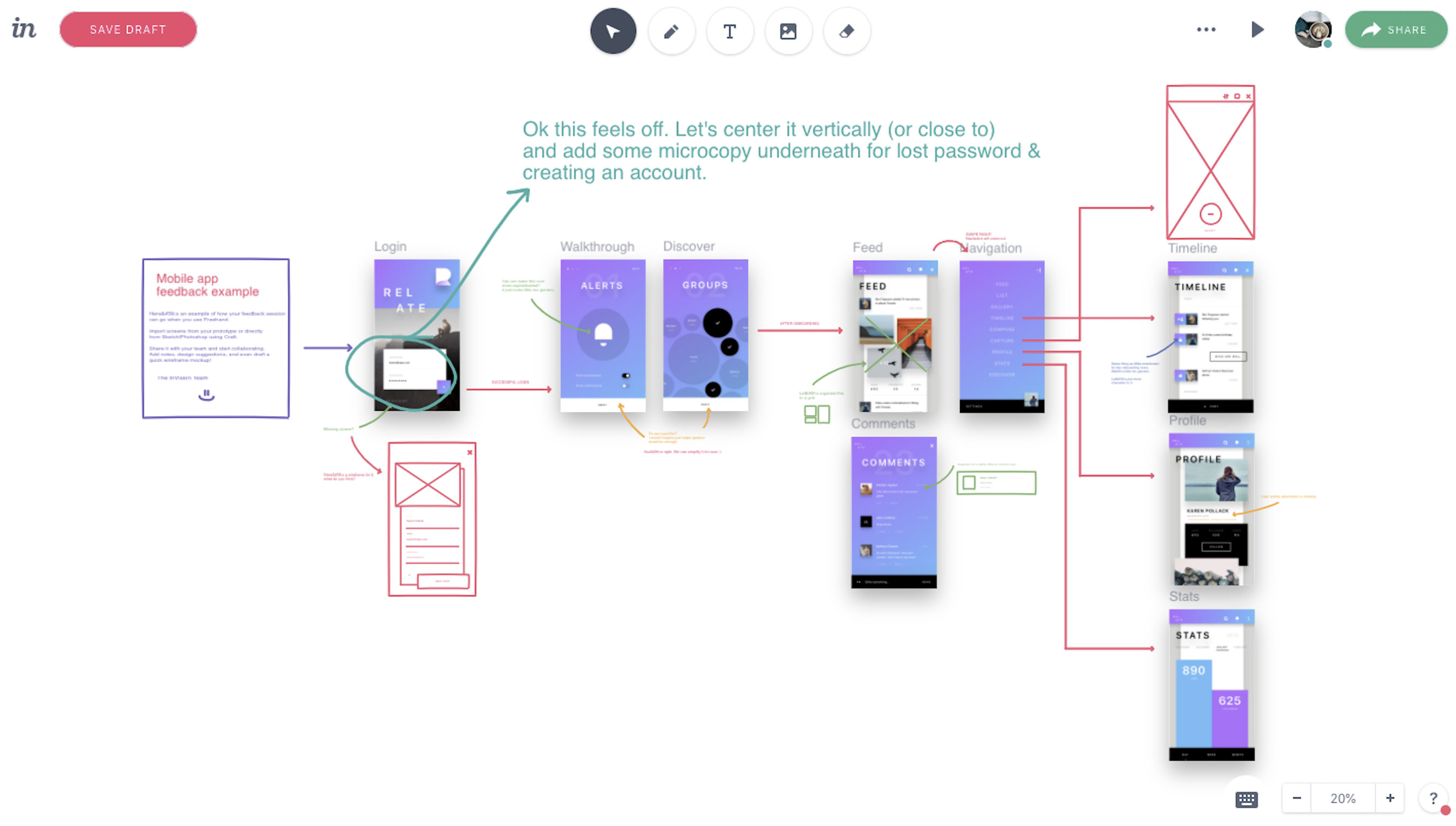
InVision Freehand interface

InVision Freehand is the most basic app on this list, but it's worth a try, especially if you prefer creating your wireframes on a whiteboard where everyone can contribute and revise.

Invite your team to a wireframe collaboration, where you can add images and basic shapes or draw the wireframe with your mouse cursor. Since it's a cloud app, multiple designers and stakeholders can be signed in and writing at the same time.

By itself, Freehand makes a good, albeit simplistic, wireframe tool that seems like any other whiteboard app. But since it offers real-time syncing with Sketch and Photoshop, your team can opt to draw and annotate directly on polished prototypes, making the iteration design stage much easier. And, since it's a part of the InVision suite, your collaboration sketches are stored alongside working prototypes and mood boards for quick reference as you move through your design project.

Freehand will work well for designers who want to collaborate with team members on an initial wireframe sketch and/or comment on more refined wireframes/prototypes.

InVision Freehand Price: Free

Balsamiq (macOS, Windows, Web)

Best wireframe tool for beginners

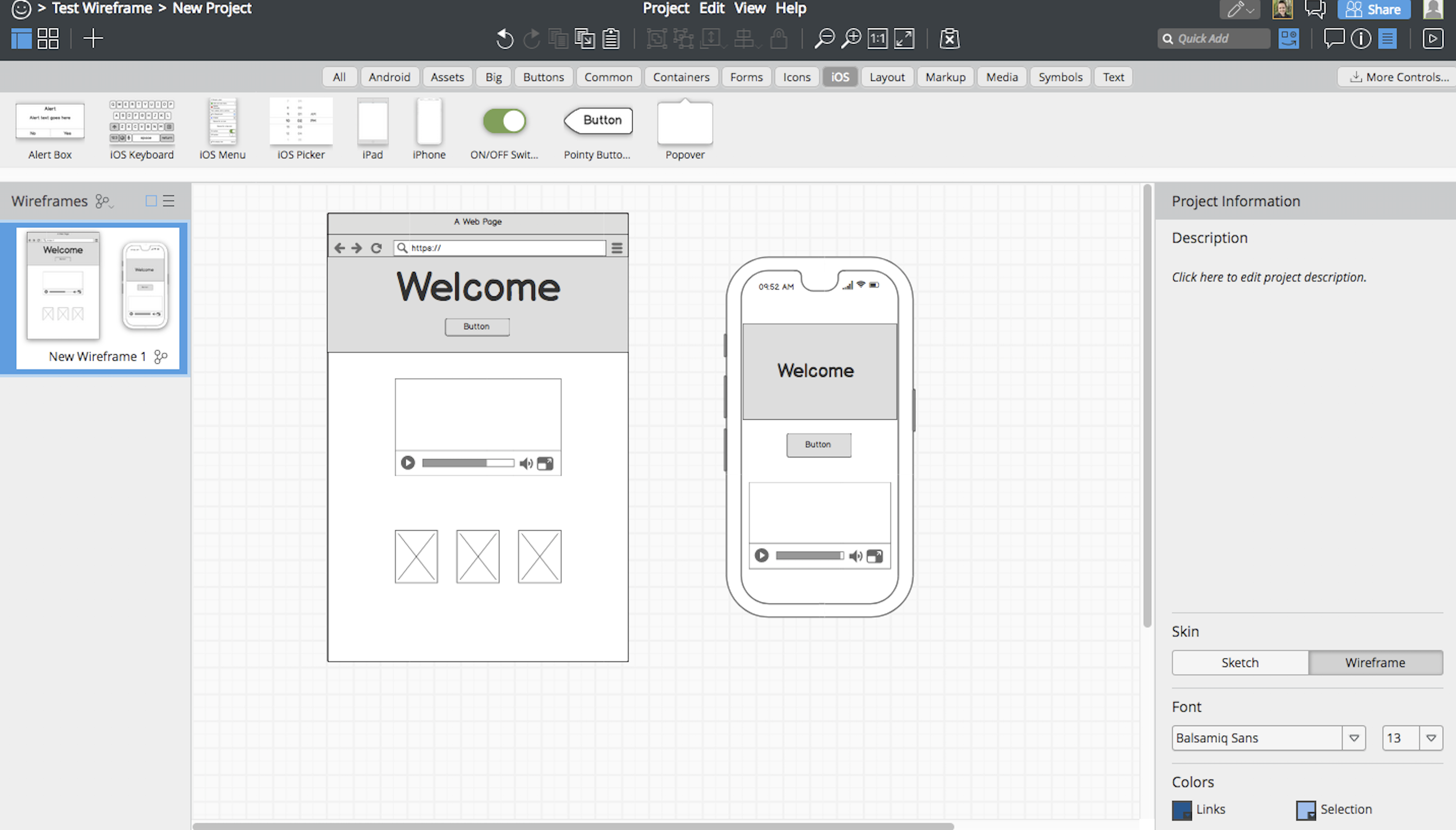
Balsamiq interface

For anyone who just wants to sketch up a quick grid-based wireframe, without spending time learning the more complex tools, Balsamiq really shines.

Balsamiq is a versatile tool with an easy-to-use drag-and-drop builder. The canvas is static in size, but you can use the built-in UI component library to illustrate how your wireframe will look on various screen sizes (like in the image above). Balsamiq is a great choice when you aren't looking for pixel precision but need something a little more professional than pen and paper.

While teams with multiple designers or more advanced prototyping needs will find this tool somewhat primitive, Balsamiq knows that there's always going to be a market for a basic, quick wireframe tool, and they're willing to embrace that position. All in all, it's fun to use for fast, low-fidelity wireframes.

Balsamiq Price: $89 for the desktop app; cloud subscriptions start at $9/month for two projects.

Proto.io (Web)

Best wireframe tool for user experience testing

proto.io interface

Although much of its fame comes from its interactive prototype capabilities, Proto.io can be used as a basic wireframe tool on its own. As a cloud-based app, Proto.io allows multiple designers to access a document simultaneously. But if you need to create screen size variations for responsive design, it's a bit clunky: You have to create a new project, then copy your elements over (single click).

Where Proto.io shines for wireframing is in its UX testing capabilities, so you can gather data on how easily users can interact with your design before sending it to developers for coding. This UX testing can happen in a couple different ways. First, you might choose to embed a working prototype directly into a website, where visitors can then interact with your design and submit their feedback. If you want to go a step further, Proto.io also lets you link your design up to systems like Validately, UserTesting, and Userlytics, which provide more advanced testing, like tracking user movements.

Proto.io Price: Free limited account for one user with no export option; from $24/month (billed annually) for the Freelancer plan that includes one user and five active projects.

Moqups (Web)

Best wireframe tool for wireframing interaction design flows

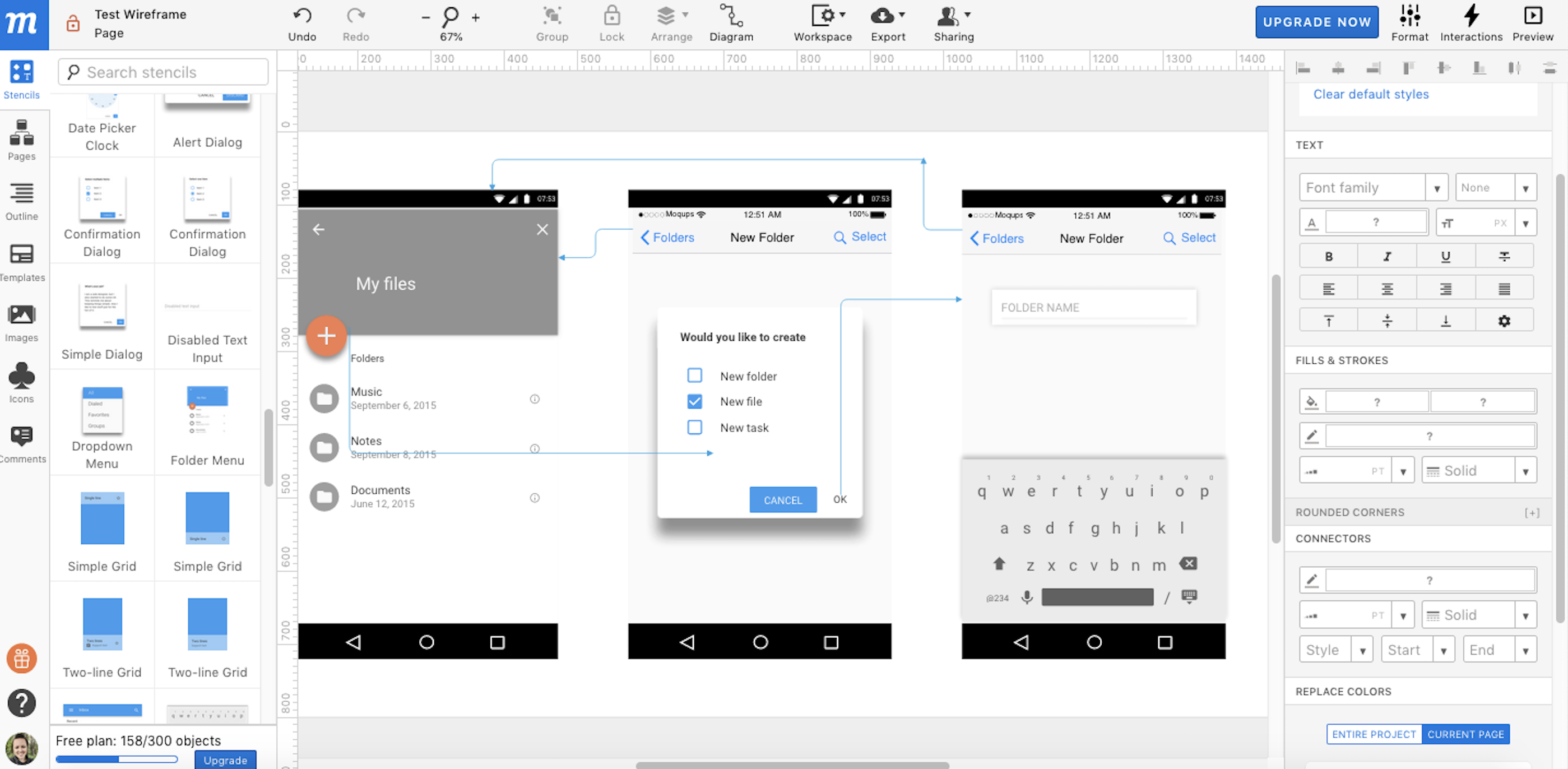
Moqups interface

If you Google "wireframe tools," you're likely to see a host of flowchart tools. And no wonder: The easy shape drawing and grid-lined canvas are perfect for rough wireframes. But Moqups stands above the flowchart-as-wireframe competition by understanding that there's more to prototyping than connecting shapes with arrows.

For example, you can create your basic wireframe by setting your canvas size, then add realistic UI elements called Stencils for a quick, drag-and-drop visual design experience. So far, nothing out of the ordinary in terms of the wireframe itself. But Moqups also includes a unique Diagram tool that allows you to make logical markups on your wireframe, so you can identify where links and interactions will live, or even how the UX logic will flow within your design. This means that you can essentially create a static wireframe for your interactions (and UX flows) for approval at the beginning of the design stage. You can also switch over to the Flowchart view, if you prefer that method.

Moqups Price: From $13/month (billed annually) for the Personal plan that includes unlimited projects for a single user.

Adobe Illustrator (macOS, Windows)

Best wireframe tool for detailed vector wireframes

Adobe Illustrator interface

Adobe Illustrator is the industry heavyweight for vector design. It's a robust program that can be used for everything from simple wireframes to the custom UI kit you'll need to finish the design job, and it gives you access to a wealth of vector design features that other apps aren't made to compete with.

Creating a basic, low-fidelity wireframe with lllustrator is as easy as creating an artboard, then blocking out your basic shapes and content areas with shapes and text from the left toolbar. But where Illustrator stands out is when you want to do something intricate, like take a raster image and convert it to a vector drawing. In this case, you'd add your image, then use the Image Trace command to make the magic happen.

While desktop apps are lacking for team collaboration, using Illustrator with a multi-person team is made easier with Creative Cloud collaboration, which allows multiple users to access the same design files. Or, you can opt for something like the Slack extension to stay up-to-date on the latest comments.

Adobe Illustrator Price: From $19.99/month (billed annually) for the Illustrator Single App plan.

Affinity Designer (macOS, Windows)

Best wireframe tool for a lightweight alternative to Adobe Illustrator

Affinity Designer interface

It's not often there's a strong alternative to an Adobe product. In this case, Affinity Designer provides an excellent alternative to Adobe Illustrator.

To create your wireframe, start with one or more artboards (pre-sized to correspond with your selected screen size). Then, begin adding your elements by selecting the tools from the left sidebar (shapes, vector pen, text, and images are all quick to add). If you want more detail, you can choose from the UI component library that's built into the Affinity Designer interface. When the wireframe (or full prototype) is complete, you can export the elements individually and then pass them on to the next stage in the design process.

If you're already an Illustrator enthusiast, you'll notice that Designer lacks a few key features (the one we miss most is the Image Trace tool mentioned above), but we found that the app itself was much easier to work with on a less powerful machine. Whereas Illustrator can be counted on to freeze multiple times throughout a design project (whether you're saving files or performing the first copy/paste of the day), Affinity Designer tends to be faster and more stable.

So if you're looking for an advanced vector design tool for your wireframes and prototypes but aren't interested in the bulk (or price) of Illustrator, Affinity Designer is a powerful option.

Affinity Designer Price: $49.99 one-time purchase.

Adobe Photoshop (macOS, Windows)

Best wireframe tool for detailed pixel-based wireframes

Photoshop is the industry heavyweight when you're looking for advanced pixel-based design software. It can handle almost anything, from photo editing to digital painting, and is beloved by the majority of graphic design professionals for that reason alone. The advantage of using Photoshop for your wireframes (especially web-based design, where you will depend more on pixel graphics) is that you can easily create a high-fidelity mockup without switching design systems.

To create a wireframe, you can add any number of artboards that correspond with your screen size dimensions (and add a grid layout that that corresponds with your responsive breakpoints, if you want). You can either design UI components yourself with Photoshop or download a kit from online for standard elements like iOS keyboards. And, while the vector design tools (Sketch, Illustrator, Designer, etc.) are great for a lot of design work, no tool beats Photoshop for its raster image editing capabilities, which is invaluable when you eventually turn your wireframes into mockups and start adding photos and other graphics.

The downside to using Photoshop for your wireframes? Not only is the learning curve fairly steep, but it can also be difficult to hand your design specs over to the development team after the design phase is over. Fortunately, many prototyping tools (like Proto.io, InVision, or Adobe XD, for example) let you import Photoshop files directly so you can quickly move onto interaction prototyping and design spec documentation.

Photoshop Price: From $9.99/month for the Creative Cloud Photography Plan that also includes access to Lightroom.

Marvel (Web)

Best wireframe tool for pre-designed wireframe templates

Marvel interface

Like other apps on this list, Marvel offers interactive prototyping and code handoff. Its interface is deceptively simple and can fool new users into thinking that it's simplistic. It's not.

While many apps allow you to add individual UI components like buttons and input boxes, Marvel includes a new option: UI blocks. These blocks are pre-designed sections built of multiple elements, like a Footer Block that includes a background color, footer menu text, site icon placeholder, and copyright text. The UI blocks make the webpage wireframing process move more quickly, so you can achieve an aesthetically appealing wireframe in a fraction of the time.

If you're part of a multi-member design team, you can invite your coworkers to collaborate and comment on the wireframe, and you even compile a team library so that design elements can be snagged easily throughout the process.

The biggest drawback is that Marvel doesn't give you a lot of tools for high-fidelity mockups, so you might find yourself hopping over to Sketch (which integrates) to create a more polished UI design.

Marvel Price: Free for one user and two projects; from $12/month for the Pro plan that includes one user and unlimited projects.

Canva (Web)

Best wireframe tool for quick marketing wireframes and visual hand-offs

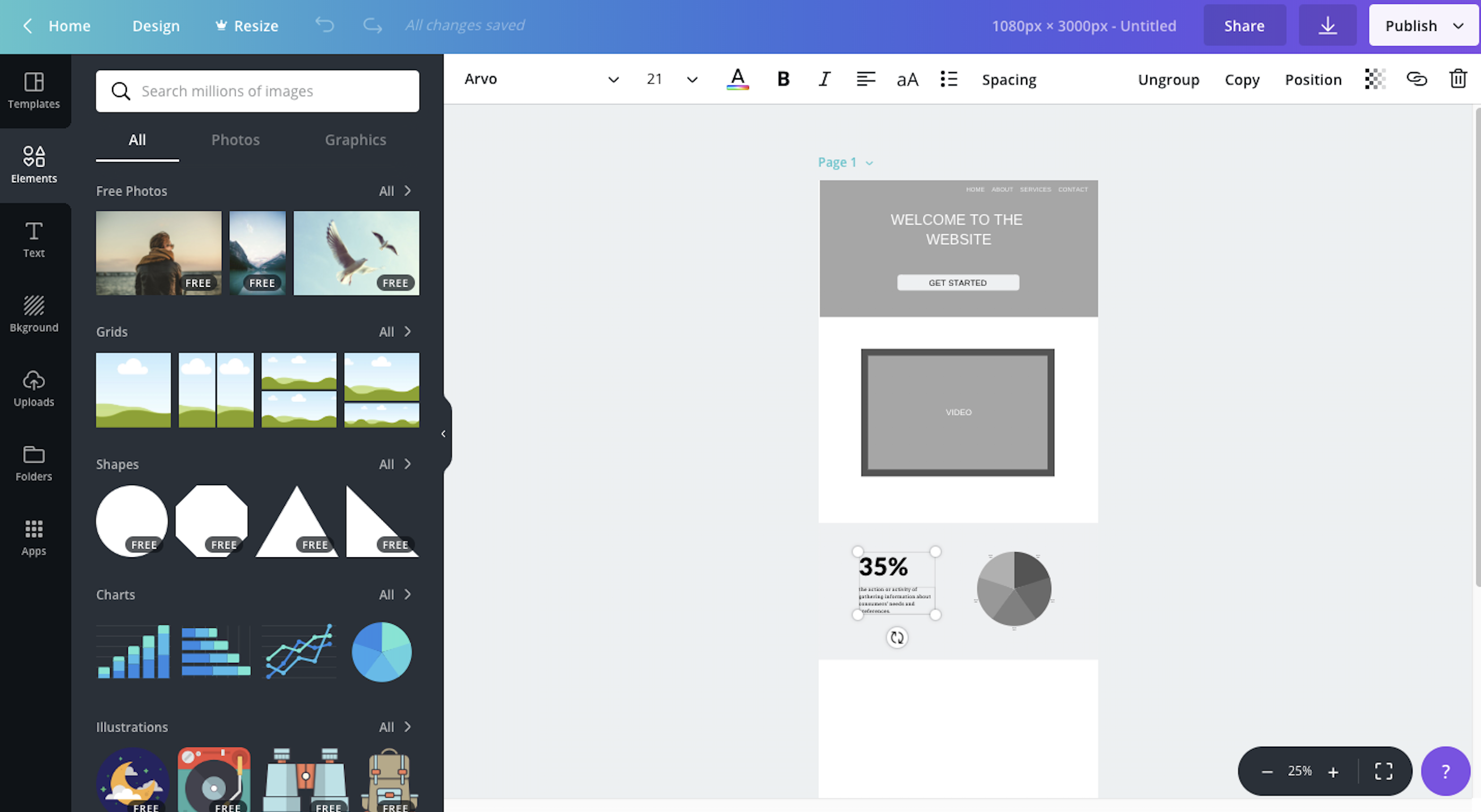
What if a non-designer wants to create a wireframe or low-fidelity mockup? They can use pen and paper, choose a lightweight tool like Freehand, or train themselves on an advanced piece of software. Canva is a nice middle ground.

With drag-and-drop photos, charts, illustrations, and more, Canva allows non-designers to create marketing-friendly wireframes that convey the overall effect they're hoping to achieve. The downside to using Canva is that it's meant to be a marketing design tool and thus relies on layout templates and ready-made shapes and icons more than actual pixel precision. Having said that, it gives anyone the power to make a nice wireframe—and sometimes pixel precision isn't what you need to get the job done.

Canva Price: Free for individual users with limited folders and storage; from $12.95/user/month for the Canva for Work plan.

Which App Should I Use?

While 75% of designers use Sketch, Photoshop, or Illustrator, that doesn't mean you're limited to using those for your own wireframe tool. Choose something that will fit in with the rest of your tech stack so that your design process can move forward easily.

When choosing the best wireframe software for you and your team, start by considering your design process and your goal for the wireframes themselves. Do you need to include responsive alternatives? Do you want robust collaboration features? Do you plan to turn your wireframe into full, high-fidelity interactive prototypes? Will you be presenting each of your wireframes to a board of directors, or will they be passed directly to the dev team for implementation?

And remember, it's normal to create a tech stack with multiple tools on this list so that your entire design process can run smoothly. For example, since many of the desktop apps offer a more robust feature set, you might start your wireframe there, before moving to a cloud-based app that allows multiple designers to collaborate in real-time. It all depends on what you need to accomplish with your wireframe—and whatever happens after it.

Glossary of Terms

  • Vector graphic: A vector graphic is an image that is made up of points, lines, and curves that are based on mathematical points. Because of this, it can scale infinitely without becoming "fuzzy." Most icon and logo graphics are initially created with vector graphic design tools.
  • Raster (pixel) graphic: Raster images are made up of bitmaps, or grids of individual, tiny square pixels. If a small raster image is magnified (or scaled to fit a large canvas), the quality of the image will decrease and cause it to look fuzzy. Photographs are a common form of raster image.
  • UI components: Commonly used user interface (UI) components are buttons, checkboxes, progress bars, navigation menus, and so on. When starting a design, you may prefer utilizing a kit of ready-made UI components to make the initial wireframe process go more quickly.
  • Artboard: Many design apps allow you to create one or more artboards in the same design file. Think of each artboard as an individual canvas or paper. They're helpful when you need to create multiple separate designs but don't want to switch files each time.
  • Mockup: Whereas a wireframe typically consists of basic text and shapes to serve as placeholders, a mockup is a fully designed interface that includes colors and images.
  • Prototype: A prototype is an interactive wireframe or mockup that allows users to click through and "use" the design even before it has been translated into code by developers. This is useful when your design requires UX testing data before it's implemented.
  • Low-fidelity: Rough and simplified designs (like a wireframe) are considered low-fidelity.
  • High-fidelity: Fine-tuned and polished designs that appear similar or identical to the finished product are considered high-fidelity.
  • UI: UI stands for user interface and pertains to how an app or design appears to users (think: color and type scale).


source https://zapier.com/blog/best-wireframe-tools/

The 10 Best Apps to Help You Focus and Block Distractions

The internet is one massive distraction. One minute I'm aggressively knocking out my to-do list, and the next I'm sucked into a "Which Harry Potter character are you?" quiz (Ron). Notifications from Facebook, Slack, and Skype, not to mention alerts on my phone, pull my attention away from what I should be doing. When I need to block these distractions and focus, however, I can turn to some apps for help.

Apps that help people focus work in a variety of ways. Some are browser extensions that block you from seeing certain websites. Others are desktop apps that hide from view anything except the active window. Some apps gently nudge you from bad behavior while others aggressively stop you from going down a rabbit hole. Which apps you choose to use will largely depend on how strict you want them to be.

While we sometimes think of distractions as being little more than a bad habit, they also waste money. In 2010, researchers estimated that distracted workers cost businesses $650 billion per year. Additionally, researcher Matt Killingsworth found that distractions makes us less happy. People who are able to focus on one thing at a time are much more satisfied with life than those who can't. Distractions are destructive.

This list of the best apps to help you focus and block distractions considers technology solutions only. That said, there's nothing wrong with picking up a pen and paper to cut yourself off from computing distractions. Heck, you could write an entire proposal or lecture by hand and, when you're done, scan it using a mobile scanner and OCR app and turn your writing into digital text almost instantly.

As hard as it might be to avoid every kind of distraction, at least we have tools that give us a boost when our willpower starts to waver. Try one of these distraction-busting tools and get back to doing what matters.

The 10 Best Apps to Help You Focus and Block Distractions

  • Brain.fm (Android, iOS, Web) for focus-boosting soundtracks
  • Cold Turkey Blocker (macOS, Windows) for locking yourself out your computer
  • Focus@Will (Android, iOS, Web) for lyric-free audio and tracking your productivity
  • Hocus Focus for viewing one window at a time on a Mac
  • Freedom (Chrome, Firefox, iOS, macOS, Opera, Windows) for blocking anything you want, anywhere you want
  • LeechBlock (Chrome, Firefox) for using timers to block or allow website access
  • Mindful Browsing (Chrome) for gentle nudges away from time-wasting sites
  • RescueTime (Android, iOS, Linux, macOS, Web, Windows) for tracking productivity and blocking distracting sites
  • Self Control (macOS) for free focus app for Mac
  • StayFocusd (Chrome) for blocking sites in Chrome

Brain.fm (Android, iOS, Web)

Best for focus-boosting soundtracks

Brain.fm

Brain.fm is a website and mobile app that provides two-hour long soundtracks designed to help you focus, relax, or sleep. You get to choose the type of audio you want to hear, such as chimes and bowls, electronic music, rain, atmospheric noise, and more.

According to the site developers, the idea behind using soundtracks to focus is rooted in scientific research and have been proven, at least to some degree, to enhance brain activity. Your mileage may vary. If you work in a loud office, have a coworker who eats celery all day, or just need to drown out any other kind of noise, consider Brain.fm.

Pricing: Free for five free sessions and limited options; from $6.95/month for unlimited

Cold Turkey Blocker (macOS, Windows)

Best focus app for locking yourself out of your computer

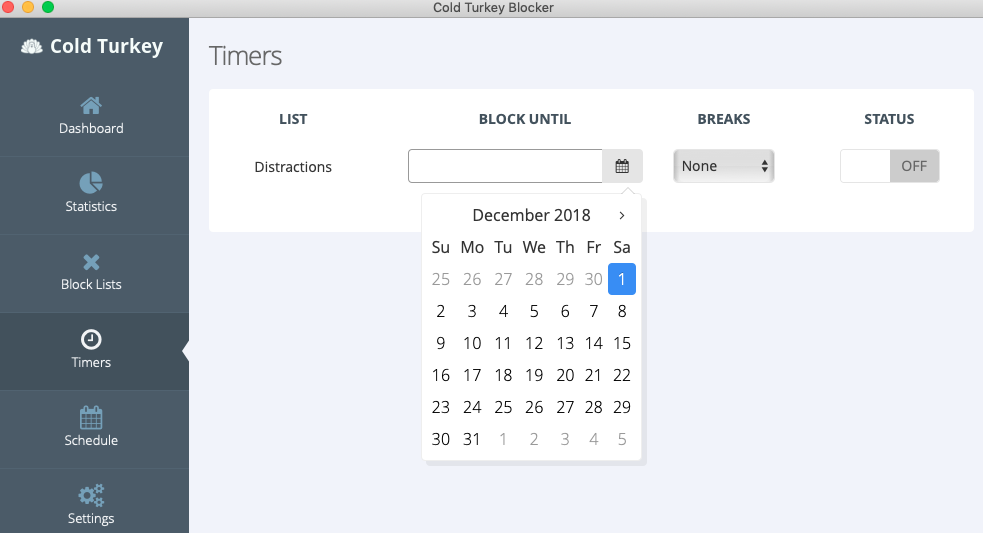
Cold Turkey

Cold Turkey is an app for macOS and Windows that helps you focus by letting you choose websites and apps to block when you need to buckle down. The one unique feature in this app is called Frozen Turkey, a setting that locks you out of your computer completely for a set period. This Pro-only feature could be compelling if you have a hard time shutting down your electronics at night and going to bed. It's also useful if you have bad computer habits when you should be spending time with others.

Cold Turkey has a slick interface which makes it easy to schedule focus sessions. It may be aimed at young adults and college students primarily, but it could be useful to anyone trying to restrict their computer time.

Cold Turkey Blocker Pricing: Free with limitations; $25 (one-time fee) for Pro on all your computers

Focus@Will (Android, iOS, Web)

Best focus app for lyric-free audio and tracking your productivity

Focus@Will

Similar to Brain.fm, Focus@Will provides lyric-free audio tracks designed to help you focus, the primary difference between them being Focus@Will lets you make a note of how productive you felt while listening, which it tracks over time.

In addition to giving you tools to track how productive you were while listening to different soundtracks, Focus@Will also starts you out with a short quiz to determine whether you are a creative type or a more logical thinker, and assess other preferences you may have to suggest an optimal style of music for you to listen to while trying to focus.

One more difference to point out between Focus@Will and Brain.fm: Focus@Will costs more and requires a credit card for its free trial, whereas Brain.fm offers a free, though limited, tier of service.

Focus@Will Pricing: $9.95/month, $99.95/year, or $299.95 for lifetime membership

Hocus Focus (macOS)

Best focus app for viewing one window at a time on macOS

HocusFocus for macOS

Hocus Focus is a free Mac app that helps you focus by clearing clutter from your screen. (Formerly, it was known as Houdini, but the current release is a ground-up rewrite.) Its main function is to minimize windows that aren't active so that only one app is in view at a time. If you're the type of person who app-switches frequently, Hocus Focus can help you curb that behavior and stick to one application at a time.

Hocus Focus comes with settings that let you hide apps after a set period of inactivity or immediately when not in use. You can also create and save profiles with the settings you want for different activities, such as writing, researching, or video editing.

The app is entirely free with no upsells or paywalls, and you can download it directly from the developer's site; it's not available in the App Store.

HocusFocus Pricing: Free; donations accepted

Freedom (Chrome, Firefox, iOS, macOS, Opera, Windows)

Best focus app for blocking anything you want, anywhere you want

Freedom

Freedom is an all-in-one distraction blocker. It prevents you from opening extraneous apps and accessing websites that you find distracting, no matter if you're using a computer, iPad, or iPhone. You can even crack down hard on yourself by blocking the entire internet, basically turning your computer into something straight out of 1994, but with more RAM and fewer free hours from AOL.

When you want to focus, you create a Freedom session and then choose what you want to block. You can also create recurring sessions if, for example, you want to avoid Twitter and Facebook between 8 a.m. and noon every day.

Freedom also has a Locked Mode for when your distractibility is outrageously high. This mode prevents you from changing the settings in the middle of a session. Freedom is one of the best focus apps because it offers plenty of customization for helping you focus on both desktop and mobile devices.

Freedom pricing: $6.99/month, $29.04/year, or $129 for life. Free trial for seven sessions.

LeechBlock (Chrome, Firefox)

Best free focus app for using timers to block or allow website access

LeechBlock

This extension for Firefox and Chrome lets you specify which sites to block, when, and for how long. One of LeechBlock's better features is its timer. You can give yourself a set amount of time, say 15 minutes to read The Washington Post online each day or browse Google News, but you'll be locked out for the day after those 15 minutes are up.

To keep yourself motivated, you can set up a redirect page for when you try to access a blocked site. Imagine trying to access Facebook and suddenly finding yourself redirected to the Nickleback homepage. Yikes.

LeechBlock also has a password option (or you can opt for a random access code), intended to slow you down in moments of weakness. It's a similar tactic to freezing credit cards in blocks of ice so you have to wait for them to thaw while mulling over whether you really want to make a purchase. It gives your sanity time to catch up with your impulses. Of course, if you really wanted to stay focused, you could give the password to someone else.

LeechBlock Pricing: Free

Mindful Browsing (Chrome)

Best focus app for gentle nudges away from time-wasting sites

Mindful Browsing

This free and open-source extension for Chrome gently flags your attention when you try to access sites that you know are time-wasters and instead reminds you of how you'd rather spend your time. When you install and set up Mindful Browsing, you first list a few websites that you'd like to avoid and then write a few short words about what you should be doing instead. The next time you try to visit one of the sites on your list, Mindful Browsing splashes an enormous photo of something tranquil, like a landscape, and reminds you of the little goals you set for yourself when you were in your right mind and not eager for a distraction.

You can bypass the blocker for a 10-minute quickie with the guilty pleasure of your choice (I'm really not suggesting it's a porn site, but maybe it is, and no judgement there, friend). Or you can stick to your guns and get back to focusing on something more important.

Mindful Browsing Pricing: Free

RescueTime (Android, iOS, Linux, macOS, Windows)

Best focus app for tracking productivity and blocking distracting sites

RescueTime

RescueTime is a multipurpose productivity app and distraction blocker, cutting off your access to distracting websites when needed, while also recording how much time you spend working in different apps and sites. Once you install and configure RescueTime, it runs and invisibly in the background, monitoring every website you visit and software product you use, and for how long. Bear in mind that you must grant it permission to watch your every move. Otherwise, it's useless.

Over time, RescueTime tallies up how you spend your time on your computing devices. It creates detailed reports showing time spent in work-related apps versus time spent on social networking sites, online shopping, and so forth. It also generates detailed reports about what types of apps and sites you tend to use during different times of day. For example, if you surf Twitter and Facebook every day in the late afternoon, RescueTime will spotlight that trend. If you typically work hard in business apps in the morning, you'll see that pattern, too.

Because everyone defines "work" differently, you get to create the rules for what RescueTime classifies as productive versus unproductive app or website. You can also classify apps and websites by category, such as business, social media, news, shopping, and so forth, and your classifications here will also depend on the type of work you do. For its emphasis on productivity tracking in addition to blocking distractions online, RescueTime is among the best apps for boosting your ability to focus.

RescueTime Pricing: Free Lite version; Premium for $9/month or $72/year

Automate RescueTime with RescueTime's Zapier Integrations

Self-Control (macOS)

Best free focus app for macOS

Self-Control

Self-Control is a simple, free, and open-source Mac app that helps you focus by letting you blacklist websites or anything else on the internet (such as mail servers) as you see fit. Then, you set a timer for yourself and dedicate the next however many minutes to a distraction-free focus session.

Alternatively, you can create a set of whitelisted sites and use the Self-Control mode to let you access only the sites you listed, nothing else.

Self-Control is hardcore. Once you start a session, you cannot stop. Well, you can, but you have to reboot your computer, which is a pain. But that's the point. Self-Control makes it difficult and painful to access the sites you've decided to have self-control over visiting. This app wins hearts for being completely free and open-source, although it's only for macOS.

Self-Control Pricing: Free

StayFocusd (Chrome)

Best focus app for blocking sites in Chrome

StayFocusd

StayFocusd is a free Chrome extension that lets you choose how you want to block distractions. For example, you can give yourself permission to spend a set amount of time each day on distracting websites, say, 30 minutes total on Twitter and Buzzfeed. Once you reach your limit, StayFocusd kicks you off and doesn't let you extend your time. Another option is to create time restrictions for certain sites during days and hours you set, such as Monday through Friday, 9 a.m. to 5 p.m.

StayFocusd's most severe option, however, is called the Nuclear Option. With the Nuclear Option, you choose to block one of the following: 1) all websites, 2) all websites except those you've whitelisted, or 3) all those you've blacklisted. Once enabled, this option cannot be undone or deactivated.

Of course, the easiest way to circumvent Stayfocusd (or any browser-based tool for blocking distractions) is to open a different browser, such as Firefox, Opera, Explorer, or Safari. Regardless, Stayfocusd offers an excellent array of features and options, helping you stay focused the way that works best for you.

StayFocusd Pricing: Free; donations accepted


Set yourself up for success with these apps for helping you focus. You may find that with a little effort and practice, focusing on the task at hand for stretches of time becomes easier. There are other tricks to strengthening your willpower that can't hurt either.

And with focus comes success. As Alexander Graham Bell said:

Concentrate all your thoughts upon the work at hand. The sun's rays do not burn until brought to a focus.

Now, get back to work on what truly matters.


source https://zapier.com/blog/stay-focused-avoid-distractions/

Monday, 3 December 2018

7 eCommerce Marketing Strategies to Build a Loyal Following

Retail marketing was traditionally about expansion and new markets, but that's changed since the rise of eCommerce. Like a flipped switch, the game is now about retention and customer loyalty. Landing a single sale isn't enough when your competition is nearly infinite, and they're all just a click away. And because it costs five times more to attract a new customer than to retain an existing one, the shift makes sense.

The best eCommerce brands are attracting new customers while simultaneously keeping the old ones happy. Here, we'll outline seven must-have marketing strategies an eCommerce company needs to bring in new customers and then keep them loyal.

1. Identify and Broadcast What Makes Your Brand Unique

Before you begin marketing, you need to cement your value proposition—that is, the differentiator that sets you apart from the competition.

For some companies, it's product range: offering exclusive or hard-to-find items or services that other brands don't. For others, it's product quality, speedy shipping, above-and-beyond customer service, or low prices. Or maybe your differentiator is more creative. Regardless, the first step is you knowing what differentiates your brand from your competitors. In theory, this is built in to your initial business model, so chances are you've already identified it.

The next step is communicating your value proposition to your audience. However you do it—through a slogan, with poignant visuals, or otherwise—the key is consistency. You'll use your various marketing channels in different ways, but you should always be touting the same value proposition. That's what's at the core of your brand.

NOVO Watch is a great example. Their value proposition lies in the quality of their products: Unlike their competitors, NOVO Watch makes their timepieces from authentic historical artifacts such as train tracks or military equipment. They're also proud of their process: All pieces are made by hand in the company's home province of Alberta.

Screenshot of NOVO Watch Home Page

These differentiators are immediately evident in their marketing, with a succinct and pithy slogan that's interwoven into their logo. Not only do the words communicate the value proposition efficiently, but they're also designed with suggestive typography that matches the old-fashioned brand personality befitting of a company that deals in historical antiques.

Authenticity wins these days. The more authentic you are, the more your value proposition flows through the product and branding. Customers are smart, and can quickly pick up on empty stories. Simply understanding who you are and being true to what you believe as a company not only keeps the messaging clear, but also attracts like-minded customers to shop with you. - Steve Christensen, Founder of NOVO Watch

And because their value proposition is an integral part of their logo, they can seamlessly broadcast it on all their channels. Their logo and slogan appear consistently on their home page, social media profiles, and other marketing channels.

Screenshot of NOVO Watch Facebook Page

2. Write Blog Posts That Satisfy Both Customers and SEO

Blogging and content marketing in general are among the most effective and cost-efficient methods of marketing. Digital marketing guru Neil Patel agrees, based on some eye-opening statistics he collected:

  • 70% of people prefer to learn about new products through custom content.
  • Blogging consistently generates 88% more leads for B2B companies and 67% more leads for B2C companies.
  • Website conversion rate is almost 6x higher for adopters of content marketing than non-adopters (2.9% vs. 0.5%).

But simply having a blog is not enough, as many frustrated eCommerce companies have already discovered. Creating successful content marketing campaigns is more about how you use your blog.

For one thing, as a big pile of text, blogs are perfect for SEO. You can fill your website with all the core keywords and search terms that potential and existing customers are likely to enter into Google. Of course SEO has its own nuanced techniques, but if you hire a skilled writer, they'll know how to handle them.

Even more important, you need to release content that's relevant to your target customers. It's tempting to build content around self-promotion, but that's putting the cart before the horse. Your blog's top priority is engaging customers by providing articles they genuinely want to read. That's the strategy Au Lit Fine Linens uses with their blog, "Between the Sheets."

Screenshot of Au Lit Fine Linens blog Between the Sheets

Au Lit Fine Linens has a balanced mix of initiatives in their blog. They publish articles that make shopping for bedsheets easier; for example, "Mother's Day Gift Guide" or "How to Master Mixing and Matching in the Bedroom." They also have more fun and casual—but still relevant—articles like "The Most Memorable Movie Beds of All Time." And while they do include self-promotional articles, like "Introducing Au Lit Bundles," those pieces aren't the primary purpose of the blog.

But perhaps most impressive is the way they subtly incorporate long-tail keywords—keywords that are more specific—into their blog without disrupting the typical user experience. Blog articles like "What's the Difference Between a Duvet and a Comforter?" and "What Sheets Will Keep Me Cool All Summer Long?" are all relevant to the blog and of interest to the typical customer, but they're also wins for SEO.

To save time promoting your blog, you can automate the promotion process using Zapier. Set up an automated workflow—or Zap—that posts to social media every time you publish a new article to your blog:

3. Complement Marketing Campaigns with Referral Programs

The best advertisements aren't advertisements at all. According to a Nielsen Global Trust in Advertising Report, the most trusted source of product recommendations comes from friends and family.

Modern marketers have caught on and are implementing referral programs more than ever before. Referral programs leverage consumers' trust in their peers: By offering an incentive to the referrer, you can increase the amount of word-of-mouth advertising you receive—and the conversions that come with it.

Referral marketing is great for expansion, considering that the friends and family of your customers are more likely to fit your target customer profile and become loyal customers themselves. And because the recommendations come from a trusted source, you deal with less resistance.

The online footwear brand GREATS has seen a lot of success with their referral program, which reflects the trend of sharing the benefits with the referrer and the referree.

Screenshot of GREATS's referral program page

Introducing new customers to your brand with a discount makes a stellar first impression. The company will make up the $25 loss with repeat purchases from not one but two loyal customers.

4. Enlist Influencers to Advertise for You

Friends and family aren't the only trusted sources that can help promote your product or service. In the golden age of social media, influencer marketing is becoming one of the top methods for spreading brand awareness.

Influencers are popular online personas who have a significant sway on their followers. They often get to their position by reliably giving good advice in their areas of specialization: Fashion influencers suggest new clothing trends, tech influencers give accurate reviews of new gadgets, and so on. Online marketers seek them out to promote their products, with effective results. If a trusted influencer says something is true, their followers tend to take it for fact without argument. According to One Production, the ROI on influencer marketing can be up to 11x higher than traditional advertising, and 94% of marketers who use influencer marketing find it effective.

That's influencer marketing on a large scale, but the practice has since evolved to incorporate influencers on a grassroots level as well. "Micro-influencers" are regular people promoting a product on social media, raising brand awareness one "like" at a time. While they lack the massive reach of more prominent influences, micro-influencers can add up if you have enough of them, particularly if you run a widespread campaign encouraging user-generated content.

Because influencer marketing increases the online discussion of your brand—in a positive light—it's as good for customer retention as it is for impressing new customers. For first-time customers, your brand gets a vote of confidence from a trusted source; for existing customers, the repeated mentions online remind them why they shopped with you before.

Sephora is known for its influencer marketing. As a seller of beauty products—an industry naturally conducive to influencer marketing and peer recommendations—Sephora has a long tradition of embracing influencers and even the progressing the standards of working with them.

Kyrah Stewart at Sephora Collections #lipstories launch
Image via Zimbio

As fashion and beauty blog Glossy explains, Sephora's current influencer marketing campaign spans three tiers of influencer types. At the top of the pyramid is the Sephora Pro Team, a handpicked group of fifteen highly-regarded makeup artists who work in-house with Sephora. At the next level are the external social media influencers hired by Sephora to test, review, and discuss their products, sometimes even curating special collections. Last is the pool of micro-influencers, some of whom are paid, others receiving only swag.

More than most companies, Sephora understands the value of social opinion. Their three-tiered influencer program accounts for each point of the spectrum, from verified experts to peer recommendations.

5. Encourage Newsletter Signups for a Direct Connection to Shoppers

Attracting new customers revolves around getting your name out there and making a good first impression. Retaining existing customers, on the other hand, is about personal relationships.

As a whole, email is more intimate than other mediums: Instead of a public broadcast, it's a message sent straight to your inbox. That's part of the appeal of the email newsletter. There may be hundreds or even thousands of names on the send list, but to the recipient, it feels like a message that's just for them.

Email marketing apps allow you to personalize your messages and create drip campaigns that change based on user actions. But regardless of the software you use, the key to a successful newsletter campaign is providing content that your customers actually want to read—otherwise it's just spam, and you're damaging your brand image more than helping it.

There are plenty of ways to make newsletters useful:

  • Offer exclusive discounts.
  • Present a "ticking clock" to encourage immediate action.
  • Provide personalized product recommendations.
  • Announce new products.
  • Feature blog articles.

Take a look at this email newsletter from Crocs. They offer an exclusive deal to customers, making the email worth opening in the first place. The design is branded and grabby, and the discount is front-and-center. The technical considerations are all in line as well. For example, users can go directly to different product category pages (e.g., "new arrivals," "women," etc.) from the links provided.

Screenshot of Crocs email newsletter
Image via Omnisend

The best part is the single-click shopping option: Shoppers only have to click the "Shop Now" link to apply their discount automatically. That's one less step the customer has to take themselves, and each redundant step you remove from the sales process can increase your conversion rate.

6. Use Social Media for One-on-One Customer Engagement

Whether you're answering questions, addressing complaints, offering personalized recommendations, or just engaging in playful banter, social media allows you to have genuine, back-and-forth conversations with your customers.

Remember: Social media is about personality. Straight-up sales tactics don't tend to work as well in social feeds. People prefer to see posts that entertain and engage, not thinly veiled ads. That applies to commenting as well: It's best to respond to comments with a casual and human voice rather than something generic you might expect from a chatbot.

As an example, see how the trendsetting beauty brand Frank Body uses social media. Across all their channels, they maintain the same character and themes: sexual, funny, and with a charming "frankness." Their posts are a mixture of sexy-risque images, product promotions, and comedically irreverent quote snippets—all of which work together to create a distinct brand personality that makes following Frank Body like following an eccentric stranger you met at a party.

Screenshot of Frank Body's Instagram page

Using social media effectively requires as much listening as it does talking. Frank Body encourages and supports their fans and customers when they talk about their products. This has a beneficial domino effect: Other customers, new and old, see how Frank Body retweets their followers' posts, and want to get in on the exchange by posting their own promotional content.

Frank Body retweeting one of their fans

Of course, social media management takes time. But you can trim the fat by automating the process. For example, get notified every time you have a new follower so you can send them a personalized message. Automatically publish the same content on multiple channels. Or even save all your posts to the cloud so you can use them in other marketing channels down the road.

To get started, take a look at Zapier's automated workflows for Facebook, Twitter, Instagram, and LinkedIn.

7. Turn Customer Service and Lenient Return Policies into a Marketing Tool

The best way to promote customer loyalty? Just be nice.

Offering extra benefits like lenient return policies and accommodating customer service can work wonders for your business. On the flipside, bad customer service can be detrimental. According to HelpScout, after just a single bad customer service experience, about a third of Americans say they will consider switching brands, and just over half say they will never do business with that company again.

For eCommerce, customer-centric return/refund policies are becoming the new norm. Considering the inherent risk in shopping online—you don't know exactly what you're getting until after you click Purchase—offering more relaxed return/refund policies is a direct way to put shoppers at ease and give them the confidence to add more items to their cart. Plus, it can actually lead to fewer returns.

How accommodating your customer service is with complaints also has a ripple effect. When all is said and done, offering a refund may cost less than losing all future business from that customer. Because of fierce competition, if your customer service doesn't meet your customer's demands, they'll find another store that does.

Even in the absence of problems, customer service can improve the online shopping experience. A few years ago, features like chat or help desks were seen as something extra, but now customers are coming to expect them. At the very least, you should select high-quality customer service software to cover the minimum expectations of modern online shoppers.

Who do we have to thank for raising the bar on customer service and returns? None other than eCommerce leader Amazon.

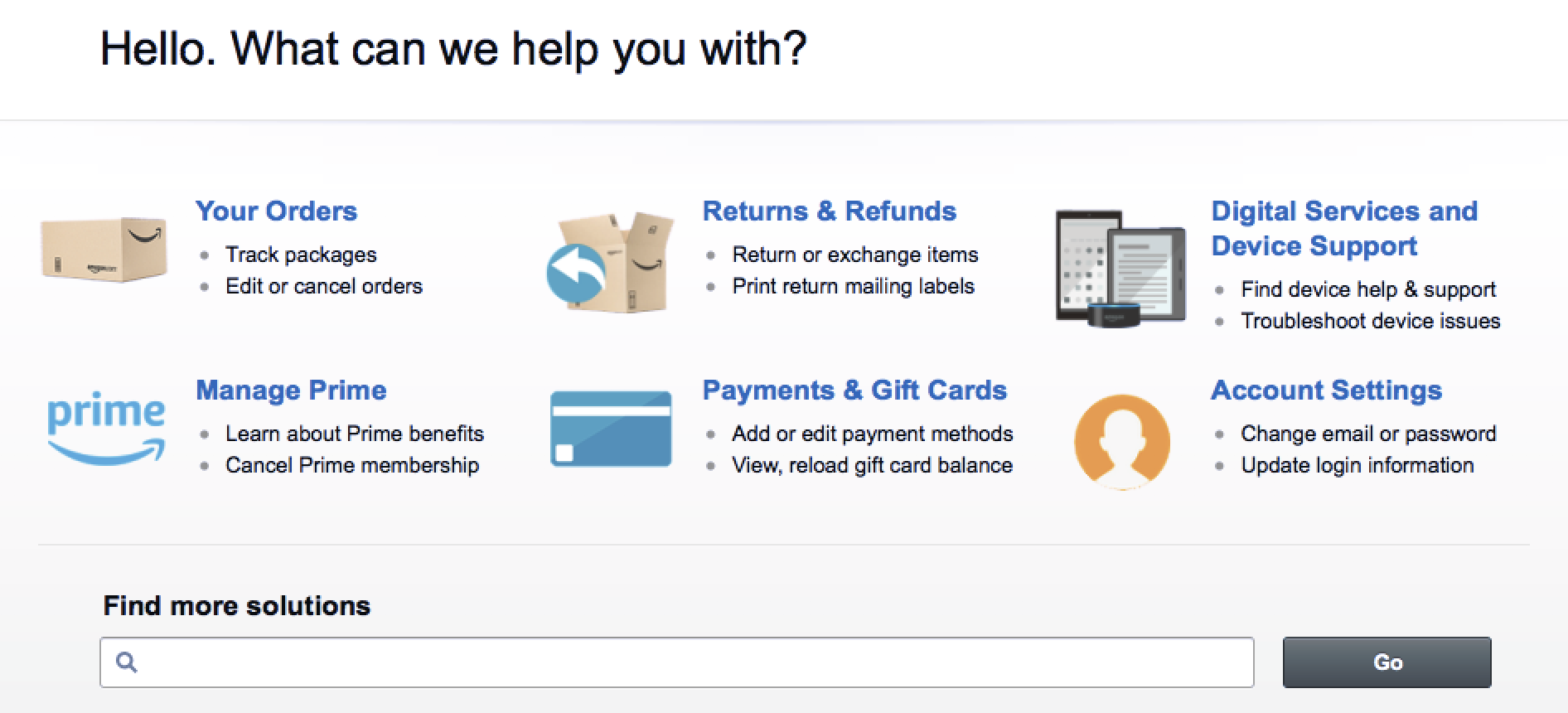
Screenshot of Amazon's Customer Service Page

For one thing, Amazon allows returns on "most new, unopened items sold and fulfilled by Amazon within 30 days of delivery for a full refund." But that's just the tip of the iceberg. Their reps are encouraged to go above and beyond for clients, addressing their concerns with more personal investment than most other companies. And founder, Jeff Bezos, along with thousands of other managers undergo call-center training every year.


What do these essential eCommerce marketing strategies have in common? They all revolve around the customer. By prioritizing this customer-first mindset, you'll earn and maintain a loyal customer base, and your business will benefit as much as your customers do.

Image of Crocs newsletter via Omnisend. Image of Kyrah Stewart via Zimbio.


source https://zapier.com/blog/ecommerce-marketing/

Friday, 30 November 2018

Lessons Learned From Working Remotely As an Accountant

When most people think of accountants and accounting jobs, they think of someone sitting behind a desk in an office, meeting with clients, and dealing with piles of paperwork. Working from home—without any face-to-face meetings or paper handoffs—might not seem possible.

When I first looked at the possibility of finding an accounting job I could do remotely, the odds didn’t look too good. Most of the accounting jobs that were open to remote work were tax-related, which didn’t align with my current accounting experience and was not the type of job I was interested in. Considering the amount of paperwork staff accountants typically deal with and how closely I worked with others at my in-office job, I figured accounting was out of the question when it came to working remotely.

Fast forward to a few years later…I came across a job opening at Zapier, a 100% distributed company, for an accountant role and knew I had to go for it! I had already set up an office at home that was a happy environment that I was ready to use. I also saw other benefits of being able to work remotely other than utilize my new happy space:

  • Save time and money by removing the commuting portion of my day: over 13 hours a month on time and $80 a month on my gas and even auto insurance (since I was using my car less, my auto insurer lowered my rate).
  • Reduce my carbon footprint by at least 2.3 metric tons of CO2 a year!
  • A chance to benefit my health and well-being. Working from home allows me to make healthier meal choices, work in a cleaner office environment (and I get to control the thermostat!), and use my commuting time to jump on the treadmill every once in a while.
  • The ability to work from anywhere such as coffee shops, co-working spaces, or visiting friends and family.

I was nervous at first since I didn’t know what to expect. How would an accounting position work in a remote world and how easy would it be to balance my work and home life, since my home was now also my work? Now that I’m six months in, the transition from working in such a paper-heavy environment to a practically paper-free one was easier than I thought. It is possible to have a role that's not traditionally remote-friendly and still thrive.

Working Remotely as an Accountant: Lessons Learned

Meetings: When I worked in an office, I sat through many meetings that were either scheduled or impromptu, and there’s nothing different in a remote setting other than it’s via video conferencing. (Well maybe that and the elimination of having to find a conference room that hasn’t already been booked.) It’s just as easy to have impromptu meetings here at Zapier as it would be in any office. Spin up a Zoom meeting and share the link in your Slack channel and you can have that same sort of spur of the moment meetings, as long as all the participants are online at the same time.

Communication and water cooler moments: Communication is key when it comes to working on a remote accounting team. In my past experiences in working in an office, I would find out information from just hearing other conversations happening around me that gave me context of what was happening with the rest of the team. With remote work, you don’t get that opportunity in the same way. But then there's Slack.

"Default to Transparency" is one of our company values, so it’s good practice to use public channels as the main form of communicating in Slack even if your question is specific to one person. This will help keep the rest of the team in the loop on what others are working on and prevent folks from isolated. Plus, if you have fun Slack channels set up like "#fun-food," you get the same camaraderie as you do in an office, but just at everyone's most convenient times.

Work: As for the accounting aspects of working remotely, I’ve found it’s not much different from working in an office. We still have a weekly team meeting, 1:1 meetings, collaborate on shared files, knock out month-end financials together, and ask for each other’s help/perspective on tasks we are working on. We use a lot of cloud-based apps that allow us to share and work on files together.

  • With Quickbooks Online we are all able to log in to add in journal entries, run reports, import transactions vs the desktop version which would limit access to one person.
  • Sharing spreadsheet files are easy with the ability to save Excel files in Box, or use Google Sheets and Excel Online, which both allows for the team to work simultaneously on one file.
  • We also use Google Docs often when working on writing policies and company announcements. It’s a great way to share your work with the team and allows for everyone to add notes and editing suggestions.
  • Notejoy is another tool we use to collaborate notes as a whole for the Ops team. We’ve used this tool to track our weekly meeting notes, draft our team’s weekly update post, and save any other notes that would be helpful to share with the team.

Zapier Creating Zaps (our word for automated workflows between apps) has helped me decrease the time I spend on mundane tasks and helps to keep me up to date on tasks I need to work on. I use one Zap to reduce the amount of time I spend saving invoices that we receive to our box folder, and another to alert me on who has turned in an expense report. And yet another Zap to automatically add cards to my "To Do" Trello board for weekly recurring items.


Working remotely may seem like a foreign concept in the accounting world, but when you’re set up with the right applications and an awesome team, it’s totally achievable! (P.S., Zapier's fully remote and hiring.)


source https://zapier.com/blog/remote-work-accountant/