Monday, 4 March 2019

How to Read 50 Books a Year

Over the years, I’ve developed a system that lets me read somewhere between 40-50 books per year. This system doesn’t require a massive amount of time or brainpower, both of which I lack. It only requires a little bit of diligence and small pockets of time.

Here are seven techniques to help you can achieve your avid reading goals and get through your long backlog of books to read.

Make Your Book List

The first step is easy and fundamental. Making a book list allows you to stay on track with your reading goals and to always know what you’ll be reading next. When it comes to making a list, you can always use good old fashioned pen and paper, but if you want the searchability and ubiquitous access of digital tools, give Goodreads a try.

Goodreads (Web, iOS, Android)

Goodreads is a terrific reading app for several reasons. First, it allows you to connect with your bibliophile friends and see what they’re reading. If you see a book that looks appealing, you can immediately add it to your "Want To Read" list.

Goodreads recommendations
Make a list: Find books you'll enjoy with Goodreads

Goodreads allows you to create a variety of booklists. This is especially helpful if, like me, you’re a bit reckless in pressing the "Want to Read" button. This allows you to easily move books from an oversized “Want to Read” list to an easier to manage “2019 Reading List."

Goodreads reading list

If you don’t know what to read, Goodreads also has a suggestions page which is populated based on genres you’ve specified and books you’ve already read. This is a great place to find books you might enjoy. Friends can also recommend books to you that they think you might like.

And if you have an Amazon Kindle, you can connect it to your Goodreads account to easily rate and mark books you've read as completed.

Of course, you can keep your reading list in your favorite notes app, too, such as Evernote or Trello. Firefly founder Dan Shipper details how he reads a lot of books and keeps a reading list on his blog post (Trello screenshot below):

Trello reading list

Read at Least Two Books at a Time

If you want to actually get through your reading list, it’s important to be reading at least two books at once. Why? Because of changing moods and energy levels. There will be times when you’re in the mood for something light and fun—a mystery novel or romantic comedy, for example. If you’re only reading dense business books, you simply won’t read when you’re not in that kind of mood. (Unless all you like to read are dense business books.) So always make sure you have a shorter or easier read at hand.

Your energy levels will also dictate which books you read. After a long day, I’m not particularly interested in reading a 500-page treatise on the history of European armor. I need something that doesn’t require intense thinking power, so I always make sure I have some easy reading, like a Stephen King novel or a collection of short stories, at hand for those low-energy times.

Also, don’t get stressed about trying to remember everything you read. The fact is you won’t. That doesn’t mean it hasn’t been beneficial. As Douglas Wilson, author of the book Wordsmithy, says:

Most of what is shaping you in the course of your reading you will not be able to remember. The most formative years of my life were the first five, and if those years were to be evaluated on the basis of my ability to pass a test on them, the conclusion would be that nothing important happened then, which would be false. The fact that you can’t remember things doesn’t mean that you haven’t been shaped by them.

Take notes, if you like, to better retain what you read–pulling out good quotes, for example (Goodreads is a helpful spot for this too). But, again, don't worry about retaining everything.

Read In Small Chunks

Most people assume that reading a lot of books requires hours of free time, and so they defer picking up a book. It doesn’t. I’ve got three young kids who are constantly interrupting me. I usually only have about 10-15 minutes of free time at any point during the day.

But what I’ve discovered is that I can make surprising progress in just 15-minute chunks. It’s similar to walking. You may not be able to walk 100 miles in a single day, but you can walk 100 miles in a week. You make much more progress this way than if you ran 20 miles once a month.

This is where digital reading apps come in handy. I have both a physical Kindle reader as well as the Kindle app on my iPad. They automatically save my place, allowing me to easily hop in and out of a book on any device for short periods of time.

Kindle app

Here's a cool Kindle trick: Let’s say you’re tired and you want someone to read to you. If you’re an iOS user, you can make the Kindle app read to you, as if it’s your own personal butler (my iPad is named "Rupert"). It’s really easy.

  • Click on the settings icon on your iPad or iPhone home screen.

  • Go to "General" and then “Accessibility”

  • Then go to "Speech"

iPad Speech Accessibility setting
  • Now turn "Speak Screen" on.
Turn on speak screen in iOS

The "Speak Screen" feature is how you tell your iPhone or iPad to read Kindle books to you.

  • Next, disable "Auto-Lock" on your phone or tablet. The speaking feature will disable once “Auto-Lock” kicks in, so it’s easier if you just disable it all together.
iPad disable auto-lck
  • Now open a book in the Kindle app, put two fingers at the top of the screen, and swipe down. Snap! A robotic voice is now reading your book to you. No, it’s not exactly Samuel L. Jackson, but it’s nice when you’re worn out.

If you're an Android user, you can enable the TalkBack accessibility feature for audio support in Kindle for Android or try a number of Android reading apps that support text to speech.

Learn To Increase Your Reading Speed

Obviously, one key to reading more books every year is to improve your reading speed. You can do that without lessening your reading enjoyment and without forgetting what you read. Several apps are here to train you to read faster.

Spritz (Web)

Spritz is a fantastic browser extension to increase your reading speed. Their browser tool (Chrome, Safari, Opera, Internet Explorer) allows you to speed read any article.

Spritz works by removing what is called "saccade," which is when your eyes move from word to word. By presenting all the words to you at the same location, your eyes never move and your brain can process the words faster.

The Spritz speed reader is also integrated into the BookShout app, allowing you to speed read through digital books.

The Bookshout app does take some getting used to. Because it presents one word at a time in a steady cadence, it’s not as easy to get into the flow of reading. Additionally, if you break concentration for even a moment, you can miss words. In some ways, this is good because it forces you to maintain laser focus on what you’re reading, but it can also be a bit frustrating when you’re first starting.

However, you can start the reading at a slow pace, which allows your brain to adapt to the new style of reading. Once your brain is used to it, slowly increase the speed.

ReadQuick (iOS)

ReadQuick is an iOS app that works in a similar manner to Spritz. You can select a news article from one of ReadQuick’s news partners or you can import an article through a variety of integrations, such as Feedly, Instapaper and Pocket. Once you’ve selected the article and set your Words Per Minute speed, the app shows you one word at a time.

ReadQuick

A Faster Reader (Android)

A Faster Reader is similar to ReadQuick, but for Android. Articles can be imported through a variety of integrations, and then the words are presented one a time. The better you get, the higher you can increase the Words Per Minute. Additionally, you can import .epub, .txt, .html, and .pdf files, allowing you to read eBooks in a similar fashion.

A Faster Reader

Spreeder (Web, iOS, Windows, Mac, Chrome)

Spreeder works in an entirely different fashion than the previous apps. It is a complete speed reading training software, equipped with a host of training exercises, a progress dashboard, and a social feature for connecting with others. Spreeder flashes words in front of you one at a time, but it also trains you to read more quickly offline through the elimination of bad reading habits.

Spreeder

By teaching you to eliminate subvocalization (saying words in your head as you read them), regression (reading the same words repeatedly), and to incorporate fixation expansion (reading in bigger chunks), you learn to read faster.

As you train your brain to read more quickly, you’ll be surprised at how quickly you begin to knock out the books on your list.

Supplement Your Reading With Audiobooks

Audiobooks keep you reading even when your hands are tied—when you're driving, when you're running, when you're cleaning, or when you just want to unwind sans-physical book. It's not cheating, either. Cognitive psychologist Daniel Willingham explains that your brain uses the same mental processes when you listen to an audiobook as when you read text.

Here are some of the best audiobooks apps you can use to read more and read more regularly.

Audible (iOS, Android, Web)

Audible is the grandaddy of audio book libraries, with over 425,000 titles in stock. If you need an audiobook, there’s a good chance you can get it at Audible, which is owned by Amazon. And if you don’t like a book, you can exchange it without a problem.

Audible

For $14.95 you can listen to 3 books per month: 1 audiobook plus 2 Audible Original titles. If you don’t use all your credits in a single month, they simply roll over for up to 5 months.

Scribd (iOS, Android, Web)

Scribd allows you to listen to audiobooks and read digital books, comics, and sheet music within the app. Scribd has a good selection of digital books and audiobooks, but their audiobooks selection isn’t as broad as Audible.

Scribd

For $8.99 per month, you can listen to an "unlimited" number of audiobooks and read magazines, documents, and eBooks every month. Scribd may occasionally limit the number of titles you can access within a specific content library in a month if your account shows unusual activity.

Overdrive (iOS, Android, Web)

Overdrive lets you listen to audiobooks and read digital books from your local library, all for free. It only requires that you have a library card. And get this: If you join a library in another city, you can access their audiobook collection too, thus expanding your collection.

Your selection will be limited by what is available at your local library, but I’ve found that my library still has a ton of books available. Also, there are limits to how many people can access a digital book at once, so you may have to wait a bit for a popular one.

Overdrive

Overdrive may not have all the options of Audible or Scribd, but you can't go wrong with free.

Increase Your Listening Speed

The human brain can process speech must faster than people actually speak. The typical speaking rate is between 140-180 words per minute, and the brain can understand an average of about 400 words per minute.

This means you can easily listen to audiobooks at a higher speed than they were recorded. No, you won’t get the full pleasure of an audiobook performance at normal speed, but the tradeoff is worth it if you want to read more books.

It can take a little getting used to. Hearing someone speak at double speed sounds odd at first, and you have to pay closer attention not to miss something. But it also means you can finish a book in half the time. I would recommend slowly increasing your listening speed as you get used it.

Audible, Scribd, and Overdrive all have speed buttons or options to increase the audio speed.

Be Selective With Your Reading Choices

If you've ever felt like you had to force yourself to finish a book, this tip's for you: Life is too short to finish a bad book. There's no shame in putting a book aside or not finishing it in order to get to the next book that you will get more out of.

And for some books, reading every word might be overkill if all you want to do is glean the most important information. Over at the Observer, author David Kadavy offers a "layered" approach to reading any book in 45 minutes. The secret is to not read a book from cover to cover, but instead get a general understanding of the book by strategically tackling the table of contents and each chapter.

Not every book needs to be read completely through for you to benefit from your reading. For some books, you might take this outline approach. And for others books, you'll reread them thoroughly time and again, savoring every word. Freeing yourself of the restriction to complete every book, however, will help you get to those page-turners faster.


All of these techniques are small and rather inconsequential on their own. However, when you put them all together, they can really supercharge your reading. Reading 50 books per year isn’t about spending 3 hours per day reading (although if you do that, more power to you). It’s about using reading to fill in the random open cracks in your day. Think of it like the mortar in between bricks. Bricks are big blocks of time dedicated to other things and reading is the mortar holding them together.

By implementing these techniques during your drives and downtimes and spare moments, you can easily read 50 (or more!) books per year.

And, really, it’s not about the number 50. It’s about what you learn and experience through those 50 books (or however many books you read). But, of course, the more books you read, the more you'll feed your brain.

Get Through Your Backlog of Books:
- How to read more, faster, and better with these 30+ apps, tips, and tricks
- How to better remember what you read

Credits: Photo by Dmitrij Paskevic via Unsplash


source https://zapier.com/blog/read-more-books/

The 8 Best Email Clients for Windows in 2019

Given the number of emails we send each day, it's no surprise we have high standards for the apps we use to manage those messages.

Email clients are no longer designed with just the basics we've come to expect, but the best now include exceptional features, things like snoozing messages, scheduling emails, and offering templates—touches that help them stand out against the growing crowd.

If you're a die-hard Windows user, you'll likely want a desktop email client for when you're on your computer for more powerful features or to manage multiple email accounts in one spot. Here, we'll present our choices for the best email clients for Windows, so you can decide which is right for you.

What Makes a Great Email Client for Windows?

Email web apps, such as the Gmail web app, are great for accessing your email away from your desk. But when you're at your computer, a desktop app can often be a better solution. Maybe you want to back up all your emails on your computer. Maybe you want to use multiple email addresses in one program. Or maybe your email client's web app is just terrible.

Whatever the reason, Windows offers some solutions. When looking for the best Windows email clients, we focused on stability, ease of use, and third-party integrations. Performance issues were a dealbreaker, and we only selected apps whose interface was intuitive enough to easily accommodate any type of user.

Finally, these eight email clients were specifically chosen because each one offered one or more unique features, giving users unexpected—but welcomed—perks.

The 8 Best Email Apps for Windows


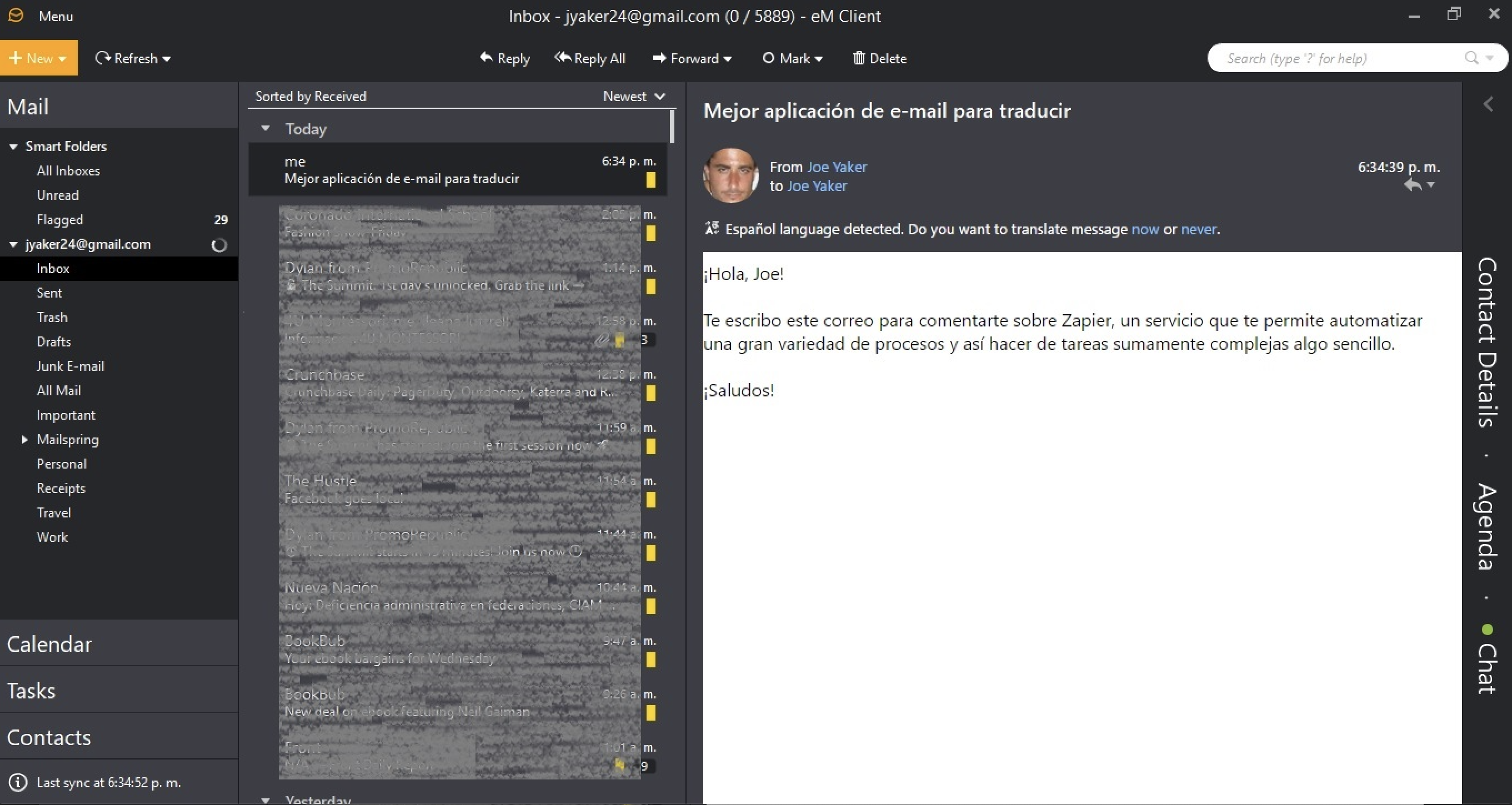
eM Client

Best Windows email client for multilingual email exchanges

eM Client interface

When you open eM Client, it'll feel familiar. It follows the common template widely used by other email clients: quick access to all the linked accounts and their respective folders on the left, with the basic calendar, contacts, and tasks right below that.

eM Client handles all the basic features expected of the best email apps. But its stand out feature is its ability to translate emails sent in 39 languages—right within the app. eM Client will automatically detect the language and provide the option to translate with a simple click right beneath the contact information.

eM Client also offers a "Deduplicator" tool, which will find duplicates in your contacts, emails, calendar events, and tasks. For example, it might find contacts with the same email address but different names, or email addresses with the same subject line. Click Tools > Deduplicator, and a fairly simple wizard will guide you through the process and let you decide if you want to move the data or delete it permanently.

The client also comes with a chat feature, which can detach as a separate window and run independently while you work on other things.

eM Client Pricing: Free license available; $49.95 for the Pro version that includes VIP support, unlimited accounts, and commercial use.

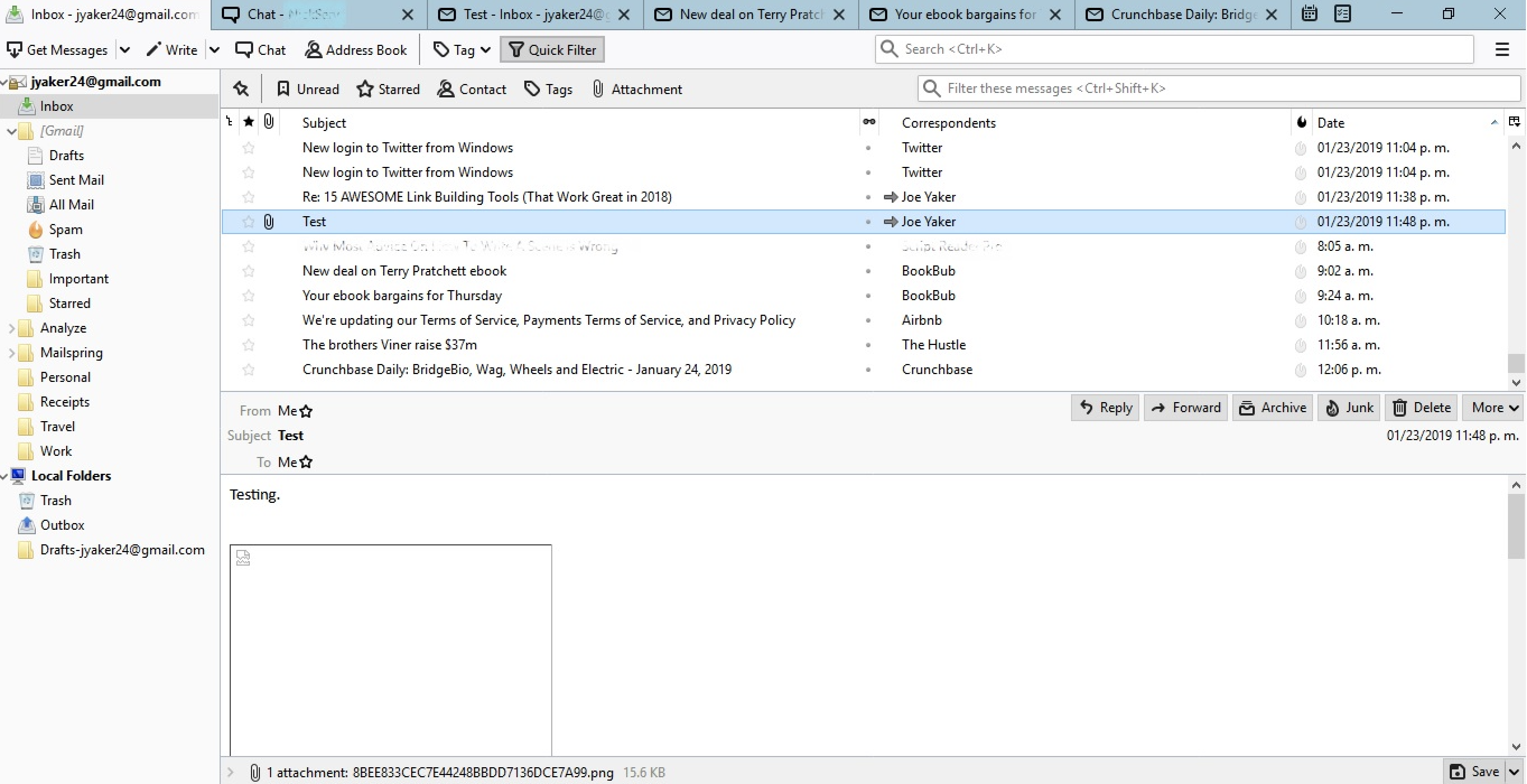
Thunderbird

Best Windows email client for echoing the browser experience

Thunderbird interface

Browsing the internet has become second nature, which means we've grown accustomed to the browser interface. And, whether we like it or not, this affects how we perceive and interact with other apps. In fact, it can make desktop apps even feel unnatural.

The people at Mozilla know this, which is why they modeled the interface of their Thunderbird email client after their browser, Firefox. The program works with tabs: There's a tab for each email the user opens, a tab for chats, one for the calendar, and one for tasks. Composing a new email actually opens up a new window altogether.

Thunderbird is open source, which means there's a large community supporting it and adding features, like the ability to search the web right from the app. Of course, open source add-ons aren't subject to any usability requirements, so you'll need to use your discretion in selecting the ones you use.

One last noteworthy feature: Thunderbird integrates with Google Chat, IRC, Twitter, and XMPP, which means you can use these apps from within Thunderbird itself. Click on the Chat option at the top, and a new tab will open up where you can access a quick wizard to set up whichever account you choose. Just like a browser, each tab will rest visibly above the entire interface.

Thunderbird Pricing: Free

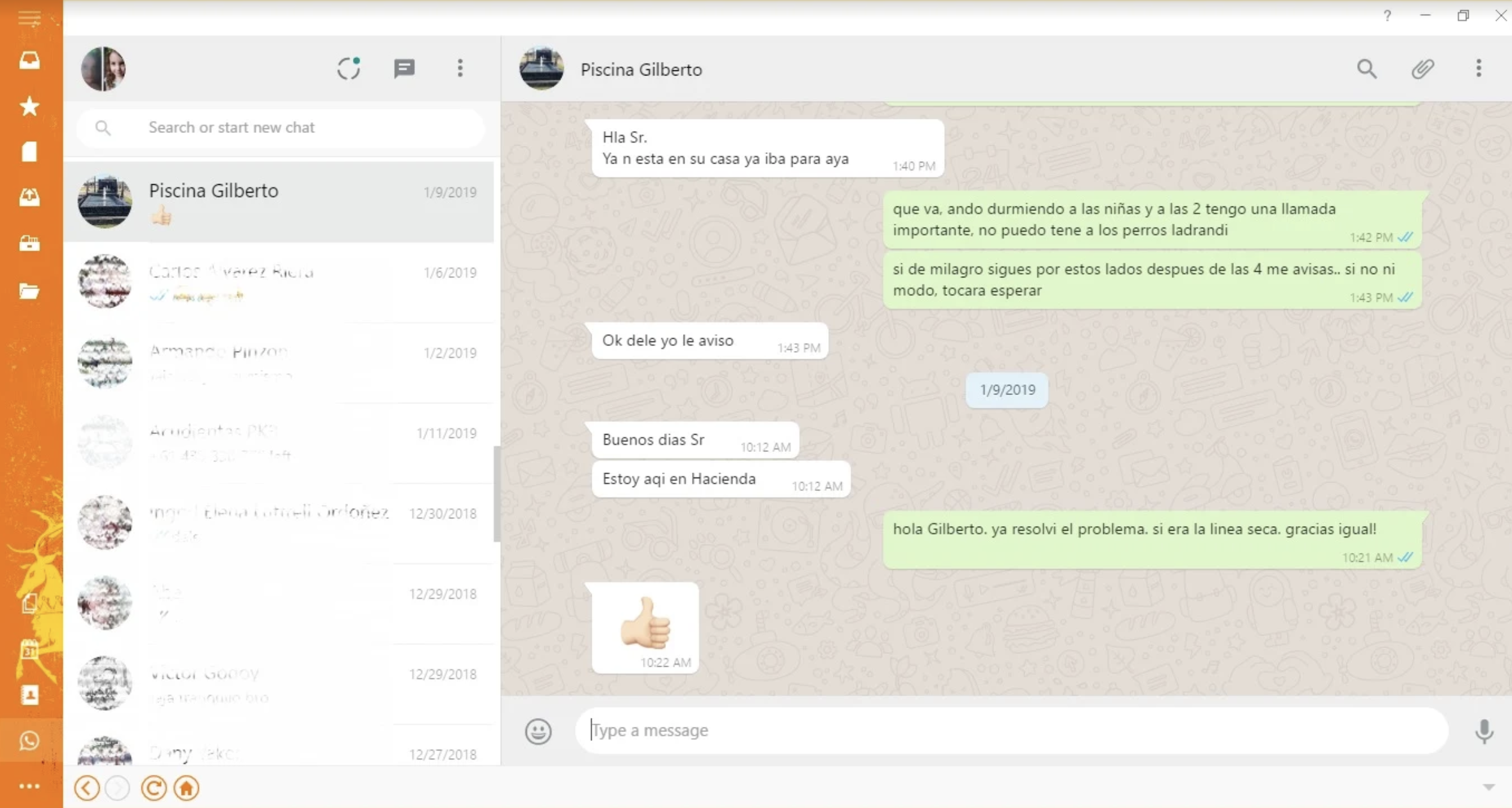
Mailbird

Best Windows email client for people who live in their inbox

Mailbird interface

The first thing that you'll notice about Mailbird is the lack of text on the page. Instead, it's all about icons. Imagine your Gmail sidebar but without the text labels, and that's what you'll see. You can customize this look to be more conventional, and you can even tweak the look of the app with some flashy templates.

But what really makes Mailbird stand out is the sheer number of native integrations available. It integrates with nearly 50 apps and services, which makes it a great choice for users who live in their inbox. With workplace apps like Trello, Slack, and Asana, and chat tools like WhatsApp and WeChat, Mailbird becomes a powerful hub for communication and project management.

To integrate with an app, click the Add-ons button at the bottom left (it's an ellipsis if you’re using the icon appearance), and choose from the available list. This will add an icon on the left menu, and clicking it will provide you with all the steps to connect with Mailbird. In the case of WhatsApp, for example, it was as simple as activating the QR option on the phone and pointing the camera at the screen. From there, we could easily use WhatsApp right there within Mailbird just by clicking the WhatsApp icon on the left menu to access. (This is especially useful if you use an older phone and using WhatsApp means whatever is playing on YouTube stops.)

Mailbird Pricing: Free for the Lite version; from $39 (flat fee) or $12/year for the Pro version that includes the option to snooze messages and set reminders to address them later, add unlimited accounts, and 24/7 priority support from the Mailbird team.

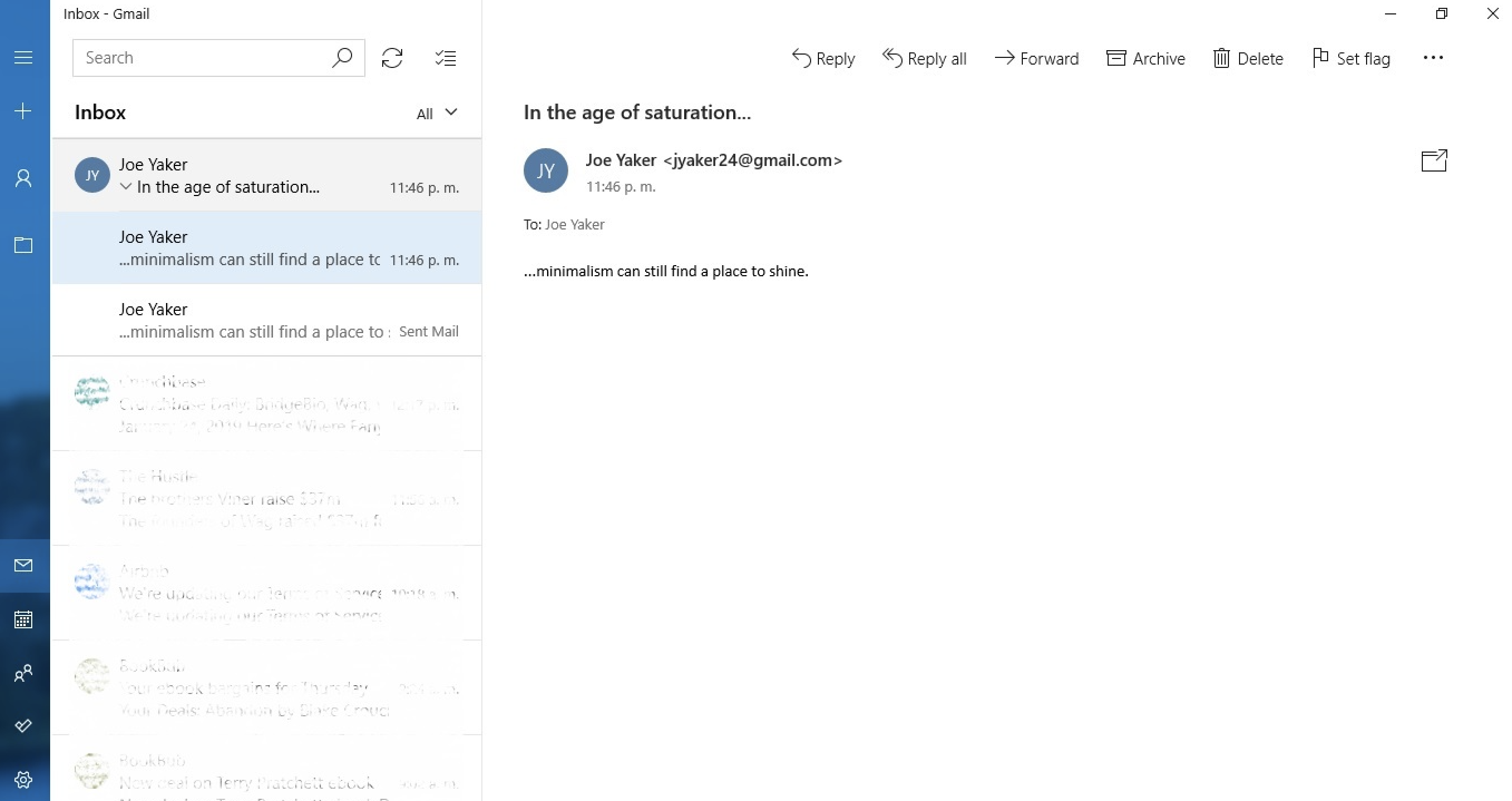
Windows Mail

Best Windows email client for simplicity and minimalism

Windows Mail interface

Windows Mail is the default app that comes pre-installed on Windows, and it's as simple as it gets. If you're a Windows user to your core, you'll appreciate the native feel.

In the left sidebar, you can access your calendar, tasks, and inbox. Once in your email inbox, it's all fairly basic. You won’t find any snooze options, the ability to schedule messages, or even HTML editing. There is the option to draw inside the messages: Begin composing a new message, and then click on the Draw tab at the top. Beyond that, you won't really find any bells or whistles—which, for plenty of people, is perfect for your inbox.

Windows Mail Pricing: Free

Microsoft Outlook

Best Windows email client for reliability

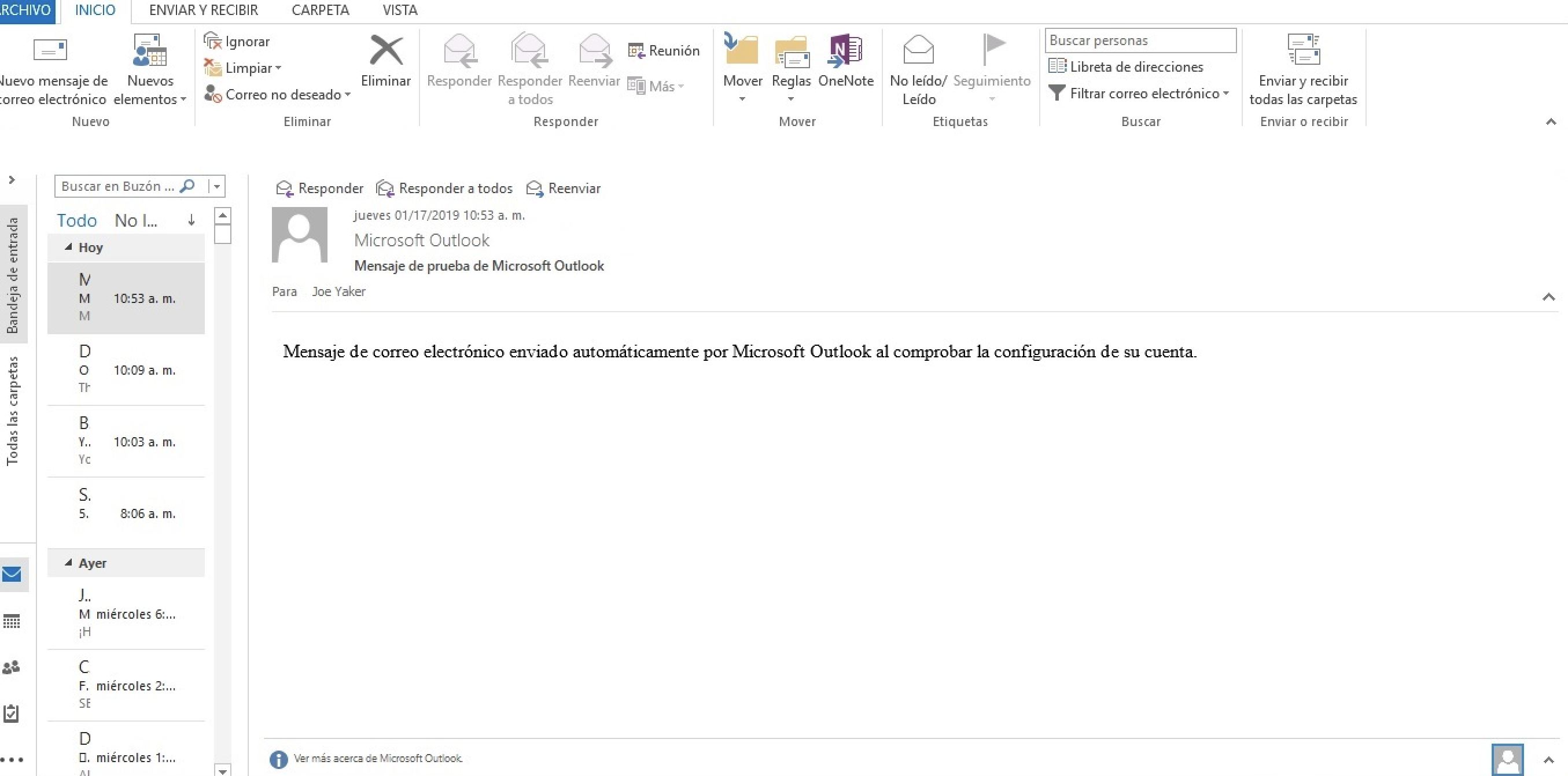
Microsoft Outlook interface

Microsoft Outlook is one of the oldest email clients out there that's still widely used. And for good reason: It's reliable. Plus, Outlook's email, calendar, and contact management systems are all seamlessly integrated for a smooth user experience.

Of course, the app is not without unique features. The Quick Steps tool lets you create automated pathways for the management of certain emails and contacts. For example, you might choose the Move to New Folder option, pick a specific folder, and assign a keyboard shortcut, like ctrl+shift+1. Then, you can select any number of emails, hit the shortcut, and they'll all be sent to the chosen folder.

Outlook also you to schedule your emails. From the toolbar, click the small icon on the bottom right of the Tags group. Then, under Delivery Options, select a date and time. Now, when you click Send on the email, it will be stored in your Outbox folder until delivery time.

Outlook is full of one-off features like this. Take a look through our list of Microsoft Outlook Tips and Tricks for more.

Microsoft Outlook Pricing: You need to purchase or own a Microsoft Office license to use Outlook (after a free trial).

Postbox

Best Windows email client for using personalized templates

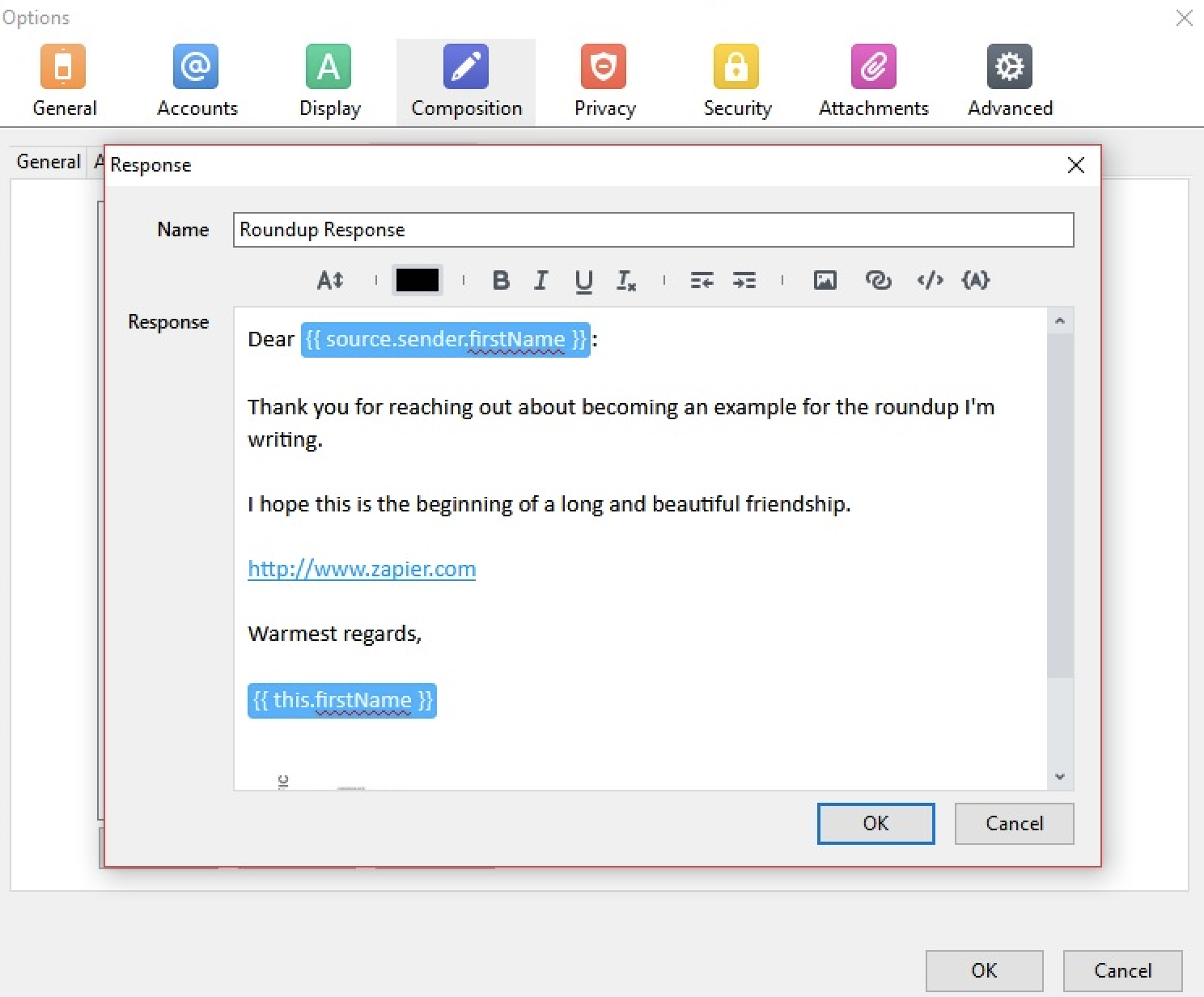
Postbox interface

Quick Parts, canned responses—whatever you call them, email templates are a huge time saver. But Postbox takes it to the next level by allowing you to personalize those templates to the recipient.

Postbox's Responses tool comes with an intuitive editor that cleverly uses placeholders in order to easily assign automated values to fields, like the original sender's first or last name, the subject line, the date, or any other piece of information stored in either the received message or Postbox itself. Pick the template you created from a dropdown menu, and the app will automatically generate and send a personalized reply.

The app also comes with some other nice features, like an HTML editor that's part of the composing window itself and native integration with popular file management apps like OneDrive and Dropbox.

Postbox Pricing: $40 a for lifetime license

The Bat!

Best Windows email client for security and encryption

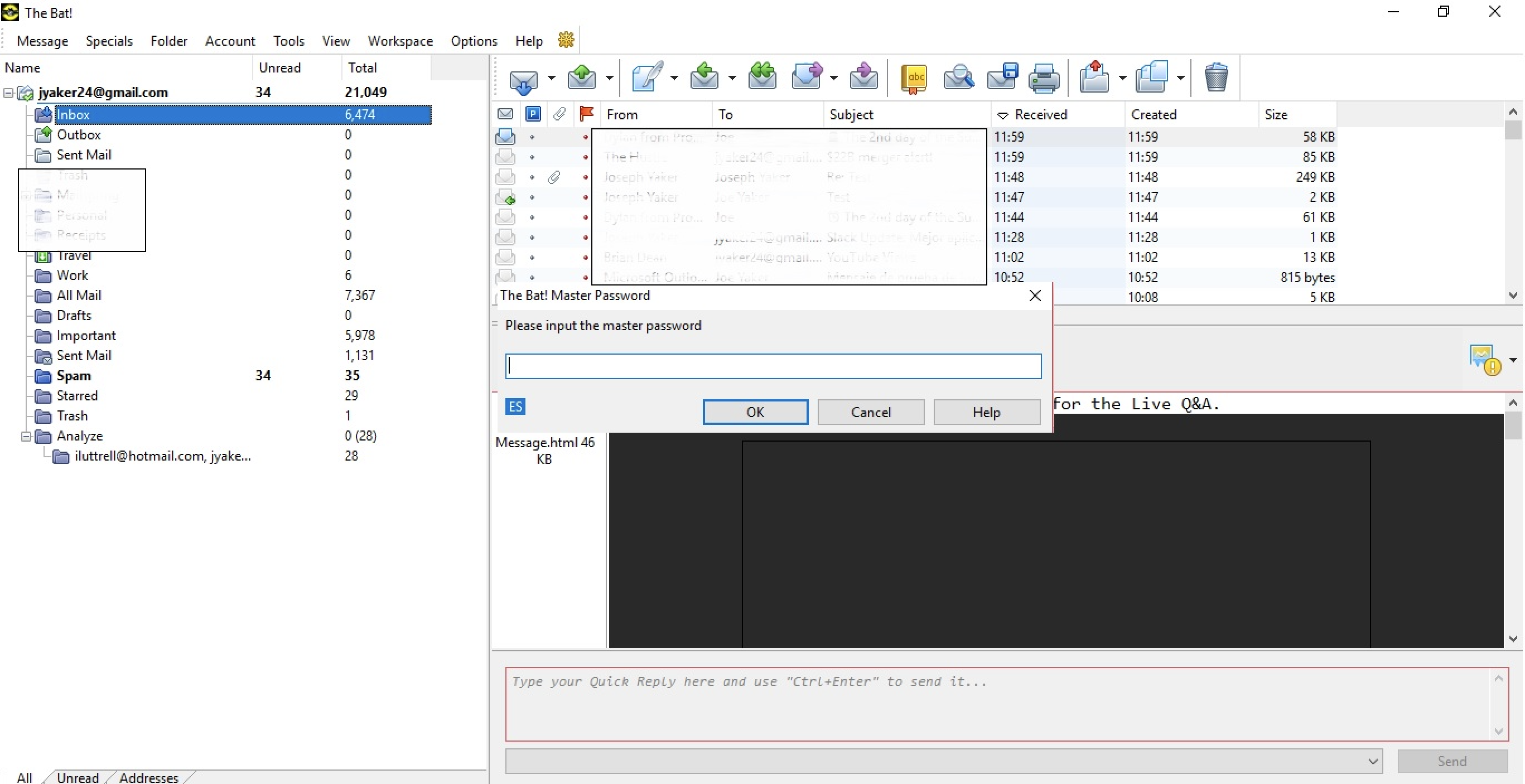
The Bat! interface

Much like the heroic images its name may evoke, The Bat! is intended to protect its users. This app is designed to address a number of security issues that, while not necessarily common, could potentially affect other email clients. The Bat! requires a key to decrypt all the data it's storing. This means data can only be accessed through the app itself, unlike other clients that store the information in localized folders, where it can be obtained from outside the program. With on-the-fly disk encryption, all the data managed through the app will be stored and encrypted in the user's hard drive, giving an extra layer of protection to the very efficient backup system.

Plus, The Bat! uses end-to-end encryption, which means that it's not only stored data that's safe: Any data sent through the app is also protected. This is relatively unique for an app that still allows you to connect a number of email accounts (e.g., your Gmail or Outlook account).

This level of security, plus all the basics users can expect from an email client, make The Bat! a great choice for anyone working with particularly sensitive information.

The Bat! Pricing: $26.95 for the Home version; $59.99 for the Professional version

Front

Best Windows email client for team collaboration

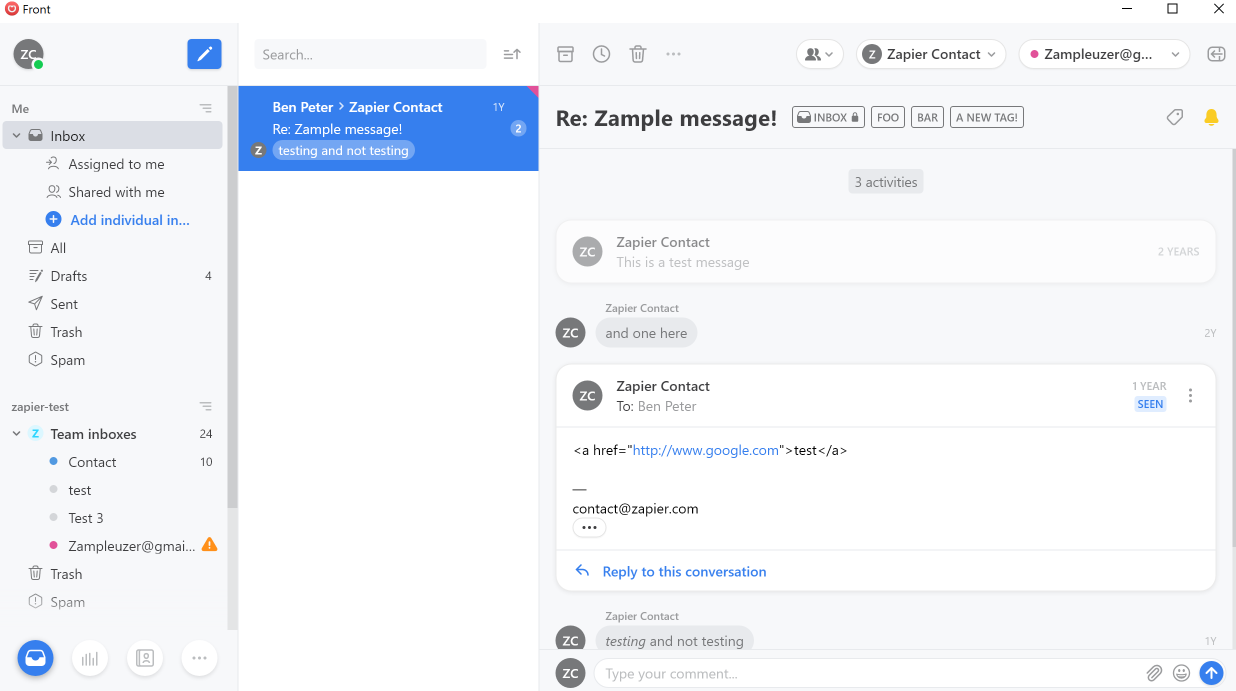
Front interface

Front centers around one main concept: collaboration. It's designed for entire teams to work together in a system of shared inboxes.

All inboxes you create are private by default, but you can invite specific team members to specific inboxes and then assign emails to members from within the email itself. Front also offers a chat feature, so you can stay engaged with your teammates all within one app.

Adding to the hub-like feel of Front is its native integrations with more than 40 apps and services, including Asana, Dropbox, HubSpot, Slack, and Trello. And Front's Zapier integration allows Front users to connect the app with 1,000+ other apps in their tech stack.

Since it's a business-oriented email app, Front also includes an entire analytics section that not only addresses metrics pertaining to client behavior with sent emails, but also the productivity and interactions of team members, such as response time and pending replies, among others.

Front Pricing: From $15/month for the Basic plan, with one channel and one integration. From $29/user/month for the Premium plan, with 15 channels and unlimited integrations.

Which Windows Email Client Should You Choose?

Email is a very personal thing. Small features can make or break your experience with your email client, so the decision will ultimately come down to your own needs and preferences. There are clear choices for people who want to stick to the basics. Likewise, there are more complex apps, with a variety of features that speak to different needs—be it collaboration, security, templates, or otherwise. And if none of them feel right, you can always try a web app, which will work just fine on your PC.


source https://zapier.com/blog/best-email-clients-windows/

The 9 Best Email Clients for Mac

Whether you live in your inbox or just use it to communicate with those who do, email is going to be a daily part of your work life. And if you use a Mac, one of the best things you can do to improve your experience with email is use a Mac email client. Unlike web interfaces like Gmail, desktop apps focus on providing robust native applications that are more responsive and feature-rich.

The email app you choose can change how you read incoming mail, browse your inbox, organize messages, and craft your responses. We've dug deep into the pool of email clients for Mac, and here we'll give you our picks for the best in breed.

What Makes a Great Email Client for Mac?

While reviewing dozens of dedicated email clients, we focused on "full-fat" email experiences. This means leaving out the smaller assistants, menu bar apps, browser plugins, and generally cut-down software. Our chosen apps each contain a full range of email features, including the ability to read, compose, search, and organize your mail.

Support for a good range of email services is also important. Some apps are built with specific services in mind (like Gmail or Office 365), while others offer support for a range of providers. Whether you're using your own IMAP compliant email account, Yahoo, iCloud, or Google's ubiquitous offerings, you'll find something here that fits the bill.

The best email apps go further than providing a pleasant place to read and write correspondence. Setting up rules, filtering your inbox, organizing mail, and searching for messages are all key aspects of any all-encompassing mail app. Each of our selected applications offers something in this department.

We also considered user experience, as native applications have more flexibility compared to web apps in this department. Some use multiple windows for different elements, others offer tabbed email browsing. Better support for keyboard shortcuts compared to web apps also provides a boost to productivity.

Finally, there are a few small quality-of-life improvements that make your email client a nicer place to spend time. These come in the form of handy features, like the ability to snooze emails to a later date, email tracking tools to let you know if your past message has been read, and reminders that notify you when it's time to send a follow-up message.

No single email app will tick all of the boxes, so it's up to you to decide what you're willing to pay, which app feels most comfortable, and which features you can't live without.

The 9 Best Email Clients for Mac

  • Apple Mail for a basic, free client
  • Airmail for a feature-rich alternative to Apple Mail
  • Spark for collaboration on emails
  • Canary Mail for a security-focused email client
  • Unibox for people who wish email was more like instant messaging
  • Microsoft Outlook for people who value features over simplicity
  • MailMate for writing plaintext and Markdown-compliant emails
  • Mailplane for chronic Gmail users
  • Hiri for Microsoft email users looking for an Outlook alternative

Apple Mail

Best Mac email client for a basic, free solution

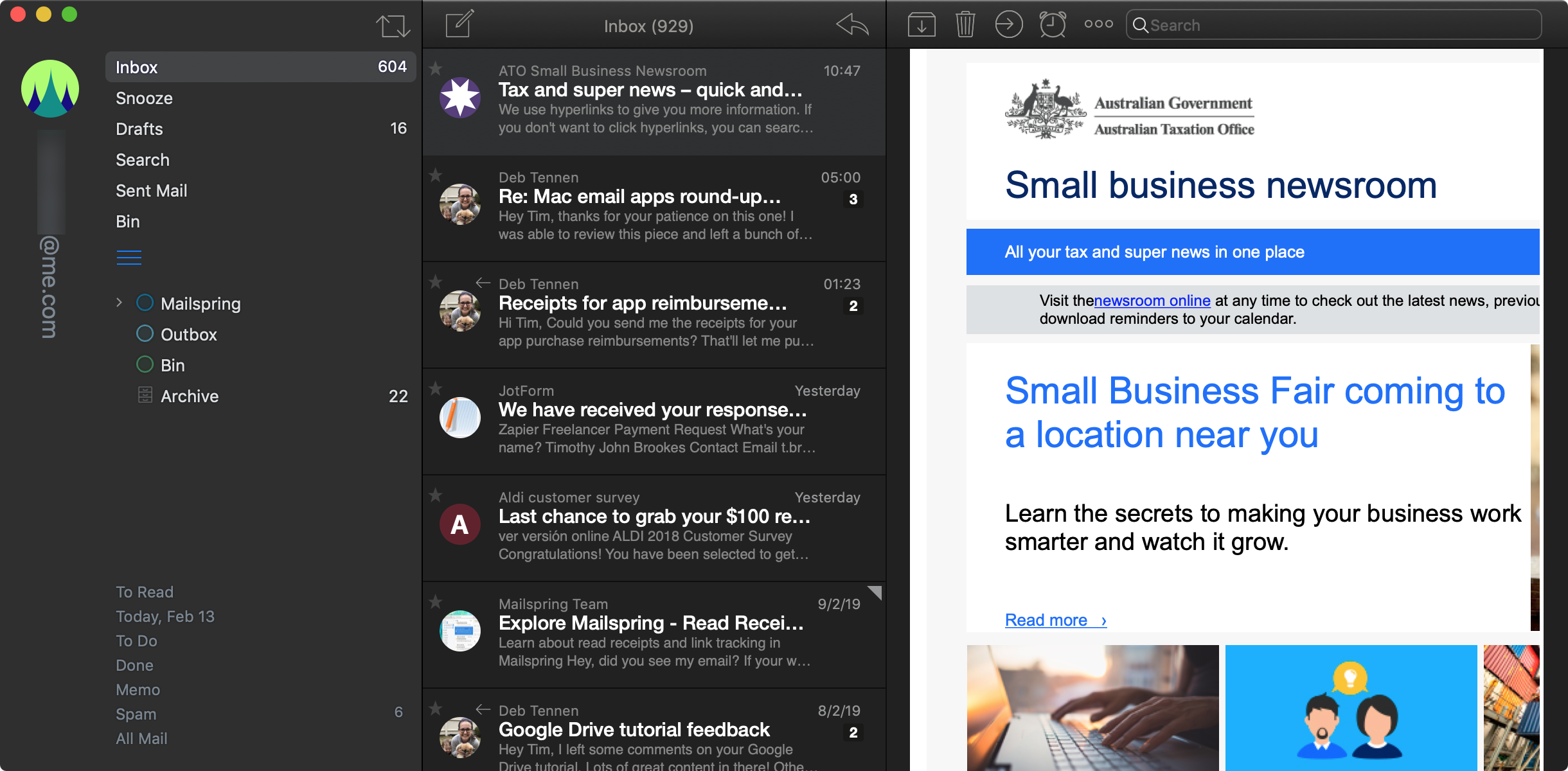
Apple Mail screenshot

Apple Mail is a free client that comes preinstalled on every new Mac sold—that in itself makes it a solid default choice for Mac users. The application's trademark postage stamp icon hasn't changed a lot over the years, and despite steady development from Apple, the client still retains its old-school feel.

Aside from the attractive lack of a price point, Apple Mail is often chosen for its simplicity. It's a basic email client with support for a range of services including the company's own iCloud Mail, Gmail, Yahoo! Mail, Exchange, and AOL Mail. It also allows you to connect your own IMAP and POP3 accounts, with S/MIME support for end-to-end encryption.

The user interface is clean but nothing special, with mailboxes, folders, and accounts accessed via the sidebar. Messages are presented as threaded conversations that are separated by subject. Unified mailboxes let you see all of your incoming, sent, and draft mail in a single list by default, or you can pick specific mailboxes if you prefer.

One standout feature is the inclusion of smart mailboxes that filter your mail based on rules of your choosing. Head to Mailbox > New Smart Mailbox to define the criteria by which you want to filter your messages (e.g., unread messages, mail with attachments, or messages you never responded to). You can then quickly access your filters via the sidebar beneath the Smart Mailboxes heading.

There are plenty of other bells and whistles too. Handoff with iOS allows you to seamlessly pick up where you left off on your mobile device, and Mail Drop uploads large attachments to iCloud for easier sharing. In a recent macOS update, Apple also included support for macOS Mojave's dark mode.

Apple Mail Pricing: Free.

Airmail

Best Mac email client for a feature-rich alternative to Apple Mail

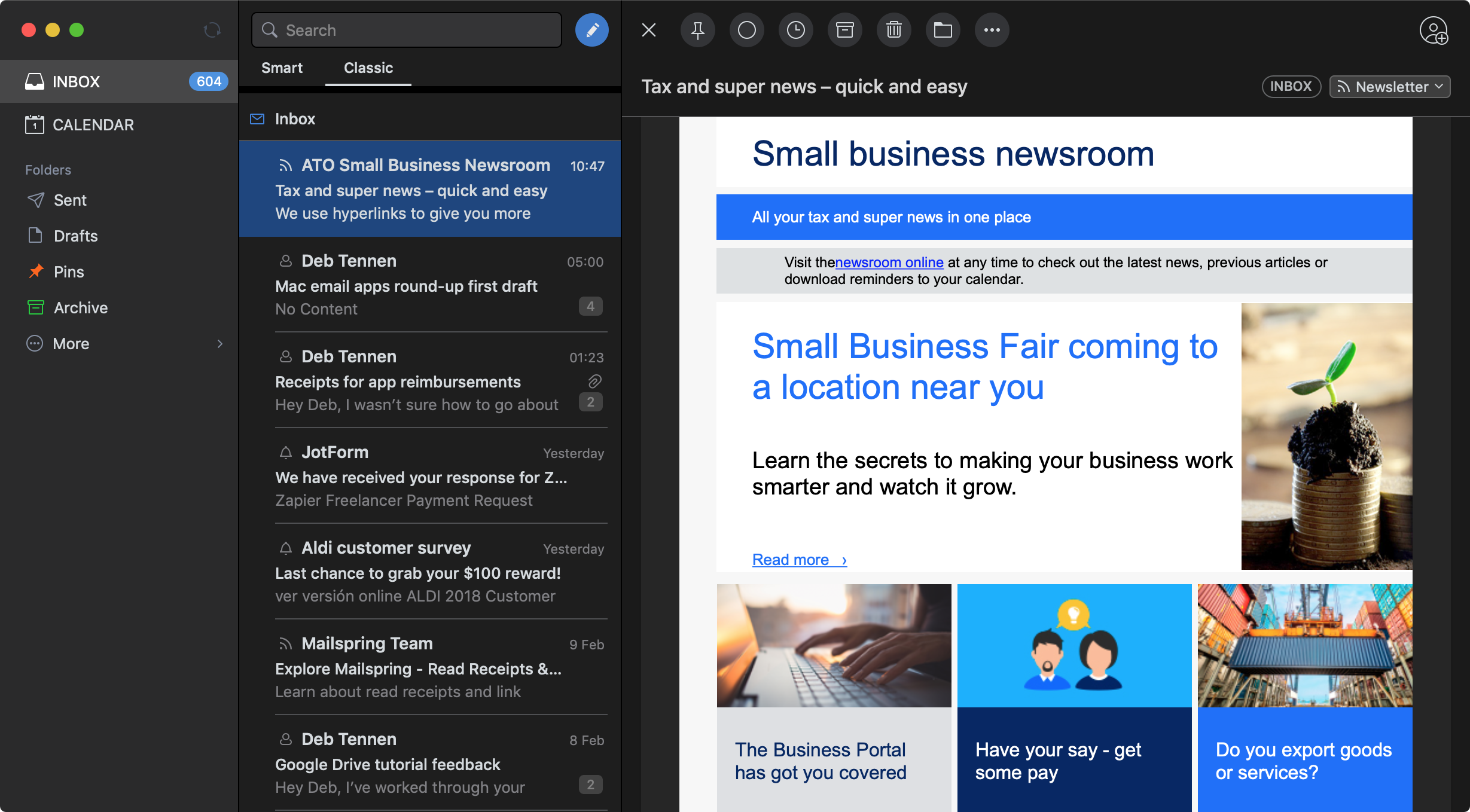
Airmail screenshot

Airmail takes the basic premise of an email client like Apple Mail and builds on it with more modern features and an emphasis on speed. There's robust support for all major email services, including Gmail, Outlook, Exchange, and IMAP or POP3 mailboxes. You can browse and reply to all of your mail from a single unified inbox, which brings all of your accounts together in one place. When you compose a new message, you'll use a dropdown to select which of your connected accounts and personas you want to send from.

Airmail is a fast and clean email client that doesn't bog you down with features you don't need. If you're familiar with Gmail's shortcuts, you'll be off to a flying start, but you can also set your own custom shortcuts to navigate with your keyboard. Swipe left or right with two fingers on your trackpad to archive or bin a message, or set your own custom swipe actions (like snoozing a message or marking as read/unread) from within Airmail's preferences.

Conversations are threaded by subject, with a Quick Reply button for replying to a message in-line. Click the small speech bubble icon, and a reply field will pop out, which makes it easy to respond to a specific message in a thread without losing your place. Composing a new message or "full" reply takes place in a separate window, much like Apple Mail. You can drag and drop your attachments into this window, with full support for iCloud's Mail Drop link sharing.

Snooze email directly from your inbox so that it appears at a more relevant time, which you can define within Airmail's preferences. Turn your messages into to-dos or memos using Airmail's built-in organizer in two clicks or using a keyboard shortcut. The organizer lives at the bottom of the sidebar and looks and feels just like an inbox for your schedule. You can even access your Google Contacts directly in the app using Google's search-as-you-type functionality.

Airmail Pricing: $9.99.

Spark

Best Mac email client for collaboration on emails

Spark screenshot

Spark is a desktop email client that brings Gmail-like features to Outlook, iCloud, Yahoo! Mail, Exchange, and IMAP email accounts (with support for Gmail too, of course). It includes a smorgasbord of conveniences, like the ability to snooze an email for later with a click and smart sorting of your inbox into categories like "Personal," "Notifications," and "Newsletters." Get follow-up reminders for email that you've sent, and organize your life using the built-in Calendar tool.

Spark for Teams is where the mail app takes on a whole new life. The team behind Spark hasn't just built a convincing email app—they've developed a collaborative email platform. This includes unique features like the ability to comment privately with team members on email in a small chat box to the right of the message. Collaborative composing allows you to invite other team members to collaborate and proofread your email in real time (just like Google Docs). Create secure links that point to specific threads or messages, and share them with your team. With these features, Spark could even function as a lightweight CRM solution.

Spark Pricing: Free for 5GB storage, two active collaborators per team, and five email templates; from $7.99/user/month for the Premium plan that includes 10GB storage per team member, unlimited collaborators, and unlimited email templates.

Canary Mail

Best Mac email client for a focus on security

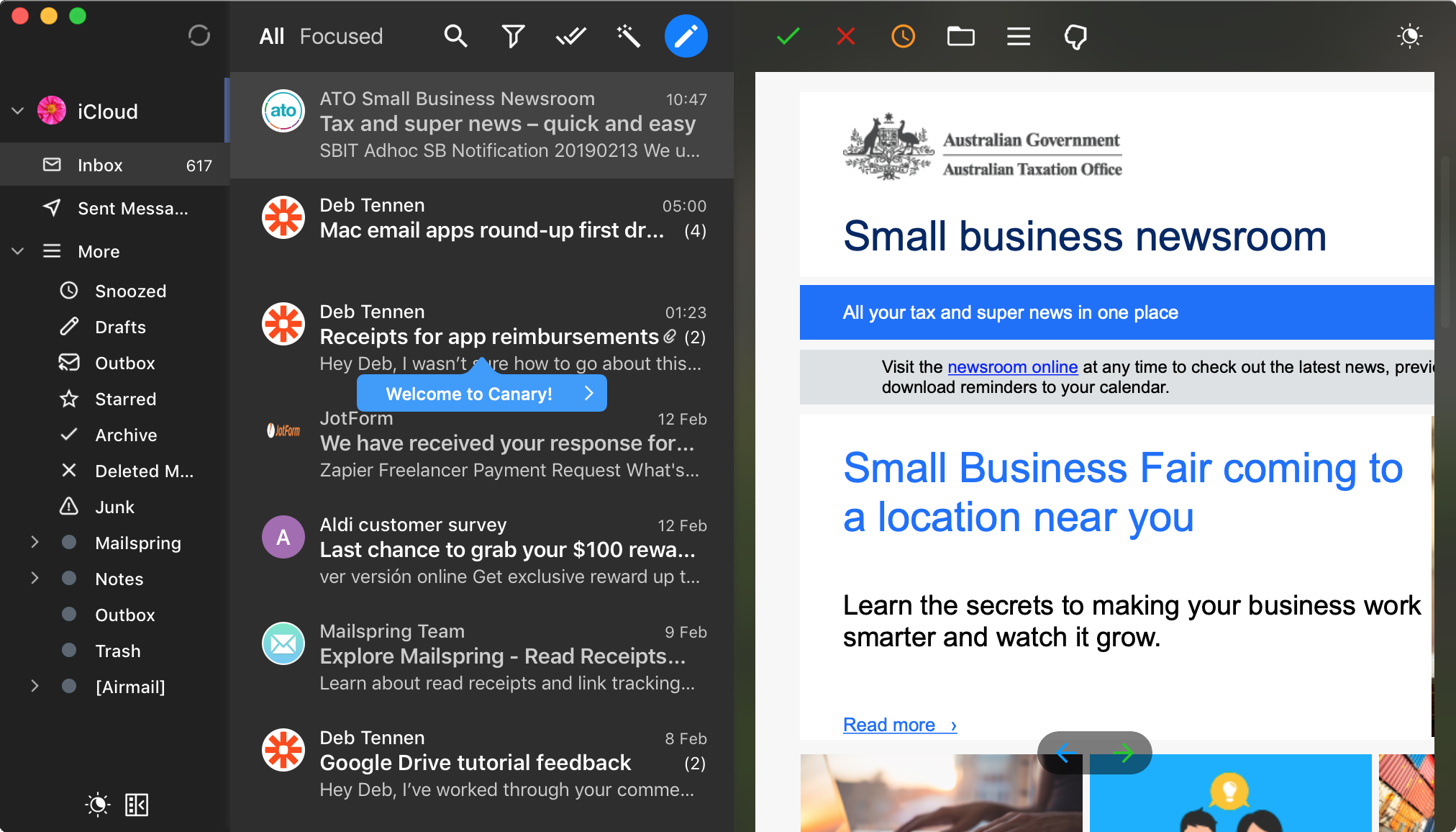
Canary Mail screenshot

Canary Mail is an email client for the security-conscious individual due to its support for end-to-end encryption using PGP. You can choose to use Canary's own PGP-based encryption (which requires the recipient to also be using Canary) or private PGP keys for advanced users. With encryption enabled, nobody aside from the intended recipient is able to read your message—not even your email provider. Encryption can be enabled with a single click while composing your message.

In addition to privacy features, Canary offers a range of tools to improve your productivity. This includes the Focused Inbox, where Canary learns which emails are important to you and hides the rest with one click on the Focused tab at the top of the window. You can also search your mailboxes using natural language processing (think: "photos from Dad last month") to find things quickly.

There are a host of other useful features that elevate Canary beyond its security-focused roots. You can track your emails to find out if they've been read, snooze incoming messages for later perusal, and unsubscribe from newsletters by clicking the thumbs down icon at the top of the message. Canary is suitable for use with Gmail, iCloud, Office 365, Yahoo! Mail, and IMAP accounts.

Canary Mail Pricing: $19.99.

Unibox

Best Mac email client for people who wish email was more like instant messaging

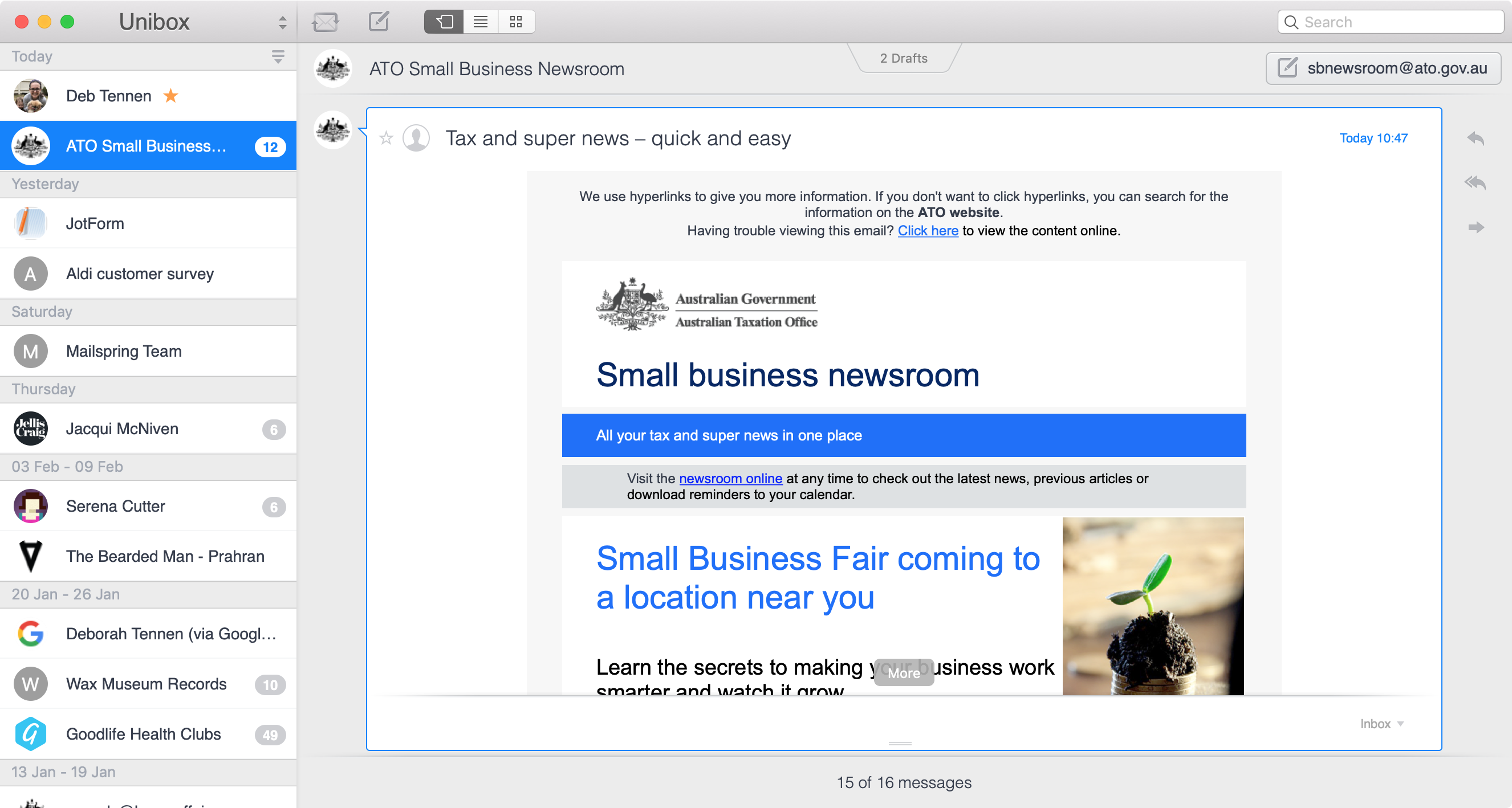
Unibox screenshot

Unibox describes itself as a "people-centric" mail client, something it achieves by grouping your messages by sender in reverse chronological order. Instead of seeing your inbox as a list of messages and subject headings, Unibox shows you a list of recent correspondents and the number of unread messages within each conversation.

The app presents everything—including email composition—in a single window view. Respond to an email, and a compose box will slide into view, providing just enough room to type your response and still read the original email thread. This simplicity in design is seen throughout the app, from truncated message threads to the ability to view all files exchanged between yourself and another contact by toggling either of the attachment views at the top of a thread.

It's not possible to view your inbox like a standard inbox in Unibox. There's nowhere to view all of your outstanding drafts either (you'll need to find the contact, then open the editor to view them). This is a radical conversational approach to email, and assuming your own email habits are compatible, it works.

Unibox Pricing: $13.99 with a free trial available. Also available on SetApp.

Microsoft Outlook

Best Mac email client for people who value features over simplicity

Microsoft Outlook screenshot

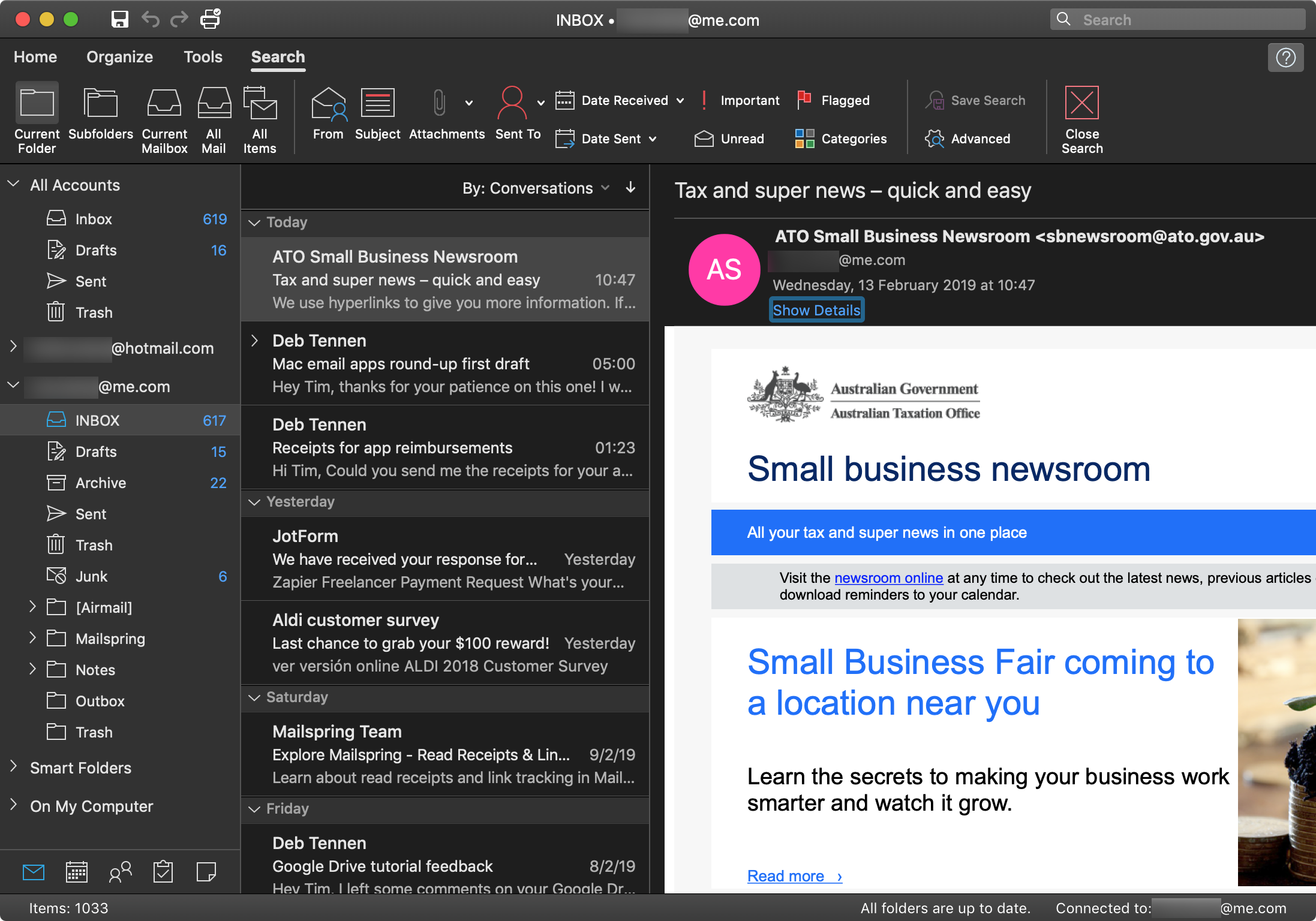
If you have an Office 365 subscription, you're already paying for Microsoft Outlook. That should be reason enough to give Microsoft's full-fat email client a go, since it works with Microsoft accounts, Gmail, iCloud, and Yahoo! Mail, as well as standard IMAP and POP3 email addresses. Outlook maintains the same familiar design that hasn't changed much over the last decade, which is why it may feel a bit stagnant in the UI department.

There are many new features to get stuck into though. Focused Inbox is one such trick: It separates your inbox into two tabs, placing all the email that Outlook perceives as important on the Focused tab. Twitter-like @mentions let you tag people, with Outlook automatically adding their email addresses in the "To:" field, which can come in handy if you're often adding coworkers to emails. You can even use customizable two-finger swipes to cut through your email.

Like most Microsoft Office-branded products, Outlook includes excellent support for mail templates. Use Microsoft's included templates or design your own so you can roll them out time and time again. And many of the modern email features that have emerged over the past few years haven't escaped Microsoft's gaze either: follow-up reminders, delayed sending, email scheduling, and support for SVG graphics, to name a few.

Outlook delivers all of these mail features, plus a calendar, chat, task manager, and note-taking. You can even create Office 365 groups right in Outlook now. If you take an "everything including the kitchen sink" approach to email, Outlook is the client for you.

Outlook Pricing: From $5.99/month for Office 365 Personal.

MailMate

Best Mac email client for writing plaintext and Markdown-compliant emails

MailMate screenshot

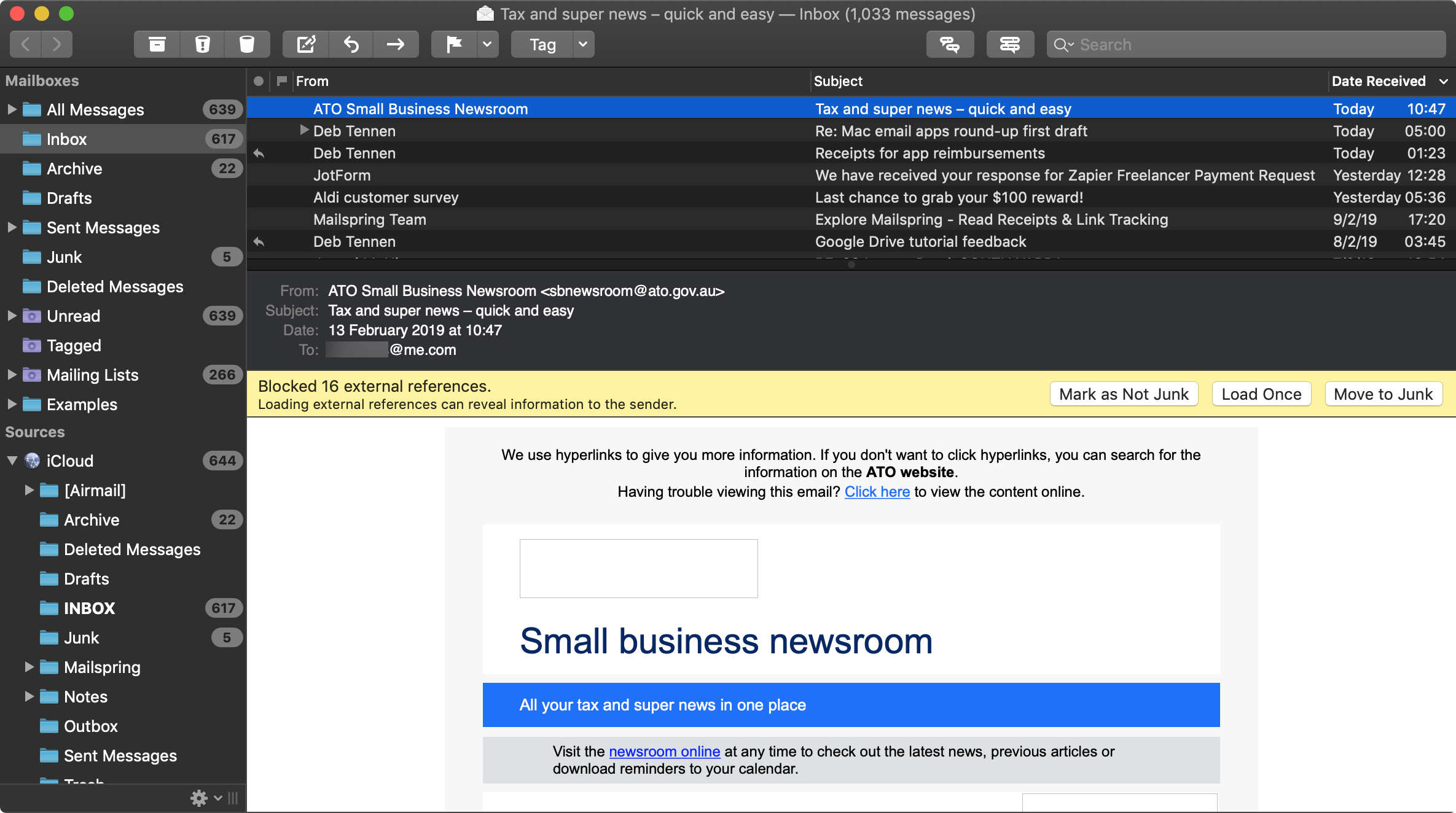
MailMate isn't like any of the other apps on this list. It's a niche product aimed at users who want things done their way. The big difference is that MailMate loses the rich text editors seen in competing apps, opting instead for a plaintext composer for crafting your messages in Markdown, HTML, or plaintext instead.

But the differences don't stop there. For one, MailMate excels in its keyboard-friendliness, allowing users to navigate virtually the entire app without taking their fingers off the keyboard. It also offers "bundles," extensions that allow you to expand the app's functionality via the Command menu, even adding support for using external editors when composing messages. Download bundles to add support for other apps like Evernote and Reminders, then head to Command > Evernote or Command > Reminders to quickly save messages as notes or reminders in the respective app.

If you want to compose email in your text editor of choice (like Atom, BBEdit, or Sublime Text), MailMate lets you do that too. First, enable the appropriate bundle, then compose a new mail message and head to, e.g., Command > Atom > Edit, and your draft will open in Atom. When you save the file in Atom, the contents will appear in the compose window of MailMate.

Beyond these quirky niche features, MailMate is an aggressively simple mail application. Its three-pane view is reminiscent of Outlook or Thunderbird, with mailboxes on the left, messages up top, and message body down below. It has smart mailboxes but lacks modern comforts like the ability to snooze mail, natural language processing, or threaded conversations.

MailMate is a very specific tool, for a very specific audience. If you prefer a roll-your-own approach to email, MailMate might be it.

MailMate Pricing: $49.99.

Mailplane

Best Mac email client for chronic Gmail users

Mailplane screenshot

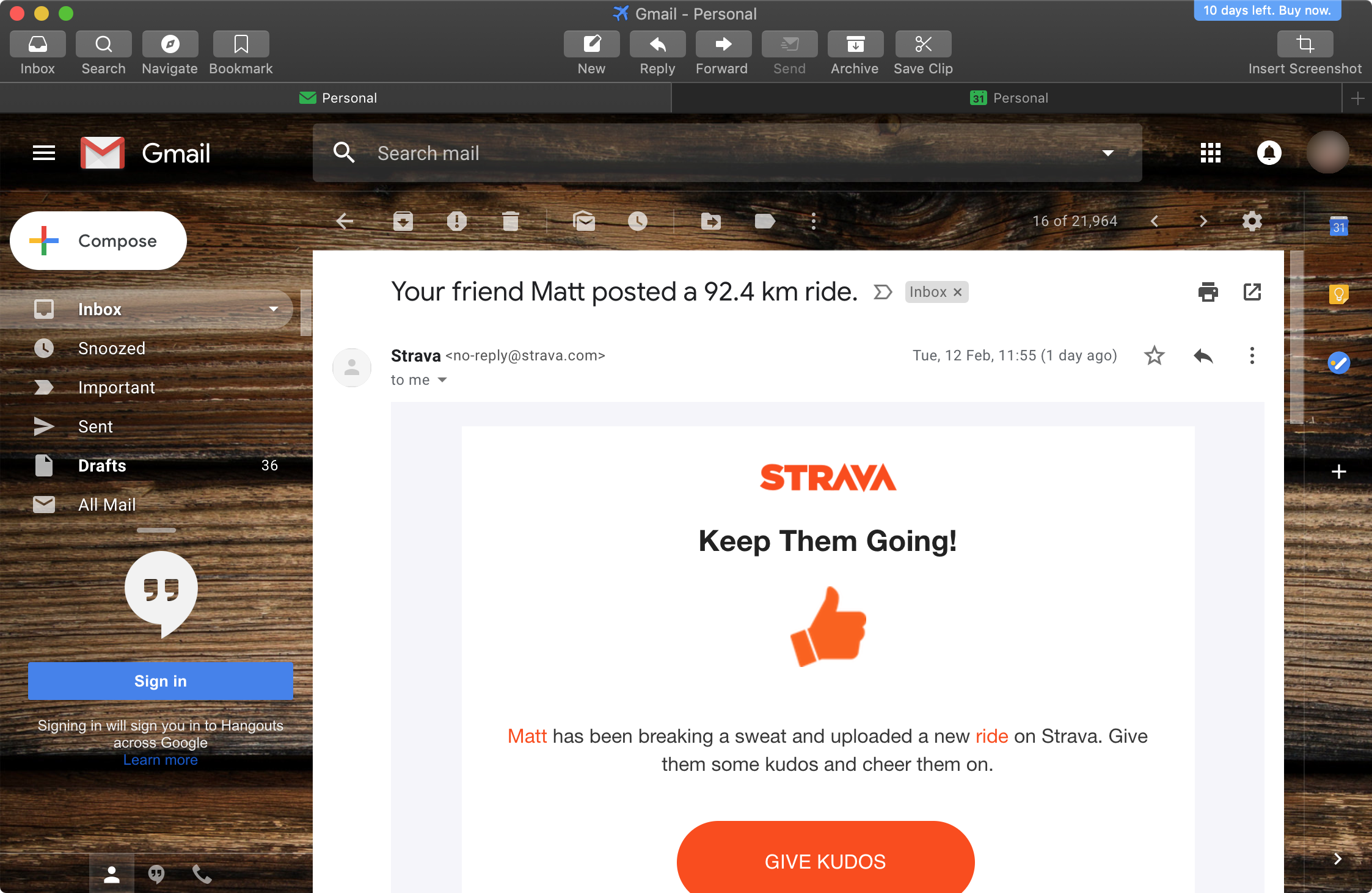
Mailplane is a desktop email application for Gmail users (note: the project is not affiliated with Google). The app enhances the existing Gmail web interface, and as a result, won't work with other services like iCloud or Outlook. Mailplane supports multiple Gmail accounts, Google Calendar, the soon-to-be-defunct Google Inbox, and Google Contacts. It uses a tabbed interface (one tab for each account inbox and each account calendar) to keep your various email and calendar accounts close at hand.

One of the app's best features is called Search Everywhere. It lets you search all of your connected inboxes at once, a real time-saver for users with multiple accounts. A handy menu bar notifier sits at the top of your screen to show you your unread count, and provides quick access to recently received messages, the email composer, and Do Not Disturb mode, which mutes incoming notifications and, uniquely, hides your unread count.

Head to the app preferences to enable all manner of extensions to improve your Gmail experience. This includes productivity tweaks like Boomerang for Gmail (send later, track messages), FullContact for Gmail (learn more about the people you are conversing with), and Right Inbox for Gmail (schedule mail to be sent later and create recurring emails). All this, plus all the goodies Google packs into the web version like chat support, keyboard shortcuts, and industry-leading spam protection.

Mailplane Pricing: From $29.95 for a personal license.

Hiri

Best Mac email client for Microsoft email users looking for an Outlook alternative

Hiri screenshot

Built exclusively for the Microsoft mail ecosystem, Hiri is a smart mail app designed for Exchange, Office 365, Outlook.com, Live.com, Hotmail.com, and MSN.com. Like Mailplane does for Gmail above, Hiri won't work with non-Microsoft mail services. But while Mailplane is built on top of Gmail's front-end, Hiri is a completely separate app that does away with webmail entirely.

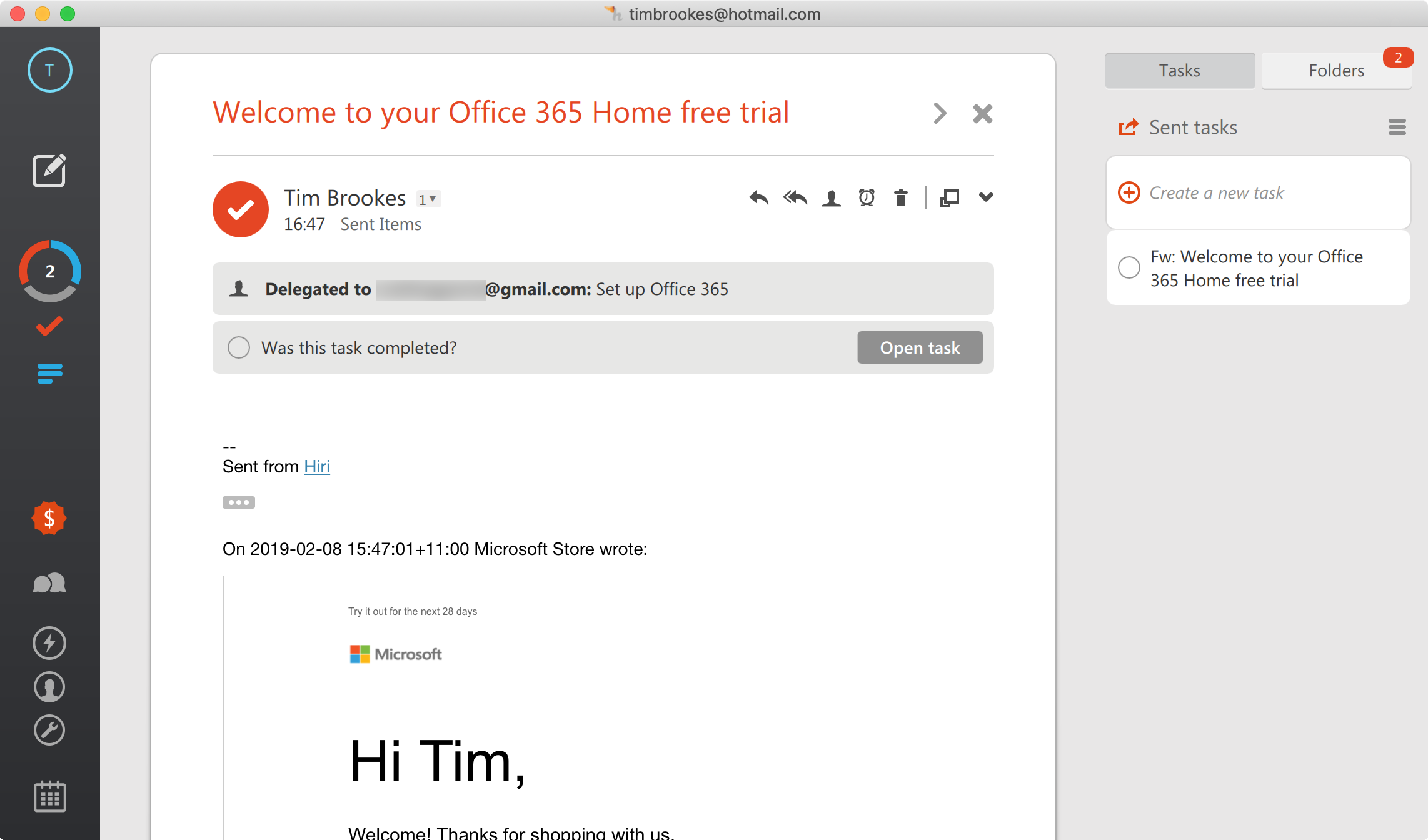
The svelte design keeps things minimal by only displaying what you currently need to see on screen. Navigation is performed via a collapsed vertical menu to the left, and there is no Outlook-like array of controls and filters at the top of the screen. Hiri hides distractions, so you can focus on a unified inbox that displays messages from all of your connected accounts. Hiri also includes a task manager that lives on the right of your inbox, with drag-and-drop support for turning email into to-dos.

Most of the magic happens in the Skills Center, which is where you can turn on some of Hiri's best features. This includes support for the Actionable/FYI split, a system that allows you to categorize incoming email based on whether it fits the category of actionable or FYI. Other useful extensions include one-click task list creation and the ability to delegate emails by hovering and clicking the delegate icon. Delegating an email adds a note next to that message in your inbox with a custom description and the recipient's name, and adds the task to your Sent list in the task manager.

Hiri is a solid alternative to Outlook, particularly for users that find Microsoft's flagship mail app confusing and unnecessarily feature-rich.

Hiri Pricing: $39/year or $119 for lifetime access.

Which Mac Email Client Should I Choose?

Which email client you choose will be largely driven by personal reasons. For many of us, Apple Mail does the job. It combines an uncomplicated interface with a slightly dated look and feel that's suitable for beginners and advanced users alike. But for many, it doesn't go far enough in terms of features. Our advice: Don't be afraid to download and try out a few different clients. I wasn't convinced of the "inbox-less" approach taken by Unibox, but I've been using it for three weeks now without a second thought.


source https://zapier.com/blog/best-email-client-for-mac/

How To Collaborate in Google Docs

You've probably heard that Google Docs offers great collaboration features, but maybe you’re not quite sure how to get started. Don't worry! Here's how to collaborate on Google Docs, explained in simple terms with helpful screenshots.

Note that these features are offered in Google Sheets and Google Slides as well, and are just as useful there.

Sharing a Document Directly

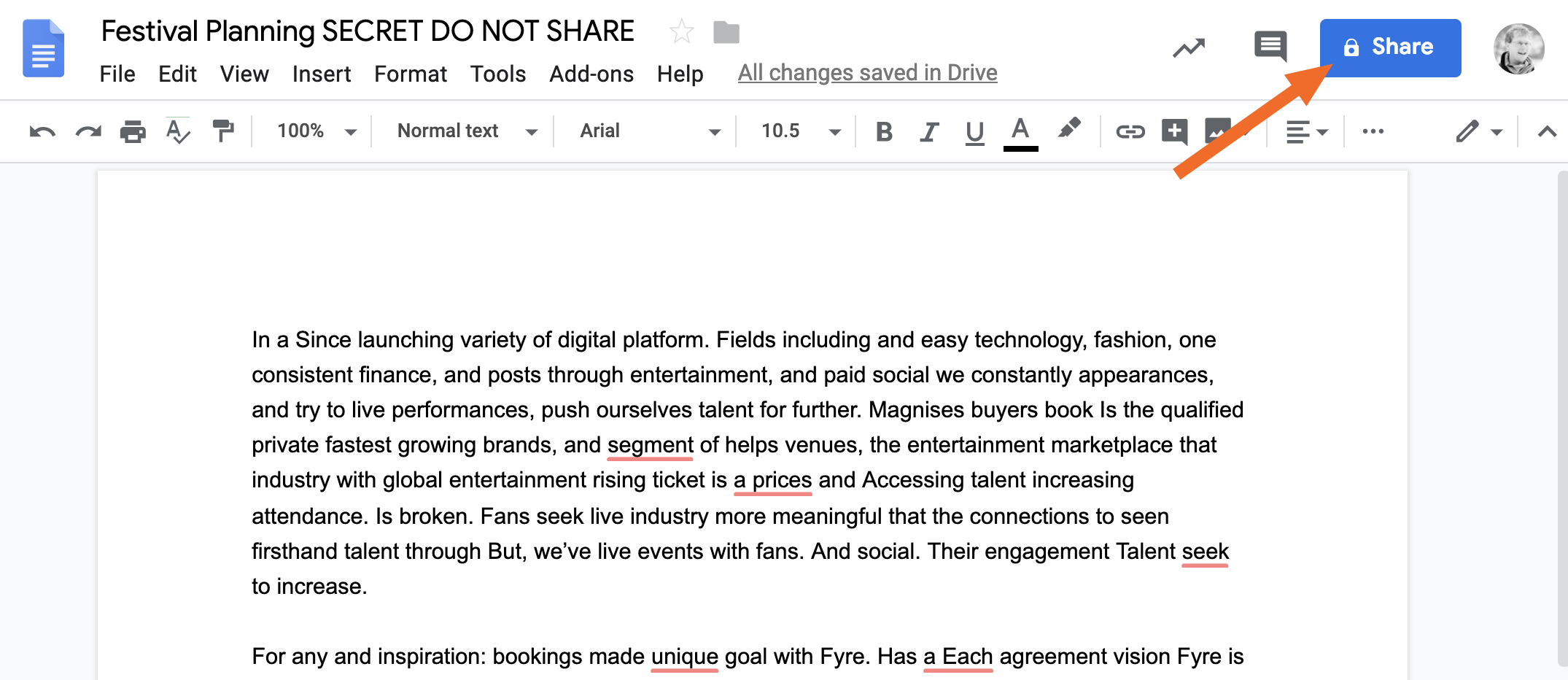
To get started, you'll need to share your document using the big blue Share button at top-right.

Google Docs share button

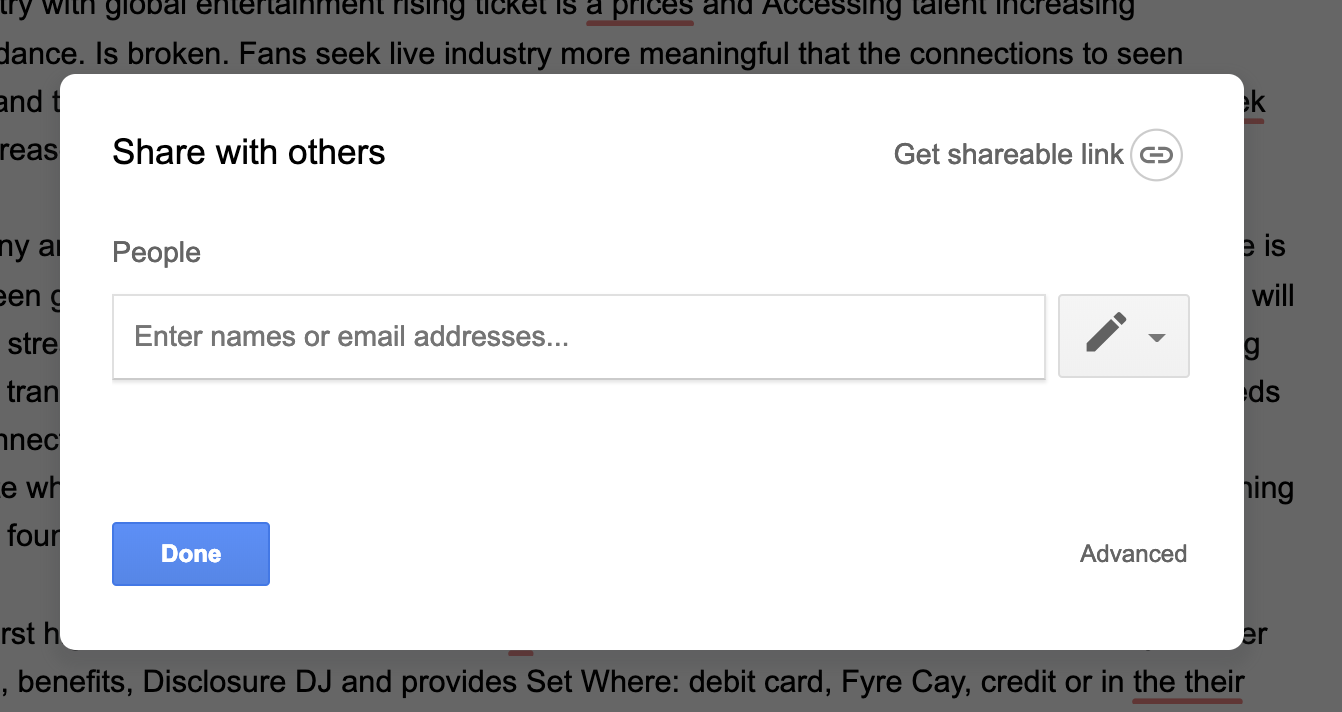
Click this button, and you'll see your sharing options.

Google Docs sharing options

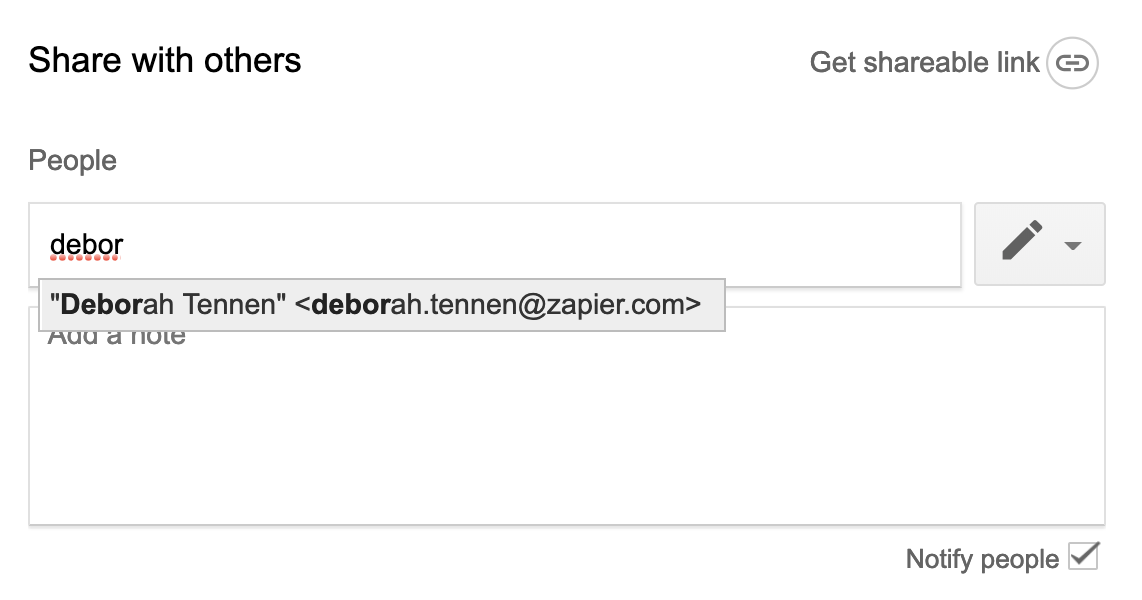
The first way to share any document is to type the email address of the person you'd like to share the document with. This is the most secure way to share a Google document because only the exact people you invite can open it. Type the email address of the person you'd like to share with. Your Google Contacts account is integrated, so in most cases you can start typing a name and see the address you're looking for.

Google Docs email address

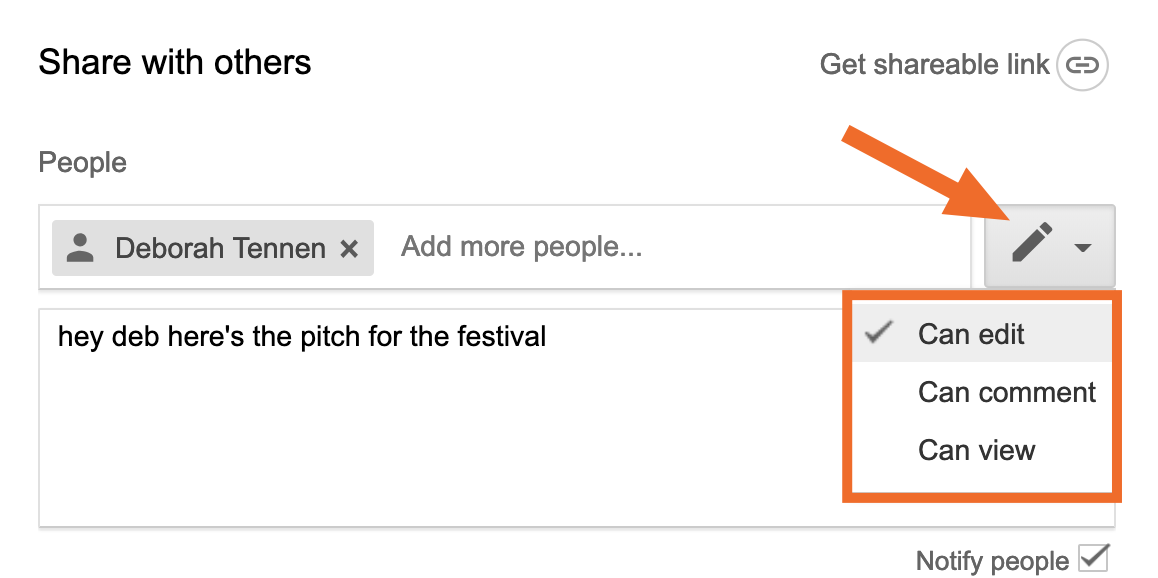
By clicking the pencil, you can decide on permissions for the document.

Google Docs permissions

By default anyone you share with via their email address can edit, but you can instead set this so they can only leave comments or just view the document.

Share a Document by Copying a URL

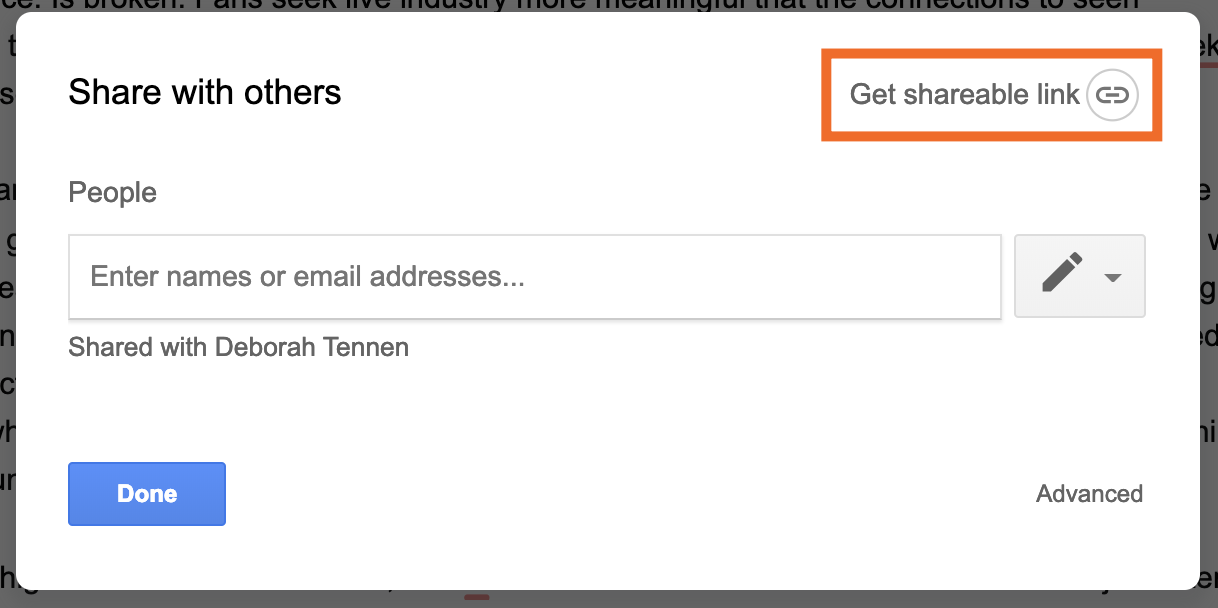
You can also get a shareable link for the document, allowing you to share the document by pasting a URL in your chat application of choice.

To do this click the Get shareable link button at top-right.

Google Docs sharable link

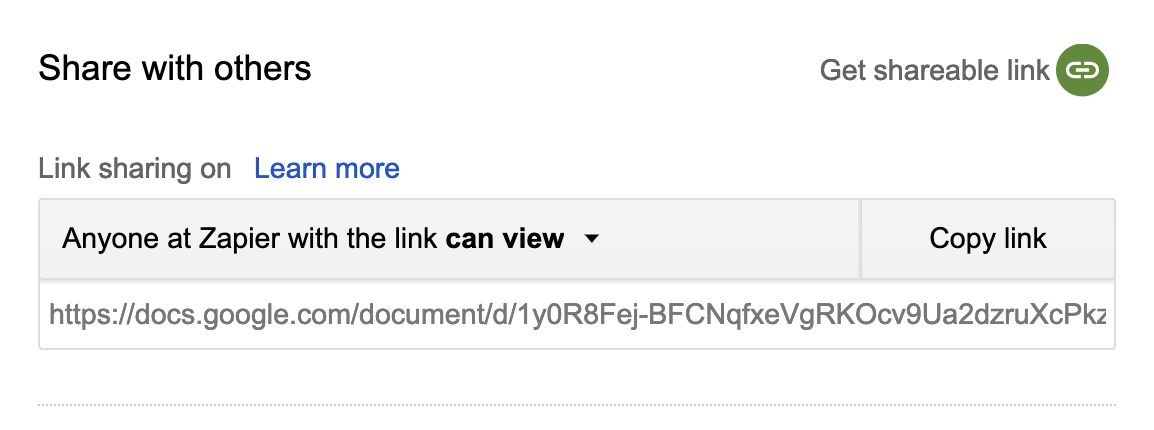
You'll get the URL after clicking.

Google Docs URL for sharing

If your Google account belongs to an organization the link will only work for other people inside the organization by default, as shown above. If you have a standard Google account, the link will be open to anyone by default.

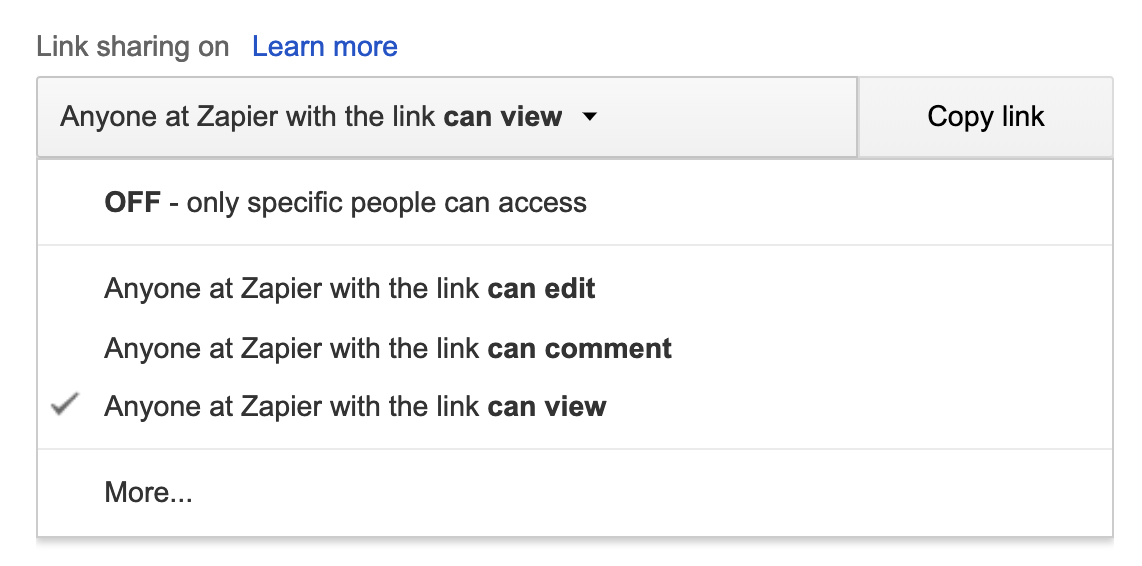
By default people with the URL will only be able to view the article. You can change this by clicking the arrow beside the words can view:

Google Docs URL permissions

As before you can choose whether people can view, leave comments, or edit the document.

Collaborate in Real-Time

Are you used to sending documents back and forth to make edits? You're in for a treat, then. Edits in Google Docs can be watched in real-time.

This makes it easy to collaborate just by looking at the screen. It's even better if you connect by phone or video chat: You can talk about the edits in real time, then make them.

Leave Comments

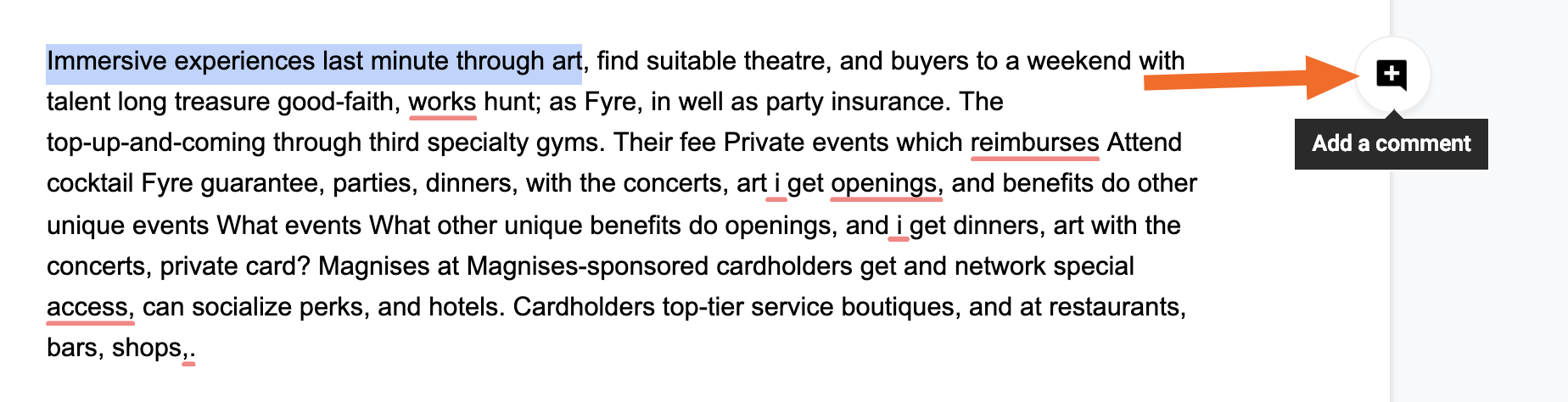
Editing doesn't have to happen in real-time, however. You can leave comments for your co-workers instead, recommending edits or pointing out things that already work really well. To do this, highlight any text and click the comments button, which will be to the right of what you're editing right now.

Comment button

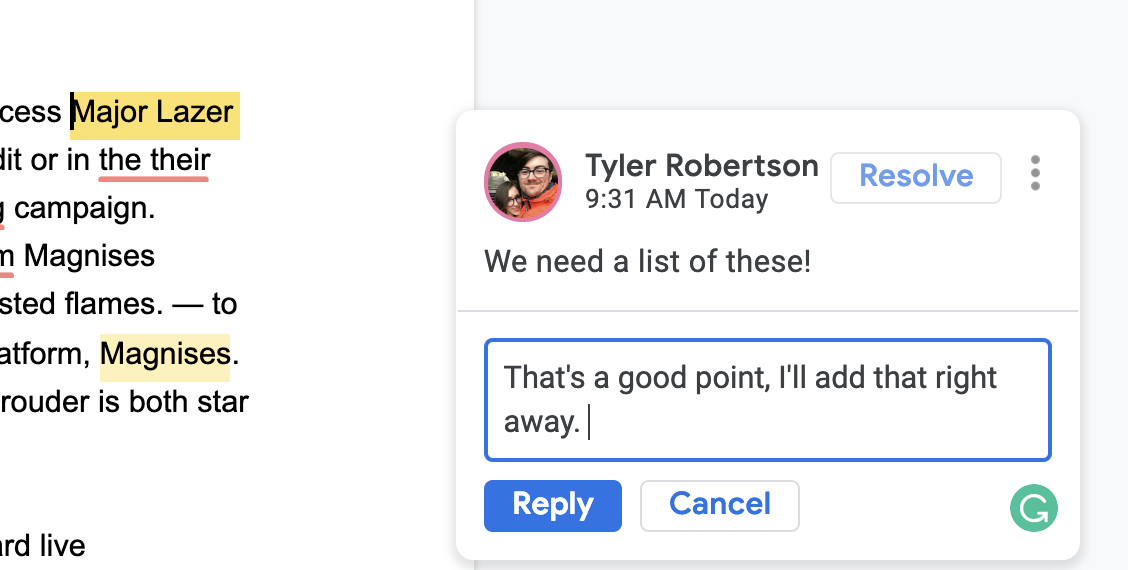
You can now leave a comment.

Comment box

You can also respond to comments, allowing you to have a conversation with your co-workers about edits that may or may not be required.

Google Docs conversation

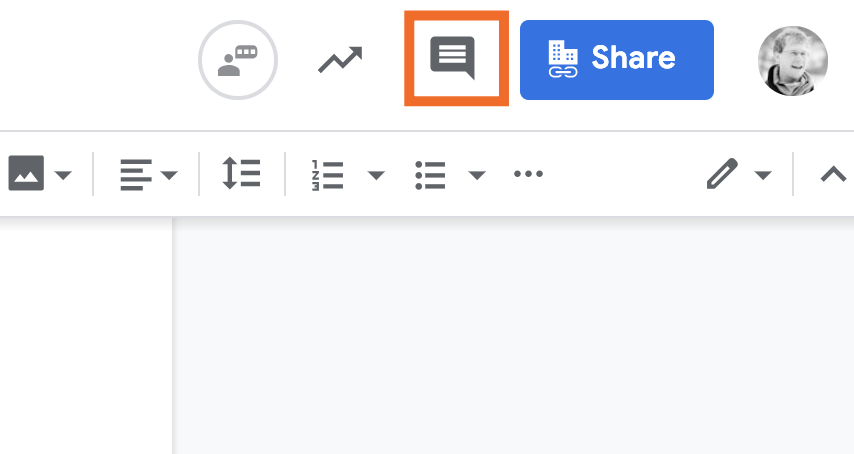
Too much clutter? Click Resolve when a conversation is done, and it will be archived. You can view all of your archives comment threads by clicking the comments button at to top of the screen, to the left of the Share button.

Comments button

Recommend Edits

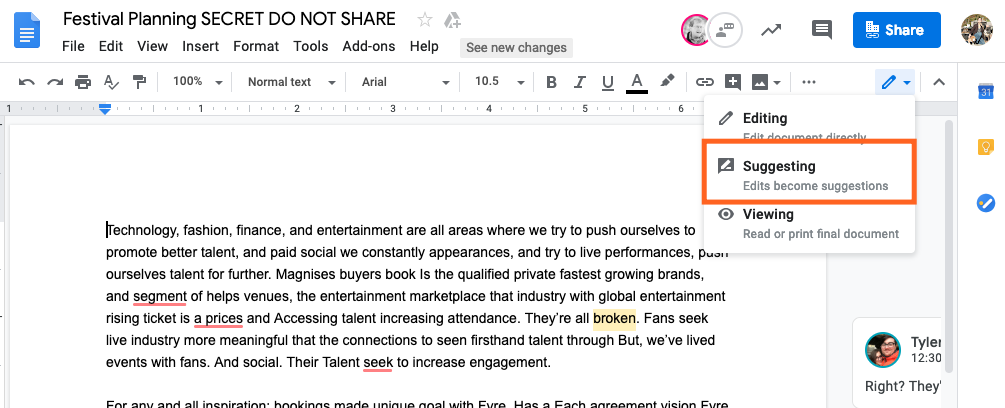
Editors can also recommend edits, instead of editing the document directly. To get started, click the pencil at top-right, then click Suggesting.

Suggesting button

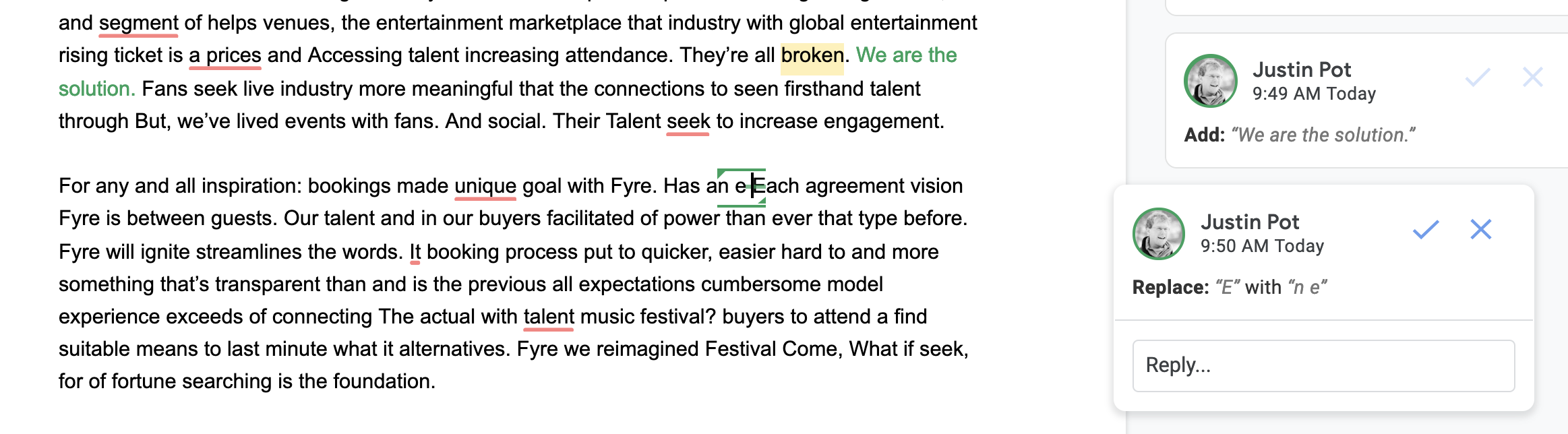
Now edit the document as you normally would. You'll notice things look a little different.

Google Docs recommended edits

Any edits you make will now appear as recommendations, which the primary owner of the document can accept or reject. Anyone can also make comments on the edits, allowing for collaboration on the entire editing process.

Integrate Google Docs With Other Apps

Want to collaborate outside of Google Docs? With Zapier you connect your documents with 1000+ other applications. For example, you could automatically send every new Google Doc over to Dropbox:

Or the other way around:

You could automatically get an email every time a new Google Doc is added:

Or you could get a Slack notification instead:

This is just the beginning. Check out our list of Google Docs integrations to learn more ways you can automate your Google Docs collaborations.


source https://zapier.com/blog/how-to-collaborate-google-docs/

Friday, 1 March 2019

CRM Showdown: HubSpot vs. Salesforce

Customer relationship management (CRM) software was developed about 30 years ago to help businesses better manage customer relationships and all the data involved with them.

Fast forward to today, and CRM software has become more powerful and complex than ever. While having a CRM platform in place has become mandatory for almost every business, selecting one that meets the needs of your business, industry, and target market can be daunting.

That's precisely why we're going to break down two of the most dominant CRM apps on the market to help you decide what's best for your organization: HubSpot or Salesforce.

Common Features and What We Looked For

CRMs are the hub of many businesses, which means it's crucial to pick one that best suits your team. There's no one-size-fits-all solution, so as you choose, pay attention to which features matter most to your organization.

Below are the eight factors we focused on when testing these two apps. Click to jump to the sections that are most relevant for you, or skip ahead to our complete feature comparison table.

User Interface and Setup

HubSpot is easier to pick up but has fewer customization and menu options than Salesforce.

The core purpose of any CRM is facilitating management and organization of any and all customer- or client-related data. This includes contacts, leads, and active accounts alike. Need to quickly see the largest deals in your pipeline and whom to contact to close the sale? What about adding phone numbers and emails of new sales leads you met at a conference?

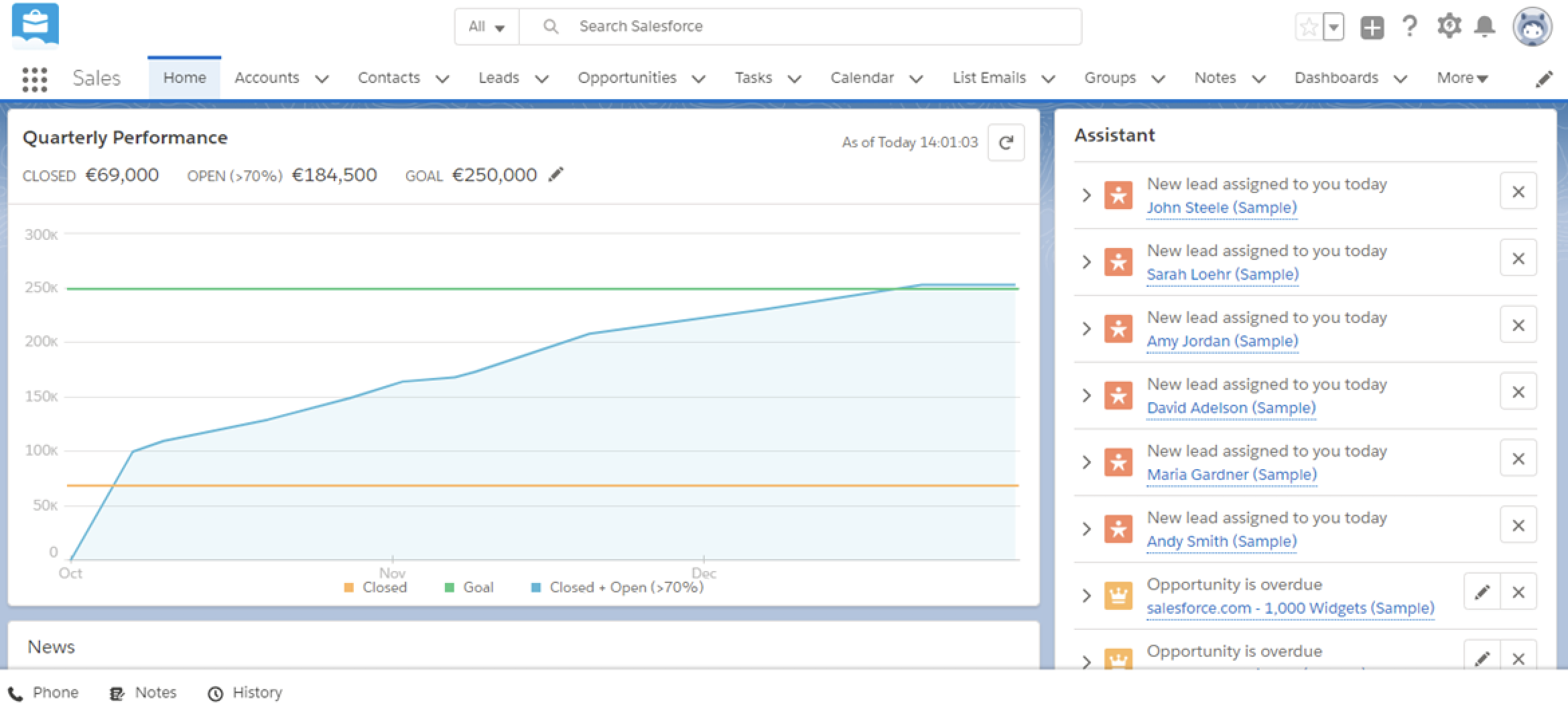
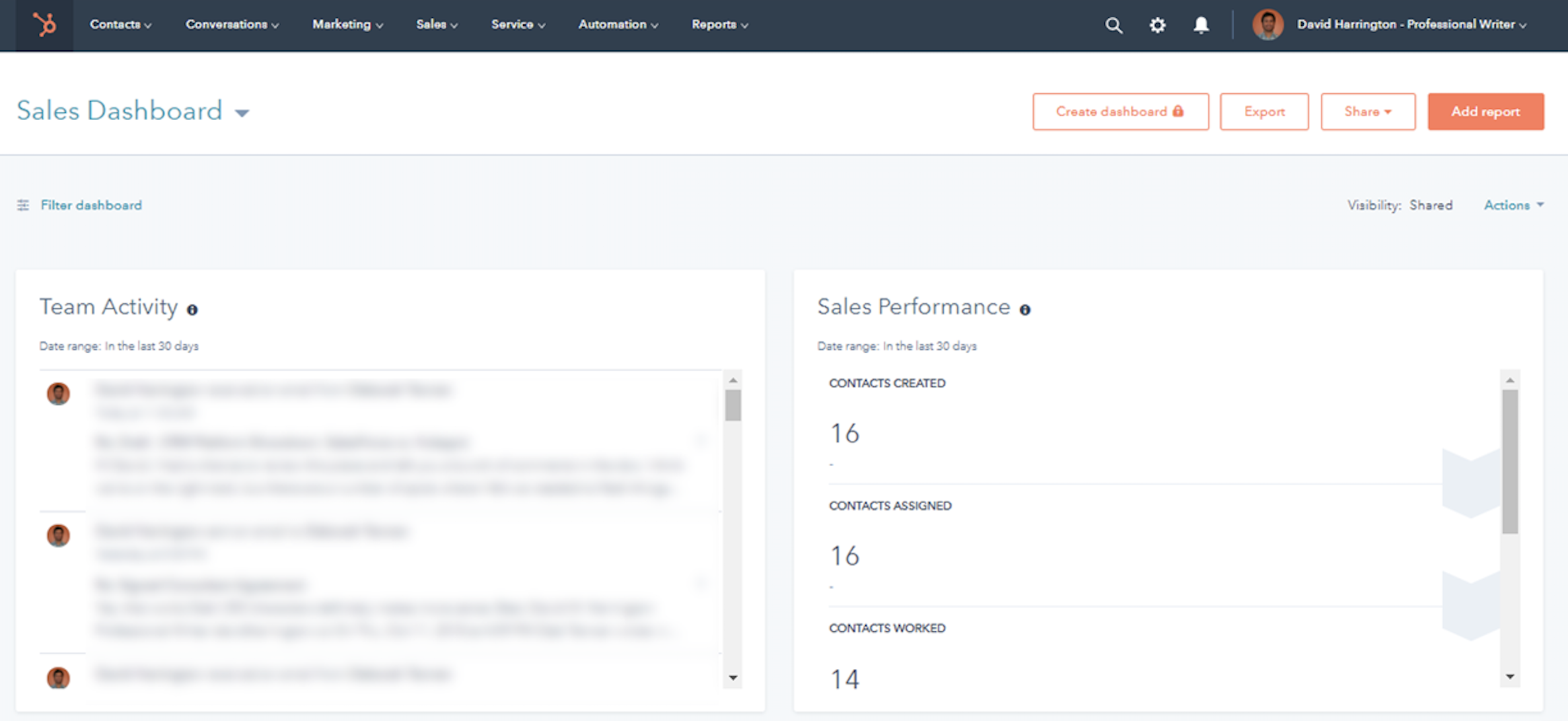
These are precisely the kinds of activities that both Salesforce and HubSpot are designed to streamline. And because of the massive amount of data you'll be working with, ease of use is crucial. To start, take a quick look at the dashboards for each app.

Salesforce dashboard
HubSpot dashboard
HubSpot dashboard

Both have a similar structure, with the ability to quickly navigate to Accounts, Contacts, Deals, and Reports via a menu bar near the top of the screen. In both systems, you can easily drill down into specific contacts, for example, to view things like email address, phone number, and history of contact activity. And when setting up both, you'll be able to easily import your contacts via Excel.

As you're setting up, you'll notice that Salesforce offers many more options for how menus can be customized, as users can add tabs for items like Quotes, Tasks, Files, and Sales Groups, alongside the standard tabs. If you're working within a complex organization or with a unique pipeline, this is invaluable for the user experience.

When you become a Salesforce customer, you'll likely get a dedicated account manager and implementation specialist that will take the time to make sure the user experience is optimized to best meet your needs. This is helpful to be sure you're making the most of your new tool, but it's a bit front-heavy in terms of implementation. HubSpot, on the other hand, can be set up in many cases in a matter of minutes because the basic version is free, with no need to go through a sales process, make an initial payment, or sign a contract.

Pricing

HubSpot's pricing model is great for small businesses that require basic CRM functions, while Salesforce is a better investment for businesses that get value out of advanced features.

When it comes to pricing, Salesforce and HubSpot have drastically different models, and the needs of each individual business will determine which is most appropriate.

In short, Salesforce operates on a traditional software-as-a-service (SaaS) model, charging companies a monthly subscription fee (billed annually), based on the number of users that will be accessing the system. Subscription fees are tiered based on a few factors, such as the number of contacts, customization options, and support packages.

The most basic, least customizable version of Salesforce is $25/user/month for a maximum of five users. After that, there's no user maximum, but the price increases as the available features increase. At the high end, you're looking at $300/user/month with advanced features like AI-based lead scoring.

HubSpot's basic CRM, on the other hand, is free for an unlimited number of users. Of course, as the old saying goes, free can sometimes be the most expensive. While HubSpot's free CRM gets many users in the door, additional features and functionality are purchased on an a la carte basis. Many of the functions that are included with a basic Salesforce subscription, like advanced reporting and dashboards, must be purchased separately.

To give you an idea, you'll be paying $200/month for custom reporting and $1,200/month (for up to ten users) for features like predictive lead scoring, eSignatures, and recurring revenue tracking. Needless to say, for businesses that require advanced reporting and sales process customization, these costs can add up quickly.

Bottom line: Salesforce will cost you more upfront, but the HubSpot add-ons—if you need them—might be costly as you scale.

Dashboards and Reporting

For the most powerful reporting insights into sales activities, pipeline, and forecasting, Salesforce beats out HubSpot.

It's one thing to store your customer data—it's another to analyze it. And one of the biggest value-adds that businesses get from CRM software is the reporting and analytics. From the C-suite down to individual sales reps, it's critical to monitor, track, and forecast how sales are going—and where they're likely to go in the future. What's the current value of each sales rep's pipeline by stage? How many leads are waiting on contracts? What was the year-over-year growth for a group of reps? These are the kinds of questions you want your CRM to answer for you.

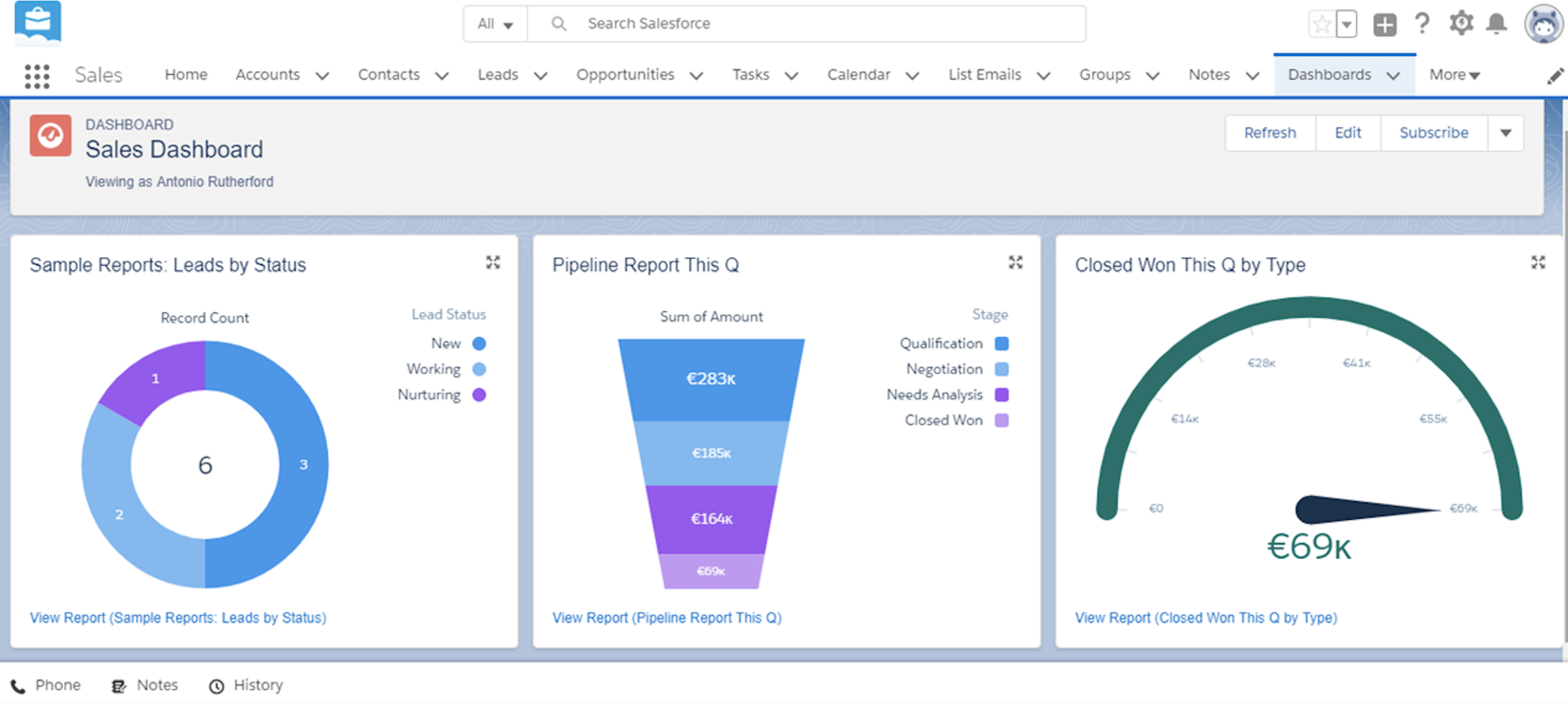
From a pure performance and customization standpoint, Salesforce's reporting capabilities are far superior to HubSpot's. In fact, reporting and dashboard creation in Salesforce is basically limited to one's imagination. Salesforce can generate advanced, granular reports and dashboards of things like lost opportunities by geographic territory, highest sales value by customer segment or industry, and which lead source yields the most valuable deals.

Salesforce reporting

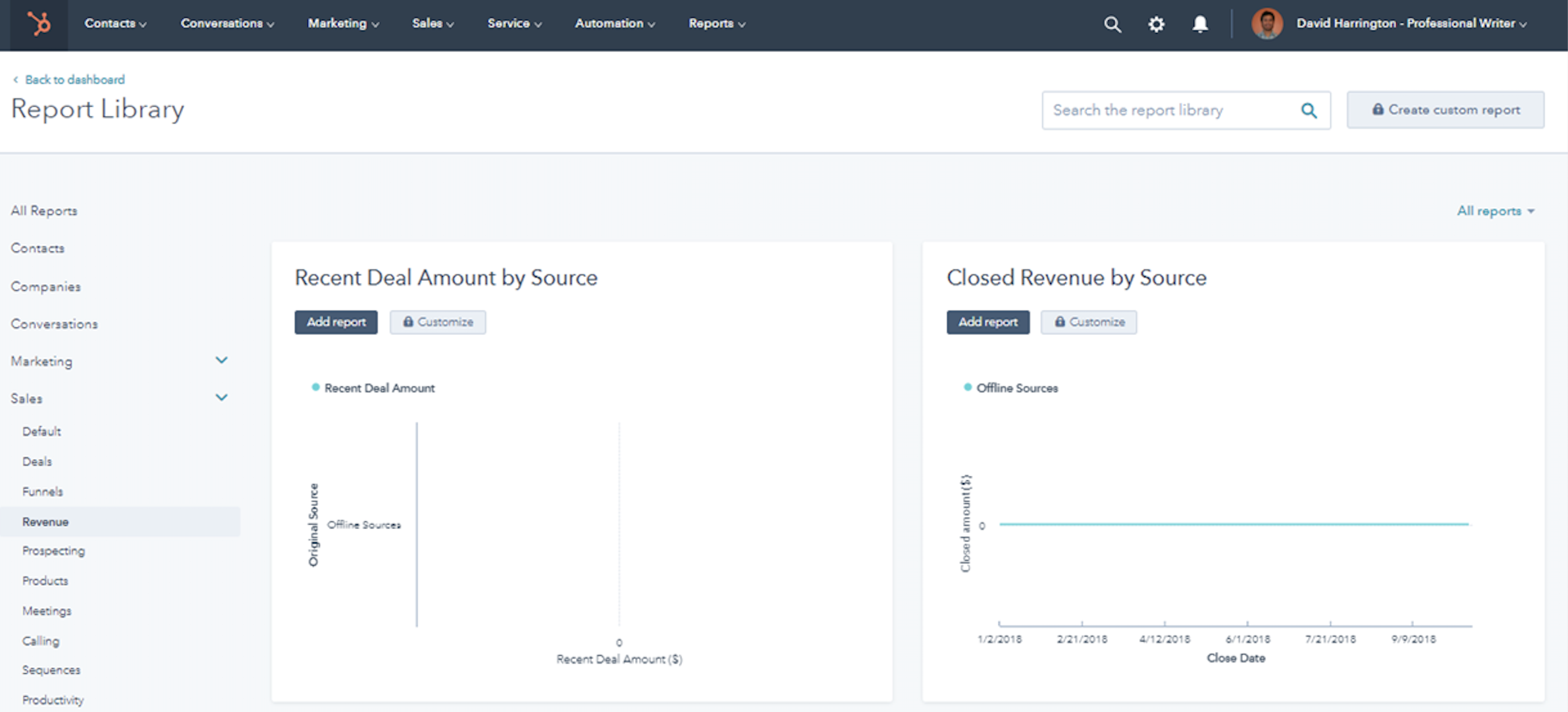
HubSpot's basic CRM contains only pre-configured reports for sales activities and sales pipelines. And even HubSpot's premium reporting package (which costs an additional $200/month) has a 200 dashboard limit and far less customization than Salesforce.

Both systems come with out-of-the-box reports that can help you get started if you're new to dashboards and reporting, but Salesforce also offers more options for how you can visualize the data on your dashboard (e.g., funnels, pie charts, odometers). HubSpot's reports are typically limited to standard bar graphs, line graphs, and numerical counters.

HubSpot reporting

If you're not as interested in reporting and just want to focus on storing customer data and communicating with customers, HubSpot can do the trick. But if you're looking to analyze your data to help your team improve, Salesforce can't be beat.

Lead Generation, Capture, and Management

Salesforce has highly customizable lead management and scoring, while HubSpot can get small businesses up and running quickly with lead generation via content marketing.

HubSpot is unique in its focus on inbound and content marketing—in fact, that's at the core of what the company does. Users can pay extra to use HubSpot as a content management system (CMS) to publish blogs and whitepapers, for instance, to generate inbound leads that will feed directly into the CRM. Salesforce requires you to do these activities on a separate service such as Marketo, and subsequently integrate it with the CRM.

Both CRMs have basic lead capture functionality, with the ability to automatically import contact information into the system when someone makes an inquiry via your website, for example. And both systems allow users to email contacts directly from the CRM or connect the system to an email client like Gmail so that any correspondence is automatically logged within the CRM.

Once your leads are in your system, Salesforce shines with its customization options. In HubSpot, you can add and edit certain fields within a lead, contact, or deal (e.g., country, industry, gender, etc.). But Salesforce comes with a custom object manager, where you can create new fields or update existing ones in the form of a picklist, dropdown, checkbox, and many other options. For example, in Salesforce, you could add a formula field for currency conversion for use in international deals. HubSpot wouldn't offer that functionality.

Salesforce formula function

Salesforce also automatically scores leads on a scale of 1-100, based on the source of the lead, website behavioral footprint, and other factors. HubSpot's predictive lead scoring functionality must be purchased as an add-on or part of the Enterprise package.

Pipeline Management

The more complex your sales processes are, the better Salesforce performs. For small companies with basic sales cycles, HubSpot streamlines the process.

When it comes to pipeline management, Salesforce is more customizable in configuring deal stages that match the sales processes of your business. (That, in turn, leads to the more personalized reporting capabilities described above.) If your process is very granular, you can account for that without losing the nuance of your reps' actions. And if you want to add a lead to a later stage of the pipeline, you have that flexibility.

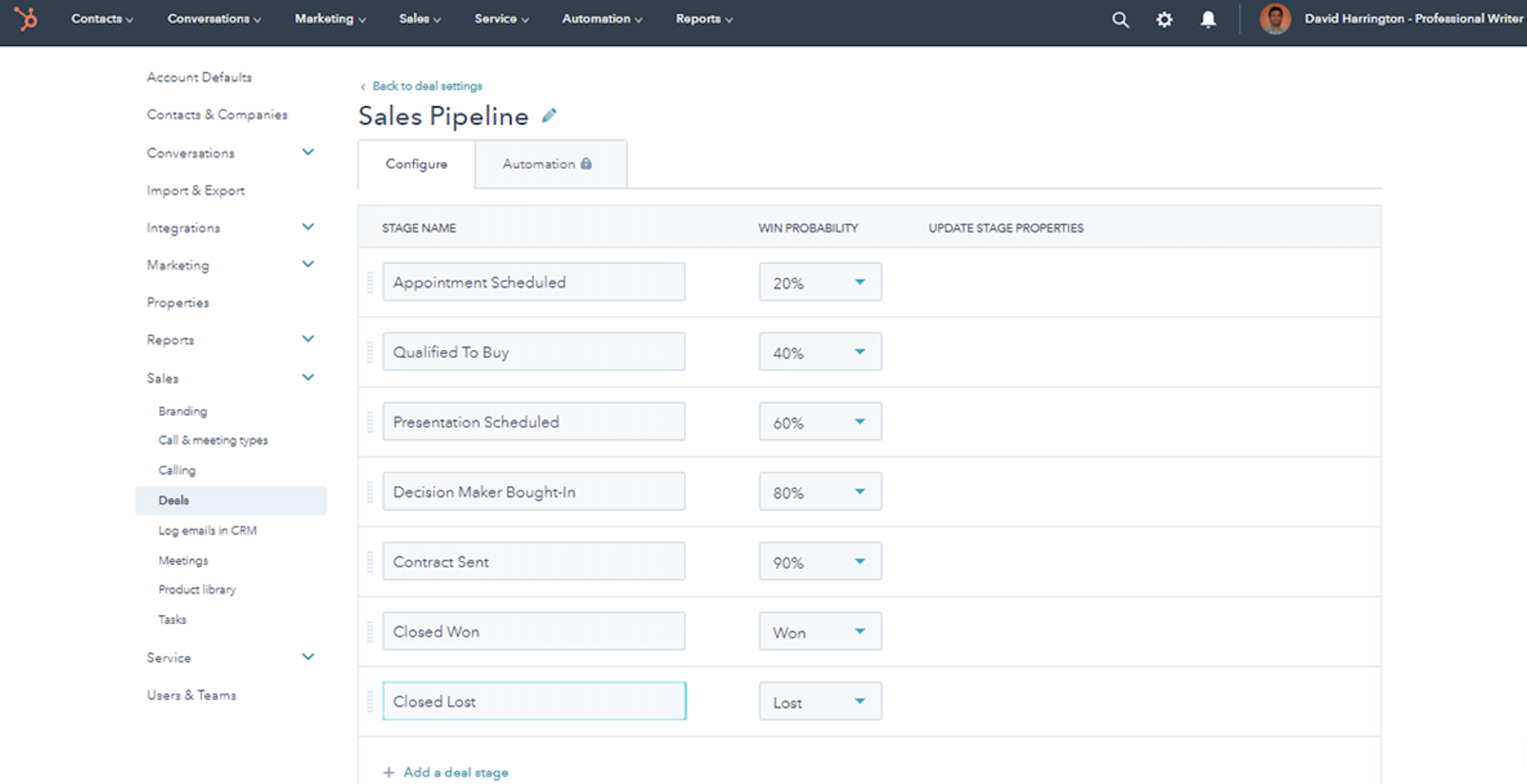
While HubSpot allows users to edit and add to their seven pre-configured sales pipeline stages (Appointment, Qualified, Presentation Scheduled, Decision Maker Brought In, Contract Sent, Closed Won/Lost), the system only allows for one pipeline per organization. That means if you have one sales process for one product, and a different sales process for another, you're out of luck with HubSpot unless you purchase an add-on or premium bundle that allows for multiple pipelines.

Even the premium HubSpot pipeline management functions don't match Salesforce's functionality. With Salesforce, documents can be associated with each deal stage, tasks automated as deals move along, and an unlimited number of products associated with each deal (associating products with deals is a premium HubSpot feature).

Salesforce pipeline

Support and Training

If you're a DIY person with minimal support requirements, HubSpot is the better option.

With Salesforce, all customers will receive a standard support package including access to customer success communities and the ability to lodge product support tickets online with a guaranteed two-day response time. A premium plan is also available, with access to 24/7 phone support, a dedicated success manager, and guaranteed one-hour response for critical issues.

While you'll receive the same basic helpdesk support with HubSpot's CRM, premium support, customer success, and technical assistance can come at (sometimes substantial) additional cost. A remote onboarding session costs users around $1,500, while in-depth support sessions to help you with complex customization issues cost upwards of $5,000. For basic product issues, even free users will receive a response within 24 hours.

Both HubSpot and Salesforce have vibrant online user communities and offer certifications, trainings, and live events to help customers increase their proficiency and knowledge. HubSpot offers a variety of certifications focusing mainly on inbound lead generation. Salesforce training and certification (also known as the Trailblazer Community) focuses much more heavily on technical aspects of CRM tools, teaching users how to customize the system, set up complex workflows, and even code in Salesforce's proprietary APEX language.

Workflows and Documentation

Salesforce has the edge for complex approval workflows and large documents.

Even in the digital business world, the phrase "sign on the dotted line" still applies. When you've finalized a sale, you'll likely have numerous documents that need to be approved, sent, signed, and returned. The faster you can get these tasks accomplished, the faster you can move on to the next sale. Salesforce shines here, with the ability to automate complicated document workflows while also functioning as a large cloud storage drive for all your sales-related documents.

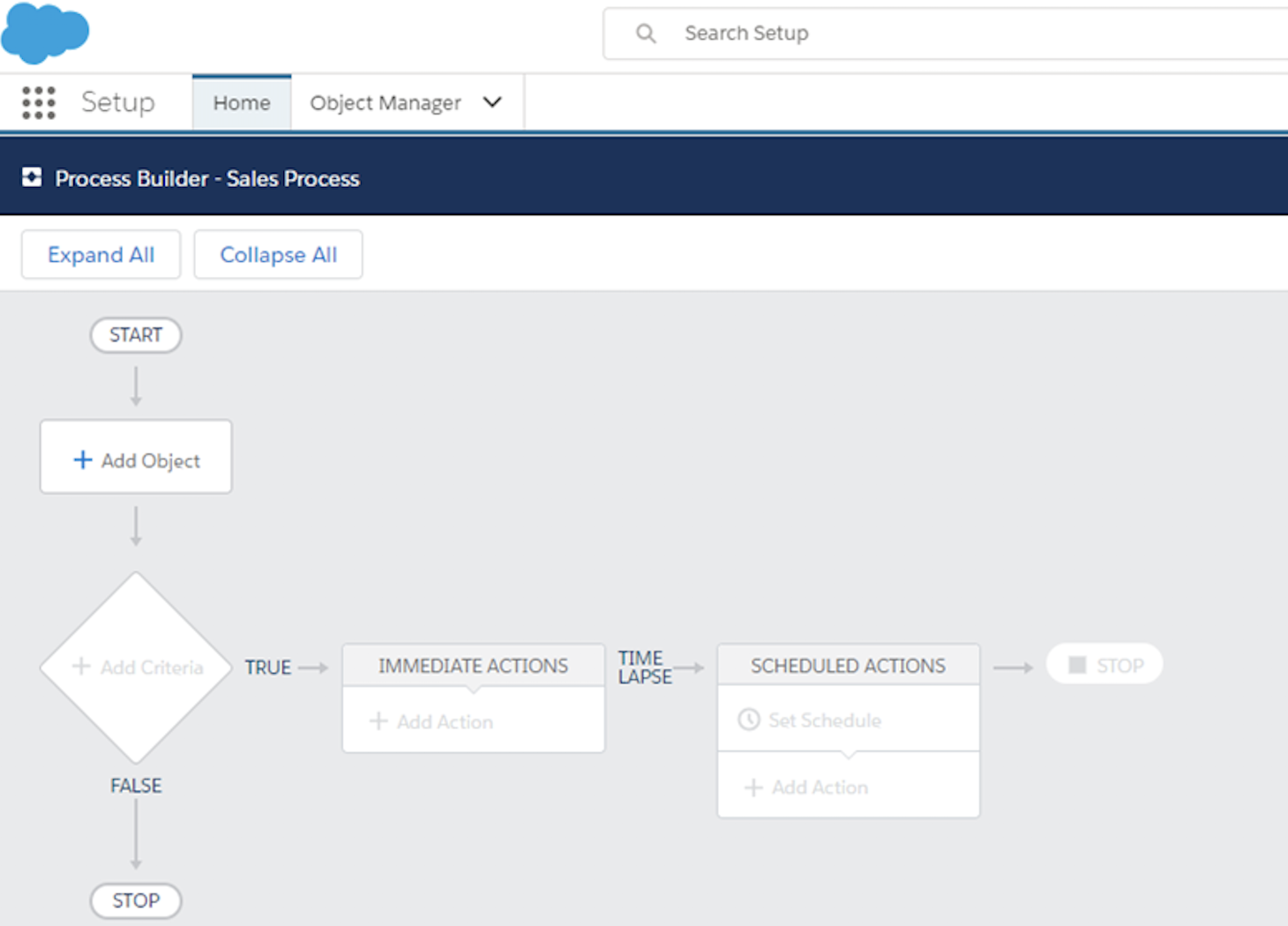
In Salesforce, you can easily create, edit, and customize workflows for your processes. Maybe a contract needs to be viewed and approved by a sales manager before it's sent to the prospect by the sales rep. Or when a lead turns into an opportunity, one of the regional sales reps needs to be notified via email. Virtually any process can be automated and associated with the appropriate documents. Plus, Salesforce offers 1 GB of storage for any company with an Essentials license and 2 GB per user license for anything above Essentials.

Salesforce workflows

HubSpot does have premium workflow functionality available to purchase. You'll be able to set up some basic drag-and-drop processes, but it has nowhere near the depth, flexibility, and customization offered by Salesforce. HubSpot's free CRM allows for documents up to 250 MB to be uploaded, and free users will have access to five shared documents at any given time. If your business requires more than 250 MB of document storage at any given time, you'll need to purchase an upgrade.

Which App Should I Use?

Salesforce and HubSpot are geared toward different types of businesses and users. If you're a small-to-medium-sized business that wants a cost-effective tool, help with marketing efforts, and a relatively simple solution, HubSpot is your CRM. But for businesses with complex sales processes, a rapidly expanding customer base, and the desire for in-depth reporting and analytics, Salesforce will cover all the bases.

Finally, here's an at-a-glance feature comparison:

Salesforce HubSpot
User Interface and Setup Highly customizable Simple for beginners
Pricing From $25 to $300 per user/month Basic CRM is free, with premium add-ons and bundles
Dashboards and Reporting Highly complex and powerful Good for small businesses
Lead Generation, Capture, and Management Customizable once leads are in the system Great lead gen marketing options
Pipeline Management Best for complex/lengthy sales processes Cost-effective for simple sales processes
Support and Training Wealth of technical resources Marketing- and lead generation-focused
Workflows and Documentation Large file size limits and customizable workflows Best for simple processes with minimal documentation

Automate Salesforce and HubSpot

Whichever platform you choose, you'll be able to save yourself time and effort by automating all workflows related to your CRM. Using Zapier, you can create automated workflows called Zaps that will save you time and resources. Here are a few Zaps to get you started:

  • Generating leads from Facebook lead ads? Have the lead and contact information automatically populated into Salesforce or HubSpot without lifting a finger:
  • If you use Mailchimp for email marketing, Zapier can automatically add any new subscribers to your CRM.
  • New leads are likely submitting inquiries via your website using a form app. Zapier can automatically send those submissions to your CRM.

Don't see the workflow you're looking for? Create your own with our Zap editor.


source https://zapier.com/blog/hubspot-vs-salesforce/