Thursday, 7 March 2019

How to Create a Project in Jira

Regardless of your intent for adopting Jira—to use it as a to-do list, to manage software development projects, or to track tickets for your support team—taking advantage of the tool starts with creating a project.

In this tutorial, we'll show you how to select the right project template, create your first project, and create additional Jira projects.

What Is a Project in Jira?

A project in Jira is a hub for your work. When you set Jira up for the first time, you have to create at least one project as part of the process.

If you're using the tool as a to-do list or to manage all of the support requests you'll ever receive, you may only ever need the very first project you create.

However, there are use cases for having multiple Jira projects, too. You might want to create multiple projects if you're using Jira for different major projects you work on throughout the year, or you might want to create separate projects for separate teams that use Jira.

How to Create Your First Project in Jira

When you create your Jira account and log in for the first time, you'll have to answer a few questions about your role, your team, and how you plan to use Jira. After answering those questions, you're taken into the workflow to create your first project.

The first step in creating a project is choosing which template you want to use for your project.

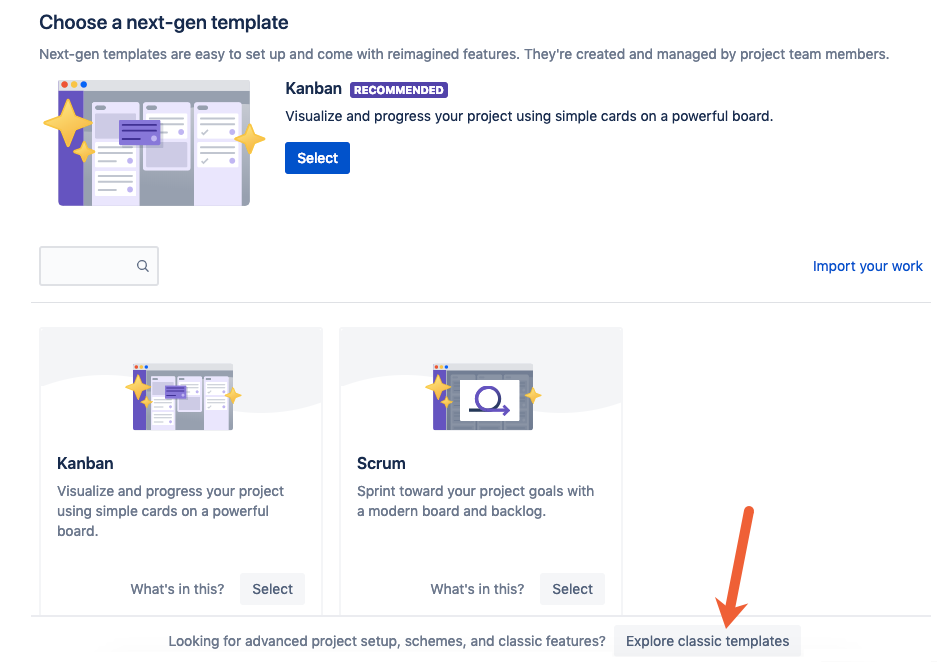
Jira will recommend some templates for you based on how you answered the introductory questions. Select one of those templates, or click Explore classic templates to see all of the available project template types.

view all Jira templates

The template you select will impact a variety of features within your Jira project. For example, the Scrum template is ideal for teams that operate using Agile and Scrum methodologies, letting you create sprints and releases. The Kanban template lets you manage projects using a Kanban board.

Additionally, next-gen and classic templates differ slightly in their features. Next-gen templates are simpler to set up and offer features like roadmaps and simplified permissions, but they're less customizable. Classic templates are more customizable, but they require Jira admins to make changes and are more time-consuming to set up.

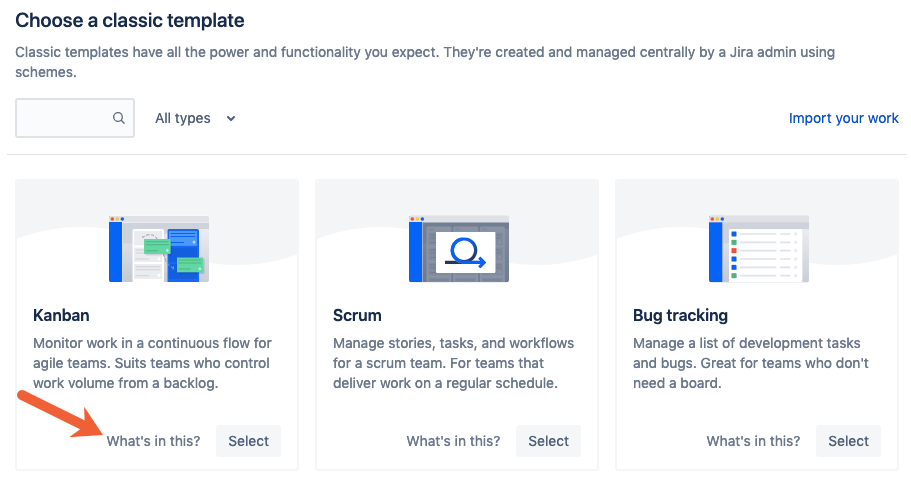
To find the perfect template for your team, click the What's in this? link below any project template to get a detailed description of each template's different features.

learn more about Jira project templates

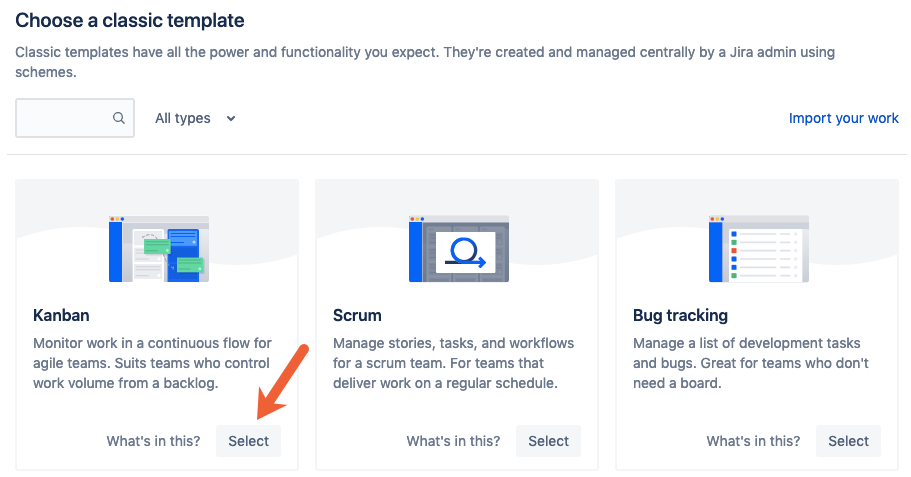
Once you've decided on a project template, click Select to apply that template to your new project.

select a Jira project template

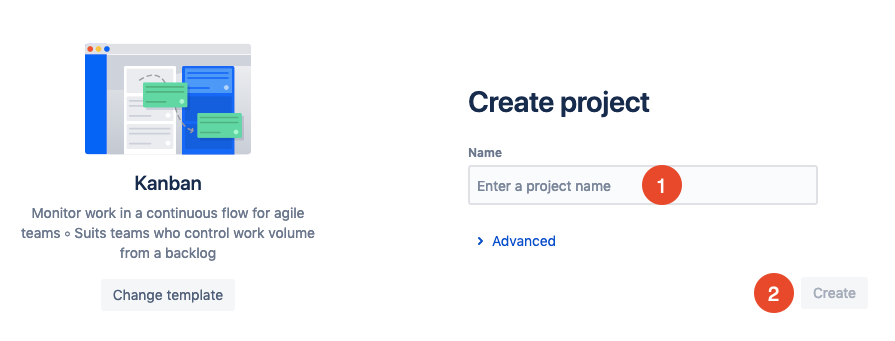
Finally, give your new project a name, and click Create to create your project.

create a new Jira project

Now you can start adding issues and customizing your new Jira project.

How to Create Additional Jira Projects

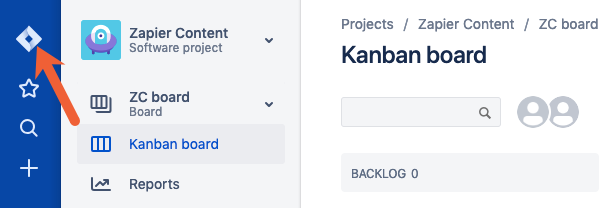
If you want to create multiple projects for different teams/releases in Jira, just click the Jira icon in the left navigation menu from any screen in the application. This will take you to your Jira dashboard.

navigate to your Jira dashboard

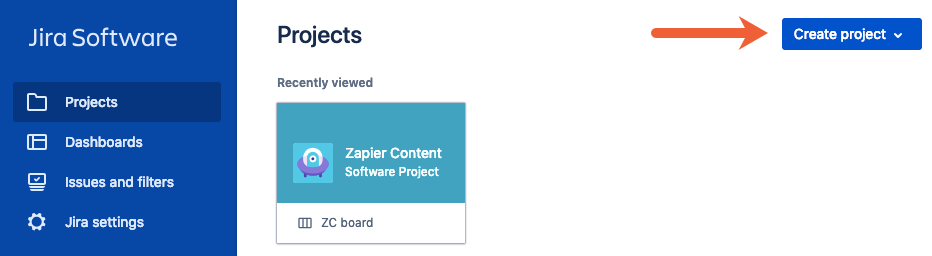
On your Jira dashboard, click Create project.

create another project in Jira

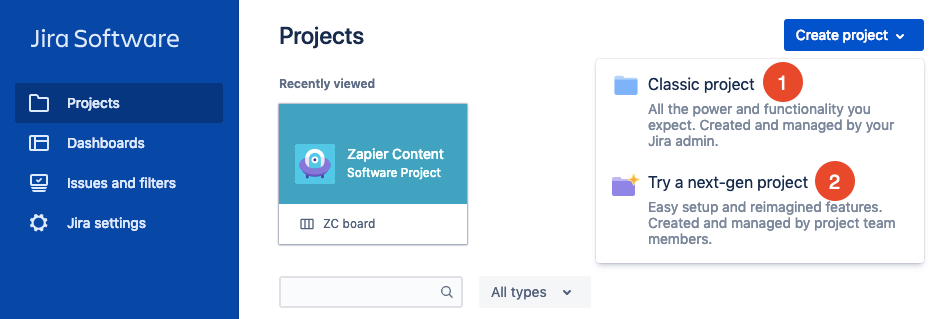
Select either Classic project or Try a next-gen project to access the different project templates.

choose a template type for a new Jira project

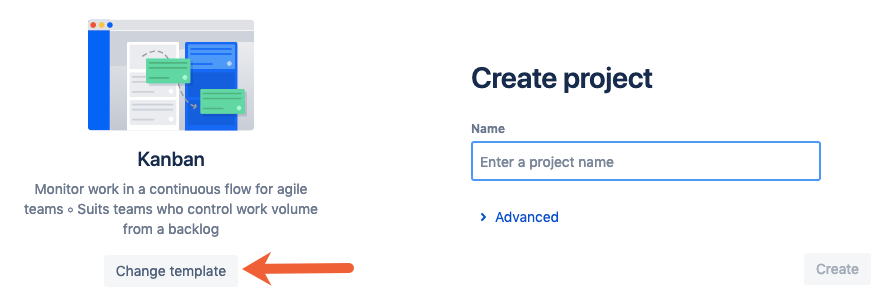
By default, Jira will automatically select a project template you've used previously. If you want to change the preselected template, click Change template, and select the appropriate template for your new project.

change your Jira project template

Finally, give your new project a name, and click Create to create your new project.


A single Jira project might suffice for individuals using Jira as a to-do list or support teams looking for a place to capture and resolve all issues and incidents. But there's also value in separating work into multiple Jira projects if you want to build different workspaces for different teams, or if you want to run reports showing the status of different projects or releases.

Want to learn more about Jira? Check out our other tutorials to learn how to create an issue in Jira and how to create a filter in Jira, or start automating your Jira workflows across 1,000+ apps with Jira's Zapier integrations.


source https://zapier.com/blog/jira-create-project/

Wednesday, 6 March 2019

The 8 Best Video Hosting Sites for Businesses in 2019

Videos have dominated the web for ages, and now video marketing is becoming a necessity for any business. 87 percent of online marketers create video content, while 51 percent of them tout videos as the content with the best ROI. Both marketers and consumers agree that video is here to stay.

As you plan your own video strategy, the first thing you'll want to consider is a video hosting site for your business. Once you've shot and edited your video, you'll need a place to upload and store it on the web. From your video hosting service, you'll be able to share it to your website, social media, and any other online platform.

Modern video hosting platforms have evolved from their beginnings as a piece of internet real estate for your videos. Now, they help you customize the look and feel of your video player, ensure your videos play smoothly across all devices and browsers, and provide marketing options from within your videos.

We tested dozens of video hosting sites, and these are the eight we recommend.

What Makes a Great Video Hosting Site?

The best video hosting sites offer a few make-or-break features that are essential for businesses:

  • An easy-to-use interface
  • Compatibility with all types of browsers and players, such as Flash and HTML5
  • Compatibility with mobile devices
  • Basic analytics tools to measure the impact of your videos
  • SEO tools to make your videos search-engine friendly
  • The ability to embed your videos on external websites

While those are the dealbreakers, we also considered other features, such as the option to customize your video player or automatically add closed captioning. At the end of the day, we were looking for apps that brought something unique to the table.

The 8 Best Video Hosting Sites for Business

  • YouTube (Web, Android, iOS) for its existing viewership and popularity
  • Vimeo (Web, Android, iOS) for collaboration on videos
  • Wistia (Web, Android, iOS) for video marketing
  • Brightcove (Web, Android, iOS) for quick player customization
  • Hippo Video (Web, Chrome, Microsoft, Windows, Mac) for sending bulk personalized videos
  • SproutVideo (Web, Android, iOS) for creating branded video websites
  • vooPlayer (Web, Android, iOS) for in-depth video analytics
  • Uscreen (Web, Android, iOS) for selling videos online

YouTube (Web, Android, iOS)

Best video hosting site for its existing viewership and popularity

YouTube video hosting interface

Launched in 2005, YouTube was synonymous with video content long before video marketing became a buzzword. In 2018, a whopping 1.8 billion people flocked to the platform each month.

YouTube allows you to upload videos for free, and creators can even earn money for their content with its ad-supported monetization options. Thanks to its popularity—which means there's an existing audience built in—YouTube is often the default choice for business owners to host their videos. And it helps that its videos are given prime spots in Google search results.

Log in to the platform with your Google account. You can then launch a channel under your personal name or business name. Once you've customized your channel, you can start uploading videos: Click Create a video or post button at the top right of the homepage.

For many of the sites on this list, hosting is just the first step. But with YouTube, you have a built-in audience. So if you optimize your videos for search, you may not even need to embed them elsewhere. Of course, you still have the option to do so with a simple embed code. And you can even automate the process of promoting your videos using Zapier's YouTube integration, which lets you trigger workflows in other apps whenever you upload a video to YouTube.

One final feature worth mentioning: For videos in certain languages, YouTube offers automatic captions. Head to your published video, and click Edit > Subtitles and CC. If automatic captions for your video are available, you'll see them on the right of the video, where you can review them and make any necessary changes. If not, you can also add subtitles or captions manually.

YouTube Pricing: Free for uploading and hosting videos.

Vimeo (Web, Android, iOS)

Best video hosting site for collaboration on videos

Vimeo video hosting interface

Vimeo began as a video sharing platform, similar to YouTube. And while the platform still allows users to post videos and follow their favorite creators, it also helps businesses customize video players, collaborate with their team, and access analytics and other marketing features.

Vimeo's most impressive feature is the effortless collaboration it facilitates: It allows creators to invite clients, team members, freelancers, and other collaborators to preview their private projects. And it offers different permission levels for each reviewer or collaborator, which you can change depending on the project.

Once you share a link to your video, reviewers can leave without even registering on the platform. Don't enjoy the music in a scene or think a particular dialogue could be snappier? Pause the video and leave a comment at the exact moment it's relevant. All comments are automatically saved and appear on one side for the creator's review. And each time a tweaked version of a video is uploaded, previous versions are saved, so collaborators can run through all the changes made in a video. Think of it as Google Docs for video.

You can automate your processes with Vimeo as well, using Zapier's Vimeo integration to automatically take actions in other apps whenever you upload a video to Vimeo.

Vimeo Pricing: From $7/month (billed annually) for the Plus plan that includes 5GB per week, single user, player customization, social distribution, unlimited bandwidth, and private link-sharing.

Wistia (Web, Android, iOS)

Best video hosting site for video marketing

Wistia video hosting interface

Wistia is packed with marketing features that help businesses track a video's progress, collect leads, and get the best ROI on their content.

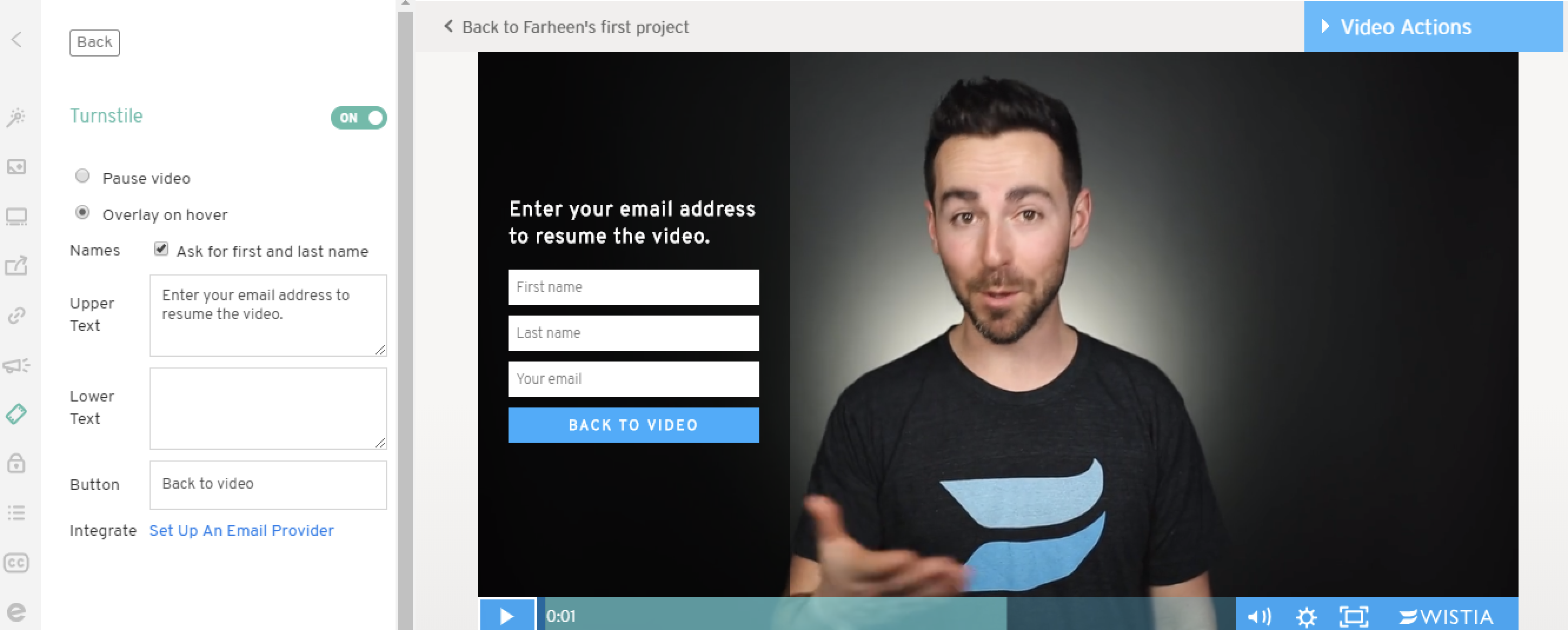
One of its flagship features is Wistia's Turnstile email collector, which helps you generate email leads. Here's how it works: Create an email collector form in Wistia with the information you wish to collect, and add it at any point in your video. In order to watch further, a viewer must fill in their details (unless you set it to allow them to skip a Turnstile). Once a viewer enters their information, they are added to your email list using Wistia's email marketing integrations, including platforms such as Campaign Monitor, Mailchimp, and Constant Contact.

If you don't want to add a Turnstile to your videos, Wistia still offers other standard features for marketing. You can use annotation links to guide viewers to a website of your choice. These links appear on the upper right corner of your video, for as long as you like, without disrupting a viewer's experience. You can also add a call-to-action or link to another video or web page at the end of a video. And tying it all together is the Stats page that lets you gauge the performance of each of your videos at a glance: Every action a viewer takes, be it clicking a link or filling a form, is recorded on this page.

Wistia helps your videos rank in Google search results, with links to your own website (vs. to YouTube or another platform). All you need to do is add a title, description, thumbnail, and tags while uploading your videos to Wistia. Then, when you embed these videos on your website with an embed code, Wistia automatically adds this information to your page's header, helping your website rank better in Google search results. To give your videos an added SEO boost, Wistia recommends adding transcripts to your videos as well.

Wistia's Zapier integration allows you to trigger actions in 1,000+ other apps whenever new videos are uploaded or users take certain actions on your videos. Or you can automatically create an embed code and send it to the app of your choice whenever you upload a new video.

Wistia Pricing: Free for three videos and standard features such as a fully customizable player, lead generation tools, video analytics, and unlimited users; from $99/month for the Pro plan that includes standard features, ten free videos, and no Wistia branding.

Brightcove (Web, Android, iOS)

Best video hosting site for quick player customization

Brightcove video hosting interface

Brightcove offers simple video player customization options to change the look and feel of your player. It allows you to add your company's name, logo, links, and colors to your video player, and even create different player templates depending on the project.

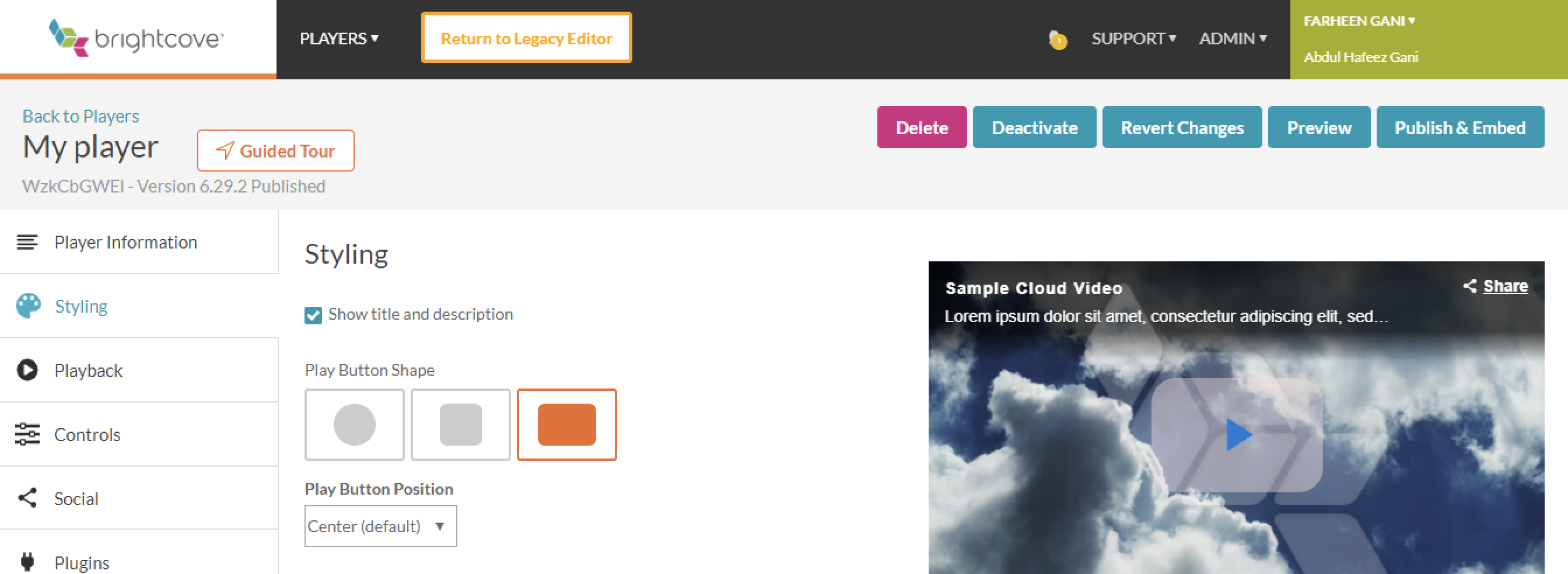
As you start customizing a new player for your videos, you'll enter a player name, plus a short description and player dimensions. Much of the customization you'll make in a video player will be done in the Styling tab. Select whether you want to display the name and description for all your videos. Next, choose a shape, color, and position for your player's buttons. You can also display your logo in the player and add a link to it, if you want.

Once you're satisfied with the changes you've made, you'll move on to Playback options. You can select whether you want your videos to start automatically once the player loads, and if you want to preload videos before playback. To ensure your videos are shared far and wide, you might also want to add social sharing buttons for Facebook, Twitter, Google, and Pinterest. These will appear in the top-right corner of your player. At the end of your videos, you can add a custom URL or display social media buttons. Review your changes in Preview mode, and then click Publish. Once your player is live, you can easily upload videos and embed them to your website using an iframe code.

Brightcove Pricing: From $199/month for the Starter plan that includes 50 videos, two users, and up to 100,000 plays.

Hippo Video (Web, Chrome, Microsoft, Windows, Mac)

Best video hosting site for sending bulk personalized videos

Hippo Video video hosting interface

Hippo Video is a video hosting app that also allows you to send bulk personalized videos to your audience. You can create videos with each prospect's name, email, company name, and more—and then send them to as many prospects as you like, all at once.

There are two parts to sending bulk personalized videos: creating a video in the app and sending it to your prospects via Gmail. To create a personalized video in Hippo Video, click the Personalize button within the editing options next to your video. You'll be greeted with a new screen with an option to Add Text at any point in your video. Click on the button, and enter your message. Let's say you want to begin with "Hi, [first name of your prospect]." Type "Hi," in the text box, and then click the Merge Fields button, which will allow you to add different details about your prospect, such as first name, last name, email, title, company name, and state. You can also customize the color, size, and font of your text.

Now, it's time to send your video. The Hippo Video Chrome extension lets you send your personalized video using Gmail: Once you've downloaded the extension, you'll see a dropdown arrow next to the Compose button in Gmail, which contains the Video Campaign option and opens up a new email window.

First, you'll have to import a list of contacts you want to send your video to, using a spreadsheet with the merge fields you added in your video. Let's say you added the fields for first name and last name. Create a spreadsheet with columns for first name, last name, and email, and enter your recipients' information.

Import this spreadsheet to your Gmail using the Import Contacts function, and Hippo Video will pull the necessary information for each recipient. Compose your message, and attach the video you created in the app. If you wish to use merge fields anywhere in your email subject or email, type #, and you'll see the merge fields options. Once you've entered all the information, click Send via Hippo Video, and that's that. Not the simplest process in the world, but it gets you the personalization you want.

Hippo Video Price: Free for three hosted videos, lead generation, and basic reports; from $49/month for the Starter plan that includes video SEO, customizable video player, and in-video annotations.

SproutVideo (Web, Android, iOS)

Best video hosting site for creating branded video websites

SproutVideo video hosting interface

SproutVideo helps businesses create basic websites around their video content. These websites can be used to showcase your portfolio, share tutorials with your team, or share free video content with your audience.

You'll pick from five available themes and then enter your site name and logo. If you already own a domain name, you can use that for your site. The Settings tab allows you to tweak theme colors, select a featured video for your website, decide what order to display your videos in, select how many videos display per page, and choose whether videos should autoplay. You can also add an About and Contact page to your website along with social sharing buttons.

The videos you upload to your SproutVideo account appear automatically on your website, depending on the permissions you set for them. By default, all videos on SproutVideo are login protected, which means visitors need to log in to your website to view them. You can also choose to password protect certain videos, set them as private, or leave them open for public viewing. And, of course, the platform still allows you to embed videos to an external webpage—embedded videos will be visible to the public, no matter what their permission level is on SproutVideo.

SproutVideo Price: From $59.99/month for the Sprout plan that includes analytics, video marketing, video websites, and 125 login protected viewers.

vooPlayer (Web, Android, iOS)

Best video hosting site for in-depth video analytics

vooPlayer video hosting interface

If you're looking for a deep dive into your videos' performance, including who views them, where, and for how long, vooPlayer gives you all the data you need. The platform offers numerous reports based on viewer location, engagement, play rate, conversion, and completion.

Engagement graphs help you keep tabs on viewing trends, such as drop-offs, re-watches, and interactions with your videos. Each time your video is played, you'll see which parts most interest your audience and points at which they lose interest. You'll also find the location of your audience, date of video viewing, and devices your videos were most watched on. These analytics are available for a specific video or for all your content together.

Another way you can harness the power of analytics in vooPlayer is A/B testing, which lets you pit two videos against each other and compare their performance on metrics such as engagement, play rate, social activity, and leads. Find out which video does better on all these counts—content of the video, opt-in boxes, and poster images, too. To create a new A/B test, click New A/B Test, and select the videos you wish to test, the metrics, and an end period for your test (either on a particular date or after a given number of views). Once a test is over, vooPlayer presents you with the winning video. The data for each video is available under the Analytics section.

vooPlayer Price: Free for five videos, 1GB storage, and branded player; from $14/month (billed annually) for the Startup plan that includes unlimited videos, no branding, and live chat support.

Uscreen (Web, Android, iOS)

Best video hosting site for selling videos online

Uscreen video hosting interface

Uscreen lets you monetize your video content without subjecting your viewers to ads. For a flat monthly fee, you can set up a subscription or membership site to sell an online course or launch a training program.

To set up your video platform, you'll first create an SEO-optimized video website using various ready-to-use themes. If you have a domain name, feel free to use it. Uscreen's easy-to-interface lets you quickly set up a storefront and upload videos, plus supporting content such as documents, guides, presentations, and images. Next, you have the option to set up a subscription plan for users or sell your content for a flat fee. You can also release content for free. The platform helps you process payments securely with credit cards, Stripe, and PayPal.

Uscreen also offers additional support in the form of email marketing, sales reports, and subscriber analytics to help you gauge the performance of your video-on-demand service. And with Zapier's Uscreen integration, you can automate workflows based on orders, customers, subscriptions, video views, and more.

Uscreen Price: From $99/month (billed annually) for the Basic plan that includes unlimited streaming, one storefront, 300 total users, basic analytics and marketing, and payments via credit card and PayPal.


Ultimately, the best video hosting site for your business will depend on your unique needs. If you're looking to earn money from your videos, opt for a service that supports ads or lets you set up a subscription plan. If promoting your business is your main goal, you might look for a service with robust marketing and analytics tools. The most important thing is that you're getting your videos in front of the people you want to see them.


source https://zapier.com/blog/best-video-hosting-sites/

Tuesday, 5 March 2019

How to Turn Off the Red Dot in Slack

Slack puts a red dot next to its icon whenever there is an unread message. This is potentially useful, but can also lead to impulsively clicking. However interesting your job might be, it’s no match for a mysterious red dot, that most compelling of UI elements, one that you just can’t look away from wait are you switching windows right now? Get back here. Now.

Ahem. Here's how to disable that red dot on macOS and Windows.

Hiding Slack's Red Dot on macOS

Slack's macOS app puts a red dot on the dock icon whenever there are unread messages. When there are unread DMs or messages there’s a number, as seen below, otherwise there’s just the red dot.

Slack red icon

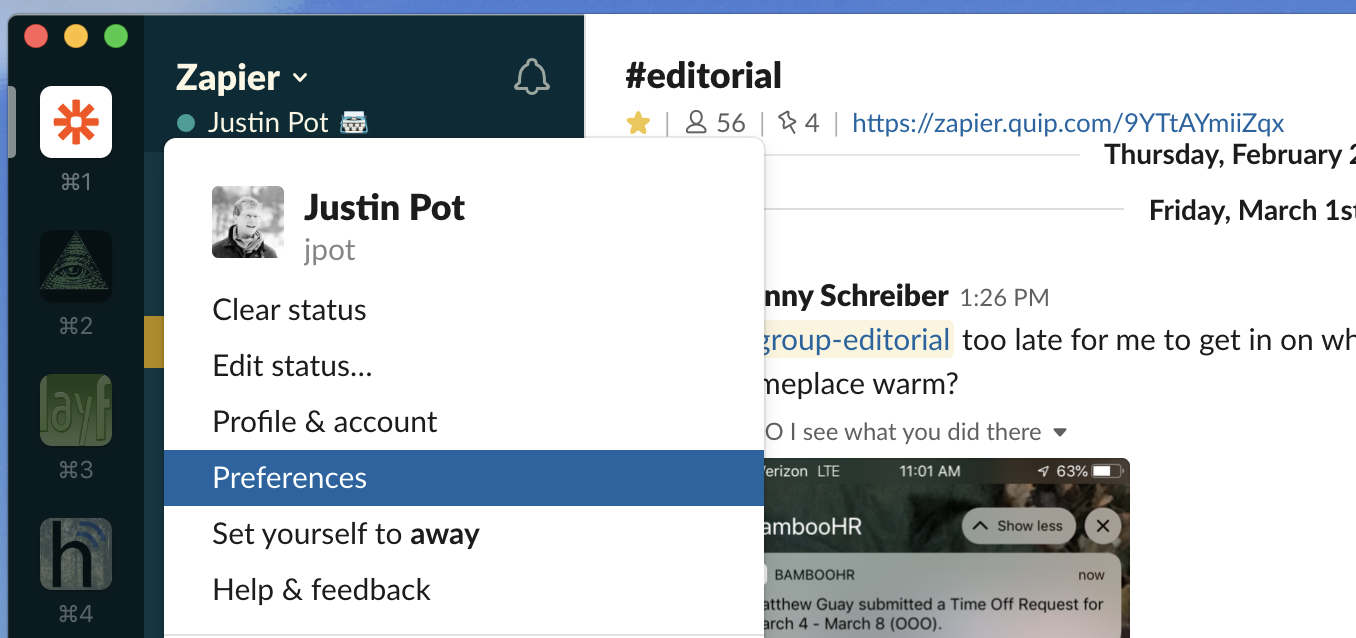
To turn this off, you'll need to open the preferences. Click your organization's name at top-right, then click Preferences

Slack preferences

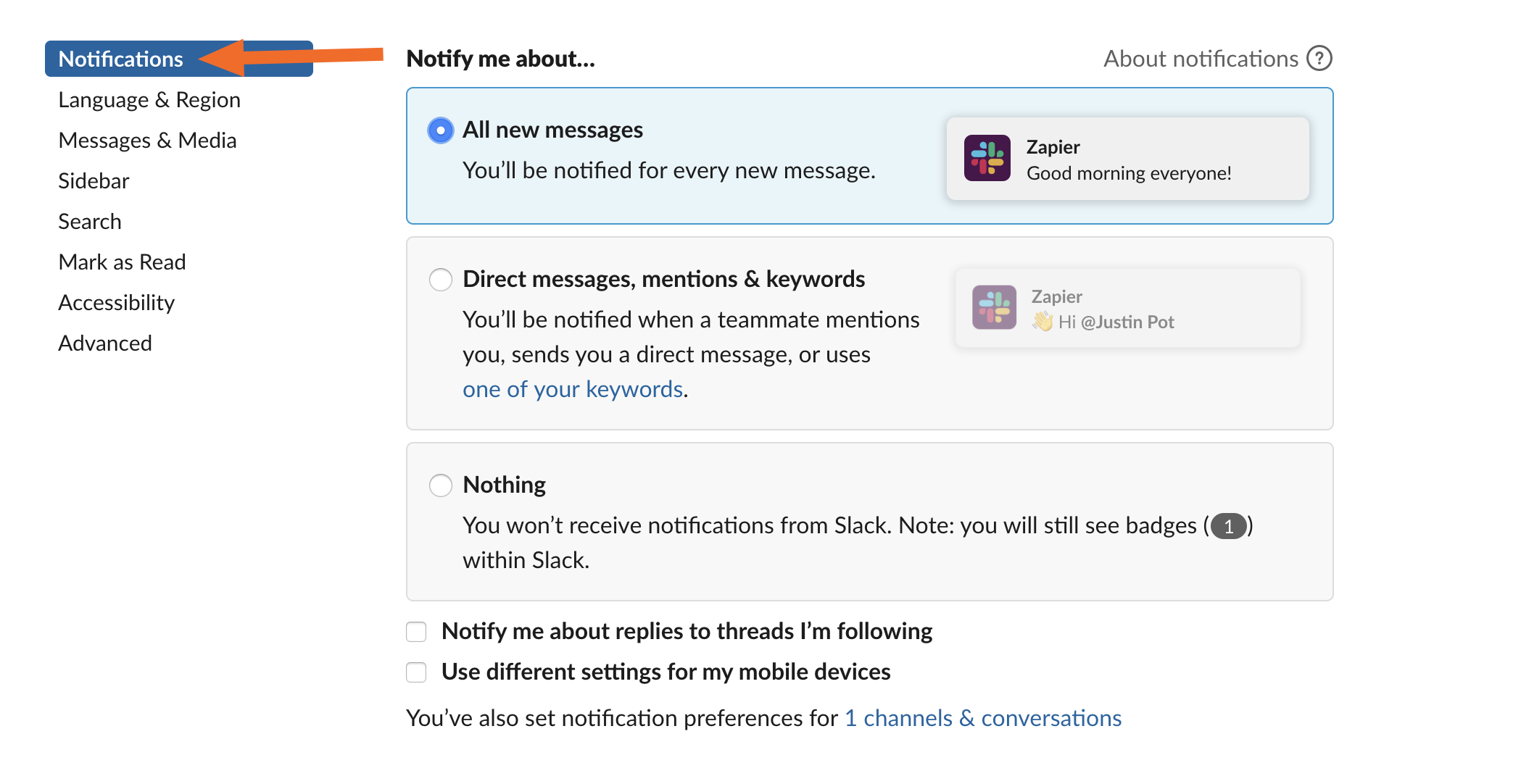
Make sure you're in the Notifications section.

Slack notification settings

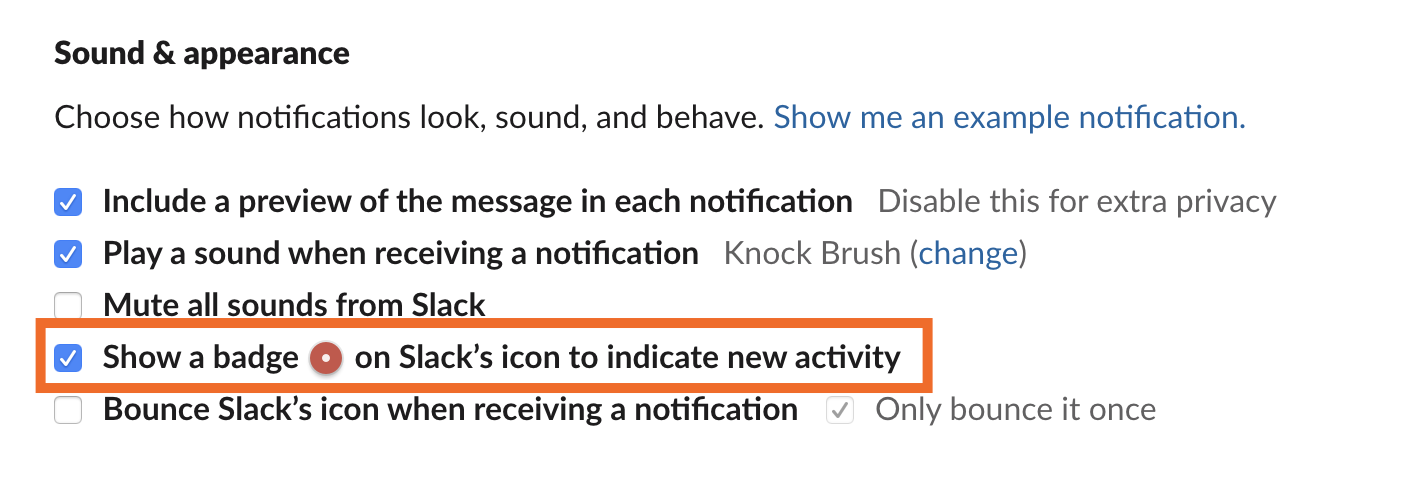
Scroll down until to the Sound & appearance section. You'll see the option to Show a badge on Slack's icon to indicate new activity.

Show a badge on Slack's icon

Uncheck this and the red dot will go away.

Hiding Slack's Red Dot on Windows

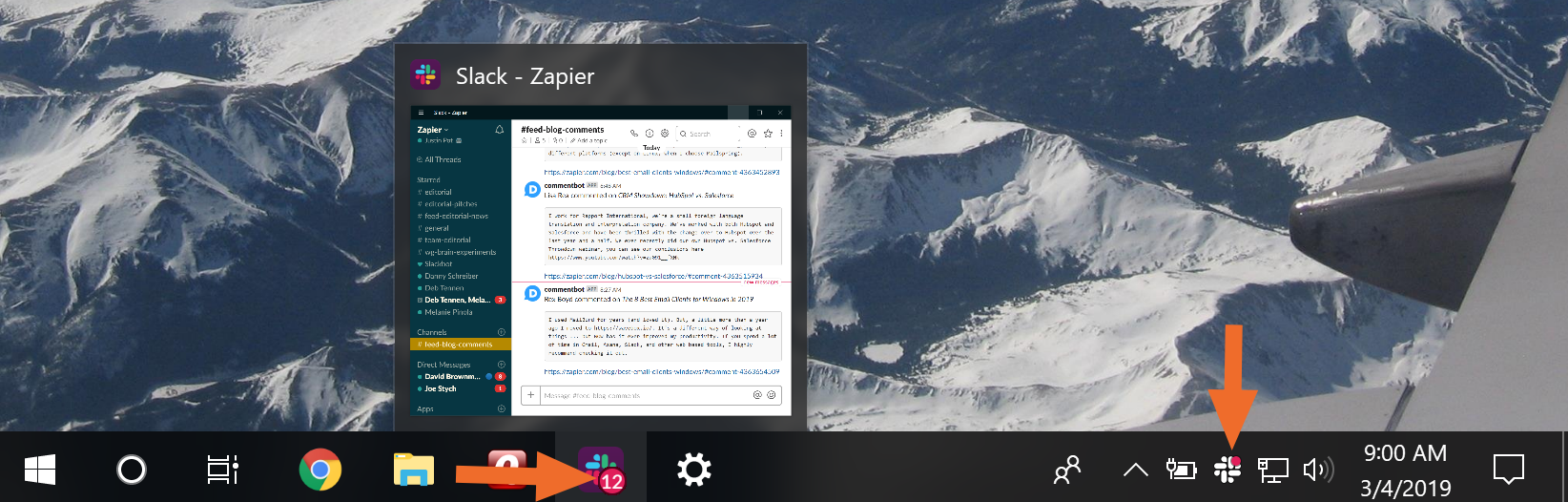
Slack's Windows app offers two red dots: one beside the taskbar icon and another on the icon in the tray.

Slack red dot Windows

There's no way inside the Slack app to disable either of these red dots, which is more than a little frustrating, but there is a workaround.

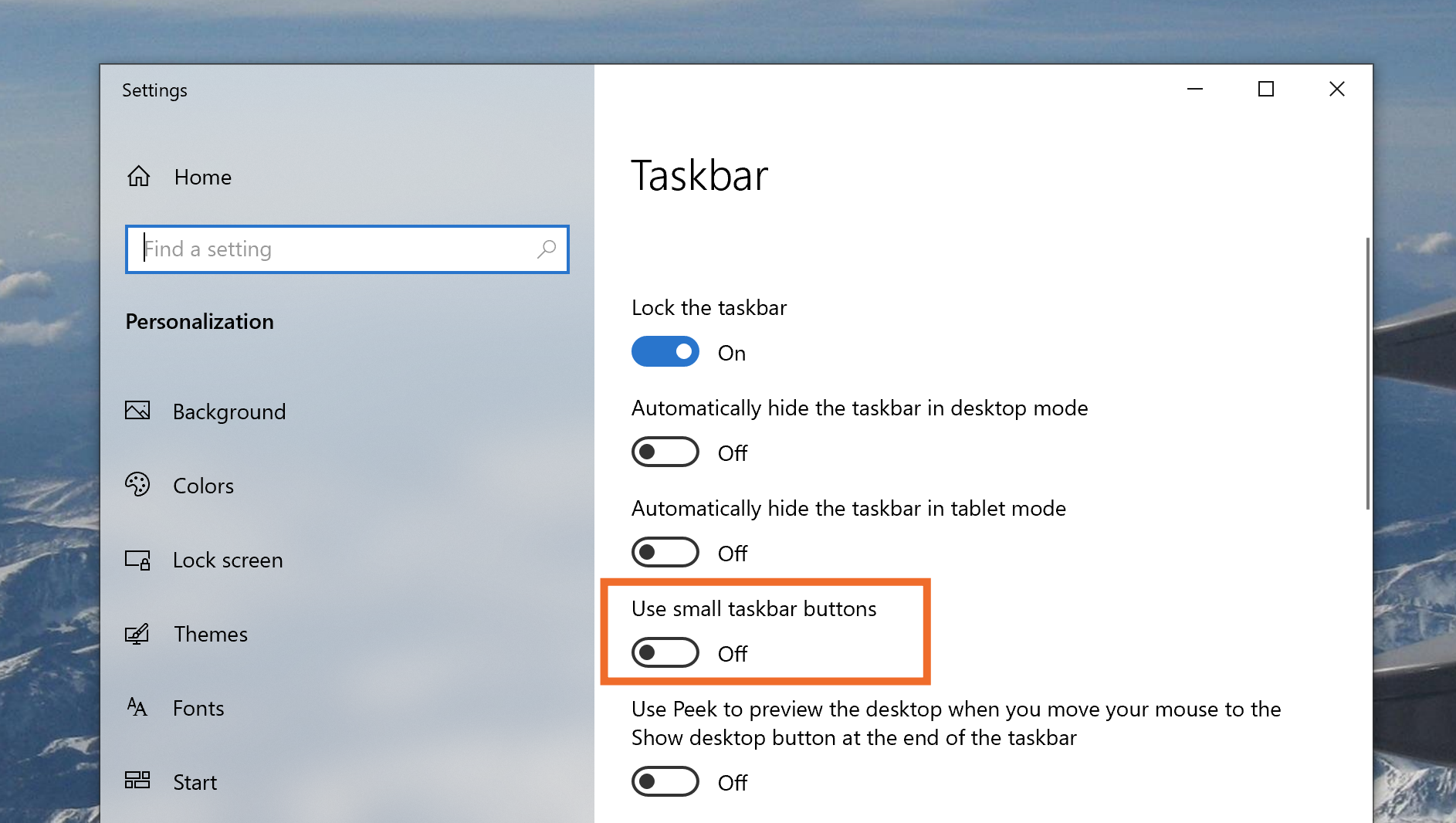
Right click your taskbar and click Taskbar settings.

Windows taskbar menu

Turn on Use small taskbar buttons.

Small taskbar buttons

This will shrink your taskbar but will also hide the red dot from your Slack icon.

Smaller taskbar

It's not a perfect solution, but it works.

As for the dot on the tray icon: You can't remove it either. The best solution I've found is to hide the icon entirely, which you can quickly do by dragging it above the arrow. Like this:

Hide Slack icon Windows

Again, it's not a perfect solution. Hopefully someday Slack adds a toggle for disabling these red dots, as they do in the macOS app.


source https://zapier.com/blog/turn-off-red-dot-slack/

How to Use Google Docs

Google Docs is Google's take on word processing. Like all of Google's apps, it lives in the cloud, which makes it easy to share and collaborate on documents—even in real time. In this tutorial, we'll walk you through how to get started with Google Docs and show you how to use the main features.

If you don't already have one, be sure to create a Google account—you'll need one to use Google Docs.

Google Docs Pricing: Free

How to Create Documents in Google Docs

The easiest way to create a new document in Google Docs is to type doc.new into your browser. Magic.

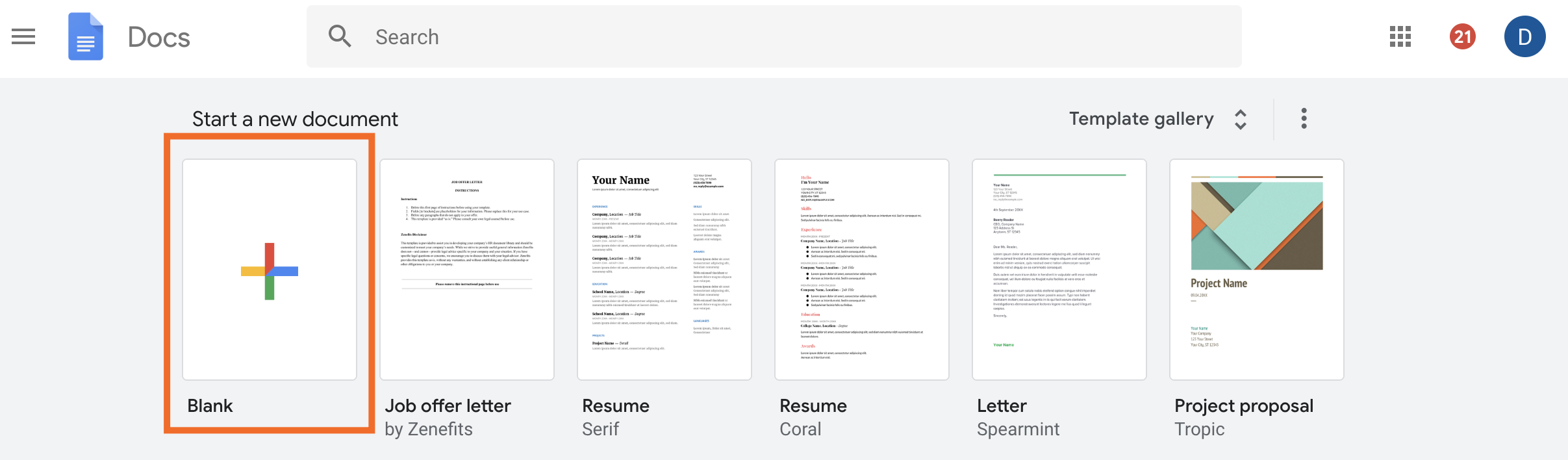
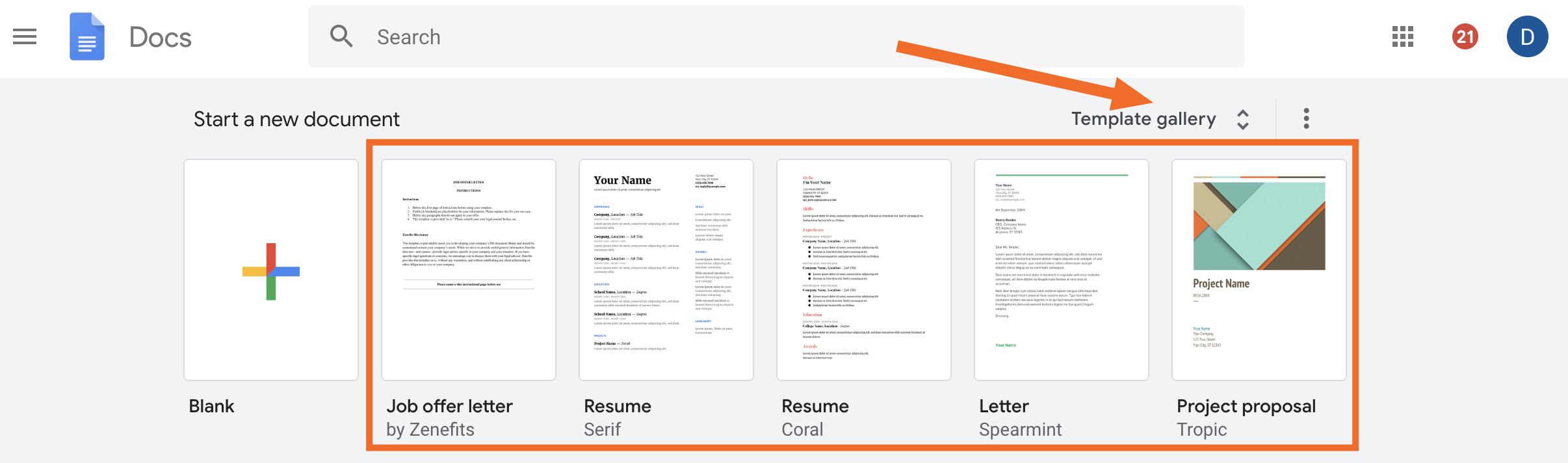
But let's take a quick look at the more traditional way to create a document. From the Google Docs homepage, click the Blank option. That will create a blank document for you to start filling with content.

Create new blank document

If you want to make use of one of Google Docs' existing templates, select a template instead. Click Template gallery to expand your options and see all the available templates, from resumes to lessons plans to meeting notes.

Create new template

How to Organize Google Docs

If you're trying to organize multiple Google Docs documents, your best bet is to do so from Google Drive. Here's our guide to moving files around in Google Drive.

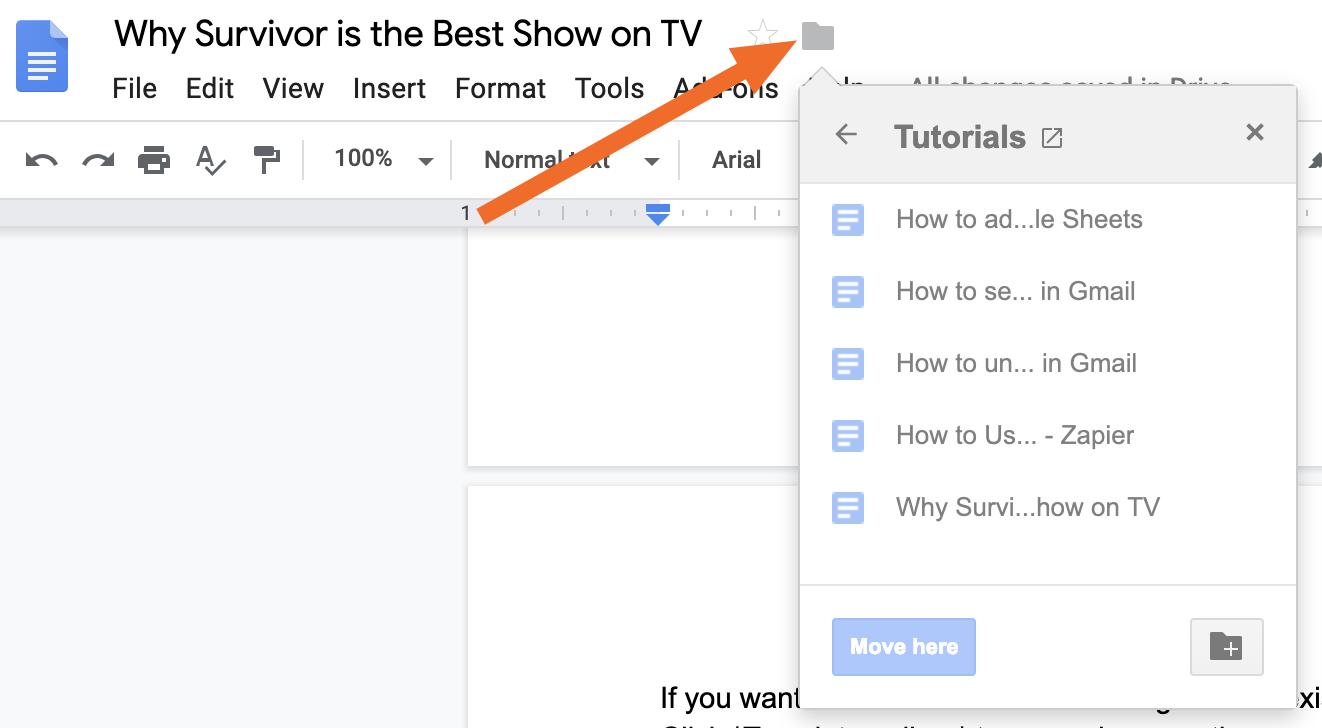
To organize one document, click the folder icon at the top of the doc.

Move Google Doc

From there, you can navigate through your Google Drive and decide where to put your document. Click the back arrow to navigate to parent folders, and click into any given folder to navigate to that folder. Once you're happy with your selection, click Move here. Or you can click the folder icon with the + sign in the bottom right to create a new folder for your document.

How to Add Content in Google Docs

When looking at a blank document, the first thing you'll want to do is give it a title. Click where it says Untitled document, and type your title. You can change it at any time, so no pressure.

Add title to a Google Doc

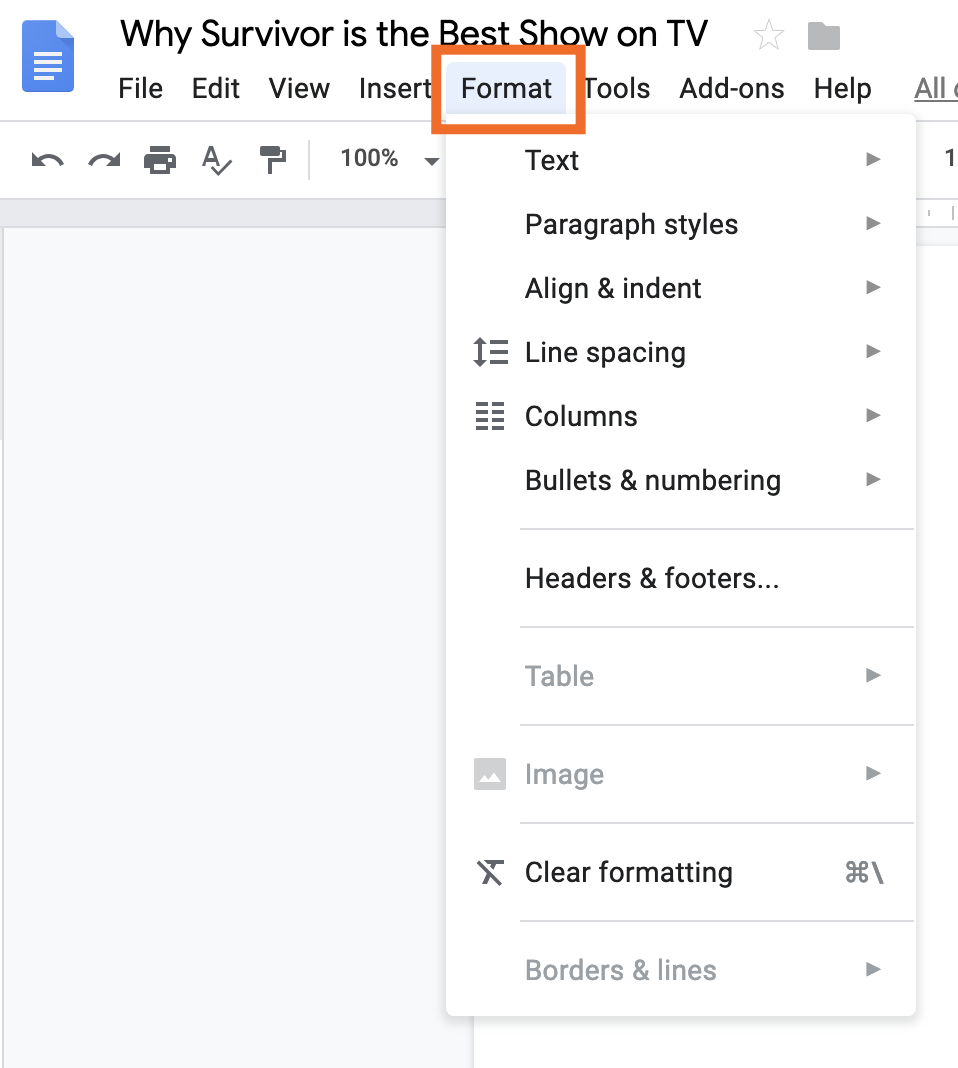
Then you can get to typing. If you're just looking to add text, it's no different from any other word processor. Type whatever you want to write, and click Format in the toolbar at the top to change the formatting of the text. You can do the basics like bold and italicize or add a hyperlink, but you can also create headings, insert columns, add background color, and add headers and footers.

Text formatting

We won't dive deep into any of these features, but click around the Format option to see what you can do.

As far as stand out features, we highly recommend using headings. Click into the line you'd like to turn into a heading, and then select Format > Paragraph styles. Choose your heading type (they're all formatted a bit differently, but they're listed hierarchically). Once you have headings in your doc, you can click View > Document outline, and an outline for your doc will appear on the left, making it much easier to navigate long docs. Alternatively, you can select Insert > Table of contents, select your style, and an outline will be added to the top of your document.

How to Insert Images in a Google Doc

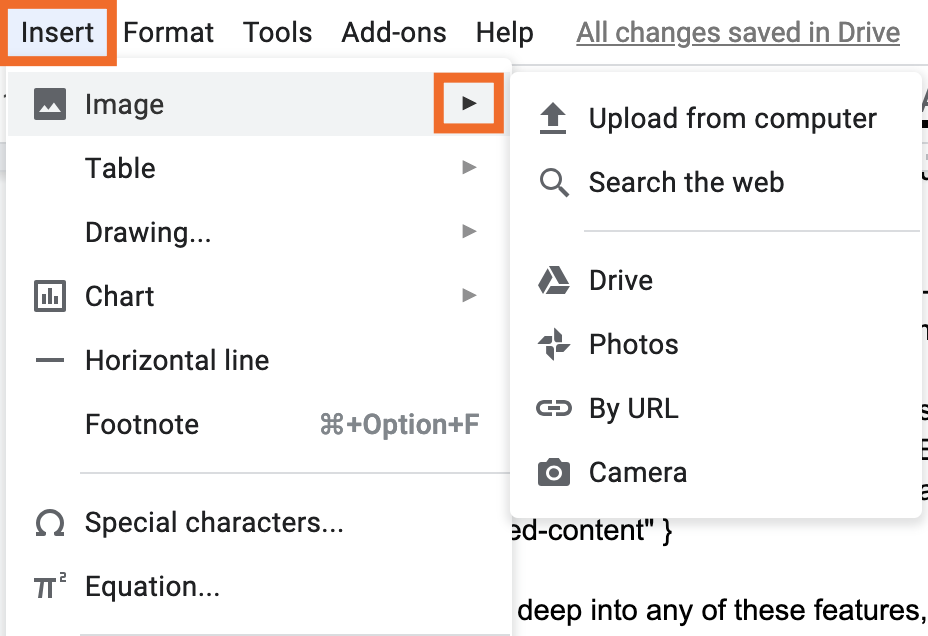
You can also add images and tables to your document if you want to include more than just text. Click Insert > Image and then select where you want your image to come from. You can upload from your computer or another Google app, or you can use your computer's camera to take a photo. And because it's Google, you can even search the web for a photo directly from Google Docs.

Insert image in Google Docs

Or, if you want to draw something into your doc, choose Insert > Drawing > New, and you'll have a blank canvas to work with.

How to Insert Tables and Charts into Google Docs

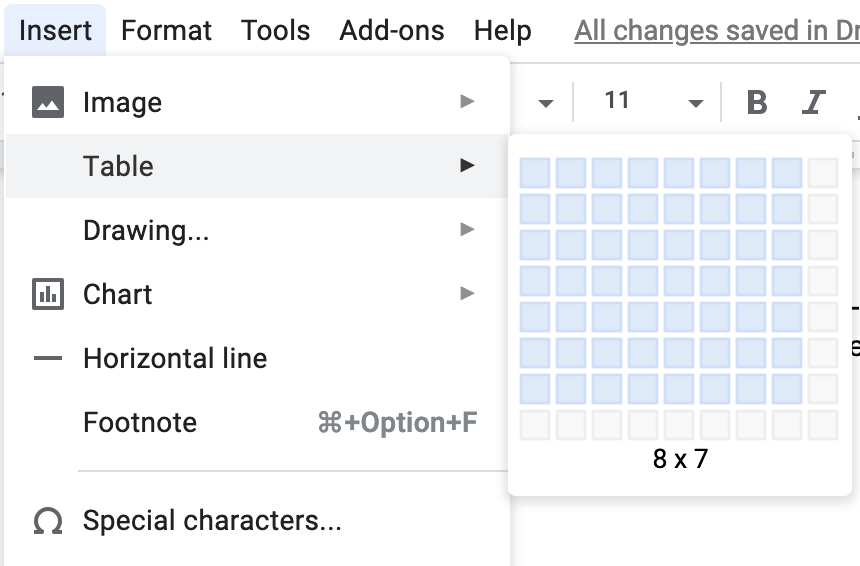
To insert a table or chart in your document, click Insert, and then select either Table or Chart. If you choose Table, you'll immediately be able to choose the dimensions of your table by dragging your mouse to the correct size. Keep dragging, and the table will expand.

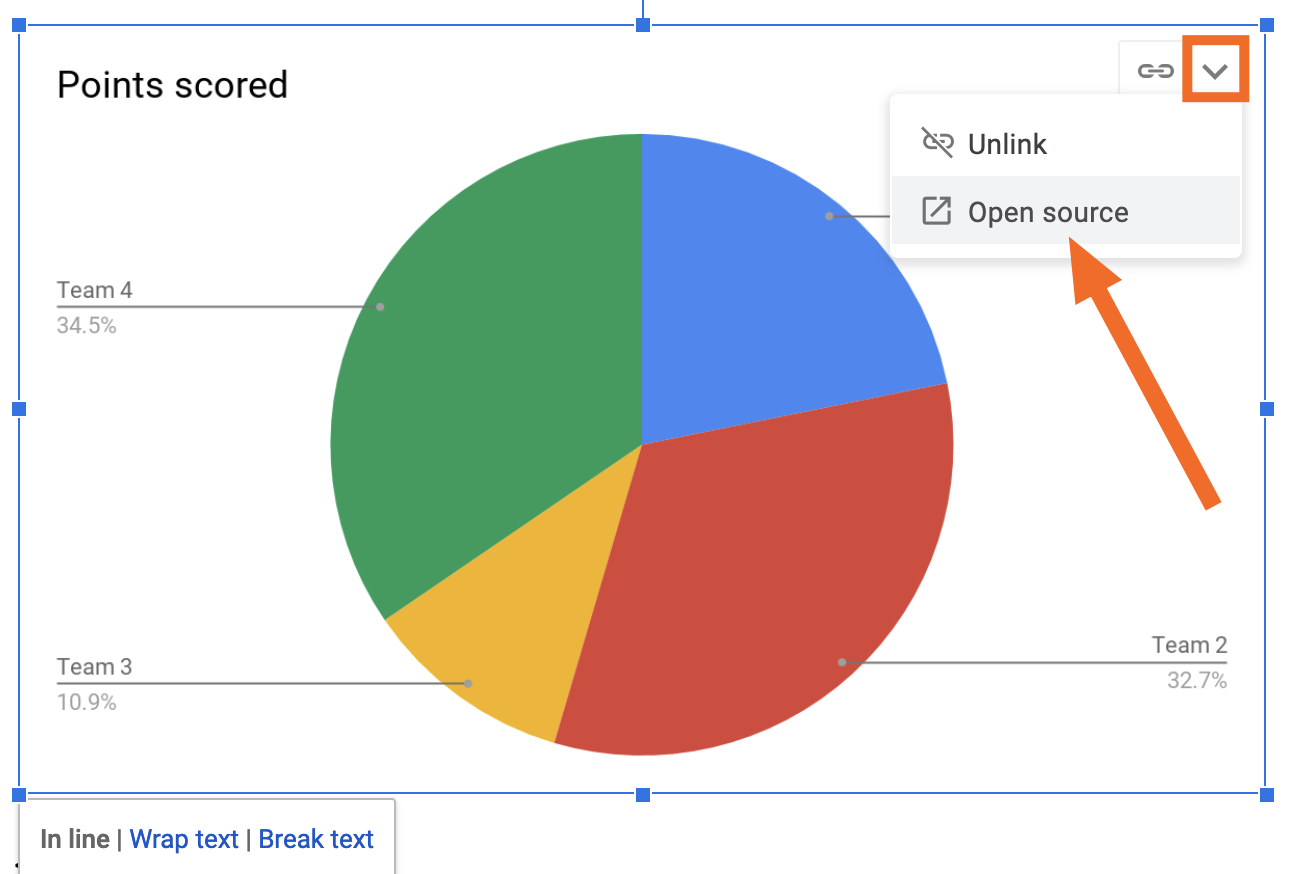
If you want a chart, select which type: bar, column, line, or pie. It'll insert a default image: Click on that image, and then click the down arrow in the top right and select Open source. From there, you can edit the data in Google Sheets.

Insert chart

Alternatively, you can choose to insert a chart directly from Google Sheets to begin with, if you already have the data you want to work with.

How to Collaborate on Documents in Google Docs

Google Docs allows you to add comments and leave suggestions, all in real-time. That means you can watch as people edit your work—though we don't recommend it.

Click here for a detailed look on how to collaborate in Google Docs.

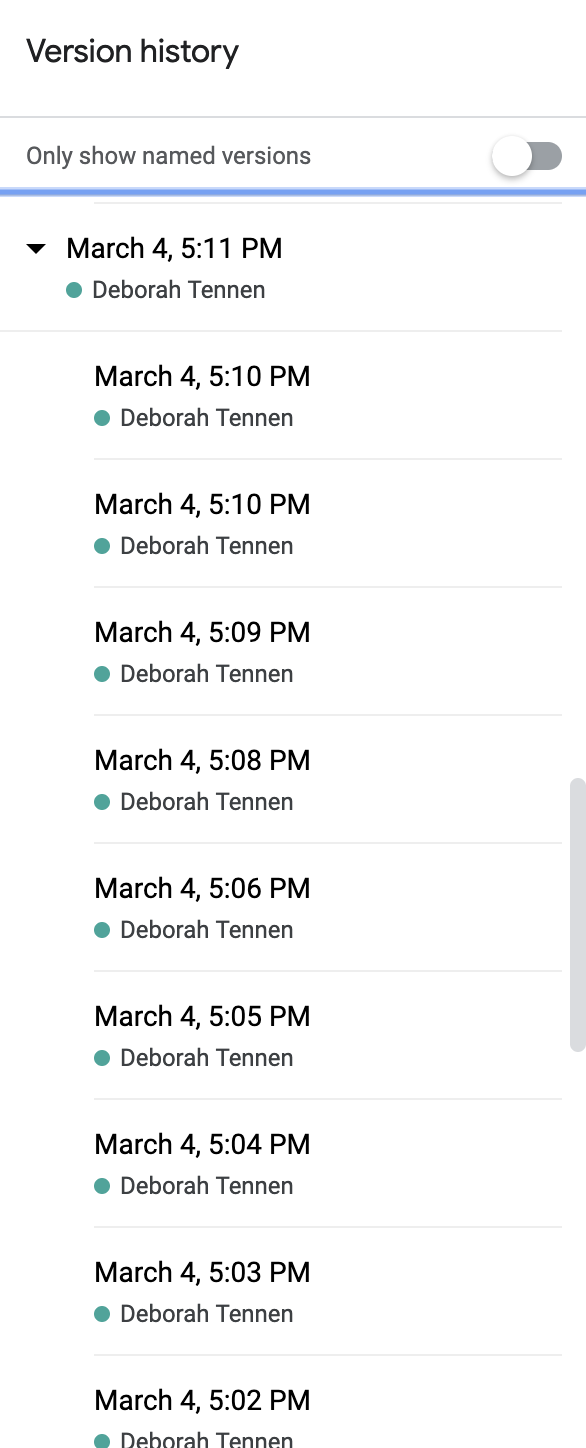
If anyone makes a change you don't like, no sweat. Click File > Version history, and you can view every version of the document that ever existed—and revert to the one of your choice. And because Google Docs saves your work all. of. the. time. you can essentially revert to any minute of the doc's existence.

Viewing version history

If you want to revert to an earlier version, click the big blue Restore this version button in the top left.

Restore this version

How to Share Documents in Google Docs

If you want to share a Google Docs document directly from your Google Drive, take a look at our tutorial on how to share files in Google Drive.

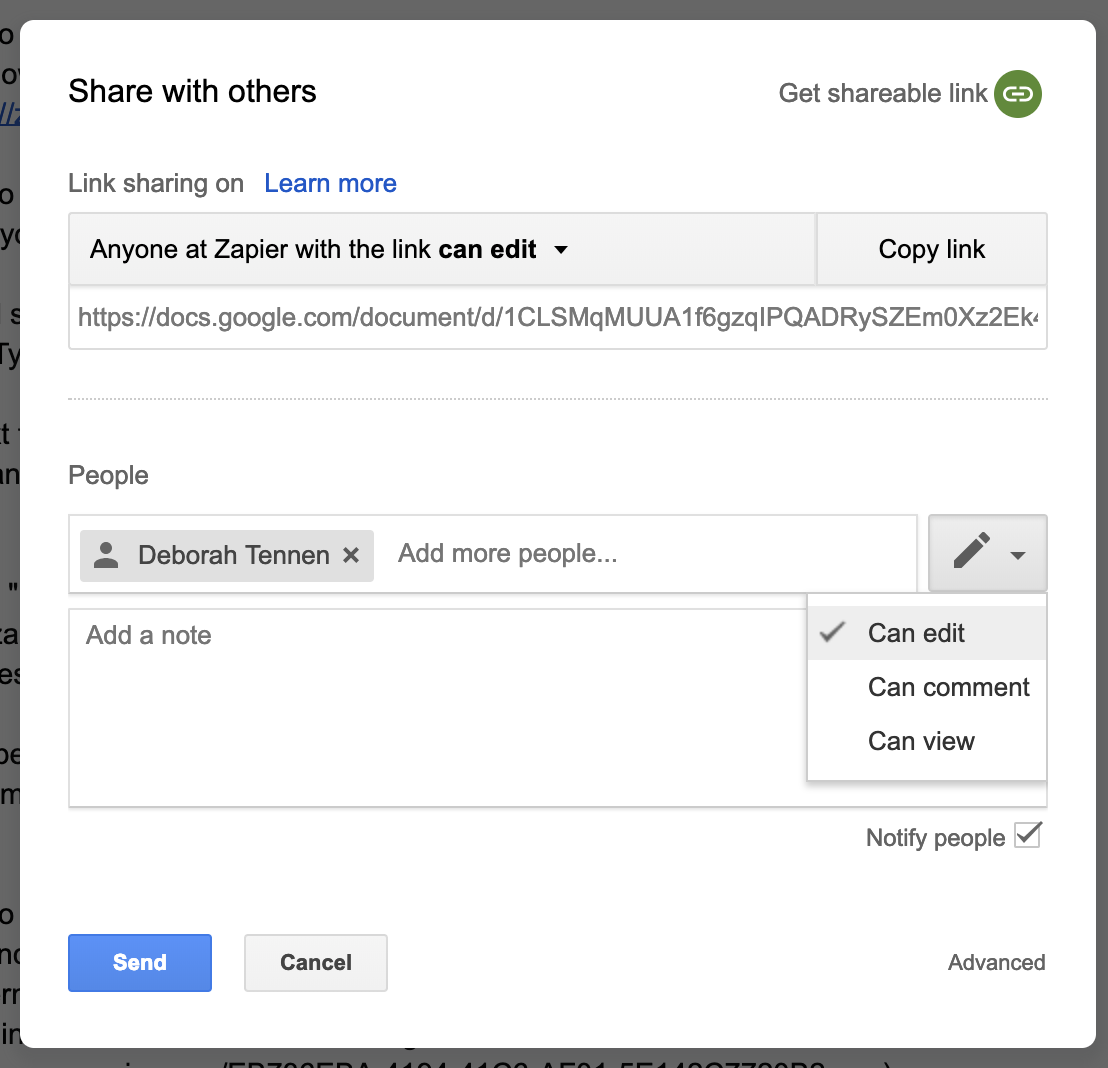
If you want to share the document you're currently working on, click Share in the top right. From there, you have a number of options.

You can add specific people to documents using their names (for Google associates) or email addresses. Type their email address and press Enter/return.

The box next to the input field lets you define permissions. You can select from Can edit, Can comment, and Can view. This allows you to decide how much control these people have over your file.

Share with specific people

The Notify people checkbox will be checked by default, meaning everyone you share with will receive an email. If you don't want them to receive an email, uncheck that box before clicking Done.

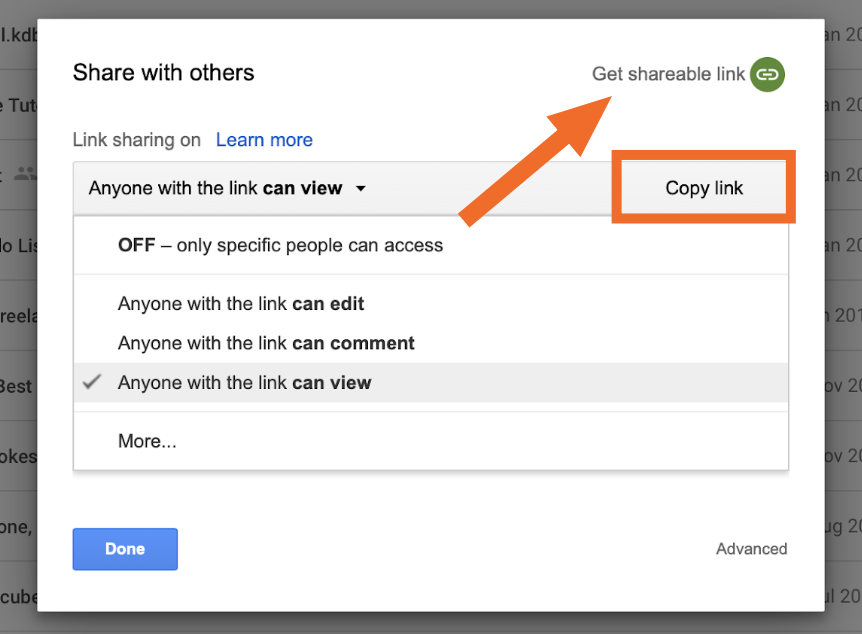
If you don't know who you are sharing with yet, or would rather grab a public link for posting on the web, click Get shareable link. You can define the permissions for this link using the dropdown list, and click Copy link to copy the link to your clipboard.

How to Download a Document from Google Docs

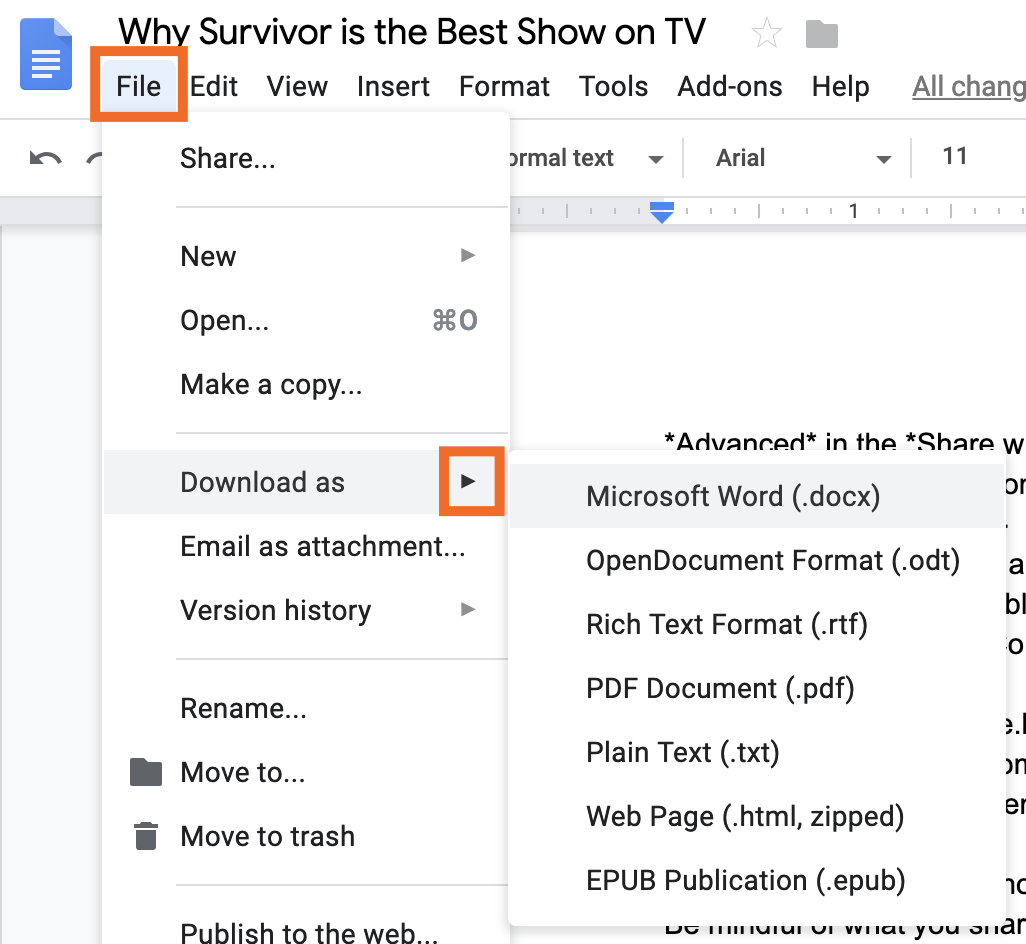
If you want to convert your Google Docs document into a Word doc, PDF, or other file type, click File > Download as, and select the correct file type.

Download as

Pro tip: Downloading the file as a web page will allow you to extract any images from it. Here's a tutorial on how to do just that.

Extra Google Docs Features

That's just the beginning of what you can do with Google Docs. Before we go, we want to share three final features that give you a sense of the power of Google Docs.

Voice typing in Google Docs

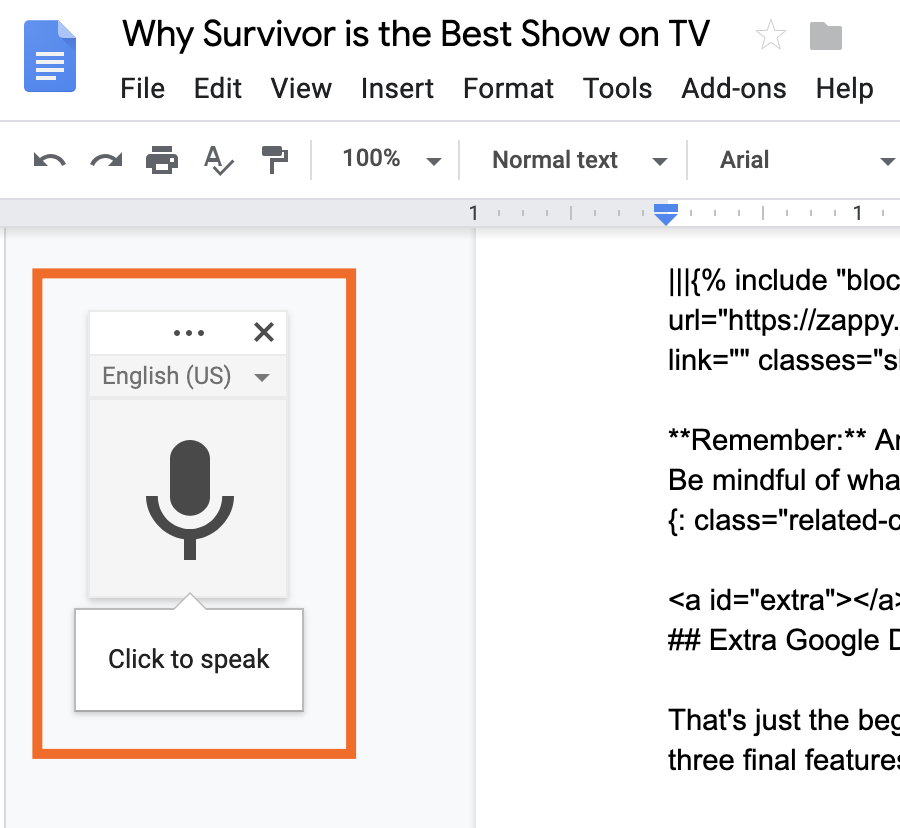
There are tons of dictation apps out there, but Google Docs lets you do it straight from the document without using another app. Click Tools > Voice typing, and a microphone icon will appear on the left of your screen.

Click the microphone, and then start talking. (If it asks you for access to your microphone, click Allow.) It's that simple. (We typed that last sentence using the dictation feature.) You can even give it commands like you would to any other dictation app: period, new paragraph, and so on. In our experience, it's pretty reliable.

Translate document in Google Docs

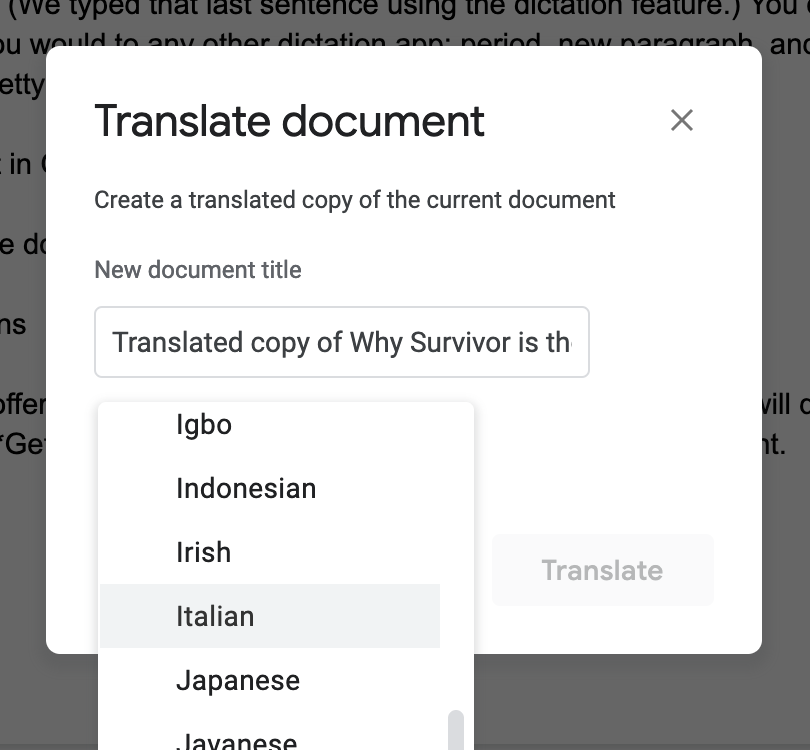
Need your document in another language? Google has you covered. Click Tools > Translate document, and then select your language.

Translate Google docs.

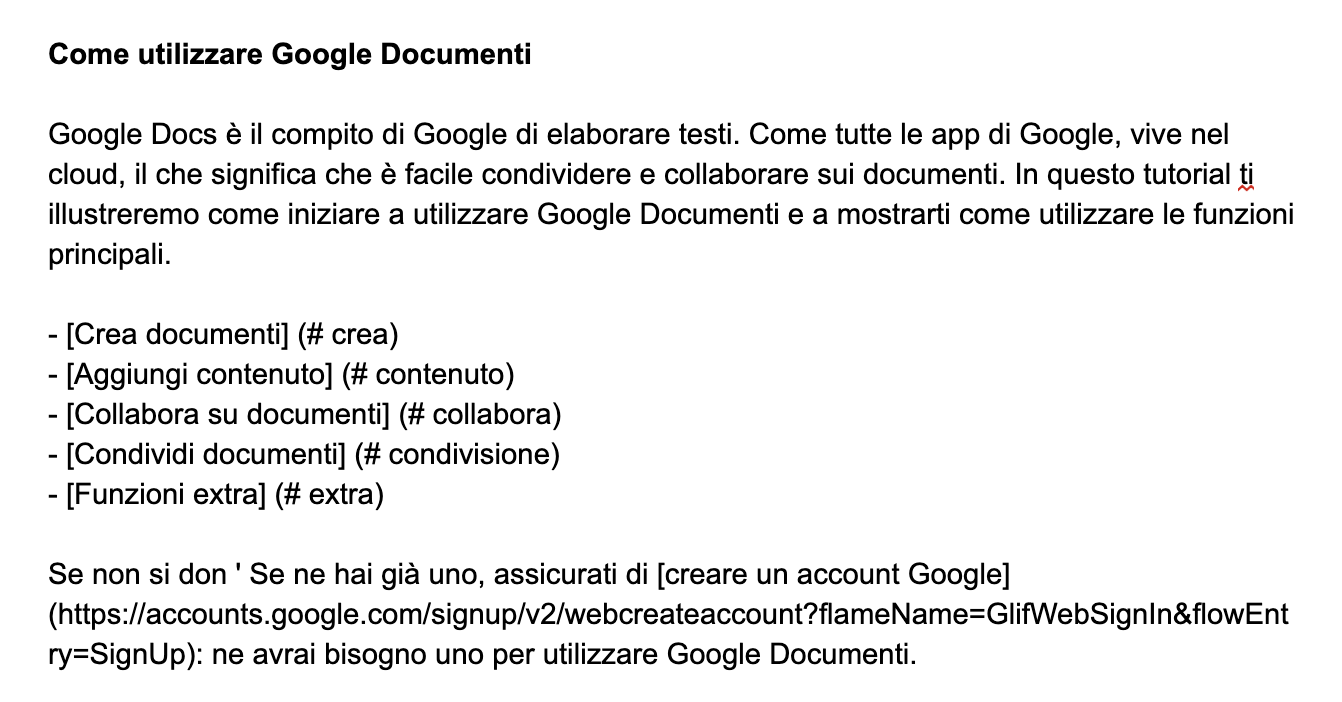
Click Translate, and voilĂ , a copy of your document in the target language will open in a new tab.

Document translated into Italian

Google Docs add-ons

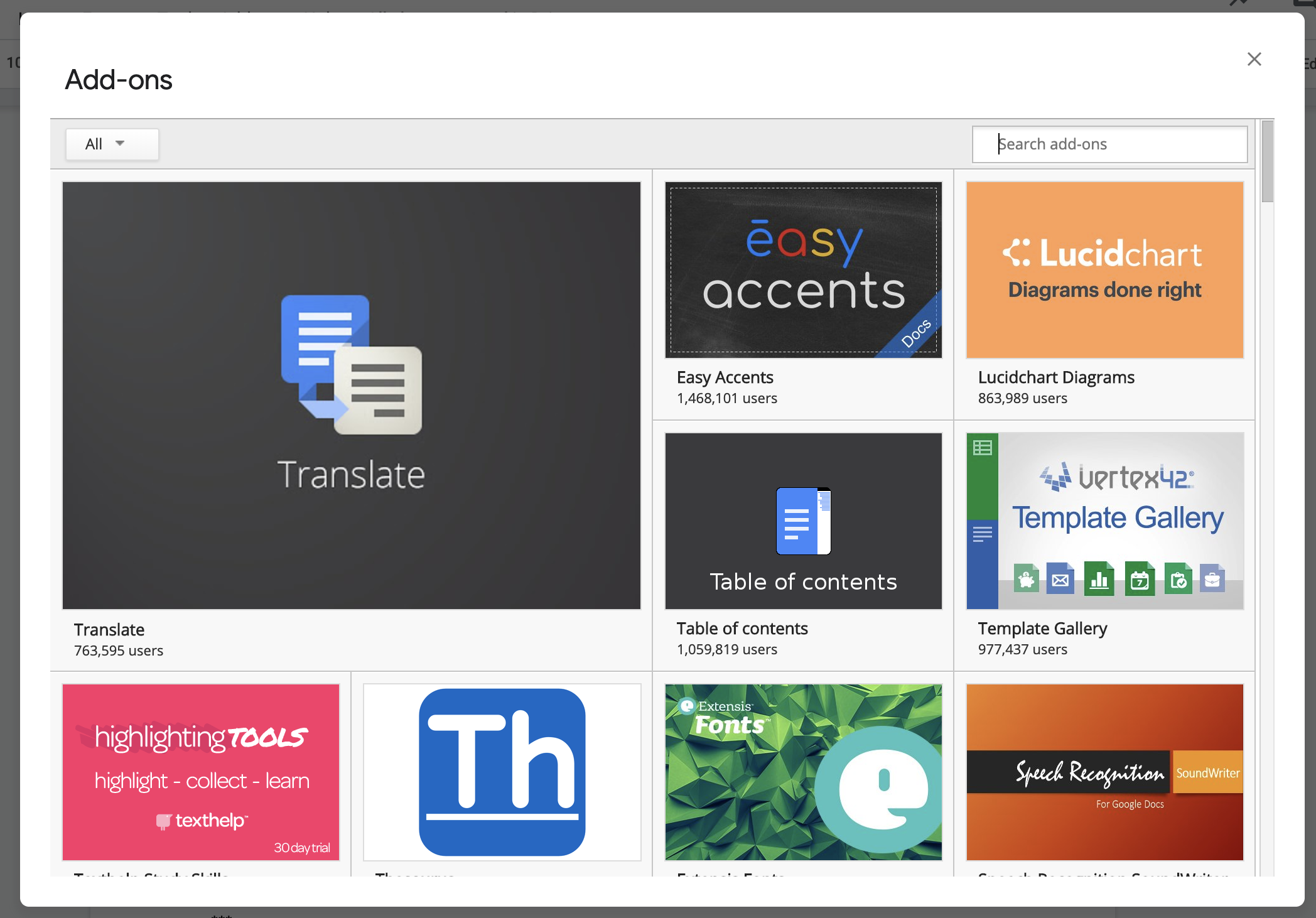
If Google Docs doesn't offer the feature you need, it's likely there's an add-on that will do the trick. Click Add-ons > Get add-ons, and then browse or search for what you want.

Add-ons will do anything from formatting your doc like a screenplay to formatting a bibliography. It's basically a library of native integrations for Google Docs. Here are our picks for the best Google Docs add-ons.


If you're looking to collaborate on documents with your team, Google Docs gives you everything you need to get started. Once you've mastered the basics, take advantage of Zapier's Google Docs integration to automate your Google Docs workflows.


source https://zapier.com/blog/how-to-use-google-docs/
Monday, 4 March 2019

How to Read 50 Books a Year

Over the years, I’ve developed a system that lets me read somewhere between 40-50 books per year. This system doesn’t require a massive amount of time or brainpower, both of which I lack. It only requires a little bit of diligence and small pockets of time.

Here are seven techniques to help you can achieve your avid reading goals and get through your long backlog of books to read.

Make Your Book List

The first step is easy and fundamental. Making a book list allows you to stay on track with your reading goals and to always know what you’ll be reading next. When it comes to making a list, you can always use good old fashioned pen and paper, but if you want the searchability and ubiquitous access of digital tools, give Goodreads a try.

Goodreads (Web, iOS, Android)

Goodreads is a terrific reading app for several reasons. First, it allows you to connect with your bibliophile friends and see what they’re reading. If you see a book that looks appealing, you can immediately add it to your "Want To Read" list.

Goodreads recommendations
Make a list: Find books you'll enjoy with Goodreads

Goodreads allows you to create a variety of booklists. This is especially helpful if, like me, you’re a bit reckless in pressing the "Want to Read" button. This allows you to easily move books from an oversized “Want to Read” list to an easier to manage “2019 Reading List."

Goodreads reading list

If you don’t know what to read, Goodreads also has a suggestions page which is populated based on genres you’ve specified and books you’ve already read. This is a great place to find books you might enjoy. Friends can also recommend books to you that they think you might like.

And if you have an Amazon Kindle, you can connect it to your Goodreads account to easily rate and mark books you've read as completed.

Of course, you can keep your reading list in your favorite notes app, too, such as Evernote or Trello. Firefly founder Dan Shipper details how he reads a lot of books and keeps a reading list on his blog post (Trello screenshot below):

Trello reading list

Read at Least Two Books at a Time

If you want to actually get through your reading list, it’s important to be reading at least two books at once. Why? Because of changing moods and energy levels. There will be times when you’re in the mood for something light and fun—a mystery novel or romantic comedy, for example. If you’re only reading dense business books, you simply won’t read when you’re not in that kind of mood. (Unless all you like to read are dense business books.) So always make sure you have a shorter or easier read at hand.

Your energy levels will also dictate which books you read. After a long day, I’m not particularly interested in reading a 500-page treatise on the history of European armor. I need something that doesn’t require intense thinking power, so I always make sure I have some easy reading, like a Stephen King novel or a collection of short stories, at hand for those low-energy times.

Also, don’t get stressed about trying to remember everything you read. The fact is you won’t. That doesn’t mean it hasn’t been beneficial. As Douglas Wilson, author of the book Wordsmithy, says:

Most of what is shaping you in the course of your reading you will not be able to remember. The most formative years of my life were the first five, and if those years were to be evaluated on the basis of my ability to pass a test on them, the conclusion would be that nothing important happened then, which would be false. The fact that you can’t remember things doesn’t mean that you haven’t been shaped by them.

Take notes, if you like, to better retain what you read–pulling out good quotes, for example (Goodreads is a helpful spot for this too). But, again, don't worry about retaining everything.

Read In Small Chunks

Most people assume that reading a lot of books requires hours of free time, and so they defer picking up a book. It doesn’t. I’ve got three young kids who are constantly interrupting me. I usually only have about 10-15 minutes of free time at any point during the day.

But what I’ve discovered is that I can make surprising progress in just 15-minute chunks. It’s similar to walking. You may not be able to walk 100 miles in a single day, but you can walk 100 miles in a week. You make much more progress this way than if you ran 20 miles once a month.

This is where digital reading apps come in handy. I have both a physical Kindle reader as well as the Kindle app on my iPad. They automatically save my place, allowing me to easily hop in and out of a book on any device for short periods of time.

Kindle app

Here's a cool Kindle trick: Let’s say you’re tired and you want someone to read to you. If you’re an iOS user, you can make the Kindle app read to you, as if it’s your own personal butler (my iPad is named "Rupert"). It’s really easy.

  • Click on the settings icon on your iPad or iPhone home screen.

  • Go to "General" and then “Accessibility”

  • Then go to "Speech"

iPad Speech Accessibility setting
  • Now turn "Speak Screen" on.
Turn on speak screen in iOS

The "Speak Screen" feature is how you tell your iPhone or iPad to read Kindle books to you.

  • Next, disable "Auto-Lock" on your phone or tablet. The speaking feature will disable once “Auto-Lock” kicks in, so it’s easier if you just disable it all together.
iPad disable auto-lck
  • Now open a book in the Kindle app, put two fingers at the top of the screen, and swipe down. Snap! A robotic voice is now reading your book to you. No, it’s not exactly Samuel L. Jackson, but it’s nice when you’re worn out.

If you're an Android user, you can enable the TalkBack accessibility feature for audio support in Kindle for Android or try a number of Android reading apps that support text to speech.

Learn To Increase Your Reading Speed

Obviously, one key to reading more books every year is to improve your reading speed. You can do that without lessening your reading enjoyment and without forgetting what you read. Several apps are here to train you to read faster.

Spritz (Web)

Spritz is a fantastic browser extension to increase your reading speed. Their browser tool (Chrome, Safari, Opera, Internet Explorer) allows you to speed read any article.

Spritz works by removing what is called "saccade," which is when your eyes move from word to word. By presenting all the words to you at the same location, your eyes never move and your brain can process the words faster.

The Spritz speed reader is also integrated into the BookShout app, allowing you to speed read through digital books.

The Bookshout app does take some getting used to. Because it presents one word at a time in a steady cadence, it’s not as easy to get into the flow of reading. Additionally, if you break concentration for even a moment, you can miss words. In some ways, this is good because it forces you to maintain laser focus on what you’re reading, but it can also be a bit frustrating when you’re first starting.

However, you can start the reading at a slow pace, which allows your brain to adapt to the new style of reading. Once your brain is used to it, slowly increase the speed.

ReadQuick (iOS)

ReadQuick is an iOS app that works in a similar manner to Spritz. You can select a news article from one of ReadQuick’s news partners or you can import an article through a variety of integrations, such as Feedly, Instapaper and Pocket. Once you’ve selected the article and set your Words Per Minute speed, the app shows you one word at a time.

ReadQuick

A Faster Reader (Android)

A Faster Reader is similar to ReadQuick, but for Android. Articles can be imported through a variety of integrations, and then the words are presented one a time. The better you get, the higher you can increase the Words Per Minute. Additionally, you can import .epub, .txt, .html, and .pdf files, allowing you to read eBooks in a similar fashion.

A Faster Reader

Spreeder (Web, iOS, Windows, Mac, Chrome)

Spreeder works in an entirely different fashion than the previous apps. It is a complete speed reading training software, equipped with a host of training exercises, a progress dashboard, and a social feature for connecting with others. Spreeder flashes words in front of you one at a time, but it also trains you to read more quickly offline through the elimination of bad reading habits.

Spreeder

By teaching you to eliminate subvocalization (saying words in your head as you read them), regression (reading the same words repeatedly), and to incorporate fixation expansion (reading in bigger chunks), you learn to read faster.

As you train your brain to read more quickly, you’ll be surprised at how quickly you begin to knock out the books on your list.

Supplement Your Reading With Audiobooks

Audiobooks keep you reading even when your hands are tied—when you're driving, when you're running, when you're cleaning, or when you just want to unwind sans-physical book. It's not cheating, either. Cognitive psychologist Daniel Willingham explains that your brain uses the same mental processes when you listen to an audiobook as when you read text.

Here are some of the best audiobooks apps you can use to read more and read more regularly.

Audible (iOS, Android, Web)

Audible is the grandaddy of audio book libraries, with over 425,000 titles in stock. If you need an audiobook, there’s a good chance you can get it at Audible, which is owned by Amazon. And if you don’t like a book, you can exchange it without a problem.

Audible

For $14.95 you can listen to 3 books per month: 1 audiobook plus 2 Audible Original titles. If you don’t use all your credits in a single month, they simply roll over for up to 5 months.

Scribd (iOS, Android, Web)

Scribd allows you to listen to audiobooks and read digital books, comics, and sheet music within the app. Scribd has a good selection of digital books and audiobooks, but their audiobooks selection isn’t as broad as Audible.

Scribd

For $8.99 per month, you can listen to an "unlimited" number of audiobooks and read magazines, documents, and eBooks every month. Scribd may occasionally limit the number of titles you can access within a specific content library in a month if your account shows unusual activity.

Overdrive (iOS, Android, Web)

Overdrive lets you listen to audiobooks and read digital books from your local library, all for free. It only requires that you have a library card. And get this: If you join a library in another city, you can access their audiobook collection too, thus expanding your collection.

Your selection will be limited by what is available at your local library, but I’ve found that my library still has a ton of books available. Also, there are limits to how many people can access a digital book at once, so you may have to wait a bit for a popular one.

Overdrive

Overdrive may not have all the options of Audible or Scribd, but you can't go wrong with free.

Increase Your Listening Speed

The human brain can process speech must faster than people actually speak. The typical speaking rate is between 140-180 words per minute, and the brain can understand an average of about 400 words per minute.

This means you can easily listen to audiobooks at a higher speed than they were recorded. No, you won’t get the full pleasure of an audiobook performance at normal speed, but the tradeoff is worth it if you want to read more books.

It can take a little getting used to. Hearing someone speak at double speed sounds odd at first, and you have to pay closer attention not to miss something. But it also means you can finish a book in half the time. I would recommend slowly increasing your listening speed as you get used it.

Audible, Scribd, and Overdrive all have speed buttons or options to increase the audio speed.

Be Selective With Your Reading Choices

If you've ever felt like you had to force yourself to finish a book, this tip's for you: Life is too short to finish a bad book. There's no shame in putting a book aside or not finishing it in order to get to the next book that you will get more out of.

And for some books, reading every word might be overkill if all you want to do is glean the most important information. Over at the Observer, author David Kadavy offers a "layered" approach to reading any book in 45 minutes. The secret is to not read a book from cover to cover, but instead get a general understanding of the book by strategically tackling the table of contents and each chapter.

Not every book needs to be read completely through for you to benefit from your reading. For some books, you might take this outline approach. And for others books, you'll reread them thoroughly time and again, savoring every word. Freeing yourself of the restriction to complete every book, however, will help you get to those page-turners faster.


All of these techniques are small and rather inconsequential on their own. However, when you put them all together, they can really supercharge your reading. Reading 50 books per year isn’t about spending 3 hours per day reading (although if you do that, more power to you). It’s about using reading to fill in the random open cracks in your day. Think of it like the mortar in between bricks. Bricks are big blocks of time dedicated to other things and reading is the mortar holding them together.

By implementing these techniques during your drives and downtimes and spare moments, you can easily read 50 (or more!) books per year.

And, really, it’s not about the number 50. It’s about what you learn and experience through those 50 books (or however many books you read). But, of course, the more books you read, the more you'll feed your brain.

Get Through Your Backlog of Books:
- How to read more, faster, and better with these 30+ apps, tips, and tricks
- How to better remember what you read

Credits: Photo by Dmitrij Paskevic via Unsplash


source https://zapier.com/blog/read-more-books/