Wednesday, 18 January 2017

How to Automatically Generate Charts and Reports in Google Sheets and Docs

You've gathered data, perhaps stats about your latest marketing campaign or your sales data from last year. You need to figure out the trends, whip up some charts, and turn them into a report or presentation. Wouldn't it be nice to have an assistant who could do that for you?

Computers aren't that great at dreaming up new ideas. They are, however, great at finding trends in data and crunching numbers—perfect for that chart-building job. Here's how you can use Google's latest bits of artificial intelligence to find trends from your next spreadsheet, document, or presentation with the Explore tool.

Exploring Your Spreadsheet Data

Explore in Google Sheets

Explore is a one of the newest features in the Google Apps suite. Throughout the suite, Explore tries to recommend the best insights to add to your document or the nicest ways to format your data. It is best in Sheets, where it can actually answer questions about your data in plain English. It's a tool you'll definitely want to make part of your regular workflow. Here's how it works.

Just create a spreadsheet as normal, filled with your data and organized with column headers. The best spreadsheets for Explore are real spreadsheets formatted like you'd actually use them, with data that's designed to be compared or summarized. A list of city names or book titles wouldn't give Explore much to work with; a list of cities with their population and pollution index scores, however, or a list of books with their sales numbers and publication dates would work well.

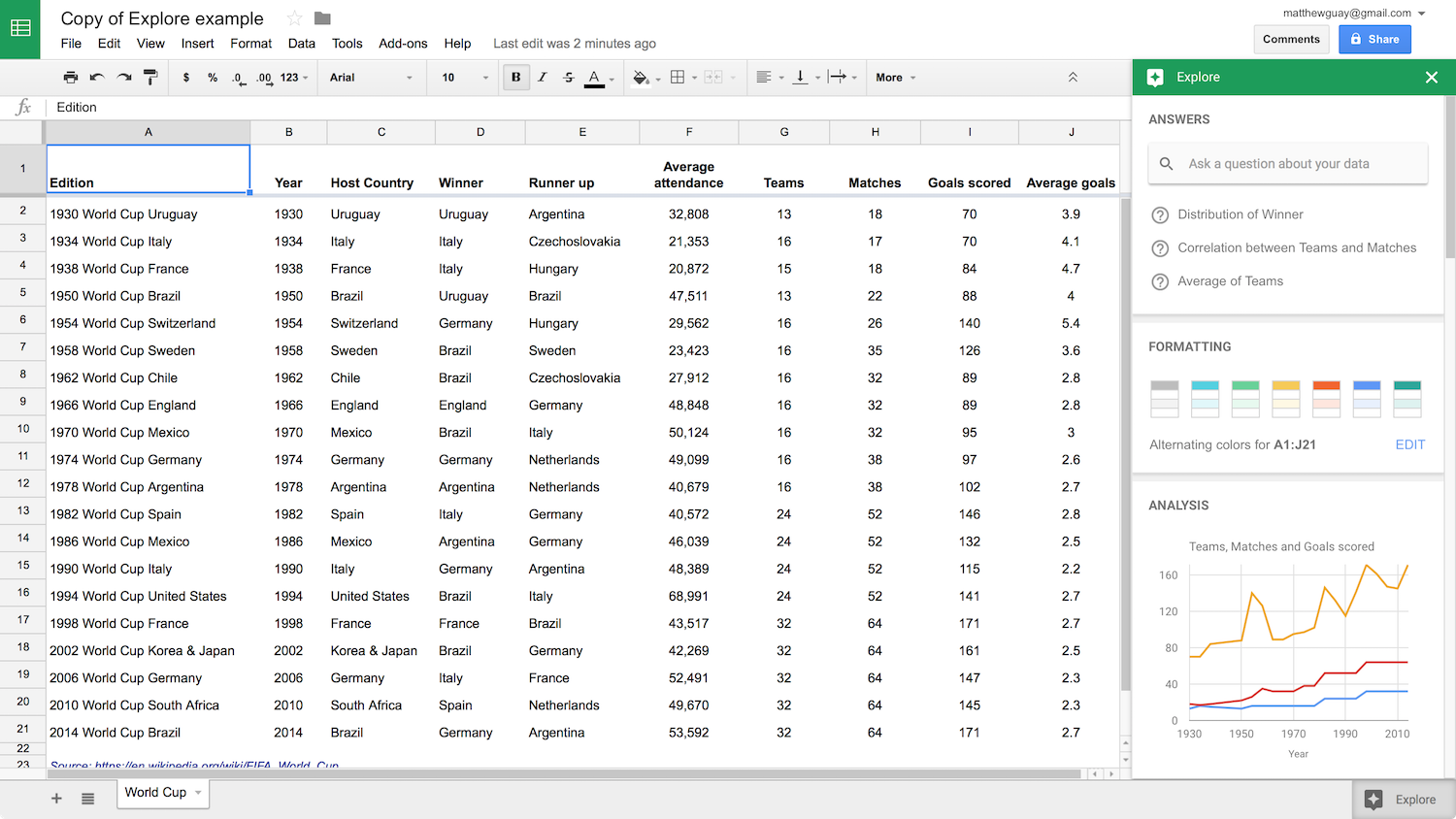
Now that you've got your spreadsheet, tap the Explore button on the bottom right corner of Google Sheets. That'll open a sidebar with Answers, Formatting, and Analysis—each designed specifically for your data in that spreadsheet.

Insert chart from Google Sheets Explore
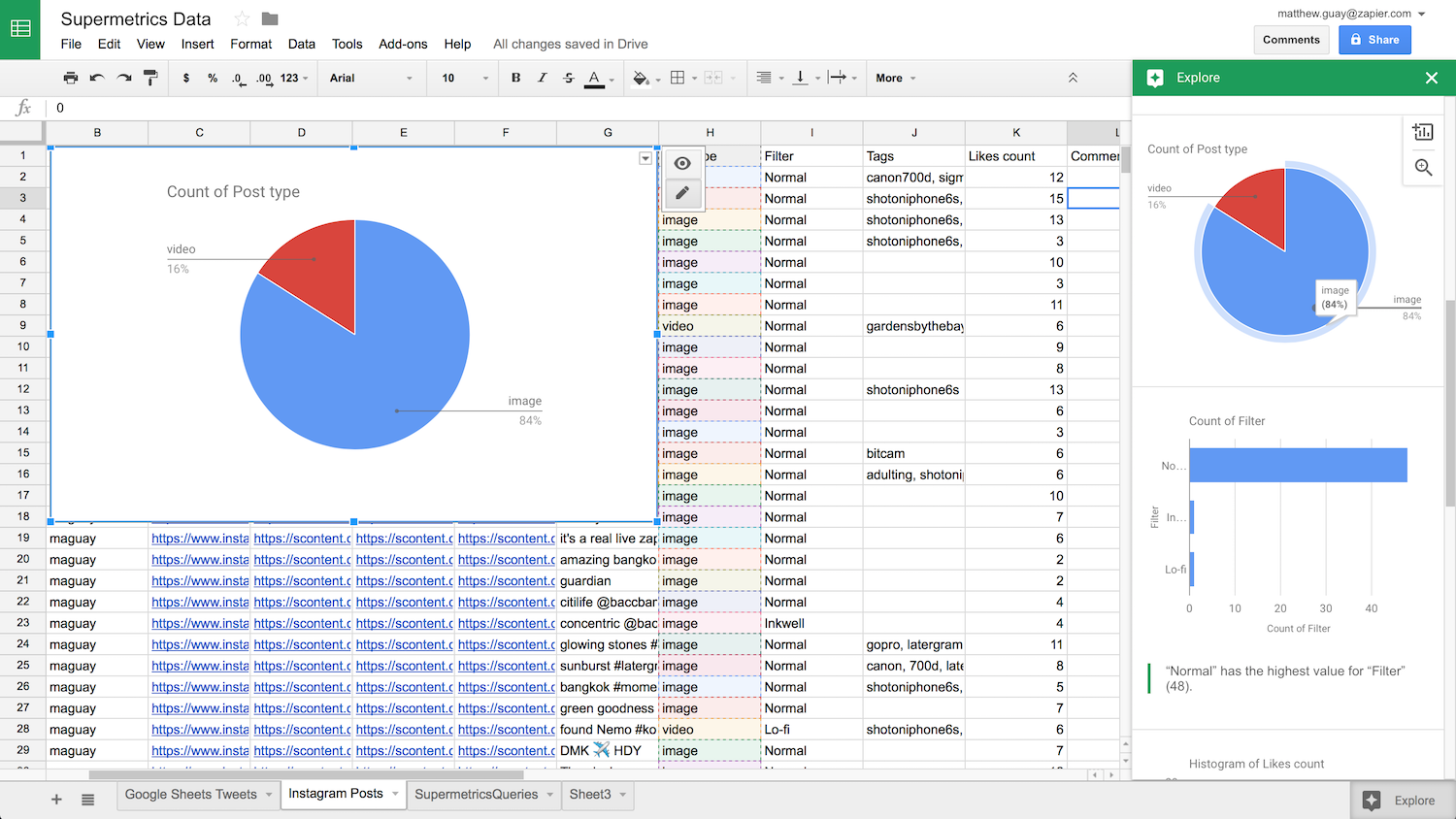
Explore's Analysis tries to make the perfect graphs for your data

Analysis is the most straightforward—it's pre-made charts and stats pulled from your data. Google will look at your spreadsheet, decide some of the best ways to visualize the data, and turn each into charts. Underneath the chart, it'll explain the findings, perhaps telling you the range of the data or how much it changed per year. Tap the magnifying glass to view a full-screen copy of the chart, or tap the + icon to insert it into your spreadsheet.

Google Sheets Explore Formatting
The Formatting options offer a quick way to make your spreadsheet look nicer

Formatting is the simplest tool—just tap one of the suggested color schemes to redesign your spreadsheet. Or, click the Edit button to open your spreadsheet design tools.

Google Sheets Explore Answers
Explore's Answers are one of the most fun ways to explore your data

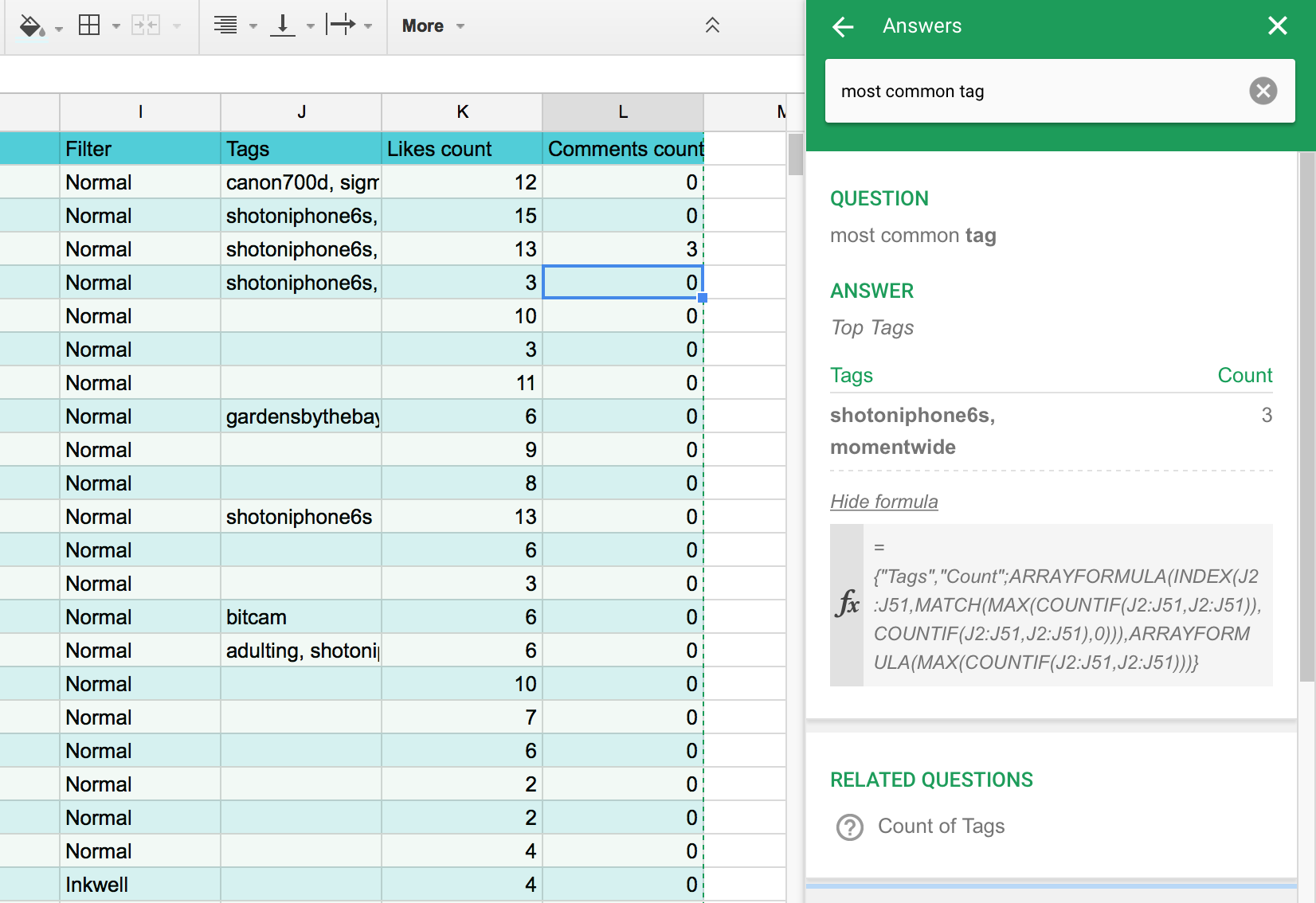
Answers is the most powerful and fascinating part of Explore, the tool that feels like a very simple AI assistant built into your spreadsheet. Google Sheets shows some default questions like "Average of column name" or "Correlation between column 1 and column 2" on the top of the Explore sidebar. Tap them to get that answer, for an easy way to explore your data. Or, select some data on the spreadsheet—say a column of numbers—and the Explore tab will show their sum, average, and other quick calculations in the top right.

To take Answers further, type your own question into the Explore search box. Ask something that's easy to find with a standard spreadsheet formula—such as "Which year had the best sales?" in a spreadsheet with a Year and Sales column—and Explore will likely find the correct answer. To confirm the answer—or just to see how Google Sheets found it—click the See formula link on the bottom of the answer block. That can help you see if the answer was incorrect, too. For example, Sheets used the =Max() formula on the year column when I asked for the best sales year in my spreadsheet—something that only told which year number was the highest (which would always return the most recent year).

So it's not perfect, but it is fun—and the Analysis charts and data are a great way to quickly pull insights out of your data.

Exploring Your Documents

Google Docs Explore
Google Docs Explore helps you research topics from your document

Explore isn't quite as smart everywhere else but it's still handy. In Google Docs, Google's word processing app, Explore will help you do research without having to open another tab.

Just start writing your document, and Google Docs will recognize trends and topics you're writing about. It'll pull the top 3 and show them in the Explore sidebar. It'll then show images and "related research" with a link and preview from Google Search.

The images are a quick way to make your document look nicer without much work—though their relevance may vary depending on your topic. For a school student's report, it can be a handy way find images of the animals or countries they're writing about; for business writing, perhaps less so. Just click the + icon beside an image to insert it into your document, or drag-and-drop it to the spot you want.

Search Google Drive from Docs
Pull up your research and older documents quickly.

The most handy part of Explore in Docs is the search box. Type in anything you want—or click one of those suggested topics at the top—to search for it on Google, Google Images, or Google Drive. The former is a quick way to do research from your doc; the latter is the most useful for quickly opening your older files and documents. Just tap the relevant doc or spreadsheet to open it in a new tab.

Exploring Your Presentations

Explore in Google Slides
Explore can layout your slides in seconds

In Google Slides, the presentation sidekick to Docs and Sheets, Explore tries its hand at being a design tool. Add raw text and images to your slides, then tap Explore and it'll suggest the best slide layouts for that data. It works best with 2 core elements on the slide—say an image and a text box, or two images, or a heading and a text box—and does a decent job at helping you assemble presentations faster.

It still has that same search bar, as well, for a handy way to search the web and your own docs. The image search can be even handier here, too, as you're more likely to need images for your presentations.


Become a Google Sheets Expert with Zapier

Ultimate Guide to Google Sheets

Google Sheets is a powerful spreadsheet app, enough that we wrote an entire book about it. From spreadsheet basics to the best Google Sheets exclusive features, it'll help you do anything you want with Google's free online spreadsheet. You'll see how to build reports, find the best add-ons, and learn step-by-step how to create your own custom apps without coding inside of Google Sheets.

It's the spreadsheet reference guide you need. Download a free copy today!

Data report photo by WDnet Studio via Pexels.


source https://zapier.com/blog/google-sheets-explore-ai/

Tuesday, 17 January 2017

Organize Anything with Airtable: 14+ Database Automations to Try

Imagine you and another chef are preparing a steak dinner for 50 guests. You enter the kitchen with nothing but a butter knife. But your partner's wielding an extra-sharp, top-of-the-line piece of cutlery. They carve up the meat with quick, precise strokes—while you're stuck sawing away.

Some jobs need sharper tools. Just like a great chef's knife, a database can save you time and trouble when it comes to slicing and dicing (in this case, data). The only problem is they're typically difficult to use and often require SQL scripting skills. That's where Airtable steps in and improves things.

Airtable is a drop-dead, easy online platform for creating and sharing relational databases. While databases can get a bad rap among non-programmers for being daunting and hard to work with, Airtable's simple interface is colorful, friendly, and allows anyone to spin up a database in minutes to store, organize, and collaborate on information about anything—like employee directories, product inventories, and even apartment hunting—no SQL required.

Airtable
Airtable reimagines the database with a friendly interface

Databases vs. Spreadsheets

At first glance, databases look much like spreadsheets, with pages of grid lines and tabs. You organize the data in rows and columns just like in a spreadsheet.

Only that's where the similarities end. In a spreadsheet, you'll use functions like =sum(a1:a5) to calculate values and crunch numbers. In a database, you'll typically use SQL queries like SELECT * FROM Customers; to find and compare data. You could compare data in a spreadsheet, but databases are much more powerful and far less easy to mess up.

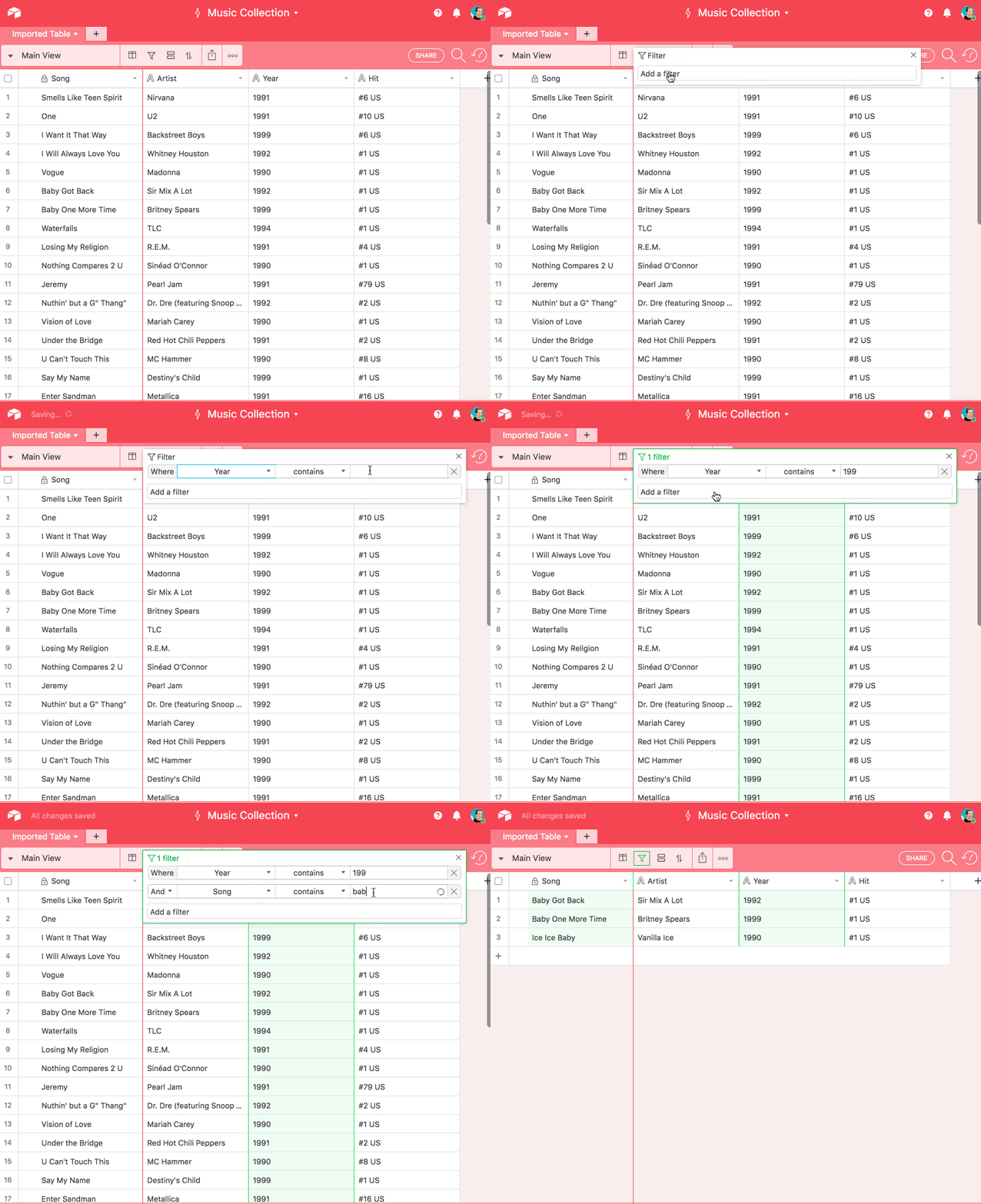
A relational database doesn't just store data, it stores relationships between that data—linking, for example, all of the songs in your music collection with categories such as artist, title, and era. You can then use those relationships to answer questions you have. Storing related data together in a single spreadsheet can be unwieldy and invite errors when you try to sort and compare it, but with a database, for example, you could easily filter by '90s hits with "baby" in the title without modifying your database itself.

Airtable
Easily drill down into your music collection

A basic rule of thumb is a database is more suited to organize a large amount of information. Spreadsheets are the best fit for running calculations. Airtable gives you the best of both worlds: a relational database that's as easy to work with as Google Sheets or Microsoft Excel.

Getting Started: Finding Your Way Around Airtable

If you're new to Airtable or just want a refresher, start here for an overview of the features within the tool. Or, if you've got the basics down pat, feel free to skip ahead to the next section.

Basic Components of Airtable

There are 5 basic building blocks to an Airtable database.

Bases are single databases with all the information you need for your project or interest. Your base might be called "Employee Directory" or "New Car Shopping." A base contains all the data you need for one project. You could start out with a blank base and build it out from scratch, but starting with a template is a good way to take a peek under the hood and get familiar with what's possible. Airtable offers a robust library of templates that are pre-populated with relevant sample data that you can modify with your own. For example, there are templates for a personal CRM, project tracker, and an employee directory.

To use a template, select “+ New Base” from the homepage, choose a template, and then click “Use” at the top of the page. The employee directory template is customized to help keep track of your entire team's roles, start dates, birthdays, food allergies, and more.

Airtable Template
Hit the ground running by starting with an Airtable template

Tables are used to hold a list of data about one particular type of item. Each base can have one or more tables, similar to worksheets in a spreadsheet. In the Employee Directory base, there are tables for the directory and company department, which each hold a list of a particular type of information, like name, birthdate, and social security number.

Airtable Tables
Tables hold data about one type of item in your Airtable base

Each column in a table is called a field. Fields are the equivalent of spreadsheet columns, though fields are designed to bring consistency to your data. Each field has a name and can be customized to hold a wide variety of content, like photos, attachments, phone numbers, checkboxes, and more.

Airtable Fields
Fields are customizable and bring consistency to your data

Records are the database equivalent of spreadsheet rows and cells. Each record is an item in your list. In a table of employees, each record is a different employee, with data in each field to detail their name, department, address, social security number, and more.

Airtable Records
In a table of employees, each record is a different employee

The power of a relational database relies on its, well, relationships. Your records in one table can have a relationship with your records in another table by adding a link. After creating an association between tables, you can use that to get information from the other table. For example, while we're in the employee directory table, we can link each employee to their department. This would display the name of the department on the same card as the employee and make it easy to pull up information about that department at any time. You can expand a record to see all of its information in one place.

Expand Airtable Record
Expand a record to see all its information in one place

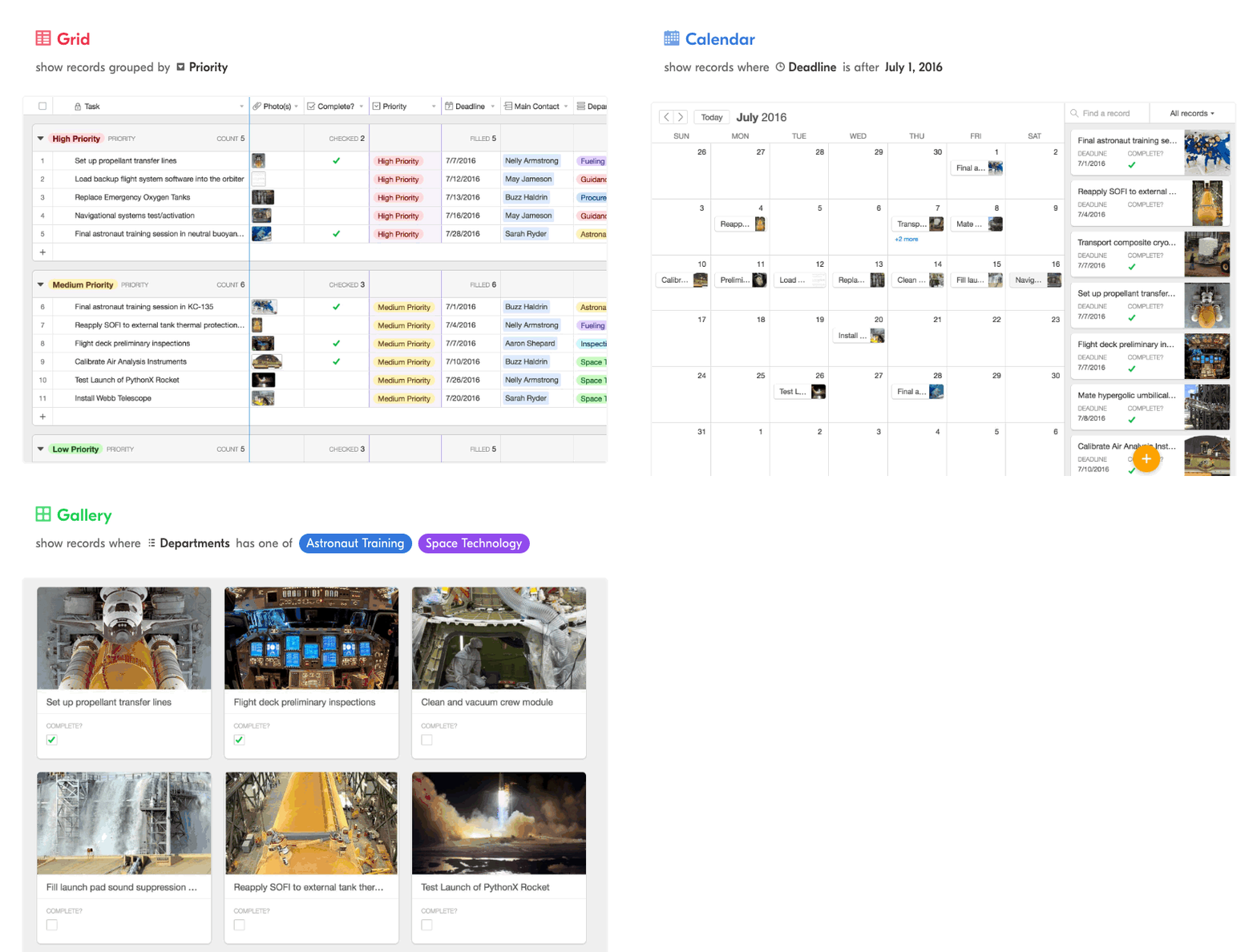
While it can be helpful to view all of your records at once, you can also create multiple views for each table in a base. Think of a view in Airtable like a different lens through which you can see the same underlying table data. These customized views can be useful when you only want to see records fitting certain criteria—perhaps to see all employees in the engineering department.

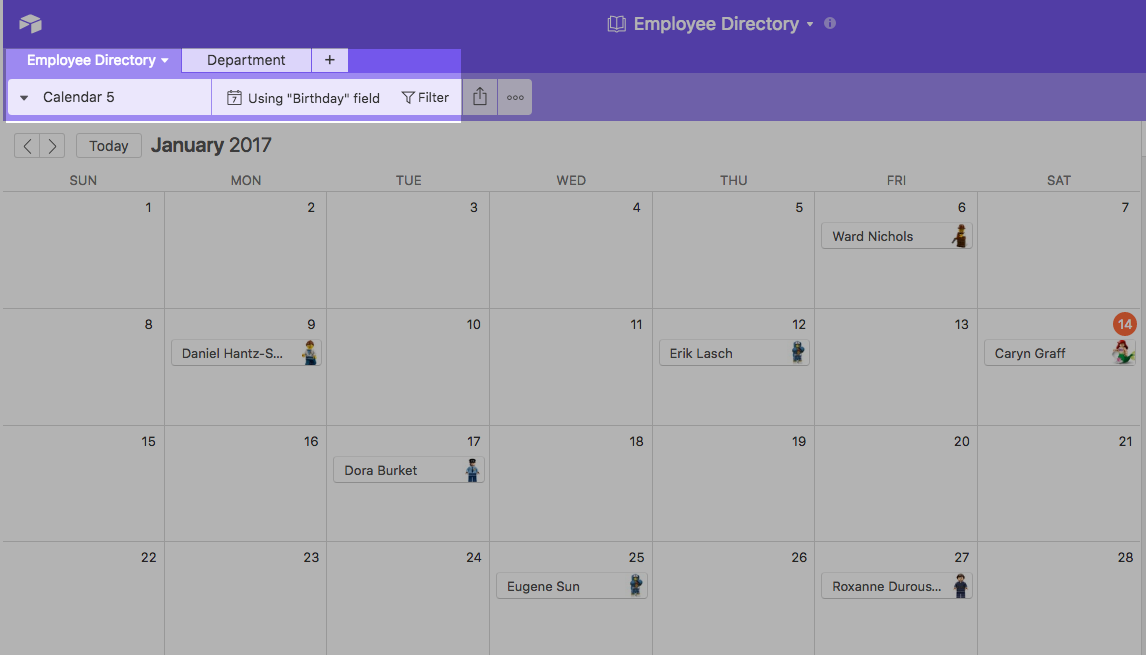
Think outside the grid with visual views. You can create a calendar view, for example, to see employees' birthdays visually.

Airtable Calendar View
Switch to a calendar view to see records visually

A gallery view represents your records as large cards. This view is particularly useful for highlighting attachments to your records like employee headshots and performance reports.

Airtable Gallery View
Gallery view represents records as large cards

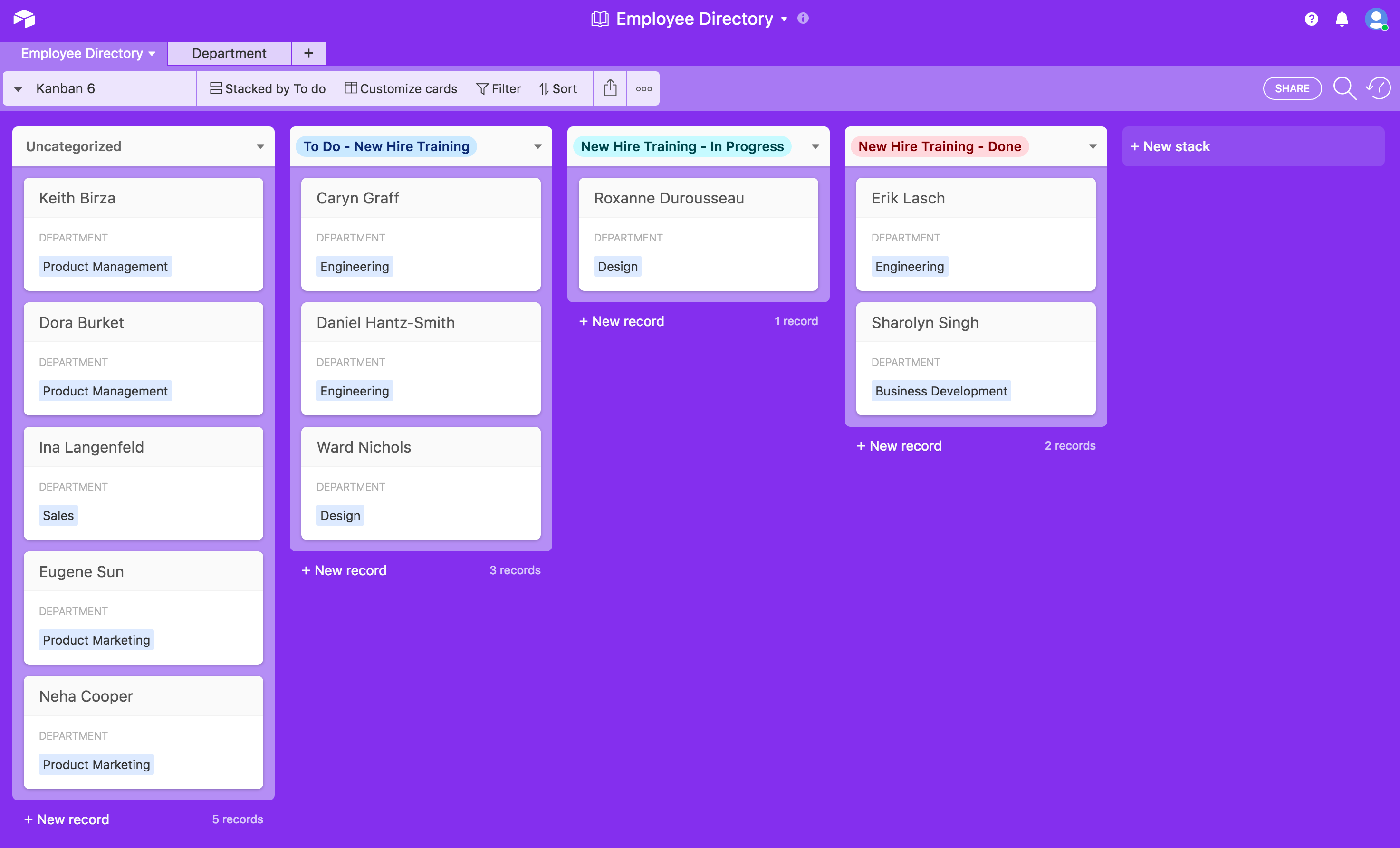
With the Kanban view, you can visualize your records in a board of stacked cards. You can click and drag to move cards between different stacks, or reorder them within a stack—a great way to make a workflow for your projects or show what stage each item you're working on is in.

Airtable Kanban View
Kanban view shows your data as stages in a workflow

Feeling confident enough to build an Airtable database without a template? Use the import feature to upload your existing spreadsheet data and transform it into a customizable base.

Import Airtable Data
Import your existing data to Airtable

As you can see, Airtable's magic is in its flexibility to adapt to whatever you need to organize, however you want to see it.

Take Your Airtable Bases to the Next Level with Zapier Automation

Your information is most helpful when it's up to date. But the copy-and-paste gymnastics can have you bending over backward. By connecting Airtable to app automation tool Zapier, you can fill up your digital filing cabinet automatically by setting rules that pass data between Airtable and your other apps when certain events occur. For example, you can setup a Zap–our term for a workflow–so that you get an email notification when a new record such as a new order is added to an Airtable base. Similarly, you can set up a Zap that creates a new record in Airtable when an event occurs in another app, for example, when a lead is captured via a Facebook Lead Ad.

Airtable is free for unlimited bases with up to 1.2k rows and 2GB attachments per base. Check out our Airtable review for more details on pricing and plans.

Using Airtable with Zapier

Airtable topped the charts as the fastest growing app on Zapier in 2016, with companies of all types and sizes creating Zaps to manage their data. Whether you're running the show or running for coffee, you can connect Airtable to Zapier to create custom workflows that cut out manual data entry. Connect Airtable to the data from the other apps and services that run your business, such as Asana, Evernote, and Slack.

We know getting started is the hardest part, so we rounded up the workflows of 14 professionals who use Airtable and Zapier to eliminate busy work and reclaim their days.

Use Airtable and Zapier to:


Communicate With Customers

"Zapier enables us to automate the nitty gritty while unveiling the big picture."- Maria Zamri, creative director of the Joffrey Ballet School

Never underestimate the power of a happy customer. By checking in with customers who've made recent purchases or requesting feedback on a support interaction, you can make customers feel like superstars. But with all the tasks to tackle during your 9-5, finding the time to manage those timely followups can be hard to come by. One way to save time is to use Zapier to connect the data in your Airtable base with the other apps you use to message your customers. Then, sit back and watch as your satisfied customers transform into your best salespeople.

Send Customized Messages

As creative director of the Joffrey Ballet School, Maria Zamri awards scholarships to prospective students. During dance auditions, her team uses the Airtable app to score the auditions. With all the scores stored in a base, Zamri can easily run reports, filter views, and see a breakdown of how the different dancers stack up. Then Zapier sends out a customized email to each dancer using the data in the base to update them on the status of their audition.

"We love it. Zapier enables us to automate the nitty gritty while unveiling the big picture," says Zamri.

Kick Off Email Campaigns

If you want to carry Pali Hawaii's line of footwear, you first have to go through Ryan Meehan. As the sole distributor of their sandals, Meehan invites new retailers to apply for distribution via an embedded Typeform on his website. A Zap automatically posts the form responses to an Airtable base for review. Upon approval, a second Zap automatically adds that retailer to a list in MailChimp, an email marketing app, and kicks off an onboarding email sequence. Retailers who don't get the stamp of approval get moved to a separate MailChimp list inviting them to submit more information and finalize their application.

"It's hard to put a value on a service that has probably saved me hundreds of man hours and provides me peace of mind," says Meehan. "I know that if my Zaps are all switched on, all the important data I need to run my business will be routed to where it needs to go."

Automatically welcoming new customers is also a key strategy for coffee subscription company Mistobox. Founder Connor Riley says the company uses a Zap to log new subscriptions to Airtable and subscribe those customers to a list in MailChimp. Riley acknowledges this workflow helps them accomplish more in less time, and give their customers a top-notch onboarding experience.

Running an online store? Try starting out with Airtable's Product catalog and orders template to track orders, products, cost, and more.

Build a Feedback Loop

Getting a handle on how customers view your product, support, and company is invaluable, giving you a cheat sheet to creating the experience they crave.

For example, Sam Matthews, operations manager for gap year volunteering charity Time For God manages new volunteers in an Airtable base. By connecting the base to the organization's other apps, he put on auto-pilot a constant feedback loop between volunteers and their managers. When a volunteer completes the placement survey, it kicks off a series of Zaps to alert the team. Zapier searches Airtable for that volunteer's record and pulls the corresponding manager's email address. Then the manager is alerted via email that feedback is ready for review with the survey attached to the email. That way, staff can keep track of how the volunteers settle into and perform in their stations around the UK.

"Zapier and Airtable help us create the best possible experience for our volunteers and placements," says Matthews. "It really does help us to change lives."

If you're collecting data through a form, too, you don't have to build that form from scratch. Airtable forms let you collect information from anyone and save it automatically to an Airtable base. Airtable forms are automatically generated from your existing table, and you then can customize the form by rearranging, adding, and removing fields.

Airtable forms
Collect forms from anyone and save automatically to an Airtable base

College counseling nonprofit ScholarMatch helps low-income and first-generation students work toward a successful future. The team uses an Airtable form to distribute surveys so students and volunteers can raise any questions or concerns. A Zap relays those responses via Gmail messages for staff members. That way, student, staff, and volunteer interactions can be tracked over time.

"Zaps help us connect with most of our apps to eliminate tedium and to alert us in any case when something regular or even unexpected arises," operations manager Courtney Lee says. "Without Airtable and this Zap, we would not be able to be on top of the individual concerns from students and volunteers."

No matter which form tool your company uses to collect information, make sure that data gets added to your base, too. John Schwarzlose, social impact analyst for the nonprofit business incubator SEED SPOT uses a JotForm form to collect feedback from program participants, mentors, content experts, and job applicants. His team long used multiple spreadsheets to log stakeholder data. While this worked well to store line item details, it left the team in the dark when it came to seeing the big picture. Schwarzlose now has Zapier turn new form entries into Airtable records so that their surveys and forms are less static.

"This has created huge value for our operations," Schwarzlose says. "The right team members are able to respond to relevant information and manage our key stakeholders."

Collect and Manage Applications

If you're spending too much time organizing a stream of applications for your business, Airtable can save the day. Paired with Zapier, you can move application data in and out of your base with ease.

Roomeze, a roommate matchmaking and room rental service, uses Airtable to store all their roommate and apartment information. When a new roommate applies through an Airtable form, a series of Zaps spring into action. A welcome note and a deposit agreement is sent out via email. From there, a Slack notification prompts the team to celebrate the deal and a folder is created in Google Drive to store all the related documentation.

"Zapier automates our entire back-end," says cofounder Sam Boyer, "We were able to streamline our staff thanks to these Zaps."

Manage Reservations

Whether your customers are booking a table for two or the trip of a lifetime, make sure you have the right measures in places to greet them with open arms.

As a young company with limited bandwidth, Seashine Adventures uses automation to do the heavy lifting and ensure they don't miss out on closing a deal—or worse—leave someone stranded in another country. They use Zapier to automatically send details of booked yacht charters to vendors and guests and build out an Airtable base as an all-knowing CRM.

"Taking care of our clients is extremely important," says Michael, owner of Seashine Adventures. "Imagine forgetting to email charter details to the boat crew—a month later that guest shows up at the dock, and no one has ever heard of them. Now we automate all of that, so everyone knows what's going on. That means peace of mind and huge time savings."

Meal delivery service Eat Offbeat also uses Airtable to store order information, triggering notifications to the team with Zapier. When new catering orders are approved by the kitchen, a Zap searches for the order in Airtable and updates the record. An additional step added to the Zap alerts the team via an SMS message of the new order so they have the green light to cook up a storm.

"Before we started using Airtable and Zapier, things were crazy," says CEO and co-founder Manal Kahi. "This workflow has significantly reduced the amount of time spent on processing per order."

No matter how you prefer to alert your team and patrons of new reservations, you can use the data in your base to ping your contacts with Zaps like these:

Share Collections, Ideas, and Content

"Using Zapier is faster. It has greatly reduced the number of errors made in our outreach process"- Vinay Patankar, CEO of Process Street

Trying to bring order to your ideas often only ends in an even messier system. Ideas evolve, deadlines shift, and direction changes. But when your content is neatly categorized in Airtable, it can help make the rest of your to-do list a whole lot easier. Plus, you can pair Airtable with CRM software and other powerful outreach tools to spread those ideas far and wide.

Create an Editorial Calendar

A good editorial calendar can make your publication-related tasks a breeze. But while a static calendar can help you plot out when a new piece of content is launching, it falls short of storing the many other milestones that go into content creation—like managing art assets, requesting edits, and lining up promotion. Organizing your article ideas in Airtable can help you create a tidy but flexible pipeline of your next big thing.

Workflow software company Process Street uses Airtable as a master content marketing database. Their base uses different field types to hold different types of information related to a piece of content. Date fields identify the deadlines, while single select fields track the current status of each story, mark the section of the blog where it will be shared, and assign a responsible editor.

Airtable Editorial Calendar
Use Airtable as a master content marketing database

When connected to Zapier, the content calendar is transformed into much more than just a point of reference. For content curation, a Zap adds new posts from RSS to the base automatically. Launch checklists are executed in Process Street to maintain accountability and order, and contacts in CRM app Close.io are alerted of the new material.

"We used to manually copy and paste all new posts into a spreadsheet, trigger checklists in Process Street, and mess around with exporting and importing contacts to our CRM," says CEO Vinay Patankar. "Using Zapier is faster. It has greatly reduced the number of errors made in our outreach process."

Maintain an Archive

Artist Johanna Flato uses Airtable to automate and organize the research archives for an ongoing stream of visual research shared publicly via Tumblr. Whenever she adds a new note to Evernote, the details are passed to Airtable to create a new record. Then, after sharing on her blog, the post is funneled back to Airtable with all the details like images, title, caption, and URL mapped to their designated fields. That way she has a complete view of the stories she's told.

"Zapier allows me to simultaneously maintain a more robust and detailed personal database in Airtable," Flato says.

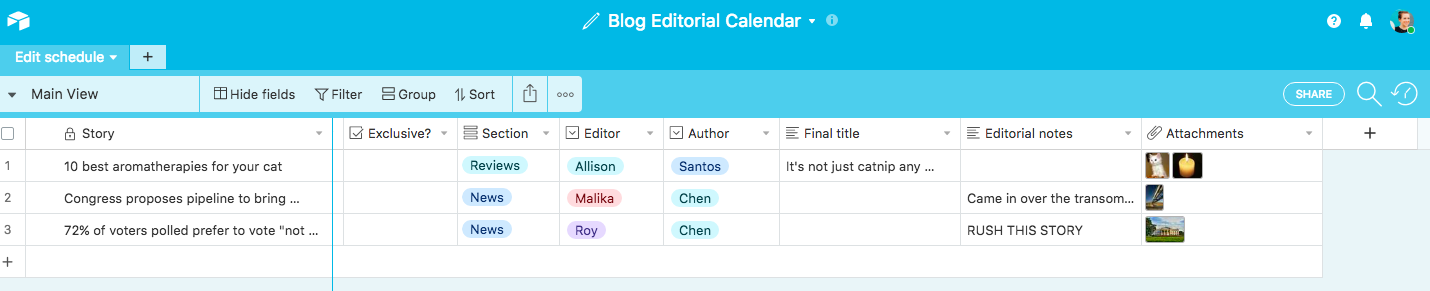
Whether you're curating articles or art, it's easy to create your own content database by using Airtable's Blog Editorial Calendar template as a starting point. From there, you can add new fields to suit your own company's process. For example, add an attachment field to store each article's art assets.

With Airtable's handy calendar view, you can still get an overview of when content was published or when it's scheduled for. Switch to a calendar view to display your records as cards on a monthly calendar.

Airtable Blog
View blog posts in a grid, or switch to a calendar view

The calendar view is a simple way to easily rearrange publication dates. Need to reschedule an article? Just drag and drop the record to its new date.

Simplify Business Operations

Your time is valuable and sifting through invoices and struggling with reporting isn't the best use of it. From bank transactions to key metrics, the flexible framework of Airtable can handle any content you throw at it. Here's how you can fine tune your business by streamlining and simplifying your operations.

Settle Accounts

For The Brake Room, a bike cafe in Ontario, Canada, simplifying operations means automating the bookkeeping. Electronic funds transfer (EFT) transaction records are maintained in an Airtable base, and owner Adam Tilley created a Zap to make sure bank transactions are associated with the correct vendor. The Zap parses new transaction emails for the name, recipient, and transaction value. Then Zapier searches Airtable for a record that matches the transaction value. When a match is found, Zapier adds the name of the recipient alongside the rest of the transaction data to the Airtable base.

Tilley added his bookkeeper as a collaborator to the base, so he can post any more questions about that transaction once the record is updated.

"A Zap like this is a perfect utility to have on my tool belt," Tilley says. "I can rely on this Zap to help me save at least one hour per month. That single hour earns me 10x the income that Zapier costs per month."

Insights emerge when you share data with a team. That's why Airtable was built with collaboration in mind. Worried about overwriting your teammate's work? Don't sweat it. Airtable supports real-time editing and sync so that changes made on the fly are available to anyone—and Airtable keeps a revision history so you can roll back any unintended changes. When people make changes to the same base simultaneously, their profile photos will appear in a record while they are actively editing it. You can also comment with @ mentions to get someone's attention.

Airtable Mentions
Collaboration is at the core of Airtable

Report on Key Metrics

When new information arrives from seemingly every angle, it can feel overwhelming to wrap your mind around the big picture. That's when reporting can feel unmanageable.

Amber Sehnke, an administrative assistant at Sam Carbis Solution Group, is familiar with feeling overwhelmed. Before overhauling their process, getting a report out the door was time consuming and inefficient. Now her team uses Zapier to funnel leads from multiple sources into Airtable. From there, she can filter and pull reporting with ease. The result? Less time spent crunching numbers and more time to follow up on leads.

"Airtable is our one-stop-data-shop," says Sehnke. "Instead of spending time sorting through and exporting data from various sources, we spend our time using the data in valuable ways that create results for our business."

Real estate and property management lead generation company Geek Real Estate Marketing sees great value in speedy reporting too. They use Airtable as a way to store all of their customer and lead information. Using Zapier, they've eliminated the headache of reporting for customers who require near-immediate access to data.

"Zapier and Airtable are the glue of our business," says owner Dylan O'Neil. "For us, it's more powerful than a spreadsheet but much simpler than setting up a true database. This combo is in the top three essential things that keep our business running."

For a starting point when building your own real estate database, check out Airtable's Real Estate template.

If you're not ready to give up your CRM entirely, you can still reap the benefits of Airtable's easy reporting. As the director of digital strategy at Insurance Forums, Justin Blase passes new leads from form capture tools like Facebook Lead Ads to Airtable, before sending them along to the company's CRM. That way, he and his team can take advantage of the relational database capabilities that allow for slicing, dicing, and segmenting the data easily. Once a lead in the CRM is tagged as "converted," another Zap sends the status back to Airtable to find the contact and update the record with the product they purchased.

Best of all, Blase acknowledges that streamlined reporting leads is a gateway to better campaign performance.

"Before putting the Zap in place, it was very easy to put off pulling performance data for analysis because it was such a tedious process," Blase says. "Now, not only do I not have to spend time pulling data manually, but all of my lead generation campaigns perform better because the feedback loop allows for easier and more frequent campaign optimization."


These are just a few ideas on how to automate your work day with Airtable and Zapier. With powerful yet friendly tools, the possibilities are endless. Feeling inspired? Build your own Airtable workflow on Zapier or use one of the templates in this article to get started.

How do you and your team use Airtable and Zapier? Share your ideas with us in the comments.


source https://zapier.com/blog/airtable-automations/

Monday, 16 January 2017

How to Force a Public Wi-Fi Network Login Page to Open

You open your laptop in an airport, at a coffee shop, or perhaps in your hotel or conference room. You sit down to work, select the correct Wi-Fi network, and … nothing. Your Wi-Fi icon may even show it's connected, but your browser says You are not connected to the internet no matter how hard you try. That popover login screen just never loads.

We've all been there. As a remote team that often works from coworking spaces and coffee shops, we've wasted far more time than we'd like to admit just trying to get connected to the internet.

There's no magic button to guarantee an internet connection, but these tricks get us connected most of the time.

The Best Option: Connect to a Secure Network

Wi-Fi login
When possible, always opt for a secure network, often shown with a padlock

The typical problem of the Wi-Fi login screen not showing up is a problem only with open, public, unsecured Wi-Fi networks. If you connect to an open network at your friend's house, say, typically you won't need a password and can just start browsing the internet directly. At a coffee shop or airport, often you'll need to create an account or enter a code from a receipt before browsing the full internet—and it's that login screen that just won't load.

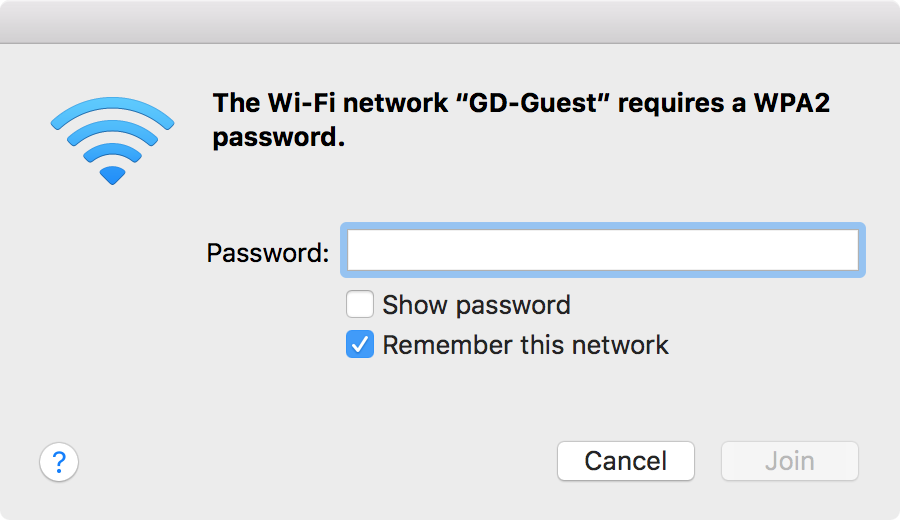
The best solution is also the most secure one: Opt for only encrypted Wi-Fi connections. Typically shown with a padlock beside their name in your Wi-Fi menu, encrypted networks will ask for a password in a standard dialog like the one above. Once you've entered the password, you'll typically never need to do it again on that device as your computer will remember it.

On a public Wi-Fi network, by default anything you enter on an unsecured, non-HTTPS site could be viewed by anyone else on the network. Encrypted networks with WPA2 passwords are far harder to attack and thus your data is likely safer.

Some networks offer both an encrypted and public, open network and you could log into either one. If so, choose the encrypted network.

If not, these tips should help you get that pesky open network login screen to load.

1. Turn Off Alternative Party DNS Servers

DNS Settings
You might speed up your internet with a different DNS server—but not when connecting

If there's one other tip to remember, it's this one—it's the trick that usually gets the login page to load for me:

Turn off your alternate DNS server.

DNS servers, also known as domain name servers, match domain names such as zapier.com to its server's IP address–making it much easier to visit websites than typing in 52.207.119.96.

If you don't know where to change your DNS settings, you're likely fine; your computer by default automatically picks up a DNS server from the Wi-Fi router, and so you'll get the DNS server your public Wi-Fi expects you to use automatically. And that's good, at least with public Wi-Fi: Your login page is more likely to load, and you won't need these tips.

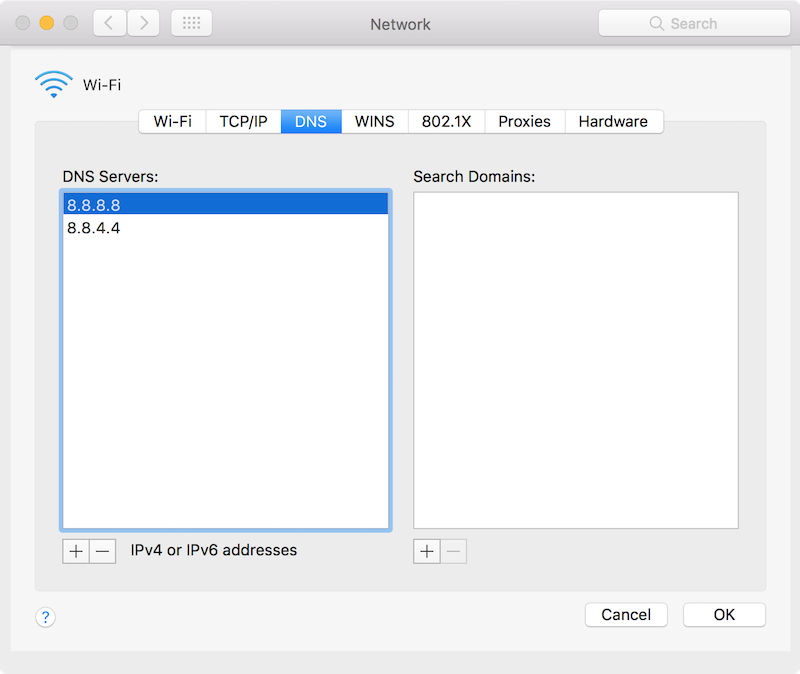
If you've ever added Google DNS, OpenDNS, or any other alternative DNS to your network settings, though, that may be your problem. Many public Wi-Fi networks use their DNS server to tell your computer which login page to open–something that doesn't work when you're using an alternative DNS server. To fix that, just open your DNS settings and remove any alternate DNS servers. Here's how:

  • Mac: Open System Preferences, select Network, Advanced, and then click the DNS tab. Select any DNS servers listed, and then tap the - button to remove them and apply your changes.
  • Windows: Right-click your network icon in the system tray and select Open Network and Sharing Center. Click your connection name (typically Wi-Fi), select Properties, then click Internet Protocol Version 4 and select Properties again. There select Option an IP address automatically to use the default DNS servers.
  • iOS: Open Settings, select Wi-Fi, and tap the i button beside your network name. Tap the DNS field and delete any text there.
  • Android: Open Settings, select Wi-Fi, and long-press on your network name then tap Modify Network. There, delete any text in the DNS field.

With that done, try turning off your Wi-Fi and turning it back on—and the login screen should come up.

If not, you might need to clear the DNS cache on your computer. Here's how:

  • Windows: Open Command Prompt, and enter ipconfig /flushdns
  • Mac: Open Terminal, and enter sudo killall -HUD mDNSResponder

Now try re-connecting to your Wi-Fi connection, and it should work.

2. Try to Open the Router's Default Page:

Gogo internet login screen
If you can guess the login page for your Wi-Fi network, sometimes you can get it to open.

Still not connected? It's time to try to force your browser to open the login page.

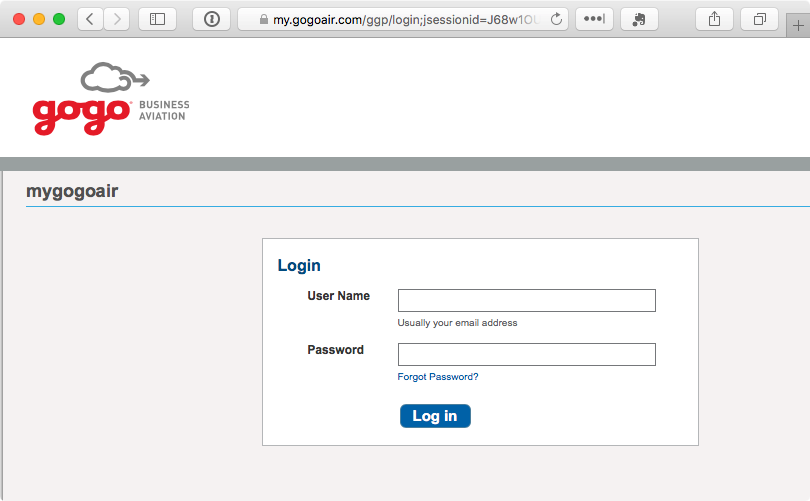
An easy trick is to load the router's default page. Try entering 192.168.1.1, 127.1.1.1, or http://localhost in your browser address bar, and you just might get the default login page to load (or, you might see a router settings login page—in which case, don't try to login unless it's your home router).

network IP Address
You can find your router's IP address from the Network settings

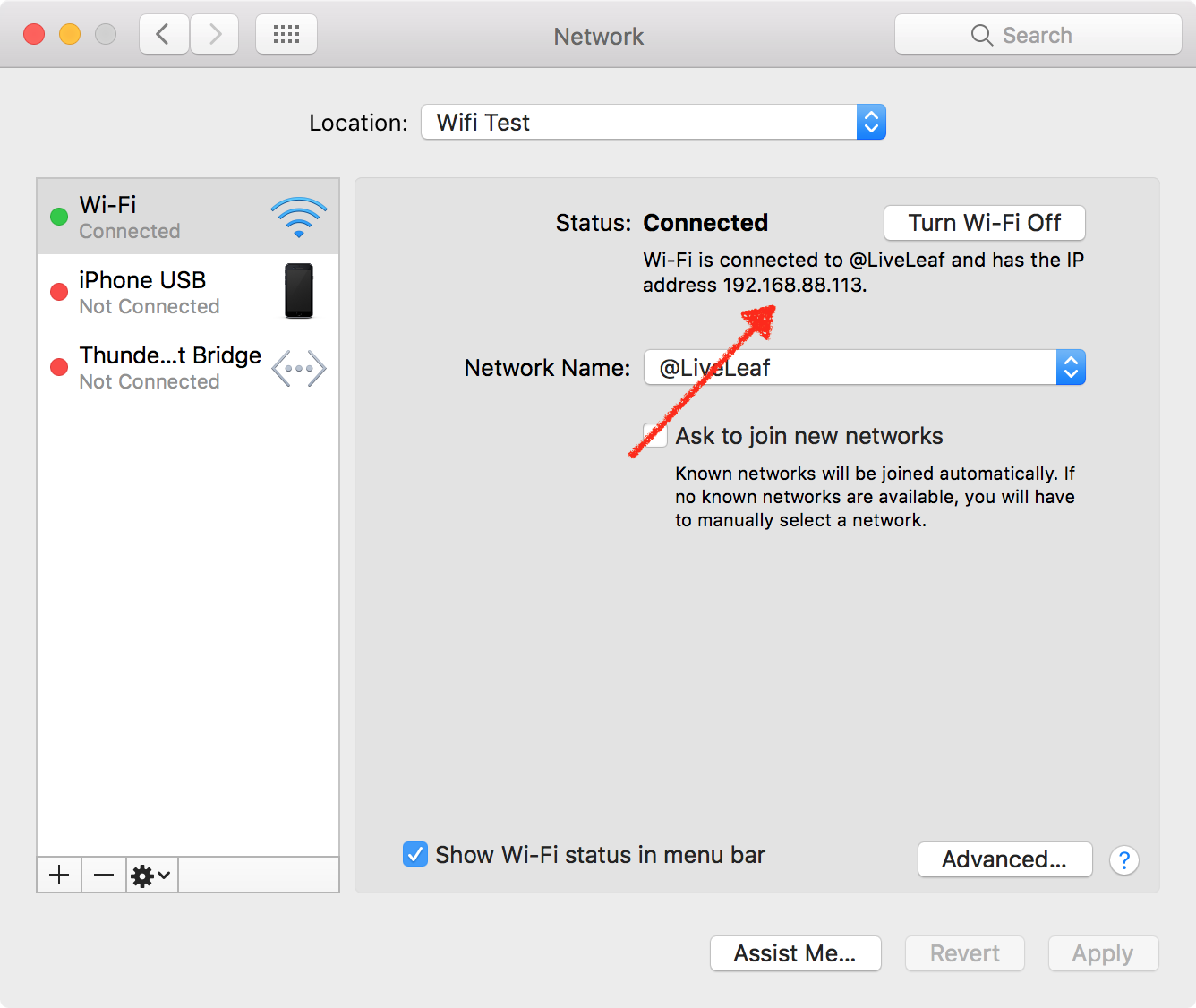
If that doesn't work, open your network settings again, and note your computer's IP address as in the screenshot above. Try entering that IP address in your browser, replacing the last number with 1. Or, check the TCP/IP tab in your Network settings for the router's own IP address if that doesn't work.

Or, if you're trying to connect to a company's public Wi-Fi network—perhaps Gogo internet on a flight or your cell carrier's Wi-Fi network in a mall—try opening that company's own website. Most public Wi-Fi networks let you browse their company site without logging in, and they often have a link to their Wi-Fi login page. For instance, on a Delta flight, I opened delta.com and was able to get info on the flight and finally get the Wi-Fi login page to load.

3. Open a Non-HTTPS Site in Incognito

Example.com
Sometimes you just need to try loading a new page

The problem could be just that your browser cache is still trying to use the DNS info it knows to access sites, instead of loading the Wi-Fi login page. And sometimes you can break it out of that loop by visiting something new.

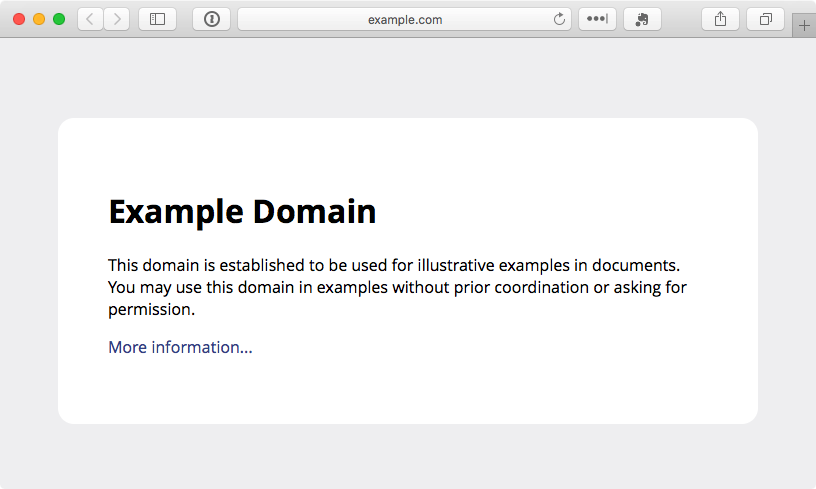
You could clear your browser cache, but that's annoying as you'll have to log back into everything. Instead, open an Incognito window in your browser, which loads with a clean slate. Then try visiting a non-HTTPS site; example.com is a great option as it's non-secured and maintained by ICANN. That might jar your browser into action and get it to pull up the login screen.

4. Create a New Network Location

network location
On Macs, a new network location gives you a clean networking start

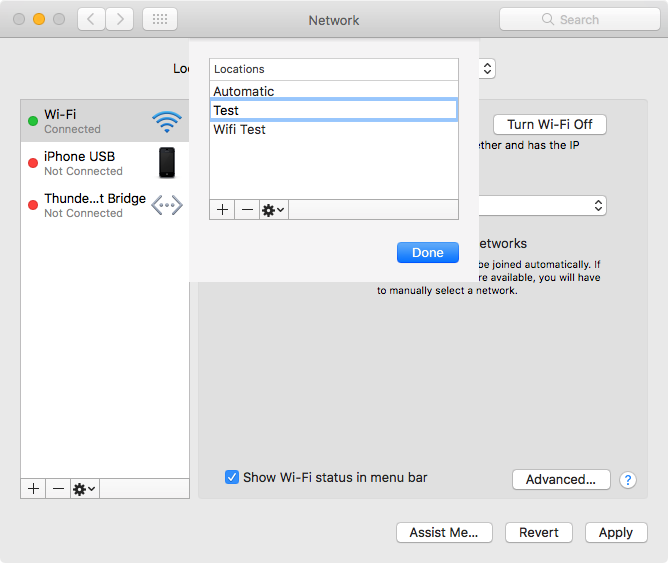
On a Mac, there's another simple way to clear your network settings and likely get the login screen to load: a new network location. Network Locations store your network settings for different locations, perhaps to make your computer use a different DNS at home than at the office or for an easy way to change which networks you connect to by default.

Just open your System Preferences and select Network again. Click the drop-down at the top, select Edit Locations, then click the + icon and add a new location. Select it, and then try to connect to the network you want.

Just remember to switch back to your default network location when you're back at your office or home.

5. Restart

Sometimes nothing works. In that case, do the one thing that typically fixes every electronic device: Restart.

  • Turn off your Wi-Fi, then turn it back on.
  • Didn't work? Try logging out of your account on your computer and then log back in—or just restart the whole way.
  • Still stuck? Maybe clear your browser cache.
  • That didn't work? Might be time to ask around and see if anyone else can use the internet. Perhaps it's the router that needs restarted.
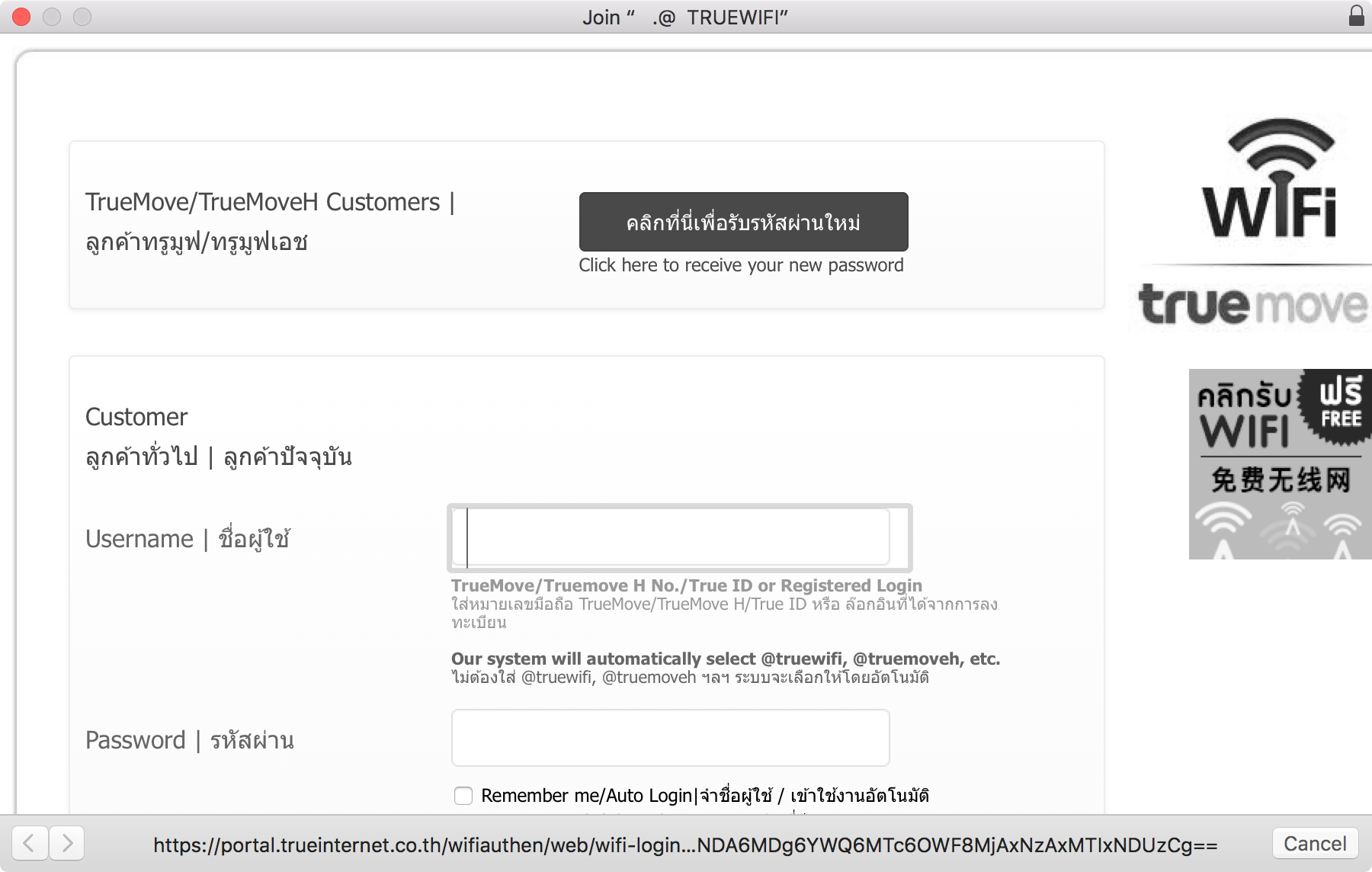
network login screen
That evasive Wi-Fi login screen

With any luck, you should be able to get the Wi-Fi network screen to load and can get back to work—hopefully without trying everything in this list!


Stay Secure on Public Networks

TunnelBear VPN
A VPN (virtual private network) makes any network more secure (TunnelBear pictured)

You've gone to all that trouble to get connected to a Wi-Fi network—but don't stop there. If you're browsing on a public Wi-Fi network, you should also be using a VPN to encrypt your data and keep it secure from prying eyes. And, you may need to use a VPN to access your company's internal data and services.

For around $5-10 per month, you can get a VPN connection, typically with apps that make it easy to use on your computer and mobile devices. Services like TunnelBear, NordVPN, ExpressVPN, and others make it easy to use a VPN—and TunnelBear even offers 500MB of free data per month if you only work out of your office or home occasionally. Or you could set up a VPN server on your own hosting account or server using OpenVPN or a similar tool.

Either way, remember to turn it on whenever you're on public Wi-Fi. Free Wi-Fi is not worth losing your data.

Free Wi-Fi sign photo by Clarice Barbato-Dunn via Flickr.


source https://zapier.com/blog/open-wifi-login-page/

Saturday, 14 January 2017

Leica Disto d510 Review

The Leica Disto d510 Review is an excellent laser measuring tool that can help make a wide range of jobs easier.

Forget using a tape measure the next time you need to drill a hole in a piece of wood, or measure the length of… a piece of wood! Instead, you can simply hold the device at one end and get a precise reading for the length and know precisely where you need to cut. The same goes for hanging pictures, for measuring space for furniture, or for creating precise floor plans as a property developer or realtor.

This is one of many laser measuring tools though and one of many laser measuring tools from Leica to bare the Disto name in fact. How do you know if you’re getting the right model and whether you need this particular gadget? Read on and let’s take a closer look at the Leica Disto d510.

Product Description: Amazing Accuracy and a Slew of Features

We’ve been using the Leica Disto d510 for a while now during our review period and we’ve found that it is highly accurate and comes with all the features you would expect.

The device itself has the look of an old Nokia phone. It is small, oblong and a little bit rubber.

Also like a Nokia though, the device is highly durable. Do you remember people claiming that you could shoot a Nokia 3310 with a bullet and it wouldn’t show a scratch? Regardless of where such absurd claims came from… this device too can survive a fall and also an awful lot of dust in your workshop thanks to the IP65 rating.

As with other laser measurement tools, the Leica Disto d510 has a fold out attachment that you can use to fix into place and from there, it will let you know precisely where to cut.

But it’s the full color screen and digital ‘point finder’ that really puts this device above the competition. This is designed for outdoor use and essentially allows you to use cross hairs on the screen to line up your shot and then calculate the distance of any element that you can point it at.

Pros and Cons: Great Features and Durability, Not for Everyone

That camera is perhaps the big selling point of the Leica Disto d510 and is something that will be very useful for a range of applications. If you find yourself taking outdoor measurements – perhaps for landscaping or measuring the height of your gutters, it is going to come in handy indeed. In fact, the Leica Disto d510 is designed specifically for outdoor use, despite its slew of indoor features.

The Leica Disto d510 also wins points for its water and dust resistance and its shockwave build quality. You get a ton of extras in the box too, such as a pounch with a belt loop, and a wrist strap.

The downside is that this is an expensive tool and that the features won’t appeal to everyone. There’s no mention of a level for instance, which will come as a disappointment for some users (though you can get a tripod with one built in). The screen is also very slow to update and not particularly large or crisp, which is again a bit of a let down considering the price.

Still though, this is one of the very best in its class and really the only question you need to ask is whether you actually need that screen or the other outdoor features. If you mainly work with wood in your own workshop, then a cheaper option like the X310 might be a better pick.

Conclusion: A Great Device for Outdoor Measurements

To conclude then, this really is a well made piece of technology that does exactly what it claims and does it well. There are no bells and whistles though: the lack of level is a shame and the screen is small and slow.

The question then is whether you’re willing to pay extra for those features. And the answer to that is likely to come down entirely to the kind of work you’re doing. For some users, this tool will be a Godsend.


from Toolerant http://www.toolerant.com/leica-disto-d510-review/

source https://toolerant.tumblr.com/post/155852329960

Thursday, 12 January 2017

The 12 Best Video Conferencing Apps for Teams

In 1884, eight years after Alexander Graham Bell and Thomas Watson had the world's first phone call, industrialist John Jacob Astor IV published his predictions for the 21st century. Along with ill-fated predictions of steel-covered roads and the discovery an anti-gravitational force, he also foresaw video calls.

"Telephones have been so improved that one person can speak in his natural voice with another in any part of the globe, the wire that enables him to hear also showing him the face of the speaker," wrote Astor. Wires aside, that prediction came true.

Video calls came in starts and fits. The earliest came from AT&T's labs in 1927, with a room full of equipment. Public videophone booths were available by the 1970's, and in the early 1990's you could buy a video phone for around $1,000.

Then, apps and wider bandwidth came, and video calls and conferencing became more ubiquitous–as long as you had a decent internet connection and a capable device, that is. Today, if you're shopping and want advice from a friend, a video call is only a couple taps away. If you need to interview or consult with a dozen people who live in another city, you can do so face-to-face without leaving your desk. Sometimes, FaceTime is clearer and cheaper than a "normal" phone call.


And yet, team video calls can still be an exercise in frustration, with delayed video, glitchy graphics, and batteries drained in minutes. We know.

As a fully remote team, Zapier relies on video conferencing to hold team meetings, share ideas, and check in on each other. We've tried a lot of video call apps—and have suffered through one too many terrible calls. And so, after trying nearly two dozen video conferencing apps, we've settled on the ones that consistently work well.

Here are the best apps to make a video call whenever you want, including our team favorites: Zoom, Appear.in, and Hangouts.


App Icon:  Best for: Free for: Plans from:
Appear.in Appear.in Quick, small group chats in a browser 8 users $12/mo
FaceTime FaceTime One-to-one video calls that feel as simple as a phone call 2 users N/A
Gruveo Gruveo Receiving one-to-one video calls in your browser with a dedicated line 2 users $12/mo
Slack Slack Making a call directly from team chat N/A $8/mo
Zoom Zoom Reliable, clear group video calls 50 users $14.99/mo
Google Hangouts Google Hangouts Quick calls from Google Calendar 25 users N/A
GoToMeeting GoToMeeting Professional video conferencing and webinars 3 users $19/mo
BlueJeans BlueJeans Video conferencing from any device N/A $19.95/mo
Rabbit Rabbit Showing a video to a group 25 users N/A
Pexip Pexip Presentations across multiple video conference systems N/A $25/mo/user
Join.me Join.me Collaborating in a call 10 users $20/mo
Cisco WebEx Cisco WebEx Working around a virtual whiteboard 3 users $24/mo

The Best Quick Video Call Apps

You've got an idea and want to run it by team members quickly, without a lot of unnecessary back-and-forth. Or you want to check in on a coworker and see how a project is coming along. All you need is a quick way to make a video call, without any hassle.

These apps are the ones we turn to for that.

Appear.in (iOS, Android, Web)

Best for quick small group chats in a browser

Appear.in screenshot
A browser and internet connection are all you need for Appear.in calls

Open your browser, go to appear.in, and click Start (or enter your own "room" name, if you don't want an auto-assigned name). Now copy the link, share it with your colleagues, and up to 7 other people can join you in the call for free.

There's a chat pane to share text and links, stickers to cover your face, and an option to share your screen if you install a browser plugin. You can even start a new call right from Slack with the /appear command. It's hard to imagine a simpler way to have a video conference—and it's the tool many in the Zapier team grab when jumping on a quick call.

Appear.in Price: Free for unlimited calls with up to 8 people; $12/month per room Premium edition for 12 people per call, screensharing alongside video, and custom branding (currently in beta)

FaceTime (iOS, Mac)

Best for one-to-one video calls that feel as simple as making a phone call

FaceTime screenshot
It's just a call—and it works every time.

The simplest way to make a video call with one other person is built into your iPhone's Phone app: FaceTime. As long as you and your colleague have a Mac or iOS device, you can make a quick audio or video call over your data connection. Odds are, it'll sound great, too—even over congested airport Wi-Fi.

It's just a call, though. To chat, you'll need to use iMessage—and on iOS, switching apps turns off your video—and there's no way to share your screen. But for a quick, clear video call, it's hard to beat.

FaceTime Price: Free with an Apple device

Gruveo (iOS, Android, Web)

Best for receiving video calls in your browser

Gruveo screenshot

Want your own video call phone number that anyone can use to chat with you at any time? That's essentially what Gruveo offers. It's as simple as Appear.in, though only for 1-to-1 calls, making it a great alternative to FaceTime. And it includes a chat sidebar for quick collaboration.

It's best feature, though, is direct codes. You can register your own @name on Gruveo and share a simple gruveo.com/name link to let people call you. Then, instead of putting your phone number on your site, just leave Gruveo open in a pinned tab (or install the Gruveo Chrome extension) and you can receive video calls anytime anyone needs to get in touch.

Gruveo Price: Free; $12/month Pro plan for screen sharing, custom branding, and info about callers

Slack (Mac, Windows, Web)

Best for making a call directly from team chat

It started out as a whimsical take on a team chat app, one that made discussing business plans and deadlines a bit more fun with emoji and GIFs. Today, Slack is one of the most popular team chat apps, and it's taken chats beyond just text and images.

Slack added 1-to-1 voice calls to its desktop and mobile apps in June 2016, following up six months later by adding a video to those calls. To call a colleague in Slack, just open a channel or Direct Message and click the phone icon—Slack will start the call in a new window and add a notification to the chat. Calls feel a bit more like a normal phone call with video added on. You can tap the video icon to turn on video, or just make a quick voice call if you'd like, which might be the fastest way to discuss something that'd take too long in chat.

Up to 15 people can join the call, for now, and you can only make video calls on desktop. What they lack in features, though, Slack calls make up for in convenience. They're just a tap away in Slack, and come with Slack's most popular emojis so you can show your reactions during a call. You can't share your screen yet, either—though Slack's Screenhero app is one of the fastest ways to share your screen, too.

Slack Price: From $8/month Standard plan for video calls along with unlimited chat archive and priority support]

For a deeper look at Slack's features and pricing plans, check out our Slack review.

See Slack integrations on Zapier


There's one other app that deserves an honorable mention here: Skype. As one of the first video call apps most of us have used, it's likely still hanging around your computer and can still be a quick way have a 1-to-1 call. And, it now offers group calls with up to 25 people for free, and even lets people join the call from the web—that is, once you've installed a plugin.

But, unfortunately, it's not as reliable as these other tools. Our team has tried to use it for group calls, and never could seem to get it to reliably work for more than 2 people. Even just voice-only calls sometimes lagged or dropped. It's still worth keeping around if only for calling people who you've already added to your Skype account–and because so many people use Skype—but you'll probably have a better experience with most of these other apps.

The Best Team Video Conference Apps

Two's company, three's a crowd goes the saying, and video call apps hold you to that. Most free, simple video calls are 1-to-1. That's fine for getting advice from a colleague or chatting up with a remote teammate. It's not enough, however, to get your entire team on the same page.

These apps, though, have what it takes.

Zoom (iOS, Android, Mac, Windows)

Best for reliable, clear group video calls

Zoom screenshot
With fast, reliable group calls, Zoom's the Zapier team's default video call app

It's hard to try out a wide range of video conference apps and not come away impressed with Zoom. It's the group call app that, for the most part, just works. You'll first need to install its apps, and then can have a free video call with up to 50 people as long as you don't talk for more than 40 minutes. Paid plans let you chat with up to 500 people at once, plenty for all but the largest teams.

The important thing is, it works great. Even when your internet connection isn't the best, Zoom typically will keep your video going—though sometimes at a reduced quality level. It's even light on your computer resources, with only moderate battery drain and CPU usage during most calls.

You can record any call with a full-length video, or keep a sub-conversation going in the text chat. And, you can share your screen, choosing to either show your whole screen or just one of the apps you're running. It even lets you schedule calls in advance, chat anytime with any of your contacts, or connect to room conferencing hardware. Aside from some tiny app annoyances—such as automatically going full-screen for all viewers when someone shares their screen—it's a nearly perfect team video app.

Zoom Price: Free for up to 50 participants for 40 minute long meetings; from $14.99/month per host Pro plan for user management, unlimited meeting length, and reports; from $55/month for 100+ participants

For a deeper look at Zoom's features and pricing plans, check out our Zoom review.

See Zoom integrations on Zapier

Google Hangouts (iOS, Android, Web)

Best for quick calls from Google Calendar

Google Hangouts
Deep Gsuite integration makes Hangouts great for collaboration

With up to 25 participants in free calls right from your browser, Google Hangouts is a fairly good contender for team video conferencing. It's best feature, perhaps, is its deep integration with Google's other apps. Whenever you create a meeting in Google Calendar, you'll get a Hangouts link that you and your meeting attendees can click to instantly join a call. And when you're in the middle of a call, you can find files from Google Drive and Apps and share them in chat, without leaving your call.

The only downside is that Hangouts can struggle with large group calls. Because it runs from your browser, it'll go through your laptop battery far faster than Zoom, and doesn't degrade calls as gracefully as Zoom if your internet connection is slow. That may improve, though, as Google has released Hangouts conference room devices for full-room video chats—and recently launched the Jamboard, a touchscreen device for team collaboration. Put those together, and perhaps Hangouts will eventually be an even better video conferencing solution.

Google Hangouts Price: Free; from $5/month as part of G Suite Basic for business teams

GoToMeeting (iOS, Android, Mac, Windows, Web for participants)

Best for professional video conferencing

GoToMeeting Screenshot

GoToMeeting is part of a family of video conferencing apps that let you meet with your team or broadcast a webinar to thousands of viewers. It's all built around the same apps—you'll schedule meetings online, then use GoToMeeting's app to join calls, share your screen, and present to audiences.

It's packed with professional features, including call recording, dial-in numbers (or an option to have GoToMeeting call your number so all you have to do is answer), and let up to 6 people on the call have their video streamed in HD. Attendees can even join from their browser. And if you're sharing your screen, you can use drawing tools to point out things you're talking about.

GoToMeeting's apps can be a bit confusing, packed with controls that can push your chat or settings out of view. And it often wants to install updates just as you're starting a call. For the most part, though, it's a reliable option that can be a good choice if you want a tool for team calls and webinars.

GoToMeeting Price: Free for 3 participants; from $19/month Starter plan for up to 10 participants

See GoToMeeting integrations on Zapier

BlueJeans (iOS, Android, Mac, Windows, Linux, Web)

Best for video conferencing from any device

BlueJeans screenshot
BlueJeans makes sure everyone can attend your calls

Need a video conferencing tool that works across many different kinds of devices, including conference room devices? BlueJeans combines simple, easy-to-use apps with support for a wide range of devices so you can start a call from your PC, let colleagues join it from mobile or Linux devices, and stream it to your conference room so everyone can join in.

Its apps are as easy to use as the more consumer-focused video call apps but are designed to be used on larger teams. And if you want to present to a crowd, it includes webinar tools as well. The only downside is that its apps weren't quite as responsive as some of the others we tested—and its Enterprise pricing isn't public, so you'll need to contact its team once your trial is over.

BlueJeans Price: $19.95 for up to 50 attendees; Contact for Enterprise pricing

Video Conferencing Apps with More Collaboration Features

Want something a bit different? Here are some video call apps that put the focus on collaboration, with video on the side.

Rabbit (iOS, Web)

Best for showing a video to a group

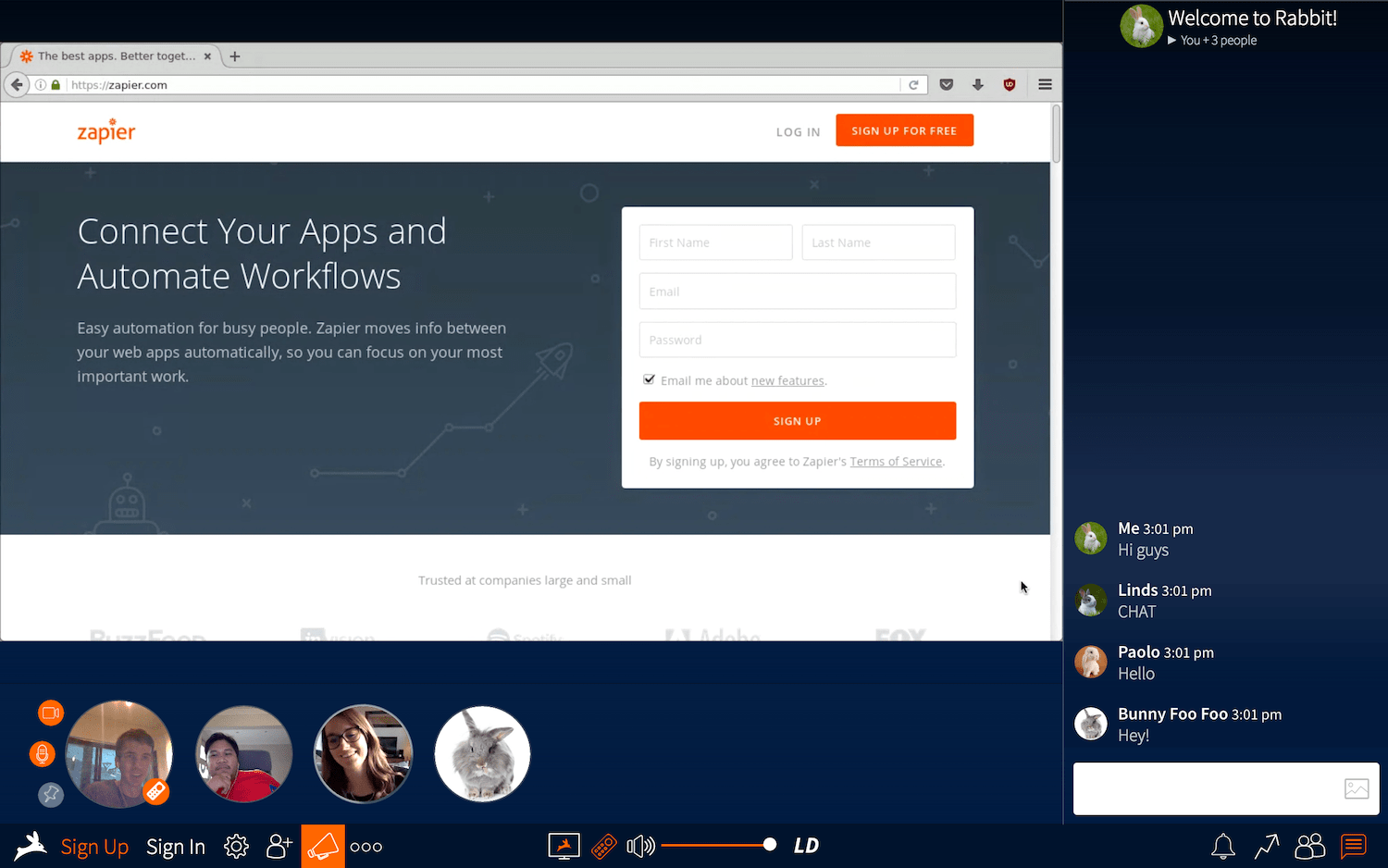
Rabbit video call screenshot
Show a video or your latest project in a Rabbit call

Rabbit isn't necessarily designed for productivity—it's more designed as a way to watch videos with friends from anywhere. Start a call, and you can pick from a variety of popular video sites—or Google—to watch something with your friends.

The call will then start with an embedded browser at the top of your screen, and a tiny video icon of you and your friends at the bottom. You can type anything in the address bar to pull up a video or website you want to show off—or tap the remote icon to let others take the controls.
But you can use it as a professional too, since you get a simple way to pull up any site you're working on, perhaps to get feedback on a design mockup or watch a conference video as a group. And if you just want to have a video call, hover over a caller's icon to see their video instead of the built-in browser.

Rabbit Price: Free

Pexip (iOS, Android, Mac, Windows, Web, Linux)

Best for presentations across multiple video conference systems

Pexip

One of the most reliable ways to show a presentation is with a .pdf file. Make each slide a full page, and you can flip through them on any computer or browser, anywhere.

Pexip uses that same idea for its presentations. You'll start a video call, either in its web or mobile apps, or log in using WebRTC connection or Skype Business and Cisco Jabber integrations. You'll be able to see everyone in your call, no matter how they're logged in, and can call in via phone if your internet connection is down. Then, from the web app, you can upload a PDF file and show it as a presentation, flipping through each page as a slide while still seeing everyone in your call.

It's a simple way to do group presentations, especially for teams that need to bridge multiple video conferencing systems.

Pexip Price: from $15,000/year for 50 users (averages to $25/month per user)

Join.me (iOS, Android, Mac, Windows, Web for participants)

Best for screensharing in a call

Join.me screenshot
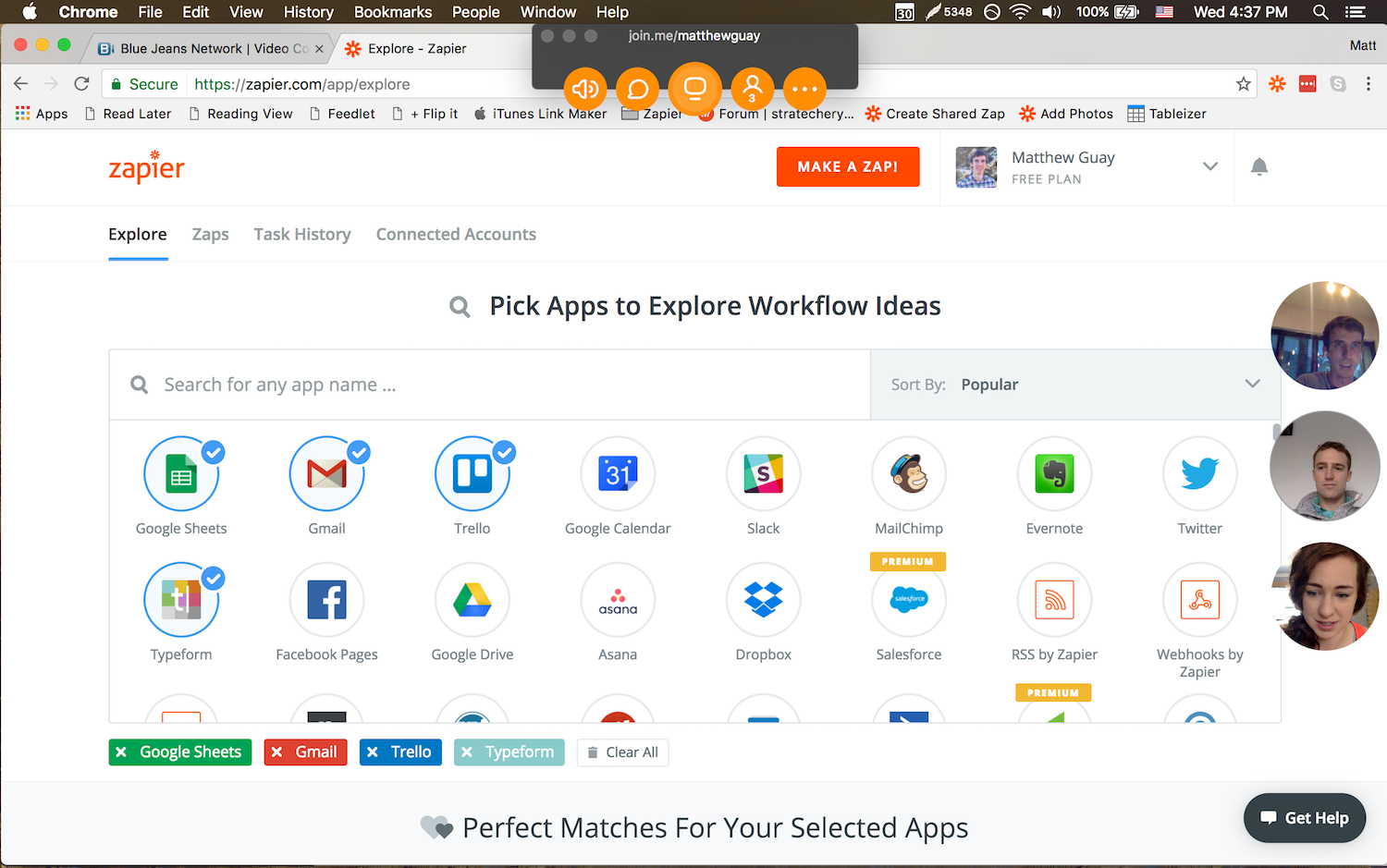
If your call is mostly to show something on your screen, Join.me makes that simple

Want to show something you're working on, and let everyone join in on the action? Join.me from the LogMeIn team is the tool to grab. It shares your screen by default as soon as you start a call, so you can show off anything in any app. You'll need to install Join.me's app to start the call, but your participants can join in from their browser—no install required.

Want just video chat? You can turn off the screenshare and see just the video streams in bubbles in a larger app screen. Or, if you want your team to help you out, you can share your controls and let others take over your mouse and keyboard to control your keyboard—just like in LogMeIn's signature tools. On mobile, you can even pull up a virtual whiteboard to sketch ideas and stream them to your team.

Join.me Price: Free for 10 meeting participants and 5 video feeds; from $20/month Pro plan (with annual billing) for 50 meeting participants

See Join.me integrations on Zapier

Cisco WebEx (iOS, Android, Mac, Windows)

Best for working around a virtual whiteboard

Cisco WebEx screenshot

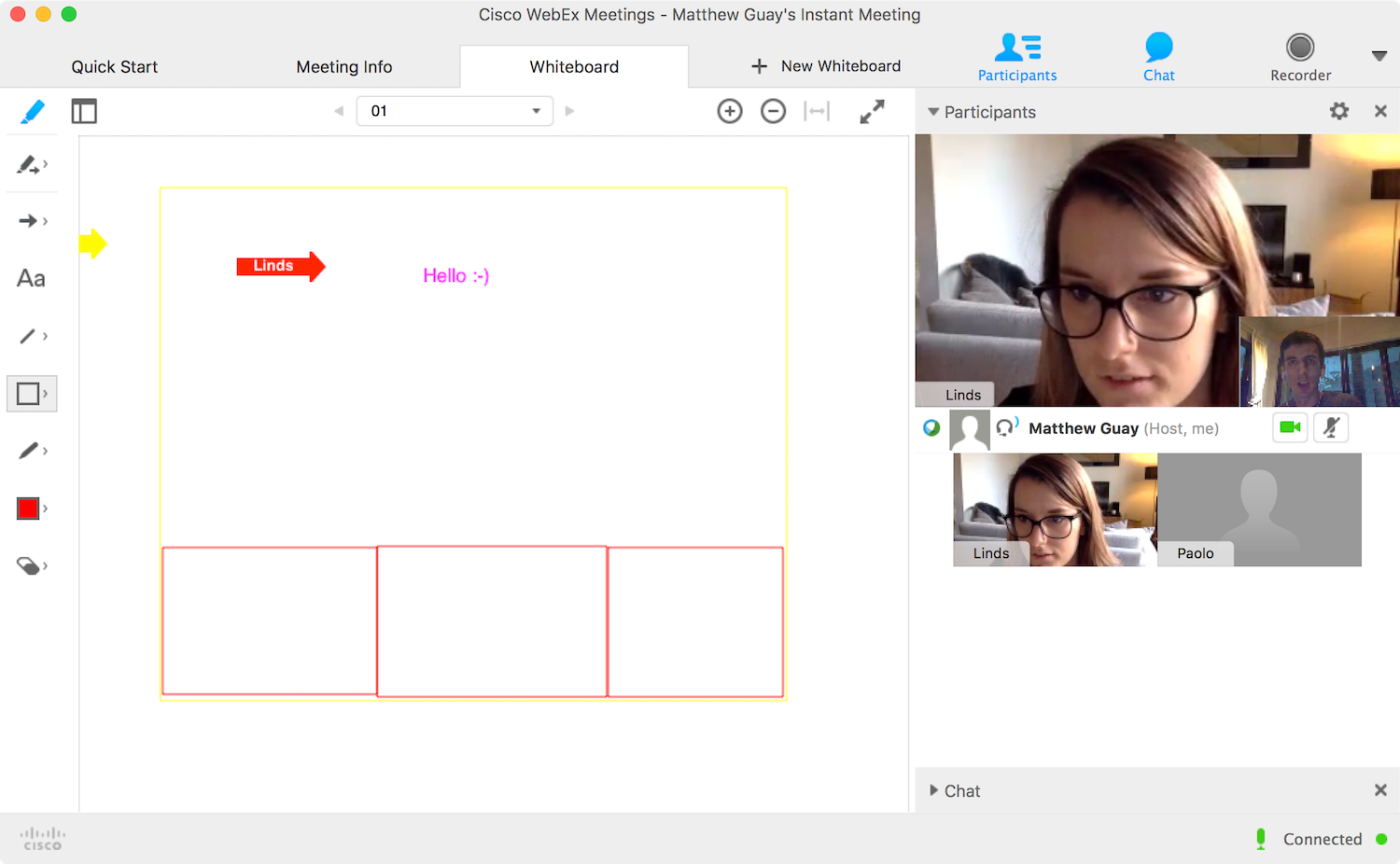
From one of the leading manufacturers of video conferencing hardware, Cisco WebEx is designed around collaboration. Start a call, and the main part of the app will show a virtual whiteboard—with chat and videos off on the side. Everyone in the call can then type, draw, add shapes, and highlight or annotate anything on the screen, for an easy way to brainstorm ideas.

If you just want a normal video conference, you can take the video full-screen and hide the whiteboard. Or, you can share your screen, perhaps to kick off the discussion and then brainstorm other ideas in the virtual whiteboard. It can even work for your larger meetings, with WebEx Events that can let you broadcast to up to 3,000 people with the same tools. And if your team needs an easy way to stay in touch between meetings, Cisco's companion Spark app adds team chat and one-click calls to your video collaboration.

WebEx Price: Free for 3 participants; from $24/month Premium 8 plan for up to 8 meeting participants


Pick the Futuristic Phone for You

When you get a new phone number, you're stuck with it. It's a huge hassle to switch numbers—and often you're stuck with a years-long contract.

That might be the case with traditional video conferencing hardware, but the apps today are good enough to not have to worry about that. With any of these apps, you can quickly start a video call, often without even installing anything. And if it doesn't work, another video app is only a New Tab away.

And, you don't have to rely on only one video call app, either. One of the first apps might be best for quick calls with colleagues, while you'll likely want a more powerful app for your full-team calls. Then, when you need feedback on a project or want to learn something together, one of the latter collaboration-focused apps might have what you need.

I'm sure you've have bad experiences with team video calls—we all have. But these apps are worth your time, and just might make you glad you live in the future.

Intro inspired by James Gleick's Time Travel, chapter 2.


source https://zapier.com/blog/best-video-conferencing-apps/