Tuesday, 23 October 2018

How to Use Paths to Automate Decisions

How do you automate a decision? Actions are easy enough to automate, especially with Zapier. But a decision? Even a repetitive choice might, in turn, lead to other decisions. So how can you reduce the time you spend making the same decisions that lead to different outcomes?

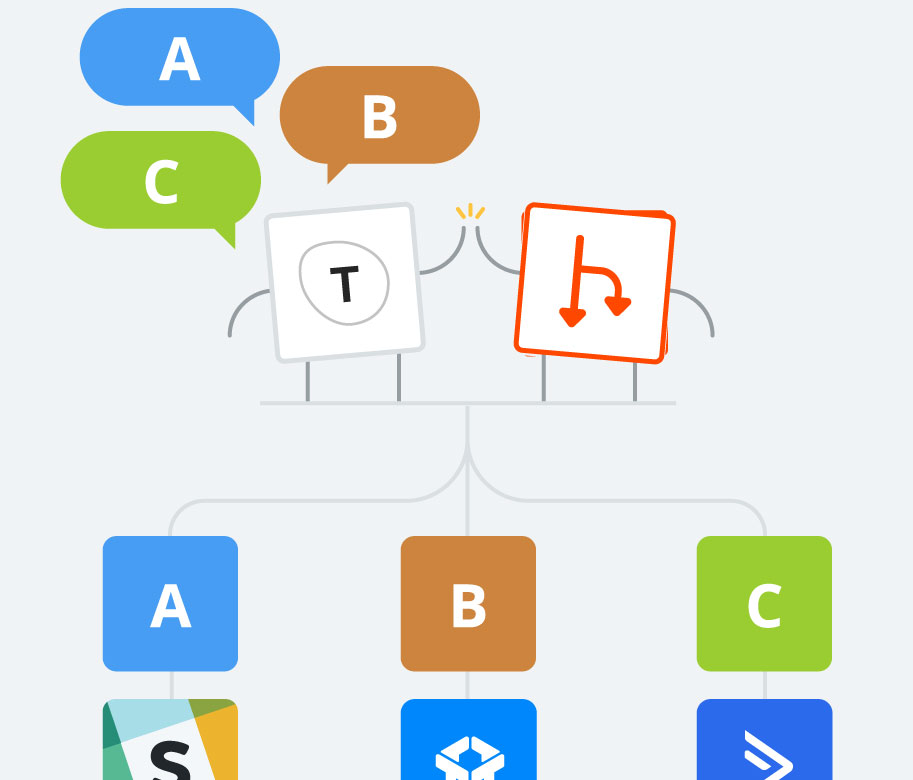
You use Zapier's Paths, a conditional tool that lets you automate your repetitive decision-making. Let's say you have multiple win-back options for a customer who wants to cancel their subscription with you. Instead of having a separate Zap for each option, you can instead use Paths in your Zap. Path A can be for those who select a discount, Path B for transferring the account, and Path C for pausing the subscription.

Not only does this reduce clutter on your Zapier dashboard, but it can also reduce the number of tasks your Zaps run each month.

Before Paths, you'd have to build separate workflows for each scenario, relying on lots of Filters to make sure your Zap targeted the right information. Now, you just add Paths where your decision-making comes in. Check out this video to see Paths in action:

We also spoke with several Zapier users to learn about how they added Paths into their processes. Here are their use cases to give you ideas on how Paths can save you time, make you more efficient, and declutter your Zapier dashboard.


How Paths Helps Frame.io Reduce Churn by 13%

"Paths are simple and you'll love how organized you'll be able to keep your Zapier workspace."Kyle Gesuelli, Head of Growth, Frame.io

Churn—the turnover of customers from a business—impacts every industry. Strategies, tools, and businesses built to combat churn abound, which in turn have to battle their own churn, and on and on it goes.

It's especially challenging for subscription services, like Frame.io. Frame.io is a collaborative platform for teams that create video. From heavy hitters like Netflix to freelancers and smaller teams, anyone with a video project can turn to the folks at Frame.io for quick uploads, seamless collaboration, instant feedback, and more.

Those latter groups—freelancers and small teams—don't have a year-round need for video. As Kyle Gesuelli, head of growth, explains, "They often have inconsistent projects and cancel their plan when their current project's over, and reactivate when a new project begins."

So, Kyle and the growth team strategized and came up with a plan for a self-service cancellation process. Clients start a chat on the Frame.io website where they can pause their subscription, receive a discounted month, or transfer the account to another client.

To support this new workflow, Kyle built a few Zaps and used Paths to send the correct info, depending on which win-back offer the customer selected.

"It's working brilliantly—saving about 13% of accounts from churning so far," says Kyle.

Frame.io's Tools

Icon: App: Used For:
Paths Paths Conditional decisions and logic
Drift Drift Lead acquisition/customer chat
Slack Slack Team chat
Intercom Intercom Customer communication

The Workflow

In Kyle's own words:

"We recently launched a new self-service cancellation flow on Frame.io leveraging Segment, Zapier, and Drift, where we progressively introduce more valuable win-back offers to customers who'd like to cancel to mitigate churn."

With the win-back options, clients have three options to choose between when they enter into a conversation with the Frame.io team. That chatbot is actually powered by Drift, and the decision the customer makes in the chat triggers the growth team's Zap.

With all their win-back Zaps, Kyle has Zapier set to find a matching client within Drift. With the client's information ready in the Zap, Paths come into play. For folks who select a discount, different actions need to be taken if the client is on a monthly or annual plan. Path A is for monthly subscribers, while Path B is for annual.

In both Paths, Zapier sends the client information from Drift to Frame.io's support team in Slack. Depending on the plan, Zapier sends specific information related to the billing cycle, so the support team knows when and how to apply the discount.

Zapier then creates a support ticket in customer support app Intercom, creating a record in their support database and with a webhook, send all of this information—client ID, option chosen, reason—to Segment.


For Kyle, integrating Paths into his Zaps was easy and meant a more organized and navigable Zapier dashboard.

His advice to anyone thinking about using Paths is straightforward: "Use it! It's simple and you'll love how organized you'll be able to keep your Zapier workspace."


How an IT Specialist Automatically Manages Equipment Rentals with Paths, Typeform, and ActiveCampaign

"Paths allow me to get the most out of my typeform."Skylar Damiano, IT Specialist, ActiveCampaign

Keeping track of equipment in an office isn't easy. Folks might borrow conference phones or projectors, and if there isn't a system to monitor this, it's easy to lose track of gear. It can get even more difficult when equipment, like a wifi hotspot, is needed for an all-day offsite adventure.

To help with all the comings and goings of equipment, the front desk at marketing automation platform ActiveCampaign use Typeform to track the person, item, and loan duration of any equipment that needs to be checked out. With ActiveCampaign's Deals pipeline and email automation, the front desk had a way to keep an eye on equipment but before Zapier, it required manually moving information from the forms to the CRM and monitoring the Typeform responses.

Skylar Damiano, IT specialist, was interested in streamlining the check-out process. He started building a Zap to automate a lot of the work but recognized a speed bump: Different actions need to happen at different times, depending on the check-out time for each item.

"If someone checks out a presentation laptop from our front desk, and they only need it for 4 hours, how do I make sure that they get alerted at the time that it is due?" he asks. "How do I differentiate this from someone who needs to borrow a conference speakerphone for the next 2 hours?"

Paths was the answer, and Skylar discovered them at the perfect moment:

"I found Paths as I was building my Zap—and within seconds of when I realized my logical challenge," Skylar says. "Paths was the solution that revealed itself to me right when I needed it."

With Paths, Skylar could build one Zap to handle ActiveCampaign's three different rental timeframes, instead of three Zaps. Here's how they do it:

ActiveCampaign's Tools

Icon: App: Used For:
Paths Paths Conditional decisions and logic
Typeform Typeform Customizable forms
ActiveCampaign ActiveCampaign Marketing automation & customer relationship manager (CRM)

The Workflow

Skylar's Paths Zap starts with Typeform. The front desk crafted a unique typeform for internal use. For every item checked out, the renter has to complete a typeform, which triggers the Zap. From there, we'll let Skylar explain:

"Zapier places the contact info of the employee in the front desk checkout pipeline in our Deals CRM [in ActiveCampaign]. Simultaneously, Zapier adds this same contact into an email automation [in ActiveCampaign].

"Our automation workflow then alerts the employee when their item is due. The automation knows to contact the employee who checked out the item at the time that it is due, based off where Zapier's Path placed the employee in our CRM."

This Zap has three separate Paths: one for a two hour rental, another for 12 hours, and the last for 24 hour rentals. Zapier knows which pipeline and email automation to send each employee to based on how they filled out the typeform.

Now, ActiveCampaign's equipment rentals process is automatic from start to finish, cutting out hours from the front desk team's workload.


Paths gave Skylar a chance to improve an already helpful process. Building a logic into this Zap gave him the opportunity to default to action, even with limited resources.

His recommendation follows in that thinking: "Just try it. If you're like me and you've dabbled in coding throughout your career and education, but don't have the current resources or means to build this out yourself, Zapier lets you build the conditional statements that you need right before your next meeting."


How a Sales Engineer Keeps an Entire Company In-the-Know with Paths

"I took six nearly identical Zaps and I was able to combine these into one Zap, using Paths."AK, Senior Sales Engineer, Mixpanel

As a company grows, teams can become siloed and separated easily. While all teams work towards a common mission, the work each one does might not filter through to the others. Even though the sales team relies on the engineering team to improve and iterate on the product, for example, the folks on sales can miss improvements if their fingers aren't on the pulse.

AK, senior sales engineer at Mixpanel, a platform that provides user and product analytics, wanted to close the distance between engineering and sales.

"I use Zapier to close communication gaps and silos throughout our organization, to bring data to people who want to know about it." he explains.

When AK first tackled this, he built a series of six or so Zaps, all doing roughly the same thing, but with minor changes depending on audience. But with Paths, AK combined these Zaps into one—and cut down on the number of tasks his Zaps run. Plus, it's far simpler for AK to manage one Zap than it is six.

"If we ever add a new segment/territory/line-size, I just need to change it in one place or add one Path," AK says.

With a few apps at his back, AK combined his Zaps and streamlined his Zapier dashboard. Here's how:

Mixpanel's Tools

Icon: App: Used For:
Paths Paths Conditional decisions and logic
Slack Slack Team chat
Salesforce Salesforce Customer relationship manager (CRM)
Google Sheets Google Sheets Backup leads database

The Workflow

In order for AK to share information across teams—in this case, about product issues and their resolution—his Zap first looks up the issue, scouring Google Sheets for customer information while also grabbing information from a webhook.

With this information, Zapier notifies the product team in Slack that the issue has been resolved, and the Zap then goes on to look up the client's account in Salesforce. Paths come into play here, depending on whether or not the customer has a specific type of custom object in their Salesforce account.

If the custom object exists, Path A sends a message to a specific channel in Slack. If that custom object doesn't exist, Path B looks up the account owner in Salesforce and then sends a direct message to the owner in Slack.

"I found Paths to be a helpful new feature which lets me program Zaps that more than one-dimensional," AK says. "Multiple outcomes mean you can be more flexible with your business logic, and therefore more direct with where some piece of data should go and how it ought to be represented."


For those wanting to dabble into Paths, AK has an idea for where to get started:

"Draw a picture of what you're trying to do. When you want to make a Zap with multiple outcomes, it's very helpful to have the 'full picture' in your head—or on paper—before jumping into the editor and figuring it out."


While Paths can't do your thinking for you, they can automate your decisions. So take a look at your Zaps—you're bound to find a couple you can combine into one with Paths' conditional logic at its core.

Our stories explore how Zapier's users solve common problems. From marketers to CEOs, educators to real estate agents, millions use Zapier to automate their most tedious tasks. If you haven't yet, try Zapier for free to see what we're all about.


source https://zapier.com/blog/paths-customer-stories/

Introducing Zapier Paths: A Smarter Way to Build Conditional Workflows

Life and work are filled with decisions, the forks in the road that add up to your destination. One order gets shipped immediately, while another needs to be customized. Some emails can get an automated answer, others need a custom reply a detailed solution. It all depends on tiny factors and what you want to accomplish.

Zapier’s new Paths tool is built to navigate those twists and turns with conditional workflows. Building on multi-step Zaps, Paths let one Zap (our word for automated workflows) do different tasks depending on the data you provide. It’s a choose-your-own-adventure story for your work.

A single Zap with Paths could automatically reply to routine messages, assign tough tickets to specific team members, or prioritize the most urgent messages depending on the message's details. It could print shipping labels for most orders while emailing customers if they didn’t include their full address. It can figure out the best thing to do, based on data, then do it automatically.

With Paths, “Zapier allowed me to skip coding and go straight for what I wanted to achieve,” says LiveChat customer success manager Marcin Borowski after building a Paths-powered automated email workflow. Here’s how you can skip the hardest part and build the conditional workflows for your critical tasks need.

Introducing Paths

Paths by Zapier

Zapier’s an app automation platform that connects over 1,300 apps—tools like Asana, Google Sheets, and Salesforce that businesses around the world rely on to get work done. When something happens in one app—say, a new contact is added to Salesforce—Zapier can then do tasks in other apps for you, perhaps checking for that contact in a Google Sheets spreadsheet then adding a new task for your team in Asana.

That works great when everything needs the same results. But what if, as Felix and Fingers’ pianist Greg Percifield says, you have “similar tasks with slightly different outcomes?”

Previously, you'd need to build multiple Zaps to achieve this. Now you can use Paths to do it in one Zap. Paths let you split your Zap into the different outcomes your data needs. Your Zap starts with a trigger app that tells Zapier something happened: For example, someone bought your product, emailed your team, created a new project, found a bug to fix. Zapier watches for that new thing. Then when it comes in, every purchase, email, project, and bug are unique. So a Path tells your Zap what to do based on specific rules you choose. It’s a conditional workflow that lets you plan for multiple outcomes.

Felix and Fingers, for example, needed to send different order amounts to QuickBooks, depending on what customers entered in a form. Little differences that add up to a big difference. Paths solved it with one Zap. “Rather than creating 3 unique zaps, we are able to create 1 Zap with 3 scenarios,” says Percifield.

How to Build a Zap With Paths

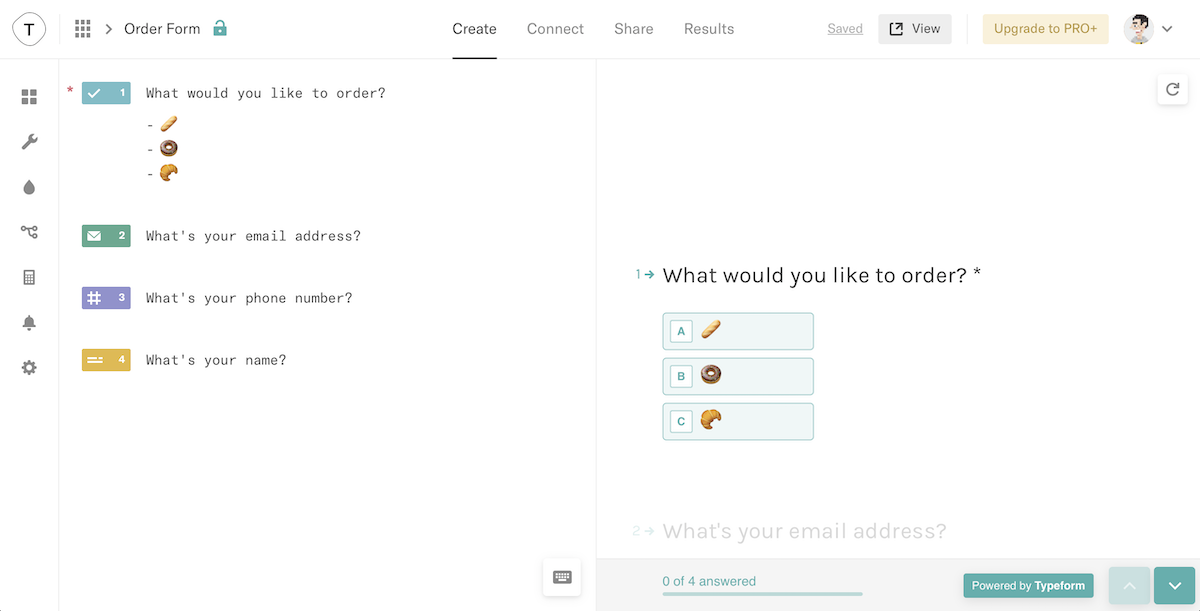
A Typeform form with options
Start with something that has multiple choices—something where new entires are unique

Start with a little planning. “Write down your flows on paper and simply copy it in Zapier,” suggests Expedia’s Johannes Ganter, who uses Paths to run different workflows based on languages, partners, employees, and more.

Use that time to think through what you need to automate. Maybe you have an order form with three products, and each one needs to be handled slightly differently. One means your customer needs an email, another means your team needs a notification so they can make the custom order and a task on the to-do list, so they don’t forget, and the last needs custom data looked up in a database before shipping it. Or something like that. Think through what starts your workflow, what your team needs to do depending on each variation, and the apps you use in each step.

Then start building. With our order form example, we might have a form in Typeform that lets customers choose a baguette, donut, or croissant. Simple enough. Just make sure your trigger app’s new items include the options you need Zapier to track.

Zapier trigger
Start a Zap as normal with any trigger app you need

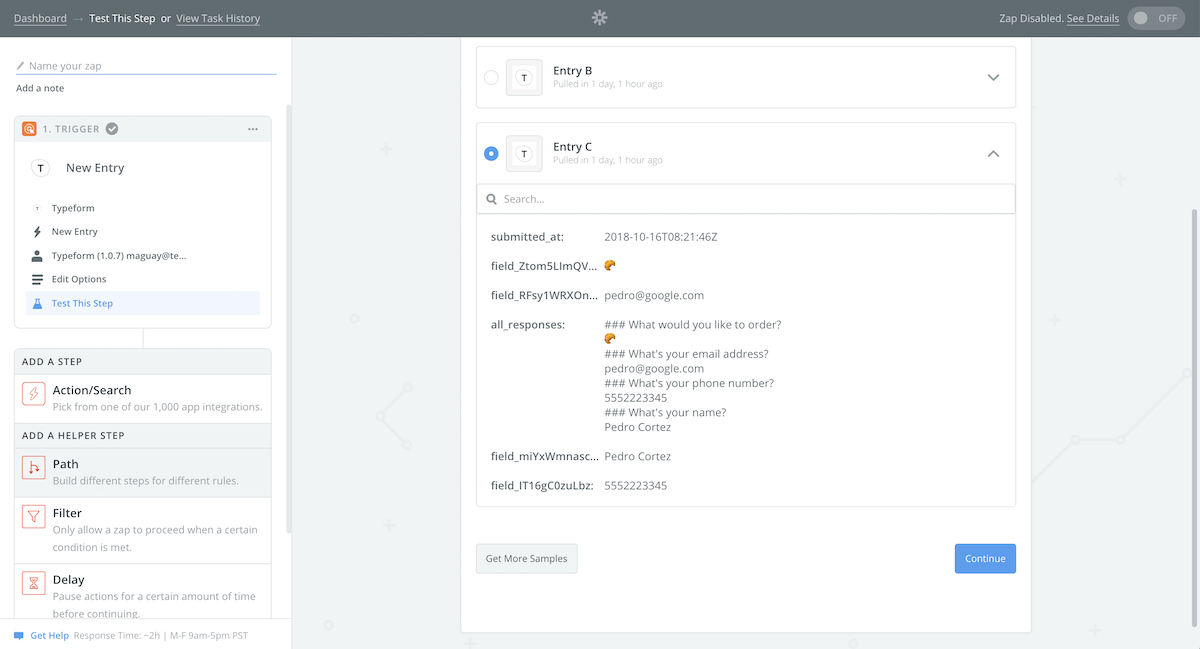
Now open Zapier, and make a Zap with your trigger app. We’ll select Typeform’s New Entry trigger, connect our Typeform account to Zapier, and select the order form. Then, when Zapier tries to pull in a sample form entry, open your Typeform form in a new tab, fill it out with your first order option and the other form details, and submit the entry. Zapier will pull in that form entry to help build your Zap.

You’re building multiple workflows, though, and one sample entry isn’t enough. Click the Get More Samples button, then go fill out your order form again, this time selecting a different product. Repeat that to get samples of each variation you need.

Then, if you want, you could add action steps to your Zap. If you want to log every new order to a Google Sheets spreadsheet, say, add a Google Sheets Create Spreadsheet Row step right after your form trigger. You only need the path once your Zap is doing steps that differ based on the form entry.

Now you’re ready to build a Path. Click the Add a Step button on the left, and select Path.

Zapier Paths Demo

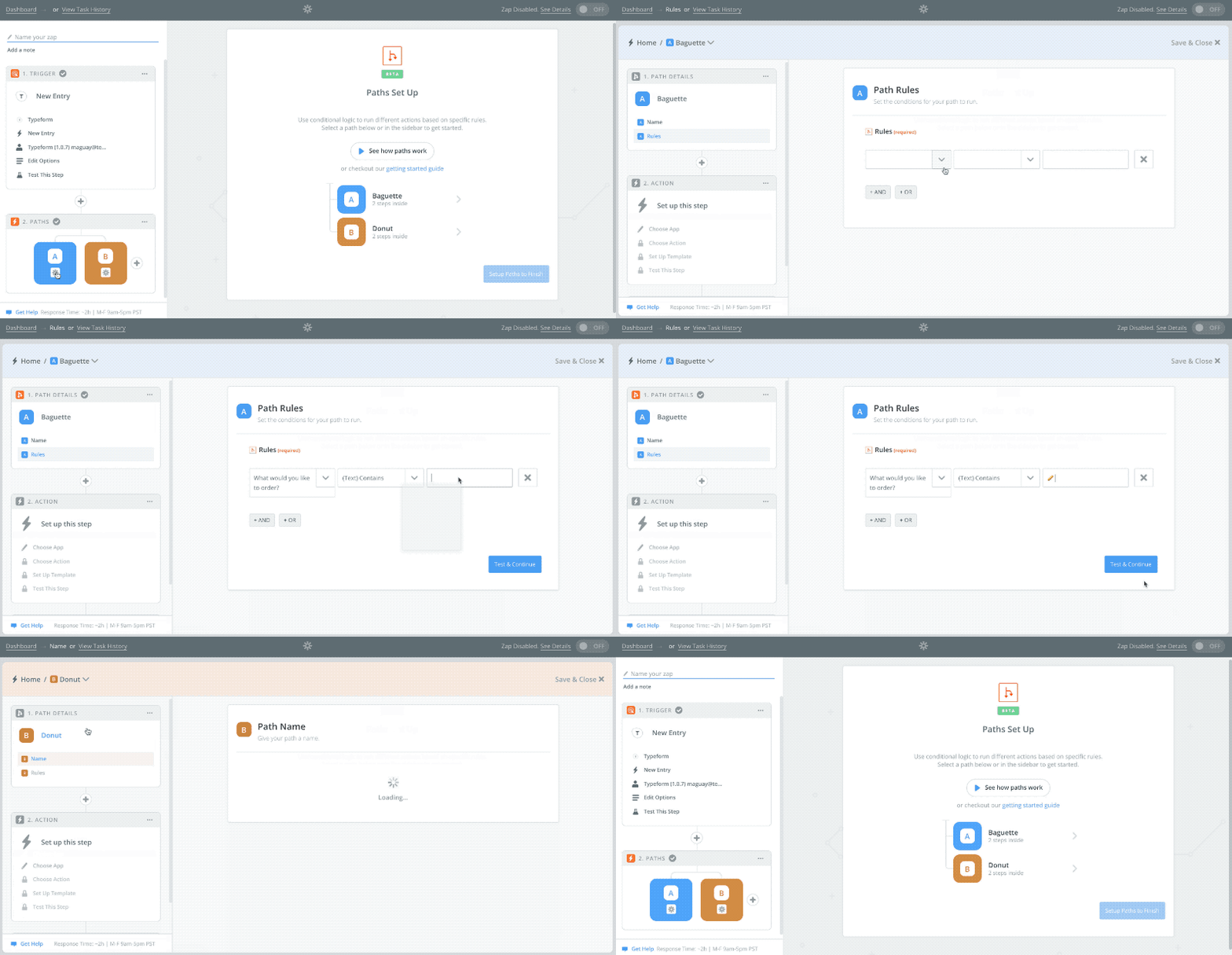
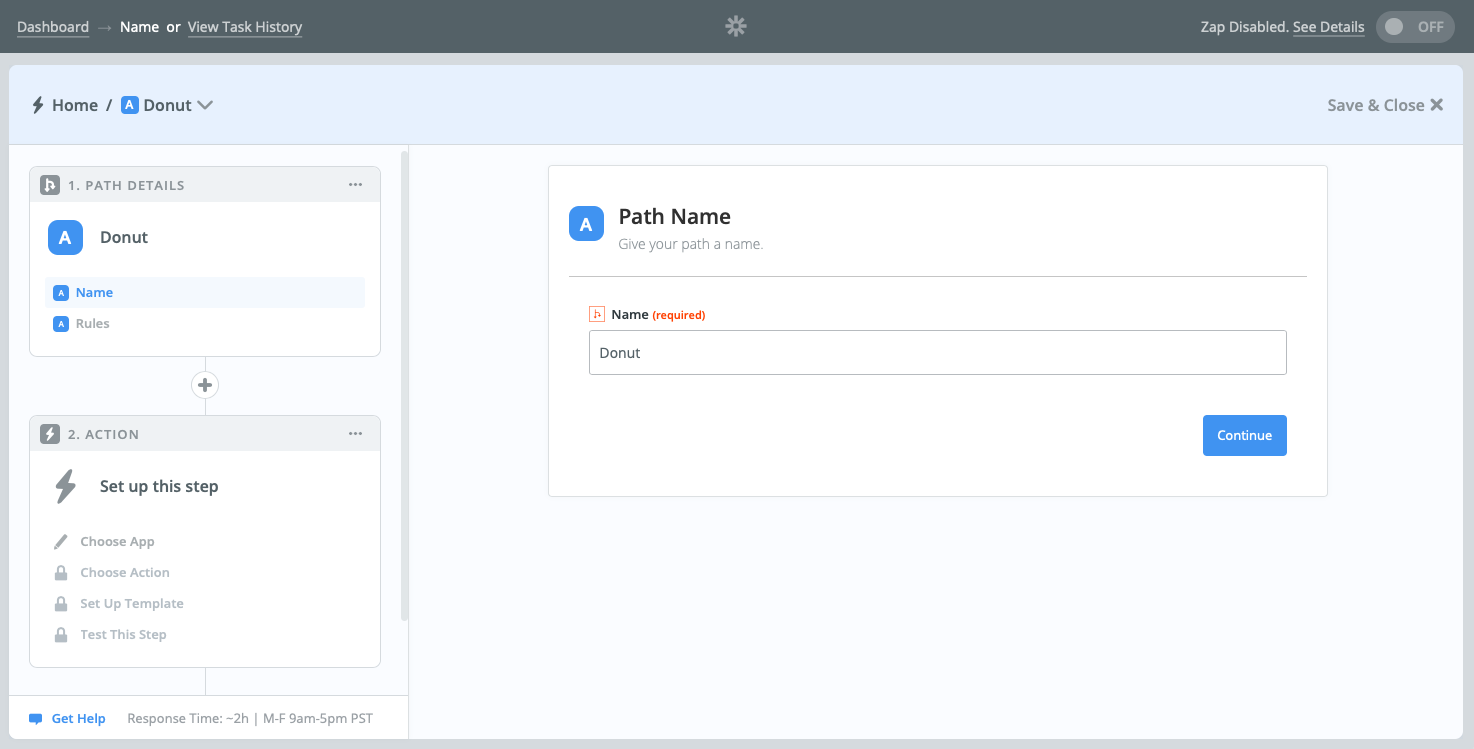
Paths aren’t your standard Zap steps. Add a Path to your Zap, and you’ll get a description of Paths in the main editor, along with new A and B buttons in the left sidebar. Select A to edit the first part of your Path—and your Zapier editor will take on a new hue, with the Path rule first followed by any steps you want your path to follow with this data. When finished, click Save and Close in the top right corner–or click the menu on the top left to jump between steps and go back to your core Zap.

Zapier Path Name

Start with your first path, and click A. There, add a name to your path, something that will help you remember what this workflow does and why it’s different from the other paths in your Zaps.

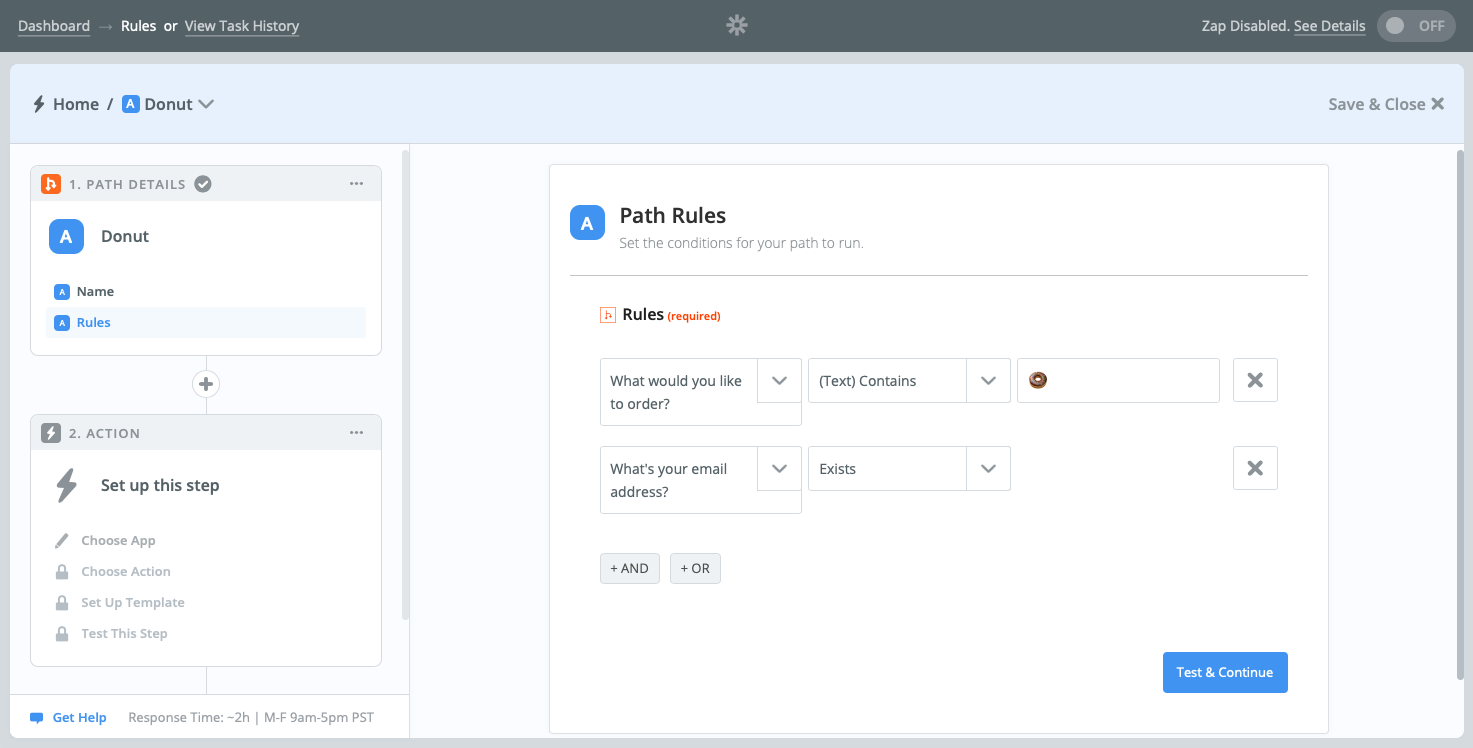
Zapier Path Rules

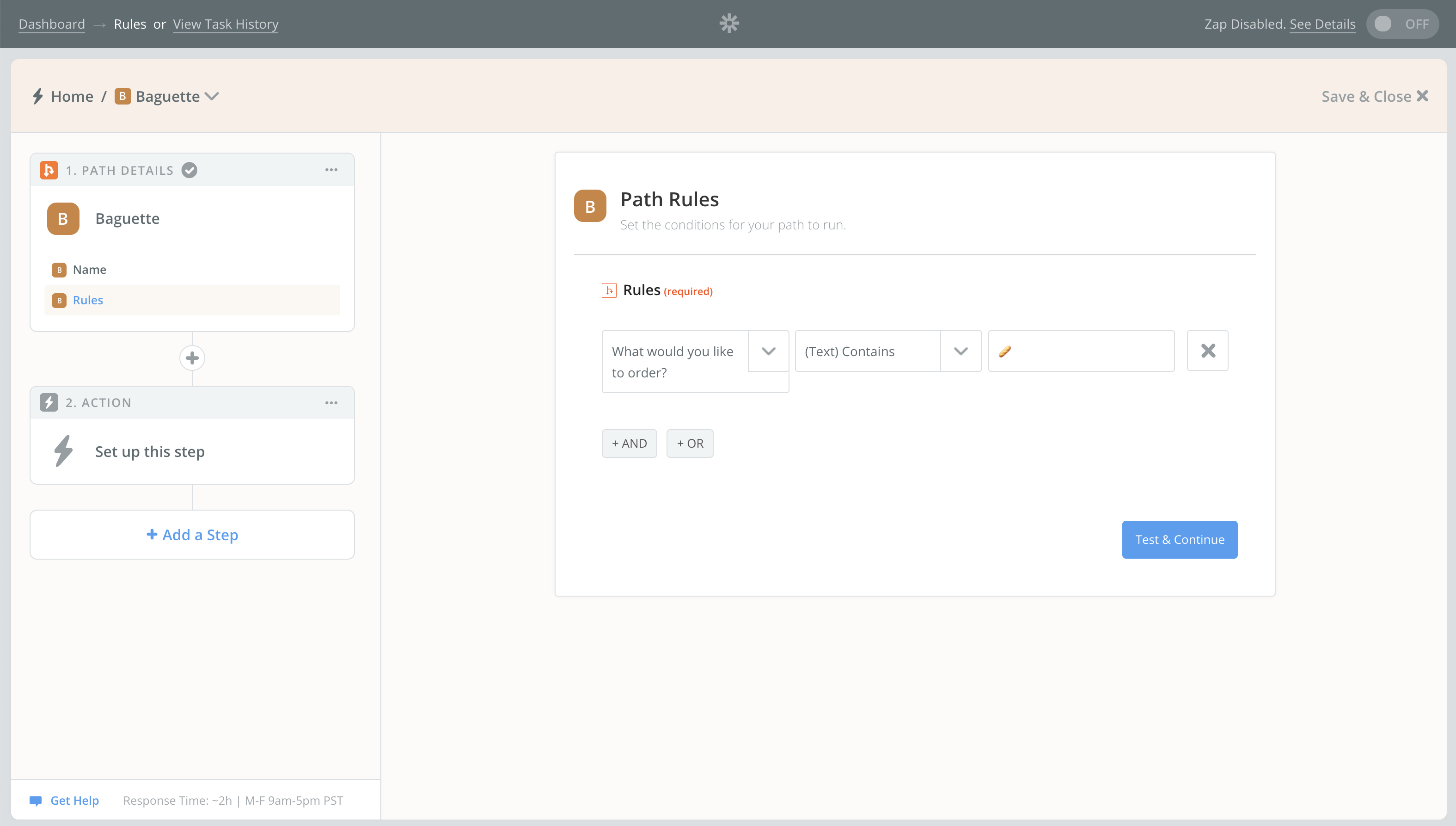
Then add rules for this path. When will it run? Say we’re watching for people who order donuts, and we want to email them about their order. We’ll have Zapier watch the order form for a donut, and make sure they included their email address.

Path rules work exactly like Zapier’s filters. They’re conditions for why your Zap should run. Only here, you’re setting why this path should run. The other parts of your Path get their own rules that set when they run.

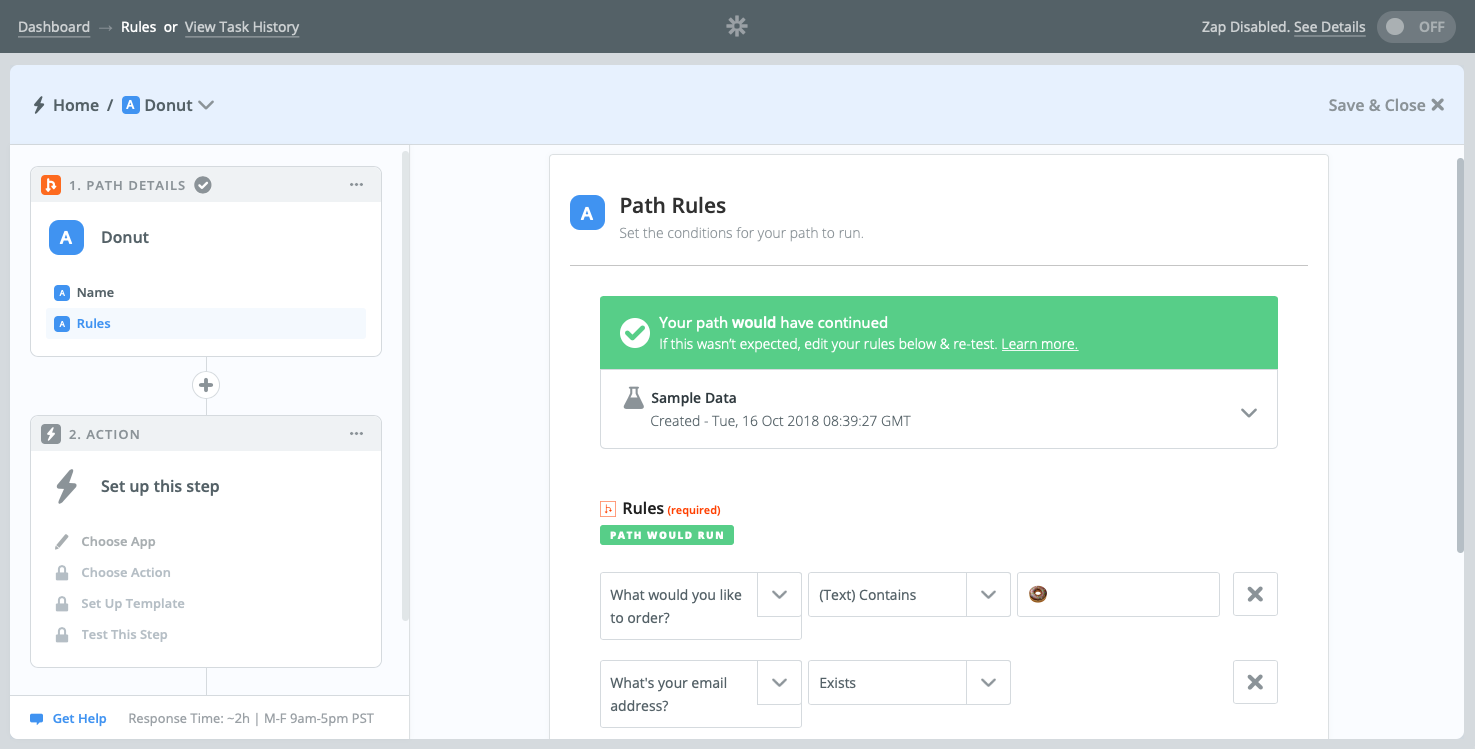
Test Zapier Path rules

With Path rules added, it’s worth making sure they work the way you expect. Click Test & Continue, and Zapier will show if this path would have run with the data. Either way, you can continue setting up your path—though it’s easiest to make sure your Zap will work correctly if your sample data matches this path’s rules.

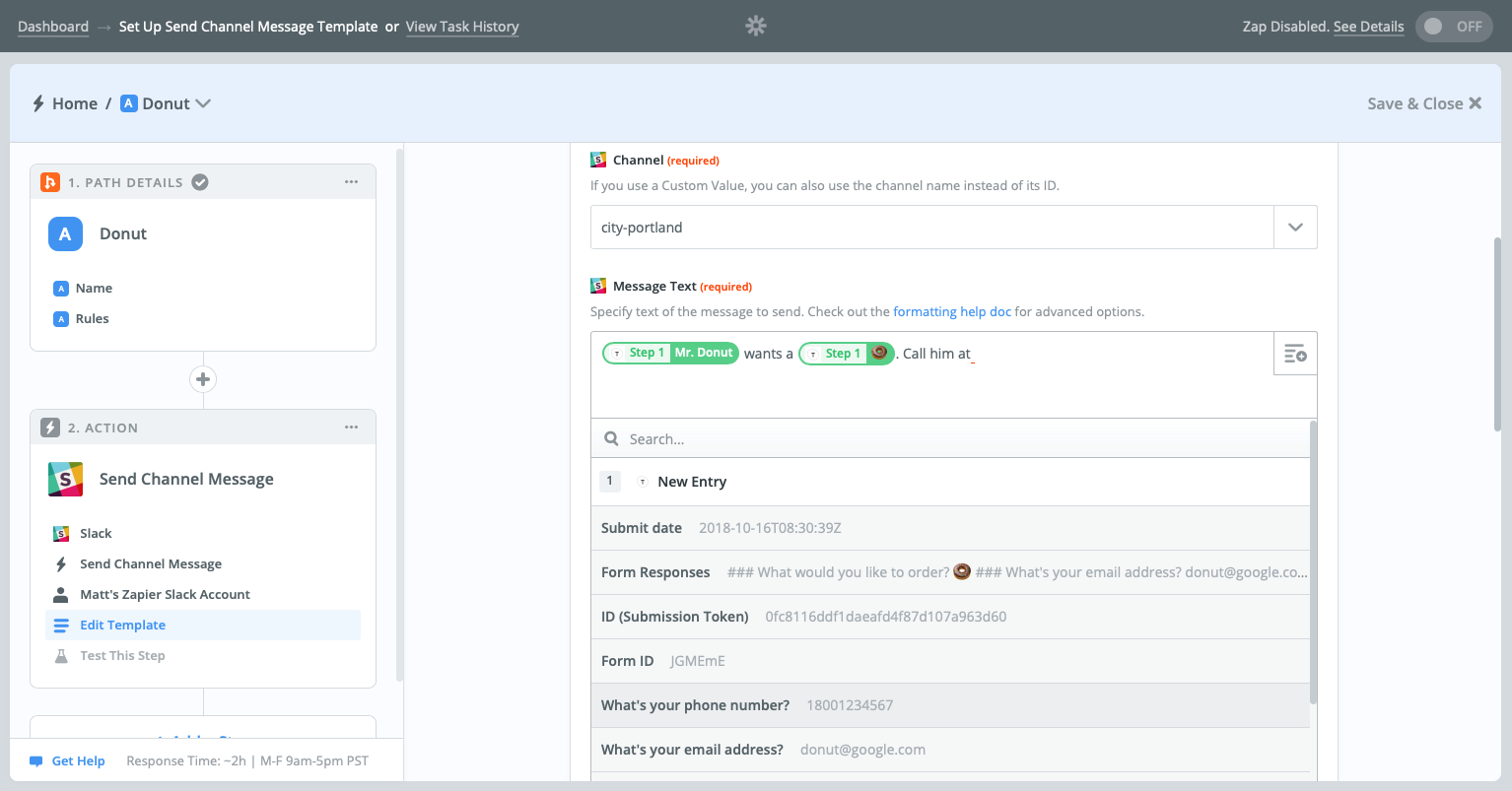
Add action step to Zapier Path

What’s your Zap going to do now? There are thousands of options. You can now add any other Action apps to your Zap to do anything you want. Say you want to send your team a Slack message about the donut order. Add a Slack action, and fill in the details as normal, clicking the + icon on the right of input fields to select the order details you want to send to your team.

You can add as many additional steps to your path as you need to handle the donut order. When finished, click the blue Setup Next Path button on the bottom right of your last Action step to build out path B.

Setup Zapier Path B

Then you start all over again, adding a Path name and rules that set when it will run. Add the steps you want to this part of your Path as before—perhaps adding the baguette customer to an ActiveCampaign email list to get soup recipe ideas to go along with their crusty bread, or including a Gmail step to send them an email thanking them for their order.

Add extra path

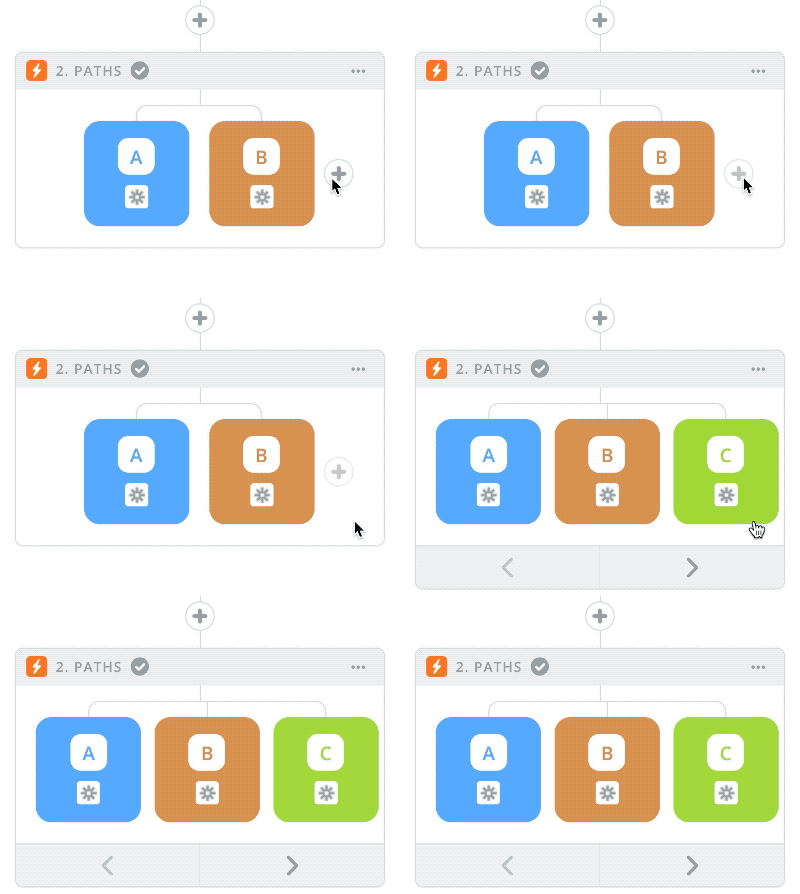
Two Paths aren’t enough? Don’t worry. Go back to your main Zap screen, and click the + button beside your A and B steps. Zapier will another step to your Path to build the detailed workflows you need.

Paths inside Paths work, too—you can add a Nested Path as a step inside your steps, also, to build workflows that cover all the possibilities.

And then, you’re done. When your workflow’s entirely built out in your Paths Zap, test and turn it on. Then sit back, and the next time an order comes in, or a new contact signs up for your email list, or a new project starts, Zapier will figure out what to do—then do it all for you in one Zap.

What Can You Do With Paths?

“Paths are incredibly logic for any process manager and will simplify your setup by miles.”- Johannes Ganter, Expedia

No one’s an expert at everything. That’s where org charts are a helpful thing. If you know this person’s great at this, and that person’s great at that, you can assign tasks to the right person, and everyone will do better work.

Dell's social business manager Omkar Mishra needed a better way to handle intake requests. “We were trying to resolve request assignment within our process flow based on different selections by our audiences, and assign things the best way,” says Mishra. He’d halfway solved it with Zaps—though previously, he needed one Zap for every different intake request.

“Paths helped us solve that scenarios perfectly,” says Mishra. It let him build out unique workflows for every different request, each with their action steps that assign work to the right people automatically.

Expedia uses Zapier Paths to run a wide range of workflows, with different steps depending on the team, language, or partner involved. “Paths are incredibly logic for any process manager, says Expedia senior process manager Johannes Ganter, “and will simplify your setup by miles.”

Get Started With Paths

Best of all, it’s easy to start using Paths in your Zaps. If you’re already a Zapier user, you can begin using Paths today in new Zaps—or you can add them to any Zaps you’ve already made. If you’re not a Zapier user yet, sign up for a free Zapier account to try out all of Zapier’s features, including Paths, for free for two weeks.

Paths comes with all Zapier Professional and higher plans. If you’re using a Zapier Free or Starter plan, you can still try out Paths for free. Just add a Path to your Zap to start a new 7 day trial so you can test out Paths and see how they help you get more done in less time.

Paths might be that thing you’ve been looking for to make your work more efficient. As Dell’s Omkar Mishra found, Paths “helps my team automate the manual process of workflow management and saves around 3-4 hours per week.” It could do that or more for you, too.


Learn More About Zapier

New to Zapier? Here are resources to help you get started:


source https://zapier.com/blog/zapier-paths-conditional-workflows/

Monday, 22 October 2018

The Best Free Project Management Software

Projects can take on a life of their own, spiraling out of budget and taking far more time than planned. Free project management software can help you rein it in without dipping into the company wallet. From kanban apps to Gantt chart software, here are the 11 best free project management apps for teams on a budget.

What Makes Great Free Project Management Software?

To narrow down our list of the best free project management software, we looked for tools that met the following criteria:

  • Free for unlimited projects: The apps we chose have free plans that you can use to manage unlimited projects.
  • Variety: We included options for various management methodologies—kanban, Gantt charts, Scrum, and to-do lists—so we eliminated some apps simply because there were better alternatives available using the same PM methodology.
  • Hosted: There are a lot of great, free, self-hosted project management tools, but they take longer to set up and manage. We're featuring project management apps that are hosted by the companies that provide the tools.

The 11 Best Free Project Management Apps

  • Trello (Web, macOS, Windows, iOS, Android) for individuals and teams who need a work pipeline
  • MeisterTask (Web, Windows, macOS, iOS, Android) for combining project ideation, planning, and execution
  • KanbanFlow (Web) for combining kanban, time tracking, and Pomodoro
  • Freedcamp (Web, iOS) for managing all projects and communications in a single tool
  • Asana (Web, iOS, Android) for creating a to-do list powerful enough to manage projects
  • Paymo (Web, Windows, macOS, Linux, iOS, Android) for freelancers who charge by the hour
  • Bitrix24 (Web, Windows, macOS, iOS, Android) for classic project management with Gantt charts
  • Wrike (Web, Windows, Mac, iOS, Android) for spreadsheet-like features in a project management app
  • Podio (Web, iOS, Android) for customizing your project management tool
  • Yodiz (Web, iOS, Android) for Agile and Scrum teams
  • Agantty (Web) for creating Gantt charts quickly and easily

Trello (Web, macOS, Windows, iOS, Android)

Best free project management software for individuals and teams who need a work pipeline

Trello interface

Trello is a simple way to start organizing your projects in kanban boards. And with a free plan that allows for unlimited boards and users, it's a tool that anyone can use. Freelancers use Trello to plan their assignments on a personal board, and teams use Trello to hand work off to each other, creating a collaboration pipeline.

Start out with a handful of lists for your tasks, and customize those lists with steps in your workflow (e.g., to-do, doing, and done) or as separate parts of your project (e.g., development, design, and distribution). Next, add your tasks—with labels, due dates, checklists, and comments to keep everything in one place—and drag them to the appropriate list. Keep track of all comments on tasks that mention you—or that you're watching—from the notifications menu.

For more features, Trello's Power-Up options (in the web app's menu) let you view tasks on a calendar, add voting options on tasks, fade away old tasks automatically, and much more. And you can make Trello boards for everything—personal and work tasks alike—to get your work done in a way that fits your needs best.

Trello Price: The Free plan includes unlimited boards and users, one Power-Up per board, and attachments up to 10MB in size; upgrade for $9.99/user/month (billed annually) to the Business Class plan that includes unlimited Power-Ups, attachments up to 250MB in size, and more granular permissions controls.

Automate Trello with Trello's Zapier integrations.

MeisterTask (Web, Windows, macOS, iOS, Android)

Best free project management software for combining project ideation, planning, and execution

MeisterTask interface

MeisterTask takes a fresh approach to kanban boards, with brightly colored lists and a dashboard wallpaper. And your team will be more productive, too, since MeisterTask includes automations that are triggered when you drag tasks to new lists. You can send emails, reset due dates, and more just by moving tasks around. You can also see all the tasks you're responsible for—across all of the projects you're assigned to—in your personal dashboard.

If your projects start life in brainstorming sessions with mind maps, you'll have another reason to try MeisterTask: its MindMeister integration. You can plan your project in a mind map, then drag it into MeisterTask to turn each idea into a task. It's one of the quickest ways to turn your team's ideas into an actionable plan for execution.

MeisterTask Price: Free for the Basic plan that includes unlimited projects and users, two native app integrations, and file attachments up to 20MB in size; upgrade for $8.25/user/month to the Pro plan that includes unlimited native app integrations, attachments up to 200MB in size, and a searchable task archive.

Automate MeisterTask with MeisterTask's Zapier integrations.

KanbanFlow (Web)

Best free project management software for combining kanban, time tracking, and Pomodoro

KanbanFlow interface

Wondering how long your tasks take to complete? KanbanFlow is another kanban board app that includes a timer that logs how long you spend on each task—and how long it stays in a particular list. The timer also includes a Pomodoro mode to help your team work in sprints and remind everyone to take breaks so they stay productive all day.

KanbanFlow's Pomodoro timer also asks your team members to record what caused an interruption when they have to pause their focus session timer. These tools together help you find and nix bottlenecks in your workflows—all while pushing your projects towards completion.

KanbanFlow Price: The Free plan includes unlimited tasks and boards, the Pomodoro timer, and productivity reports; upgrade for $5/user/month to the Premium plan that includes file attachments, priority support, and third-party integrations.

Automate KanbanFlow with KanbanFlow's Zapier integrations.

Freedcamp (Web, iOS)

Best free project management software for managing all projects and communications in a single tool

Freedcamp interface

For a more full-featured project management tool, Freedcamp gives you a place to manage tasks along with calendar and milestone tools to plan your project's schedule. Tasks can be organized in a standard to-do list or a kanban board, while your most important dates can be split between milestones or the calendar to help with short- and long-term planning.

Freedcamp can easily be your project hub, holding everything you need to get work done. Bring in your files and keep discussions inside your projects—or upgrade to add extra tools for invoicing, CRM, and more—and you'll only need to check one app each day to get your work done.

Freedcamp Price: The Free plan includes unlimited users and projects, attachments up to 10MB in size, and all of Freedcamp's core apps; upgrade for $1.49/user/month (billed annually) to the Minimalist plan that includes premium support, attachments up to 25MB in size, and unlimited task nesting.

Automate Freedcamp with Freedcamp's Zapier integrations.

Asana (Web, iOS, Android)

Best free project management software for creating a to-do list powerful enough to manage projects

Asana interface

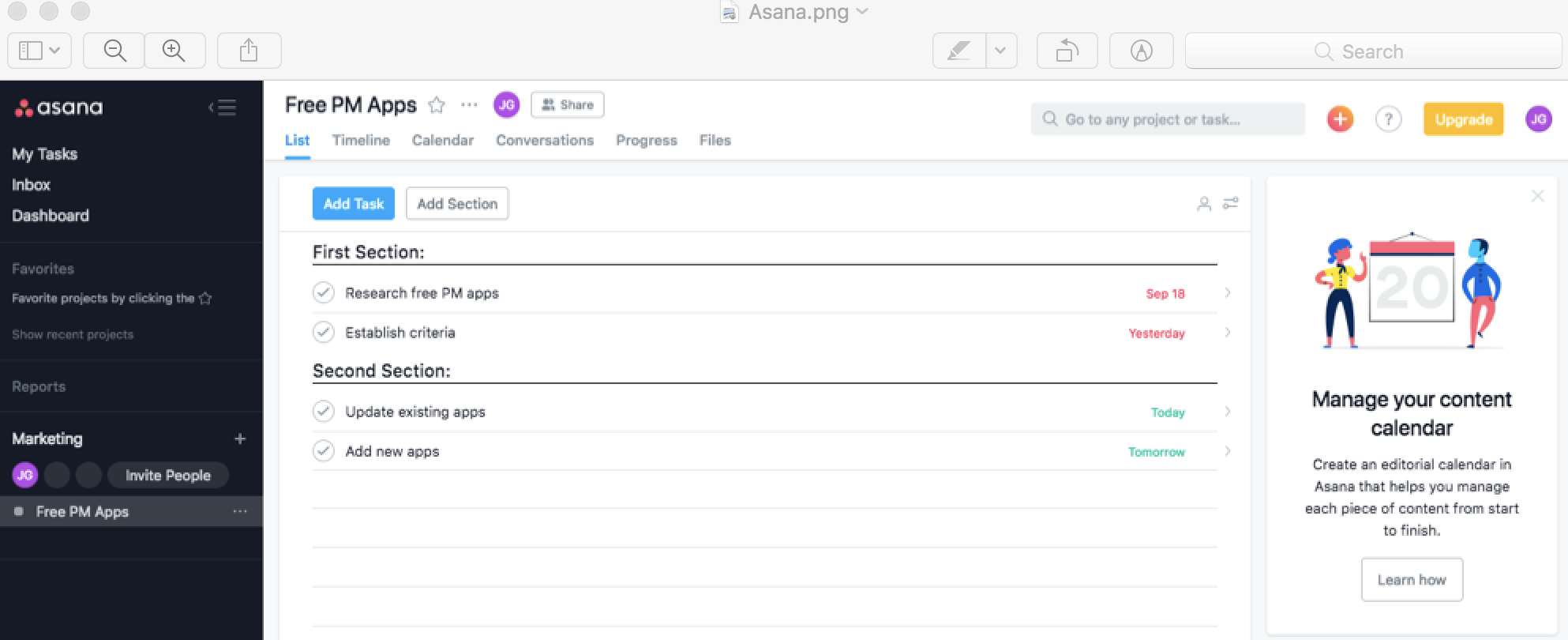
Your to-do list isn't bad—you just need a few more features to manage your team projects. Asana offers just that. It's a project management tool that lets you break projects down into sections and sub-lists, along with dashboards to see how much of the project has been completed already. You'll add, rearrange, and complete tasks the same way you would in a to-do list app—but with the collaboration and organization features you need to work as a team.

For your personal tasks—or the things at work that don't fit into a precise project—you can make extra lists in Asana that are shared with specific people. Your own assigned tasks will also show up in your My Tasks view for a quick way to see the things you need to take care of.

Asana Price: The Free plan includes unlimited projects, up to 15 users, and basic search features; upgrade for $9.99/user/month (billed annually) to the Premium plan that includes project timelines, advanced search, and task dependencies.

Automate Asana with Asana's Zapier integrations.

Paymo (Web, Windows, macOS, Linux, iOS, Android)

Best free project management software for freelancers who charge by the hour

Paymo interface

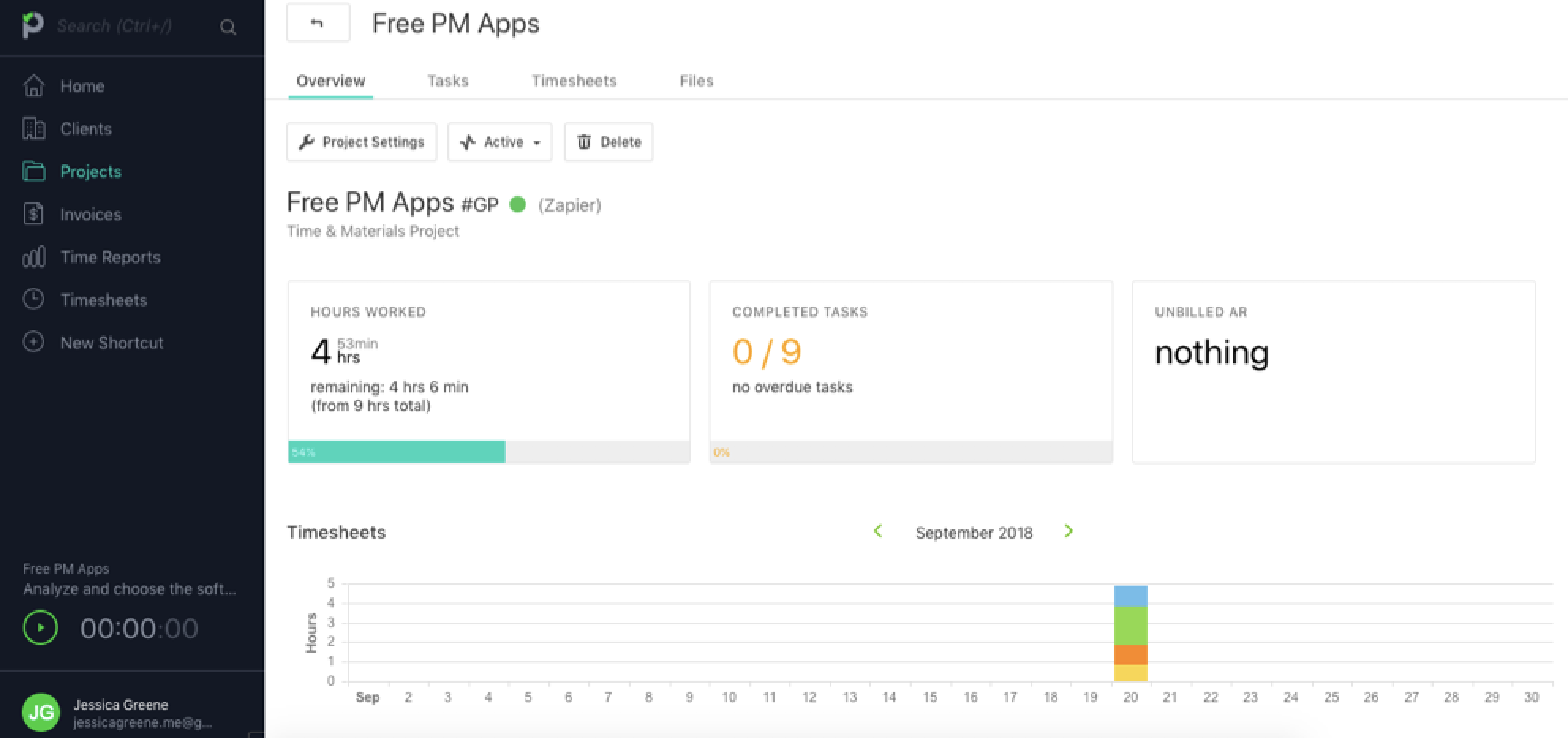
Paymo is a project management app and time tracker with a free plan that makes it easier for freelancers to plan, prioritize, and keep track of their work for multiple clients and projects.

Add clients, add projects for those clients, and then add tasks to those projects. For each task, you can assign due dates, set priorities, and add descriptions and attachments. You also have two options for how to view your tasks—as a list or in a kanban board—or use Paymo's filter to sort all of your tasks for every client and project by status, due dates, priorities, and more.

When you're ready to start working on a specific task, just select that task in Paymo's time tracker and click the play button to start tracking your time. When you stop the timer, it adds the time to your timesheet and attributes it to the right task, client, and project.

When it's time to bill your clients, use Paymo's time reports to pull the exact data you need. Export, print, or share the report with your clients in a detailed list view or as a pie graph or bar chart, or take the data and use it to create a branded invoice directly in Paymo. You can even set up your invoices to allow for online payments through Stripe, PayPal, and more.

Paymo Price: The Free plan includes one user, unlimited projects, 1GB of storage, and up to three invoices; upgrade for $9.56/user/month for the Small Office plan that includes unlimited invoices, 50GB of storage, and project templates.

Automate Paymo with Paymo's Zapier integrations.

Bitrix24 (Web, Windows, macOS, iOS, Android)

Best free project management software for classic project management with Gantt charts

Bitrix24 interface

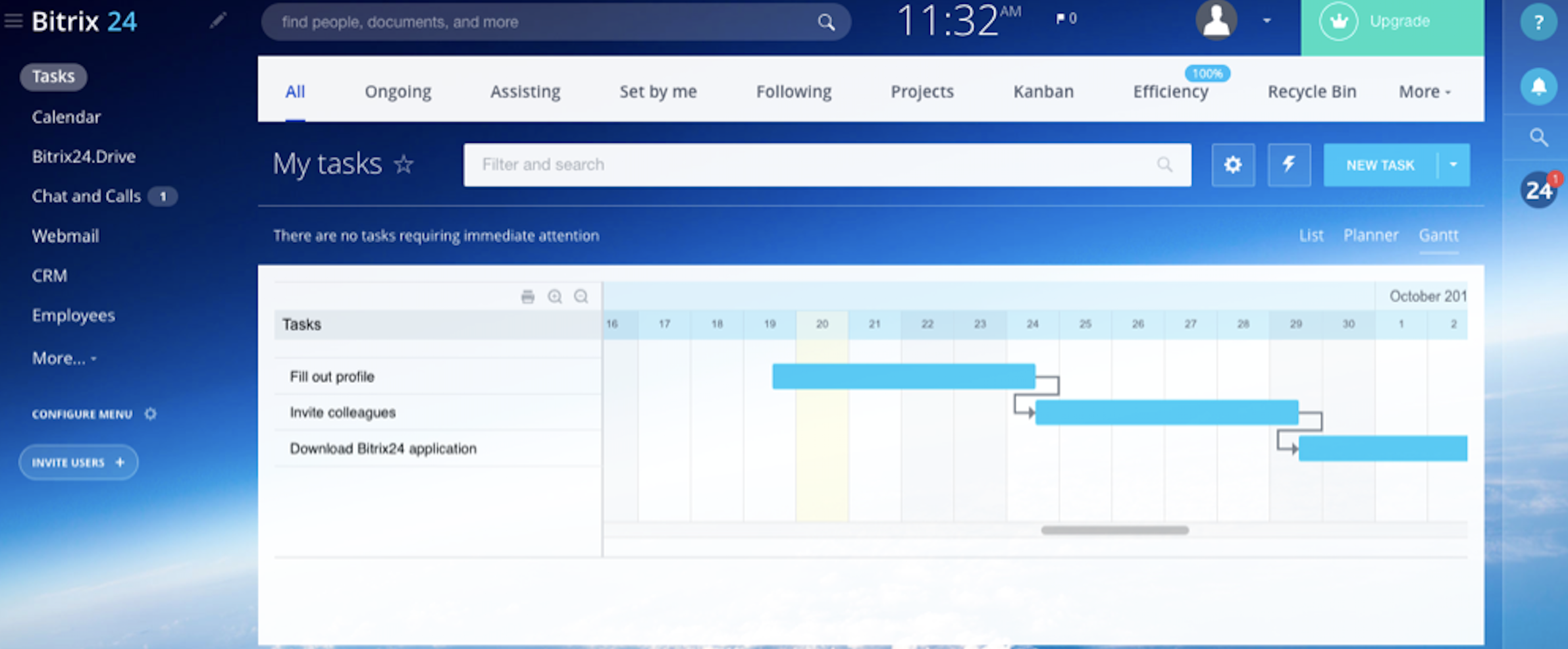
Have a large or distributed project team to keep on track? Bitrix24 is a great solution: It combines classic project management features with native collaboration tools. From a social intranet to in-app video conferencing and screen-sharing to HR and client management tools, Bitrix24 is designed to be a one-stop shop for managing projects, teams, and your company as a whole.

Organize tasks within your projects, then use a Gantt chart view to keep everything on track. You can even track employee workloads and deadlines to avoid burning out team members. And if you plan to upgrade from a free to a premium plan, Bitrix24 is one of the few project management apps that has flat-rate pricing rather than charging a per-user fee, which could save you on subscription costs.

Bitrix24 Price: The Free plan includes unlimited projects, up to 12 users, and 5GB of online storage; upgrade for $39/month to the Plus plan that includes up to 24 users and 24GB of online storage.

Wrike (Web, Windows, Mac, iOS, Android)

Best free project management software for spreadsheet-like features in a project management app

Wrike interface

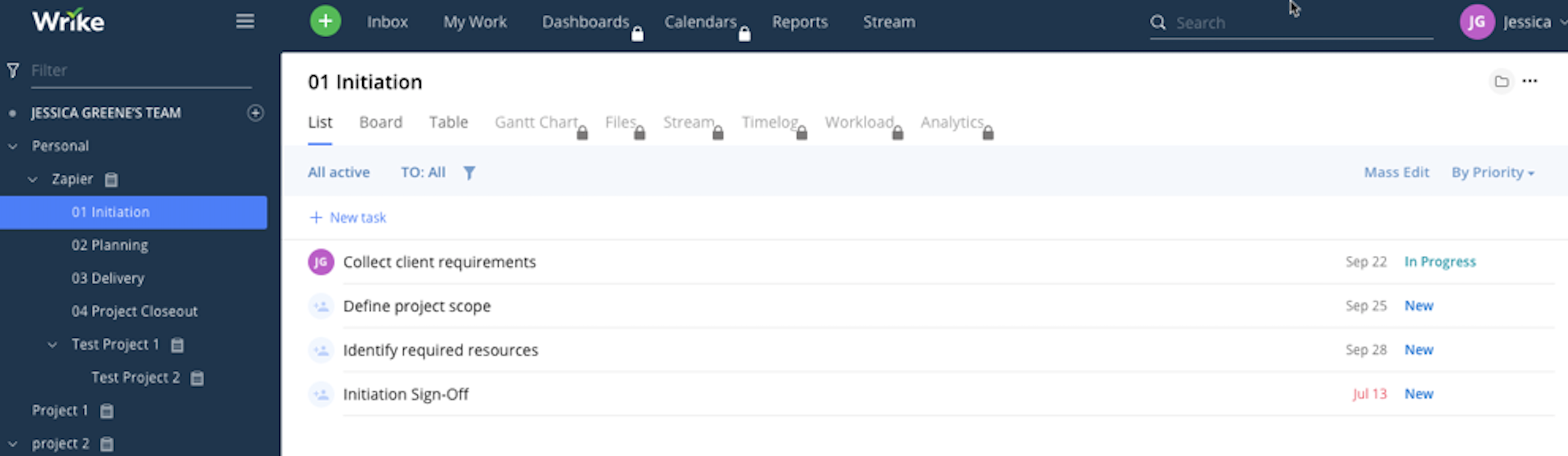
If it were up to you, would you manage your projects in a spreadsheet? If so, you might like Wrike. Wrike offers the same flexibility of a spreadsheet—with columns for every bit of info you want to track about tasks—combined with reminders and Gantt chart views (premium plans only) that will keep your work on track.

Wrike lets your team update the status of tasks at various intervals—in-progress, on hold, cancelled, or completed—letting you track the status of all project tasks in detail. Additionally, you can set the status of projects to green, yellow, red, on hold, or cancelled, making it easy to create your weekly project status reports.

While you can do a lot with Wrike's free plan, its best features—including time tracking, Gantt charts, activity streams, and custom dashboards—require a premium plan. If you're running a small operation now but planning to scale in the future, Wrike grows alongside you, giving you all of the tools you need to run both a single small project and many concurrent large ones.

Wrike Price: The Free plan includes unlimited projects and tasks for up to five users; upgrade for $9.80/user/month (billed annually) to the Professional plan that includes Gantt charts and shareable dashboards for five, 10, or 15 users.

Automate Wrike with Wrike's Zapier integrations.

Podio (Web, iOS, Android)

Best free project management software for customizing your project management tool

Podio interface

Want something a bit more customizable? Podio lets you build a hyper-customized project or task manager. With a form-style builder, you'll drag and drop the fields you want in your projects and tasks to gather the data your projects need. You can then visualize your projects and tasks in lists, cards, or calendar views, and use Podio's built-in search to find any item you need in any of your custom apps.

Tying it all together is Podio's internal social network where you can post updates, ask questions, and chat with your team members. You can use it as the hub to keep track of your team's work, with tools for each item you're working on and the discussions about them all in one place.

Podio Price: The Free plan includes unlimited tasks and workspaces for up to five employees; upgrade for $7.20/employee/month (billed annually) to the Basic plan that includes user management and collaboration with external users.

Automate Podio with Podio's Zapier integrations.

Yodiz (Web, iOS, Android)

Best free project management software for Agile and Scrum teams

Yodiz interface

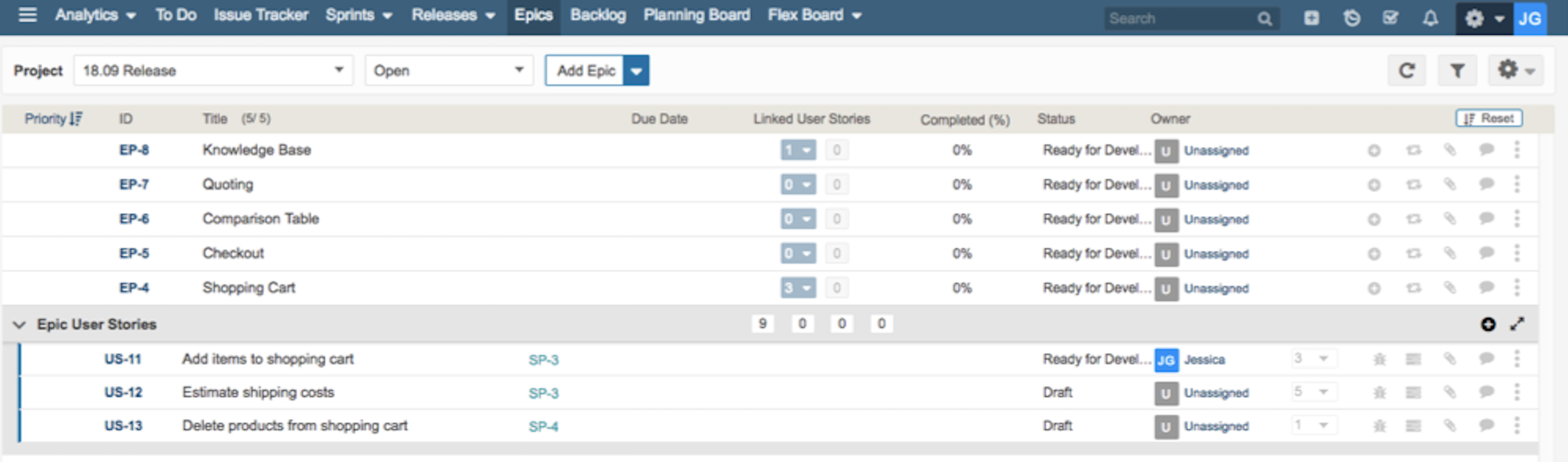
Yodiz offers a surprisingly powerful free tool for teams that use Agile and Scrum methods. It lets you do everything you need to plan your projects, releases, and sprints: create user stories, nest user stories within epics, create sprints and set sprint dates, add estimates in both story points and hours, and view sprint progress on a sprint board.

Unlike a lot of free project management apps that claim they're for Scrum but are really just kanban boards with the ability to add estimates, Yodiz is truly a Scrum tool designed specifically for Scrum teams. It's as powerful as most of the big names in Scrum software—comparable to tools like VersionOne and CA Agile Central—and it's completely free for teams of up to three.

Yodiz Price: Free for the Starter plan that includes unlimited projects for up to three users; for more than three users, upgrade to the Issue Tracker plan for $3/user/month.

Automate Yodiz with Yodiz's Zapier integrations.

Agantty (Web)

Best free project management software for creating Gantt charts quickly and easily

Most project management apps that let you create Gantt charts are feature-rich and robust—great if you need all of the bells and whistles, but cumbersome if you don't. Agantty is different. It's a simple and free project management app that lets you create Gantt charts with projects and tasks quickly, easily, and painlessly.

Just add your projects, enter dates and deadlines, then add tasks to each project. Agantty displays them all on a timeline for you. Need to adjust dates? It's easy. Just drag the edges of a project or task left or right, and Agantty automatically updates the timeline and dates for you. The end result is a calendar that provides a visual of everything your team is working on.

And if you have team members who prefer a simpler task list, just switch to Agantty's dashboard view to see all upcoming and in-progress tasks for the day, week, month, or a custom range. Click items in the list to make edits, or check the box next to a task to mark it as complete.

Agantty Price: Free for unlimited projects and teams and all app features.

Add Extra Features to Your Project Management App

Trello automation with Zapier

Need more features from your new project management tool? Zapier integrations help by connecting your project management app to the other tools your team already uses.

Say you want to add tasks to projects via email, but your new app doesn't include that feature. Just connect both your email and project management tool to Zapier, then have Zapier watch for new messages to turn them into tasks in your project management app automatically.

Check out Zapier's project management app integrations to see all of your options, or consider these ideas for insipration:

Track time and send Invoices

Whether you're working on client projects and need to bill for each hour spent, or are working on your own projects and want to know how long they take, time tracking apps can help you see where every minute goes. Hook up your projects to your time tracking app, and you can log time just by checking off to-dos.

Chat with your team

Team chat apps are a great way to make sure everyone knows what's happening in your projects. Zapier can connect your project management tool to Slack, Discord, Zoho Cliq, and other popular chat apps so you can notify your team about new tasks and deadlines or start new projects right from your chats.

Organize project data

Projects include a lot of moving parts, and Zapier can help pull them all together. Whether you need to add notes to your project, create contracts and other template documents, log your work in a spreadsheet, or anything else, there's a Zap for that.

Don't see the automation you need? Explore all of our app integrations to find exactly what you're looking for, or create your own Zap.

Learn More About Project Management

Project management is far more than just an app—it's a way to take your project from idea to completion. You could just choose the project management software you want and start using it, but your projects will be far more successful if you break your tasks down into steps, add milestones and due dates to keep things on track, and use checklists to ensure each task is completed with the same quality and care.

Zapier's Ultimate Guide to Project Management teaches you that and more. It walks you through the best project management systems, shows you how to manage projects effectively, and showcases the best tools to get things done.


source https://zapier.com/blog/free-project-management-software/
The Email Parser Guide: How to Automatically Copy Data From Your Emails

Ebay emailed—someone ordered something from your store. Your bank emailed with your monthly statement, your credit card is reminding you to pay your bill, and Apple's reminding you of that app you bought last night. And the contact form on your website is nice, but each message is another thing piling up in your inbox.

It's easy enough to sort through and manage data in a spreadsheet or database. In your email inbox, though, notifications are only more clutter, more things to archive and forget. It's easier to only take the time to copy text from emails and paste it somewhere useful when you need it.

Or, you could let an app do the busywork for you. Here's how to parse text from emails and put their data to good use—automatically.


What Is an Email Parser?

When your boss or best friend emails, you likely read every word.

The rest of the time, odds are, you skim the message. Your eyes quickly dart across the screen, picking out keywords and phrases like New Sale and $4.99 and Payment Due: Friday, Nov 3.

Email parsers work the same way. You teach these programs how to recognize patterns in your emails, tell them what data is actually important and that everything else can be ignored, and then have them save only the important stuff. Then, connect the email parser to an automation tool like Zapier to save that important text into any other apps you want to log the orders in a spreadsheet, for example, or remind you to pay your credit card bill tomorrow. As long as the emails are all laid out generally the same way, the email parser should be able to figure out what's important and copy the data for you.


Got that? Ok. Let's back up, and step-by-step build an email parser that can copy text out of your emails and put it to work. We'll use Zapier's Email Parser—a free tool to copy text out of your emails—and then look at other tools that can do more with your emails. The basics work the same in every app, and once you know how to parse one email, you know how to parse them all.

Onwards.


1. Make a new email parser
2. Forward an Email to the Parser
3. Teach the parser how to read your email
4. Automatically forward emails to the parser
5. Put your parsed email data to work

Make a New Email Parser

Zapier Create Email Parser

The first step is the easiest. Just go to parser.zapier.com, sign in with your Zapier account or make a new account, then click the Create Mailbox button to add a new email parser.

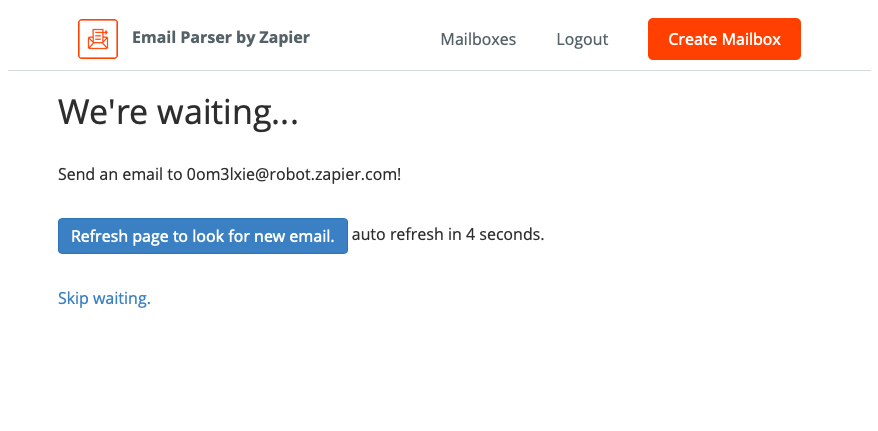
Email Parser will then show you an email address like 1asdfe2fg@robot.zapier.com. Copy that address.

2. Forward an Email to the Parser

Email to parse

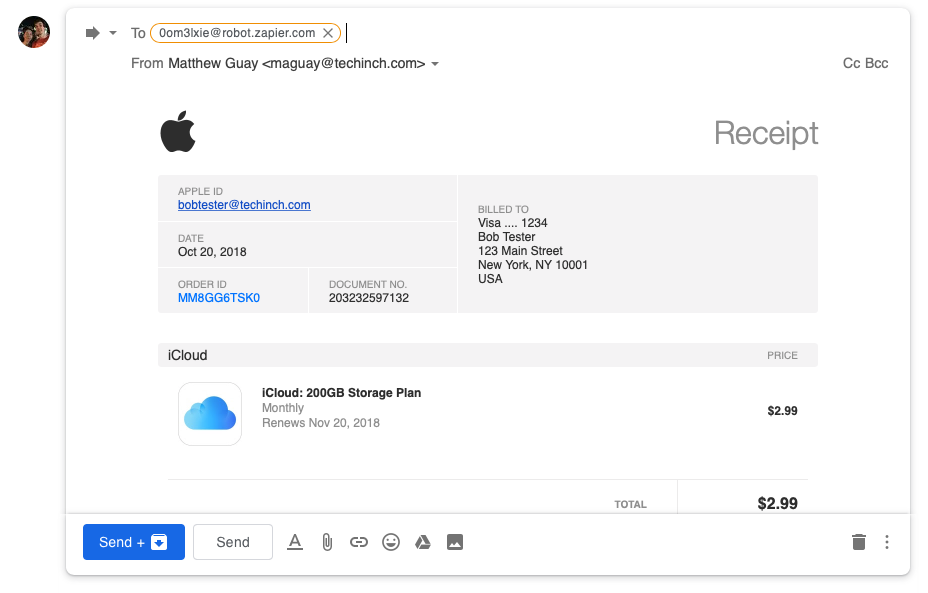
Now, send the first email to be parsed. Open your email app, find an email like the ones you want to use with your email parser. I'm going to have Email Parser notify me about new App Store purchases—so I got an App Store email.

Click the button to forward the email, put your @robot.zapier.com email address in the To: field, and click Send.

3. Teach the Parser How to Read Your Email

Select text to be parsed
Select the text you want the parser to copy, then give it a unique name

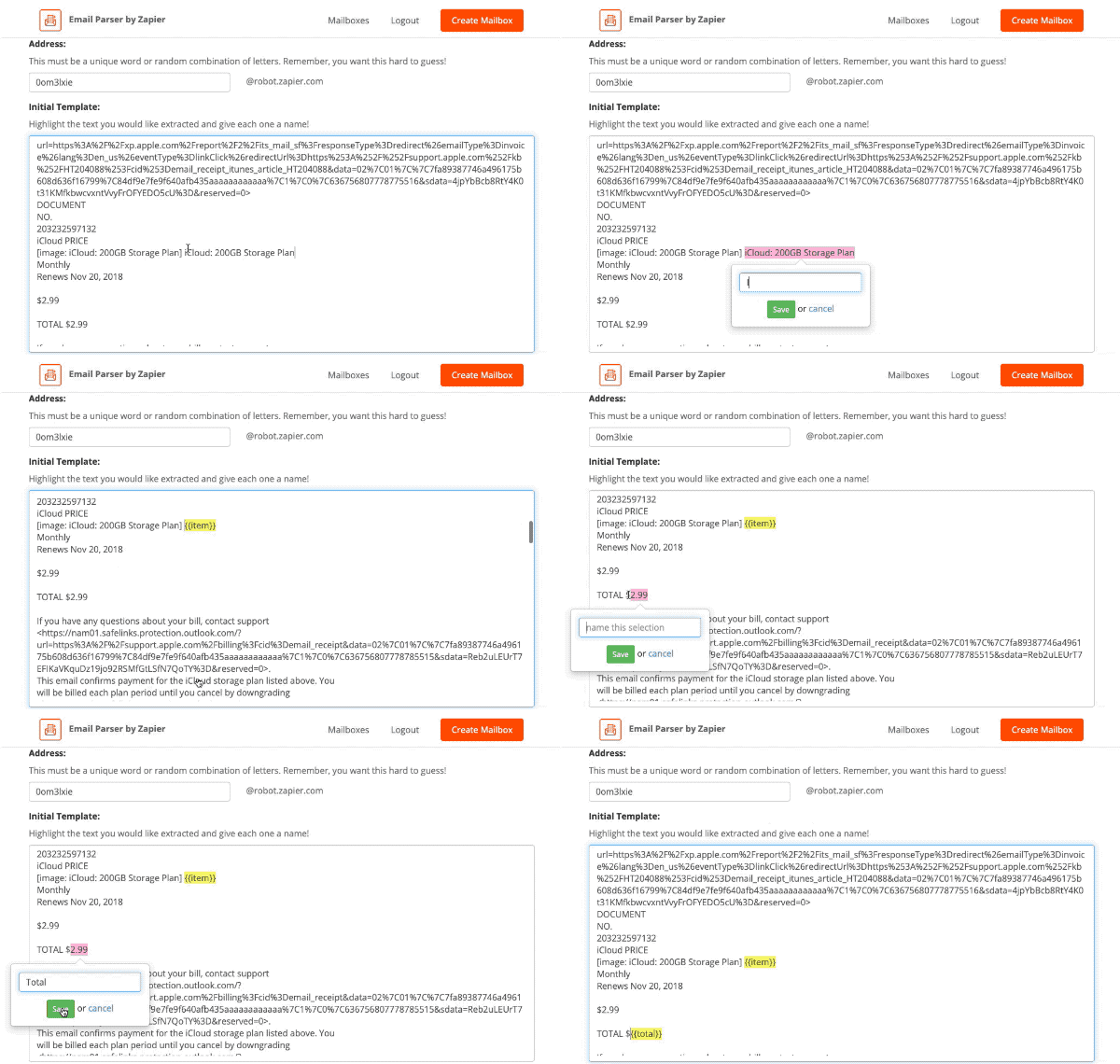
Time to put on your teacher hat. Once Zapier Email Parser receives your email, it shows a text version of your email in the Initial Template box. All you need to do is find the important data and tell the parser that this is what to copy.

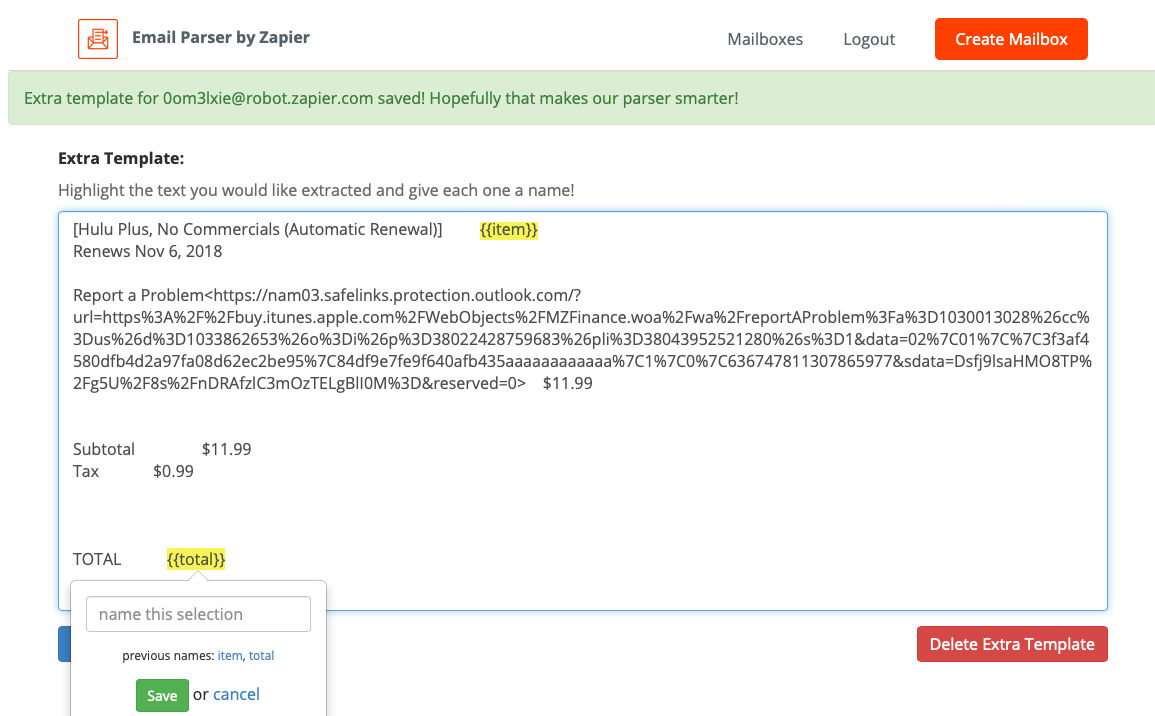
Scroll down to the text that you want the Email Parser to copy, and select it. With my App Store emails, I want to know what I purchased, so I select the text of the product name. Type a name for that item in the box, click Save, and the Email Parser will replace the text with the name in curly brackets, like .

Repeat that for everything else you want the email parser to copy. I selected the total price, too, and gave it a name.

Once that's done, click the blue Save Address and Template button at the bottom—and your email parser is ready to work.

Email Parser Second Template
Select the same text you want to copy, and give it the same name to teach the Email Parser how to handle variations in your emails

Want to make your Email Parser more reliable? Forward another similar email to the same address, then click the View Emails beside your parser's name in Zapier Email Parser's Mailboxes list. That shows your most recent emails—with the text Email Parser selected in yellow.

If that's incorrect, click the Edit extra template link near the bottom. Select the same text you'd originally wanted to copy from your emails, give it the same names, then save this new template. You can repeat that multiple times to make your parser more reliable.

4. Automatically Forward New Emails to the Parser

Gmail search filter

The Email Parser you made is now ready to copy text from other similar emails—App Store receipts, in this case. We need to send every new App Store receipt to the email parser.

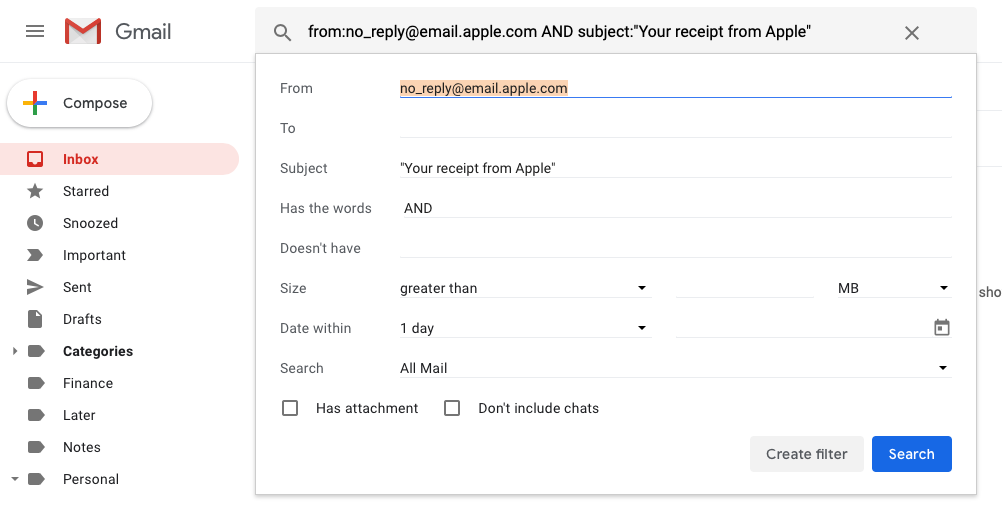
The best option is to automate things with a filter in your email app to automatically forward messages that match the one you sent to Email Parser. Typically, your notification emails will all have something in common—they come from the same sender and often have the same subject. App Store receipts, for instance, come from no_reply@email.apple.com and have the same Your receipt from Apple subject.

To watch for those emails in Gmail, you'll first need to add your email parser address to Gmail to automatically forward emails. Here's how:

  • Open your Gmail Forwarding settings—click the gear icon, select Settings, then click the Forwarding tab.
  • Click the Add a forwarding address button there.
  • Enter your Email Parser @robot.zapier.com email in the text box and click next.
  • Check your email—Zapier should send you a confirmation email from Gmail. If you don't see it, check the Email Parser app's mailbox—it should have the email. Either way, copy the confirmation code, then paste it in the box back in your Gmail Forwarding settings.

Now you can have Gmail automatically forward emails to your email parser. First search for the email address and/or subject of the messages you'll have the email parser process; I'll enter from:no_reply@email.apple.com AND subject:"Your receipt from Apple". Click the tiny down arrow on the right of the search bar to see the full Advanced Search options—then click the Create filter button or link in the lower right corner. Have that filter forward the email to the email parser address you just added—and you should be all set.

After a bit of mouse and keyboard exercise, you're done. Every time Apple sends you an App Store receipt—or whenever you receive whatever other email messages you want to parse—Gmail will send it along to the Email Parser.

5. Put Your Parsed Email Data to Work

Use Zapier to automatically use your parsed email data

Copying text out of emails alone isn't enough—you need to do something with that data. The easiest option is to connect your Email Parser to Zapier's app automations, which lets you send data from your emails to 1,300+ other popular work apps—from Airtable to Zoho.

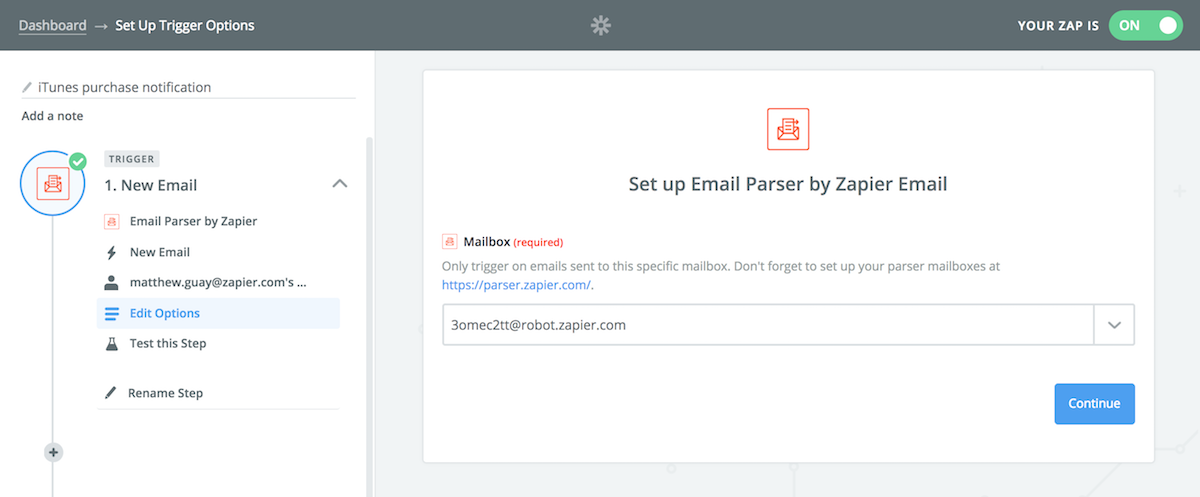
Visit Zapier and log in or sign up if you haven't already. Then click the orange Make a Zap button in the top right corner. Select Email Parser as the trigger app, then choose the New Email trigger. Connect your Email Parser account if you haven't already, and pick the parser address you just set up.

Zapier automation with email parser
Zapier can use the text Email Parser finds however you want

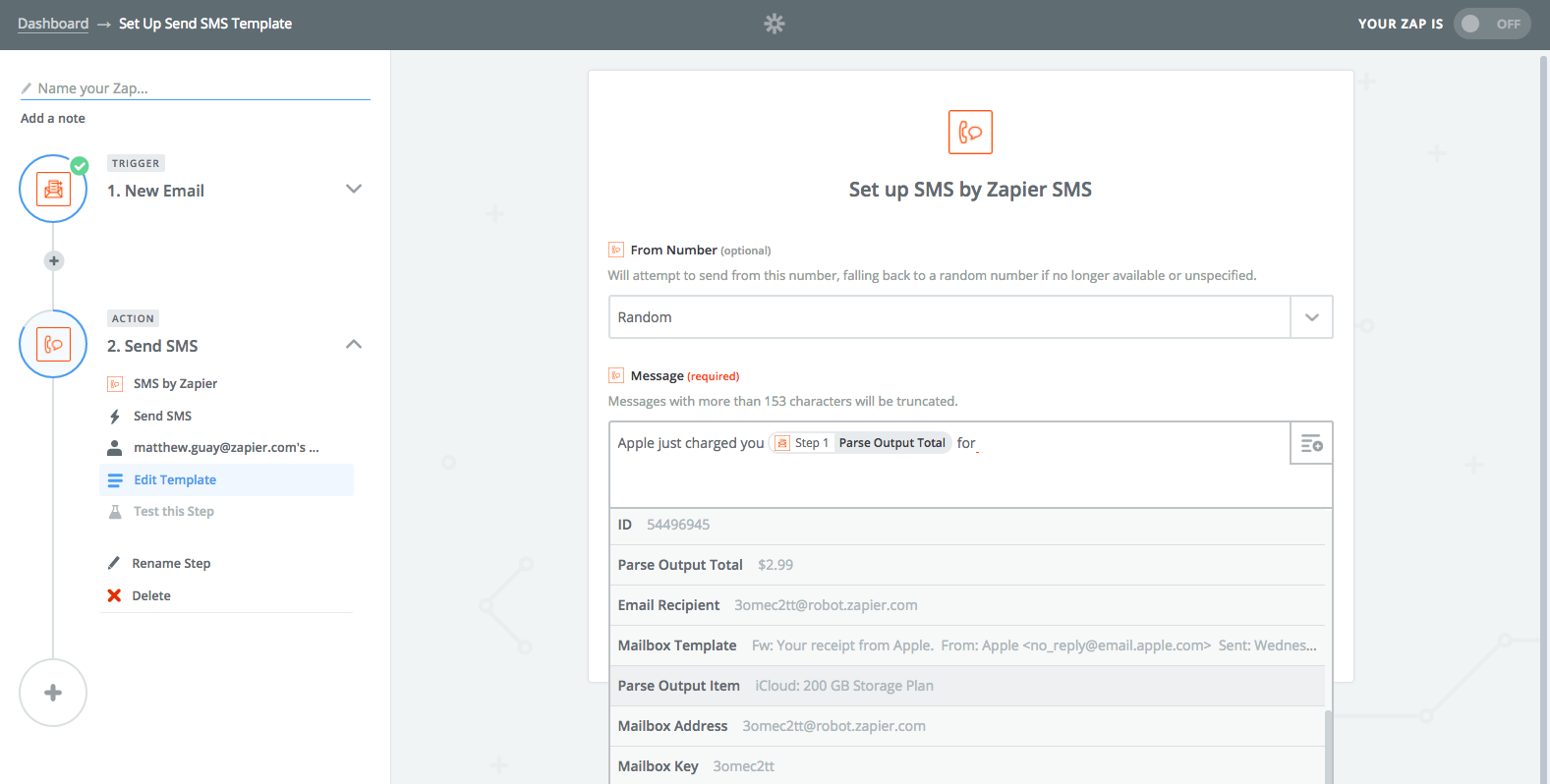
You can then put your email data to work. In the Action step, select the app you want to send your email data to. I wanted to get an SMS notification about my App Store receipts, so I picked the SMS app's Send SMS action.

To use your email data, click the + button beside any of the fields from your app. Here, I've added the purchase name and price from Email Parser to the SMS notifications—you could perhaps add names and emails to your email newsletter, log sales info to rows of a spreadsheet, or use your email data however you want.

Test the Zap to make sure everything works the way you want, turn it on, and you're done!


Now, whenever an email comes in with details you need to save, your email app will forward it to Email Parser, which will skim your email and copy out the important info, then send it to Zapier, which then sends it to the app that needs your data. It's the most productive Rube Goldberg machine yet.

The Best Email Parser Apps

Zapier's Email Parser isn't the only way to copy text out of your emails. It's a great tool, and one of the easiest to setup and use. But it's only designed to parse text from your emails, and may fail at copying text if your email formatting changes much.

Need more power for your email parsing? There are a handful of other tools that can do similar things, watching for new emails and parsing out the text you want—often with even more features for those most difficult emails.

Here are the best apps to parse your emails:

mailparser.io

to automatically find data to parse

mailparser.io Screenshot

mailparser.io makes it much faster to start parsing emails—and much more precise. Start the same as you would with Zapier's Email Parser: Make a new inbox, copy its unique mailparser email address, and forward your emails to it. This time, forward several similar emails to start.

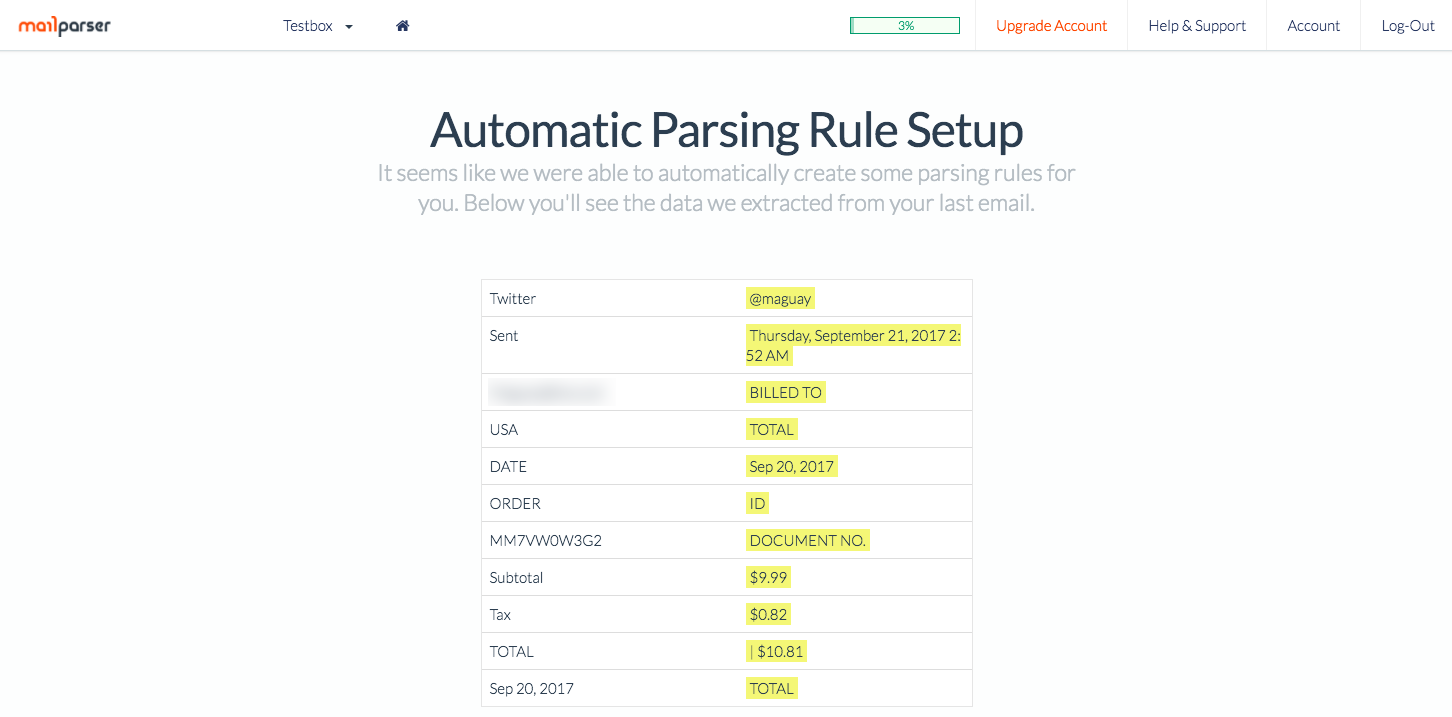
As soon as the emails come in, mailparser.io will try to figure out the common patterns in your messages—names, dates, prices, order numbers, and more. It shows them in a table automatically, and if everything looks good, you can turn on the email parser and let it run without changing anything for one-step email parsing.

Mailparser.io customize email template

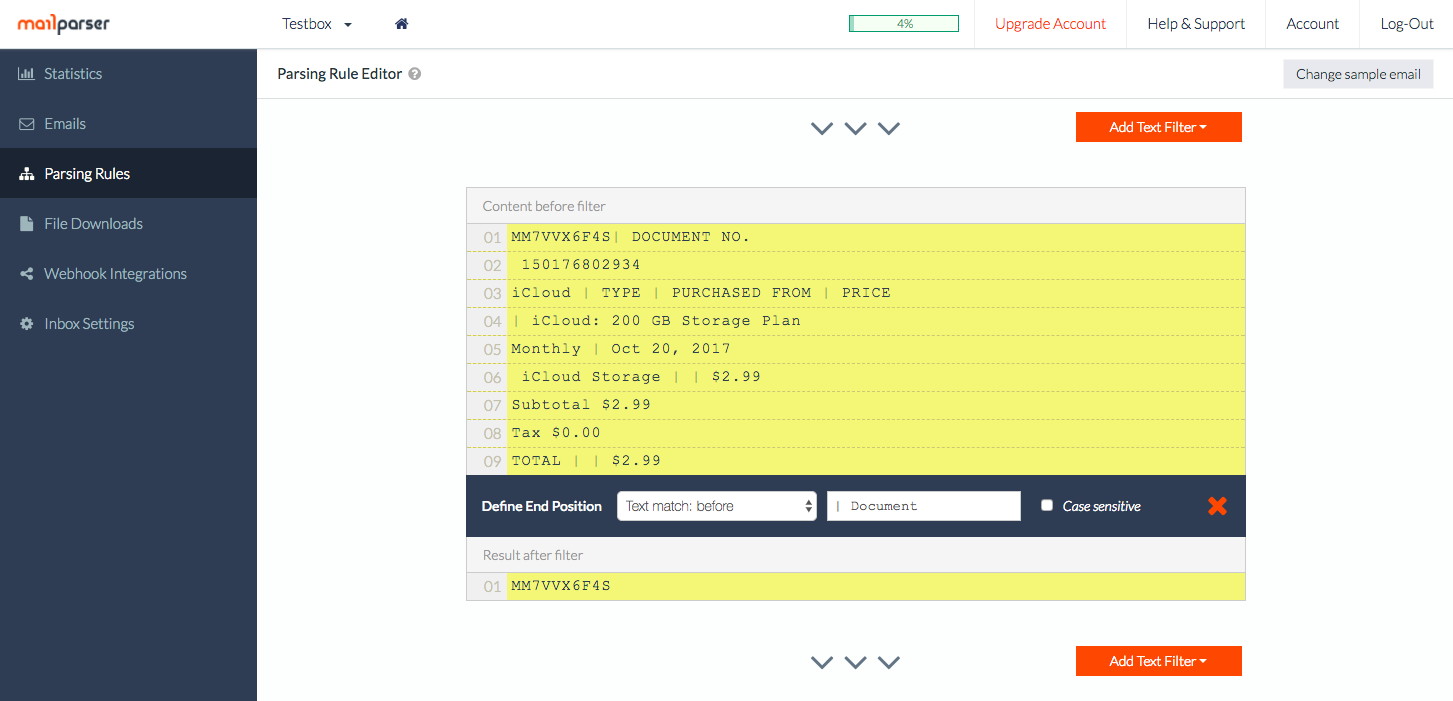
Odds are, though, you'll want to customize and extract the specific things you want from your messages. Open the Parsing Rules tab in mailparser.io, then select any of the pre-made rules—or add a new one. There, you can have mailparser.io filter out ordinary text like links and blank lines, then tell it precisely what to watch for before and after the parsed text. It can count a specific number of characters, find the next blank space or line, or look for an exact text string.

It can also parse other things in your email. Need to copy all entries of a table—even when sometimes there will be more entries than others? Add an Extract Tabular Data text filter, and mailparser.io can copy the full table or XML content for you. It can even copy text from PDF or text attachments on your emails.

Parseur

to copy text from HTML and rich-text emails

Parseur Screenshot

Both Zapier's Mail Parser and mailparser.io turn your emails into plain text—you get the core details from your emails, without the images and formatting. That works—and mailparser.io lets you make advanced filters to dig deeper into HTML formatting—but it can be difficult to use.

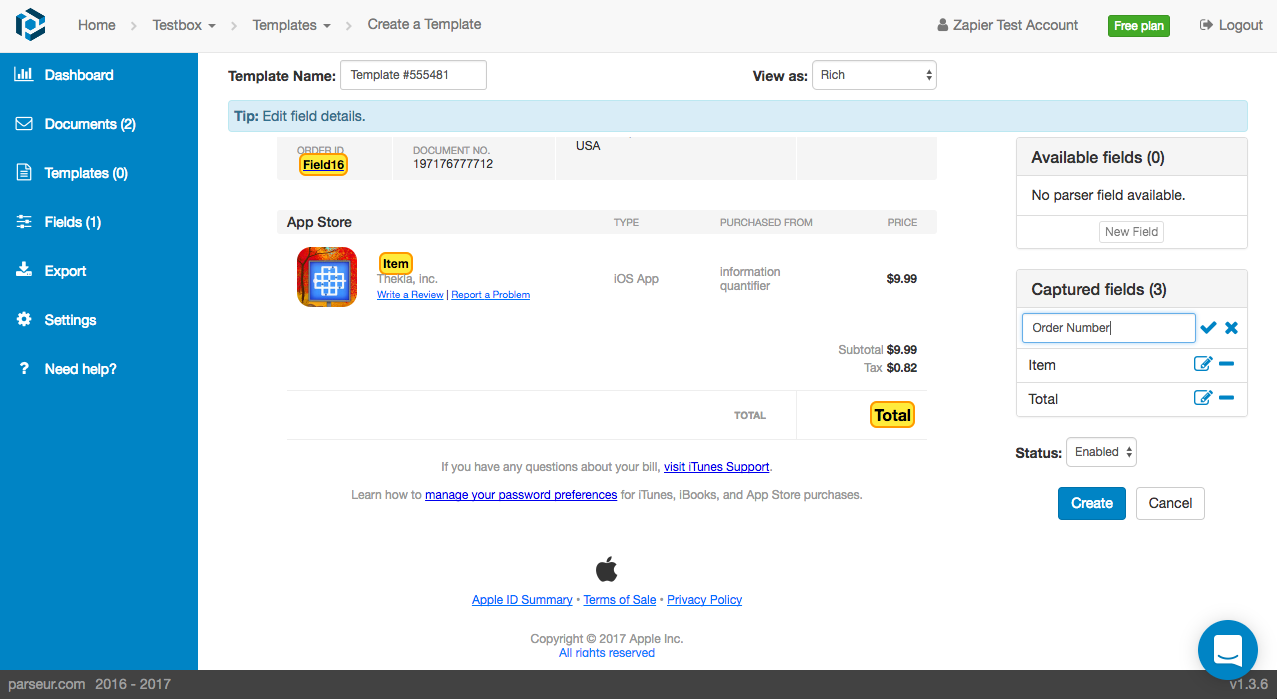
Parseur simplifies things with an HTML parser that shows your messages exactly the way they look in your email inbox. Set up an email parser the same way—add an inbox, copy the address, forward an email—then you can make a new template in Parseur. Click on the text you want Parseur to copy, add a name for the field on the right sidebar and click Create, then repeat for everything else you want to select. It's easy to quickly pick out what you need to copy with the standard, rich-text email view.

See parseur results
See the parsed text in a table, alongside the original email

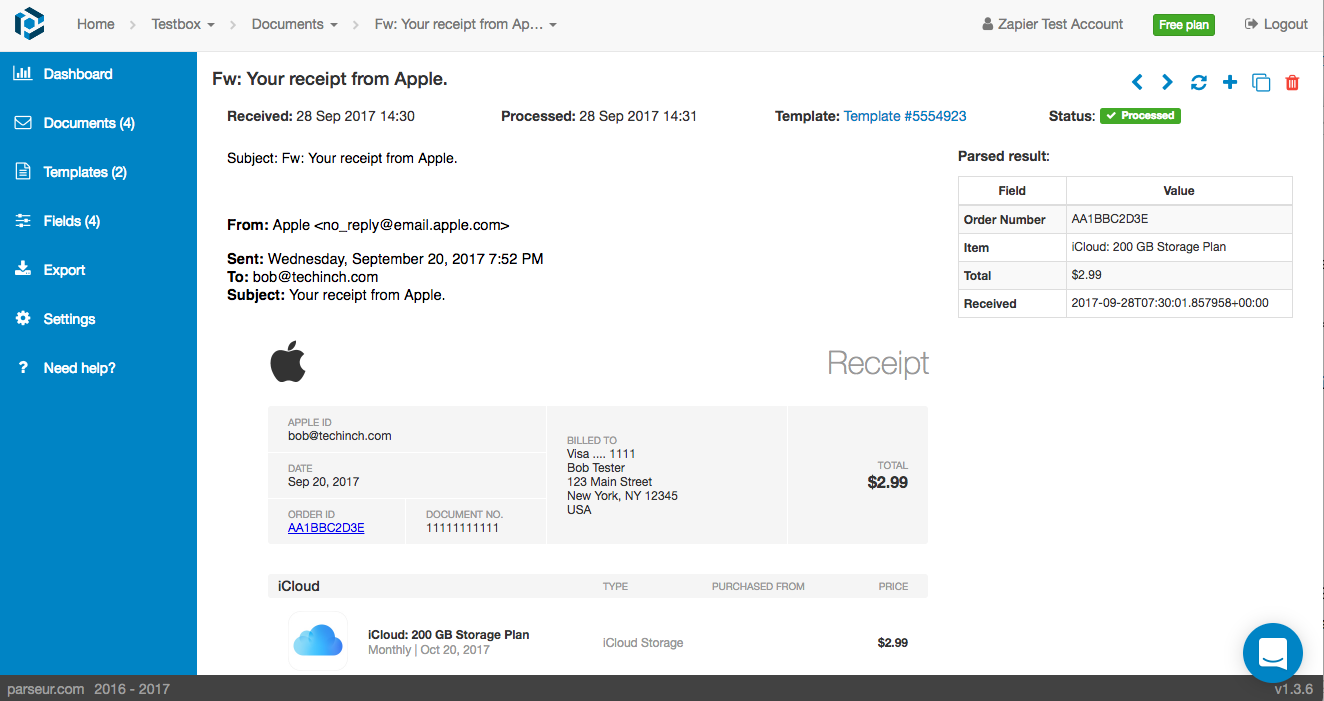
Then, you can use Parseur as an email inbox with an archive of your parsed emails. Click through the Documents tab to see every email that Parseur received—and open them to see the original email along with a table of the copied text.

If Parseur can't figure out what to do with an email, it'll show it highlighted in red on your Documents list. Open the email and click the + icon in the right corner to add a new template, and Parseur will then parse that email and use the extra template as a backup next time.

Bonus: Parse Email Messages with Regex and Zapier Formatter

Zapier Formatter Regex
Using Zapier Formatter, you can automatically copy out phone numbers, links, email addresses, and more from any text—including an email

Only want to copy phone numbers, links, email addresses, and other easily recognizable text from email messages? You don't even need an email parser. All you need is a regex—or Regular Expression—script that can find text that matches the pattern you need.

With a regex script, you could search through your email text inside a text editor like Sublime Text and copy out the items you want in seconds. Or, using Zapier's Formatter tool, you could have Zapier watch Gmail for a new email, use Formatter to find, say, a link or phone number in the text, and then add another action app to your Zap that puts your text to work.

Another option: You could use this Gmail Parsing Google Script from ctrlq.org to use regex scripts right inside Gmail that find data in your emails and copy it to a Google Sheet.

Here's how in our in-depth guide on how to extract text with regex and Zapier Formatter.


Put Your Parsed Emails to Work with Automations

You've learned how to parse emails and found the perfect app for the emails you need to parse. All that's left is to start using that parsed text in your work. Just as in the example above, you can connect your email parser to Zapier, then automatically send every parsed email to your CRM, eCommerce tool, project management app, and more.

Here are some of the most popular ways to use parsed email data with Zapier:

Save Your Parsed Email Data to a Spreadsheet

One of the easiest ways to use your email data is to save it to a spreadsheet. There, you can sort and filter the data or easily import it into another app. Zapier can save your email data to a Google Sheets or Excel spreadsheet—or a database—automatically for a list of everything you need in one place.

Get Notified About Parsed Emails

Want to get an SMS with the simpler details from your parsed emails? Or perhaps you'd rather get another email with just the important text or notify your team in Slack. Either way, you can do this automatically.

Add New Subscribers to an Email List

You could automatically copy email addresses of people who contact your company and add them to an email list, but you'd miss out on lots of important data. An email parser can help fill in the blanks, copying all their contact info before adding them as new subscribers.

Create CRM Contacts and Leads from Emails

Whether you're parsing messages from your contact forms or order receipts from an eCommerce store, save your email data to a CRM to keep as many details on your contacts and customers as possible.

Start Projects and Tasks with Parsed Emails

Don't let work pile up in your inbox. Parse the emails, and let Zapier turn those messages into tasks and projects you'll complete.


Email's the default way for most apps to send notifications and other info—and can be the best way to automate apps that don't have their integrations. With an email parser and Zapier workflows, your inbox can get your most important emails working for you as soon as they come in—no more copying and pasting from your inbox.

Want to make your inbox even more productive? Here are some great Zapier guides to help:

Image Credits: Ocean background photo by Dimitris Vetsikas via Pixabay


source https://zapier.com/blog/email-parser-guide/

Thursday, 18 October 2018

4 Common Problems Caused by Collaboration (and How to Fix Them)

"Collaboration" is a hot word in the business world. Our software is collaborative. Our open office plans are designed to encourage communication and collaboration, for better or worse. Even job ads show a growing desire for workers who have experience collaborating. Who doesn't want to be seen as a team player? In the push to become more collaborative, however, organizations may focus on the potential benefits without considering the risks.

Experts and researchers in business management have found that collaboration isn't always all it's cracked up to be. Here are four common problems caused by collaborative work environments, followed by suggestions for how to correct them and keep teams productive.

4 Common Problems in Collaborative Environments

There's Less Time for Focused Work

The more people collaborate, they less time they have for individual work. The hardest work that knowledge workers do in their jobs usually requires intense focus, and that in turn means they typically do it alone.

When we collaborate, whether by attending meetings, answering questions, sharing opinions, or simply swapping work back and forth with other colleagues, we need to interact, and interactions are often disruptions to long periods of intense focus.

Teams End Up Lopsided

Within a collaborative environment, people don't contribute evenly. A study across 300 organizations showed that a handful of employees are disproportionately responsible for positive results: "20 to 35 percent of value-added collaborations come from only 3 to 5 percent of employees." Why it happens is anyone's guess, but it's a pattern to be sure.

The lopsidedness shows up in gender, too, with women finding they must be seen as helpful contributors, something they can achieve by saying yes to collaboration. In a study, when both men and women stayed late to help colleagues, men were rated higher for it than women. And when both men and women declined to stay late and help others, women were rated lower for it than men. So, it's possible that women feel obligated to be collaborative more than they might like, seeing as their reputations depend on it.

Top Performers Burnout

When organizational values give too much weight to collaboration, two common problems result:

First, it creates an always-on culture, where employees feel the need to respond to messages after hours and on days off.

Second, people feel pressured to say yes to every collaborative effort that comes their way. Because collaborative environments tend to be lopsided, the highest contributors end up getting the most calls to participate, whether it's giving feedback, sharing institutional knowledge, attending meetings, or approving decisions. When the highest valued individuals feel pressured to say yes to every request, and they are bombarded with them, burnout isn't far off.

Bottlenecks Stall Work

Building on the idea that small numbers of people disproportionately contribute to collaborative efforts, and that they are over-taxed with requests, bottlenecks develop and work stalls. When everyone in the organization relies too much on the contributions of a small group of people, then work can't move forward until those highly valued employees weigh in.

How to Encourage Collaboration And Avoid Its Pitfalls

Reduce the Number of Interactions Required

If you were to map out the collaborative process of getting work done, where work passes from one person to the next, or in the case of an approval process, directly back to the previous person, it might look like this:

collaboration illustration

Organizations that simplify the operating model or better align the organization (in the words of Michael Mankin, a partner at the consulting firm Bain & Company and author of Time, Talent, Energy) effectively reduce the number of interactions.

For example, by flattening structures, fewer executives and managers end up weighing in on decisions, which reduces the number of people and interactions involved in a collaborative effort. It also empowers appropriate people to default to action and make decisions that help the organization move forward.

Set Boundaries

Set boundaries so that people can protect their time and energy appropriately. Cutting down on the number of meetings held and their length can make a tremendous difference. Some experts suggest setting a limit on the number of hours per week anyone is allowed to sit in meetings. Another tactic is to create a culture in which certain stakeholders can choose not to attend every meeting in full, but rather join only for the part that pertains to them.

Equally important are cultural norms about replying to messages after hours. Replying to messages off hours may seem helpful in the moment, but it can contribute to a damaging culture that causes burnout. Team members should be available to other colleagues during work hours, but it shouldn't be expected on their time off. Employees in leadership and management roles are in a position to set the tone here.

Spread Out Decision Making

Shift the burden of making decisions from only top performers or managers to other people in the organization. People often become bottlenecks because they're in high demand, not because the work requires it.

Find your bottlenecks and tally up all the work that requires their approval or feedback. Of that work, what could be done by someone else, perhaps someone lower in the organizational structure? Spreading out the powers of decision-making removes bottlenecks and lightens the load on the high performers who unintentionally create them.

Balance the Reward System

Balanced organizational cultures reward both individual contributions and teamwork. But most cultures aren't all that balanced. The tendency is to formally reward individual achievement but informally reward collaboration. The salesperson with the most sales might get an award and a bonus, but the person who shares knowledge and gives feedback merely earns a reputation for being helpful. It takes concerted effort to change a reward system so that it praises people who balance individual achievement and collaborative contributions. Yet, it can be done.

A successful example comes from glass and materials company Corning (as described in this video webinar by Wharton School professor Adam Grant; start at 16:05). According to Grant, Corning has a prestigious fellows program that rewards employees with a job for life and a lab for life if they meet two criteria. One is being the lead author on a patent that brings in a tremendous amount of money. The other is being a consistent contributor to patents authored by other scientists and engineers. Doing one or the other isn't enough. You can only receive this incredible reward if you do both.


Collaboration has plenty of benefits. When people work together, it provides an opportunity to have a more diverse mindset for how to create new products or processes, and the collective wisdom of a group likely outweighs the ideas and knowledge of an individual. Researchers are finding, however, that collaborative cultures tend to create a few common problems as well. By knowing what these problems are and having a few strategies on hand to prevent them, you can keep your team productive.

Title photo by rawpixel on Unsplash


source https://zapier.com/blog/common-collaboration-problems/

Wednesday, 17 October 2018

The 8 Best Email Hosting Services for Business

Email is the hub of almost every business. It's the easiest way to communicate, both internally and externally. It's where you get your most important notifications. And it gives you storage space for archiving critical information and shared files. While it might be tempting to pick your email provider based on brand familiarity, it's important to review your options before committing to a service that will become your team's most-used service. The best email hosting provider will not only let you reliably send and receive email for your own domain, but it might also offer additional tools, such as shared contacts and calendars for your company.

To make your choice easier, we tested and compared the top business email hosting services. Here's what each does best—as well as alternatives for hosting your own email.

The 3 Main Options for Email Hosting

When shopping for email hosting, the first decision you need to make is how you'll host your email. You have three main options:

  • Shared Web and Email Hosting: Most web hosting providers also offer email hosting. For example, if you host your website through a provider like InMotion, you can host your email there as well. Often, email hosting is included with your web hosting subscription for free.

  • Self-Hosted Email: If you have your own servers, you can host your own email instead of going through a third-party provider. While self-hosting provides more control and customizability, it has its disadvantages. The added costs of servers and systems admins to maintain them, along with the challenge of keeping your email from being marked as spam, often makes third-party hosting the better option.

  • Third-Party Email Hosting: If you need more features than what your web host provides, look into hosted email providers. A third-party email host lets you avoid the costs of self-hosting. Plus, a subscription to a hosted email service often comes with other tools you need to run your business: shared contacts and calendars, built-in video conferencing, team chat, and more.

Finally, it's important to understand the difference between an email hosting provider and an email client. An email host is what lets you send and receive email across networks. An email client (or email app) is the application you use to write and read emails. Your email host and client do not have to be the same. For example, you can send and receive emails hosted through G Suite on a desktop or mobile Microsoft Outlook app.

What Features to Look for in an Email Hosting Service

When you combine your email and web hosting, there's not a lot to look for as far as features go; you get whatever features your web host happens to offer. And when you self-host, you build your own features; the options to choose from are more for the tools you use to manage and customize your email.

The real decision-making, then, comes when you're shopping for a third-party email hosting service. There are a lot of features to consider and evaluate, and what's important varies from business to business. For example, businesses in healthcare and banking have strict compliance regulations to adhere to that may not be as crucial for a marketing agency.

So rather than looking at every possible feature of email hosting providers, we looked at the features that apply to most business types:

  • Custom Domains: All of the email hosts featured below let you create email accounts using your company's website domain address.

  • 24/7 Support: If you don't already have a systems administrator on staff, you shouldn't need to hire one just to manage your email. We selected tools that offer around-the-clock support, so there's always someone to help when you have questions or issues.

  • Security Features: You could route all email through a third-party application to get features like spam- and virus-filtering, but most businesses are better off using a host that has those features built in.

  • Mailbox Storage: If your employees make business decisions or communicate with clients/customers by email, they'll need plenty of storage room for archiving old emails. The providers we selected offer a minimum of 2GB of storage per user.

  • Sending Size Limits: Each featured provider lets you send emails and attachments that are at least 25MB in size. Many also offer file sharing or FTP tools that let you send larger files.

Using these criteria, we selected the following eight hosted email providers. Read on to learn more about each option, or view our comparison chart at the end of this piece to find the one that's best for your business's unique needs.

The 8 Best Hosted Email Services

  • Office 365 for companies that use multiple Microsoft apps
  • G Suite for simplicity and keeping everything on the cloud
  • Zoho Workplace for email hosting and collaboration tools on a tight budget
  • Rackspace for companies that only need email hosting
  • Intermedia Exchange Email for companies that need help migrating to a new email host
  • IceWarp for agencies that need to create email accounts for their clients
  • FastMail for customizable storage options to manage costs
  • Greatmail for low-cost email hosting with minimal features

Office 365

Best email hosting service for companies that use multiple Microsoft apps

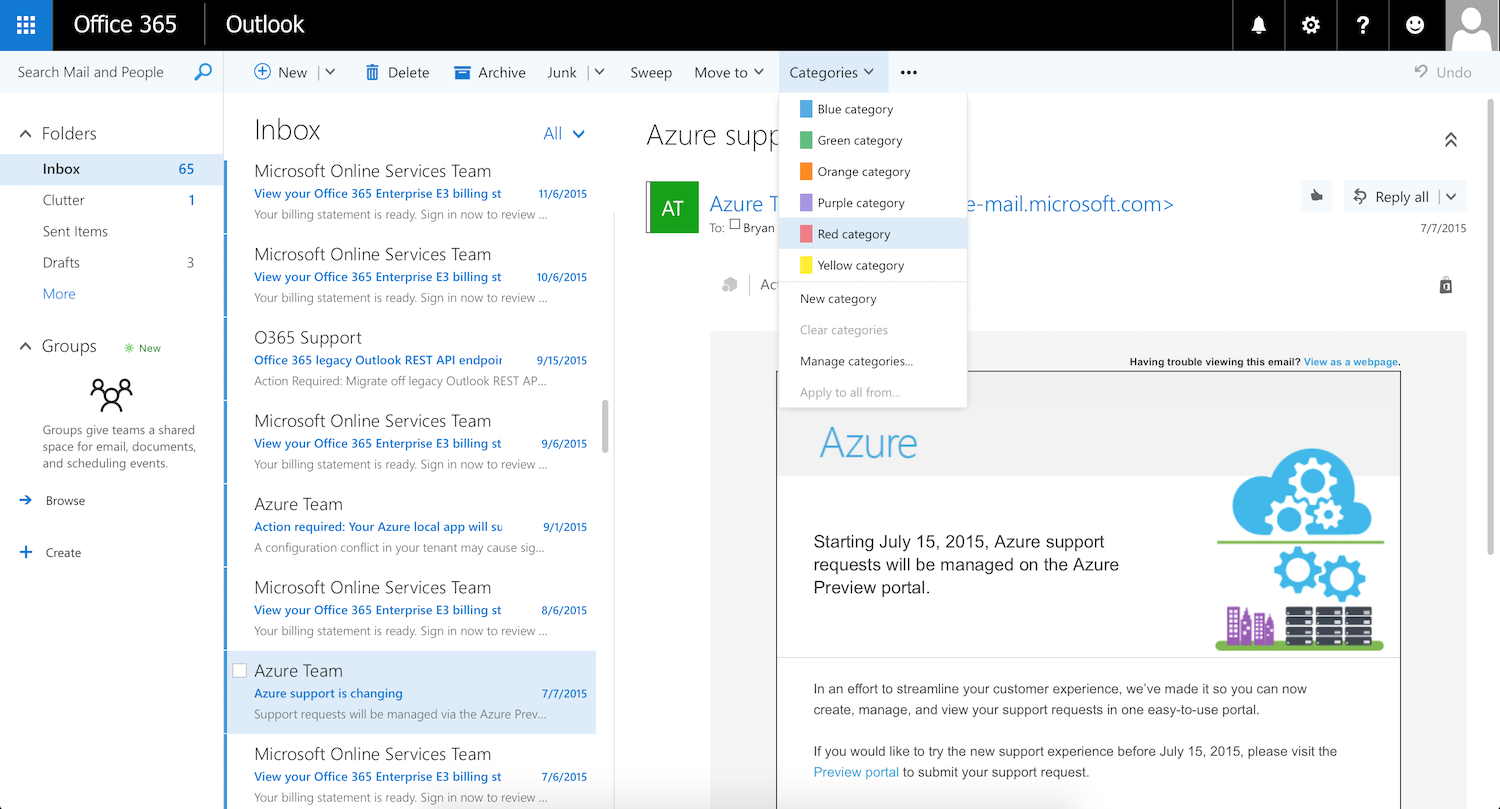
Email in Office 365

If your employees rely on Microsoft Office apps like Word, Excel, and PowerPoint to do their work, the best option for your email hosting is probably Office 365's Business Premium plan.

Office 365 Business Premium bundles all of the features you need from a hosted email service—email sending and receiving, custom domain addresses, and spam and data loss prevention—along with the Office apps your employees use daily at work. With a single subscription, you get hosted email and web, desktop, and mobile access to Microsoft's Word, Excel, PowerPoint, Outlook, SharePoint, OneDrive, Skype, and OneNote apps.

And in addition to the standard Office apps, Office 365 Business Premium also gives your employees access to some of Microsoft's newer workplace tools, including Microsoft Teams (a team chat tool), Yammer (an internal social media app), and Microsoft Planner (a team task management app).

Email hosting with an Office 365 subscription is provided through Microsoft Exchange, which is also available as a standalone subscription if you don't need all of the add-on apps. And both the lowest-price standalone Exchange plan and Office 365 Business Premium give each of your users up to 50GB of mailbox storage.

  • Office 365 Tools: Email, Calendar, Contacts, File Storage and Sharing, File Editing and Collaboration, Voice and Video Conferencing, Instant Messaging, Team Chat, Internal Social Network, Intranet, and Tasks

  • Office 365 Price: From $12.50/user/month for the Office 365 Business Premium plan that includes hosted email for up to 300 accounts, 50GB storage per account, and access to all apps listed above; from $4/user/month for the Exchange Online Plan 1 that includes email hosting, shared calendars, and a global address list.

Automate Office 365 with Office 365's Zapier integrations, including individual integrations for Excel, OneDrive, OneNote, and Yammer.

G Suite

Best email hosting service for simplicity and keeping everything on the cloud

Gmail G Suite account

If your organization prefers using cloud-based tools, G Suite is your best bet for email hosting.

G Suite is Google's alternative to Office 365, combining email hosting with the company's own communication and collaboration apps. With a G Suite subscription, you get a minimum of 30GB of storage space per user—though higher-tier plans provide unlimited storage—as well as shared contacts and calendars. Plus, Gmail's recent redesign even lets you view your calendar without leaving your Gmail inbox.

You also get access to Google's entire set of workplace communication and collaboration tools, including Hangouts for messaging and voice/video conferencing, Team Drives in Google Drive for shared cloud file storage, Keep for note-taking, and access to Google Docs, Sheets, and Slides—some of the simplest file editing and real-time collaboration tools available.

Google's administration tools are simple to use as well, and increasingly have the advanced features businesses need, such as Google Vault for compliance archival. And since it's still the Gmail your team already knows how to use, onboarding will be easy.

  • G Suite Tools: Email, Calendar, Contacts, File Storage and Sharing, File Editing and Collaboration, Voice and Video Conferencing, Instant Messaging, Team Chat, Internal Social Network, Intranet, and Tasks

  • G Suite Price: From $5/user/month for the Basic plan that includes core Google apps and 30GB storage per user; from $10/user/month for the Business plan that includes unlimited storage (for accounts with five or more users), Vault, and audit reports.

Automate G Suite with Zapier integrations for Gmail, Google Calendar, Google Contacts, Google Docs, Google Sheets, Google Drive, Google Forms, and Google Slides.

Zoho Workplace

Best email hosting service for email and collaboration tools on a tight budget

Zoho Mail

Zoho Workplace is Zoho's version of Office 365 and G Suite, offering hosted email, calendars, and contacts, as well as Zoho's own communication and collaboration apps: Docs (for cloud storage), Office Suite (for creating and collaborating on documents, spreadsheets, and presentations), and Cliq (for team chat).

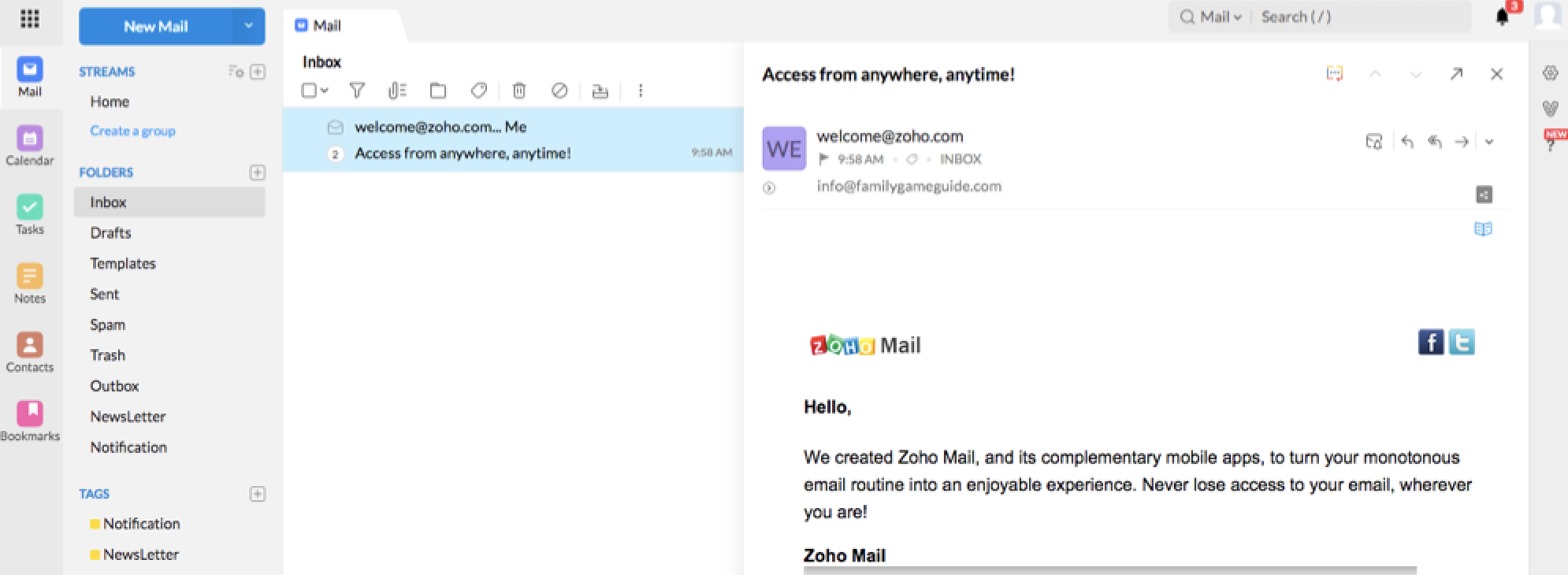
Zoho Mail is a modern take on email with social networking-style features. Instead of sending a long message with a subject and signature every time, you can send a quick stream message to colleagues—or share an email from a client that you need to collaborate on. It includes shared email inboxes as well, so everyone on your marketing team can share the same partner and press emails, searching through them all along with their personal emails. And, it's a tabbed app, so you can switch between your inbox, calendar, and a draft email in a tap.

Zoho's admin panel for email administration is a bit less intuitive than those of some of the other hosting services, but it makes up for it with extremely detailed step-by-step instructions for how to do just about anything you need to do on its platform. And if you have five or fewer employees, you can get email hosting for your business domain and Zoho's ad-free email client for absolutely free.

  • Zoho Workplace Tools: Email, Calendar, Contacts, File Storage and Sharing, File Editing and Collaboration, Instant Messaging, and Team Chat (Basic Plan); Voice and Video Conferencing and Internal Social Network (Professional Plan)

  • Zoho Workplace Price: Free for up to five users, email hosting for a single domain, and 5GB storage per user; from $3/user/month for the Basic plan that includes email hosting for multiple domains, 30GB storage per user, and access to Zoho Office Suite, Docs, and Cliq; from $6/user/month for the Professional plan that includes 100GB storage per user and access to Zoho Meeting, Connect, and ShowTime.

Automate Zoho Workplace with Zapier integrations for Zoho Mail, Zoho Cliq, Zoho Writer, and Zoho Connect.

Rackspace

Best email hosting service for companies that only need email hosting

Rackspace webmail

When you need both email hosting and a variety of communication and collaboration apps, the suites above make a lot of sense—you get multiple tools for a single monthly premium. But if all you really need is email hosting, it doesn't make sense to pay extra for all of the add-on tools. In that case, Rackspace may be ideal.

Rackspace has two great options to consider: email hosting or Hosted Exchange.

Rackspace's core hosted email service provides the basics you need to manage your team's email, calendars, and contacts. Access all three on Rackspace's webmail application, or sync it to your preferred desktop and/or mobile email client. The lowest-cost plan provides only the basic features you need, though higher-tier packages are available that offer tools like cloud storage and instant messaging.

For more advanced email features including push email, shared calendars and contacts, and archival tools, Rackspace also offers a hosted version of Microsoft Exchange. It's a cost-effective way to get the same features as running Exchange on your own servers—without having to maintain or install anything. You can even use both together, opting for the cheaper email accounts for some team members and paying extra for Exchange only for those who need its extra features.

  • Rackspace Tools: Email, Calendar, and Contacts (Basic Plan); File Storage, File Editing, and Instant Messaging (Plus Plan)

  • Rackspace Price: From $2/user/month for Basic hosted email that includes webmail access and 25GB storage per user; from $3.50/user/month for Plus hosted email that includes instant messaging and 30GB cloud storage; from $7.99/mailbox/month for hosted Exchange that includes Exchange features, 100GB mailboxes, and instant messaging.

Intermedia Exchange Email

Best email hosting service for companies that need help migrating to a new email host

Intermedia Exchange email login

Intermedia's Exchange Email is ideal if you're nervous about migrating your existing company email to a new host yourself. When you sign up for email hosting with Intermedia, they move all of your data for you and get you completely set up on your new system—all at no additional cost.

The company's Exchange Email product uses Microsoft Exchange, so it comes with all core email hosting features, including shared contacts and calendars. And if you're an email-heavy or attachment-heavy company, Intermedia is ideal because you get unlimited mailbox storage on even the lowest-priced plan.

All Exchange Email packages also come with free access to Intermedia AnyMeeting (the company's voice and video conferencing solution) and a minimum of 2GB storage in SecuriSync (Intermedia's cloud storage and file backup tool). And for businesses that only have very basic email needs, Intermedia also offers a POP Business Email plan that provides 1GB of mailbox space per user.

  • Intermedia Exchange Email Tools: Email, Calendar, Contacts, Voice and Video Conferencing, and File Storage and Sharing

  • Intermedia Exchange Email Price: From $7.49/user/month for the Exchange Email plan that includes unlimited mailbox storage, free migration, Intermedia AnyMeeting, and 2GB of cloud storage.

Automate Intermedia with Zapier's Intermedia AnyMeeting integrations.

IceWarp

Best email hosting service for agencies that create email accounts for their clients

IceWarp email interface

If you work for a company that needs to provide your clients with email accounts—a web development company, for example—IceWarp gives you the tools you need to manage email accounts and addresses on multiple domains. Plus, IceWarp supports white labeling, so you can add your company's branding to the webmail accounts you create for clients, or you can customize webmail for different clients with their own branding.

In addition to email hosting and shared calendars and contacts, IceWarp also offers its own suite of collaboration tools as part of your subscription. You get access to IceWarp's custom document, spreadsheet, and presentation editors; team chat; and voice and video conferencing. And if you use Windows, you can access all of IceWarp's tools on its desktop office app.

  • IceWarp Tools: Email, Calendar, Contacts, Team Chat, Instant Messaging, File Editing, Tasks, File Storage and Sharing, and Voice and Video Conferencing

  • IceWarp Price: From $3.50/user/month for the Standard plan that includes 50GB mailbox storage per user, support during office hours, team chat, and voice/video conferencing; from $7/user/month for the Professional plan that includes 200GB storage per user, 24/7 support, and 99.99% guaranteed uptime.

FastMail

Best email hosting service for customizable storage options to manage costs

FastMail webmail interface

For a tool focused just on the email essentials of messages, contacts, and calendar events, FastMail is a great tool for individuals and businesses alike. It's powerful and fast, with web and mobile apps that make it easy to figure out who said what in an email conversation. You can add multiple domains and subdomains to your account to give each team member an email address that matches their department if you'd like. And, to sort through your emails, you can add quick filters or program advanced filters to organize your personal messages or store archives for compliance.

FastMail focuses on the core email experience, but it also includes the business-focused team features you'd expect. You can share calendars and contacts across your entire company, add custom branding to the app and login screen, and add a company footer to everyone's emails. It even includes some bonus features, letting you store files alongside your email attachments and access them via FTP. You can publish those with a simple personal website, hosted in your FastMail storage, as well.

But the most unique thing about FastMail is that you can customize storage options for different users. For example, if most of your employees will never need more than the 25GB storage offered through FastMail's Standard plan—but you have a designer who needs much more storage—you can pay extra to increase the storage for only the designer. That means you don't have to pay for a higher-tier plan based on the unique needs of just a few employees.

  • FastMail Tools: Email, Calendar, and Contacts

  • FastMail Price: From $5/user/month for the Standard plan plan that includes mail on a custom domain, 25GB storage per user, and push mail, calendar, and contacts; from $9/user/month for the Professional plan that includes 100GB storage per user and data retention policies.

Greatmail

Best email hosting service for low-cost email hosting with minimal features

Greatmail webmail interface

Greatmail offers basic email hosting and custom domain addresses with two plan options.

Its Standard plan costs a mere $1/month for each mailbox (with a minimum of 15 mailboxes), and gives you 10GB of storage for each. It's a truly bare-bones plan that gives you built-in spam protection and access to its webmail client, but that's about the extent of it. There's no shared calendar or global contact list: just sending and receiving email.

Greatmail's Groupware plan offers a bit more, including shared calendars, shared contacts, and 25GB storage per mailbox. It connects with any email clients that support POP or IMAP protocols, so you can access your email on Greatmail's web client or using your preferred desktop or mobile email application.

It's a very basic offering, but that makes it perfect if basic is all you need. Plus, its lack of add-on features makes it one of the least expensive email hosting providers on this list.

  • Greatmail Tools: Email (Basic Plan); Calendar and Contacts (Groupware Plan)

  • Greatmail Price: From $1/mailbox/month for the Standard Edition plan that includes 10GB storage and webmail access; from $2/mailbox/month for the Groupware Edition plan that includes 25GB storage and shared contact and calendar features.

Host Your Own Email Server

Zimbra Mail
Zimbra Collaboration is one of the more popular alternates to Microsoft Exchange (via Zimbra)

From the earliest days of email, if you wanted email, you had to host an email server. Until the mid-2000s, that was still nearly the only way to get email on your company's own domain.

Even today, there is still a wide range of great tools to host your own email, many of which are free. That's one of the best things about email: it's a service you can run on your own that works with every other email service automatically. Whether you're using G Suite, have Microsoft Exchange in a private VPS, or run your Postfix on your own server, you can email anyone else and know they'll receive your message, regardless of what email service they're using.

But self-hosting your email isn't easy. As Digital Ocean software engineer Mitchell Anicas cautions, "setting up and maintaining your own mail server is complicated and time-consuming [and] most people will get more value, in the form of saved time, out of using a paid mail service."

Linux and macOS come with Postfix, the core terminal tools you need to run an email server. Windows Server includes a built-in SMTP server for a basic email experience. Both are a Mail Transfer Agent that can send and receive emails for you—and you could set them up for basic email features.

Want webmail and more advanced features that an email service would offer?

  • macOS Server, a $19.99 add-on for macOS, includes an easy-to-configure email, calendar, and contacts sync server to use with native email apps.
  • Open source tools like Roundcube (free) or the self-hosted edition of Zimbra (free) add webmail and management tools to your basic email.
  • Pre-made VPS tools like Mail-in-a-Box (free) let you set them up on a hosting service like Digital Ocean in a few clicks.
  • For the most features, you could license Microsoft Exchange Server 2016 (pricing available on request) for email and Office Online apps from your own server—or you could even still use IBM Notes and Domino (pricing available on request).

You'll get the most customized email experience with your own data center's security—at the expense of software licenses and maintenance time. For most small businesses, hosted email makes the most sense, while self-hosted email might make the most sense in companies with in-house servers and a dedicated IT team.

Which Business Email Hosting Provider Is Right for Your Company?

Take a look at our comparison table below for a quick look at the key features available from these business hosting services. (Scroll to the right for more.)

Feature Office 365 G Suite Zoho Rackspace Intermedia IceWarp FastMail GreatMail
Custom Domains Yes Yes Yes Yes Yes Yes Yes Yes
24/7 Support Yes Yes Yes Yes Yes Yes Yes Yes
Spam Filtering Yes Yes Yes Yes Yes Yes Yes Yes
Uptime Guarantee 99.9% 99.9% 99.9% 100% 99.999% 99.9% N/A N/A
Starting Storage 50GB/user 30GB/user 5GB/user 25GB/user Unlimited 50GB/user 2GB/user 10GB/user
Attachment Limit 150MB 25MB 30MB 50MB 50MB 30MB 70MB Unlimited
Minimum # of Accounts 1 1 1 5 3 10 1 15
Maximum # of Accounts 300 Unlimited Unlimited 200 50 Unlimited Unlimited Unlimited
Desktop App Windows, macOS N/A Windows, macOS, Linux N/A N/A Windows N/A N/A
Mobile App iOS, Android iOS, Android iOS, Android N/A N/A N/A iOS, Android N/A
Prices Starting At $12.50/user/mo. $5/user/mo. Free $2/user/mo. $7.49/user/mo. $3.50/user/mo. $5/user/mo. $1/mailbox/mo.

Note: Maximum number of accounts may not be a true limitation. In some cases, you need to upgrade to a higher-tier plan to add more users than the maximum. In other cases, you may get a discount if you have more than the stated maximum. Check with each provider for more information.

When managing email for an entire team or company, email isn't quite the simple service you're used to as an individual: The tools you use for your business require a bit more thought and care.

But it can still be a set-it-and-forget-it service. With today's cloud email services, you'll only need a few hours to add your domain to your email service, set up new accounts for your team, and import their old data. Your service will take care of the rest, making sure your team has their emails, contacts, and calendar appointments whenever they need them.

Originally published in May 2017, this post has been updated by Jessica Greene with each email hosting provider's latest features and pricing, plus great new providers like Intermedia, IceWarp, and Greatmail. (Lotus Notes screenshot via IBM; Outlook Web Access screenshot via Techgenix; Zimbra Collaboration screenshot via the Zimbra blog.)


source https://zapier.com/blog/best-email-hosting-services/