Thursday, 4 October 2018

Automate Your IT Management Workflows with These Tips and Tools

If you've worked in information technology (IT) long enough to be in a management position, then automation probably isn't the exciting new technology to you that it is to everyone else. It's more likely that you've been writing code to automate processes for as long as you can remember.

Even so, it's important to continue seeking out new ideas. The growing importance of technology in the workplace isn't slowing its pace, and it will continue to place ever-greater demands on your team's time, attention, and productivity.

Finding new ways to automate the tasks you're responsible for makes those demands more manageable. To jumpstart your brainstorming, consider the following workflow automation ideas—along with some suggestions for tools that make adopting the ideas easier than ever.

What Tasks Should You Automate?

In every job, some tasks are best completed by humans, and some tasks are best completed by machines. So how can you tell the difference?

Adam Bertram, founder of Adam the Automator, recommends asking these four questions:

  1. Is a task repetitive? Tasks you have to perform regularly—and particularly those that you perform using the same steps over and over again—are often ripe candidates for automation.

  2. How long does the task take to complete? Figure out how much time you spend on that task, and multiply it by how often you perform the task. Then, estimate how long it will take you to automate the task. If automating it will take less time then you would otherwise spend performing the task, automating it will increase your overall productivity.

  3. How much does it cost to perform the task? If you're considering investing in a tool to automate a task, compare the annual cost of the tool to the annual cost of the labor required to perform the task manually. If the cost of labor is higher, automation is likely a better option.

  4. Is the task prone to human error? Tasks that require perfection—for example, entering lots of data to produce a report or analyze performance—are prone to human error. We've all made a typo from time to time or neglected to copy and paste one value in a long list. Machines don't make those mistakes, so they're perfect for these types of tasks.

To find workflow automation opportunities, ask your team to document all of the repetitive tasks they perform over the course of a month. Then, look at those tasks and ask the questions above. By the end of the month, you'll likely have found many new automation opportunities.

Even just automating a single workflow offers time-saving benefits. For example, Steven Juanes—IT Manager at Pantheon—got back an hour and a half of his time each week by adopting a tool that provides automatic answers to frequently asked IT support questions.

Consider the workflow automation ideas below that apply to many different IT departments across all types of industries.

Workflow Automation Ideas for Office Management Tasks
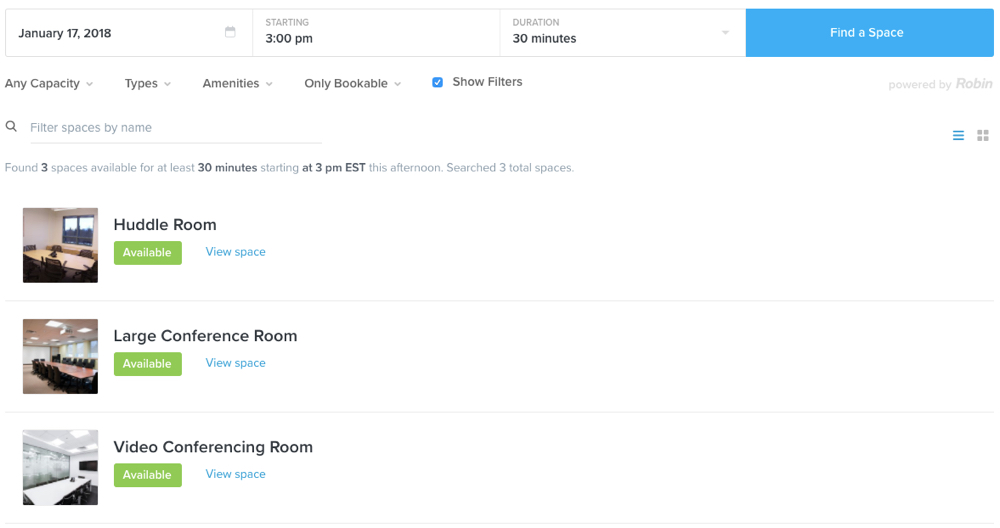
Robin user interface

If you're still sharing a key to the server room with your employees, sending technicians to set up desk phones when someone new starts at your company, or moving portable projectors around to accommodate special conference room technology requests, it's time to look into automating some of your office management tasks.

Here are some examples of office management tasks that are perfect for automation:

  • Landline Administration: Sending a technician to set up desk phones for new employees, troubleshoot issues with desk phones, and teach people how to use phone features is time-consuming and costly. Instead, consider replacing your desk phones with a virtual phone system. These cloud-based phone systems eliminate the need for desk phones and typically come with tutorials that train new users for you.

  • Conference Room Management: If you often get requests to set up conference rooms with the technology needed for meetings, conference room booking apps like Robin (from $20/room) can help. They give everyone at your company an easy way to book conference rooms, show what technical amenities are in each room, and provide you with statistics showing what rooms and amenities are in highest demand.

  • Building/Room Security: If you spend too much time sharing or looking for physical keys—or if you're always creating temporary badges for people who forgot their badges at home—security apps like Kisi (from $100/location/month) save your team time. Kisi lets employees use either physical badges or an app on their phones to open electronic locks on buildings and rooms. And only you control who has access to open certain doors.

  • Visitor Processing: In addition to keeping your office and protected areas secure, you're also responsible for securing your company's data and intellectual property. If that's a concern because you host visitors frequently, a tool like Envoy (free for basic features; from $99/location/month for legal contract signing) helps. Envoy lets you set up rules for requiring visitors to sign legal documents before visiting, and it can also print temporary badges for visitors after they sign in.

You can also use Zapier to extend these automations:

Workflow Automation Ideas for SaaS Management Tasks

1Password user interface

A 2017 report from Symantec found that enterprise organizations use an average of 928 cloud apps. If you work for a small business or startup, the number of apps your coworkers use to do their work may be much lower, but even a mere ten percent of that amount is still a lot to manage—and keep secure.

Automation makes overseeing all of those apps much more manageable:

  • Password Management: Cloud-based apps all require a username and password, and the more apps your coworkers use, the more time you'll spend helping people retrieve lost credentials. Team password management apps help. Most password managers let coworkers store their passwords for all of their apps and access them by remembering only one master password. They also allow you to create randomly generated passwords and share credentials with selected users.

  • Role Management: Another time-consuming task is getting every new employee set up with the apps they need to do their work—or removing access from exiting employees. BetterCloud (from $3/user/month) simplifies this by giving you tools to create roles for different departments. Just add a new user to a role, and they're automatically given access to the apps they need. And when employees leave, just update their status in BetterCloud to remove their access from your company's apps.

  • Cost Management: Want to help your company lower operating costs? A good starting point is finding the apps you're paying for but aren't using. Intello (free for basic reports and up to two admins) automates the process for you, giving you detailed reports that show which licenses/subscriptions you're paying for that aren't being used.

And if your company or team uses lost of tools, software, and apps at work, consider using Zapier (from $250/month) to send data between them automatically. Zapier lets you create automated workflows between 1,000+ apps, so you can spend more time working and less time manually transferring data across multiple tools.

Workflow Automation Ideas for Device Management Tasks

Duo user interface

Device management was simpler back when everyone worked in the office on desktop computers. Today, managing devices is much more complex. You're in charge of keeping track of desktops, laptops, and mobile phones; making sure people can connect to your network wherever they're working; and keeping data safe in a bring-your-own-device (BYOD) office.

Automating your device management tasks makes things simpler:

  • Setup and Tracking: Tools like Jamf (from $3.33/device/month) and Oomnitza (pricing available on request) make it easy to set up and track all of your company-owned devices. Both let you establish configurations that you can apply automatically when adding a new device, letting you set up new devices quickly and automatically. Plus, get reports showing where your company-owned devices are at all times.

  • BYOD Management: Letting your coworkers access your network and apps on personal devices could be a security risk. But it doesn't have to. Tools like Duo (free for up to 10 users) limit BYOD risks by establishing a trustworthiness score for all devices connected to your network. Any devices with a score that represents a security risk are blocked, keeping your company data secure without requiring a VPN.

  • Proactive Support: You could wait for devices to break before you fix or replace them, but you'll save yourself some time—and your coworkers some headaches—if you identify issues before they happen. Watchman Monitoring (from $75/month) monitors all of the devices you support, alerting you to issues like needed updates, erroring hardware components, and expiring software subscriptions.

And if you're using a tool like Cumulocity (pricing available on request) to manage your company's IoT devices, Zapier helps you automate your workflows with the following Zaps:

Workflow Automation Ideas for Onboarding and Offboarding Tasks

Fleetsmith user interface

If your company rarely hires new employees and has very low turnover, onboarding and offboarding tasks may not be worth automating. But if your company is growing rapidly or has high turnover, automating your onboarding and offboarding tasks can be a huge timesaver. Plus, automating these tasks makes it less likely that you'll forget a key task or step in the workflow, reducing the likelihood that former employees will retain access to company tools and systems.

Here are a few tools you can use to automate user onboarding and offboarding tasks:

  • App and WiFi Setup: It's not a good use of time to assign apps and set up accounts for every new employee your company hires. Instead, use a tool like Fleetsmith (free for up to 10 devices). Fleetsmith lets you create different roles and establish standard onboarding actions—like granting access to apps and connecting to the right printer and WiFi network—for each role. When a new employee starts, simply add the device and role, and it sets up everything that's needed for you.

  • App Security: You're in charge of making sure people have access to the apps they need to do their work, but you're also responsible for making sure the data in those apps are secure. Okta and JumpCloud provide a simpler way to keep your data secure. Okta (from $2/user/month) lets you replace—or further secure—logins with multi-factor and biometrics authentications. JumpCloud (free for up to 10 users) makes it easy to set up single sign-on for all of your company's apps.

Workflow Automation Ideas for Internal Communication Tasks

Spoke user interface

Most people don't realize how much time they spend communicating, collaborating, and looking for information. A study from McKinsey Global Institute found that the average knowledge worker spends 61 percent of their workweek on those tasks—and only 39 percent on role-specific tasks.

By automating some of your most time-consuming communication and collaboration tasks, you can earn back a significant percentage of your workweek, spending more time on the tasks you're truly responsible for in your role. Here are a few communication and collaboration tasks that are ripe for automation—and tools that make automating those tasks simple:

  • Answering Questions and Providing Support: How often do you explain how to connect to the printer or tell people to solve their computer problems by restarting their machines? If it's a lot, use a tool like Spoke (from $1/user/month) to provide that advice instantly and automatically. Spoke is an innovative, integrated ticketing system and knowledge base that uses AI to provide answers to FAQs instantly without interrupting anyone.

  • Consolidating Knowledge: Sometimes the hardest part of finding the information you need is knowing where to look. Notion (free for up to 1,000 blocks of storage) removes that hurdle by providing a modern wiki tool that the whole company uses to capture and share company knowledge. And with a paid, Team plan ($8/member/month), you get granular permission controls to designate who can view, edit, and share stored data.

  • Consolidating Communications: If you have a lot of emails and requests that go to the wrong place and get forwarded around before landing in the right inbox, Front (from $15/user/month) removes the problem by providing you with a shared inbox. It eliminates the need for email distribution lists and lets you collect questions and requests from multiple channels, including email, SMS, and even Facebook and Twitter.

And if what you really need is to just consolidate all of the places where you're expected to communicate into a central source, Zapier offers plenty of Zaps that automatically move all of your messages to your preferred communication tool:


One of the biggest issues for IT teams is that you're constantly being asked to do more with less. So even if you're interested in adopting some of these tools to automate your team's workflows, you may be concerned that you'll have trouble getting approval for the budget you need to adopt them.

At the beginning of this article, we mentioned that one of the best ways to determine if a task should be automated is to calculate if the labor costs of performing a repetitive task manually are greater than what you would pay for a tool. The good news is that's also a great way to prove to your leaders why investing in a tool is worth it.

If you can show how a $100 per month investment will save your team $300 per month in labor, getting the budget approved should be simple. Plus, it's not just costs you'll save on. Once your team starts automating the repetitive tasks that consume their time, they'll have more time to focus on wishlist tasks—those things you've always wanted to do but could never find time for.


source https://zapier.com/blog/automate-it-management/

Wednesday, 3 October 2018

The 8 Best Alternatives to Google URL Shortener

If you've ever relied on goo.gl to tighten up links for you, it's time to start thinking about an alternative URL shortener. Google ended support for its URL Shortener at the end of March 2018 and will pull the plug entirely on March 30, 2019 (links will continue to direct traffic appropriately after that date). If you're in need of a replacement, you might be asking yourself, "What are the best URL shorteners and how they differ from one another?"

URL shorteners make sharing written-out links more manageable. Say you want to provide a link on a business card, in an advertisement, or in an email where hyperlinking isn't ideal. A shortened URL takes up less space and keeps your text tidy. For example, you can convert
https://www.blog.google/products/maps/wheres-waldo-find-him-google-maps/
to
https://goo.gl/rVBBtP
The second version is much shorter and easier for someone to copy and paste or type.

Another use case for shortened URLs is to create variations on one link so that you can easily track the source of traffic to it. For example, you might spin out one URL to use on Twitter, a different one for Facebook, and a third to be used in an email newsletter.

In looking for a new URL shortener, it's helpful to know that some do little more than turn long links into short ones, while others let you customize the text of the new URLs, track click-through rates on a dashboard, and analyze other information about who's clicking your links. Most URL shorteners have a free tier of service, but you often have to pay for added features, such as data and analysis. The eight URL shortening services that made the cut for this list are reliable and easy to use, and each one stands out for one special reason, noted as "best for" below.

Here are the best URL shorteners to replace goo.gl, listed in alphabetical order.

The 8 Best URL Shortener Services


Bitly

Best URL shortener for businesses branding and tracking links

Bitly URL shortener

Bitly is a full service, business-grade URL shortener, although if your needs are modest, you can also use it anonymously to shorten long URLs and be on your way. But it stands out for its business offering. Part of the appeal is that Bit.ly is simple and easy to use. It has a comprehensive dashboard where you can track statistics about your links, such as click-through rates, geographic data of people visiting your links, and so forth. Tools for tracking campaigns are easy to use as well.

With Bitly's free limited account, you can customize your shortened URLs, track click rates, and get information about your top referrers, but only for 500 branded links and 10,000 non-branded links. It's a generous free plan and could very well be adequate for some small businesses. Enterprise-grade accounts (custom pricing) allow you to make as many branded links as you want, plus see more data in reports about who clicks your links. Bitly is the best URL shortener for large businesses looking to brand and track links, and it's a great choice for small businesses that want to generate short URLs and follow their stats for a modest number of campaigns. Bitly integrates with Zapier, which means you can automate it with any other tool that supports Zapier.


Bl.ink

Best URL shortener for small businesses

Bl.ink URL shortener

Bl.ink is a full-featured URL shortener service that you use it to not only turn long URLs into short ones but also track the traffic coming from your links. Its dashboard shows trending links and general statistics, while an analytics page lets you dive into traffic by device, location, and referrers. You can also drill down into clicks by the time of day. Tags, which you can add to your shortened links, let you view your link traffic in new and custom ways.

Bl.ink offers four tiers of paid plans, starting at $12/month, to give small businesses, teams, and enterprises a variety of options, based on the number of links you need to generate and track. Free account holders can generate 1,000 links and track up to 1,000 clicks per link. Free accounts can connect to one domain for making branded links. If you're a business in need of a full-service URL shortener and Bitly's enterprise-grade plan seems like overkill, then Bl.ink's is one of your best options. Bl.ink is supported by Zapier, meaning you can connect it to other apps you use in your work to generate and track short links automatically.


Polr

Best URL shortener for self-hosting

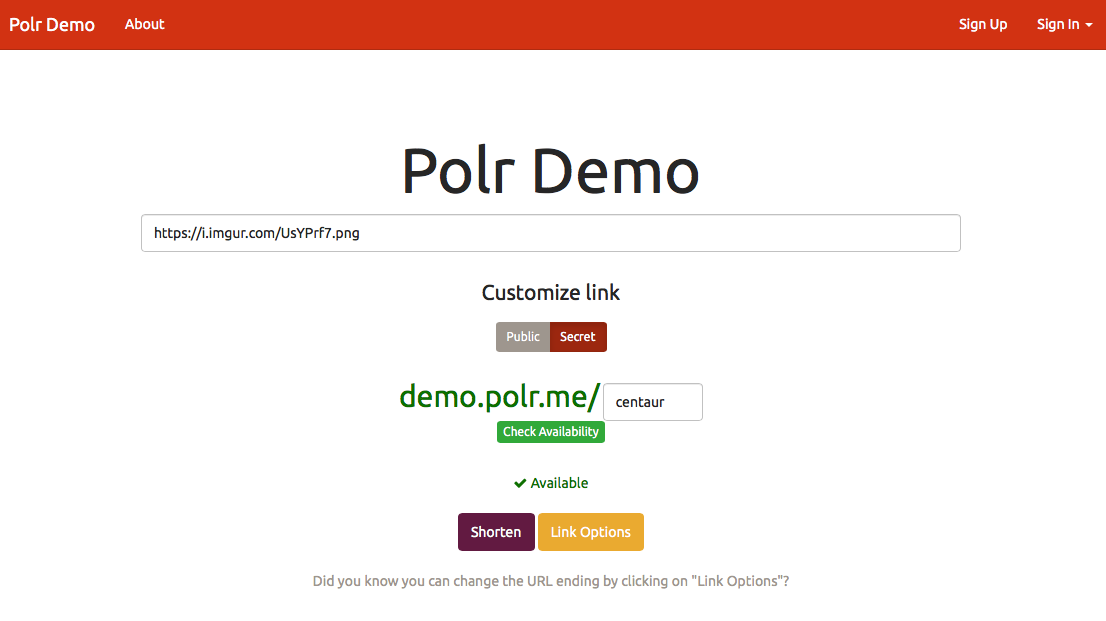
Open-source project Polr allows people with the technical know-how to host their own URL shortener. It's available through the Polr project page and from GitHub. You can use the tool as-is or fork it if you have the programming abilities to do so. (If you're so inclined, it's written in PHP and Lumen, using MySQL as its primary database.) Though it's similar to Yourls, another free and open source URL shortener, Polr is much slicker looking, designed to have a modern and minimalist feel. It comes with some traffic tracking tools as well. If you just want to test out the basic interface, Polr offers a demo page.


Rebrandly

Best URL shortener for creating branded links

Rebrandly URL shortener

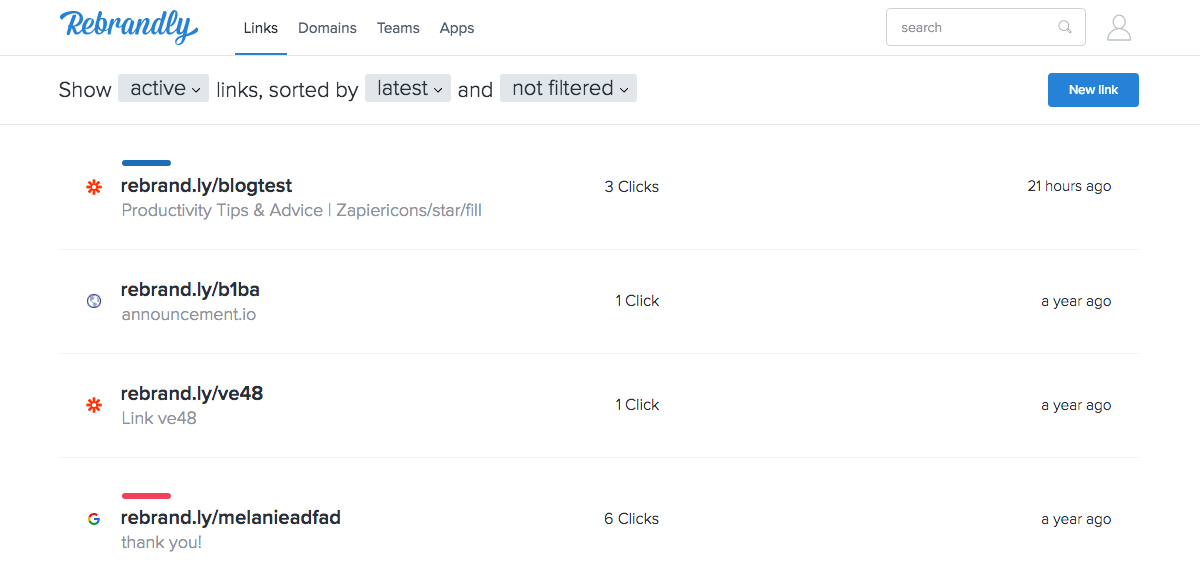
While Rebrandly is a URL shortener much like any other, its angle is slightly different. Rebrandly believes that brands, whether it's a product or a person, get value out of customizing links to content that references them from all over the web. For example, Bob Vila could customize the link to his Wikipedia entry from en.wikipedia.org/wiki/Bob_Vila to BobVila.Tools/wikipedia. A link to one of his books on Amazon could be BobVila.Tools/amazon-book. Vila can use these links on his own site, business cards, or in advertisements. Rebrandly includes tools for tracking the popularity of each link, too. Rebrandly supports QR code generation, too. (If Rebrandly is more than you need, is.gd works for QR generation as well.) A free account includes 1,000 links on one custom domain. Paid plans start at $19/month. Zapier supports Rebrandly, so you can integrate it with other apps with ease.


T2M

Best for making short links and QR codes simultaneously

T2Mio link shortener service

T2M, also called T2Mio, is another full service URL shortener where you can see a dashboard of activity and other statistics for tracking URL traffic. It has two dashboards, one for geographic information and one for device and platform, that are especially well designed and easy to read. When you spin up a URL, T2M also automatically generates a QR code, a nice touch if you need it. Another unique feature is a tool that helps you target specific geographic locations where you want your URLs to have an effect. The site could stand to have more information about this particular tool, as it's vague about what it does exactly, but overall the features and interface are well thought out.

Similar to its competitors, T2M has a free plan with limitations, plus paid accounts for those who need more. The free plan does not put any limits on the number of URLs you can generate, nor how many clicks you can track. It also gives you baked in tools for sharing shortened URLs on social networking sites. A Standard plan that's suited for small businesses costs $7/month and adds branded and vanity URLs, password protected URLs, a tool for shortening a number of URLs at once ("bulk changer"), the ability to add one custom domain, and a few additional perks. There's an Enterprise plan, too, that removes very nearly all limits found in the Standard plan and adds some additional features as well, which costs $67/month. T2M is a very good URL shortener for businesses that want pleasing dashboards and automatic QR code generation.


TinyURL

Best URL shortener for quick, anonymous use

TinyURL URL shortener

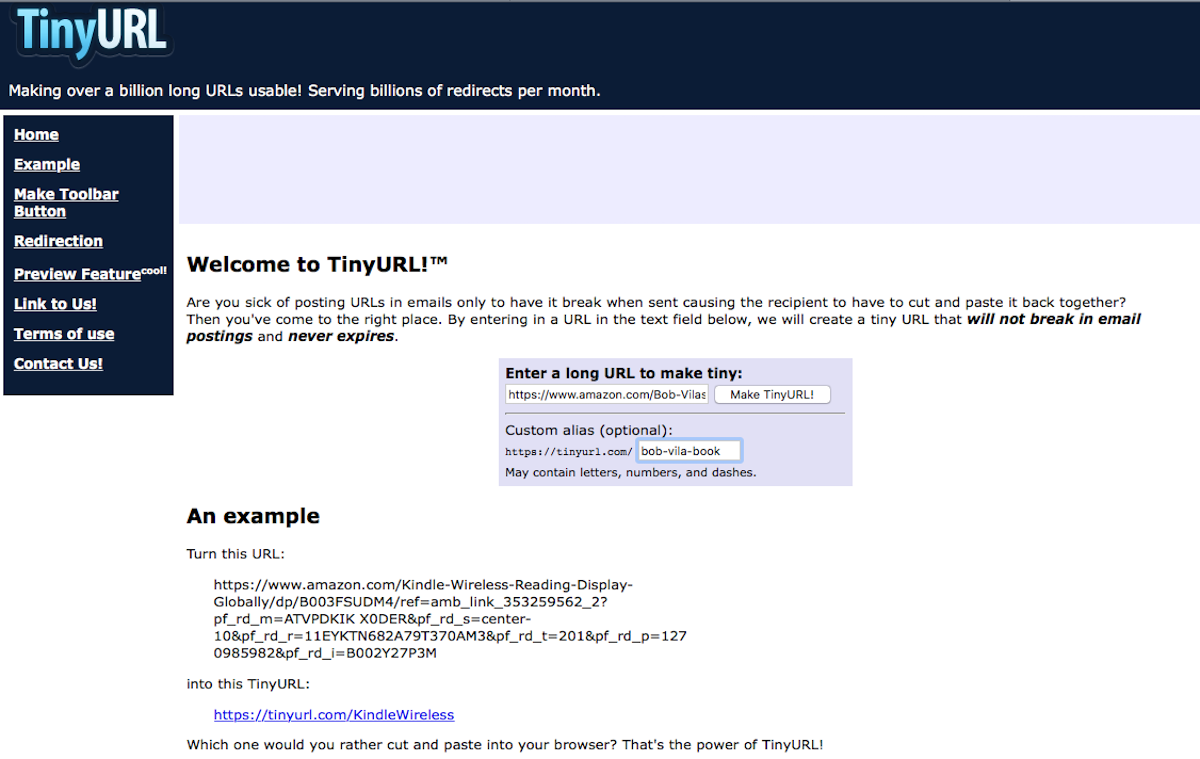
Free URL shortener TinyURL has been in the game since 2002, and for good reason. It's a wonderful tool when you need to create a short link in a hurry that will never expire. TinyURL can suggest a shorter URL for you, or you can customize the result, although it will start with tinyurl.com/. TinyURL also offers a toolbar button that lets you generate a short link from the current webpage on screen. It's a little different from a typical browser plugin. On TinyURL's main page, there are instructions to drag a link from the page into your toolbar's links section. That link is actually a little script. From any web page, you can click that link and it will take you back to TinyURL where a shortened link will have already been generated for the page where you started. Although TinyURL is entirely free and anonymous to use, it doesn't contain any reports or information about your links and their popularity.


URL Shortener by Zapier

Best URL shortener for generating links automatically

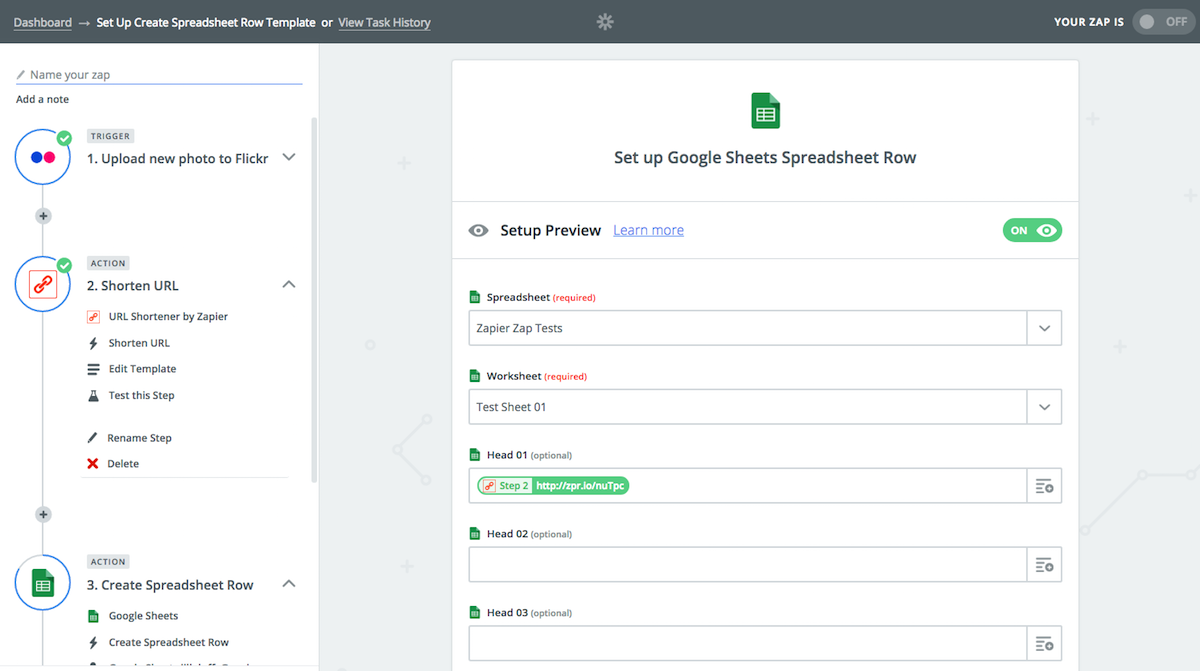
When you want to automatically create and save a shortened link every time you do a certain action (I'll give an example in a moment), Zapier's URL Shortener is one of the best options. Formerly part of Zapier's Formatter, the URL Shortener is now its own tool that can automatically shorten links. For example, every time you post a new photo to Flickr, you want to generate a shorter link and save a copy of it to a Google Sheet. You can create a Zap, what we call Zapier's automated workflows, to do just that, and from there on out, all you have to do is upload your images to Flickr and Zapier will do the rest. Another very good option along the same lines is Owly, which was once a standalone apps but is now a tool within Hootsuite. You can use Owly to automatically shorten a link everytime you schedule a social media update to post. It's a handy tool for a specific use case, but not as flexible as the other URL shorteners on this list.


Yourls

Best URL shortener for self-hosting and customizing

Yourls

Yourls, which is an acronym for "your own URL shortener," is not an off-the-shelf URL shortening service, but rather one that you install and run on your own server. Similar to Polr, Yourls is free and open-source. With Yourls, you can choose whether your links will be public or private. It includes bookmarklets, which let you turn a long URL into short one from your web browser in just one click. By default, the tool generates sequential URLs, but you can change it to come up with random strings instead if you prefer. There are a few traffic tracking tools as well.

This URL shortener was designed to be lightweight rather than bloated with features, but if you want to expand its capabilities, you can install plugins for Yourls or build your own plugins for it.


As you look for a URL shortening service that's right for you, rest easy knowing any links made with goo.gl will continue to work as normal after Google pulls the plug.

Title image from FreeImages.com/ Anna Maria Lopez Lopez.


source https://zapier.com/blog/best-url-shorteners/

Tuesday, 2 October 2018

Note Taking Apps Showdown: Evernote vs. Microsoft OneNote

Evernote and Microsoft OneNote are two powerhouses among the best note taking apps. Both come stocked with tools for capturing notes, whether they are audio memos, images, uploaded documents, web pages, or simply typed text. Both OneNote and Evernote let you edit, organize, store, and share your notes. Each one has apps for all the major operating systems. Comparable as they may be in prowess, Evernote and OneNote are far from identical. So what makes them different?

For one thing, there's price. Evernote's paid tiers of service offer lush benefits, but cost a pretty penny, whereas OneNote gives away everything for free. Second, two important features have different strengths in each app: optical character recognition (OCR) and web clippers. (More on those in a bit.) But these note taking apps are perhaps most different in their look and feel, and their concept of what a digital note-taking app should be. They have completely different answers to the question, "What is a digital note anyway?"

When comparing Evernote and OneNote on these points and other factors such as storage and integration options, how do they stack up? Find out whether Evernote or OneNote would work best for you with our head-to-head comparison below.

Look and Feel: Evernote's All Business, OneNote Feels Scrapbookish

If you have strong feelings about whether a note taking app should look pragmatic or lively, you'll have no trouble choosing between Evernote and OneNote, as they have distinct styles.

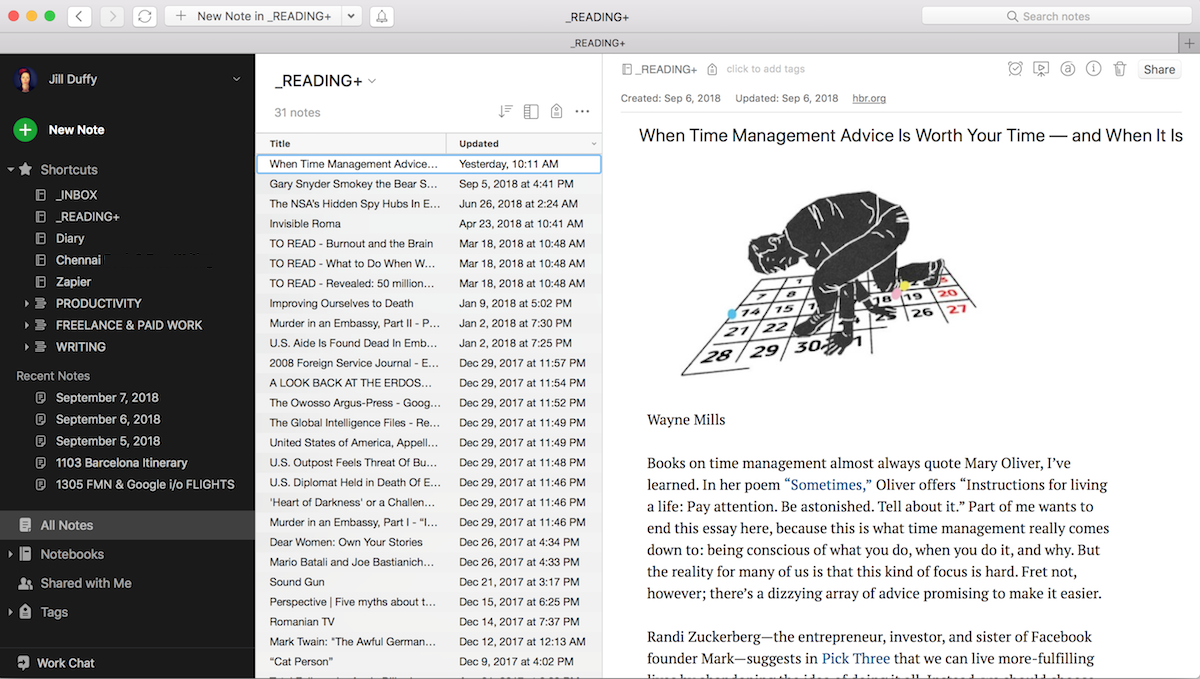
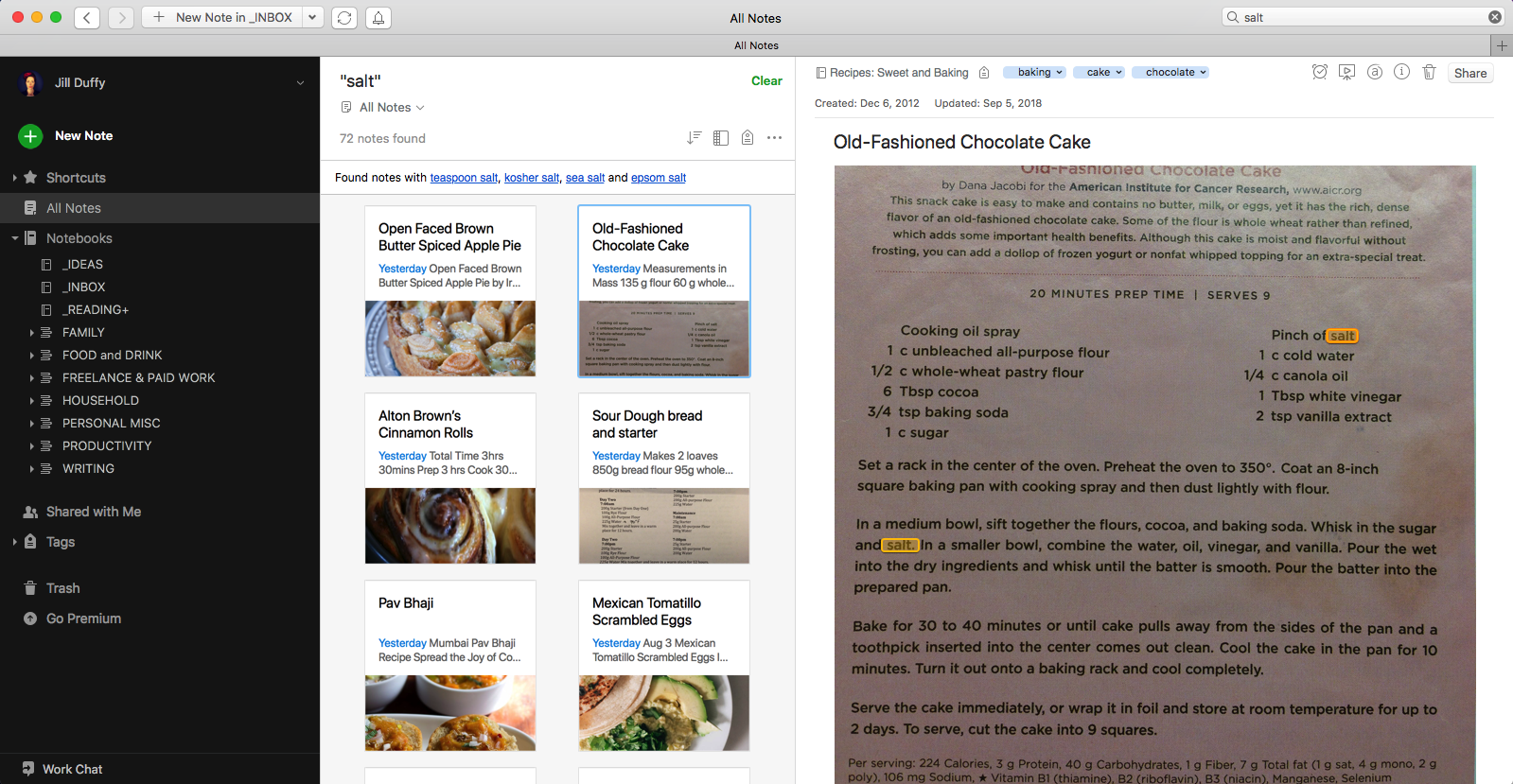
Evernote look and feel, 2018

Based on its looks, Evernote is clearly positioned as business productivity software. A staid color scheme sets the tone for Evernote's professional, no-nonsense nature. You could count the shades of gray used on one hand. Formatting tools, rich as they are, appear as miniscule icons along the top menu bar, like a tidy row of stars in the sky. When you open a note to type in it, your cursor goes by default to the upper leftmost free space (for languages that read left to right and top to bottom, anyway), as if it were a word processor. You can customize Evernote's look a little bit, changing whether and how you see previews of notes, for example, but generally, everything is in its place.

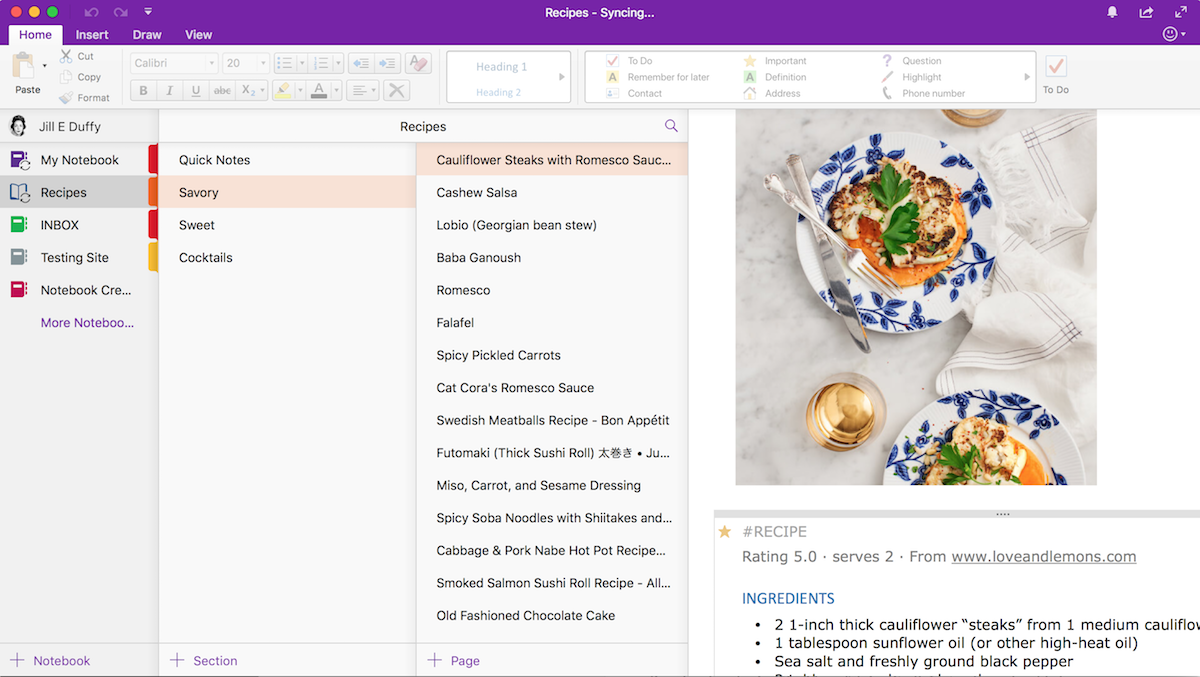
OneNote look and feel 2018

Comparatively, OneNote feels downright jaunty. The accent color used to identify OneNote is the same shade of purple as Willy Wonka's velvet coat. Larger and more colorful menu icons adorn the top of the interface (are we still calling it "the ribbon?"). Panels showing your notebooks, sections, and pages use a kind of airy spacing that might remind you of primary school books or binders. Finally, every note in OneNote acts more like a page in a scrapbook than a word processing document. You place items onto it, whether text boxes or images, and can move them wherever you like on the page. It's much more freeform than Evernote. You can have text boxes next to audio clippings or tables alongside images, basically combining elements on the page however you want.

Organization and Tags: Evernote's Tags Can Be Anything, OneNote's Tags Can Go Anywhere

At the highest level, OneNote and Evernote let you organize your notes similarly, even though they use different words for it. Evernote has notebook stacks > notebooks > notes. OneNote has notebooks > sections > pages. They both function similarly to the familiar folder > subfolder > document schema used in computing for decades.

When it comes to sorting and viewing notes, there are some differences. In OneNote, you can order your notebooks, sections, and pages however you like, dragging and dropping them at your leisure. But there are no quick sorting options if you want to, say, view all your recipe pages alphabetically. In Evernote, notebook stacks and notebooks always fall into alphabetical order, and notes get sorted based on an option you choose, whether by date modified, date created, title, and so forth. You can customize Evernote to add shortcuts, however, which is to say, pin your favorite notebook stacks, notebooks, and notes in the sidebar and arrange them in whatever order you like.

Tags are another story. Evernote and OneNote tags are completely different.

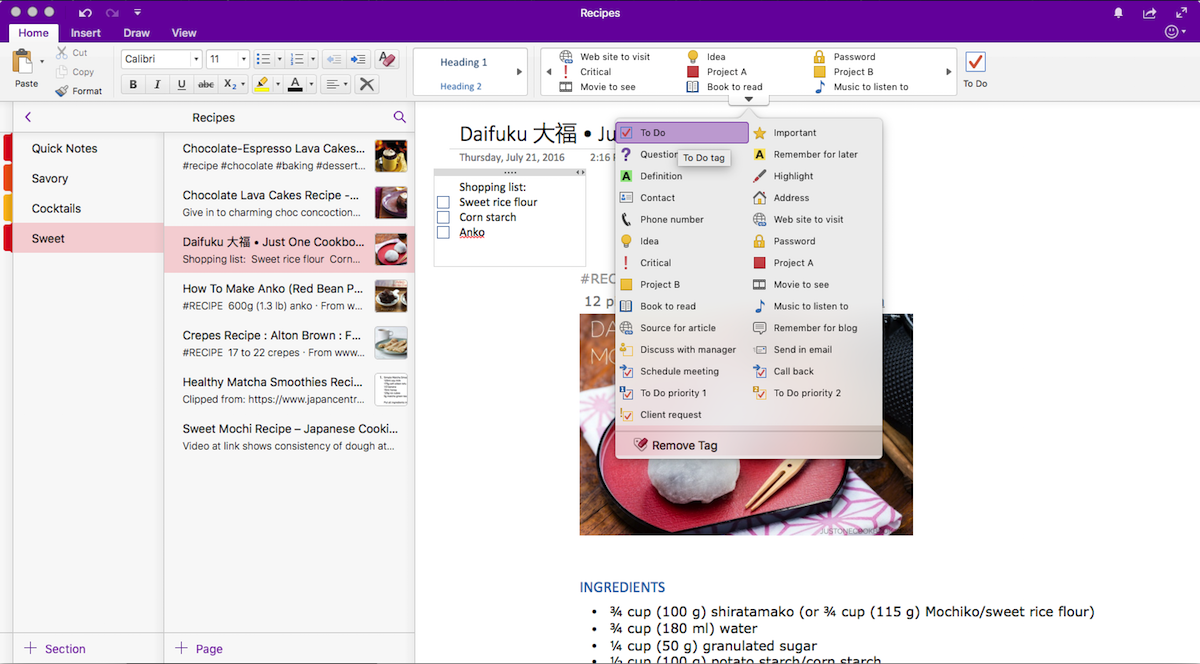
Tags in OneNote

OneNote comes preloaded with tags that have specific functions. For example, you use the reminder tag when you want to receive a reminder at a certain date and time about something you've written. There's also a password tag to add anywhere you've stored a password in your note-taking app (not that I recommend it). The tags are really just labels: address, phone number, question, critical, source for article, and so forth. You apply tags anywhere on a page, which is completely different from Evernote, where you add them only at the note level. Let's say you have a meeting where you scanned someone's business card, recorded your conversation, and jotted down a recommended book. You could apply the contact tag next to the business card and the "books to read" tag next to the recommendation.

You can make your own tags in OneNote, toom with the hashtag method. Type # before any word you want to tag in your OneNote note. When you want to find pages that contain the tag, you search using the hash symbol. One potential problem with this method is it's easy to forget which tags you've applied and therefore mistakenly create close-sounding duplicates ("#wine-label" versus "#wine-labels" for example). These tags don't appear as autofill suggestions when you start to type them either.

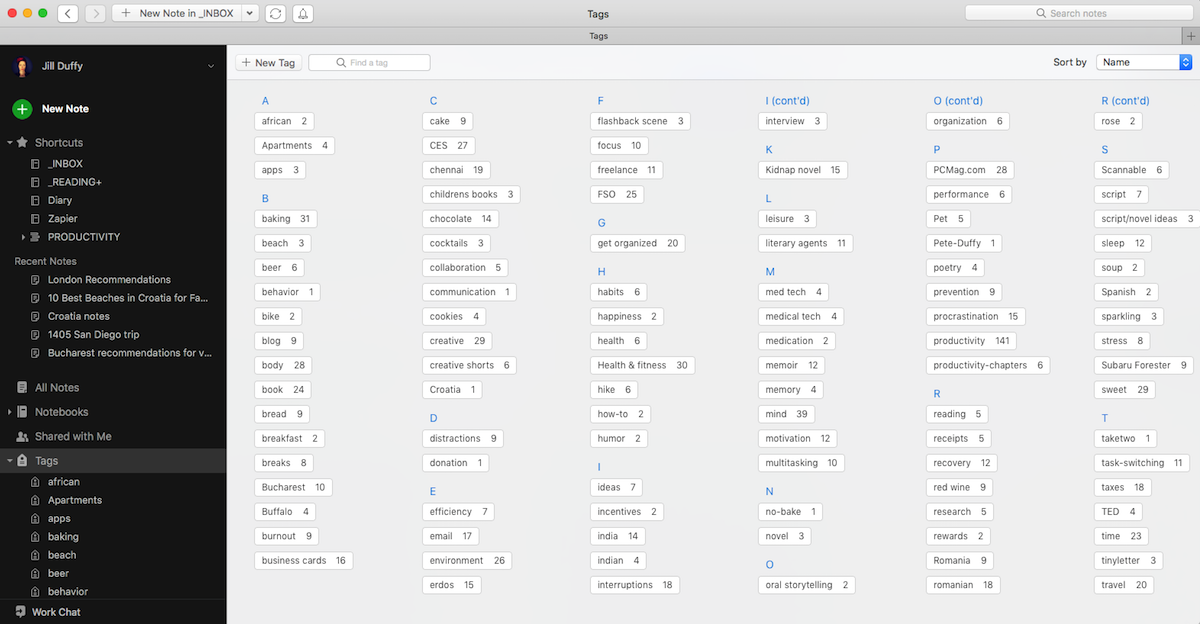
Tags in Evernote

In Evernote, tags can be used thematically because you create your own tags from scratch. They are entirely text-based, rather than interactive the way OneNote's to-do and reminder tags are. That said, Evernote does have checkboxes, as well as a reminder function for tasks, but they're separate from tags. In Evernote, tags become a part of a note's metadata rather than being on the page itself, as they are in OneNote. If you want to tag a note "critical" or "to-do" for that matter, you certainly can. But if you also want to tag notes based on their topic or theme, it's open season. For example, you could tag recipes based on their style or dietary restriction (Vietnamese, dairy-free, vegetarian, etc.), you could then search for that tag across all your notes and surface these similarly themed ideas. When applying tags, Evernote gives you autofill suggestions so you can avoid creating near-duplicate tags. You can also view all the tags you've ever used alongside the number of notes that contain them.

Storage: OneNote Uses OneDrive, Evernote Gives a Monthly Allowance

OneNote and Evernote handle storage and storage limits completely differently.

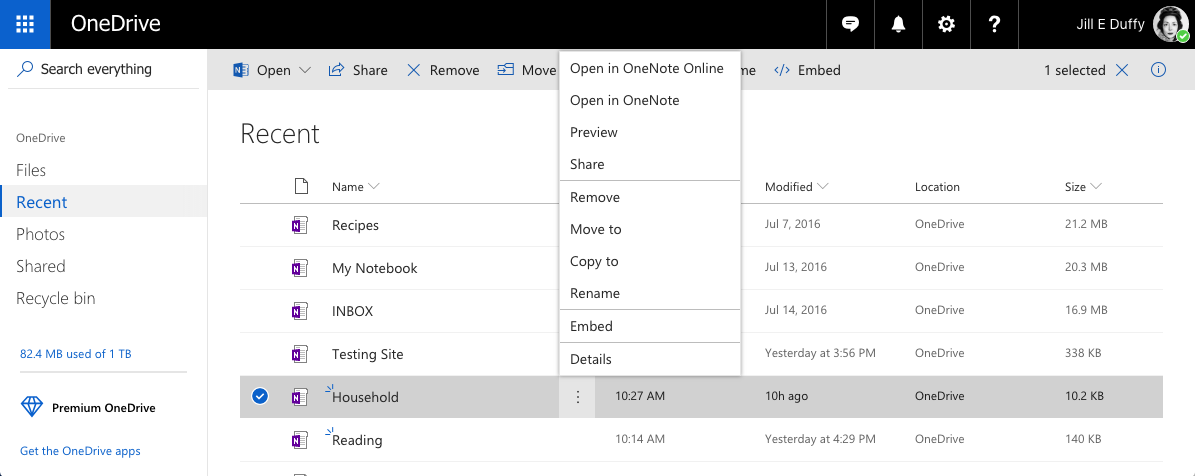
OneNote storage in OneDrive

OneNote uses OneDrive for storage by default, and your limits are based on your OneDrive account. (With select Microsoft Office subscriptions, you can choose Sharepoint for storage as well.) At first blush, this setup seems simple enough. Your storage capacity is tied directly to your OneDrive or Sharepoint account.

Free personal OneDrive accounts come with 5GB of storage, though you can pay for more. The largest file size you can upload to OneNote and have sync to OneDrive is 2GB, which is significantly smaller than the maximum file size you can upload directly to OneDrive (15GB). So, what at first seemed simple and straightforward actually has some confusing caveats.

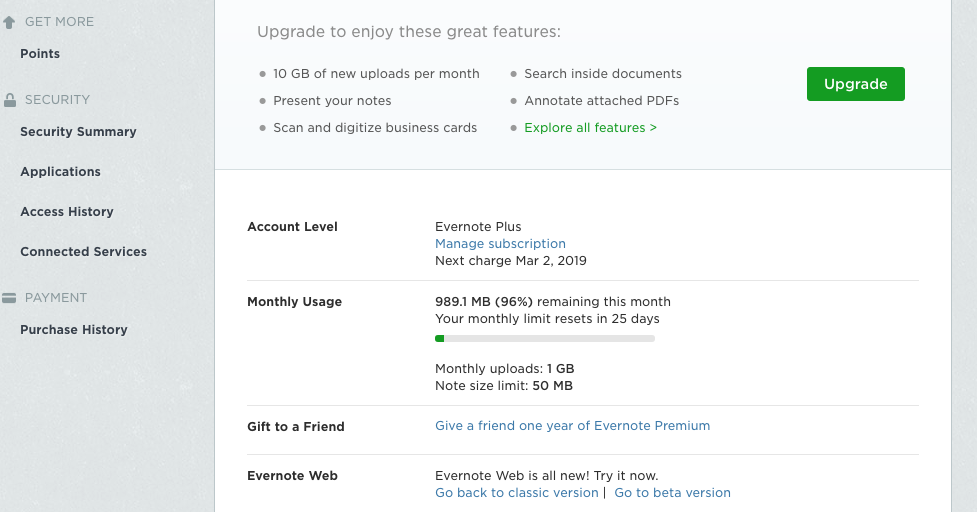
Evernote monthly storage

Evernote stores data for you on its servers, so you don't have to use secondary storage. Technically speaking, Evernote gives you an unlimited total amount of storage, but that's misleading. Really, you get an allotment of storage per month based on the account type you have. Basic (free) accounts get 60MB per month, which is pretty measly if you want anything more than text notes. Premium accounts get 10GB per month. Business accounts get 20GB per month plus an additional 2GB per person per month. Whatever space you don't use in a month does not roll forward. So while your total storage allotment increases each month, there is never a moment in time when you can take advantage of having unlimited storage. You're always held back by the monthly allowance.

Evernote's maximum note sizes are clearer to understand, but much smaller than OneNote's: 25MB for Basic accounts and 200MB for both Premium and Business.

Web Clipper: Evernote's Smart Web Clipper Edges Out OneNote's

Both Evernote and OneNote have a web clipper, that is to say, a button you install in a browser that lets you save the contents of a web page to a note in one or two clicks. For example, you see a recipe online, you click the web clipper button, and the recipe is now a note, without you having to copy and paste anything.

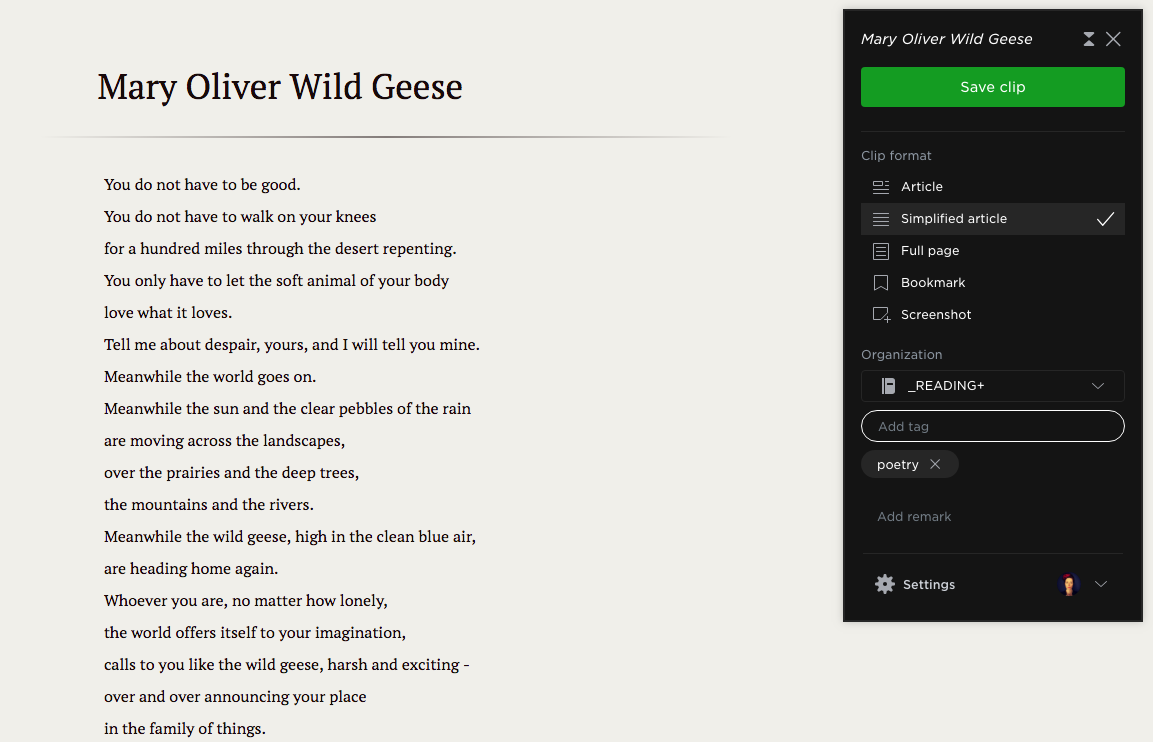
Evernote web clipper, poetry example, 2018

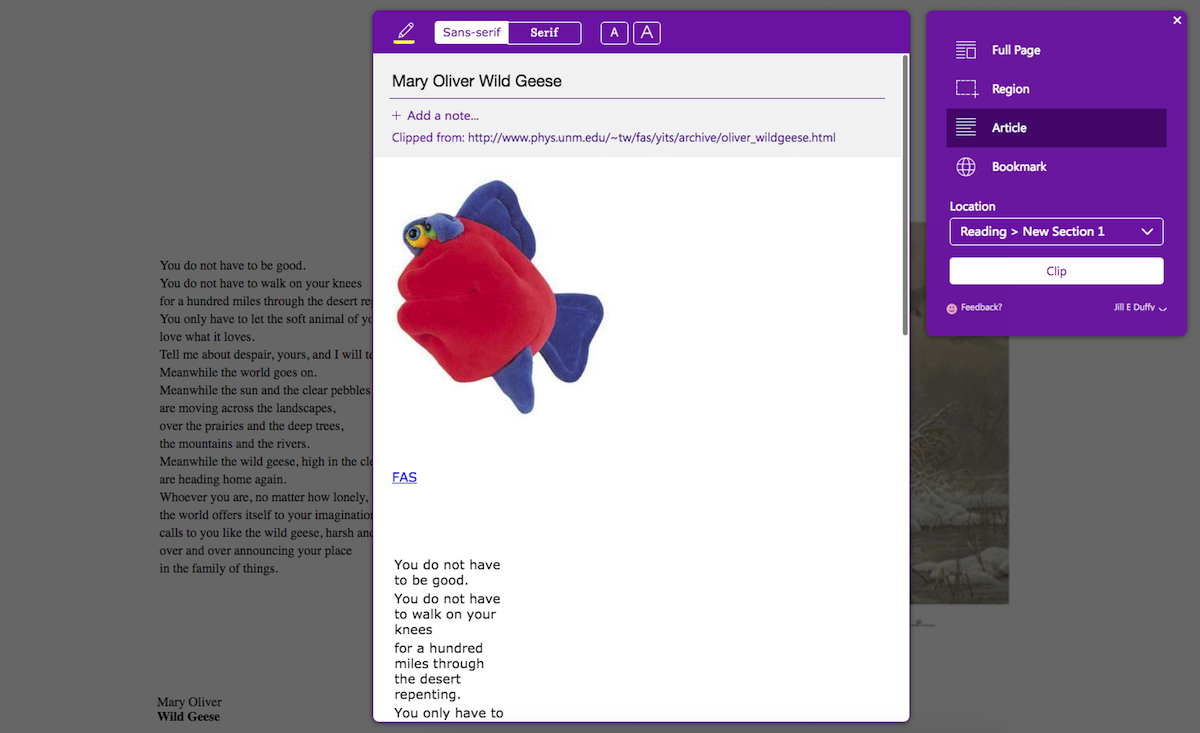
The two apps have similar features in their web clippers. Both allow you to choose the notebook where you want to save the clipped content. Evernote offers a preview of what you're about to clip right in the browser. OneNote puts its preview into an overlaid panel.

OneNote web clipper, poetry example, 2018

Evernote proves to be more adept and accurate at clipping. The differences became apparent when I clipped poems. Evernote figured out what was poetry on the page and preserved the line breaks. OneNote struggled. It including an extraneous header image and text, and worse, added line breaks where they shouldn't have been. I also tested the two app's web clippers on news articles and noticed that images sometimes turned up broken in OneNote, but never in Evernote.

Evernote's web clipper has a few smart features, too, such as recommending a notebook where you might want to save the clipped material, based on similar notes in your account. OneNotes has no such suggestions. In the clipper interface, Evernote lets you apply tags, while OneNote does not. There are a few other minor differences that, when taken en masse, give Evernote an edge in this arena.

OCR: Evernote Can Search, OneNote Makes Text Editable

Evernote and OneNote have optical character recognition, meaning they can read text contained in images or other static documents, such as PDFs. When it comes down to leveraging OCR, you can do more with OneNote than with Evernote.

OneNote OCR, 2018

OneNote makes all the text in images searchable, and it lets you extract the text from images and other supported files so that you can paste it elsewhere and edit it. It even works with handwriting, so if you snap a picture of a whiteboard with notes scribbled on it, you can work with that picture rather than copy by hand all the information on the board. It also can extract the text, but only in the desktop apps (Windows and macOS), and you sometimes have to wait a few minutes while OneNote processes the image. Regardless of whether you extract the editable text, all the words contained in images you upload becomes searchable automatically.

Evernote OCR, 2018

Evernote doesn't have the ability to extract text from images, but it does search the text found in uploaded images, PDFs, and Office documents. Note that the free version of Evernote searches for text in images only, not other uploaded files.

One helpful detail in both apps is that when you search for text found in an image, they highlight the matching results.

Integrations: Evernote Offers Unique Integrations, Plus One That's Remarkable

When it comes to connecting your note taking app to other apps and services, OneNote and Evernote measure up nearly equally. Plenty of popular apps and services offer direct integration with them, letting you save notes, images, and other content directly into your notebooks. Both let you send emails into the app, too. If you need to connect other apps that aren't supported natively, you can make your own Evernote integrations and OneNote integrations using Zapier.

But Evernote has a few unique integration options that work differently from the typical "send this to my notebook" option. One surfaces related news content in notes as you type. In this feature, you can give Evernote permission to connect to The Wall Street Journal and Nikkei websites, so that it can suggest relevant information based on what you type. Let's say you're drafting notes for an interview with a CEO. Evernote might suggest articles from The Wall Street Journal that reference the CEO's name, or financial information from Nikkei about the company. The suggestions appear at the bottom of your notes, and you can turn it off at any time.

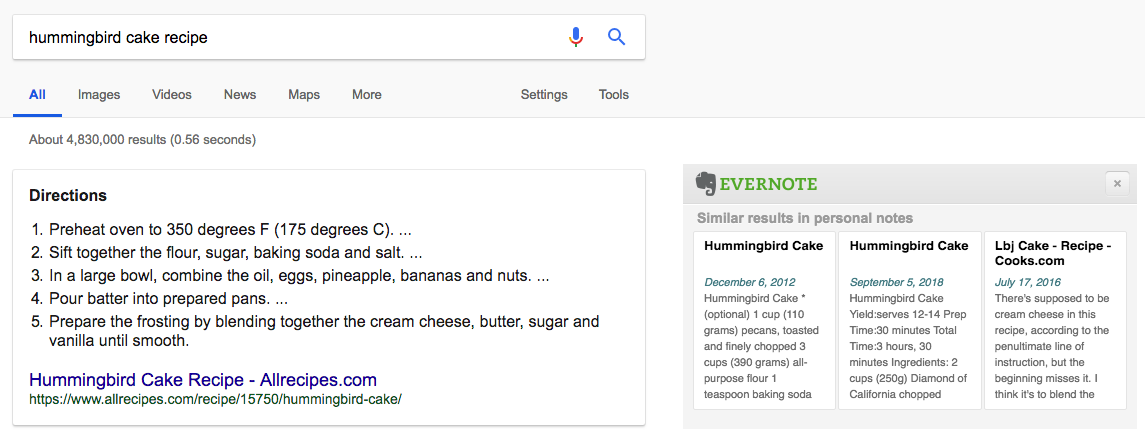
Evernote integration on web searches, 2018

The most remarkable integration, however, is Evernote's ability to search both your notes and Google simultaneously. It's an option found in the settings for the Evernote Web Clipper extension for Chrome and Firefox. Here's how it works: When you search online, Evernote can suggest notes in your account that are related to your search. For example, if you search the web for hummingbird cake recipes and you already have one stored among your notes, Evernote will surface it. The suggestions appear as small cards to the right of the search results, contained in an Evernote-branded box (see the image above).

Value for Money: OneNote's Free Version Is Generous, Evernote Has a High Price Tag

It's hard to deny that OneNote offers better value for the money than Evernote. The free version of OneNote is more generous with storage and features than the free version of Evernote. And Evernote's Premium version costs more than what you'd pay to upgrade any services related to OneNote (such as buying more storage for OneDrive or adding an Office 365 subscription).

With a free OneNote account, you get all the features of the app with no restrictions. The reason is because there is no paid version of OneNote. You can't buy it as a standalone app, and there are no options to upgrade. The only payments associated with OneNote are for auxiliary services, such as additional space in OneDrive and integrated apps via a subscription to Microsoft Office. When you use OneNote in conjunction an Office 365 account, however, you can do more with it because it tightly integrates with other Microsoft apps. For example, you can set up a meeting in Outlook from the OneNote interface and attach a OneNote file as an agenda to the scheduled meeting.

As mentioned, Evernote's free version comes with a lot of show-stopping limitations. If the paltry monthly upload allowance (60MB) doesn't dissuade you from using the free version of Evernote, perhaps the fact that you can only sync across two devices will. Free account holders also don't have the ability to search for text inside PDF and Office doc attachments, which paying members do. You also don't get version history for your notes or native integrations (you can integrate a free Evernote account via Zapier, however). And you don't get offline access to your notes on your mobile devices.

It's only among the paid plans that you can see Evernote's true value, as all the very best features are restricted to paying members. Premium accounts costs $79.99/year or $7.99/month, and Business accounts run $149.99/year per person or $14.99/month per person. The main difference between Premium and Business accounts are that Business members can collaborate with one another and they get more administrative tools. Both Premium and Business give you all the features that I mentioned are missing from the free version.


Evernote vs OneNote: Which App Should You Use?

Microsoft OneNote and Evernote share a lot of the same features and functionality. They're both powerful note-taking apps, complete with tools for capturing, editing, organizing, finding, and sharing notes. In deciding which one to use, the greatest differences show up in their look and feel, approach to storage, integration options, and value for money. If OCR or web clipping is important to you, then pay attention to the differences there as well.

Evernote is better for people who want a business-oriented note-taking app and don't mind paying for the Premium or Business tier of service. The ability to search both Google and your Evernote database simultaneously is a big win, if it's a feature you'd use. Additionally, the web clipper saves content with better accuracy and more reliably (based on my testing). Evernote is a better choice, too, if having a month storage allowance that increases your total storage indefinitely seems more appealing than getting a set amount.

OneNote is better for people who are in the market for a completely free note-taking app, appreciate more flexibility in their note formatting (along with a bit of color in their interface and iconography), and perhaps most importantly, want an app that works closely with other apps and services from Microsoft. It's also a good choice if you often need to extract text from images.
Another option is to use both in tandem. You could use Evernote for the stellar web clipping and to see your notes in Google searches, and use OneNote for more creative freeform note-taking. If you connect Evernote and OneNote with Zapier, you can automatically have your notes copied from Evernote to OneNote or vice versa.


source https://zapier.com/blog/evernote-vs-onenote/

The Best Event Management Software: 10 Apps to Plan and Manage Your Business Events

Planning a business event is a mammoth task. You need to find a venue, create the agenda, get sponsors on board, sort out seating plans and meal arrangements—and that's all before you even start selling tickets.

Event management software makes the process less of a headache. Event planners confirm: In a recent survey from Social Tables, 35% of respondents said that event technology has been the biggest gamechanger for the industry.

There are dozens of event planning apps that do everything from engaging your attendees to digitally rendering floor plans. And, while they all offer wildly different features, they have one thing in common: They eliminate the DIY approach and streamline the entire event management process.

What Makes a Great Event Management App?

Event management apps come in all shapes and sizes—and promise all sorts of successes. Here, we're showcasing apps that can serve as your one-stop shop for event planning and management. Different events require different functionality, but each of the apps featured here offers at least the following features:

  • Event registration
  • A dashboard with statistics, event progress, and reports (for the event planner)
  • A way for event planners to communicate with their attendees (either via email or in-app messaging)
  • An attendee-facing app

Depending on the size of your event and your biggest pain points in planning, you'll want to select different event management software. To help you choose, here are the 10 best event management apps.

The 10 Best Event Management Apps

  • Double Dutch (Web, iOS, Android) for nurturing attendee engagement
  • Explara (Web) for building a branded mobile app
  • Splash (Web) for getting to know your attendees
  • Eventzilla (Web, iOS, Android) for streamlining registration
  • monday.com (Web, iOS, Android) for internal planning and organization
  • Social Tables (Web) for creating floor plans and venue visuals
  • Boomset (Web) for helping attendees get organized
  • Bizzabo (Web, iOS, Android) for an all-in-one solution
  • Humanitix (Web, iOS, Android) for doing a good deed with your event
  • Event Farm (Web, iOS, Android) for measuring offline efforts

DoubleDutch (Web, iOS, Android)

Best event management software for nurturing attendee engagement

DoubleDutch event creation

DoubleDutch is an event management tool that helps you market your event, manage registrations, and encourage participation through threaded discussions. But what stands out the most is its ability to segment attendees and send out personalized communications to nurture relationships before, during, and after your event.

Using the Campaign section of the dashboard, you can segment different audiences and send relevant messages to each group. The built-in social media campaign function helps you engage attendees before the event on platforms they already use, and you can encourage participation before the big day with topic-categorized channels that let attendees join discussions with like-minded people.

To fuel engagement, in-app interactions (whether it's a social share, participation in a poll, or a response to a discussion thread) are rewarded with points, badges, and a chance to rank on the leaderboard. The developers behind DoubleDutch tap into the business value of human connections by using a sophisticated form of gamification for events.

DoubleDutch Price: From $7,500/year for a single event and unlimited registrations; $2,900/month for unlimited events and a custom domain.

Explara (Web)

Best event management software for building a branded mobile app

Explara dashboard

For event planners looking to create a digital world around their event, Explara is the best option. The integrated platform juggles tools that ten other apps might offer individually, helping you streamline registration, day-of-event engagement, and post-event reporting all in one place.

With the Emaxio app builder—one of Explara's sub-brands—even completely tech-phobic event managers can create a fully branded app experience for attendees to use on the big day.

The drag-and-drop interface makes it simple to design onboarding flows that keep attendees engaged and in the loop. For example, you can map out the journey attendees take from sign-up to attending the actual event, choosing which emails they receive and when. You can also add extra modules to your app, like incorporating a game to encourage interaction during a session. And it's all done with a single click.

And to get a better sense of what's working for your attendees, there are built-in analytics that track app usage throughout your event.

Explara Price: 1.99% + $0.49 per ticket for the registration feature only; $99 per 100 registrations for access to all the Pro features.

See Explara integrations on Zapier.

Splash (Web)

Best event management software for getting to know your attendees

Splash attendee information form

Every memorable event makes a good impression from the very start. Splash helps you create a customized landing page for your event, while the backend gives you everything you need to dig deeper into your guest list.

You can tag attendees based on the data collected during the registration stage and their digital actions on the day of the event, or add your own tags at any point. Advanced segmentation capabilities help you separate your audiences based on interests and ticket level with one click, and you can send personalized content that's dependent on how your attendees use the app during the event. For example, you might want to send an email to everyone who attended a certain talk, and Splash makes that easy.

Inside the dashboard, you can use the Hub section to categorize similar events and see if there's overlap among attendees or if there's a certain kind of guest that regularly buys VIP tickets or other add-ons. This means you can send out personalized campaigns to different types of registrants and optimize your messaging for that segment of users.

Splash Price: Free for small events (up to 1,000 invitations and 50 emails); pricing available on request for larger events.

See Splash integrations on Zapier.

Eventzilla (Web, iOS, and Android)

Best event management software for streamlining registration

Eventzilla set-up

Selling tickets is the first of many hurdles for event planners, and it's easy to get bogged down in the registration process. Eventzilla helps automate the registration process by creating embeddable widgets, managing attendee lists, and building attractive landing pages where attendees can sign up.

The no-frills dashboard means there's no tech know-how needed to set up a unique, branded registration page and start selling tickets right away. There are options to create customized sales widgets or buttons that can be added to a WordPress site, a Facebook page, or a Twitter feed by copying and pasting a line of code so attendees can buy with one click.

Further down the sales funnel, the event registration form can be written entirely from scratch to gather all the information you need, whether it's specific food requirements or song requests for the DJ. At the checkout stage, Eventzilla integrates with all major payment gateways, while individual discount codes can be set up and easily applied for early-bird tickets or groups of attendees.

And on the day of the event, attendees can download the app to manage their tickets and check in online.

Eventzilla Price: $1.35/ticket for three paid ticket types, refunds, and embeddable widgets; 1.9% + $0.99/ticket for unlimited ticket types and customized branding.

See Eventzilla integrations on Zapier.

monday.com (Web, iOS, and Android)

Best event management software for internal planning and organization

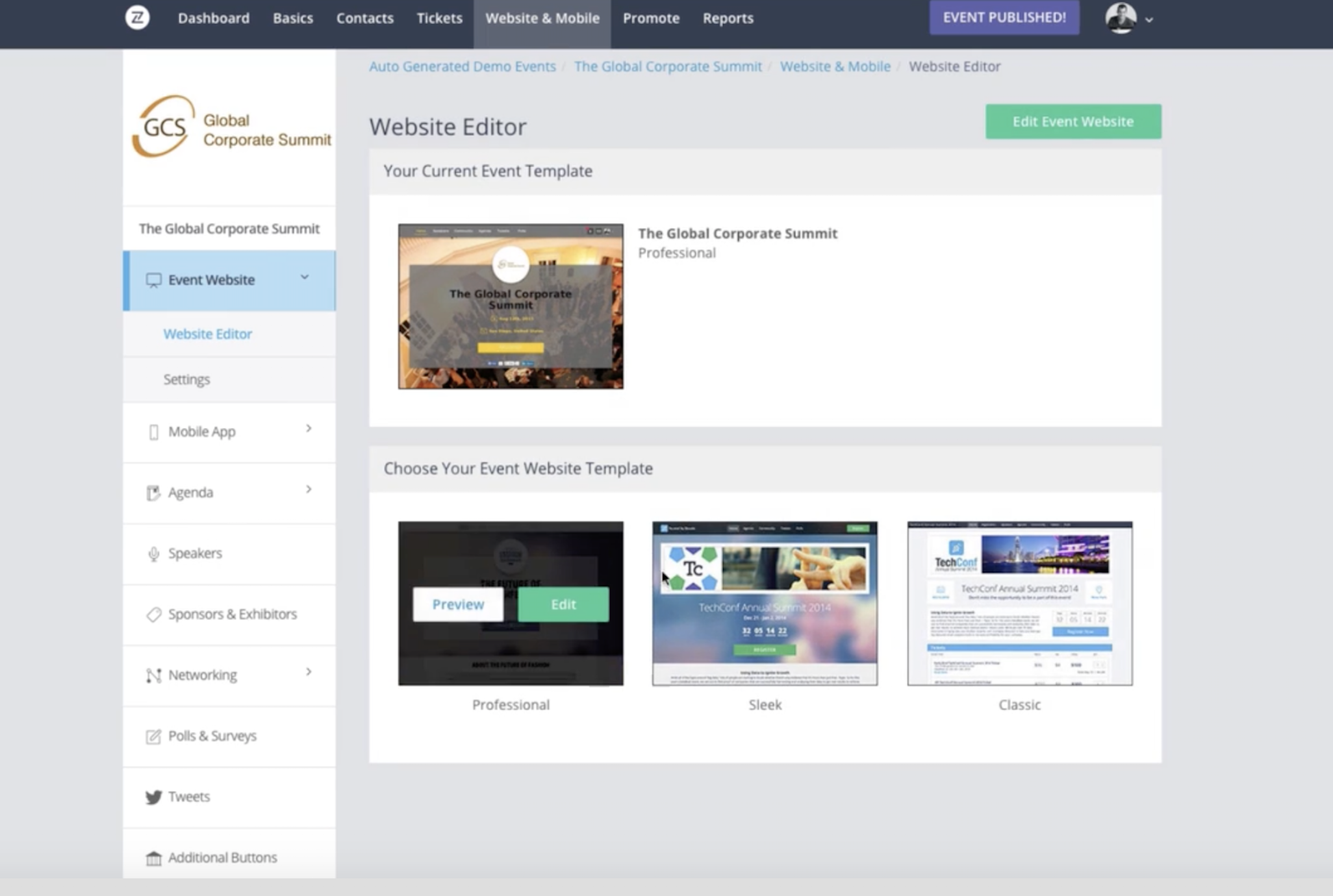
monday.com event planning interface

monday.com is primarily a project management tool, but it has an event management feature that helps you bring together the tasks and deadlines of all staff involved. Everyone can access the workflow of their colleagues and see event planning progress at a glance from a single dashboard.

Here's how it works: You create boards filled with Pulses (task rows), each of which represents a different to-do item for your event. You can then assign a staff member to the task and group Pulses together into categorized boards for each project.

The built-in event management templates help you organize timelines, manage your budget, and coordinate speakers, while the individual Pulses let you track dates, event spaces, and registration numbers. The combination means you're able to see the big picture without losing sight of the details.

One of the best features of monday.com is the built-in messaging threads assigned to each task. Everyone involved can see every piece of communication about a particular task in one place, meaning conversations won't get lost or buried in email inboxes. You can also assign a customized email address to every task so that when you send an email to that address, the communication gets added to the internal feed in monday.com.

Within the feed section, the Infoboxes area lets you upload relevant files, floor plans, and attendee lists; add notes; and create Q&As that can be accessed by all team members. For a complete overview, you can zoom out and see each board laid out on a color-coded calendar.

monday.com Price: $25/month for 5GB of storage and unlimited boards; $118/month for all features and VIP support.

See monday.com integrations on Zapier.

Social Tables (Web)

Best event management software for floor plans and venue visuals

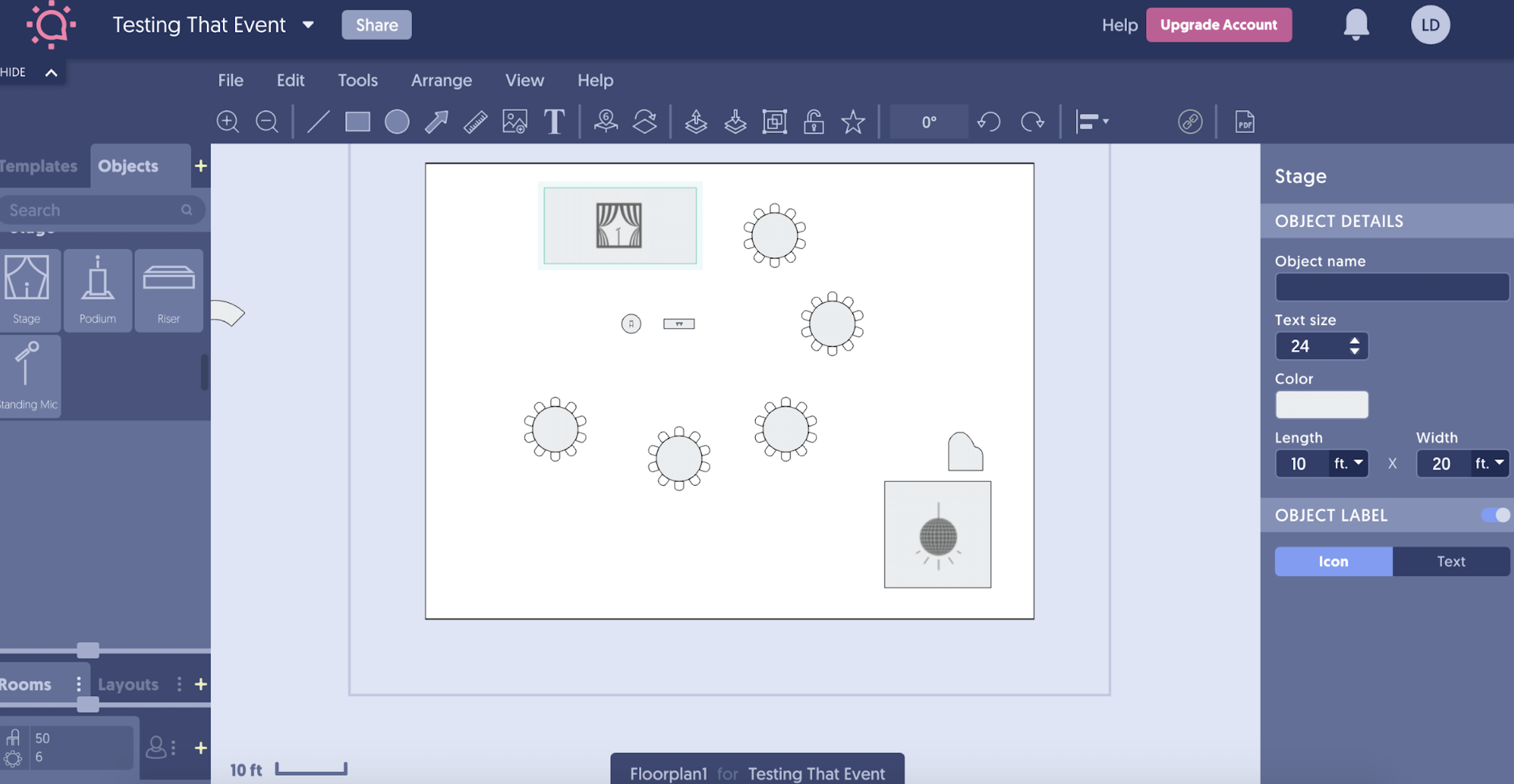
Social Tables interface

Social Tables uses interactive content to help event planners visualize their venue, collaborate with attendees and staff, store and share documents internally and externally, and optimize sales with a built-in lead capture feature. Big brands like Marriott, Ritz-Carlton, and Forbes are already using the accurate diagramming software to bring events to life long before the doors open.

Inside the software, events are listed on Cards with a brief overview of essential details, like date, time, and event type. Then comes the power: creating a diagram. You can create your own architectural plan from scratch, but in most cases, you'll probably start with one of the provided templates. For example, if your event needs a theater-style layout, you can simply choose the theater template and adjust to your liking.

From there, you can dive into the hundreds of pre-made objects and drag and drop them into your floor plan to start building the visuals. Think dinner tables, stages, projectors, bars, and everything in between, all of which can be added in bulk and then individually edited to reflect differences like VIP areas and break-out spaces.

These floor plans can then be shared internally with staff members—so the operations team knows what needs to go where and when—or externally via a copy-pasted link.

Social Tables Price: Pricing available on request, depending on event size; monthly plans available.

Boomset (Web)

Best event management software for helping attendees get organized

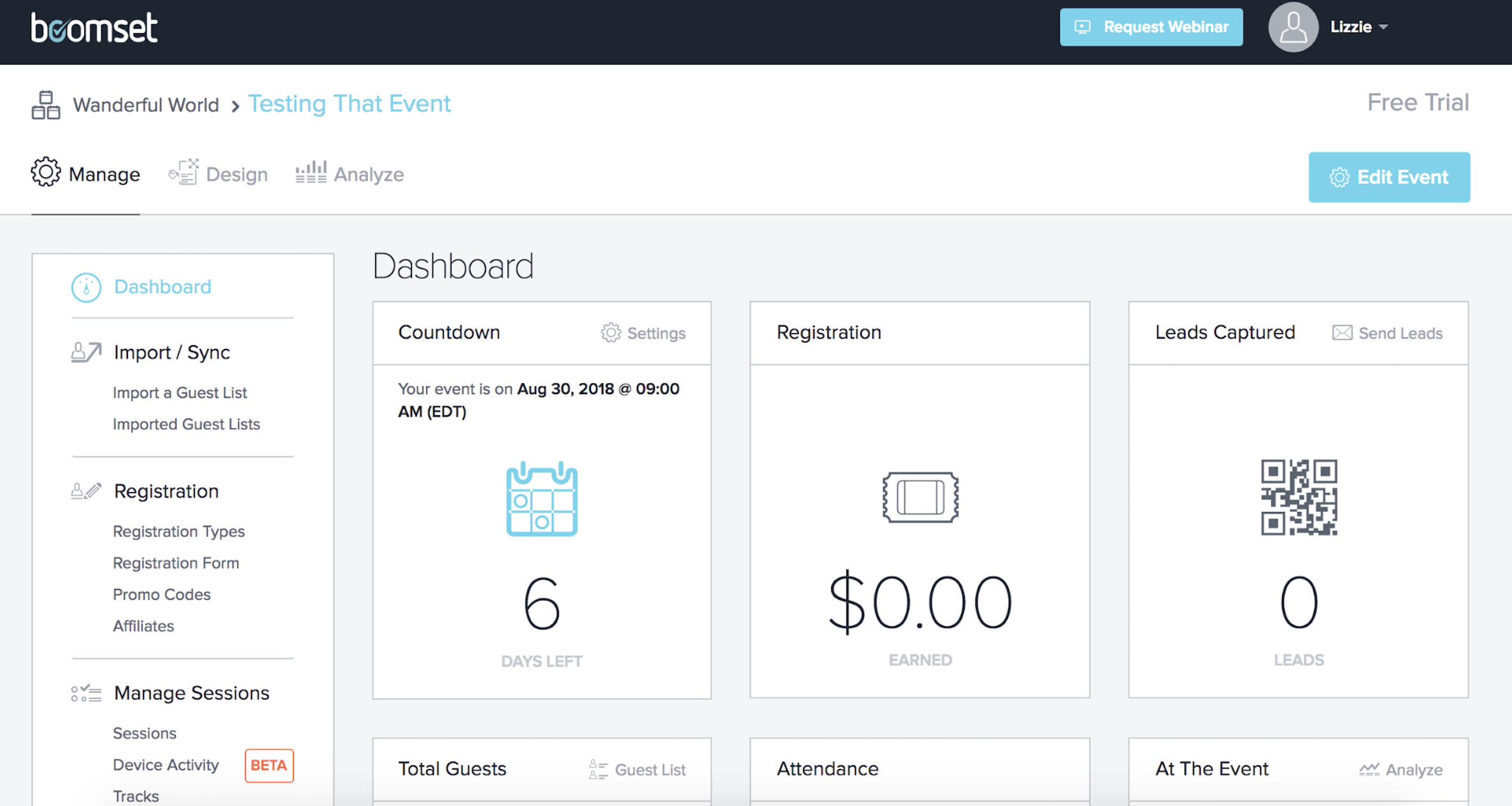
Boomset interface

Every event planner wants their attendees to have a smooth and fun experience. Boomset is a feature-rich event management platform that puts the power into attendees' hands by letting them personalize their schedules and print them on demand at on-site kiosks.

Attendees can build their schedule into a visual format and print their tickets for the event and any sessions they've signed up for at an on-site Boomset kiosk. From the backend, you can access raw attendee data, determine who is attending what sessions, and check in attendees on the day or before the event begins.

What sets Boomset apart is the Design area of the dashboard, where you can use the drag-and-drop builder to create attendance certificates and name badges that attendees can print at event kiosks on the day of the event. From their own accounts, attendees can also monitor available seats in real-time so they can strategically choose their sessions based on seating availability and attendance.

Boomset Price: $350/year for 700 attendee credits and unlimited events; $6,000/year for 5,000 attendee credits, customized support, and feature-rich reporting.

Bizzabo (Web, iOS, and Android)

Best event management software for an all-in-one solution

Bizzabo interface

Bizzabo is a one-stop solution for creating a streamlined, on-brand event experience for attendees. From building a website for your event to selling tickets, gathering attendee data, and creating reports, Bizzabo has tools for every aspect of your event.

The software's drag-and-drop website editor lets you build a branded site or embeddable widgets that include the most important features of your event. You can add widgets for the agenda, speakers, and exhibitors, depending on which areas you want to place the most emphasis on. Your creation can then be turned into a dedicated event app that attendees can access to create personalized schedules and view the built-in networking communities.

The guest list options are pretty clever too: You can easily segment attendees using tags to create smart lists of speakers, attendees, and VIPs, and then use Bizzabo's email marketing feature to send personalized emails to each segment.

Finally, Bizzabo offers unique tools, like the Hot Leads feature, which lets you run targeted remarketing campaigns to attendees that haven't completed the sign-up process, and the Ticket Boost feature, which helps attendees spread the word on social media with a single click.

Bizzabo Price: From $8,000/year for 1,500 registrants and 3 events

See Bizzabo integrations on Zapier.

Humanitix (Web, iOS, and Android)

Best event management software for doing a good deed

Humanitix interface

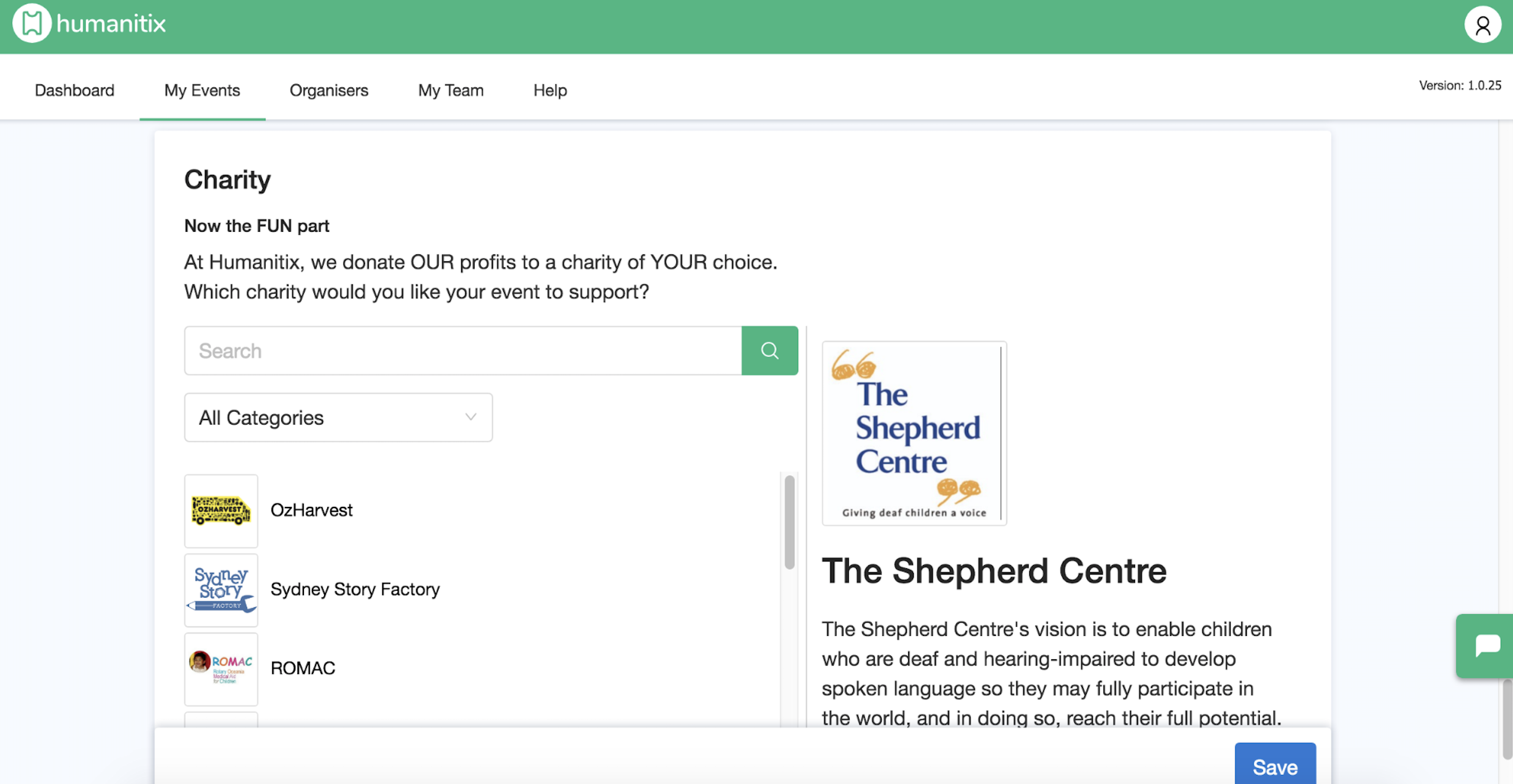
Humanitix is a not-for-profit ticketing platform that donates all of the booking fees to a charity of your choice, making it a top choice for event planners who want to make a difference.

Through the platform, you can build a customized page for your event. The dashboard also lets you manage ticket sales, generate sales reports, and share information with your events team. Humanitix guides you through the entire event set-up process right through to the big day, where you can then use the app to scan tickets at the door.

While it doesn't have as many frills as many of the other apps in this list, Humanitix's focus on giving sets it apart. When you first create your event, you're guided to a section that allows you to choose your designated charity. If you don't have a specific one in mind, the platform suggests the most popular charities, as well as causes that are in proximity to your event.

Humanitix Price: Free for free events with access to all features; 4% + $0.99/ticket for paid events; 2.1% + $0.80/ticket for charity events with access to all features.

See Humanitix integrations on Zapier.

Event Farm (Web, iOS, and Android)

Best event management platform for measuring offline efforts

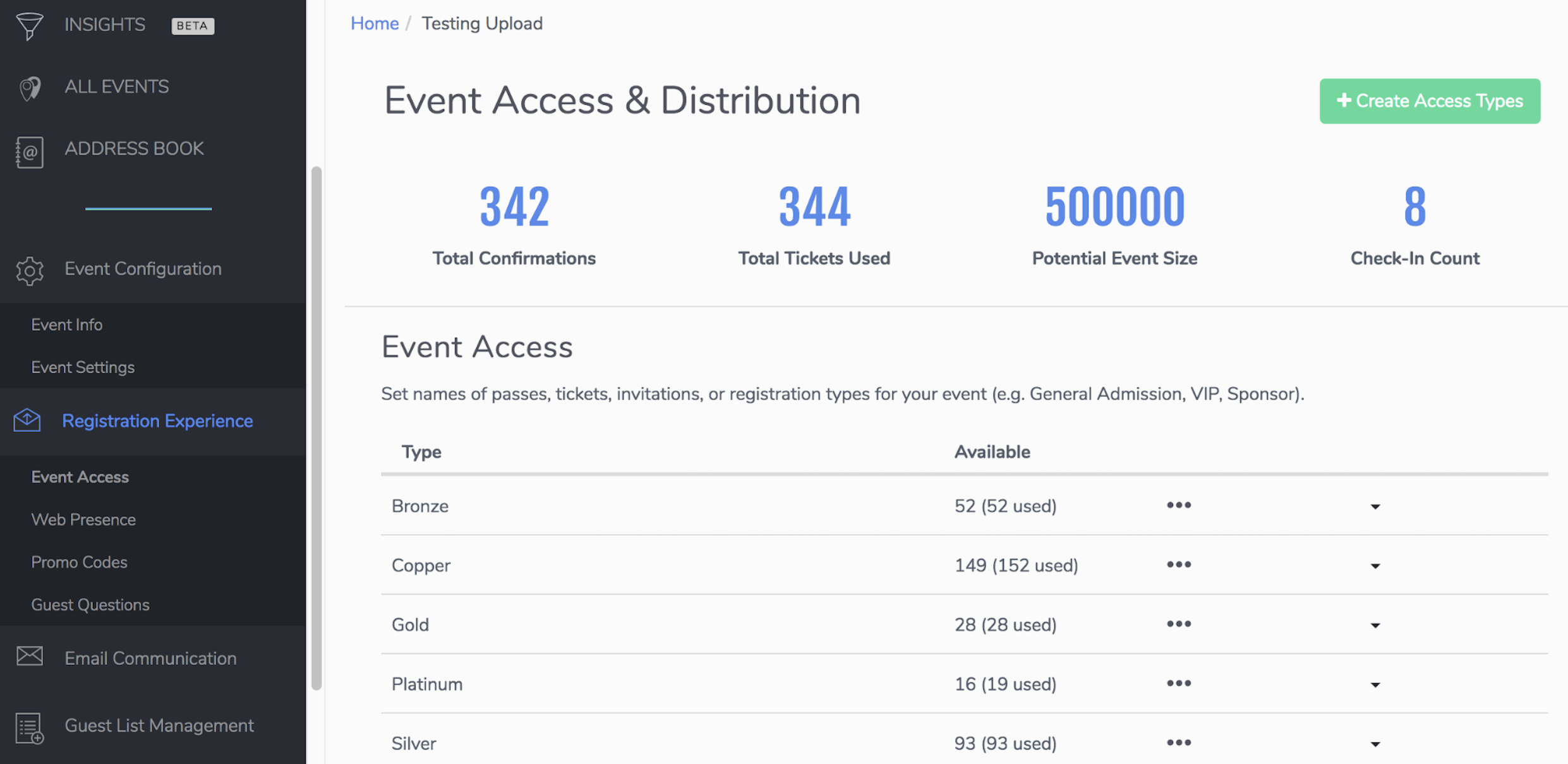
Event Farm interfact

Events are in-person experiences, so understanding what your attendees are doing offline is just as important as tracking their movements online. Event Farm provides an innovative solution for planning and managing events, combining wearable tech and event planning software to bring the online and offline worlds together.

The software integrates with near-field communication (NFC) technology, which allows two portable devices to connect when they're within close range of each other. In the case of Event Farm, this technology is used in wristbands to allow attendees to check in or bring up personalized schedules on remote tablets. The idea is to engage attendees in-person with a range of tech-powered activities and to gather data through wearables that track attendees' movements around your event.

Inside the dashboard, you have access to a whole host of different reporting features, including graphic check-in reports that visually show how many attendees have checked in, what their ticket level is, and what time they checked in. With one click, you can also generate transfer lists and reports on email campaigns set up from inside the platform.

Event Farm Price: Free for one intro-level event and up to 1,000 attendees; pricing available on request for unlimited events of up to 10,000 attendees.

See Event Farm integrations on Zapier.

Which Event Management Should I Use?

Each of these platforms will help ease the event planning process and provide you with the tools you need to host and manage a successful event. The key is to choose an event management app that ties into your specific needs. For example, if you're hosting a local event and you're worried about a drop-off in ticket sales, you'll likely choose software that's heavy on marketing. But if you're putting together an all-singing, all-dancing conference and need to create floor plans with your team, you'll pick an app with digital diagramming capabilities. Whatever you choose, event planning software beats the DIY approach.


source https://zapier.com/blog/best-event-management-software/

Monday, 1 October 2018

Optimize Your Real Estate Marketing with Facebook Lead Ads

Real estate agents have been using Facebook ads for years, but Facebook lead ads have revolutionized lead collection in the industry. Facebook lead ads help you find leads in real time—a huge advantage given the importance of timing in real estate. Even a few minutes between interest and contact can be the difference between your next big commission and losing out to the competition.

Here we'll discuss how you can use Facebook lead ads to help your real estate business grow:

The Benefits of Facebook Lead Ads

Using Facebook lead ads, real estate agents can connect with people who are already looking to buy or sell homes—right from within Facebook.

These ads might look like a conventional Facebook ad, but they include a sign up button and a lead form, making it easy for agents to capture the interest of engaged leads while they're still on Facebook's platform.

Let's say you've just listed a new home. You post a Facebook lead ad targeting potential leads on specific demographic information such as location or income. The targeted leads will see the ad as they scroll through their newsfeed on both desktop or mobile devices. If someone is interested in learning more, they can click the call to action in the ad.

After clicking the CTA, a "context card" will appear that contains more information about the ad or your brokerage. The card will also gather more information about the lead, such as area in which they're looking to buy a house or a particular price range. The contact information they've shared with Facebook will be pre-populated and can be submitted with a single click.

You can see that lead ads offer a host of benefits:

  • They're quick and painless. Facebook lead ads remove the friction of sign up. Beyond those first few clicks, no additional action is needed: The lead's name and email or phone number are already pre-populated. A lead can go from seeing the ad to getting the information they want in a matter of seconds.

  • They provide real leads. You usually have have to sort through a number of fake emails and phone numbers to get to the real leads—it's frustrating and a waste of valuable time. Lead ads help lower the quantity of spammy leads by pre-populating the lead's real information.

  • They lead to fewer drop-offs. Lead ads offer a more streamlined user experience. Interested buyers and sellers can complete the process without leaving the platform.

  • They eliminate manual segmenting. You don't have to create different landing pages or sign-up forms for different segments or potential leads.

  • They allow you to access leads in real time. When a lead is generated via Facebook lead ads, Zapier can automatically send the information to agents using their preferred communication method.

Getting Started with Facebook Lead Ads

If you're already familiar with Facebook ads, getting a lead ad set up is simple.

Step 1: From the Facebook Ads Manager, create a new ad. Under Campaign > Objective, select Lead generation.

Step 2: Select the Facebook page you want to promote.

Step 3: Define the parameters of your target audience.

Step 4: Select your ad format (how it's displayed across Facebook).

Step 5: Upload your selected images (or video) and write the ad copy and CTA.

Step 6: Create your lead form. (This is optional but recommended. It's the screen your leads will see after they click the CTA button and can include additional information, questions, a privacy policy, and/or a thank you screen.)

Step 7: Your ad is ready to go. Select your dates and budget, and launch it.

For a more in-depth walk through, including screenshots, take a look at our guide to Facbeook lead ads.

Setting a budget

There's no one-size-fits-all number for Facebook lead ads budgeting. The general number experienced real estate agents provide is $300-$500/month, but it's not that simple. Your budget will change not just based on how much you have set aside for marketing, but also on your geographic location and the prices of homes in your region.

Misty Weaver heads the Dream Weaver Team in Frederick County, Virginia. Her business operates out of a small and relatively rural area, so she's able to run campaigns that cost less than $40 and still generate dozens of leads—it rounds out to about $0.50/lead.

Spend per lead on Facebook lead ads

Now let's look at the other end of the spectrum.

John Huntinghouse is the Digital Marketing Director for Epic Marketing, a Utah-based marketing agency that works with real estate agents. His agency operates in a bigger city with higher ticket suburbs. He runs campaigns with much larger budgets for his clients, and he's been able to build a list of qualified leads for approximately $23/lead—vastly different from Misty Weaver's cost.

So what happens if you're in an expensive area but don't have a big budget to start?

You're not out of luck: Try running short, targeted campaigns instead. A monthly budget of $100 can be spread into one small $10/day campaign running for 10 days. Or, if you have a really small area to target, two $5/day campaigns that focus on a specific listing. The ability to run these sorts of small-dollar ads is why Facebook lead ads is such an important tool. It doesn't cost a lot of money to start generating good leads.

Marketing Strategies for Real Estate Agents

Facebook lead ads offer a wealth of potential for real estate agents. With the help of Facebook's in-depth demographic data—which can get as specific as identifying first-time homebuyers—you can reach both buyers and sellers in hyper-targeted markets.

But within that targeting, there's still loads of flexibility. For example, you can advertise everything from specific properties to home value reports to area foreclosure listings, and everything in between.

So how do you decide how to use Facebook lead ads for your business? Take a look at some Facebook lead ads marketing strategies from other real estate agents.

Embrace ad targeting

As controversial as it may be, Facebook is crucial for marketing namely because of the data it has on users. Facebook goes beyond segmenting by ZIP code: It's able to account for both demographic status and behavioral patterns.

Aaron Bowman, a Realtor with Mazz Real Estate explains:

The best part when using Facebook lead ads is you can […] run ads for a certain ZIP codes [and] demographics: first time home buyer, income 50k and up, most likely to move, just to name a few.

Because Facebook allows for layering, you can get extremely specific in your targeting, even going so far as to include people who've checked out Zillow or Trulia, for example. Here are a few more examples of some of the relevant demographic targeting you can explore with Facebook lead ads:

  • Looking to buy a home. Believe it or not, Facebook has a way to determine this. It should probably be first on the list of your targeted demographics.
  • Likely to move. Another category Facebook can get you some info on.
  • Location. Target a specific ZIP code or radius from a specific point on a map.
  • Age. Typically 20-year-olds aren't home buyers, but 45-year-olds might be.
  • Income. If you're targeting a more high-end buyer, you might include a specific income.
  • Job title. People in certain professions move around more than others.
  • Renters. Renters might be looking to transition into home ownership.
  • First-time homebuyer. Some real estate agents specialize in first-time homebuyers, so this would be a key demographic to target.
  • Pages liked. Be sure to include pages that indicate interest in real estate. That could include Zillow, Redfin, or even HGTV, for example.
  • New job. People who have new jobs might be interested in moving or buying a new home—especially if that new role came with a raise.
  • Recently moved. It's not uncommon for people who've moved to a new city to rent for a while to check out different areas. They might be ready to buy a home after a few months.
  • Recently engaged. Lots of people start looking to a buy a house after getting engaged or married.

By combining that granular type of targeting with the other tips below, you'll be sure you're using your marketing dollars on the right people.

Create custom and lookalike audiences

Facebook lead ads allows you to take advantage of leads who are already in your database. By using a custom audience, your ads will target those existing leads. Aaron Bowman explains the value:

This allows you to keep marketing to people who you have already reached out to. Then when you talk to them, they are like "I see your face everywhere." [It] makes you stand out like a celebrity in your area.

With real estate depending so heavily on smaller localized areas, being the agent who seems to pop up everywhere is a great way to stay top of mind. Remember when the best agents had their faces pop up on park benches and the sides of buses? Today, Facebook lead ads give you that same effect.

Lookalike audiences, on the other hand, target people who resemble those in your database. You know your database leads are qualified, so it's likely that people who match that demographic and those behavioral patterns will also be solid leads.

For more information on how to set up these audiences, we'll send you to the source: Facebook's articles about custom audiences and lookalike audiences.

Be attentive to timing

Deciding when to run ads might not be as simple as you think—especially in real estate, where timing can be the make or break issue.

Research shows that when it comes to responding to new leads, timing matters. Many studies—including this one from from Drift—have found that if a lead doesn't hear back from you in as little as five minutes after first contact, your chances of speaking with them decrease dramatically.

Roof.ai, a real estate technology brand, decided to test this theory within the industry. They contacted the top 74 real estate real estate brokerages in the U.S. to check their response time.

The results were not good.

Only 9% of the brokerages had an agent respond within five minutes, and 41% never replied at all. This highlights a huge opportunity for real estate agents who can set up a system where quick responses are prioritized. And that means running ads during times when you'll be able to respond within minutes to new leads.

Jeff Miller, a real estate agent at AE Home Group with offices across Maryland, highlights just how important timing is for his agents.

We've found that once a Facebook user submits their information, you have a short 5-minute time window in which you can reach out and have a high percentage chance that they will answer your call. Once a user closes Facebook, they are quickly moving onto something else, and buying or selling a house quickly goes from front of mind to removed from their attention.

Of course, you need to find that sweet spot: Your ability to respond quickly doesn't mean much if no one is clicking your ads. Keep your eye on high traffic times for the people you're targeting, and be sure you're available during those time frames. Otherwise, you're likely going to have to chase down leads who otherwise would have been easy to connect with.

Create a lead nurturing system

Not every lead is going to be ready to buy or sell right away. Misty Weaver explains:

Online leads are further out in the buying and selling process, but more likely to give their contact info, so I get to stay in touch with them before they are on other agents' radar.

As a real estate agent, getting that first touch with a lead is key. Regardless of where a lead is in the home buying process, the first agent to respond has the advantage. A study by LeadQual showed that there's a 238% increase in conversion if you're the first person to contact a lead.

In addition to the timing aspect, this also means you need to create a solid lead nurturing system. Automate your Facebook lead ads so that your leads are automatically added to a drip campaign. This will allow you to keep in contact throughout their journey—and you'll be there when they're ready to bite the bullet.

Experiment with different styles

Facebook offers multiple ad styles—and none of them are real estate specific—so it's important to experiment to see what is most effective.

Andrew Fogliato, founder of Just Sell Homes, a Toronto-based real estate marketing agency, tried a few iterations and landed on a template for a standard Facebook lead ad that has worked well for his clients.

Facebook lead ad example

Let's break down what works by looking at each part of the ad.

  1. Headline. The copy here is trying to reach a specific buyer: someone with a budget of $600,000 looking in Aurora. Your leads are targeted, so it's good to get to the point right away.

  2. Body. Here, the ad highlights some of the key features that buyers are curious about: number of bedrooms, yard features, proximity to transportation, and so on.

  3. Note of urgency. You want people to feel like they're missing out if they don't click.

  4. Call to action. Tell people the next steps you want them to take. Be specific.

  5. Details of property. Don't forget to give people the address and status of the property. Was it just listed? Is it pre-foreclosure? Has there been a price reduction?

Using an ad like this, Andrew has been been able to generate leads for an average of $1 to $5 per lead, which includes the prospect's full name, email, and phone number.

But Evan Roberts, a real estate agent with Dependable Homebuyers in Baltimore, emphasizes that it can be detrimental to stick to one style for too long:

You need to constantly be keeping your advertising fresh with new eye-catching images, unique calls to action, and enough variety to attract the largest audience possible.

One strategy Evan and his team have used is picking an unconventional color scheme in their ads: black and white. Because most posts on Facebook are filled with color, when someone scrolls past your black-and-white ad, it pops out and grabs their attention.

Black and white ad

Similarly, John Huntinghouse cited extensive experimentation and testing as a key to running successful campaigns for his real estate clients:

Iterate your ad targeting every week. You should always have multiple ad sets (at least two, but we like to use five to 10), and have each ad set contain at least two ad creatives. This way, you can find the winners and put the bulk of your marketing dollars behind them.

You might even experiment with a single image versus a slideshow versus a video to see which grabs your leads' attention best. And remember: always use professional photos. It's surprising how many photos look like they were snapped from a cell phone—that's not going to stand out among a news feed full of selfies.

Tap into natural human curiosity

It's common knowledge that advertisers love to use human curiosity to their advantage. Give leads just enough information to get them interested—but without giving away the flashiest info—and they're more likely to click. This is certainly true for specific property listings. For example, you might say that the kitchen has a unique feature you won't find anywhere else, but don't tell them what that feature is until they click. (Pizza oven!)

But there are other ways to tap into people's curiosity. Misty Weaver covers a much smaller area than most, and she's generated a lot of interested leads in her local market through neighborhood reports.

Misty Weaver neighborhood report ad

For sellers, I use a more targeted area, usually around a specific neighborhood with a map of the recent sales—and appeal to everyone's desire to know what their neighbors' homes sold for recently. A simple image and call to action to download the report, with a pin drop and mile or two radius, depending on the size of the community, has worked best.

These types of reports, especially when they're targeted—geographically or demographically in another way—grab people's attention. Other types of reports that can work are anything from relocation guides to foreclosure listings to lists of homes with very specific features.

Make the most of current events

Big news stories—local or otherwise—can help you generate eye-catching copy that hits the interest in your targeted areas.

Evan Roberts uses BuzzSumo to discover new trending topics and tie them into his Facebook lead ads' messaging through images and CTAs. A simple Google news alert can work well if you're trying to keep your eye on specific topics.

Here are a few examples of how you might use current events to your advantage with Facebook lead ads:

  • Does the home you're listing have an amazing finished basement? If it's football season, shout out the fact that it's the perfect place to host a party for the big game.

  • Maybe a famous celebrity just started a new clothing line. That's great fodder for featuring the huge walk-in closets that even an A-list star would love.

  • Keep an eye on awards for local attractions. If a nearby spot gets on a top 10 list, use the the view from the home's deck to highlight the proximity.

Automate Your Facebook Lead Ads

A key benefit of Facebook lead ads is the ability for agents to get leads in real time as they come in. Jeff Miller uses Zapier in his business to alert agents to new leads immediately:

We use Zapier to notify our real estate agents of a real estate lead as soon as it is collected on Facebook. Zapier allows us to add the lead to our CRM, send out a mass email, and create push notifications to our real estate agents' phones in real time. When time is of the essence, your follow up system can mean the difference between closing a lead or losing them to a competitor.

Here are the Zaps Jeff uses:

And here are some other ways real estate agents can use Zaps to automate information from Facebook lead ads.

  • Create a leads database:
  • Subscribe new leads to email lists:
  • Send new leads a text message:

Don't see the workflow you're looking for? Browse more Facebook lead ads automations here, or create your own custom workflow.


Facebook lead ads can transform the way real estate agents do business. Targeting the most qualified leads, creating eye-catching ads with the right content, and setting up a system for quick alerts can revolutionize your lead generation and help you grow your business.


source https://zapier.com/blog/real-estate-marketing-facebook-lead-ads/