Monday, 5 November 2018

How to Compare Shipping Rates: 6 Apps to Find The Best Shipping Service

Shipping—as much as any software—is what makes eCommerce works. You can sell products from your hometown to customers around the world thanks to the postal service. Yet it’s hardly an enjoyable experience.

Shipping costs are formidable. Amazon spent over 12% of their revenue on shipping in 2017 as they have for many years—and you can easily spend more if you don’t know the best ways to ship your products.

Whether for the holiday rush or to get a package to a customer faster than usual, sometimes you'll need the cheapest way to get a package somewhere really fast. And every so often, it's worth comparing shipping options to make sure you're not spending more on postage than you have to.

Here are some of the best tools for that.

Compare Shipping Prices Quickly Online

When you want to fly from location X to location Y, there are dozens of flight apps to find the cheapest options. With shipping prices, it's not quite as easy.

Most shipping rate calculators are based around shipping from one country. The good news is, that means you just have to find a shipping site from your country, and it'll be able to compare shipping rates whenever you need to mail something fast.

They mostly work the same. Enter your own postal code as the place you're shipping from, along with the destination country and postal code. Then, enter the size and weight of your package, and the tool will show which shipping service will send the packages the quickest—or the cheapest, whichever you need. Typically, the shipping comparison sites sell the postage themselves. Sign up for an account, and you can buy and print the shipping label directly. Or, you can just use the info to choose a carrier and purchase postage on your own.

Here are a few options to try:

Parcel Monkey

for European, American, and international shipping rates

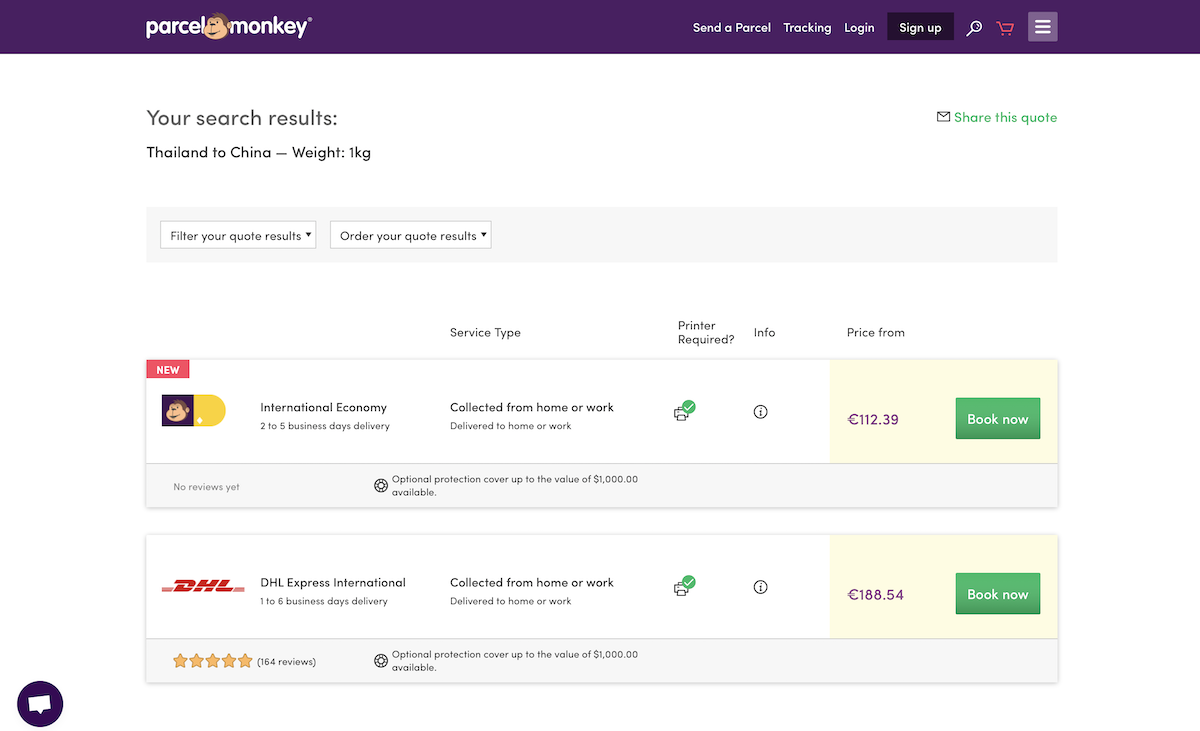
Parcel Monkey shipping rate comparison site

One of the few shipping comparison sites that works to and from almost every country is Parcel Monkey. It has dedicated sites for the UK, Spain, Germany, Belgium, Italy, the Netherlands, and the US, each with local pricing for popular shipping services in those countries. And, it can also calculate shipping rates for most other countries—albeit in the currency of the Parcel Monkey country site you visit.

It's focused on DHL, DPD, TNT, and local post office's EMS services, and you may see slightly different services depending on which of their search sites you use.

Secureship

for Canada and international shipping rates

Secureship

Another tool for finding shipping rates to and from almost anywhere is Canadian site Secureship. It's best for Canadian businesses, as its shipping prices are quoted in Canadian dollars and printed shipping labels are designed for Canadian shipping. But, it's also an easy way to get an estimate on what FedEx and UPS would cost to and from almost anywhere—just remember to convert to estimated cost to your local currency from the quoted Canadian dollar price.

ShipGooder

for US and Canada shipping rate comparison

shipgooder

For quick, discounted shipping price comparison from the US and Canada, ShipGooder is a great tool to try. It recommends both the cheapest and quickest options so you can pick what works best for you. And, with a ShipGooder account, you can get discounted rates on USPS shipping for an even more economical shipping option.

eBay Shipping Calculator

for simple shipping rates from the US

eBay Shipping Calculator

Perhaps the quickest tool to use to calculate shipping from the US is eBay's Shipping Calculator. Enter quick info about your package, then estimate the weight with a slider where you can pick the rate of a basketball, toaster, or other common items. It then shows rates for USPS, FedEx, and UPS to common destinations in that area for a rough estimate of what shipping will cost for your international orders.

FitShipper

to find the best package size and shipping rates

FitShipper

Unsure what size of box would be the most economical to ship? FitShipper can help. Tell it the size and weight of your product, its destination country, with how much padding it needs, and the shipping class you want. FitShipper then finds the best standard package size, and estimates the price with the USPS.

Find the Best Shipping Price for Every Order, Every Time

ShipStation
Shipping services for your store can help you find the best shipping rates for every order (ShipStation pictured)

If you want to always find the cheapest shipping option for each order, the best option is to use a paid shipping service. These tools integrate with your eCommerce platform and automatically find the cheapest shipping option for each product and printing shipping labels for each order. You need a subscription to the shipping service, but will likely make it back in the time and money saved on shipping.

Some popular tools that let you compare shipping rates include ShipStation, ShipWorks, Shipwire, RocketShipIt, XPSship, ShippingEasy, and Ordoro. Most of those are focused on US businesses—be sure to look around for similar services designed for your market if you’re shipping from outside the US.

The most important thing is that your shipping service connects to your eCommerce platform to directly calculate shipping for every order. ShipStation, for example, connects to Shopify, BigCommerce, and WooCommerce, along with marketplaces like Ebay and Etsy, to find shipping for all of your orders in one place. Be sure to check your eCommerce platform's add-ons or app store for shipping services, as the ones that integrate with your store will be the most helpful for your business.

Find the Best Shipping Costs from Favorite Carrier

USPS shipping rate calculator
Check prices online for your default carrier—and compare them to others in separate tabs (USPS pictured)

When all else fails, you can always compare shipping prices on your own—and it's not that hard. Odds are, you'll have a handful of options for easy shipping: Your local postal service, and a few international parcel carriers like FedEx or DHL.

There's a quick rule of thumb you can use, too. For express shipping inside the US, Steve Chou from My Wife Quite Her Job has found that UPS and FedEx are cheaper for packages over 2 pounds, while the USPS is cheaper for packages under 2 pounds. Flat rate boxes can be cheaper, too, for small heavy objects. "If you need a large flat rate Priority Mail box, make sure it’s heavier than 7 lbs," says Chou. "Otherwise, FedEx or UPS Ground will always be cheaper."

You could run with that and only check one site—but it still might be worth comparing a few services. Just open a tab for each service you want to check, and enter your package size and weight into each one. It'll take a bit more time, and you'll have to manually compare each option, but you'll get the most options to choose from.

If you need help comparing, just copy the data into a spreadsheet to quickly sort and compare. And if you have a number of similar sized packages, you could go with the cheapest option for the first package for the rest for a quick way to get decent priced shipping without having to check each package individually.

Here are the websites to check shipping prices with some of the largest national postal services:

You can find your national postal service's website at Wikipedia's list of postal services—and typically the shipping price tool is listed on the front page.

Then—especially for larger packages—it's worth checking an alternate shipping service to see if it's cheaper. Here are the links to check shipping rates from a half-dozen of the largest carriers:


Learn Everything You Need to Run a Store

The Ultimate Guide to eCommerce

Running an eCommerce site is a tough job, one that requires a wide variety of tools in addition to shipping services. You'll need an app to run your store, another to process payments, and others to manage shipping, accounting, and more. And, you'll need workflows to tie it all together so you don't spend all your time copying order info back and forth.

We've got the book for you. In our Ultimate Guide to eCommerce Software book, you'll learn everything you need to run an online store. From tips on starting your own business to detailed tutorials on the best eCommerce software, it's the resource that'll help you keep your store running.

And best of all, you can download a copy for free!

Originally published December 8, 2016; updated November 5, 2018

FedEx Express plane photo by Christian Junker via Flickr.


source https://zapier.com/blog/compare-shipping-rates/

Find Any Email Address for Free With These Tips and Tools

While you can find and message most anyone on social media, email is a more personal—and more professional—way to reach out.

Of course, finding email addresses isn't always easy. Most people are protective of their email address, and for good reason: it's one of the best ways to prevent spam. But with a little investigative work, you can find almost anyone's email address. Here are three easy ways to find email addresses for free.

Option 1: Try Various Search Tricks to Find Email Addresses on Your Own

Google search for email
A Google search might be all you need to find an email.

Company "about" page

The first place you should look for email addresses is the "About" page of your contact's company website. You might find anything from a brief bio to detailed contact info for every team member. Dig around a bit more, and you might find email addresses in unexpected places. For example, on Zapier's "About" page, you'll find team members' contact information by hovering over the photos.

Zapier About page
Hover over team members' photos on Zapier's About page to see their email addresses.

Personal websites

If you can find a personal blog or website for a contact, you may find an email address on their "Contact" page. If not, they may have a contact form on their website that sends them an email without exposing their email address to the public.

Social media

If you can find your prospect's social media account, check their profile for contact information. Here are a couple tips to keep in mind:

  • You may need to connect with the contact to see their email address on LinkedIn.
  • On Twitter, you can search historical tweets to see if a contact has ever tweeted their email address. Search on Twitter for the word email or at dot, and then follow that by from: and the contact's Twitter handle (e.g. email from:dannyaway or at dot from:dannyaway).
Twitter email search

Google search

If a person's email address is published anywhere online, Google may have it indexed and available for discovery. Here are a few search strings to try:

  • [firstname] [lastname] email (e.g., Melanie Pinola email)
  • [firstname] [lastname] contact (e.g., Melanie Pinola contact)
  • [firstname] [lastname] [company] email/contact (e.g., Melanie Pinola Zapier email)
  • [firstname] [lastname] email/contact site:[domain.com] (e.g., Melanie Pinola email site:zapier.com)

If none of these search tricks work, you'll have to do a little more detective work to find your contact's email address.

Option 2: Form an Educated Guess and Test It

Guessing someone's email may sound a little far-fetched, but it's a solid strategy. Companies often use a consistent format when creating new employee email addresses (e.g., firstname.lastname@company.com). So if you can find the email address for one of your contact's coworkers, you can guess that your contact's email may have the same format.

Of course, that's not always the case—and nicknames can complicate things—so your best bet might be to guess based on common email address formats. Here are a few examples:

  • [firstname][lastname]@[company].com
  • [firstname].[lastname]@[company].com
  • [firstinitial][lastname]@[company].com
  • [firstname]@[company].com

But you don't need to come up with a comprehensive list of possible formats: You can use a tool like Email Generator (free) or Email Permutator+ (free). Just type in the contact's first name, last name, and company domain, and these tools will generate a list of possible email addresses based on common email address formats.

You could use a tool like Hunter (free for up to 100 searches per month). Hunter lets you enter a company's domain name, and then it populates all of the email addresses it can find for that company. In doing so, it also identifies the most common email format used by that company, which could be helpful if the email you're looking for isn't listed.

Once you have a list of potential emails, you have to figure out which addresses (if any) are valid. There are a few ways to do this:

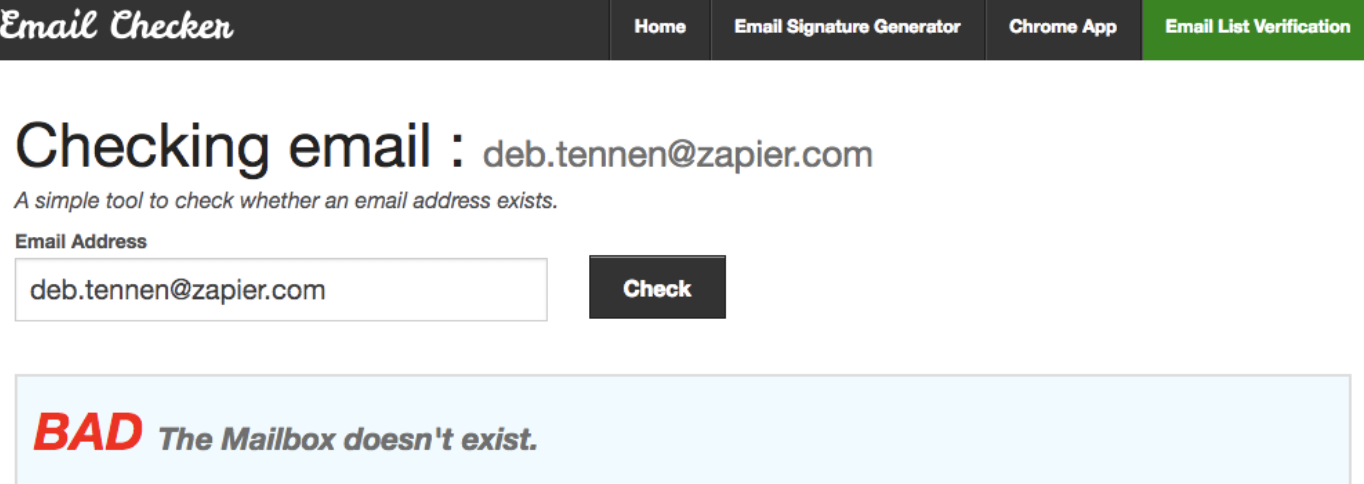
  • Use a free email testing tool like MailTester, Email Checker, or Email Hippo. Type in an email address to test it, and the system will tell you if the email address is valid, invalid, or unable to be verified.
Email Checker
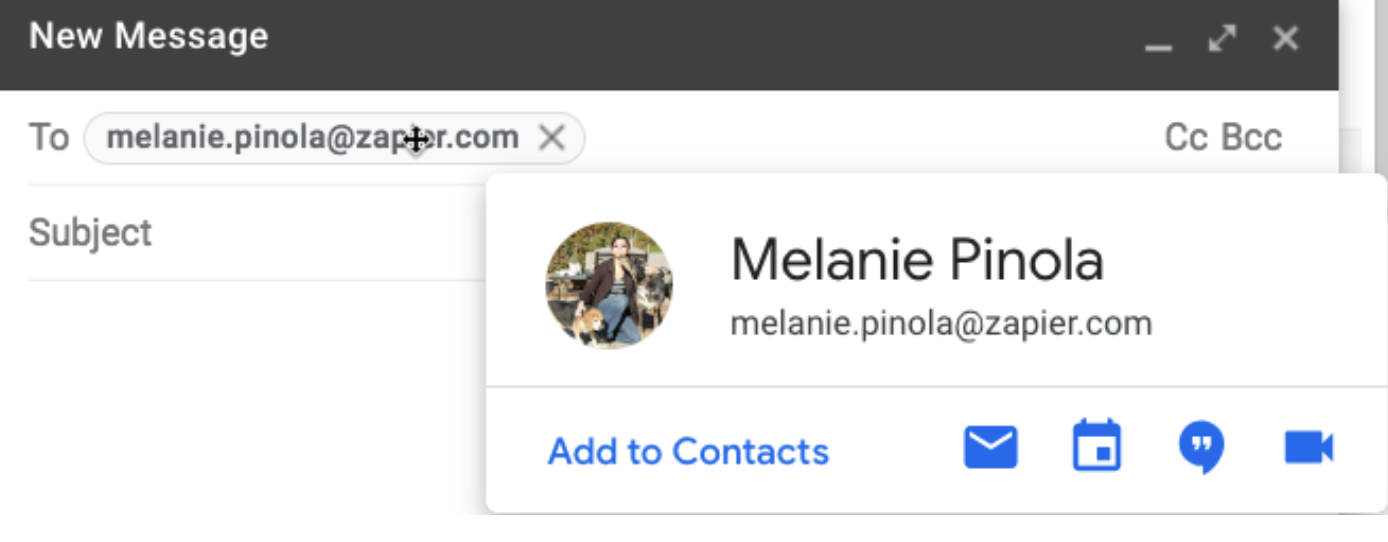
  • If you use Gmail, type in the list of email addresses, click out of the "To" field, and then hover over each email address to see if a picture pops up. If it does (and particularly if the picture is of the person you're trying to get in touch with), you've found the email address you need.
Gmail validate email address
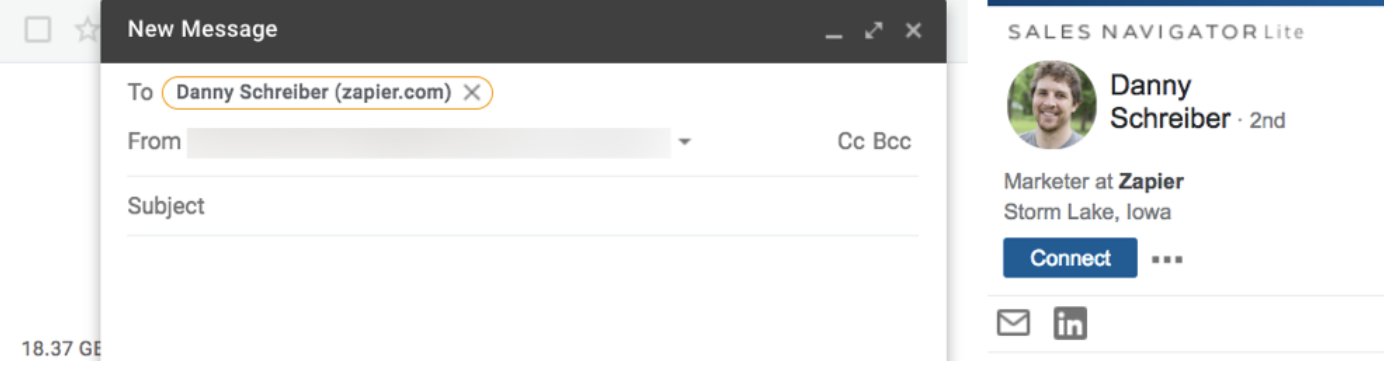
  • Install the LinkedIn Sales Navigator Lite extension (free) for Gmail, and it will pull up a person's LinkedIn profile information when you enter their email address. If the profile it pulls up is the person you're trying to reach, you've likely found a valid email address.
LinkedIn Sales Navigator Lite

If you want to reduce the number of steps in this option, try the Name2Email (free) Gmail extension. Type in the first name, last name, and domain for the person you're trying to get in touch with, and Name2Email inserts 15 possible versions of that person's email. Then, just hover over each until you find one that populates a picture.

Name2Email

Option 3: Use These 7 Free Apps and Extensions to Find Email Addresses

If the options above didn't work—or if you just want to bypass the manual searching—use an app or extension that's designed to find email addresses for you. The seven apps and extensions listed below are either fully free, offer a set number of free searches to start with, or offer a set number of free searches per month.

To test the accuracy of these tools, we used each one to find email addresses for five separate people from different—and differently sized—companies. Each of the seven tools listed below was able to find accurate email addresses for at least three of the five people we searched for. The email addresses that certain tools couldn't find were for contacts at one-person companies; all were able to find the email addresses for our contacts at larger, more established businesses.

  • Norbert (Web, Chrome, Gmail) for accuracy in finding email addresses
  • Clearbit Connect (Gmail, Outlook) for finding email addresses without leaving your inbox
  • RocketReach (Web, Chrome) for finding personal email addresses
  • Datanyze Insider (Chrome) for finding email addresses while browsing social media sites
  • GetProspect (Web, Chrome) for sales professionals who prospect on LinkedIn
  • FindThatLead (Web, Chrome) for finding email addresses while surfing the web
  • Anymail Finder (Web) for finding lots of emails at once

Norbert

Best free tool for accuracy in finding email addresses

Norbert

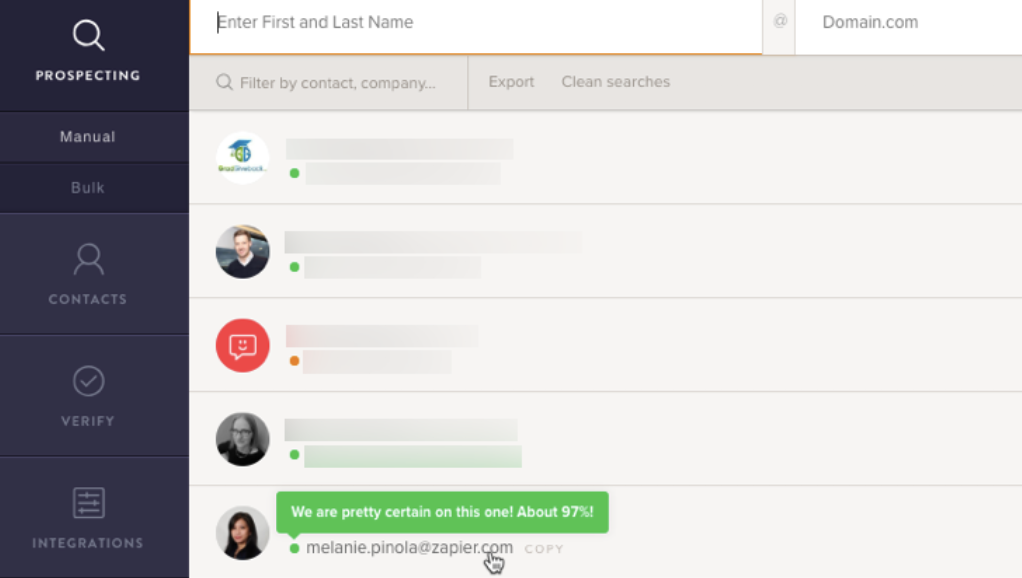
Norbert is one of the simplest ways to find an email address. Just enter the first and last name of anyone you're trying to find, along with the company's domain name. Norbert provides its best guess for that person's email within seconds and shows you a rating of how accurate it believes the results to be.

Of all of the apps we tested for this piece, Norbert was the most accurate. It was the only tool that found the correct email address for all five of our test searches.

Norbert Price: Free for finding up to 50 email addresses; from 10 cents per lead for the Prepaid plan that lets you pay as you go.

Automate VoilaNorbert with Norbert's Zapier integration.

Clearbit Connect

Best free tool for finding email addresses without leaving your inbox

Clearbit Connect on Outlook

Clearbit Connect is an extension that works with both Gmail and Outlook. After installing the extension, enter the domain name for your contact's company. Clearbit then displays every individual it has on file for that company. Next, filter the results by name to find the person you're looking for and view that person's email address.

In our testing, Clearbit Connect was the second-most accurate of the tools we tested, finding the correct email addresses for four of the five email searches we conducted.

Clearbit Connect Price: Free for up to 100 email lookups per month; from $6,000/year for a premium version of the extension that allows for 1,000 email lookups per month.

Automate Clearbit with Clearbit's Zapier integration.

RocketReach

Best free tool for finding personal email addresses

RocketReach

If you're trying to get in touch with an old friend or relative, you'd probably prefer to find their personal email than their work email.

RocketReach can help. In addition to finding the business email addresses for most people we searched for, in many cases it also found personal email addresses. Plus, it lets you narrow your search by several different attributes, such as company, location, job title, and education.

RocketReach Pricing: Free for finding up to five email addresses per month; from $39/month for the Bronze plan that lets you find up to 170 email addresses per month.

Automate RocketReach with RocketReach's Zapier integration.

Datanyze Insider

Best free tool for finding email addresses while browsing social media sites

Datanyze Insider

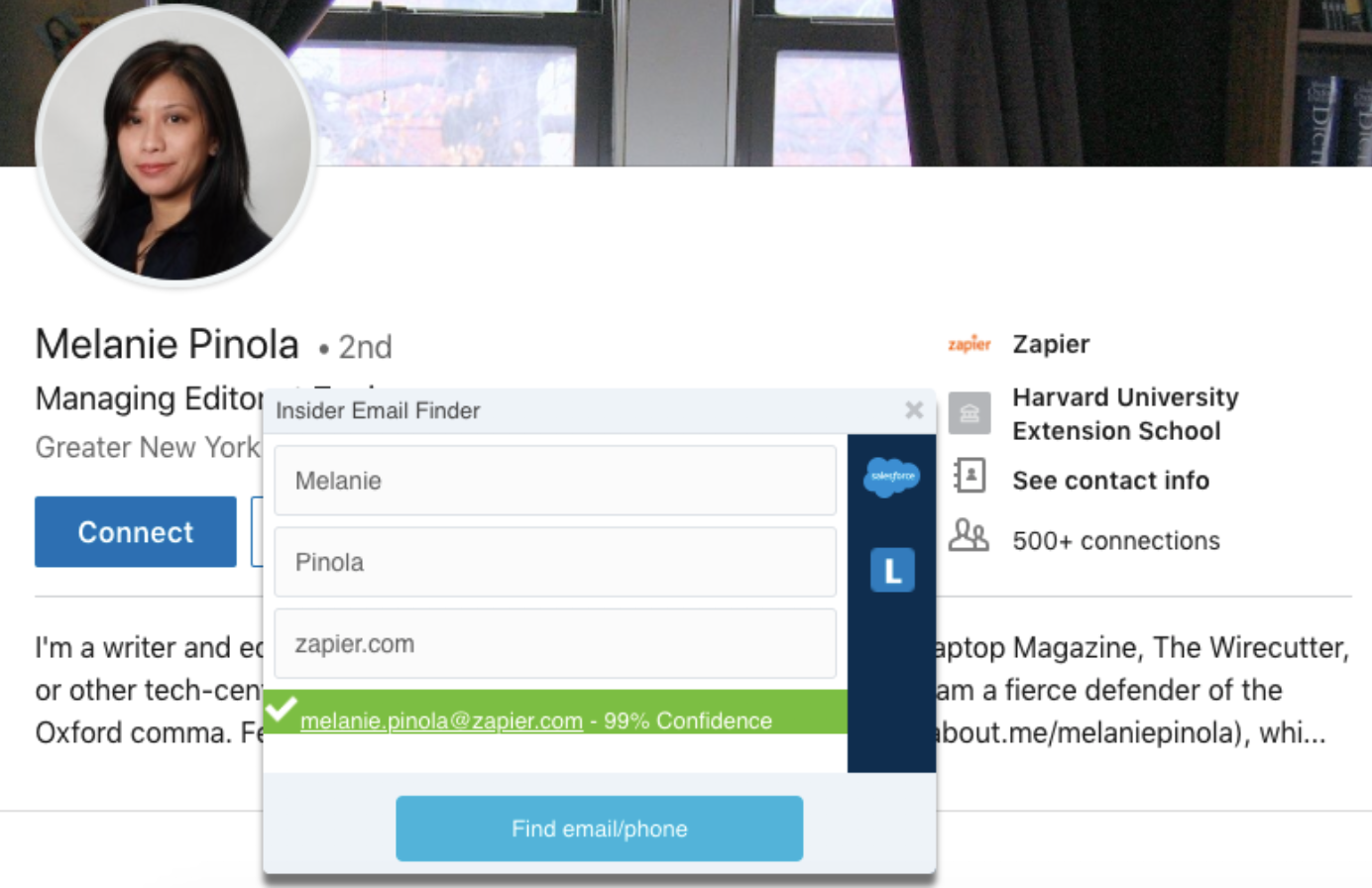
Datanyze Insider lets you find email addresses while you're looking at social media profiles. Just highlight a contact's name, right click, choose "Datanyze Insider," enter the domain for the person's company, and click "Find email/phone." Datanyze then displays an email for that person along with a percentage for how confident it is that it found the correct email address.

Datanyze Insider Price: Free

GetProspect

Best free tool for finding email addresses via LinkedIn

GetProspect

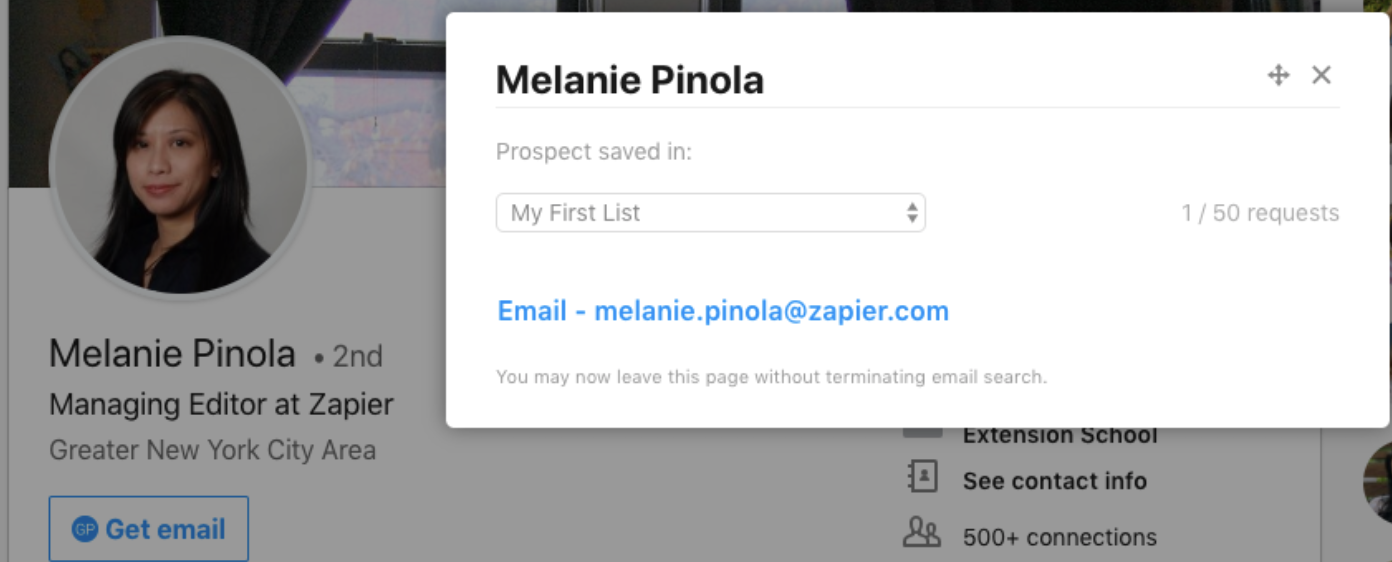
If you can find your contact's LinkedIn profile, you can use GetProspect to find their email address quickly. Just create an account and install the Chrome extension, and GetProspect adds a "Get email" button to every profile you look at on LinkedIn. Click the button to search for that person's email address, and get it without ever leaving the page.

If you're in sales and do a lot of prospecting on LinkedIn, GetProspect also allows you to add a contact to a list in your account. Then you can review everyone you found—along with their contact information—in a single place once you're ready to reach out to your new prospects.

GetProspect Price: Free for finding 50 emails/month; from $29/month for the Premium plan that lets you find up to 1,000 emails per month.

Automate GetProspect with GetProspect's Zapier integration.

FindThatLead

Best free tool for finding email addresses while surfing the web

FindThatLead

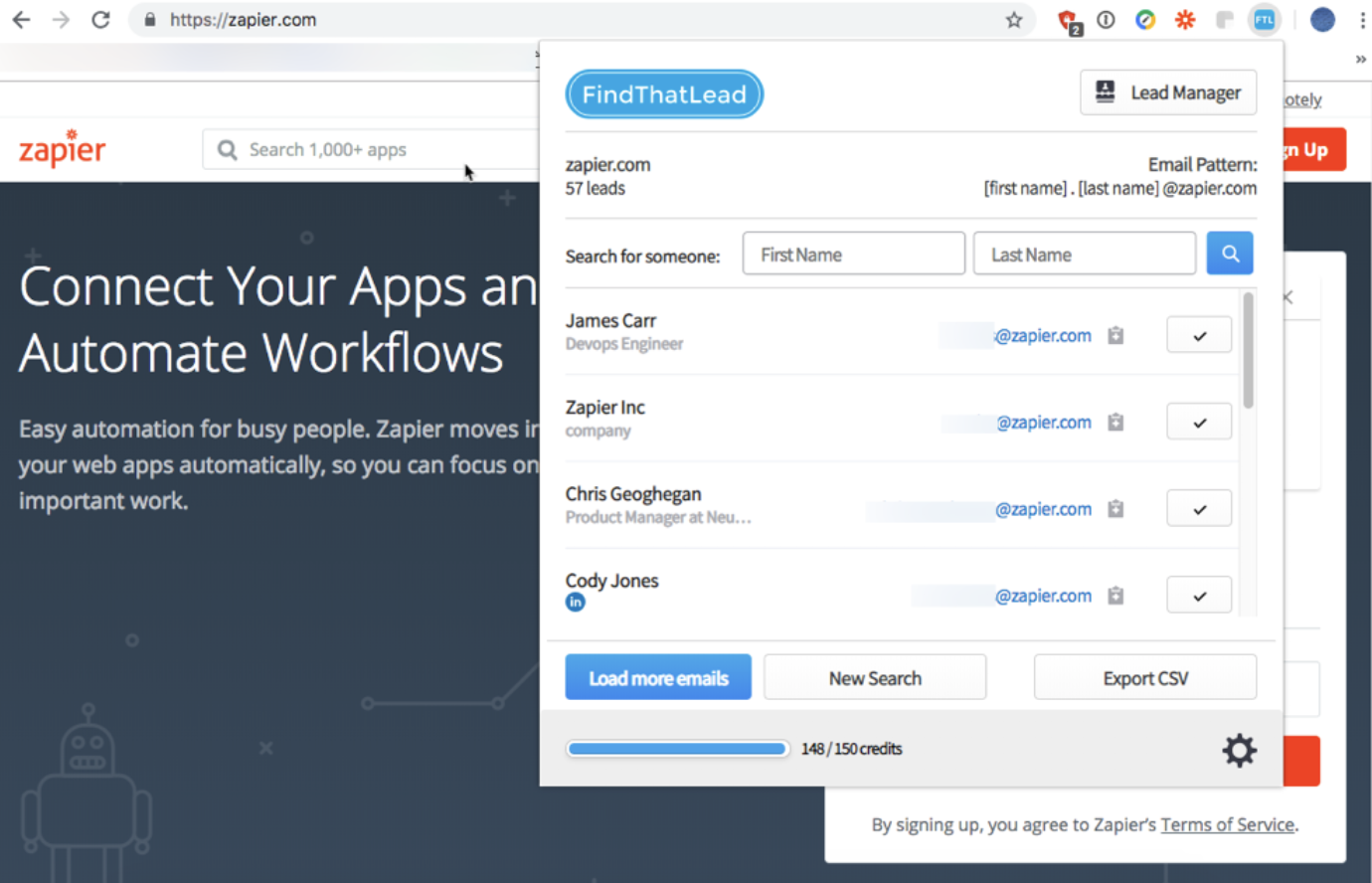
FindThatLead offers a variety of ways to find email addresses.

Using its web app, you can search for emails by domain name and get a list of every email address it has on file for that company's domain. And if you install the FindThatLead Chrome extension, you can also get a list of emails for any domain by navigating to a domain in your browser and clicking the extension's icon.

If you want to grab a specific person's email address while browsing social media, just open the FindThatLead extension while viewing that individual's profile. It will automatically populate the search fields for you with data from the page. Just click "Find email," and the extension populates an email address and an accuracy score.

FindThatLead Price: Free for up to 150 searches/month; from $29/month for the Small plan that allows for 1,500 searches/month.

Anymail Finder

Best free tool for finding lots of emails at once

Anymail Finder

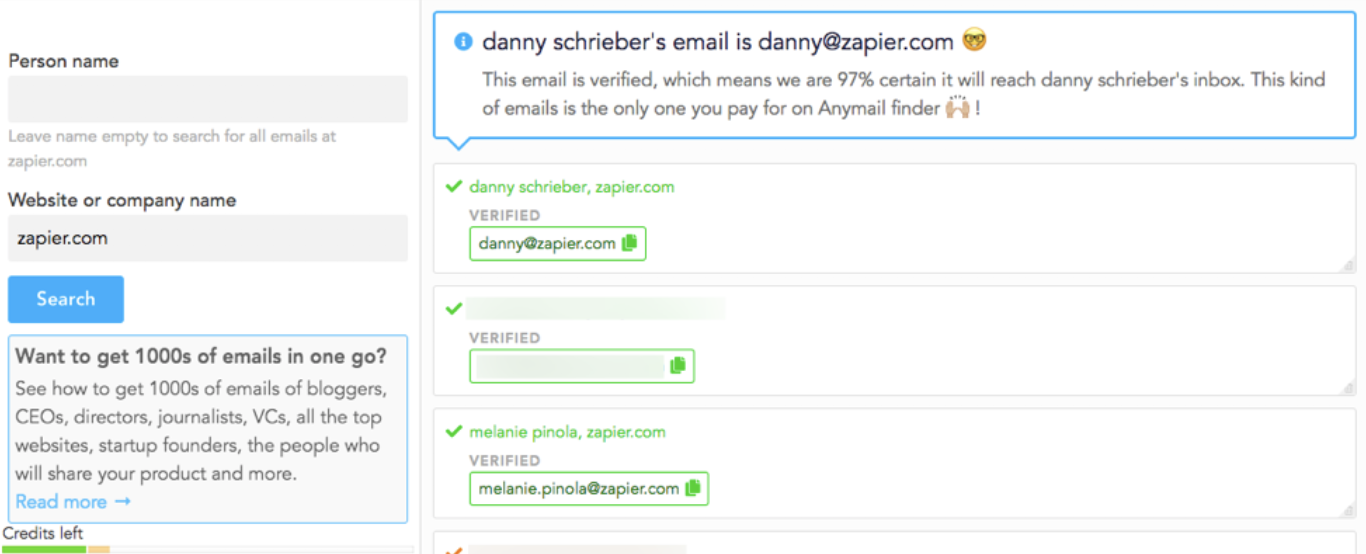
Like most of the other tools on this list, you can use Anymail Finder to enter a person's name and company and get an email address. And it correctly identified four of the five emails we searched for.

But Anymail Finder also has a couple of tools to help you find lots of email addresses at once. First, you can upload a CSV file to the tool with names and companies and get the same CSV file back with email addresses included. Additionally, if you need to find email addresses using an API, Anymail Finder lets you do that too, providing 500 free credits to developers for testing API implementations.

Anymail credits don't expire, so if your email search needs vary each month, the credits you don't use in lower-volume months carry over to be used during higher-volume months.

Anymail Finder Price: Free for 20 verified email addresses; from $49 for 1,000 verified emails available in pay-as-you-go or monthly pricing models.


With a little sleuthing—or the help of a great tool—you can find the email address for just about anyone. But if all else fails, there's one final method to try: Ask. Find an active profile for your contact on a social media site, and send them a message. If the person you're trying to email wants to hear from you, they likely won't hesitate to send you the contact info you need to get in touch.

Email photo by Atos via Flickr.


source https://zapier.com/blog/find-email-address/

Thursday, 1 November 2018

Job Search Strategies for the Age of AI

In recent years, technology companies have set their sights on improving the recruiting process for employers, and it's resulting in many changes to how job candidates are sourced, reviewed, and considered. Today, companies look at fewer resumes than ever, and some never even post their open positions to job boards.

As a modern job seeker, it's crucial to understand the technologies companies are using in their hiring processes today. By familiarizing yourself with the new rules of recruitment, you'll be in a much better position to get your resume in front of a real person—and much more likely to make it past the layers of technology that stand between you and your dream job.

The Evolution of Job Hunting

hiring sign

When I set out in search of my first job as a 15-year-old, there were three ways to find a job. You could scan through the classifieds section of the newspaper, drive around your neighborhood looking for "Now Hiring" signs, or ask your friends and family members if they knew of any companies that were hiring. Once you found a place that was hiring, you either filled out an application or dropped off your resume, then you crossed your fingers and hoped for the best.

But before I graduated from college, online job boards had taken over as the preferred way to find open roles and solicit applications. Unfortunately, the earliest job board sites got spammy pretty quickly. Once, I got a call to come in and interview with a company that found my resume on a popular job board, but when I arrived, I realized I wasn't attending an interview at all. Instead, it was a seminar for a multi-level marketing scheme selling water filtration devices.

In recent years, that's all improved. You now have sites like Glassdoor that make it easier for people to point out the scams and LinkedIn that makes it easier for recruiters to find you even if you're not actively applying for a job. If you're looking for work with a specific company, most organizations post open roles to the careers pages of their websites. And the new Job Search on Google—available directly in search results—aggregates job posts from multiple sources.

Job Search on Google

All of these changes have made it much easier to find open roles as a job seeker. But there's a flip side: employers are getting more applications than ever. Ultimately, something had to change on the employer's end to make sorting through applications more manageable. And in recent years, the task has fallen to technologies like algorithms and artificial intelligence.

Recruiting with Artificial Intelligence

Many employers today—including 95 percent of Fortune 500 companies—use an applicant tracking system (ATS). Applicant tracking systems from companies like Jobvite and BambooHR help recruiters and HR teams stay organized by collecting all resumes, hiring activities, and candidate data in a central place.

But applicant tracking systems also use algorithms to assign rankings to candidates, displaying the most qualified candidates at the top of the list and the least qualified at the bottom.

Jobvite Hire
Applicant tracking systems use algorithms that scan resumes for indicators that candidates are qualified and automatically assign a rank or score to each application.

Few employers go through every application they receive, saving time by reviewing only those candidates either referred by existing employees or ranked highly by their ATS.

But applicant tracking systems aren't really new—they've been around for nearly 20 years. And while they do help recruiters minimize the number of applications they have to sift through, they're not perfect. Most just use basic keyword matching to rank candidates, meaning highly qualified candidates are sometimes passed over, while less-qualified candidates—but those who are more familiar with optimizing their resumes for the technology—can be elevated.

So recently, companies have turned to more emerging technologies to simplify candidate recruiting and screening: artificial intelligence (AI) and machine learning (ML). Here are a few examples:

  • Ideal uses AI and ML to identify commonalities—things like skills or experiences—between a company's highest-performing and/or longest-tenured employees. Then, it looks for those same skills/experiences in candidate resumes to provide a quality ranking that goes beyond the simple keyword matching of applicant tracking systems.

  • HireVue lets employers pre-screen candidates with automated video interviews. Candidates play short games and answer a series of questions. Then, HireVue uses AI and ML to analyze language patterns, detect emotions, and measure cognitive abilities, helping employers determine which candidates are most likely to succeed in the role long-term.

  • Engage uses AI to analyze job descriptions, review the application materials for candidates who applied for roles previously but weren't hired, and surface qualified, passive candidates (people who didn't specifically apply for the role) that recruiters can then reach out to.

Engage features
Here's how Engage describes the features of its AI-powered recruiting technology.

So what does all of this new technology mean for job seekers? Finding the perfect job is no longer a simple matter of searching job boards and submitting resumes.

In some cases, recruiters are using technology to do a first pass of resumes, meaning you can be removed from consideration by an algorithm without ever being considered by a human. In others, recruiters are bypassing the process of posting jobs and reviewing resumes altogether in favor of using technology to find qualified candidates who never even applied for open roles.

In good news, with the right job search techniques, you can cater to these new technologies, giving yourself a better chance at getting your resume in front of the people who make hiring decisions at the companies you want to work for.

4 Passive Job Search Strategies for the Age of AI

Maybe you're one of 45% of people who aren't actively looking for work but are open to job offers. Even if you don't consider yourself part of this group, it's important to partake in the passive job search process. That way, your name is out there and you're a step ahead when you decide to make a change.

1. Keep your profiles on career-focused sites up-to-date

LinkedIn update experience form

It's crucial to keep your profile on professional networking sites like LinkedIn, Indeed, and AngelList up to date. Why? Technology companies like Fetcher "aggregate candidate information across the most valuable professional and social networks"—i.e., they use publicly available data from career-focused sites to help employers find passive candidates. So if you think you'd like to consider offers from companies—even if you're not actively looking for work—take time to update your professional profiles regularly.

2. Add your resume to the ATS for companies you want to work for

Any job by Lever
Add your application to a company's applicant tracking system by applying for a generic job listing, if possible.

Some companies let you add your data to their applicant tracking systems—even if you're not applying for an open role—by having you apply for an "Any" position. An "Any" position (see the example in the image above) is just a placeholder job that employers use to collect the resumes of individuals who are interested in working for the company.

If you want to work for a specific company but don't see a job you're interested in/qualified for on its careers page, look to see if they have an "Any" position listed.

Applying for an "Any" position is technically applying for nothing. However, by adding your resume and contact information to the company's ATS, there's a chance that the ATS will surface your application for consideration for future roles even if you don't actively apply for newly opened positions.

3. Accept invitations to talent pools

Final Stage invite request
If you've made it to the last stage of the hiring process with a company that uses Final Stage, you can request an invite to its talent pool even if you didn't receive one from the employer.

Some recruiting technology companies focus on aggregating data from professional networking sites. Some focus on surfacing talent among candidates who've applied to a specific company but weren't hired. And others are focused on creating pools of vetted talent to share high-quality candidates with other prospective employers.

For example, Final Stage lets employers add candidates to its talent pool who were passed on for roles at other companies. Basically, getting invited to the talent pool is an employer's way of saying "This person wasn't perfect for our role, but they would be a great addition to any company looking for talent."

Getting an email notifying you that you didn't get a job you were excited about is disappointing, but if the email includes an invitation to join a talent pool, take advantage of it. It may get you in front of other great employers without ever having to apply, saving you time and helping you find a great job without all of the searching and cover-letter writing.

4. Add your resume to the databases for recruiting tools

create a profile on Hired

If you really want to up your passive job search game, add your resume to the databases for popular recruiting technology tools. Sure, it takes time and requires a lot of effort to create profiles on each tool and add your resume, but in the end, it's probably not as time-consuming as searching for roles you're interested in and applying for each individually.

Here are a few recruiting tech tools that allow candidates to create job seeker profiles:

Optimize Your Resume and Profiles for Machines

It's difficult to know when your resume will be vetted by an ATS's algorithm before landing on the desk of a hiring manager, so it's best to just assume it will and optimize accordingly.

Essentially, these algorithms identify keywords in the job description and see if those words—or synonyms of those words—appear in your resume. For example, say that one of the listed job requirements is a bachelor's degree. The algorithm will likely look for words like "bachelor's degree," "bachelor of science," or "BA" on all submitted resumes, scoring those that include some variation of "bachelor's degree" higher than those that don't.

When applying for a job, it's good to review the requirements and make sure that you've included some statement on your resume that speaks to how to meet each requirement. If you can't find a place to fit it in naturally, you can always add a "Summary of Professional Qualifications" section at the top of your resume that you customize for each job you apply for:

summary of professional qualifications
Here's a screenshot of an old resume of mine where I included a Summary of Professional Qualifications section.

Keywords are important for a passive job search, too. Many recruiters search for candidates on sites like LinkedIn, and in order to show up in search results, you need to include the words and phrases these recruiters might be searching for in your profile. Just make sure not to resort to keyword stuffing (i.e., repeating the same words and phrases over and over again). Remember: If you make it past the machines, a real person gets your resume at the other end. A keyword-stuffed resume is unlikely to make a great impression.

You can also use a tool like Jobscan to help when updating your resume and profile for robots and algorithms. Simply paste your resume and a job description into Jobscan's tool, and it produces a report showing how well your resume matches the job description. You can also connect your LinkedIn profile to get tips on how to optimize it for your passive job search.

Jobscan report
Jobscan uses ATS technology to score how well your resume meets the requirements stated in a job description.

Jobscan Price: Free for resume scanning and optimization reports; free for up to five LinkedIn profile scans per month (up to a max of 20 lifetime scans); from $49.95/month for the Monthly plan that includes unlimited LinkedIn profile scans.

Strategies for Finding Work in Specific Roles and Companies

The tips above will help you take advantage of employers using ATSs and AI-powered tools, but not every company uses those systems. For that reason, some of the old techniques are still necessary when searching for jobs. Use these tools and tactics to take your job search to the next level.

1. Search Google like a pro

searching for jobs on Google

Not every company pays to post their open roles to sites like LinkedIn, Indeed, or Glassdoor. If they have enough interest from qualified candidates, some only list open roles on the careers pages of their websites.

You can uncover these opportunities, but you'll have a hard time doing so if you're only conducting general Google searches. Instead, use Google search operators to narrow the results. Google search operators let you do things like:

  • Remove postings from sites like LinkedIn and Glassdoor from your results
  • Restrict results to show only those posted or updated in the last day, week, or month
  • Show only results posted to sites with an .edu or .gov domain

To learn how to use Google for finding unadvertised jobs, check out our piece on finding the perfect job with Google search operators.

2. Take advantage of niche job boards

AngelList jobs

If you're looking for a specific type of job or want to work for a specific type of company, you may be better off checking smaller, niche job boards than poring over the hodgepodge of positions on sites like LinkedIn, Glassdoor, or Indeed. Here are a few of the more popular niche job board sites for specific careers and interests:

If the niche you're looking for doesn't appear in the list above, it's easy enough to find potential sites that cater to your industry by Googling "[job/industry] job boards" (e.g., human resources job boards). Google will surface the most relevant results. Be sure to take a few minutes to make sure the site seems legitimate before you upload your resume.

Look to see if there's a fee for employers to post jobs on the site. If they charge for posting jobs, there will likely be fewer scam/spam posts. Also, make sure people post jobs to the site somewhat regularly. Like all things online, sites go in and out of favor, and it's possible that Google will direct you to a site that people aren't using as much anymore.

3. Bookmark the careers pages of companies you want to work for

Chrome bookmarks
Right-click any bookmarks folder in Chrome, and you get an option to open all of the bookmarked pages in a single click.

If your goal is to work for a specific company you adore, consider creating a bookmark folder in your browser and adding the career pages of the companies you're interested in. Then, once a week/month—depending on how often that company posts new roles—open all of your bookmarked pages and scan them for jobs you might want to apply for.

Automate Your Job Search

Looking for a new job and keeping your resume and profiles updated are time-consuming tasks. By automating parts of your job search process, you can reduce the effort required. Here are a few ways Zapier can make your job search less labor intensive.

  • If AngelList is your favorite place to look for jobs, create an RSS feed of new AngelList job postings and get an entry in your favorite RSS reader app any time a new job is posted to the site.
  • Want to work for Zapier? Use a Zap to email you whenever there's a new opening.
  • Activity is one of the factors LinkedIn considers when determining in what order profiles are displayed in its search results. If you have a WordPress blog and want to keep your LinkedIn profile fresh, use this Zap to automatically post updates to LinkedIn when you publish a new blog post.
  • Need to set up reminders to check the careers pages for your favorite companies every week or update your LinkedIn or AngelList profile every quarter? Use the Zaps below to have Zapier send a reminder to your preferred to-do app when it's time to perform the task.

By understanding the role technology plays in modern recruiting, you'll be in a better position to get job offers even when you're not actively looking for work—and to get your resume in front of a real person when you're on the hunt for a new job.

It's a beast to update your LinkedIn profile after neglecting it for years, but it's easy to make small tweaks when you make time for it every few months. And once you start adding a "Summary of Professional Qualifications" section to your resume every time you apply for a job, you'll eventually end up with a long selection of bullet points you can copy and paste as needed.

And in the end, the time you put into these tasks is well worth it if it helps you find your dream job, get hired by a company you love, or take the next step in your career.

Hiring sign by geralt via Pixabay. Jobvite Hire screenshot via Jobvite.


source https://zapier.com/blog/job-search-strategies/

Wednesday, 31 October 2018

Our Favorite Zaps: Save Time Managing Your Shopify Store

Successful retail businesses run on follow through. When you make a sale, you have to deliver the product or service, send an invoice or receipt, and follow up with the customer about their satisfaction. When online shoppers abandon their carts, you need to chase after them and cheerfully remind them of the tempting goodies that await. It's all in the name of building customer loyalty and a strong brand.

Following the action takes a lot of work, but you don't have to do it all yourself. Instead, you can automate some of the tedious tasks so that parts of your business manage themselves. Using Zapier, you can set up rules between apps, so that when an action occurs, such as a sale, it triggers a second action, such as sending a thank-you email. We call these automated workflows Zaps.

If you run a Shopify store, these six Zaps will help you save time and effort in managing your online shop. They're labeled beginner or intermediate based on how easy they are to set up.

While Shopify is the focus of this article, you could easily swap it for any eCommerce app supported by Zapier and get similar results.


Beginner: Add Customers to an Email List

Making a sale is the beginning of a relationship with a customer, not the end of a transaction. How do you follow up with the people who shop at your store so you can foster that burgeoning relationship?

If you use an email marketing tool, such as MailChimp or ActiveCampaign, you can create this rule so that when customers purchase something from your Shopify store, their email addresses get added to your email marketing campaign. Don't worry about duplication, either. There's a step in this Zap that checks whether the customer's email address already exists in MailChimp.

Beginner: Email Customers Who Abandon Their Carts

It's no fun to chase after customers who abandon their online shopping carts. So don't. This Zap can do it for you. It watches for instances of abandoned carts and automatically nudges customers via email to return and checkout.

For this example, let's say we use ExpressPigeon to send a message to potential customers who have abandoned their shopping cart. The Zap below will send a friendly reminder of their pending order.

You could also swap ExpressPigeon for another email marketing tool of your choice, or you could send the message directly from your business's email address by connecting Zapier to Gmail or whichever email host you use.

Beginner: For Every Sale, Create an Invoice in Xero

Shopify helps you sell anything from temporary tattoos to furniture, and an invoicing and accounting tool such as Xero lets you manage the books. For an accounting tool to be effective, however, it must have a record of each sale. This Zap creates an invoice in Xero for every sale made in Shopify, automatically.

Zapier supports other accounting and invoicing tools, too, such as QuickBooks Online, Freshbooks, and others. You can swap in the one of your choice here.

Beginner: Promote New Items on Twitter

Get the word out about new items in your store by automatically promoting them on Twitter. With this Zap, every time you release a new product or service in your Shopify store, you'll see a tweet from your connected Twitter account announcing it to your followers and with an image.

Beginner: Add Facebook Lead Ad Leads as Shopify Customers

If you use Facebook Lead Ads to find potential customers, you may want to add their details to your Shopify account. When you set up this Zap, every new potential customer who comes to you through Facebook Lead Ad is added to Shopify right away and automatically.

Intermediate: Get a Summary of New Orders in Slack

Seeing as Slack is one of the most popular places teams communicate and collaborate, it makes sense to use it as an alert system for new sales made in Shopify. That said, your team might find that a notification for every single transaction is disruptive (not to mention annoying). This Zap compiles the notices into one summary and releases it at a time you set.


Related Content

For more tips on improving your Shopify business, see How to Customize Your Shopify Store and 7 Tips to Cut Costs from Your eCommerce Store.

Look for new lists of our favorite Zaps each month, such as:


source https://zapier.com/blog/favorite-zaps-shopify/

Tuesday, 30 October 2018

A Realtor Reduces Her Time Spent Managing Leads by 40% with Zapier

"My Zapier automations give me more time to focus on building relationships and running my real estate business effectively and efficiently."Sommer Cronck, Best Bellington Homes


If it were up to real estate agents, all their time would be spent with clients, talking about and showing off homes. The reality of their work, however, is a bit different and might look familiar to you: hours spent on data entry, moving information from one system to another, and crafting and scheduling social media posts.

While essential work, it's not the best use of a realtor's time—or anyone's, for that matter. Tired of wasting time, realtor and founder of Best Bellingham Homes, Sommer Cronck decided to do something about it. She found app automation tool Zapier, and immediately gave herself hours back every week.

About Best Bellingham Homes

As part of the RE/MAX family of independent real estate brokers, Sommer founded Best Bellingham Homes to help her fellow Bellingham, WA residents find a home in the city she loves. As a solopreneur, Sommer has to be everything for her business—marketer, salesperson, developer, and CEO.

By relying on Zapier to handle her leads and more, Sommer focuses on growing Best Bellingham Homes and giving her clients an unforgettable experience during a life-changing moment.

Manage Contacts and Leads with Office 365 and LionDesk

Sommer found that a lot of her time was spent managing contacts and leads across a few different tools. That meant when an email came in from a client, she'd have to jump into her customer relationship manager (CRM) to see if that person was already in her contact lists, and she would then add a note with details from the email.

This manual process ate through her time, which meant less opportunity to "wow" clients. To fix this without having to hire help, she added Zapier into her day-to-day processes and built a few Zaps—our word for automated workflows.

"Automating with Zapier cuts the time I spend inputting data into my CRM by at least 30-40%," she says.

Best Bellingham Homes' Tools

Icon: App: Used For:
LionDesk CRM LionDesk Real estate customer relationship manager (CRM)
Office 365 Office 365 Email and contacts

The Workflows

To automate her leads, Sommer uses a couple of Zaps to connect Office 365 and LionDesk.

"The biggest one for me is a Zap that connects my Office 365 contacts to my real estate CRM, LionDesk," Sommer explains. "Any time I enter a new contact into my phone, it gets sent to the CRM."

Her second most used Zap has Zapier keeping an eye out for new emails in Office 365. As they come in, Zapier compares the sender's email address to Sommer's contacts in LionDesk. If there's a match, Zapier saves a record of the email to that contact's CRM record, allowing Sommer to monitor her contacts and maintain a complete record of conversation in one spot: LionDesk.

And be sure to check out some of our most popular real estate Zaps, too:


Simple automations help Sommer give her clients a stellar experience, while handling the back-end of her real estate business.

"I've saved so much time now that I don't have to copy contacts into my CRM regularly, or track down email conversations because they're instantly being saved," Sommer says.

Want to have more time to grow your business? Give Zapier a try for free.

All images courtesy of Sommer Cronck - Best Bellingham Homes.

Our stories explore how Zapier's users solve common problems. From marketers to CEOs, educators to real estate agents, millions use Zapier to automate their most tedious tasks. If you haven't yet, try Zapier for free to see what we're all about.


source https://zapier.com/blog/best-bellingham-homes/

Thursday, 25 October 2018

How an eCommerce Business Automatically Segments Customers for Email Campaigns

"Zapier's a treasure trove of integrations and automations."Pranav Vora, Founder & CEO, Hugh & Crye


A good fit makes all the difference, from shirts and shoes to an ergonomic keyboard and the other tools you use at work every day. If even one thing's off—the shirt too loose, the shoes too tight, the tools don't connect—your entire balance can be thrown off skew.

For men's fashion needs, there's Hugh & Crye. They make sure their customers have the best fit for their dress and casual shirts.

Their fashion is balanced perfectly, but they still needed help on the work tools side. For those pesky eCommerce business problems, founder and CEO Pranav Vora relies on app automator Zapier.

About Hugh & Crye

Hugh & Crye was founded to own the space between ill-fitted, mass-produced shirts and expensive, custom-tailored shirts. More than that, the team at Hugh and Crye wants to make dressing well accessible, offering fitting guides and blog posts about what exactly makes a well-fitted shirt.

With Hugh & Crye bringing a better fit to customers, Pranav looked to Zapier to give their tools a the same treatment. Their "aha!" moment? "When we saw that we could seamlessly integrate what we thought to be very important but disparate apps for our business, Shopify and Mailchimp," says Pranav.

Create MailChimp Subscribers from Shopify Orders

At Hugh & Crye, Pranav and his team wanted to know more about their customers—was this a first purchase or a fifth?—and they didn't have the bandwidth to manually track a customer's life cycle, especially as it related to purchases. That information was vital to the email campaigns Pranav wanted to create.

These campaigns were dependent on how many purchases a customer had made. For first-time purchases, Pranav has a series of emails welcoming the customer to the Hugh & Crye family. Return customers have their own campaign. There's also a series of emails for when an order ships.

"Before, it was a very manual process to export data and then segment it and get it ready for our email marketing in MailChimp," he explains.

So instead of manually handling the data, the Hugh & Crye team now use Zapier and its filters to segment customers from Shopify and add them to the correct campaign in MailChimp.

Hugh & Crye's Tools

Icon: App: Used For:
Shopify Shopify eCommerce storefront
MailChimp MailChimp Email marketing

The Workflows

For the folks at Hugh & Crye, segmenting customers based on their purchase history transforms the user experience with the brand. Powering their segments are a few simple Zaps (our term for automated workflows) that pair Shopify and MailChimp.

Any time Hugh & Crye receives a paid order in Shopify, Zapier takes that customer's order information and runs it through a filter, looking for specifics, like whether this customer already exists, the total orders from this customer, and anything else that would inform their email campaign. Then, Zapier adds the customer as a subscriber to a specific list in MailChimp.

The team repeats this process with different Zaps, each one putting a different type of customer in their own list.

If you want to add your paid customers from Shopify as subscribers in MailChimp, give this Zap a try:

And check out a few of our favorite Shopify and MailChimp Zaps, too, to get more ideas on how you can automate manual processes:


With Zapier powering their customer segments and email campaigns, Pranav and the team can focus on all the things that matter to their brand: creating a better product, offering the best experience for their customers, and spending time away from work, with family and friends.

Want to ditch the manual work like Hugh & Crye? Give Zapier a try for free.

All images courtesy of Hugh & Crye.

Our stories explore how Zapier's users solve common problems. From marketers to CEOs, educators to real estate agents, millions use Zapier to automate their most tedious tasks. If you haven't yet, try Zapier for free to see what we're all about.


source https://zapier.com/blog/hugh-and-crye/

Email Marketing Software Showdown: Constant Contact vs. MailChimp

Decades after its invention, email remains one of the most powerful marketing channels for small businesses. With millions of email users opening 20% of emails from marketers and returning an estimated $38 for every $1 spent by marketers, email marketing is no joke. While other channels come and go, email remains one of the cheapest, simplest, and most effective ways of reaching customers.

Yet choosing the right email marketing software can be a daunting task, with dozens of apps offering dizzying arrays of features.

Here, we compare two of the most popular email marketing apps: Constant Contact and MailChimp.

Common Features and What We Looked For

Whether sending newsletters, product offers, or company updates to your customers, you'll want to ditch Gmail and Outlook for an email marketing platform. Constant Contact and MailChimp share many of the features you'd expect to find in high-quality email marketing software, but they vary in how these features are presented, how easy they are to use, and how much customization they allow for.

Here, we're focusing on how MailChimp and Constant Contact compare on the following eight features. Click on the section that you're most interested in, or jump to the end to see our complete comparison table.

Price

MailChimp offers more value unless you have a large list and want to test the software before committing

Constant Contact and MailChimp offer fairly different price structures, especially for their introductory offers: Constant Contact offers a free 60-day free trial, regardless of the number of subscribers or emails sent. MailChimp, on the other hand, remains free indefinitely up to 2,000 subscribers (or 12,000 emails) per month. Caveat: This free version doesn't include live chat or email support after 60 days.

So if you're starting from scratch with a small list, MailChimp will remain free until you grow past the 2,000-subscriber threshold. Constant Contact will only remain free for two months. But if you're already starting with a large list, Constant Contact's free 60 days could offer more value while you test the waters.

After the free introduction, both MailChimp and Constant Contact offer unlimited email sends, with pricing tiers broken down by number of subscribers. Here's how they compare for their basic plans:

# of Contacts MailChimp (Basic) Constant Contact (Basic)
500 Free $20
5000 $50 $60
10,000 $75 $195
50,000 $240 $335

As you can see, MailChimp is less expensive at every tier.

However, both services also offer advanced feature plans: MailChimp Pro and Constant Contact Plus. And this is where things get more interesting. MailChimp Pro is essentially a $199/month add-on to any plan, whereas Constant Contact Plus only costs a bit extra up to 10,000 subscribers, and is free thereafter. Here's how that looks:

# of Contacts MailChimp (Pro) Constant Contact (Plus)
500 $209 $49
5000 $249 $125
10,000 $274 $195
50,000 $439 $335

And here's what each of these advanced plans feature beyond the basic package:

MailChimp Pro Constant Contact Plus
  • Pro support
  • Advanced segmentation
  • Multivariate testing
  • Comparative reports
  • Up to 10 user accounts
  • Event marketing
  • Email automation
  • Subject line A/B testing
  • Surveys and polls
  • Coupons
  • 2GB of storage (vs. 1GB for basic plan)

Head spinning yet? We'll explain all these features throughout the article, but here's the gist:

  • The basic MailChimp plan offers plenty for most users. The Pro plan, which costs $199 extra per month, offers some snazzy features for very advanced users.
  • The basic Constant Contact plan lacks some crucial features like email automation and event marketing. But the Plus plan is only a bit more for small email lists—and it's free for large lists.

Overall, MailChimp offers better pricing for most users, especially if you're starting from scratch with your email list, but Constant Contact's free 60-day trial may appeal if you already have a large subscriber base and want to try out their service for free before committing.

Contact Management

Constant Contact's contact management system is a lot simpler

Audience segmentation is important for any email marketer, allowing for precise targeting and personalization. MailChimp and Constant Contact both allow you to segment by dozens of different variables (e.g., click behavior, date subscribed, etc.), but the tools they offer to manage this segmentation differ.

MailChimp lets you organize your audience at a few levels: List, Group, Segment, and Tag. These levels are non-hierarchical, meaning you can place customers into any combination of Lists, Groups, Segments, and Tags. Lists represent the biggest umbrella and can be used for different parts of your business, such as "newsletter subscribers" and "customers." Segments are defined by customer behavior and other variables, such as "customers who opened the welcome email." Groups are defined and set by you, and can represent behavior that MailChimp doesn't recognize, like "site visitors." And the recently added Tags are similar to groups and can add another layer of segmentation.

These MailChimp tools allow for some powerful testing and customization of your audience. For example, if you have an eCommerce business, you can easily combine data within MailChimp (using Segments), such as "coupon email openers" with external data (using Groups), such as "book buyers" to target your customers who are most likely to be interested in your new book coupon. Of course, with great segmentation power comes great complexity, and managing users within MailChimp can be a bit overwhelming, especially for beginners.

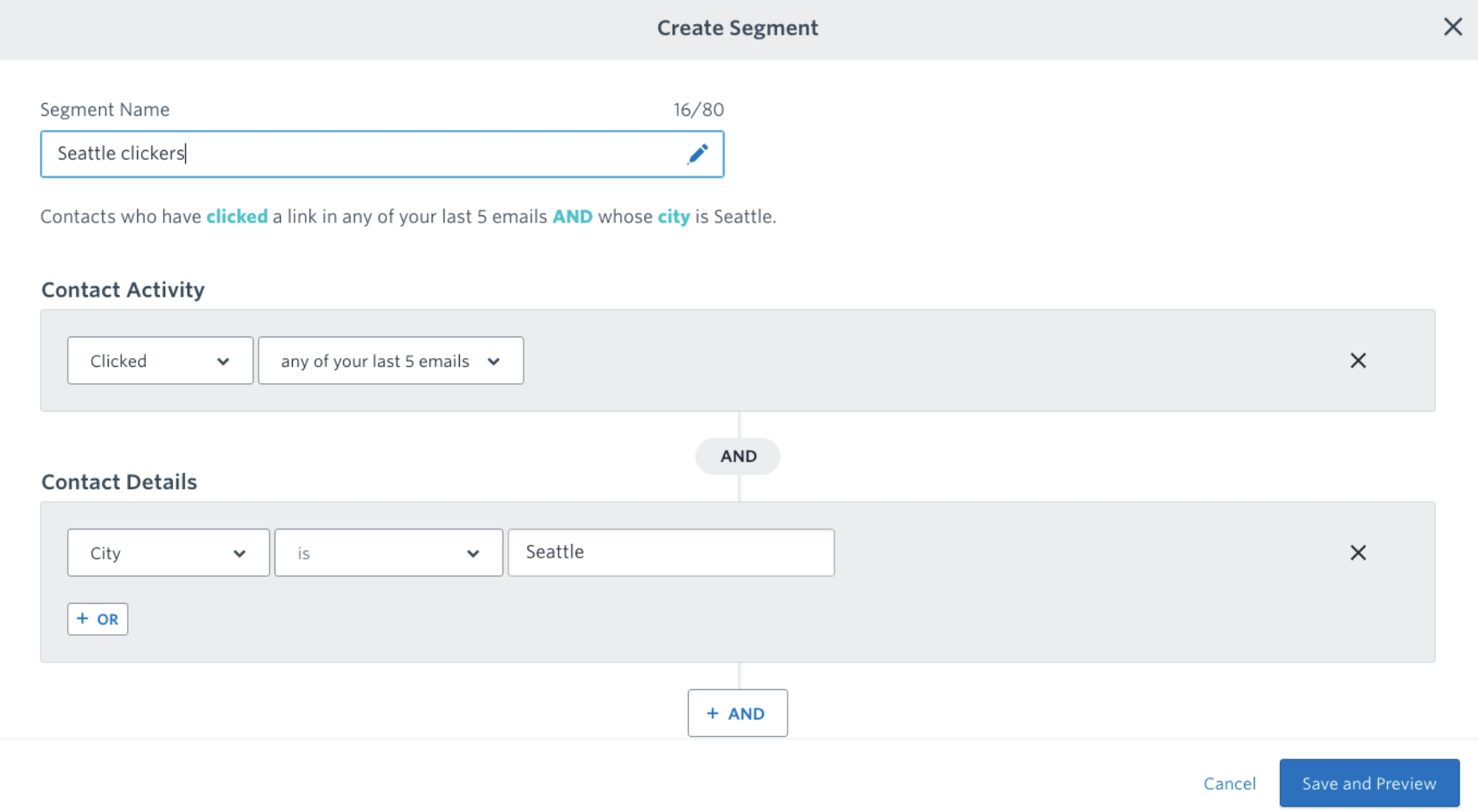
Constant Contact, on the other hand, keeps things simple by only using Segments, i.e., groups of subscribers that can be isolated by almost any combination of variables including email activity or contact details. This segmentation logic is presented in a simple interface:

Constant Contact segmentation logic

In the end, Constant Contact's system is simple and robust, while MailChimp's allows for a bit more flexibility at the expense of a steeper learning curve.

Templates and Design

Constant Contact's fully designed templates give you a professional look with very little effort

Email template technology seems to be stuck in the late '90s (still using tables), but sending well-designed campaigns can make the difference between a click-through and an unsubscribe.

Both MailChimp and Constant Contact provide a robust range of built-in templates. Constant Contact's templates are more finished and ready to send. If you're okay with a slightly cookie-cutter feel, these templates are better for beginners or small businesses without in-house designers.

Constant Contact design templates

MailChimp's templates, on the other hand, are much more barebones, and more advanced users might prefer this blank-canvas approach.

MailChimp design templates

To customize your campaigns, both services offer similar drag-and-drop design interfaces. MailChimp's interface is cleaner and more intuitive, but both provide all the nuts and bolts you'll need to get your emails off the ground, such as HTML customization and personalized user variables.

Overall, if you're looking to get some emails out the door with minimal hassle, Constant Contact's ready-to-ship templates will likely appeal to you. But if you're looking to heavily design your own branded emails, MailChimp offers that customization.

Automation

MailChimp's advanced automation sets it apart

You can use email marketing automation to onboard new customers with a timed series of tutorials, resend important emails to non-openers, or reactivate old customers with a special offer—all without any manual work after the initial setup.

Previously, email marketers had to rely on third-party apps like Drip and ActiveCampaign to manage their automation. But MailChimp and Constant Contact now both provide free, built-in automation features.

Constant Contact offers three out-of-the-box automations (welcome, birthday, anniversary) as well as a custom "auto-responder" template that lets you send a series of emails after a customer is added to a segment. These automations are simple and easy to set up, but also limited. They can only trigger when a customer is added to a segment, and while this can be hacked to work with other customer actions, it's a bit clunky.

MailChimp offers the same out-of-the-box options, but it also allows for custom automations that can trigger on almost any customer action (including API calls for advanced users). For example, you can automatically resend emails to customers who didn't open an email (but have in the past), target specific content to users based on survey results, send abandoned-cart reminders, share new blog posts, or email users with the first name "Dave"—almost anything you can think of, MailChimp can do.

Targeting users named Dave

A/B Testing

MailChimp's A/B testing functionality is tough to beat

Before sending your email to 10,000 subscribers, you might want to confirm that people are going to open it and click through. That's where A/B testing comes in: By testing different versions of the same campaign, you can see which subject lines, images, and content perform best before blasting your entire list.

Both MailChimp and Constant Contact feature the basic tools you'll need to run an A/B test. You can choose how large of an audience you'd like to test with, how long you want the test to run for, and whether or not to automatically send the winning option to the rest of your list.

Here's the catch: Constant Contact only supports subject line testing. And while subject lines are important for optimizing open rate, savvy marketers will want more. MailChimp's A/B tool lets you test subject line, from name, send time, body content, or any combination of the above.

MailChimp's A/B testing tool

A couple other features that set MailChimp apart: Their Send Time Optimizer will calculate the time your users engage most often, based on previous campaigns, and their Timewarp feature lets you send a campaign at the same local time for different time zones.

List Growth

Constant Contact offers great offline features while MailChimp provides free landing pages

If you send a great email but nobody's on your list to see it, does it make a difference?

Both MailChimp and Constant Contact offer sign-up forms to embed on your website or blog to help grow your list. These code snippets let you embed the form directly on your page or as pop-ups. They're customizable, skinnable, and about equally as easy to use, though Constant Contact's forms are both slightly simpler and less customizable.

Constant Contact has a few "offline" list building products for IRL businesses as well, such as a text-to-signup feature and a ListBuilder mobile app that can collect emails when offline. For example, you could collect email addresses from people at the farmer's market while offline, then upload them when you connect to WiFi.

MailChimp, on the other hand, offers a complete Landing Page feature, which lets users sidestep the hassle of building a website with another service if all (or most) of what that website does is collect email addresses.

MailChimp also features a Product Landing Page—i.e., a very simple website template for an online store—that can be integrated with Shopify and other eCommerce platforms. It might be useful if you want to test drive your product idea, but for any complex eCommerce offerings, you'll want to look elsewhere.

Reporting

Constant Contact's tables are more practical

Email marketing attracts analytics-obsessed folks. Why? Because the variables are fairly limited, and almost everything is trackable.

MailChimp boasts a slick reporting interface with list-wide or campaign-specific graphs. They even include an industry-specific benchmark to help you feel great (or terrible) about the performance of your campaigns.

MailChimp also sports a fancy eCommerce reporting interface via its native integration with Google Analytics. That means you can track purchases and other Google Analytics data by email campaign (if, of course, your store is integrated with GA).

For their Pro plan, MailChimp offers Comparative Reports, which let you track and compare campaigns at a deeper level. These use the same data as other reports (clicks, opens, bounces, unsubscribes) but include multivariate testing and other advanced tools. These reports could be helpful for a marketer without much analytics experience, but at $199/month, it's a tough sell.

Overall, we found Constant Contact's reporting interface simpler and, frankly, more useful. Their drill-down table view, especially, helps reveal which subscribers engaged with a given campaign. And really, isn't that what you're most interested in?

Constant Contact's reporting interface
Source: Constant Contact

MailChimp made some characteristically splashy moves with their reporting, but—call us old-fashioned—we prefer Constant Contact's straightforward approach.

Customer Support

Constant Contact offers phone support and 24/7 live chat

Both companies pride themselves on their customer support. Constant Contact in particular pushes its phone and live chat support, especially for new customers. In fact, you'll probably even get a set-up call from a Constant Contact rep when you first sign up for an account.

MailChimp highlights its Knowledge Base help center when first seeking support, and for good reason: We found that their well-written articles and tutorials answered most of our questions. For questions not answered by the Knowledge Base, they offer live chat support on weekdays and email support 24/7 for all paid accounts (as well as free accounts within 30 days of opening).

Constant Contact's email and live chat are available 24/7, though we found the latter to be a bit sluggish. The biggest difference is their phone support, which MailChimp doesn't offer. Although the phone support doesn't offer any obvious advantages over live chat, some people much prefer speaking to someone on the phone. Constant Contact is the clear choice if you count yourself in those ranks.

Which App Should I Use?

MailChimp and Constant Contact are both versatile and well-rounded email marketing platforms. The biggest difference between them is complexity: Constant Contact keeps it simple, while MailChimp isn't afraid to get nerdy.

Constant Contact is a better fit for email marketing novices: Their 24/7 support, ready-to-send templates, and intuitive reporting offers a leg-up for the less tech-savvy. MailChimp, on the other hand, has an impressively robust feature set that users with experience in email marketing will benefit from.

Finally, here's an at-a-glance feature comparison.

MailChimp Constant Contact
Price Free up to 2,000 subscribers, cheaper overall Free for 60 days regardless of list size
Contact Management Powerful-but-complicated segmentation Simple-but-useful segmentation
Templates and Design Barebones templates, unlimited image storage Ready-to-ship templates, 2GB storage
Automation Customizable, free Mostly out-of-box
A/B Testing Test send time, content, subject line Test subject line only
List Growth Fancy graphs Simple charts
Reporting Simple free landing pages Offline list growth features
Customer Support Email and weekday live chat support (for paid customers and free customers in first 60 days) 24/7 live chat, phone, and email support

Automate MailChimp and Constant Contact

Whichever email marketing app you choose, you can easily integrate it with other software to create seamless automations, saving yourself time and creating a more consistent user experience.

  • Add subscribers to your list when someone fills out a form:
  • Add subscribers to your list from Facebook Lead Ads:
  • Connect your email marketing app to your CRM to be sure they're always in sync:

Don't see the workflow you're looking for? Create your own with our Zap editor.


source https://zapier.com/blog/constant-contact-vs-mailchimp/