Tuesday, 13 November 2018

Cloud Storage Showdown: Dropbox vs. Google Drive

Between your personal laptop, your work computer, your phone, and any other device you might use, keeping your files in order can be a doozy. Cloud storage software offers a convenient way to access all your files from anywhere—and be sure they're all up to date. Among the best cloud storage apps are Dropbox and Google Drive, so let's see how they stack up.

Common Features and What We Looked For

Here's the basic gist of what Dropbox and Google Drive offer:

  • They back up your files to the cloud. Dropbox and Google Drive allow you to create a folder on your device. Any files that go in that folder will immediately be uploaded to the company's servers, giving you a backup in case anything happens to your machine. Keep in mind, though, that your should always have a separate backup source as well, whether it's an external hard drive or a dedicated backup service like Backblaze. If you accidentally delete a file or folder from your computer, it'll be deleted from Dropbox and Google Drive as well.
  • They sync files across your devices. If you have multiple devices, Dropbox and Google Drive make sure that you have copies of all your files on each of them.
  • They let you share your files with other people. Both services have robust tools to give other people access to files and folders so you can collaborate on your work. If you run an organization, they also give you tools to manage or revoke that access, so everyone has access to the files they need, and only the files they need, at any given time.

Here, we'll examine a few key areas that relate to syncing, backing up, organizing, and sharing your files. Click on the section that's most important to you and your business, or jump to the end to see our complete comparison table.

Pricing

Google gives you more space for your money

Both Google and Dropbox offer you a small amount of free file storage, but Google is far more generous. Dropbox's free plan includes 2GB of storage, while Google Drive's comes with 15GB. Of course, there's a catch: That 15GB is shared across your entire Google account and includes things like email attachments and photo backups, so it's easier to burn through that space.

If you want more space, Dropbox provides a number of ways to get more without paying for it. For example, you get an extra 500MB for every new user you sign up. This is harder to do now than when Dropbox first came out, since many people already have Dropbox accounts, but every bit helps. You can also go through Dropbox's Getting Started guide for another 250MB. Google Drive doesn't offer a similar referral program, but if you happen to use Google phones, you can get extra storage for things like original-quality photos and videos.

Alternatively, you can pay for extra storage. Dropbox's plans start at $10 per month—or $100 per year, if you pay annually—for 1TB of storage. With Google Drive, you sign up for a separate service called Google One, which adds storage space to your Google account. Using Google One, you can get 2TB of storage for the same price as Dropbox's 1TB plan. Google also offers smaller, cheaper plans: You can get 100GB for $2 per month (or $20 per year), or 200GB for $3 per month (or $30 per year).

No matter how you slice it, Google gives you more options to get more storage for less money. Sharing storage with your entire Google account is a little inconvenient, but if email attachments and photo backups push you over your limit, Google at least provides bargain bin plans to get more space.

For complete details, see Dropbox's and Google One's pricing pages.

Speed

Dropbox syncs faster and supports local sync

Part of what made Dropbox so popular in the first place was the innovative technique it uses for file sync: block-level file copying. To put it simply, when Dropbox syncs a file, it only copies the bits that have changed. The first time you sync a file will take the longest, but every time you change it after that, the updated version should be available on all your devices almost immediately. Google doesn't use block-level file copying, but it does run some of the fastest cloud servers in the world, so the speed difference might not be noticeable unless you're dealing with very large files.

Dropbox also has a unique advantage with LAN sync. If you have multiple computers connected to a single network, Dropbox will sync files directly between them. It will still back up files to the cloud, but transferring large files to computers on the same network will happen a lot faster. With Google Drive, a file on Computer A will have to upload to the web, then download to Computer B, which can take longer for larger files.
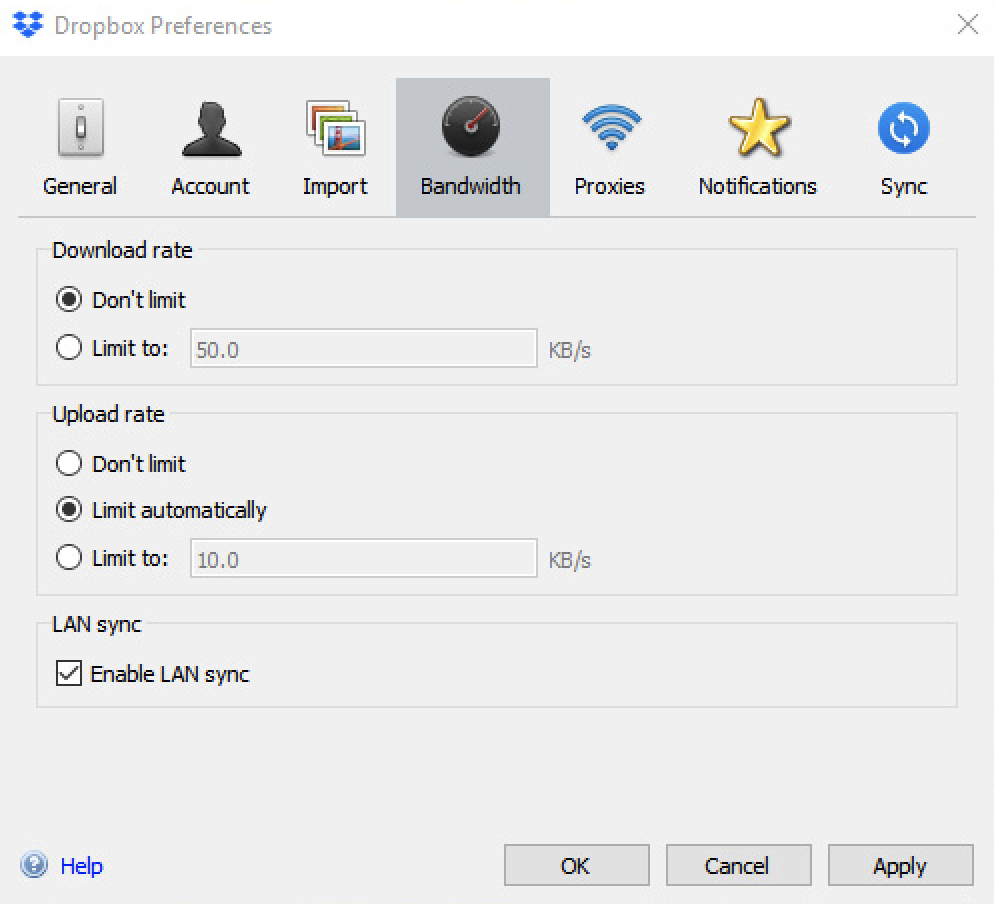
LAN sync option on Dropbox
That little LAN sync checkbox can mean a huge performance difference for small businesses on a local network.

The lack of block-level file sync and LAN sync makes Google Drive slower (though you might not even notice for small files), but it also means that Google Drive uses more data. If you have a data cap on your internet, as many home internet providers do, and you're transferring large files, Google has a higher chance of using up your monthly data.

Security

Google is slightly more secure, but Dropbox is also safe

The only surefire way to keep your files safe from attackers is to avoid storing them in the cloud to begin with. But the files you do upload to the cloud still need protection. In this area, Google has the edge.

Google has been an industry leader in two-factor authentication support, allowing you to secure your account by requiring your choice of SMS, an authenticator app, one-tap sign-in on your phone, a phone call with a code, or even a physical key like the one Google requires all of its employees to use. Dropbox, meanwhile, only supports SMS- and app-based authentication tokens. These are better than nothing, but Google gives you more options to protect your account from unauthorized logins.
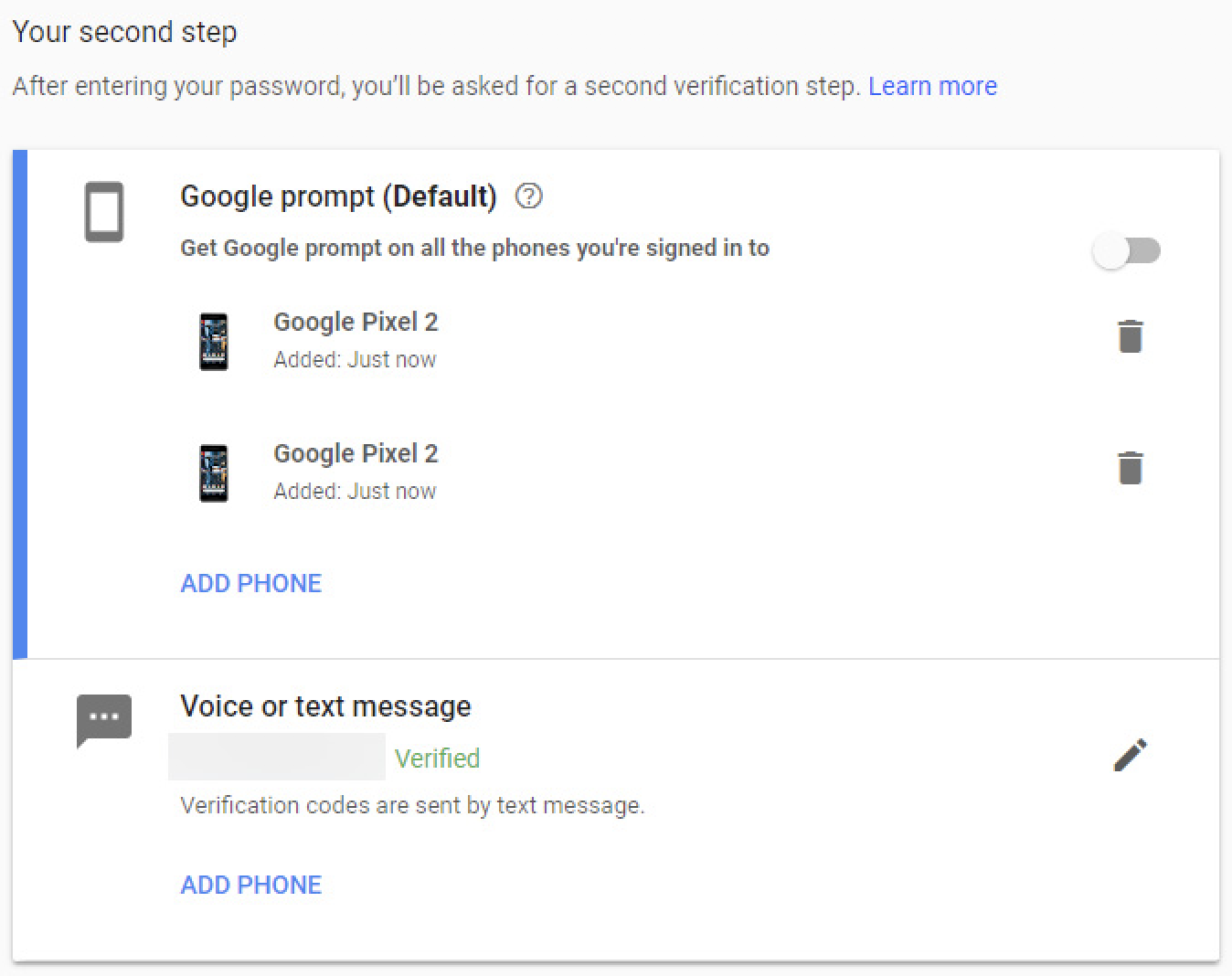
Google security measures

Google is also a bit better at securing your data while it's on their servers. Both Google and Dropbox encrypt your data while it's traveling from your computer to their servers. Once it's in the cloud, both generate a key that's used to decrypt it when you need to access it. Google takes an extra step by encrypting that key using a second, rotating master key. This essentially means anyone who could steal data from Google's servers would need two keys to read your data, not just the one they'd need if they wanted data from Dropbox's servers. Google also encrypts data when it's in transit between its own servers. This was an extra step the company started taking to protect data from NSA snooping.

File Browsing and Search

Browsing is easy on both, but Google's search is leagues smarter

Dropbox and Google Drive both have a desktop app that creates a folder on your computer to sync between your devices. You can browse this folder using Windows Explorer or Finder on a Mac—just like you would any other folder—or you can browse on the web, sorting by file type, who owns the files, or when the files were last modified.

In the web version, Google Drive displays a Quick Access bar along the top of the page with suggestions of files you might need, e.g., recent files or files that are relevant to your meetings in Google Calendar. You can also star items as important, but those end up tucked away in a separate tab. Dropbox, on the other hand, shows you the files you've uploaded most recently, as well as a row of items you've starred. In this way, Dropbox gives you more control over which files you see first, while Google Drive relies more on algorithms to guess your needs. Depending on what you prefer, one might be better, but they both get the job done.

Where Google excels is in searching your files. In Dropbox, you can search for a specific term or limit your search to subfolders—but that's about it. If you pay for Dropbox Professional or Business, you can also search for text in images. Google Drive, on the other hand, supports search parameters similar to the ones you see in Gmail: You can search by the type of file, who owns the files, who they're shared with, or when they were last modified.

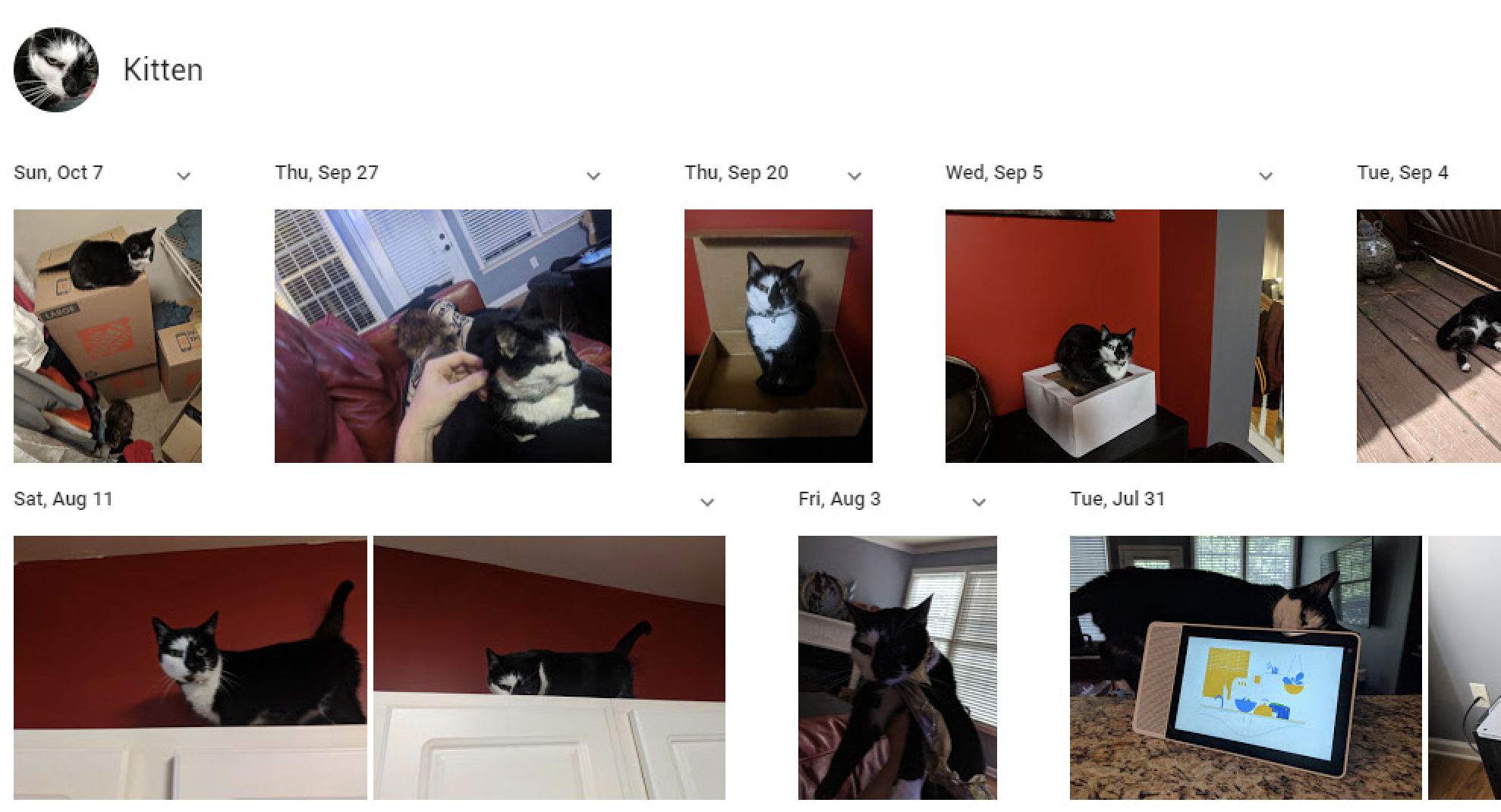
When it comes to searching photos, Google's lead gets even more dramatic. If you use Google Photos to back up pictures with your Google storage, then the company's powerful AI can detect faces of people and animals and automatically sort them into albums.
Google photo search
Google can identify faces in photos, including those of specific animals.

If you take pictures of receipts or business cards, Google Lens will read and copy text, phone numbers, or email addresses right from your photos and allow you to search on that information. Better yet, if you search for things like "receipt" or "business card," Google Photos can identify pictures of those items. Some of these features (like Lens) are only available on mobile, but they're massively convenient.

Photo and Video Backup

Google Photos is a powerful add-on that Dropbox can't match

Dropbox and Google can both automatically back up all your photos and videos to the cloud. Dropbox will complete the back up from your computer, and if you pay for the Dropbox Plus plan or higher, you can upload them straight from your phone. Photos and videos take up huge chunks of space, so if you're planning to use Dropbox for either one, you'll probably want to pay for a higher tier plan anyway.

Google Photos, on the other hand, backs up photos and videos straight from your phone for free. Better yet, any photos smaller than 16MP or videos at 1080p or smaller won't count against your storage limit, and you can automatically scale down your media if you don't want to use up your space. So even though videos and email attachments share the same storage limit, Google's flexible and more generous plans are still more affordable than Dropbox.
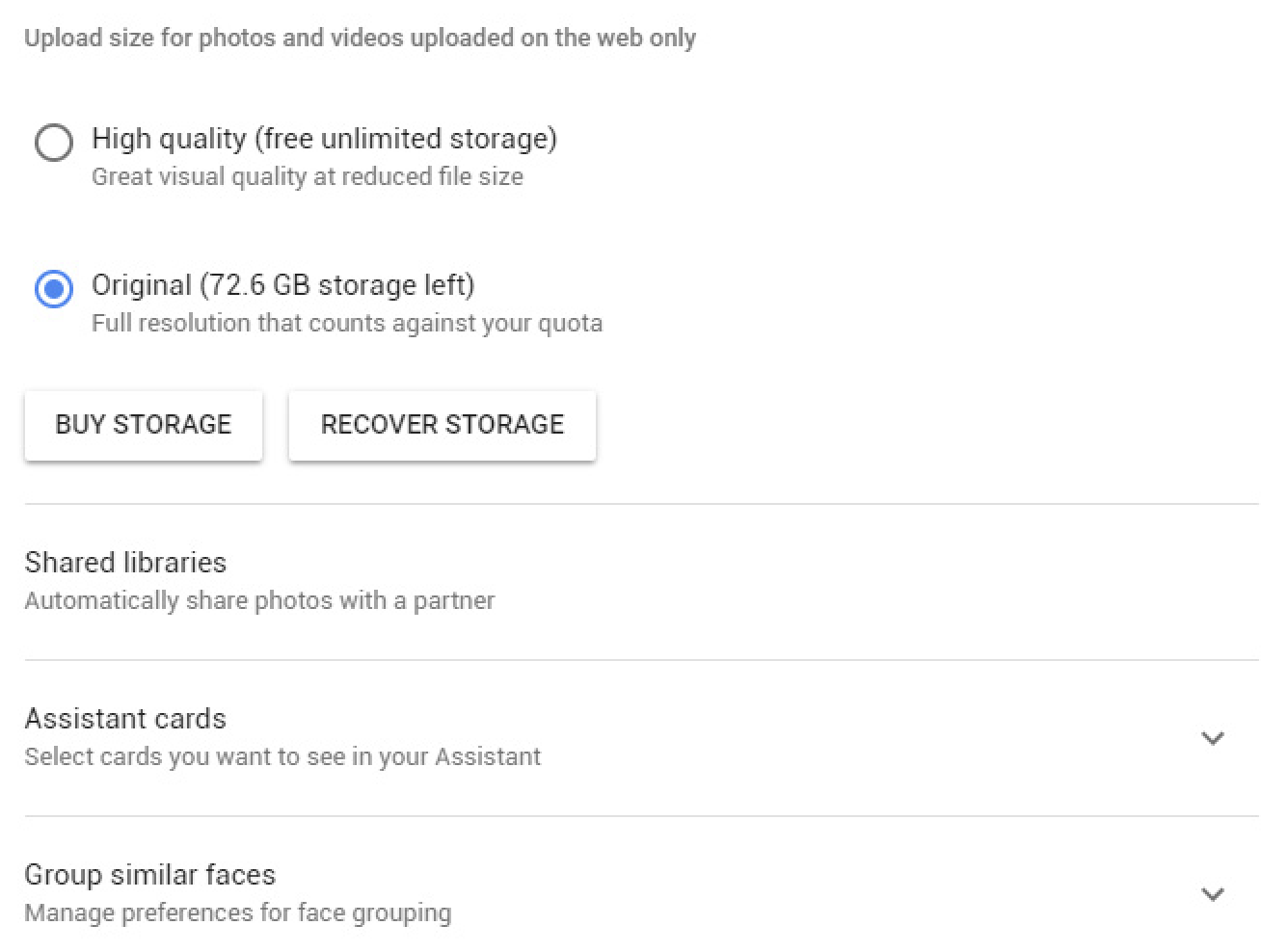
Google Photos settings

Google also beats Dropbox for editing and sharing media. Dropbox has a Camera Uploads folder: You can add comments to pictures or videos, and that's about it. To share a group of photos, you create a folder and share it, but there's no longer a way to create and share a photo album. Meanwhile, in addition to regular photo albums, Google Photos lets you create Live Albums that automatically fill themselves with pictures of people you tag, using Google's uncanny facial recognition software. For example, you could create a Live Album of your spouse and children; then, every photo you take of them will conveniently show up in the same album.

Google Photos also includes a basic photo editor that lets you tweak light and color, apply Instagram-style filters, or crop and rotate images. The latter is most useful for businesses, allowing you to rotate photos of receipts or business cards to a readable orientation. The Dropbox mobile app can do this, but it's currently not possible on the web. But for photographers or media professionals who already use apps like Lightroom to manage their media, Dropbox works great for storage.

File Sharing

Dropbox edges out Google Drive with some advanced features

Dropbox and Google both offer robust options to manage who on your team can access your files. Both apps let you share individual files or entire folders by sending an email or by sharing a link. If you choose the former, you can specify who should have access and revoke or change those permissions later on. If you share a link, you can let anyone with the link view or edit files, but if you ever want to revoke access, you'll need to disable link sharing entirely.

For the most part, Dropbox and Google Drive are identical on this front, but Dropbox has a couple advantages. On Dropbox, when you create a shareable link, you can also add a password, so only people who know the password can access the files. You can also set an expiration date, after which the link to your files will stop working. The expiration date can only be set to a certain day—so, for example, you can't create a link that expires after an hour—but it's more than Google offers.
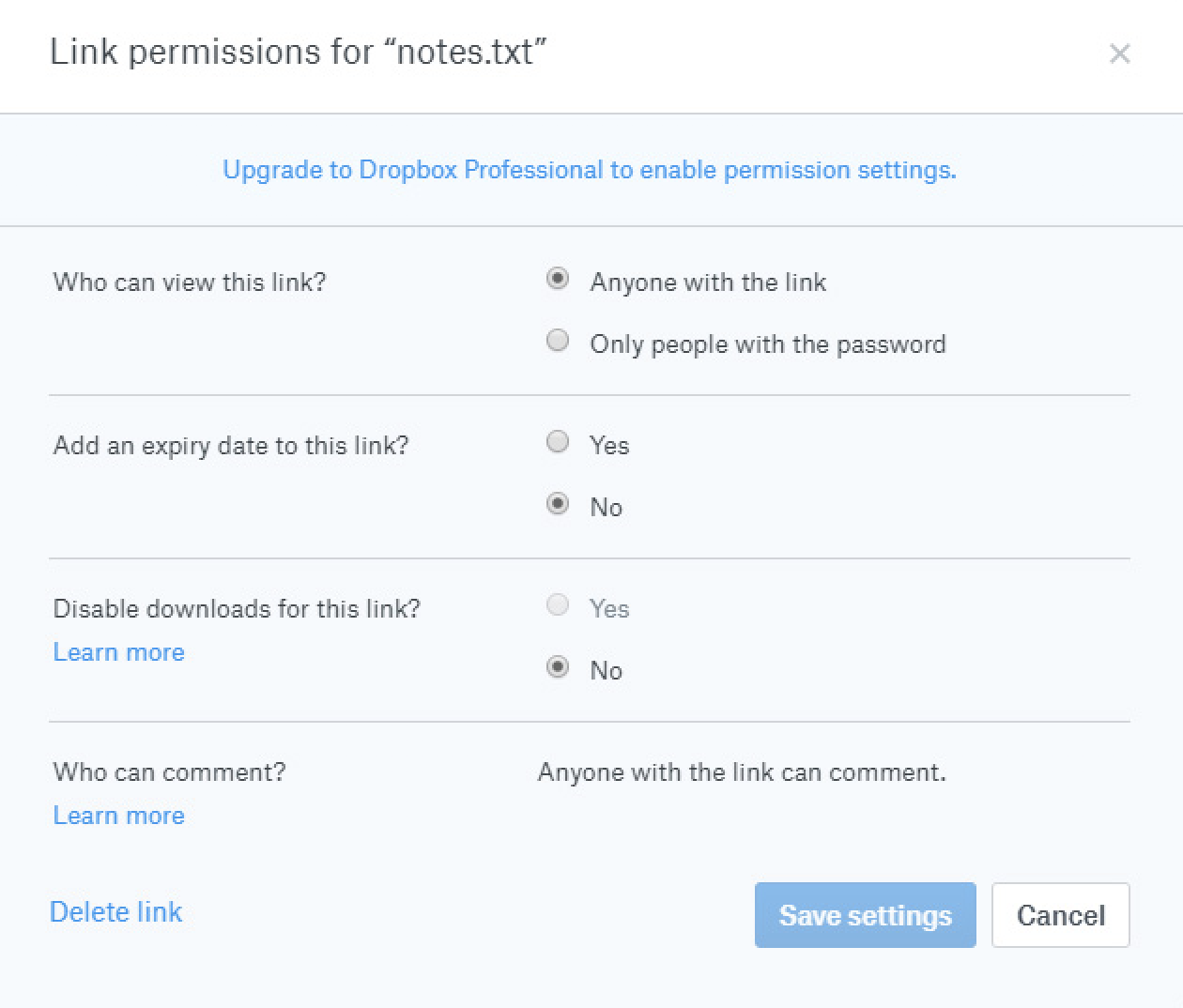
Dropbox file sharing

You can also share files directly from Explorer or Finder with both apps, but it's slightly easier with Dropbox. If you right-click a file or folder on your computer, both services add a shortcut in the context menu to the Share dialog, where you can invite someone to access a file with an email. But Dropbox also adds an option that reads "Copy Dropbox link." This will immediately create a shareable link to the file or folder and copy it to your clipboard. It only saves you a couple of clicks, but if you're sharing files a lot, those clicks can add up.

What about when someone leaves your team? Dropbox handles this much better than Google. The owner of a file or folder in both apps can promote anyone to owner status, allowing them to take over control. The new owner can then remove the previous owner entirely. However, Google can't promote someone outside your organization to owner status. So, for example, if you create a file on your personal Gmail account, you can't make someone who uses a company Gmail account the owner, or vice versa.

Also, unlike Dropbox, Google Drive doesn't have a method to transfer ownership of all files in an account to someone else. You can make someone else in your domain the new owner of several folders at once, but any files within those folders will retain their original ownership. You have to go into each folder level and select everything, which can be quite tedious. Additionally, Dropbox gives you the option to allow users to keep a copy of the files you're revoking access to, while Google Drive doesn't. Overall, Dropbox and Google are both good at sharing files, but Dropbox handles the transition more smoothly when someone leaves your team.

File Recovery and Change History

Google Drive stores more deleted files and has more detailed change trackers

When multiple people are editing, copying, and transferring files, you need a way to keep track of who's changing what. Dropbox and Google Drive both give you tools to restore previous versions of files, but Google's broader suite of services gives you more robust options.

With Dropbox, if a file is ever deleted, you can go into the Deleted Files section of the app or site and restore it with the click of a button. You can even filter deleted files by which folder they were in, when they were deleted, or who deleted them. The downside: Dropbox only saves deleted files for up to 30 days for Basic or Plus users (that limit goes up to 120 days if you subscribe to Dropbox Professional or Business). Meanwhile, Google puts any "deleted" files in a Trash folder. Even if you've permanently deleted a file from your computer, Google will store a version in the Trash online. It will stay there forever until you empty Drive's Trash, after which point a G Suite administrator can still restore it for up to 25 days. It's a handy series of fail-safes to prevent unwanted data deletion.

If you need to restore an older version of a file, both Dropbox and Google will let you go back through up to 30 days worth of older versions of a file. That means if you edit a document, create a new version of a video, or overwrite a PDF, Google and Dropbox will save the previous version for a month. Once again, though, Dropbox will raise that cutoff to 120 days for Professional and Business subscribers. With Google, no matter how much storage you buy with Google One, you'll still be stuck with 30 days of version history.
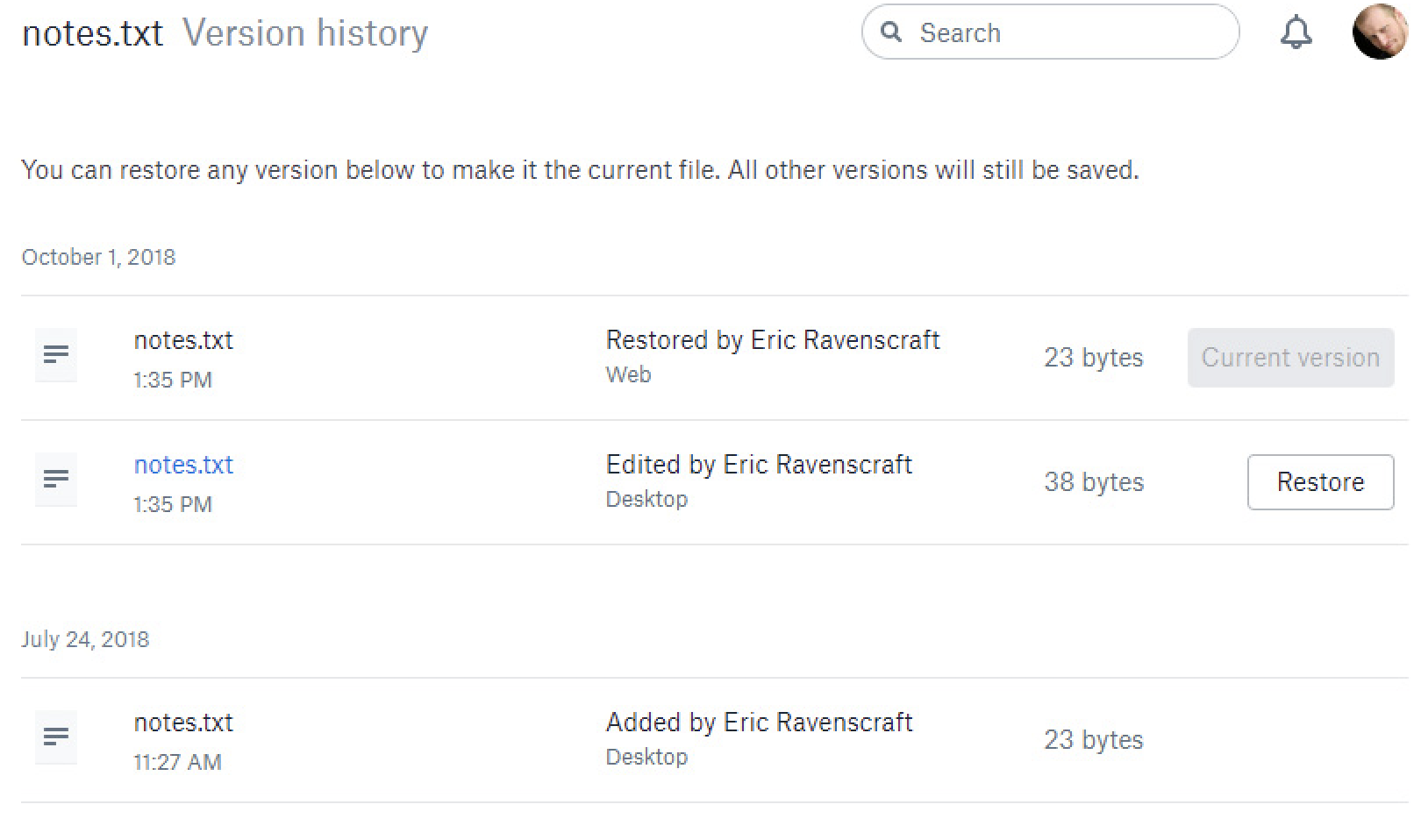
Dropbox version history

But Google has one advantage in this area. Version history in Google Docs, Sheets, and Slides is top notch. If your team uses Google Docs, you can not only restore previous versions of files, but also see who made which changes, restore specific versions from the middle of an editing session (since Google automatically saves documents regularly), and even name older revisions to save them for later, separate from the main version you're editing.

This is technically a feature of Google's office software, not Google Drive itself, but it illustrates an important point. Google doesn't just offer a cloud storage folder. Drive is tightly integrated with a broader collection of apps that work better in tandem. Dropbox offers shortcuts to create documents in Microsoft Word Online, but after that, you're on your own. Version history is a paid feature of Microsoft Office, and while Dropbox can restore older versions of a Word document, it can't track changes the same way Word can.

Which Cloud Storage App Should I Use?

If you just want to sync files and folders between multiple devices, Dropbox is hard to beat. It's fast, it's reliable, and it works invisibly in the background. Dropbox doesn't come with a lot of extra features, but by focusing on its core product, the company still manages to have one of the best products around.

If you're looking for a total solution for your business and you're not married to other office software or photo management tools, Google Drive offers a compelling case. Its tight integration with Google Photos and G Suite offers a lot of perks that Dropbox simply can't match. And it doesn't hurt that it's a lot cheaper to increase your storage allowance.

Finally, here's an at-a-glance feature comparison.

Dropbox Google Drive
Pricing Starts at $10/mo for 1TB Starts at $2/mo for 100GB, $10/mo for 2TB
Speed Block-level sync, LAN sync No block-level/LAN, fast servers
Security Encrypts data in transit and at rest, SMS and app-based 2FA only Encrypts data in transit, at rest, and encrypts keys, 2FA via SMS, app, phone call, or physical key
File Browsing and Search Basic file search, can manually star items for easy access "Smart" Quick Access bar automatically pins common files to the top. Supports advanced search parameters, and machine learning in Photos search.
Photo and Video Backup Back up photos and videos from desktop, upload from phone with Plus or higher subscription. Limited by storage available. Unlimited 16MP or 1080p video uploads, higher-quality limited by storage available. Can upload from any device. Google Photos offers advanced sharing and editing capabilities.
File Sharing Basic permission management. Shareable links support password protection and expiration dates. One-click shareable links from desktop. Basic permission and ownership management when sharing files. Difficult to offboard team members.
File Recovery and Change History Can recover files deleted or changed within past 30 days. Limit raised to 120 days with Professional or Business. Trash folder stores deleted files forever until emptied. Recover older versions of files within 30 days.

Automate Dropbox and Google Drive

Once you've selected a cloud storage app, you can start automating your file backups and notifications.

  • Save new email attachments to your cloud storage:
  • Get notified whenever certain files are added to your cloud storage:
  • Or, if you use both apps, you can automatically copy files between the two:

Don't see the workflow you're looking for? Browse other Dropbox and Google Drive Zaps, or create your own using the Zap editor.


source https://zapier.com/blog/dropbox-vs-google-drive/

Monday, 12 November 2018

4 Twitter Marketing Strategies for Your Business

Twitter is arguably the most interaction-driven social network for businesses. And a solid Twitter strategy drives revenue. According to the Customer Insights report from Twitter, as much as 93 percent of people who follow small- and medium-sized businesses on Twitter plan to purchase from those they follow, while 69 percent have already purchased from a small business because of something they saw on the network.

Bottom line: It pays to have a solid Twitter marketing strategy.

Getting Started with Twitter

To start marketing your business on Twitter, you first need to set up your profile. Head to Twitter's website, and enter your username, email, and password after clicking Sign Up.

Unlike many other social platforms, Twitter accounts don't have a distinction between personal and business profiles. You can customize the following:

  • Your Twitter @handle, which is your unique identifier and makes up your profile URL (for example, twitter.com/zapier). Keep it straightforward and use your company name. If it isn't available, try changing it up by shortening it or adding a relevant keyword (for example, National Geographic uses @natgeo).

  • Your Twitter name, which appears above your handle on your profile and above all your tweets. Make sure to use your company name.

  • Your profile picture, which visually represents your brand in a small space and appears on the left of all your tweets. Using your logo is the best way to go, unless you're the only person in your company, which is when you can alternatively use your own headshot.

  • Your profile bio, which you can use to share what you tend to tweet about, your location or business hours, and a link to your website.

  • Your header image, which you can use to showcase an ongoing promotion, a photo of your team, upcoming or recent events, and other current information. Review your header image monthly and update it if it feels outdated.

  • Your pinned tweet, which can be any important tweet you've shared. It appears above all your tweets regardless of the timing of the original tweet you pinned. Review your pinned tweet weekly to make sure you're highlighting your most relevant and current tweet.

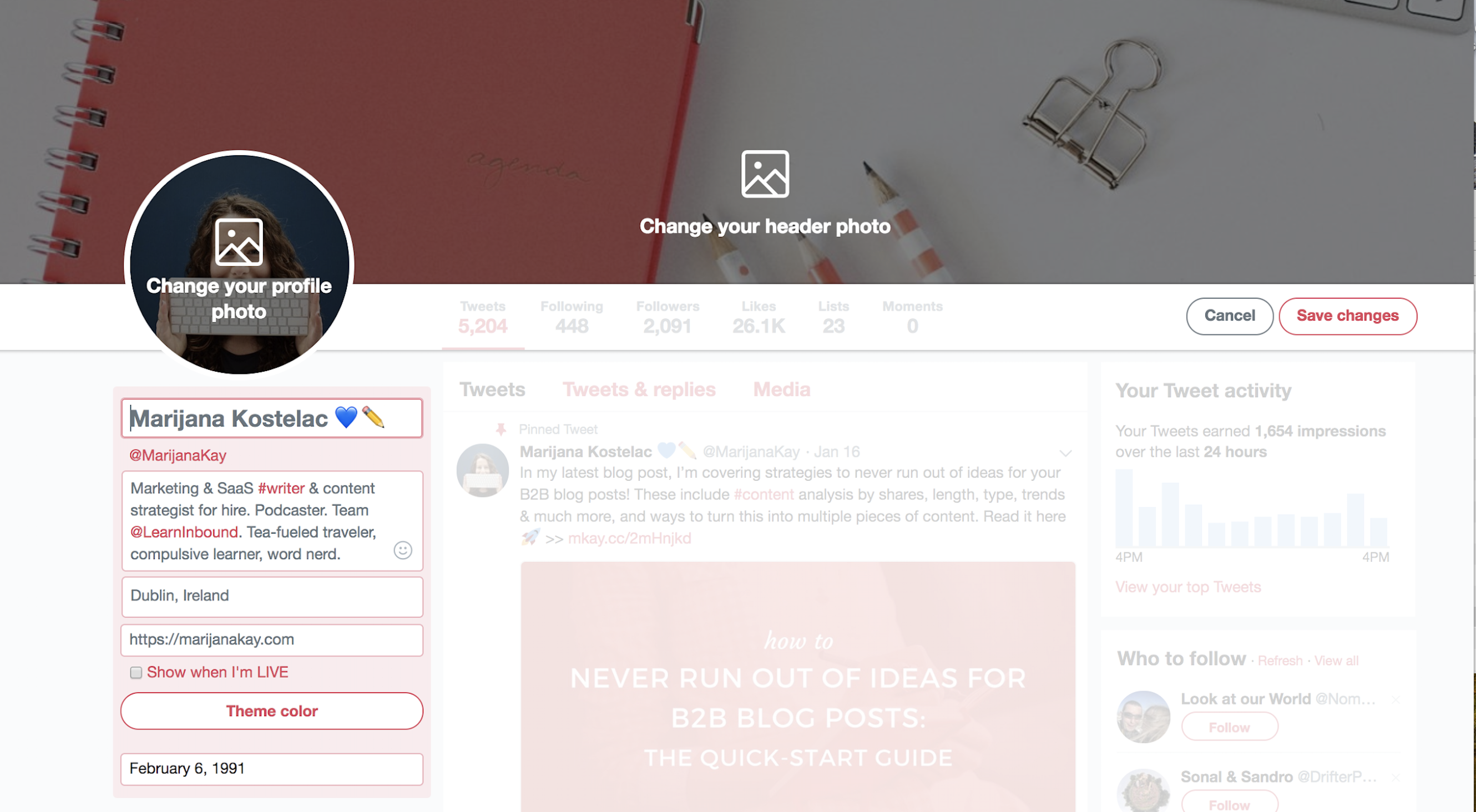
Twitter profile setup

With your profile completely filled out, you're ready to grow your reach and impact on Twitter with these marketing strategies.

1. Use Twitter Cards to Promote Your Content

Twitter cards expand regular tweets by adding rich content, like photos and video, to the tweet, in addition to the tweet itself. Cards also add additional information such as a headline and description of the page that's linked.

These are the four types of Twitter cards:

  • Summary card: A card with a square thumbnail on the left and a title and description on the right.

  • Summary card with a large image: A card with a full-width image, below which are a title and description.

  • App card: A card that drives mobile app downloads.

  • Player card: A card that can display video, audio, or media along with a title and description.

The key benefit of Twitter cards is that they provide a valuable preview of the content you're sharing without taking up any of the 280 characters in your tweet (aside from the link to the content itself, which won't be displayed in the tweet if you add it to the very end). In other words, they help you make sure you're attracting your target audience—and repelling the wrong one.

Ross Simmonds, a marketing consultant, makes the most out of a single tweet with a player card and a list of ideas to complement the video:

Twitter Player card from Ross Simmonds
The tweet text along with the card title and description make the topic of the video clear.

How to set up Twitter cards with Yoast SEO

For Twitter cards to work, there is some back-end work required. If your website is on wordpress.org, the easiest way to set them up is by using the Yoast SEO plugin.

Step 1: From Dashboard > Plugins > Add New, search for the Yoast SEO plugin, and click Install Now. Once it's installed, click Activate Plugin.

Step 2: Select Social in the SEO menu that will now appear in your main WordPress dashboard. Then, add your Twitter username and any other social profiles you want, and click Save changes.

Step 3: Click on the Twitter tab, and check that the Add Twitter card meta data is set to Enabled. Below it, select your default card type as either Summary or Summary with large image, then click Save changes.

If you're not on WordPress, you can set up Twitter cards by adding some code to your website. Follow Twitter's card setup guide or get a developer to help you out. You can test your URLs afterward with the validator tool.

From now on, whenever someone shares a link from your website, Twitter will pull your content's title, description, and featured image or video and add it to the tweet.

Twitter card from Wave.video

2. Get Creative with Visuals

Businesses with a successful Twitter presence don't just use Twitter to promote their content and send their followers elsewhere like you've seen with Twitter cards. They also use Twitter's creative capabilities to spark brand awareness and tell a story on the platform itself, without sharing their links each time.

People are three times more likely to engage with tweets when they include videos or photos, so it's worth conveying your brand's core messages using visual content.

For example, Airbnb always promotes the idea of unforgettable trips and unique experiences, so they've shared this photo of Cape Verde in combination with a clever caption. As you can see, there are no links added—this is just about what Airbnb as a business stands for:

Airbnb image tweet

Another example is Mailchimp's playful tweet in which they mention their mascot Freddie. Again, no promotion and no external content—it's simply their way of standing out in the feed with their quirky brand:

MailChimp image tweet

You can use any of the following tweet formats to post updates and tell stories on your Twitter account:

  • Videos: up to 140 seconds in length.
  • Images: up to four per tweet.
  • Text only: up to 280 characters per tweet.
  • GIFs.
  • Polls: up to four choices and up to a week in length.

Visual content drives retweets and responses, so the more variety you add into your tweets, the more likely it is you will stand out. Another benefit is that visuals take up a significant portion of the feed, especially on a smartphone, which helps attract and keep attention.

Buffer's video on Twitter
Buffer regularly shares interesting industry news through text-style videos.

How to create visuals for Twitter

Creating images and videos for Twitter doesn't require you to learn advanced editing processes or hire an entire team of designers. Here are some tools that will help you get up and running with visual Twitter posts quickly:

  • Native editing apps: You can use the built-in apps that play videos on your smartphone to trim and edit videos.

  • Wave.video: Wave.video ($39, free trial available) is a web-based video editor. It's perfect if you want to add text, transitions, and even calls to action to your videos. It also comes with a media library with thousands of royalty-free stock videos and images.

  • Twitter smartphone app: You can record a video directly within the Twitter app by tapping the video icon after opening the screen to compose a tweet. Hold down the recording icon, and record as many clips as you want until you reach the time limit of 140 seconds.

Composing a video inside Twitter smartphone app
Creating a video directly from Twitter's smartphone app
  • Canva: Canva (free) is a web-based image editor that comes with plenty of formats, templates, fonts, and design elements like icons to help you create an attractive image.

  • GIPHY: GIPHY (free) is already built into the Twitter ecosystem so that you can add GIFs to your tweets in seconds. However, you can also use their GIF maker to create a GIF out of your own video.

3. Take Action on Your Audience Insights

As with any area of marketing, you can learn a lot by testing various methods and monitoring results to see which ones bring you the best results.

The longer you've been active on Twitter, the better you can leverage audience analysis tools. These tools can help you learn about the times your audience is active on Twitter, the actions they take, their interests, their demographic breakdown, and more. You can then use these insights to plan and optimize your future content plan for Twitter.

How to research your Twitter audience

Here are four tools you can use to better understand your audience:

  • Twitter Analytics: On Twitter's native insights platform, you can access your monthly snapshots of analytics (tweets, impressions, profile visits, mentions, and new followers), individual tweet performance, audience overview (interests, buying styles, gender, income ranges), as well as trending events.

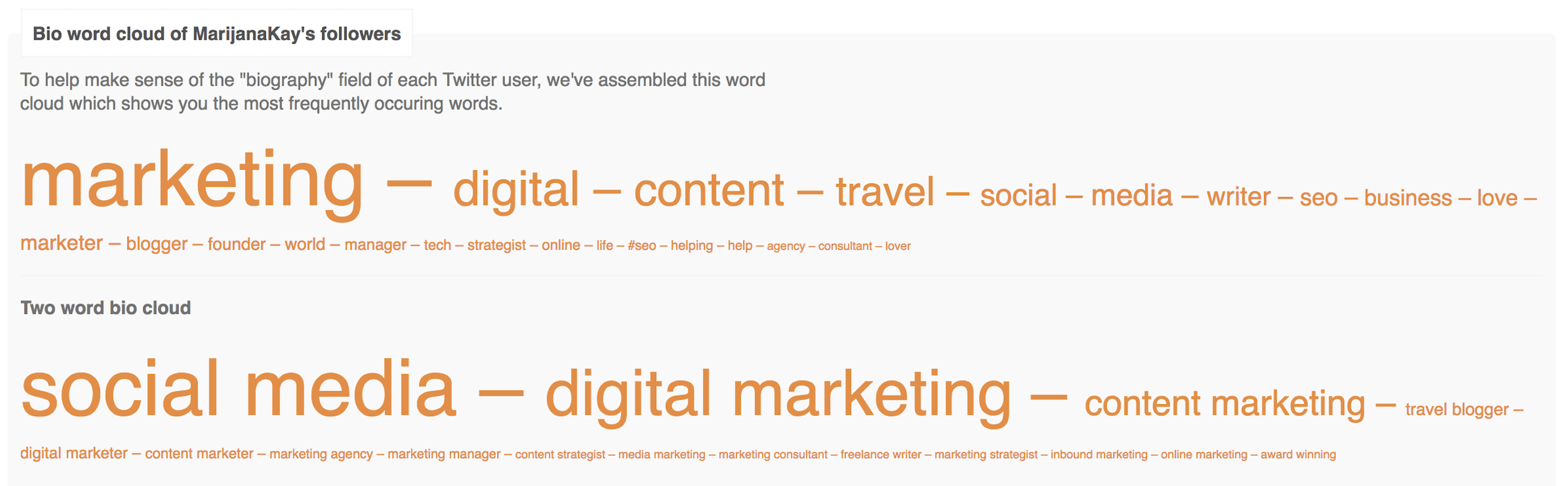
  • Followerwonk: The Analyze feature of Followerwonk (free) adds another layer to your audience profiling. Enter your Twitter handle, select Analyze their followers, and then click Do it. In this report, focus on Mapped locations, Most active hours, and Bio word cloud to learn the best times to tweet and the topics your audience is most interested in.

Followerwonk report
  • Audiense: Audiense Connect (free) is a customer insight and engagement platform. One of its most useful features is the ability to analyze your individual followers and filter them by influence, number of followers, account age, and more. You can use this to deepen connections with influencers and amplify your reach on Twitter.

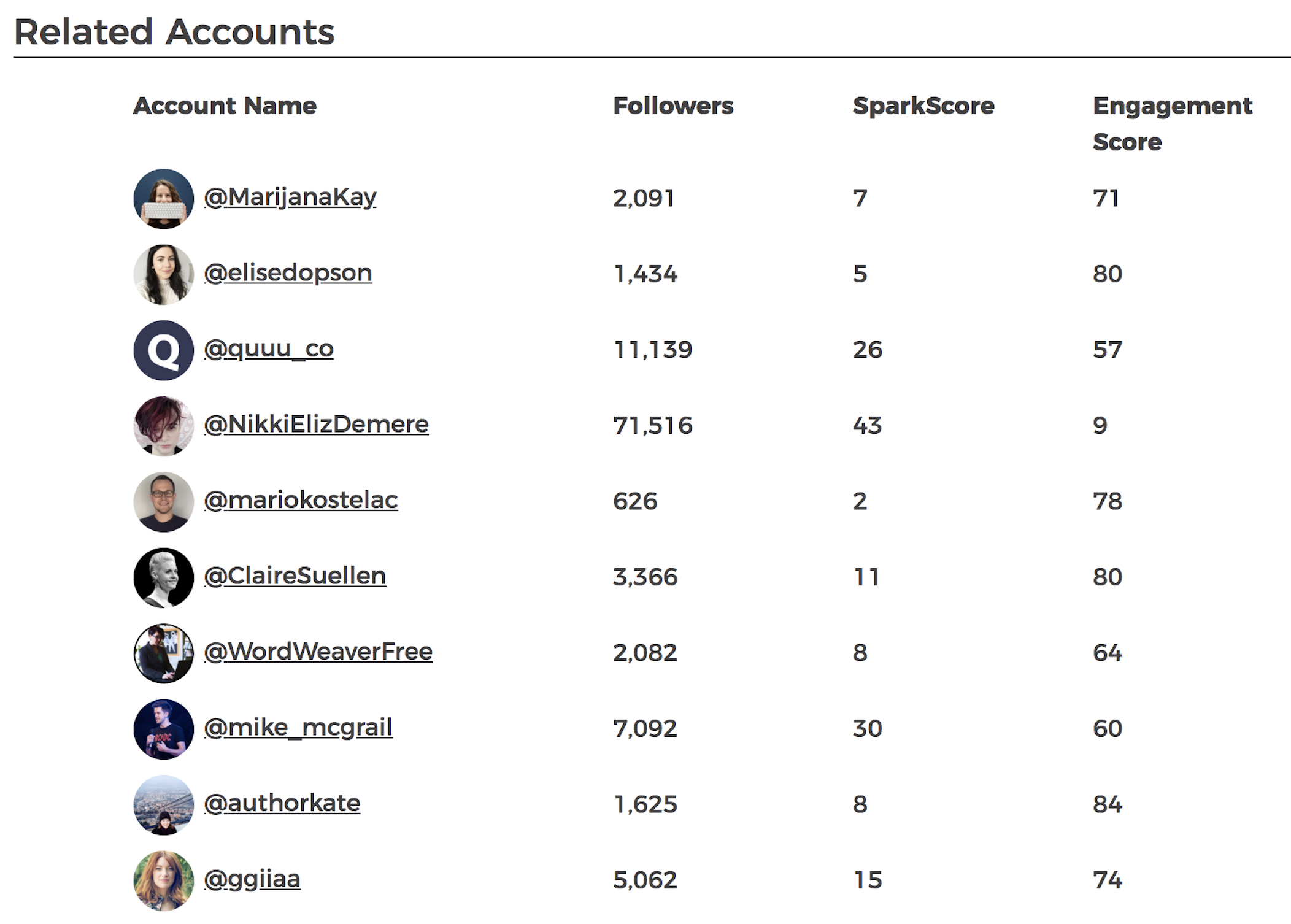
  • SparkScore: SparkScore (free) is extremely useful to take your research from Audiense and learn more about the engagement rates of the accounts you found—as well as accounts similar to it—so you can expand your network.

SparkScore report

Tips to implement insights from your audience analysis

Once you've collected the data from the above tools, you can take the following actions to build these insights into your Twitter marketing strategy:

  • Make a list of all the topics you can tweet about and educate your audience on. For example, a Followerwonk word cloud report might show that a lot of your audience is made up of executives, so you may want to create more content targeted at that group.

  • Use a tool like Buffer or Hootsuite to schedule your tweets to be published at times your audience is online.

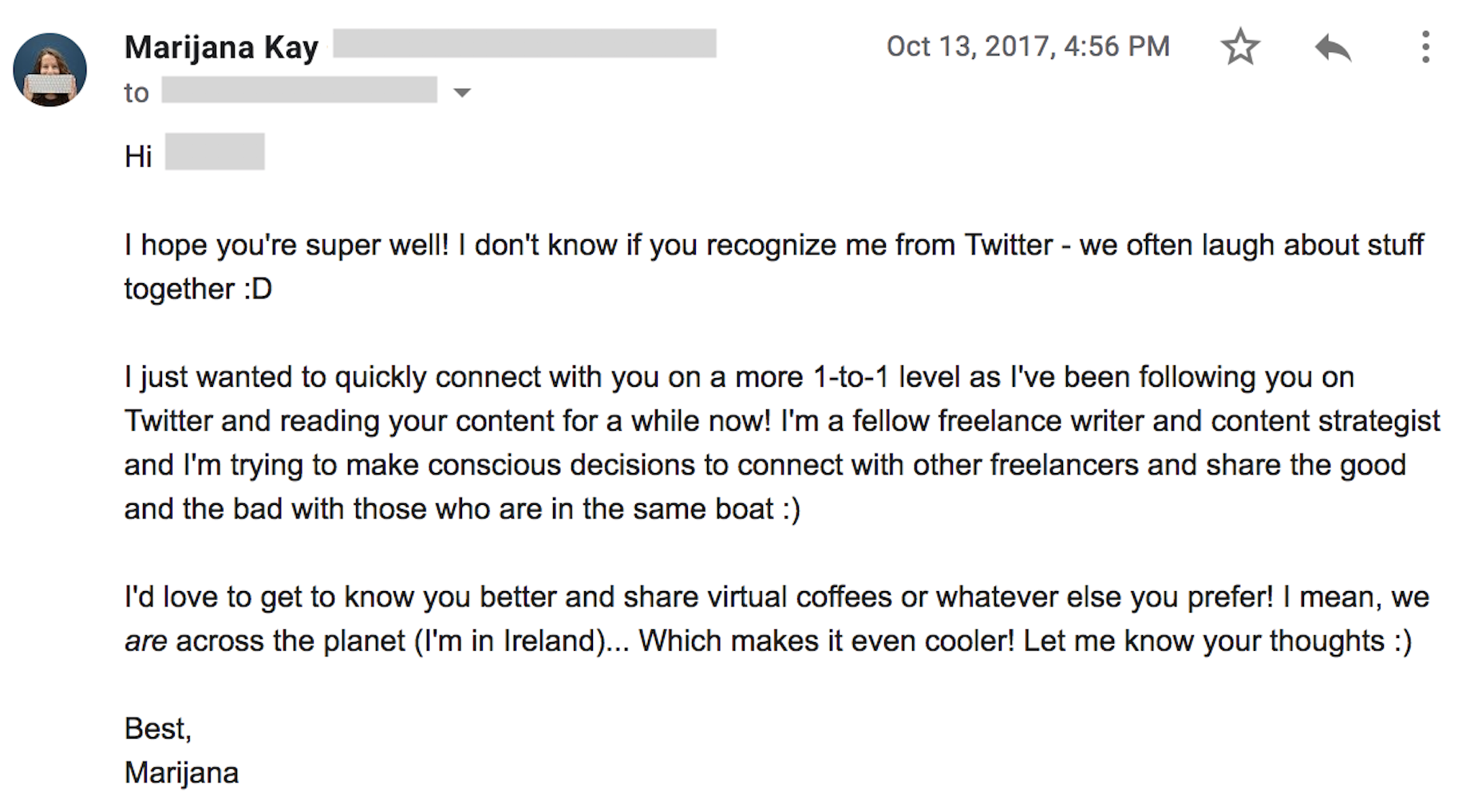
  • List at least 15 Twitter accounts you can reach out to and build a connection with. You can do this by sharing their content and work, sending them a direct message to let them know their work has helped you, or even encouraging a collaboration of some kind.

Building connections from Twitter

4. Be Proactive with Social Listening and Customer Support

If someone has an opinion about your brand, they might share it on Twitter. This is especially true if their opinion is extremely positive or extremely negative.

Twitter is a great platform for coming forward as a responsible company that cares about its customers and does everything in its power to remedy negative experiences.

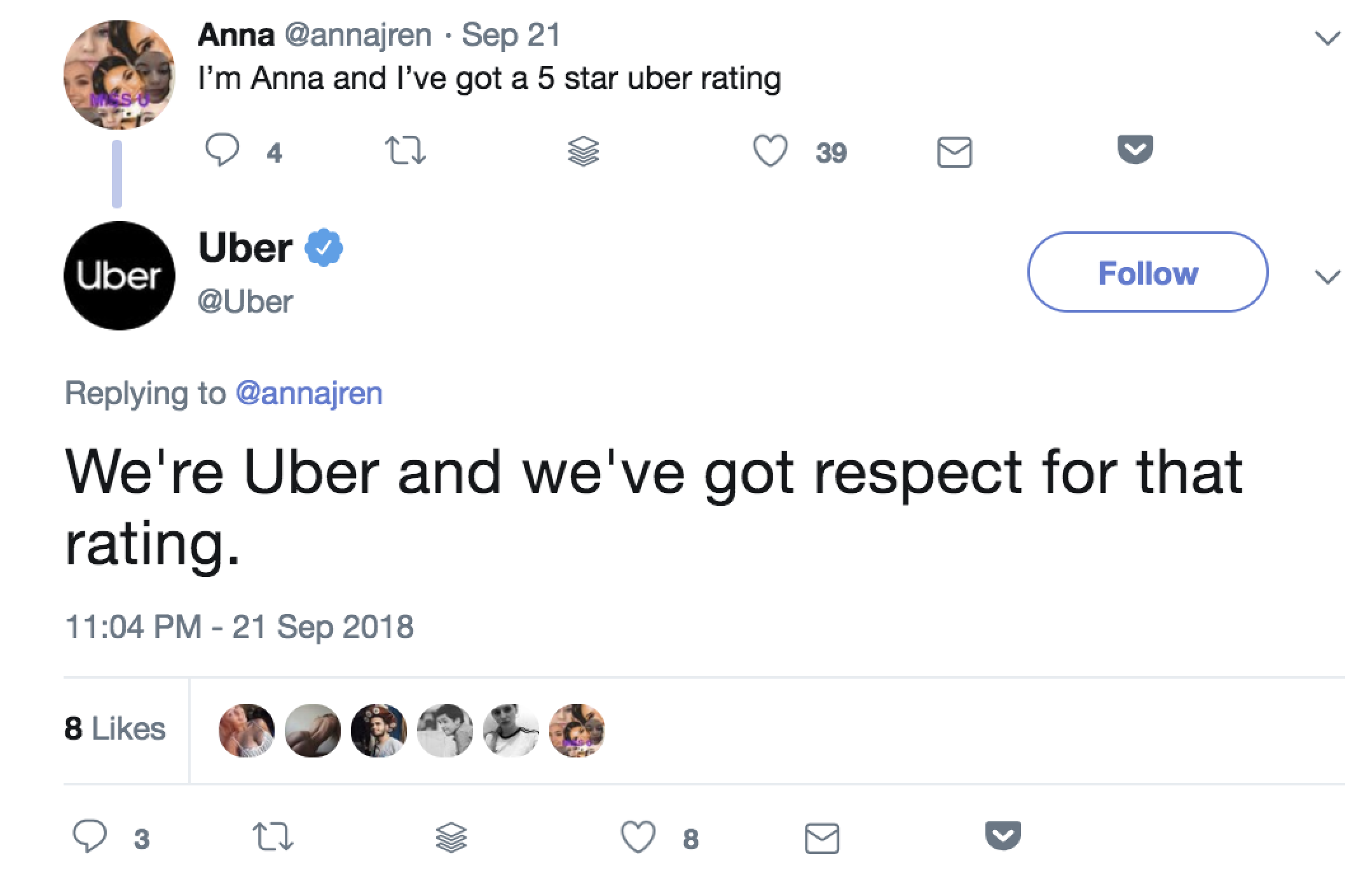
Uber's social listening on Twitter

The problem arises when you don't have a system to keep track of everything being shared, so you rely on Twitter notifications and direct messages. Without being proactive and consistent with social listening, tweets and conversations can easily slip through the cracks, which can result in a bad reputation. However, if you react in a timely manner—and maybe even when your customer doesn't expect it—you can delight them and build long-term connections.

How to set up a social listening process on Twitter

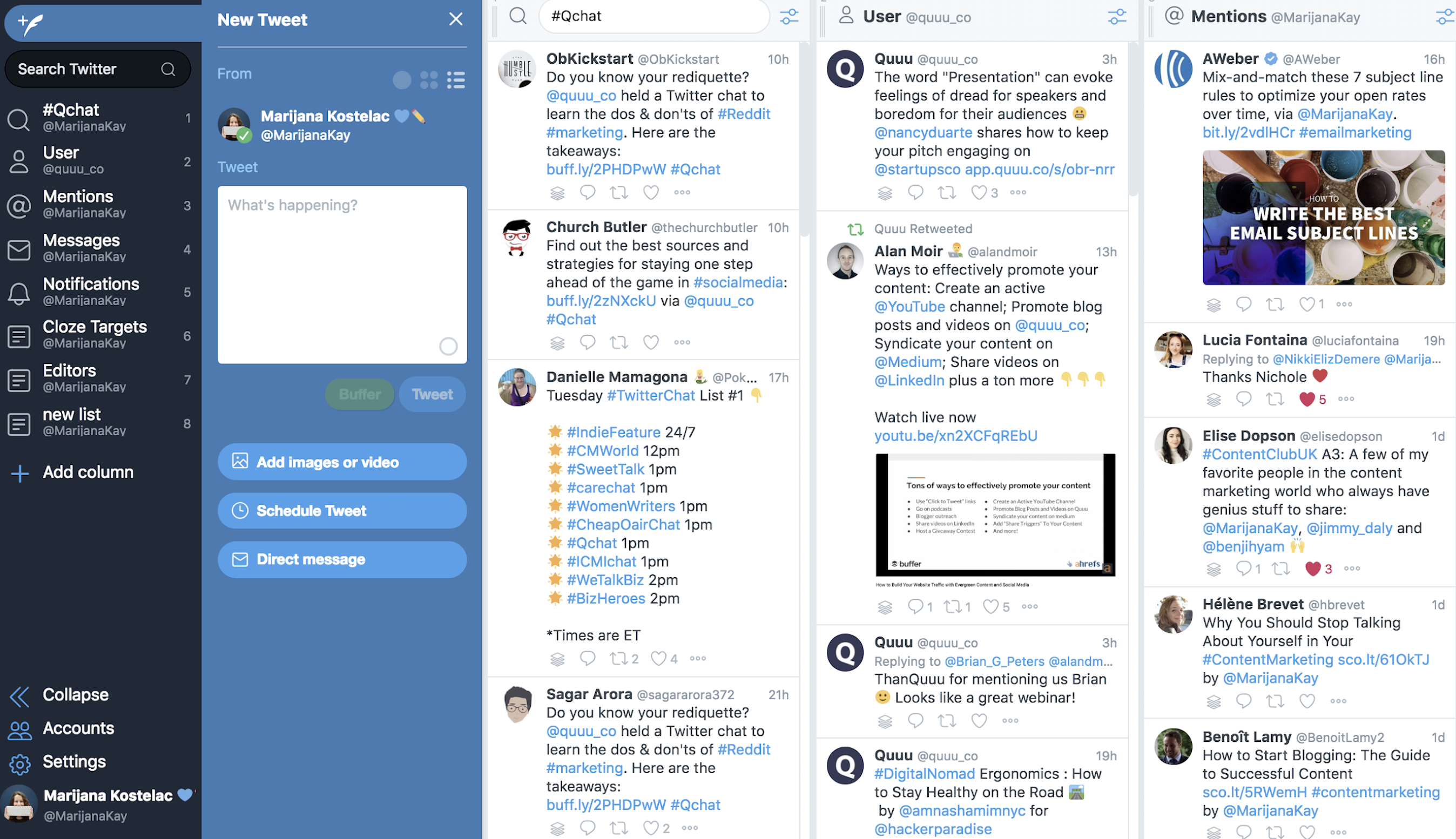
You can use multiple Twitter features to keep track of what your followers and customers are talking about on Twitter. Use your Twitter credentials to log into TweetDeck, a free Twitter dashboard. As you can see, TweetDeck's layout is based on columns, and you have full control over the filters for each column.

TweetDeck layout

To set up your social listening dashboard, you can click on Add Column on the left-hand side menu. From there, you can select:

  • Search, and enter a hashtag. When you select Search, you will be taken to a search field at the top left corner. You can enter a hashtag related to your industry or a branded hashtag if you have one. As you press Enter, a column that displays all tweets with that hashtag in real time will be added to your dashboard.

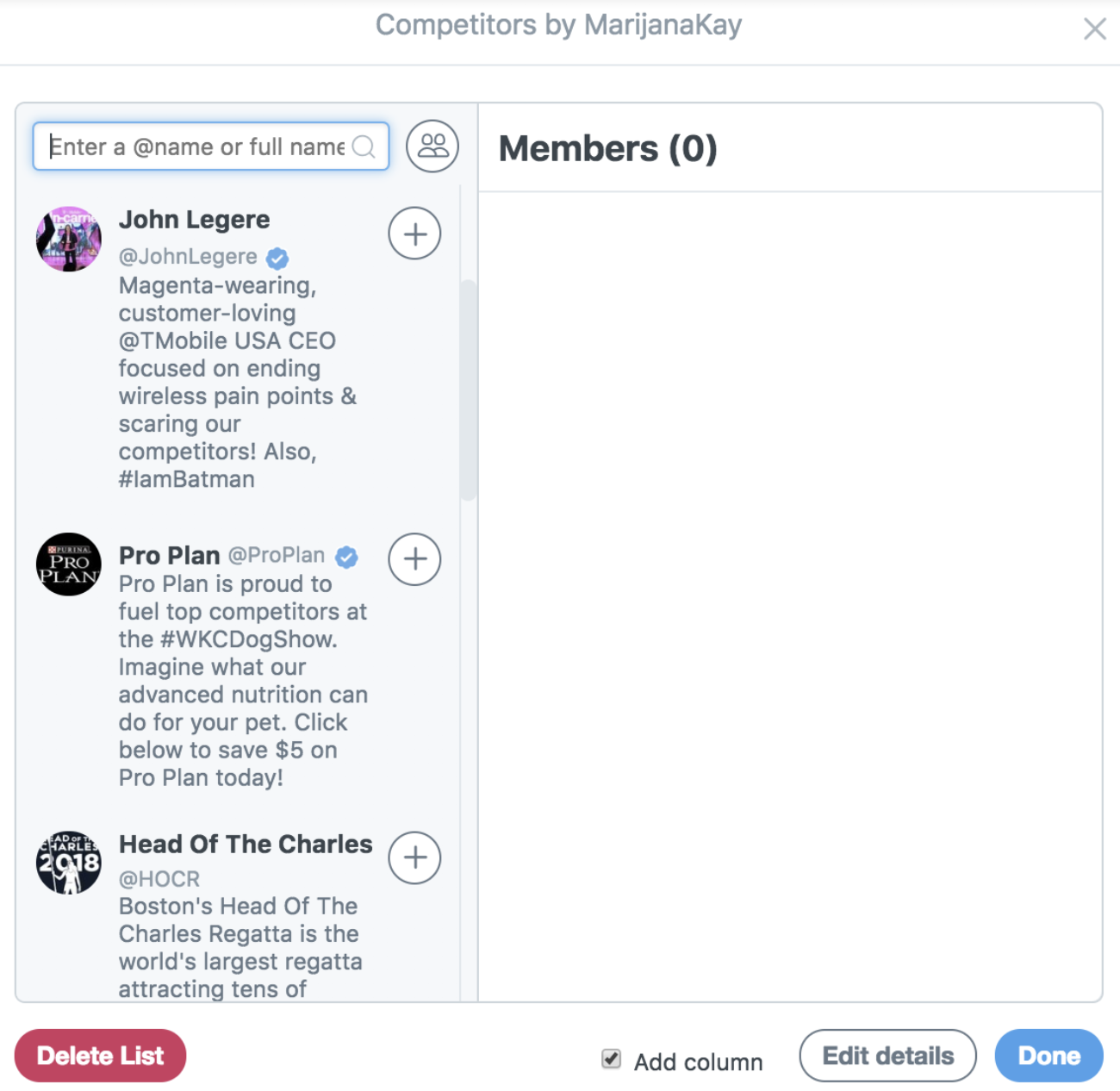
  • Lists. On Twitter, you can create lists of people. These can be your competitors, customers, prospects, conference attendees, or any other group that's important to you. If you already have lists, you can select one after you click Add Column > List. Alternatively, click on Create list, add relevant accounts, and click Done.

Creating Twitter lists in TweetDeck
  • Mentions. Twitter mentions are easy to track when you first get started, but if and when you start receiving dozens a day, they're easy to miss. Following the same process as above, select Mentions and then Add column, which will create a real-time feed with tweets mentioning you.

  • Search, and enter your brand name. This is the most powerful of all the listening methods because you're not directly notified that someone is talking about you—yet you're seeing it and reacting to it. Once again, select Search when adding a column, and type your company name. If there is a common misspelling, add a column with that version, too.

From there, you can refine each of your columns by clicking the settings icon at the top right corner of each column. Some of the options you have are location matching, tweet engagement, and type of mention.

Dublin Fire Brigade's reactions to relevant tweets
Dublin Fire Brigade consistently reacts to local fire alarm funny tweets.

You should review your social listening dashboard on a regular basis—ideally daily or more frequently if necessary—so that you can react to all relevant tweets about you in a timely manner.

Create a "Send a private message" button on Twitter

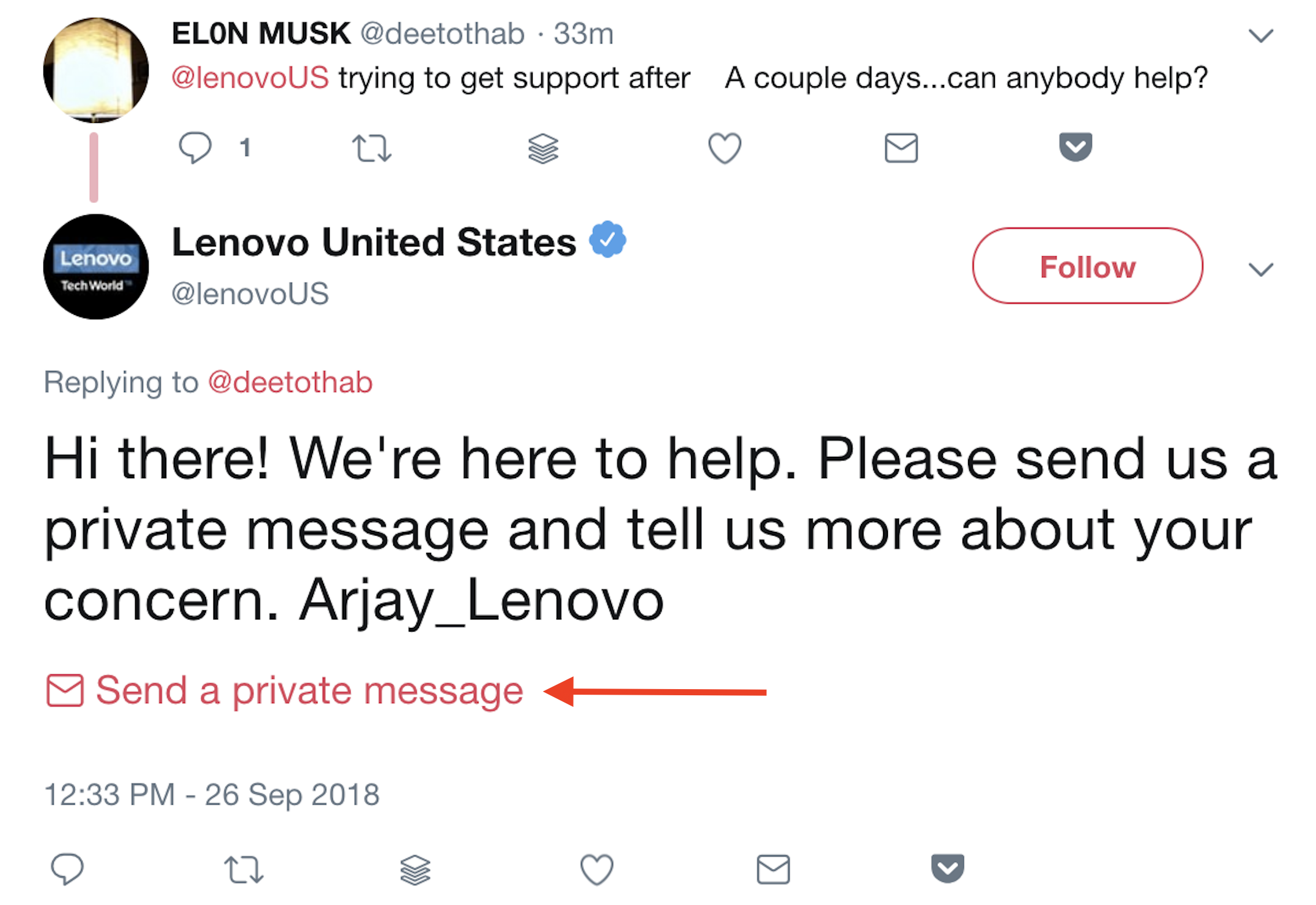
Often, your customers or those thinking about purchasing from you might ask you questions. This is a great thing to experience—it's an opportunity to put your best foot forward. But sometimes, you'll want to turn a public conversation private due to personal information you need from the customer. Twitter made this transition easy with a Send a private message button.

Send a private message button

You can add it to your tweets in a few easy steps:

Step 1: Go to TweeterID, and enter your Twitter handle. This will give you your account's numeric ID.

Step 2: Edit this link so that it contains your account's numeric ID after the equals sign: https://twitter.com/messages/compose?recipient_id=

Step 3: Copy and paste the edited link into your response tweet.

Automate Your Twitter Marketing

Once you've created your marketing plan for Twitter, you can use Zapier to automate many of the processes, including social listening, content promotion, and content curation.

  • Get notified when you're being talked about on Twitter:
  • Record important interactions and mentions:
  • Automatically share new content on Twitter:
  • Curate the most relevant industry content for sharing:

Don't see the workflow you're looking for? Browse more Twitter Zaps, or create your own custom workflow.


People buy from companies they know, like, and trust. Twitter is the perfect platform to build that trust: It helps you showcase your expertise and your intention to look after your customers. Remember to be approachable, honest, and true to your brand's values, and your Twitter marketing strategy will result in sustainable growth for your business.


source https://zapier.com/blog/twitter-marketing/

Thursday, 8 November 2018

The Best LMS Software: 8 Learning Management Systems to Train Your Employees

Your employees require guidance at every stage. As new recruits, they need to understand your organizational policies and procedures. As they grow in their position, you'll want them to acquire new skills for their role. And as your company evolves, so will your guiding principles—and all your employees will need to be informed of these changes too.

Learning management systems offer a solution for all of those stages. They allow you to create online courses with rich content, assess employee progress through various assessment types, and track employee progress throughout the courses.

After testing nearly 20 LMS platforms, we've selected the eight best. Read on to see which one will best serve you and your employees.

What Makes a Great LMS?

Learning management systems aren't only used by companies to train their employees. High schools and colleges—both online and traditional—use LMS software to host content, deliver assessments, and manage student data. But for this piece, we've only considered apps that help businesses deliver courses to their employees.

The LMS software solutions covered in this piece meet a number of important criteria:

  • An easy way to add employees to the training platform
  • Simple course creation tools that don't require technical skills
  • The ability to include images and video in the course content
  • The ability to create assessments
  • The ability to assign specific courses to employees
  • Tools to create certificates for employees
  • Analytics and reporting features to gauge employee progress

Let's take a look at the best learning management systems.

The 8 Best Learning Management Systems to Train Your Employees

  • TalentLMS (Web, Android, iOS) for pre-built courses
  • GoToTraining (Web, Windows, Mac, Linux, Android, iOS) for live online training
  • eCoach (Web) for visually rich courses
  • Teamie (Web, Android, iOS) for a social learning experience
  • eFront (Web) for skill-gap testing
  • Lessonly (Web) for practice-based learning
  • AdaptiveU (Web) for creating a simple training portal
  • Litmos LMS (Web, Android, iOS) for bundling courses into learning paths

TalentLMS (Web, Android, iOS)

Best LMS for pre-built courses

TalentLMS course marketplace

TalentLMS is an all-in-one learning management system that offers flexible course creation features, gamification and certification, and various other learning tools.

But its most valuable offering is an extensive course marketplace. A well-curated library, the marketplace allows you to buy pre-built courses on numerous topics, including sales training, IT skills, workplace safety, customer service, policy and compliance, personal development, communication, health, and project management. There are over 400 courses to choose from. Pick an individual course, or buy a course bundle with access to multiple courses.

Each course is built to engage employees with animated video content and infographics. But if you decide you want to add more to it, TalentLMS allows you to edit and supplement the course to your liking. You can add your own video, audio, images, and other content, reorder the lessons, or add tests and assignments. And even though you're purchasing courses from a marketplace, TalentLMS allows you to customize your portal with your own domain name and logo, or even create your own home page. You get the benefits of customization without having to use the resources to develop courses from scratch.

If you wish to build a course from scratch, the platform accepts audio, video, and plain text and allows you to pull content from YouTube, Flickr, Prezi, Wikipedia, Slideshare, Scribd, and Vimeo. Simply enter a URL, and the text on the page will be available for you to use or edit.

TalentLMS Price: Free for up to five users, 10 courses, and free support; from $39/month (billed annually) for the Small plan that includes 25 users and unlimited courses.

Automate TalentLMS with TalentLMS's Zapier integrations.

GoToTraining (Web, Windows, Mac, Linux, Android, iOS)

Best LMS for live online training

GoToTraining breakout session interface

GoToTraining is a part of the communication apps family by LogMeIn, which also includes LogMeIn Rescue, GoToAccess, GoToMeeting, and Grasshopper. Whether you're looking to welcome new employees, review a new feature with your team, or conduct a strategy session, GoToTraining offers the best live online training tools for every scenario.

Before the live training, the instructor will complete the details of the session. The interface will ask if you want to send any pre-session and post-session emails or conduct any tests, evaluations, or polls during the session. If you do intend to use any of these features, you need to create them before the session starts. While the training is in progress, you can share your screen with attendees or share audio and images that you've previously stored in your content library with your employees.

Like many video conferencing apps, GoToTraining allows you to conduct breakout sessions, where two to five attendees can huddle up virtually before reconvening with the larger group. If you plan to conduct a breakout session during your training, be sure to indicate as much when filling in session details. Finally, select the option to create a recording of your training if you plan to share or archive it.

Once you've filled in the particulars of your session, share the registration URL with your team via email or social media. Then, when it's time to start the training, log in to the GoToTraining software on your device (it will appear as a small widget on your screen), and you'll be live. Attendees can join a training session from the web app, desktop app, or mobile app. Options such as hand-raising and chat allow students and trainers to interact during a session. At the end of a training, you'll get access to a detailed report on attendance and any test results. There's even an option to send a certificate of completion to your attendees.

GoToTraining offers the benefits of a fully-featured video conferencing app and an LMS in one, making it the best choice for anyone intending to conduct live, interactive trainings.

GoToTraining Price: From $109/month (billed annually) for the Starter plan that includes up to 25 attendees, online course catalogs, polls, tests and evaluations, the ability to distribute training materials during sessions, recording management, and reporting.

Automate GoToTraining with GoToTraining's Zapier integrations.

eCoach (Web)

Best LMS for visually rich courses

eCoach question types

While most learning management systems allow you to add text, images, and video to your courses, eCoach helps you build a visually appealing course, with presentations and other interactive content to keep employees engaged.

The app is equipped with numerous content templates to help you get started. For example, the presentation templates allow you to create flowcharts, springy lists, drop-tabs, word circles, and slide-in text. This granular level of customization extends to the assessments. There are many full-fledged quiz templates to choose from for every lesson, and the question types include options like spot the mistake, choose the correct image, hotspot, or label a diagram, in addition to more standard question types. To enhance your course further, you can add case studies, slideshows, and images with text overlay.

To get started, drag and drop the template you want to work from, fill in your content, and that's that. Once you publish a course, share its link with team members or embed it on your website.

eCoach Price: From $99/month for the Lite plan that includes unlimited course creation, live chat, free course templates, custom URL, unlimited URL sharing, and 100 active users.

Automate eCoach with eCoach's Zapier integrations.

Teamie (Web, Android, iOS)

Best LMS for a social learning experience

Teamie Newsfeed

If your team learns better together, Teamie will give you the social learning experience they need. You'll create a classroom for course, and each classroom includes its own set of lessons and assessments. The classrooms also contain a Newsfeed: a place for learners and instructors to post discussions, ask questions, or find out if new lessons or assessments have been created. As the instructor, everything you post to a classroom automatically appears as a post in its Newsfeed.

One thing we found particularly compelling about the Teamie Newsfeed: When you post a question for employees, you can choose the Lock Comments option, which prevents employees from seeing their peers' answers until they make a comment of their own. You'll want to gauge if this feels right for your team, but it can certainly prevent confirmation bias.

The social learning continues with the Stories feature within each classroom. With Stories, students can share their knowledge on a topic, describe an experience, or express their thoughts on a classroom-related topic. As opposed to posts in the Newsfeed which are for quick questions or updates, Stories encourage deeper collections of text, images, video, or audio. What's more, employees can collaborate and create Stories together.

Teamie Price: Pricing available on request.

Automate Teamie with Teamie's Zapier integrations.

eFront (Web)

Best LMS for skill-gap testing

eFront skill-gap testing set-up

eFront uses skill-gap testing to help you identify which skills your employees need to develop, so they don't spend time and resources on material for skills they've already mastered. This can be helpful in a variety of situations, like being sure new hires are on the same page as the rest of the team and evaluating employee progress.

Creating a skill-gap test in eFront is relatively straightforward. Go to the Skill-gap tests page to add a new test, list the skills it should test, select the users who should take the test, and assign a deadline. eFront even allows you to add questions to your skill-gap test from an existing assessment within your LMS, so you don't need to reinvent the wheel each time.

To better tag the skills being tested, you can a assign a skill to each question. Once users complete a skill-gap test, depending on the results, they'll either be assigned a set of skills or presented with a list of courses to take in order to further develop the required skills.

eFront Price: From $750/month for the Business plan that includes up to 1,000 users.

Automate eFront with eFront's Zapier integrations.

Lessonly (Web)

Best LMS for practice-based learning

Lessonly practice session set-up

Assessments can help test an employee's knowledge, but practice makes perfect. Lessonly's practice tools help learners apply their training and get meaningful feedback from their managers, specifically in the sales and customer service departments. With practice sessions, learners can improve their chat skills with customers, practice handling support tickets thoughtfully, learn to deliver effective product presentations, rehearse pitches and customer interactions on video, and compose mock emails to prospects or customers.

When you select the Practice option, you'll see a list of activities you can assign to learners: webcam recording, screen recording, written response, email reply, email composition, chat reply, or ticket handling. For each activity, you can test employees on different criteria that you select beforehand.

Let's say you want to test how well an employee handles support tickets. First, you'll enter a sample customer query. Then, you'll select the criteria, e.g., brevity, clarity, including actionable next steps. If you're testing a candidate on delivering a sales pitch, you might select different criteria, such as confidence, tone, differentiation provided, and case studies cited. This allows you, as an instructor, to provide specific and actionable feedback to employees once they've submitted their practice session.

Lessonly Price: Pricing available upon request.

Automate Lessonly with Lessonly's Zapier integrations.

AdaptiveU (Web)

Best LMS for creating a simple training portal

AdaptiveU user profile

AdaptiveU helps you set up a simple training portal with a custom URL, your logo, and banner images. Invite users to your portal with a URL, or send them an email invite. Every member you add gets their own user profile, showcasing the courses they've completed.

Courses in AdaptiveU are made up of lessons, referred to as Challenges. Each Challenge includes a title, description, and attachments. You also have the option to add a Q&A. At the end of a lesson, employees either have to summarize what they learned in the lesson or rate and review it. This helps you get feedback about your courses and be sure employees are completing them in earnest.

The simplicity of the platform is what sets it apart, but it also includes basic interaction features: a forum for members to share their ideas and an instant messaging option to interact with peers.

AdaptiveU Price: Free for 50 active users and lessons, 2 GB storage, custom branding, and role management; from $99/month for the Starter plan that includes 100 active users and lessons and 4 GB storage.

Automate AdaptiveU with AdaptiveU's Zapier integrations.

Litmos LMS (Web, Android, iOS)

Best LMS for bundling courses into learning paths

Litmost LMS learning paths

Along with easy-to-peruse analytics and reporting features, Litmos LMS is equipped with an important tool for companies: learning paths.

Not every course in your LMS might be essential for every member of your team. Learning paths allow you to indicate prerequisites, organize courses into groups, and guide learners to their next course. Instead of manually assigning different courses to different employees, learning paths help you bundle relevant courses together, assign them to teams or individual employees, and ensure they are taken in the order required.

A single learning path can include up to 50 courses, but it could also be a set of two. Select the Reorder Courses option to change the order in which members should take courses, or mark certain courses as Optional while keeping them within the learning path. At the end of a learning path, you can award certificates to those who have completed it. Think of them as mini-degrees for your employees, who may want to add the certificate to their resume.

Litmos LMS Price: From $4/user/month (billed annually) for the Pro plan that includes 151-500 active users, course builder, learning paths, phone and email support, learner dashboard, and custom branding.


A well-oiled employee training machine is an asset for a company, and a good learning management system helps you get there. It helps you track your employees' progress, provide them with meaningful feedback, and empower them to do their best work.

When selecting an LMS for your company, consider the size of your organization, the number and type of courses you'll be adding, and how much flexibility and customization you need while creating courses and assessments. Above all, make sure your team is comfortable using the platform you choose.


source https://zapier.com/blog/best-lms/

Tuesday, 6 November 2018

The Four-Day Work Week: Why It Works

Work-life balance has always been a struggle. But an increased concern for workers' rights paired with the power of automation has created a shift. Certain industries don't require as many working hours anymore, and the global trend—especially in Europe—leans toward a four-day work week.

Does it work? Can people accomplish the same amount in four days as they can in five? And if so, why isn't everyone doing it? Let's look at what we know so far to see how effective the four-day work week really is.

The Four-Day Work Week: An Idea Ahead of Its Time

The four-day work week has become a hot topic recently, as technology has introduced new ways to increase productivity. But the truth is, the idea has been on people's minds for a while now.

In 1930, during the Great Depression, respected economist John Maynard Keynes predicted that we'd all have a 15-hour work week "within a hundred years."

In his own time, Keynes saw the rise of industrialization and assumed the trend toward more efficient work methods would continue. Once a worker earned enough to pay for their necessities, he suggested, they'd opt to spend more time at home or in leisure, reducing the work week to only two or three days.

Industrial revolution city

As an attractive fantasy to beleaguered workers throughout the century, the idea never quite left the public consciousness. Even Richard Nixon, during his vice presidency in 1956, predicted that the four-day work week was coming "in the not too distant future."

The idea remained just an idea for close to a century, until 1998 when France enacted the first of its two "Aubry" laws that reduced the national work week to 35 hours instead of 39, with excess hours counting as overtime. (In subsequent years, revisions have eroded much of the original laws.) Their aim was to reduce their 12% unemployment rate (at the time) through work sharing, but the success of the legislation got other countries revisiting their standard work schedules.

With the tech disruption evident in the 21st century—similar to the "conveyor belt" tech disruption of the 1920s that ushered in the five-day work week—the idea continues to snowball. Even business mogul Richard Branson supports the shift to a shorter work week, stating in a blog post:

By working more efficiently, there is no reason why people can't work less hours and be equally—if not more—effective. People will need to be paid more for working less time, so they can afford more leisure time. That's going to be a difficult balancing act to get right, but it can be done.

Different countries in Europe are already experimenting and implementing shorter work weeks in varying degrees. But the conversation got louder earlier this year, when a New Zealand firm conducted a formal experiment.

New Zealand Study About the Four-Day Work Week

The Perpetual Guardian is an estate management firm that deals in wills, trusts, and EPAs—a fairly unassuming and conventional company, perfect for capturing a work experience close to the norm.

In March and April of 2018, the firm ran an experiment that reduced their work week from 40 hours to 32 hours, for all of its 240 employees, while still paying the same salaries. They hired a pair of researchers to record the results quantitatively, and what they found shows positive support for the four-day work week:

But above all, "their actual job performance didn't change when doing it over four days instead of five," in the words of Jarrod Harr, the Auckland University of Technology human resources professor who jointly oversaw the experiment.

As reported, with the benefit of an extra free day, employees were exceptionally motivated to meet productivity requirements. This motivation inspired workers to devise better work habits and to waste less of their work time, to say nothing of the improvements in their mood. "Supervisors said staff were more creative, their attendance was better, they were on time, and they didn't leave early or take long breaks," noted Harr.

Helen Delaney, a senior lecturer at the University of Auckland Business School who also supervised the experiment, made a similar observation: "Employees designed a number of innovations and initiatives to work in a more productive and efficient manner, from automating manual processes to reducing or eliminating non-work-related internet usage."

The study seems to offer evidence for what many already predicted: Productivity isn't influenced by just time—employee mentality also plays an influential role.

The Four-Day Work Week Is Already Happening Today

Figurine standing on a map

With the U.S. working longer hours than most other countries, American work ethic seems to demand longer hours, while other parts of the world are demanding shorter. The four-day work week is already well underway in Europe, with more countries expressing interest as time goes on.

Here's a chart of the top ten countries with the shortest average work weeks, set against their average annual salary (PPP) for context. Both data sets are from 2017.

Country Average hours worked/week Average annual salary (USD)
Germany 26.37 $47,585
Netherlands 27.29 $52,877
Norway 27.38 $51,212
Denmark 28.02 $51,466
France 28.50 $43,755
Luxembourg 28.98 $63,062
Belgium 29.63 $49,675
Switzerland 30.58 $62,283
Sweden 31.00 $42,393
Austria 31.25 $50,349

It's worth noting that six of the countries with the ten shortest work weeks are also among the top ten countries with the highest annual salaries (Switzerland, Netherlands, Denmark, Norway, Austria, and Belgium). Those European countries not yet on the list seem to be close behind. Although Britain's average work week consists of 40 hours, recently the Trades Union Congress (TUC) has been pushing for a four-day work week of 29 hours.

Even the U.S. has experimented with shorter work weeks, although more from individual companies and organizations than statewide legislation. Here are some notable examples:

  • Between 2008 and 2011, the Utah state government instituted a 4/10 work week: four ten-hour days with Fridays off.

  • Since 2016, Amazon has offered some employees an optional four-day work week of 30 hours, although at a reduced salary.

  • In 2004, Google initiated a policy where its employees were allowed to pursue whatever projects they wished for 20 percent of their time, or one full day. However, the practice is said to have been abolished informally, with cynics referring to it as the "120 percent" policy because they still use all of their work hours for job duties.

The Pros and Cons of a Four-Day Work Week

Close up of a clock

Factoring in data from the New Zealand study and others, lets see what benefits a four-day work week gives to companies—and at what cost.

Pros

  • Better productivity. Productivity during work hours increases to compensate for the lost day. Aside from the New Zealand study, we also have evidence from another study that overall productivity peaks at 25-30 hours per week for people over the age of 40.
  • More efficient usage of time. Employees spend less time on inefficient tasks like meetings and are less likely to "run out the clock" with time-wasters like social media or excessive breaks.
  • Employee satisfaction. With less stress and a greater work-life balance, happy workers reportedly engage better with their work, along with increased motivation and creativity.
  • Team building. The emphasis on efficiency tends to bring teams closer together, as there's less time to waste on disputes, and the entire team's goals are more focused.
  • Lower unemployment rates. Under the notion of work sharing, companies can fill open hours with new employees, employing multiple workers to fill standard one-person slots. (Of course, this doesn't account for salaries.)
  • Environmental benefits. A four-day work week critically reduces each individual employee's carbon footprint by removing commute pollution.
  • Fewer overhead costs. If all your employees are out of the office one day a week, that reduces all office maintenance fees by 20%, especially electricity.
  • More productivity innovations. By encouraging new time-saving methods, employees are more likely to think up newer and better productivity hacks.

Cons

  • The risk is expensive. The most glaring drawback for employers is the costly risk that workers fail to meet their work requirements. This was most evident in Sweden's two-year trial that reduced a 40-hour week to 30 hours, while continuing a five-day structure. While the study recorded higher worker satisfaction, it ultimately became too costly to uphold.
  • Not all industries can participate. Some industries require a 24/7 presence or other such scheduling, making a four-day work week impractical.
  • There might be unutilized labor. A study on the Netherlands' work week revealed that 1.5 million people wanted to work more hours but were unable to.
  • Workers put in the same hours anyway. Some jobs just take time. As was the case in France, some workers are putting in the same hours anyway—the only difference is they're paid overtime for it. While that helps the workers, paying extra overtime is just another expense for the company on top of already potentially paying for a third "day off."
  • Certain industries might suffer. Industries like office real estate benefit from people being at work in a way that wouldn't be transferred to whatever the workers do in their day off.

How to Implement a Four-Day Work Week

While jumping straight to a four-day work week may seem be a bit extreme, plenty of American companies are testing out the impact of reducing their weekly work hours. If you're interested in implementing it in some degree at your company, consider these four steps.

1. Encourage automation

The backbone of a four-day work week is productivity. To make up the loss in time, you'll need to maximize work efficiency everywhere you can. Of course, that's something you should be doing anyway. After all, if a task is simple enough to be automated in the first place, your time is better spent elsewhere. In that sense, implementing a four-day work week is just an convenient excuse to optimize your operations.

Using Zapier, you can connect over 1,000+ apps to automate workflows that can be completed by a computer. If you start with automation, you might find that there's some wiggle room for you to cut down on hours.

2. Communicate with employees

Working fewer but more productive hours isn't something that can be forced. If your industry can allow for fewer hours, you also need to make sure your employees are up to the task—and that it's even something they want.

Have an open and honest conversation about the idea and see what everyone thinks: Do they want to try it? Do they have suggestions for how to implement it? This could be a formal, company-wide meeting or a more casual conversation, perhaps in a #four-day-week Slack channel. You may also want to send your employees an anonymous survey if you think it would help them open up or be more honest about their opinions.

3. Start gradually and practice adaptive scheduling

Start by reducing the work week by two hours. See how it goes. If productivity increases—or even stays the same—try four hours. Eventually, you'll build up to that four-day work week without as many growing pains.

The logistics of scheduling is one of the lesser-known evils of a reduced work week. This goes double for customer service or any other industry that offers around the clock support to users or clients. To ensure that there are no gaps, you may need to institute rotating schedules. In other words, if you're reducing the work week by two hours, give half your employees the first two hours of Monday and half the last two hours of Friday.

4. Track productivity

You'll need to track your employees' productivity to be sure that the 20% reduction in time is paying off for the company. If you don't already, select a time-tracking app or a project management app that can easily track your team's productivity and output.

Be careful about the implementation here: You don't want your employees to suddenly feel like their time is being micromanaged. Instead, give them the flexibility to be as productive as they can be, while still ensuring that their time is being well spent.


If the working world continues on its current track, the four-day work week is on its way in. Of course, its power depends a lot on context. For example, the American shareholder mentality emphasizes consistent growth, which is necessarily at odds with a mentality of "sure, we can get the same work done in less time." In the U.S., if you can do the same amount of work in less time, then the company may just want you to do more work instead.

But while we wait to see how it all pans out, it's a good time to start experimenting. If you're interested in a reduced-hour work week, test it out at your company in a limited trial and see if your team can accomplish more by working less.

Image of industrial revolution from Jose Romero.09 via Wikimedia Commons. Image of figurine standing on a map from slon_dot_pics via Pexels.


source https://zapier.com/blog/four-day-work-week/

Monday, 5 November 2018

How to Compare Shipping Rates: 6 Apps to Find The Best Shipping Service

Shipping—as much as any software—is what makes eCommerce works. You can sell products from your hometown to customers around the world thanks to the postal service. Yet it’s hardly an enjoyable experience.

Shipping costs are formidable. Amazon spent over 12% of their revenue on shipping in 2017 as they have for many years—and you can easily spend more if you don’t know the best ways to ship your products.

Whether for the holiday rush or to get a package to a customer faster than usual, sometimes you'll need the cheapest way to get a package somewhere really fast. And every so often, it's worth comparing shipping options to make sure you're not spending more on postage than you have to.

Here are some of the best tools for that.

Compare Shipping Prices Quickly Online

When you want to fly from location X to location Y, there are dozens of flight apps to find the cheapest options. With shipping prices, it's not quite as easy.

Most shipping rate calculators are based around shipping from one country. The good news is, that means you just have to find a shipping site from your country, and it'll be able to compare shipping rates whenever you need to mail something fast.

They mostly work the same. Enter your own postal code as the place you're shipping from, along with the destination country and postal code. Then, enter the size and weight of your package, and the tool will show which shipping service will send the packages the quickest—or the cheapest, whichever you need. Typically, the shipping comparison sites sell the postage themselves. Sign up for an account, and you can buy and print the shipping label directly. Or, you can just use the info to choose a carrier and purchase postage on your own.

Here are a few options to try:

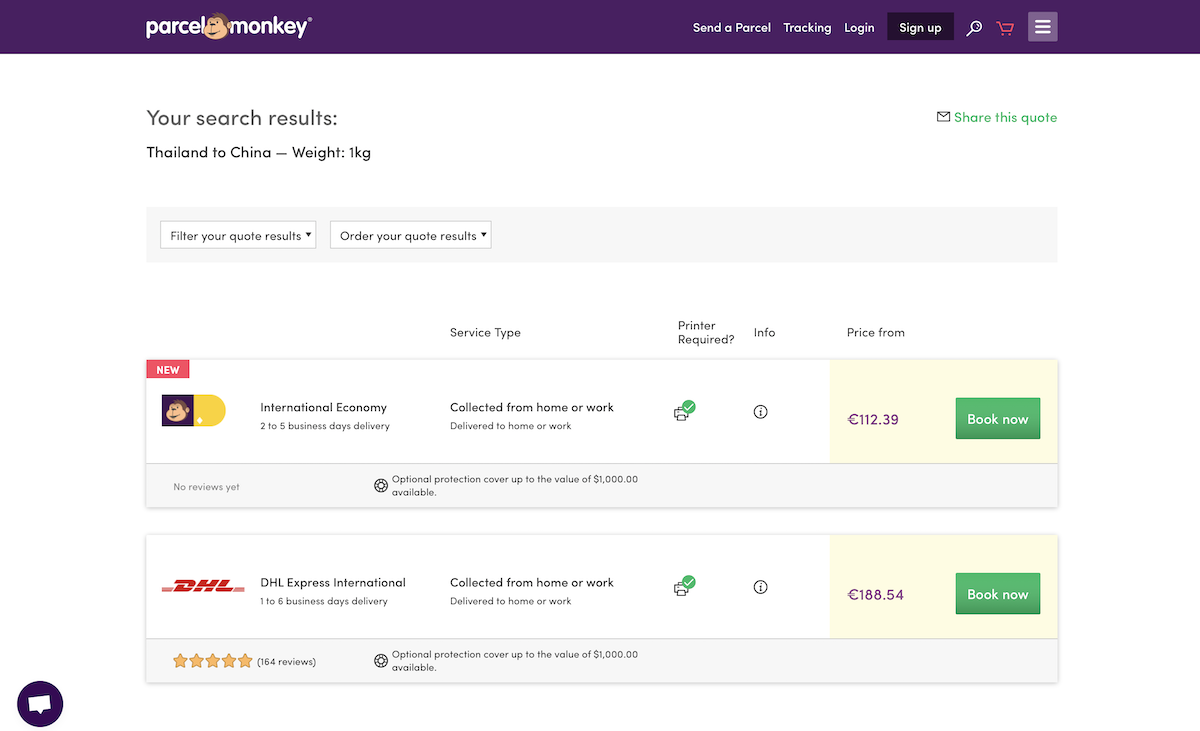
Parcel Monkey

for European, American, and international shipping rates

Parcel Monkey shipping rate comparison site

One of the few shipping comparison sites that works to and from almost every country is Parcel Monkey. It has dedicated sites for the UK, Spain, Germany, Belgium, Italy, the Netherlands, and the US, each with local pricing for popular shipping services in those countries. And, it can also calculate shipping rates for most other countries—albeit in the currency of the Parcel Monkey country site you visit.

It's focused on DHL, DPD, TNT, and local post office's EMS services, and you may see slightly different services depending on which of their search sites you use.

Secureship

for Canada and international shipping rates

Secureship

Another tool for finding shipping rates to and from almost anywhere is Canadian site Secureship. It's best for Canadian businesses, as its shipping prices are quoted in Canadian dollars and printed shipping labels are designed for Canadian shipping. But, it's also an easy way to get an estimate on what FedEx and UPS would cost to and from almost anywhere—just remember to convert to estimated cost to your local currency from the quoted Canadian dollar price.

ShipGooder

for US and Canada shipping rate comparison

shipgooder

For quick, discounted shipping price comparison from the US and Canada, ShipGooder is a great tool to try. It recommends both the cheapest and quickest options so you can pick what works best for you. And, with a ShipGooder account, you can get discounted rates on USPS shipping for an even more economical shipping option.

eBay Shipping Calculator

for simple shipping rates from the US

eBay Shipping Calculator

Perhaps the quickest tool to use to calculate shipping from the US is eBay's Shipping Calculator. Enter quick info about your package, then estimate the weight with a slider where you can pick the rate of a basketball, toaster, or other common items. It then shows rates for USPS, FedEx, and UPS to common destinations in that area for a rough estimate of what shipping will cost for your international orders.

FitShipper

to find the best package size and shipping rates

FitShipper

Unsure what size of box would be the most economical to ship? FitShipper can help. Tell it the size and weight of your product, its destination country, with how much padding it needs, and the shipping class you want. FitShipper then finds the best standard package size, and estimates the price with the USPS.

Find the Best Shipping Price for Every Order, Every Time

ShipStation
Shipping services for your store can help you find the best shipping rates for every order (ShipStation pictured)

If you want to always find the cheapest shipping option for each order, the best option is to use a paid shipping service. These tools integrate with your eCommerce platform and automatically find the cheapest shipping option for each product and printing shipping labels for each order. You need a subscription to the shipping service, but will likely make it back in the time and money saved on shipping.

Some popular tools that let you compare shipping rates include ShipStation, ShipWorks, Shipwire, RocketShipIt, XPSship, ShippingEasy, and Ordoro. Most of those are focused on US businesses—be sure to look around for similar services designed for your market if you’re shipping from outside the US.

The most important thing is that your shipping service connects to your eCommerce platform to directly calculate shipping for every order. ShipStation, for example, connects to Shopify, BigCommerce, and WooCommerce, along with marketplaces like Ebay and Etsy, to find shipping for all of your orders in one place. Be sure to check your eCommerce platform's add-ons or app store for shipping services, as the ones that integrate with your store will be the most helpful for your business.

Find the Best Shipping Costs from Favorite Carrier

USPS shipping rate calculator
Check prices online for your default carrier—and compare them to others in separate tabs (USPS pictured)

When all else fails, you can always compare shipping prices on your own—and it's not that hard. Odds are, you'll have a handful of options for easy shipping: Your local postal service, and a few international parcel carriers like FedEx or DHL.

There's a quick rule of thumb you can use, too. For express shipping inside the US, Steve Chou from My Wife Quite Her Job has found that UPS and FedEx are cheaper for packages over 2 pounds, while the USPS is cheaper for packages under 2 pounds. Flat rate boxes can be cheaper, too, for small heavy objects. "If you need a large flat rate Priority Mail box, make sure it’s heavier than 7 lbs," says Chou. "Otherwise, FedEx or UPS Ground will always be cheaper."

You could run with that and only check one site—but it still might be worth comparing a few services. Just open a tab for each service you want to check, and enter your package size and weight into each one. It'll take a bit more time, and you'll have to manually compare each option, but you'll get the most options to choose from.

If you need help comparing, just copy the data into a spreadsheet to quickly sort and compare. And if you have a number of similar sized packages, you could go with the cheapest option for the first package for the rest for a quick way to get decent priced shipping without having to check each package individually.

Here are the websites to check shipping prices with some of the largest national postal services:

You can find your national postal service's website at Wikipedia's list of postal services—and typically the shipping price tool is listed on the front page.

Then—especially for larger packages—it's worth checking an alternate shipping service to see if it's cheaper. Here are the links to check shipping rates from a half-dozen of the largest carriers:


Learn Everything You Need to Run a Store

The Ultimate Guide to eCommerce

Running an eCommerce site is a tough job, one that requires a wide variety of tools in addition to shipping services. You'll need an app to run your store, another to process payments, and others to manage shipping, accounting, and more. And, you'll need workflows to tie it all together so you don't spend all your time copying order info back and forth.

We've got the book for you. In our Ultimate Guide to eCommerce Software book, you'll learn everything you need to run an online store. From tips on starting your own business to detailed tutorials on the best eCommerce software, it's the resource that'll help you keep your store running.

And best of all, you can download a copy for free!

Originally published December 8, 2016; updated November 5, 2018

FedEx Express plane photo by Christian Junker via Flickr.


source https://zapier.com/blog/compare-shipping-rates/