Thursday, 28 February 2019

The 12 Best Android To Do List Apps For 2019

You never know when you're going to come up with an idea or remember something you need to do later. So it's really important that whatever to do list you use works well on your phone, the device you most likely have near you at all times.

But Android doesn't come with any sort of to do list, meaning users have to find something to manage their tasks on their own. You can head to Google Play but the 300+ options get overwhelming quickly. Which one of these apps are any good? We've done the research for you; here's what we've found.

What Makes a Great Android To Do List App?

The best to do lists stay out of your way so you can enter something and get back to what you were doing, but they also let you quickly find those tasks later when it matters. Designing something that does this well is tricky, because there are multiple factors to consider. In our experience, the best Android to do lists:

  • Offer multiple ways to organize tasks, such as tags, lists, due dates, or projects.
  • Make it quick to add tasks.
  • Remind you about self-imposed deadlines.
  • Offer a clean Android interface, with native features like notifications and widgets.
  • Sync tasks to your other devices.

We tried every highly rated application that met our criteria; here are the ones that stand out, and why.

In this article:

  • Todoist: Best Android to do list app for balancing power and simplicity
  • Tick Tick: Best Android to do list with calendar and Pomodoro integrations
  • Microsoft To-Do: Best Android to do list for Microsoft power users (and Wunderlist refugees)
  • Google Tasks: Best Android to do list for users of Gmail's integrated tasks
  • Google Keep: Best Android to do list that integrates with Google products
  • 2Do: Best Android to do app for organizing tasks however you like
  • Habitica: Best Android to do app that makes doing things fun
  • Simpletask: Best plaintext Android to do list app
  • Any.do: Best Android to do app for people who forget to use to do apps
  • Remember The Milk: The best Android to do list for old school power users
  • Nozbe: The best Android to do list offering project templates and collaboration

Todoist (Android, iPhone, iPad, macOS, Windows, Web)

Best Android to do list app for balancing power and simplicity
Todoist for Android

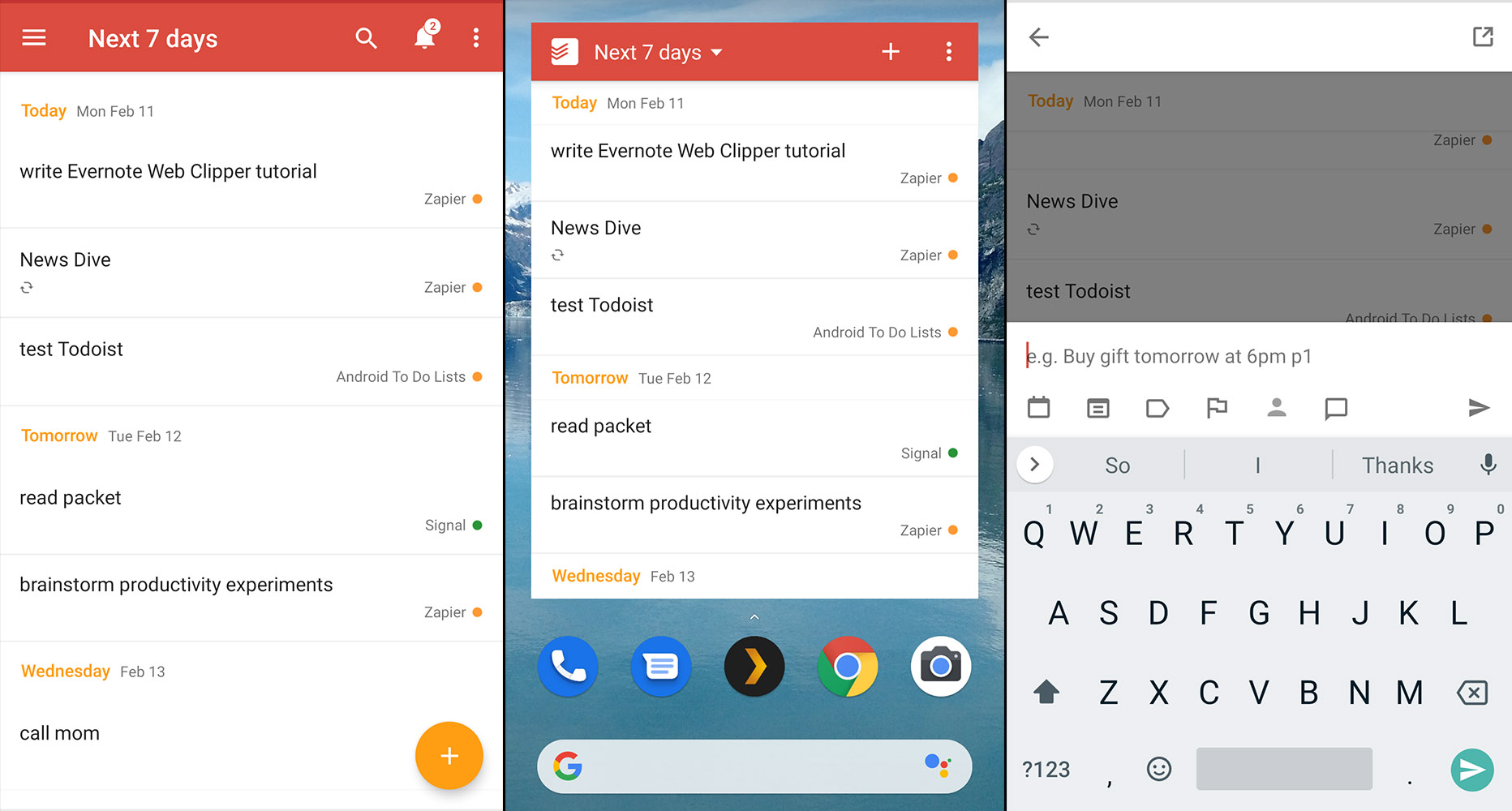
Todoist is probably the best known to do list on the market right now and with good reason. It's available for basically every platform on earth, meaning syncing to other devices is not a problem. The interface is a compromise between ease-of-use and power, meaning you can organize tasks however you like without feeling overwhelmed. And adding new tasks is quick thanks to features like date recognition—type "clean out my inbox Thursday" and a task called "clean out inbox" will be added due on the upcoming Thursday. Tasks can be organized using projects, due dates, labels, and filters. You can also integrate Todoist with other applications using Zapier, meaning you can connect your to do list with over 1,000 other apps.

The Android version builds on all this while managing to feel right at home on your phone, thanks to a Material-inspired interface. A widget lets you see your tasks and quickly add new ones, from your homescreen. Optional notifications let you know when tasks are due, and you can even see a summary of today's tasks every morning if you want. All of this makes Todoist a great to do list app to try out, even if you don't quite know what you're looking for in a to do list app.

Todoist price: Free; some features, including labels and attachments, require a subscription that starts at $3 a month.

TickTick (Android, Windows, macOS, iPhone and iPad, Web)

Best Android to do list with calendar and Pomodoro integrations

Tick Tick for Android

TickTick is a lesser known app, but one well worth paying attention to. The design looks spartan to start, but don't be fooled: This is a surprisingly complete app. Adding tasks is quick thanks to smart date recognition. There are numerous ways to organize your tasks including due dates, lists, and tags. And support for numerous platforms means you can sync all of this to pretty much any device you own.

But TickTick also offers features not seen in other applications. There's a calendar view which can integrate with your Android calendar, allowing you to see your tasks and your appointments in one interface. There are multiple widgets offered for your homescreen: you can see any list or calendar view, then add tasks in just a couple of taps. And TickTick also comes with a built-in Pomodoro timer: Set which task you're working on and start a 25-minute session of focus.

It's a powerful collection of features, and there aren't many downsides. I personally don't love the sound TickTick plays when you complete a task but quickly found a way to turn that off. That's what using TickTick is like: There are plenty of helpful features, but if you don't like something you can probably change it.

TickTick for Android price: TickTick offers a free version. Premium subscriptions, which offer features like white noise for the Pomodoro timer and custom swiping actions, start at $2.40 a month

Microsoft To-Do (Android, Windows, iPhone and iPad)

Best Android to do list for Microsoft power users (and Wunderlist refugees)
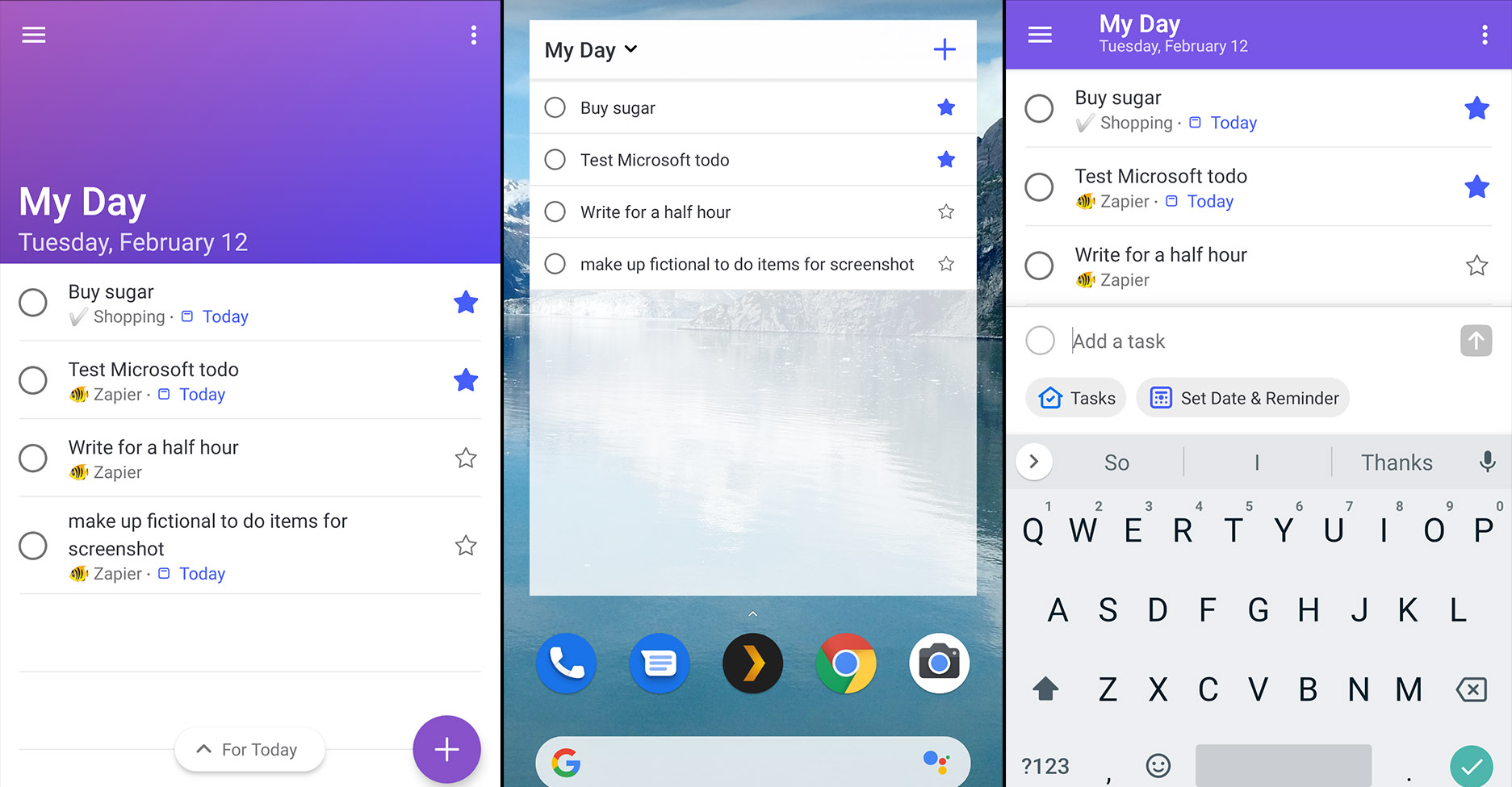
Microsoft To-Do for Android

To-Do is the result of Microsoft buying Wunderlist in 2015. Try it out and you'll see Wunderlist's DNA everywhere, which is to say this is a perfectly pleasant to do app. Tasks can be organized by due dates or in a list. Entering tasks is quick, and there's even a quick add notification you can pin for access from anywhere on your phone. To-Do can also remind you to plan your day in the morning. There are a few visual tweaks you can make, such as a dark mode. You can also set a theme and icon for all of your lists, which can help you keep things organized. And Microsoft To-Do integrations on Zapier means you can integrate your tasks with 1,000 other apps.

But the real killer feature here is integration with Microsoft's ecosystem. "Both Android and Windows users can add tasks to To-Do via Cortana. You can also sync tasks with Outlook, assuming you use the same Microsoft account for Outlook and To-Do.

Microsoft To-Do also offers migration for Wunderlist users, which will prove essential when Microsoft shuts down Wunderlist at an undisclosed point in the future. Some Wunderlist features, such as collaboration, aren't yet offered in To-Do, so some users might want to stick with Wunderlist in the short term. Long term, however, To-Do looks like it could become a solid offering…and it's pretty great right now.

Microsoft To-Do price: Free

Google Tasks (Android, iPhone, Web)

Best Android to do list for users of Gmail's integrated tasks
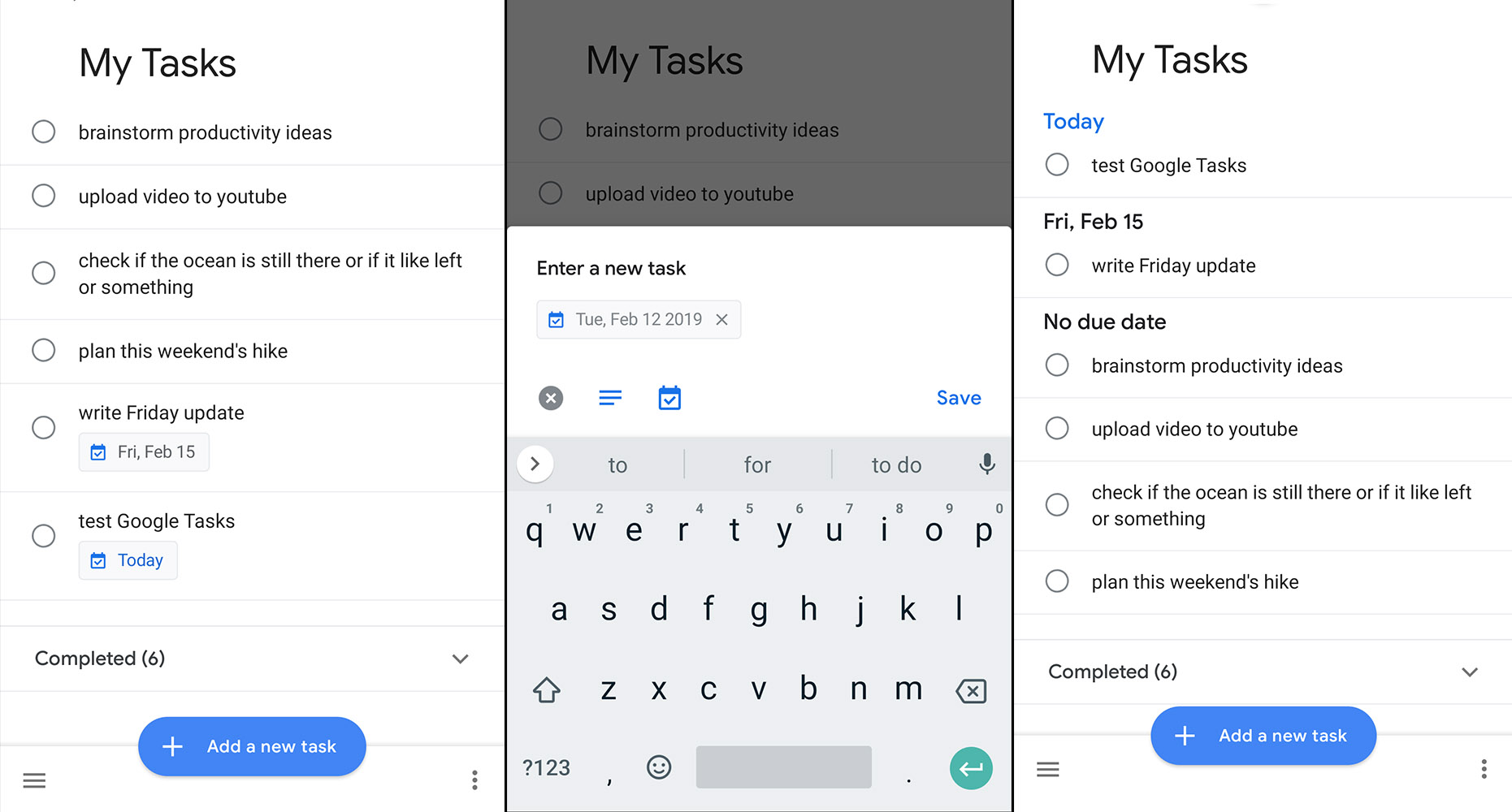
Google Tasks for Android

The web versions of Gmail, Google Drive, and Google Calendar offer a simple to do list in the sidebar. If you use that to do list on the desktop, Google Tasks is the app you're looking for on your phone. All of the tasks you add there will show up in this app.

This is a very spartan app. Tasks can be organized by due date, lists, and…that's about it. There are no widgets, no pinned notifications for entering tasks, and generally not a lot of customization options. You can't even set up Google Assistant to add tasks to Google Tasks. Android is Google's operating system. Google Tasks is a to do app from…Google. You'd think integration with Android would be better.

Having said that you can get a lot of out Google Tasks with some setup. And you can use Zapier's Google Tasks integration to connect this task list with over 1,000 other apps. But the integration with Gmail's and Google Calendar's desktop sidebar alone is what makes Google Tasks worth checking out for committed Google fans (though Google Keep is arguably a better option for power users).

Google Tasks price: Free

Google Keep (Android, iPhone and iPad, Web)

Best Android to do list that integrates with Google products

Google Keep for Android

Google Keep isn't exactly a to do app, but it also isn't exactly not one. Keep, which integrates with the sidebar of Gmail and Google Calendar's web version, allows you to quickly create sticky notes. You can use this for all kinds of things, not just task management, but a few features make this the best Android task management app offered by Google.

First of all you can add a reminder date to any note, which means you can effectively set due dates for tasks and projects. Second, you can add a checklist to any note, allowing you to check off multiple steps in a project. Third, you can see these tasks on your home screen and quickly add new ones, thanks to a couple of widgets.

It's somewhat improvised as a to do list, sure, but in many ways, it works better than Google's own Tasks. Plus you can quickly add photos and other attachments, which makes Keep useful as a reference. If Google Tasks doesn't quite cut it for you, but you don't want to give up on integration with Google services, Keep is well worth a look.

Google Keep price: Free.

2Do (Android, macOS, iPhone and iPad)

The best Android to do app for organizing tasks however you like
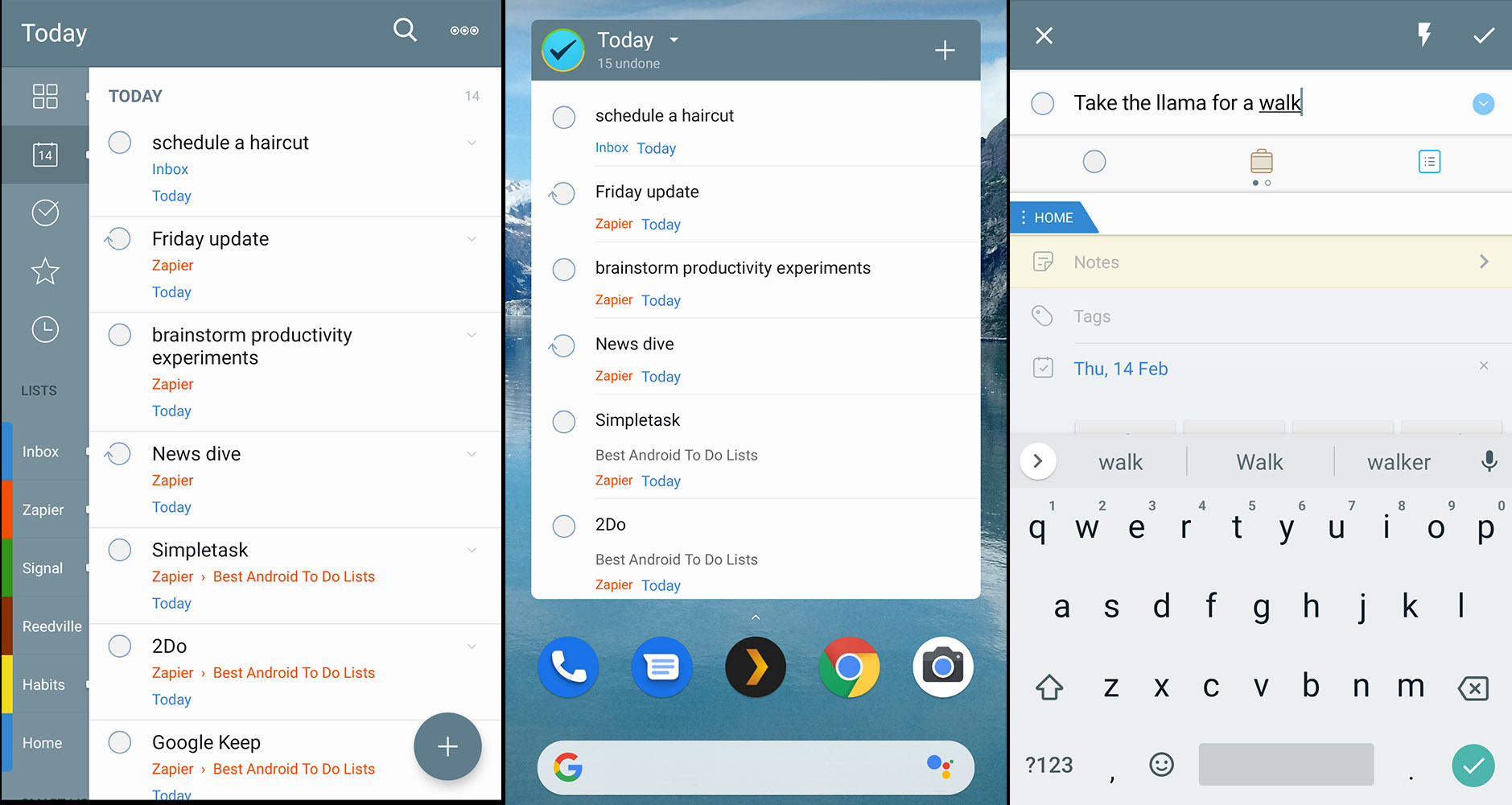
2Do for Android

If you're particular about how your tasks are organized or care about productivity systems like "GTD," 2Do is what you're looking for. This app lets you organize your tasks however you like: Lists, projects, sub-tasks, due dates, tags, and even custom smart lists are all offered. If you have a system in mind, 2Do can probably accommodate you.

The Android version is well thought out, even if the interface doesn't quite feel native. A highly customizable widget means you can see your tasks on your homescreen; an optional pinned notification lets you quickly add tasks. The options allow you to fine tune almost every aspect of how the app works, making this an ideal choice for power users.

Syncing is unique here because there are multiple options. You can sync to the iPhone or macOS version of 2Do using iCloud, Dropbox, Yahoo Calendar, Fruux, Toodledo, or any CalDAV server. The iCloud integration is interesting for any macOS or iPhone user who wants to sync Reminders with Android—this is the easiest tool for that I've found.

There's no Windows version of 2Do as of this writing, which is a downside, though one is on the way according to the developer.

2Do for Android price: Free. The Pro version, which is necessary for syncing, costs $10 after a two-week free trial.

Habitica (Android, iPhone and iPad, Web)

The best Android to do app that makes do things fun
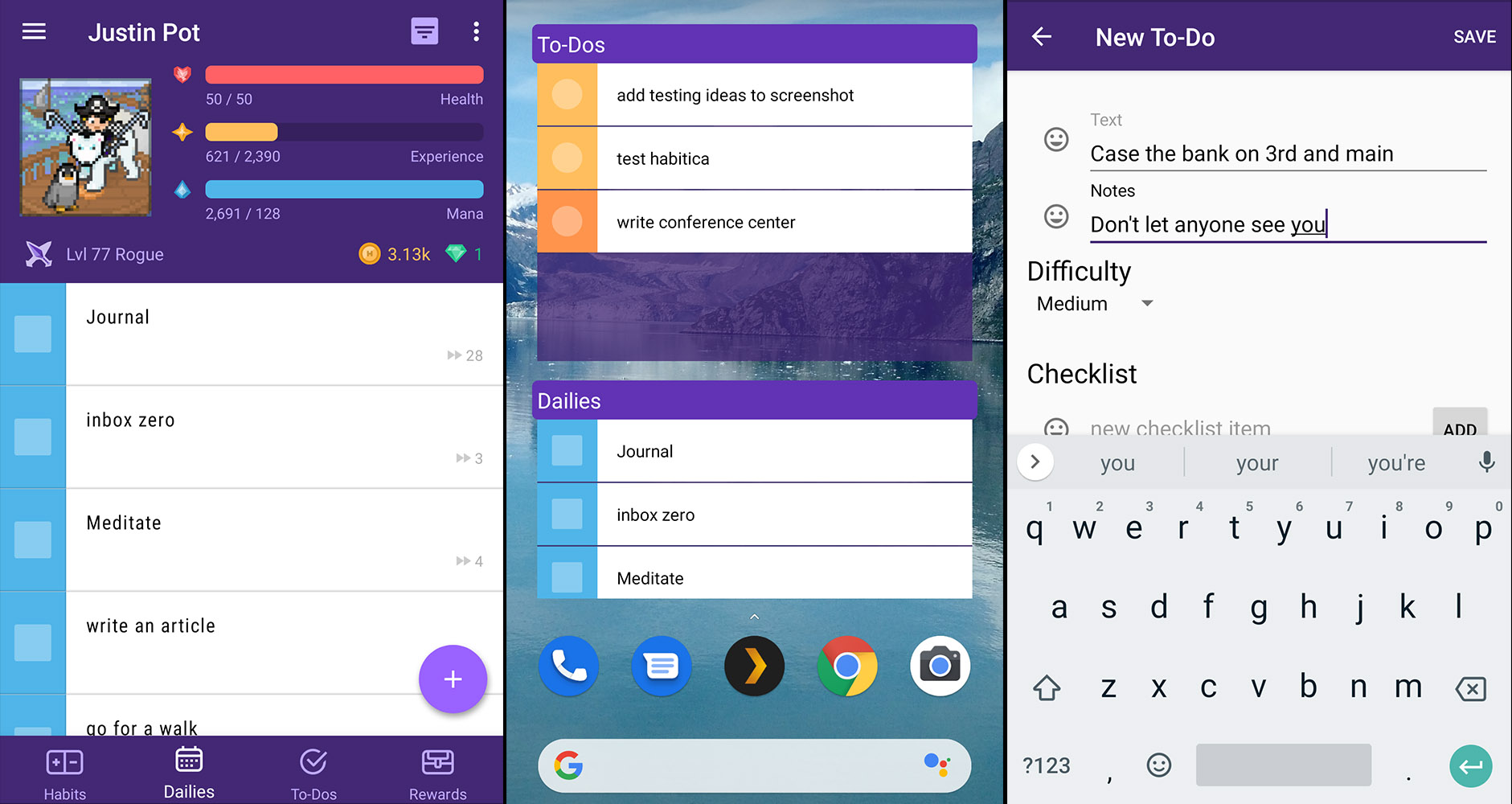
Habitica for Android

Games are fantastic at motivating mundane activity—how else can you explain all that time you've spent on mindless fetch quests? Habitica, formerly called HabitRGP, tries to harness the motivational power of games for good. Users add habits, daily tasks, and to dos to a list. Accomplishing these tasks and building good habits levels up your character and does damage to bosses. It also gives you in-game currency which you can spend on cool virtual items, such as costumes and profile backgrounds. A delightful array of pixel art really sells this whole system, which can make accomplishing things downright addictive. You can also join a party of your friends and fight monsters together. This adds a social dynamic to the motivation, because your friends’ characters might die if you don’t get things done.

The Android app makes it easy to track your tasks on the go. Notifications remind you about your due dates and things like quests. A widget lets you track your tasks and your character's HP from the home screen. The downside: it's hard to use Habitica to manage projects. The to do list is very simple, and the game is designed to motivate you to clear out quickly. There's no way to separate tasks by project, and there aren't any smart lists. If you use Habitica, you'll likely need to use another tool for long-term planning.

Still, Habitica offers a unique way to motivate you to get things done, and the community is one of the friendliest places on the entire internet. Give it a shot if you want something unique.

Habitica Price Free. A $5 per month subscription unlocks features like task histories and exclusive in-game items.

Simpletask (Android)

Simpletask for Android

The best plaintext Android to do list app

There's no reason for to do lists to be complicated—pen and paper work fine for the job, after all. Simpletask uses an old fashioned .txt file to manage your tasks. This is based on Todo.txt, a text-based system for managing your tasks. To summarize: every line in the document is a single task. You can add +projects, @locations, and due dates to each line and set a priority level by beginning a line with a capital letter in brackets. The screenshot above gets some of this across.

Simpletask makes this system manageable on your phone, which is quite the accomplishment. Advanced filtering lets you organize your tasks however you like. A very customizable widget allows you to browse your task from the homescreen. And syncing via Dropbox means you can access your tasks on any other system using a text editor or dedicated apps for those platforms. If you want to try something completely different that outputs to a text file you can edit directly, Simpletask is what you want.

Simpletask price: Free

Any.do (Android, iPhone and Android, Web)

Any.do for Android

Best Android to do app for people who forget to use to do apps

Any.do is, in a word, slick. The user interface is very clean. The application offers to manage both your calendar and your to do list, and adding tasks and appointments is quick. There are a number of helpful automations offered; for example, Any.do can optionally help you plan your day. This means that, every morning, the app will go over your tasks due today and help you schedule when to do them.

There are also all sorts of integrations with your phone as a whole. The app can spot your missed phone calls, for example, and remind you to follow up on them. The app can also pull in appointments from the default Google calendar, allowing you to see your tasks and your schedule all in one place. This also helps with planning your day. There's a system-wide notification you can enable to see which task to work on next and quickly add new tasks. There's also a beautiful widget, with calendar and task views, offered in both light and dark shades. If other to do lists just don't work for you, Any.do could very well be the one that does.

Any.do price: Free. The premium version, which offers color coding, location-based reminders, and recurring tasks, costs $2.99 per month.

Remember The Milk (Android, iPhone and iPad, Web)

The best Android to do list for old school power users

Remember The Milk for Android

Remember The Milk has been around so long that it's easy to forget about—but forgetting about it would be a mistake. This remains a very powerful to do application on the web, and the Android application brings that power to your phone. The deceptively simple user interface allows you to organize your tasks using lists, due dates, tags, geotags, and custom smart lists. The collaboration features make it easy to coordinate with other users. And adding new tasks is quick thanks to date, list, and tag recognition. Zapier's Remember The Milk integrations means you can connect your to do list with over 1000 apps.

The Android app syncs with the web version of Remember the Milk, obviously, but can also potentially sync with Microsoft Outlook, meaning you've got options. Remember The Milk also offers features like reminders and widgets, though only to Pro users. Remember The Milk is a flexible to do system that's really quick to use, so give it a shot if you find other options bloated or lacking in the customization department.

Remember The Milk Price: Free, but some features including subtasks, reminders, and widgets require a $39.99 per year Pro subscription.

Nozbe (Android, Windows, Mac, Linux, iPhone and iPad)

The best Android to do list offering project templates and collaboration
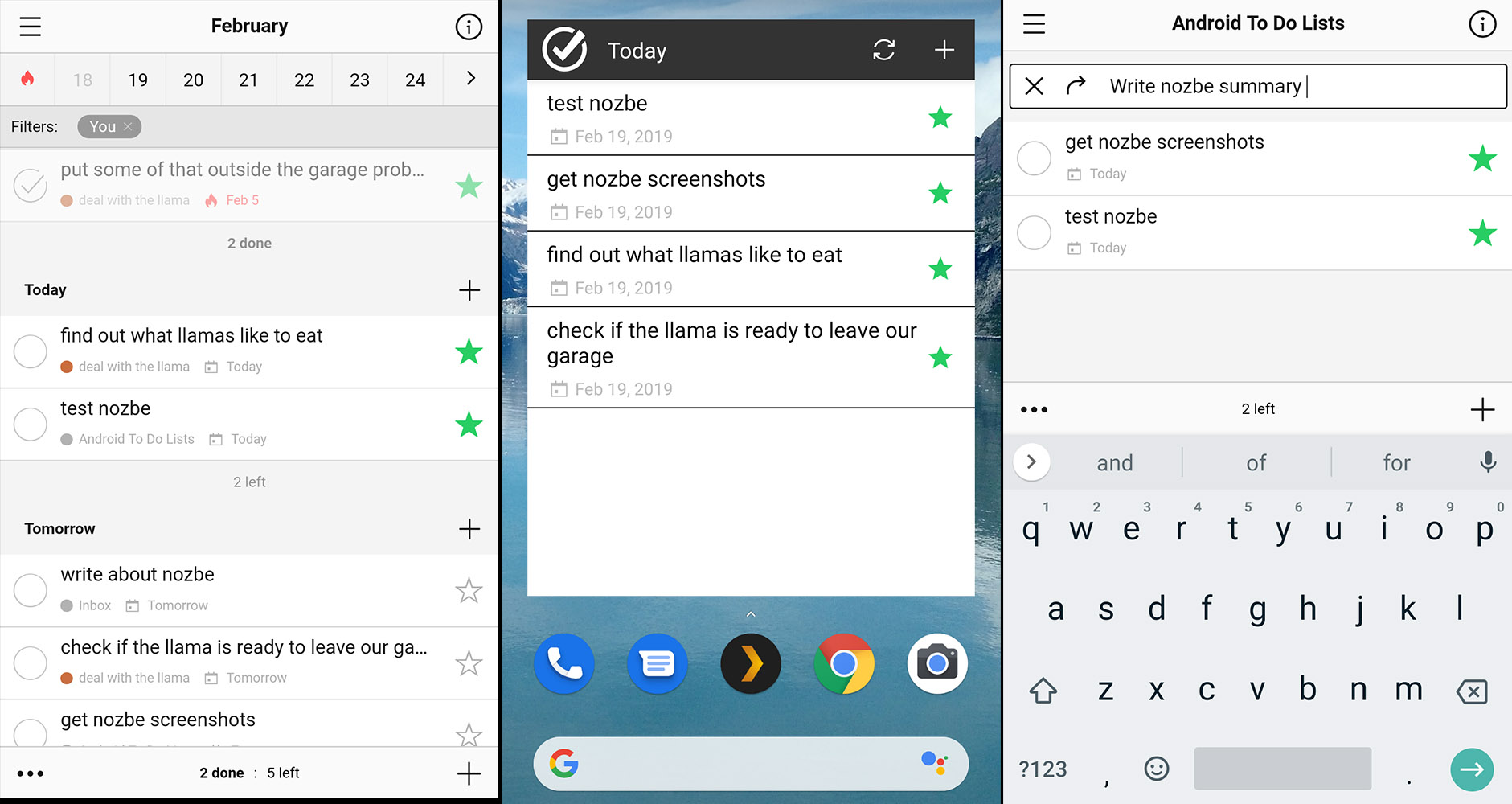
Nozbe for Android

Nozbe isn't the most famous to do list app on the market but it is feature complete. Tasks can be organized using due dates, projects, categories, and tags. There are also templates for projects—useful if you tend to do similar projects with some frequency. A plethora of collaboration features make it easy for teams to manage projects

Nozbe for Android's interface offers pretty much everything that the web version does. You can swipe right to complete a task and left to set the time needed for the project; you can also customize what this swiping does in the settings. There's an optional dark mode, perfect if you find bright white annoying. Optional widgets let you see your tasks from your homescreen or quickly add a new task. There's also an optional pinned notification for quickly adding tasks. Overall Nozbe is well worth checking out for teams who need to co-manage projects.

Nozbe price: Subscriptions start at $8 a month, and there's 30-day free trial.

A Few Other Options

There are a few other options that didn't quite make this article but are still worth mentioning. Here they are:

  • Trello isn't a to do list per se but you can use it to organize your life and there's an Android app.
  • Google Assistant can keep track of basic to dos: just say "Note to self" or "Make a note" to get started.
  • Evernote, OneNote, or any other note taking application can work very well as a to do list, and most offer an Android app.
  • Wunderlist used to be a no-brainer for lists like this, and it is still quite nice. The problem: Microsoft bought Wunderlist and is shutting it down at an undetermined point in the future, making it hard to recommend. The intended replacement, Microsoft To-Do, is outlined above. It offers migration tools, so you could use Wunderlist for now and migrate later, when Microsoft forces you to.


source https://zapier.com/blog/best-android-to-do-list-apps/

Wednesday, 27 February 2019

How to Create a Filter in Jira

If you have tons of issues in your Jira projects, it's easy for tasks to slip through the cracks. Jira filters help you sort your issues to quickly find your most important tasks. In this tutorial, we'll show you how to create a filter in Jira.

What Are Jira Filters?

Filters in Jira are used to sort and segment issues by criteria you set. For example, you can use filters to narrow a list of issues down to see only those that are assigned to you, only those of a certain issue type (story, bug, epic, etc.), only those assigned a specific priority, only open issues, and more.

There are more than two dozen criteria you can use to filter your Jira issues, and you can also filter by multiple criteria to view only issues that match very specific conditions.

How to Create a Filter in Jira

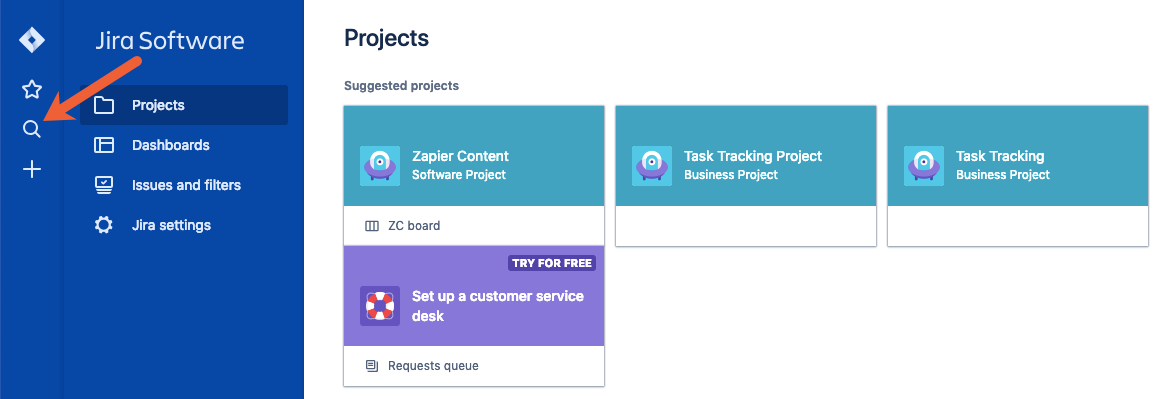
Creating a filter in Jira starts by conducting a search. Click the magnifying glass icon in Jira's left navigation menu.

search in Jira

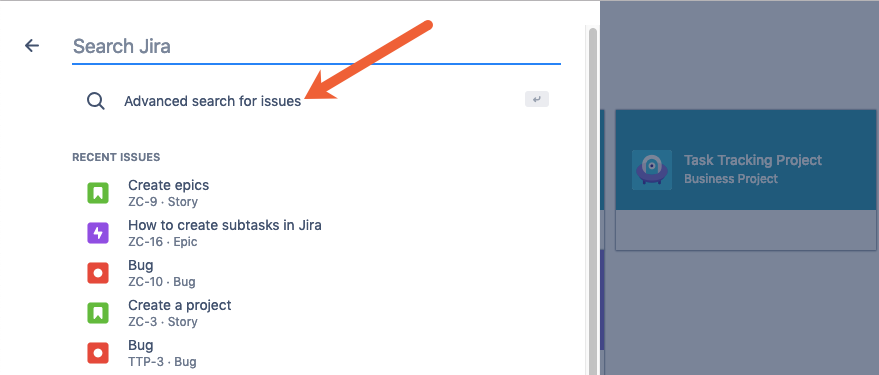
In the panel that opens, click Advanced search for issues just below the search bar.

advanced search in Jira

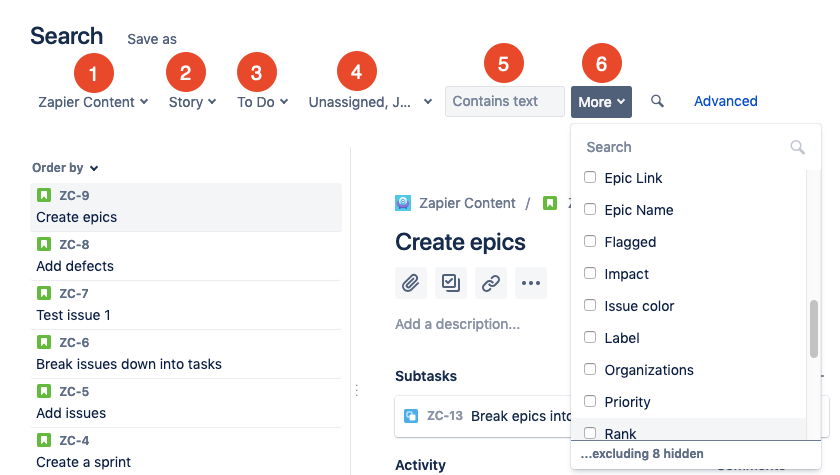
Use the dropdown fields to sort your issues by project (1), issue type (2), status (3), and/or assignee (4). Use the text field (5) to search for issues that contain specific words or phrases. Or click the More dropdown (6) to sort by more than two dozen other criteria like epic name, due date, sprint, or priority. Then, click the measuring glass icon to conduct your search.

filter criteria in Jira

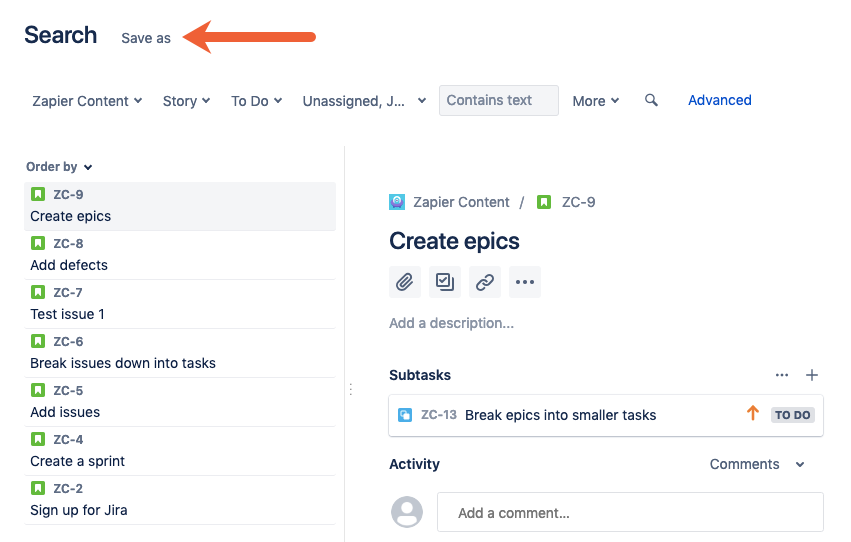
Check your search results to make sure the issues that display are the issues you want to filter for. Then, click the Save as to convert your search criteria into a filter.

save a Jira search as a filter

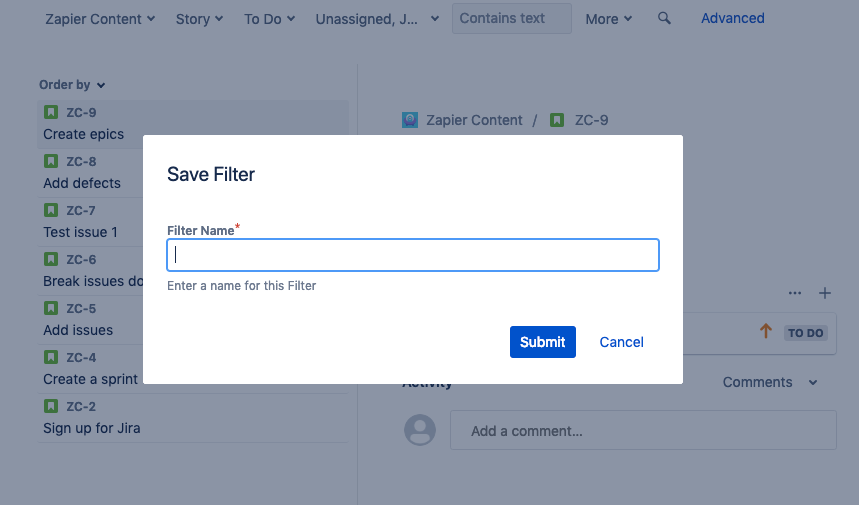
Give your filter a name and click Submit. You've now created your first filter in Jira.

create a filter in Jira

How to Access Your Filters in Jira

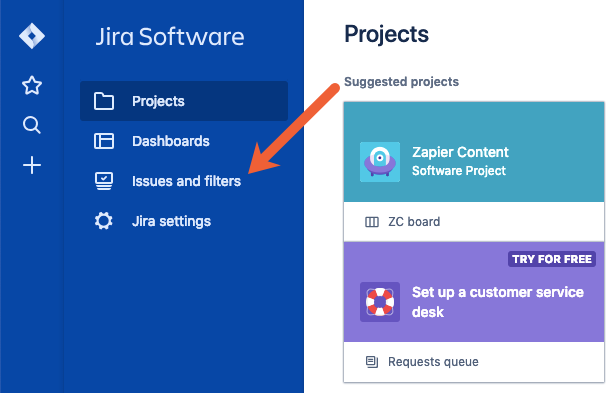
After you've created the filters you need, you can access them by clicking the Issues and filters tab in the left navigation menu.

find Jira filters

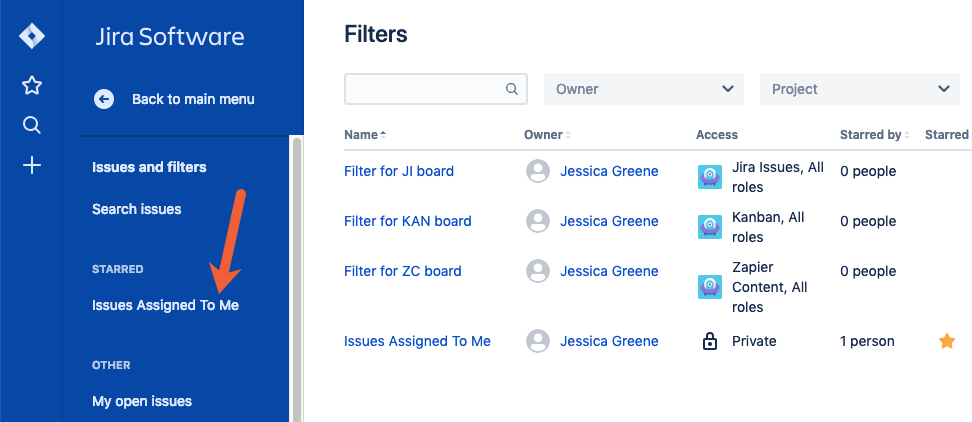
Filters you've created appear under the STARRED section of the left navigation menu.

apply Jira filters

Just click on any filter to display all issues that match that filter's criteria.

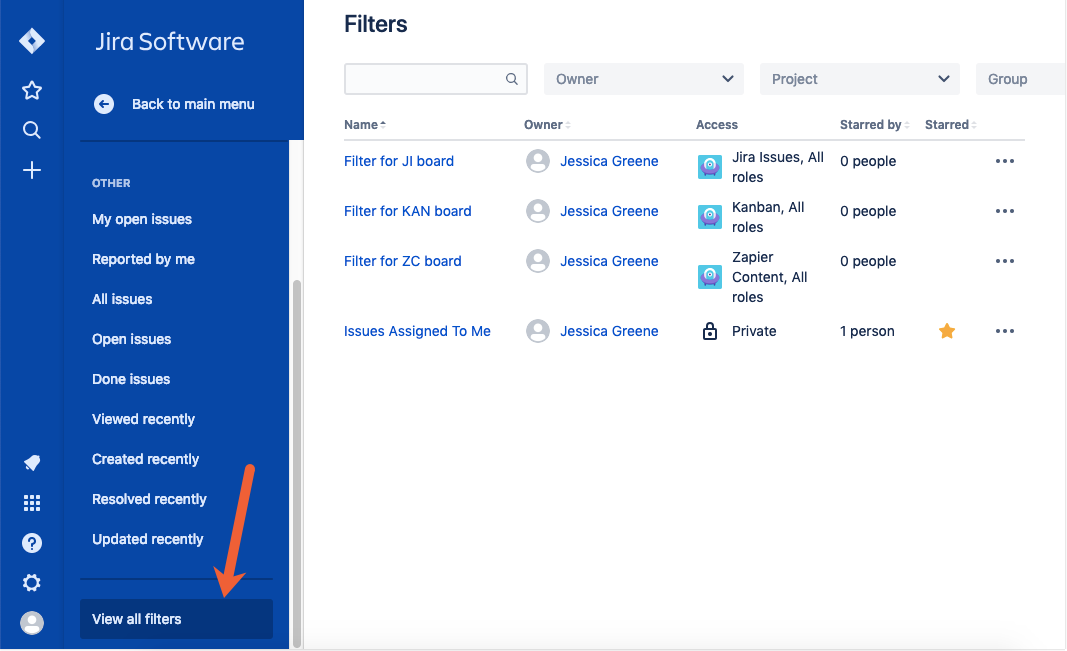
Or you can click View all filters at the bottom of the left navigation menu to open a list of all of the filters you've created.

view all Jira filters

How to Edit Your Jira Filters

If you want to share your filters with others, favorite (star) or unfavorite (de-star) them, or make changes to your filters' names, you can do so from the View all filters screen.

Like you did above, click Issues and filters in the left navigation menu, scroll down, and click View all filters.

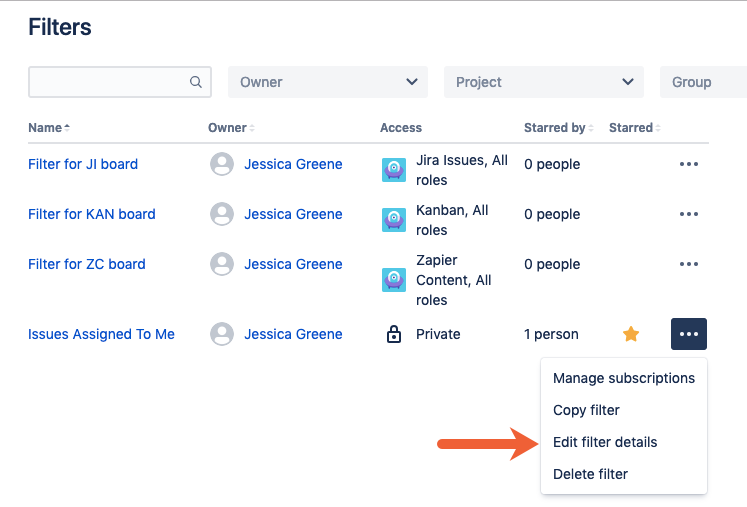
Next, click the three horizontal dots icon next to the filter you want to edit, then click Edit filter details. From this menu, you can also make copies of your filters or delete them if you no longer need them.

edit Jira filters

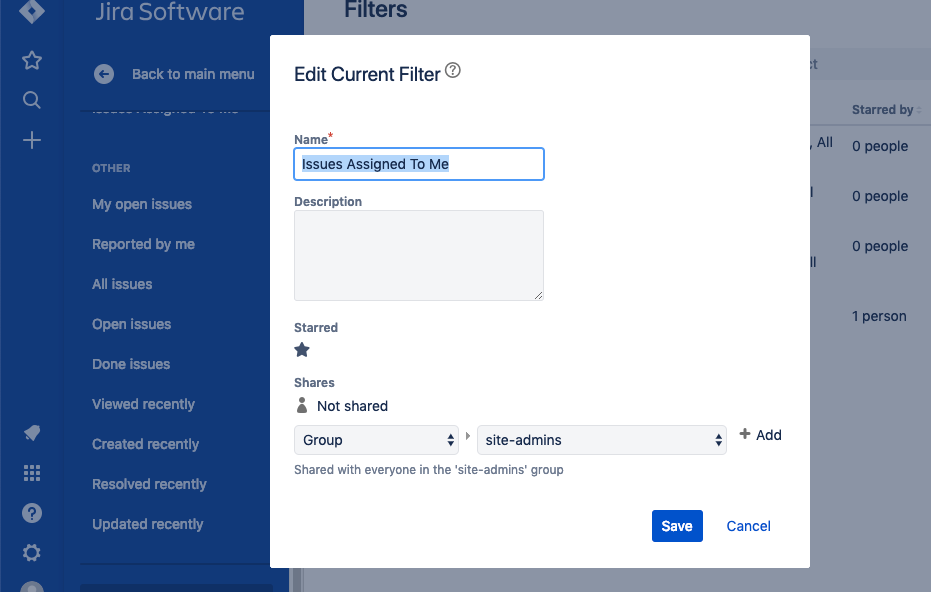
Make the necessary changes in the Edit Current Filter screen, then click Save to apply your changes.

Jira edit filter form

How to Subscribe to a Filter in Jira

Subscribing to a filter in Jira lets you get periodic email updates of issues that match your filter criteria. To subscribe to a filter:

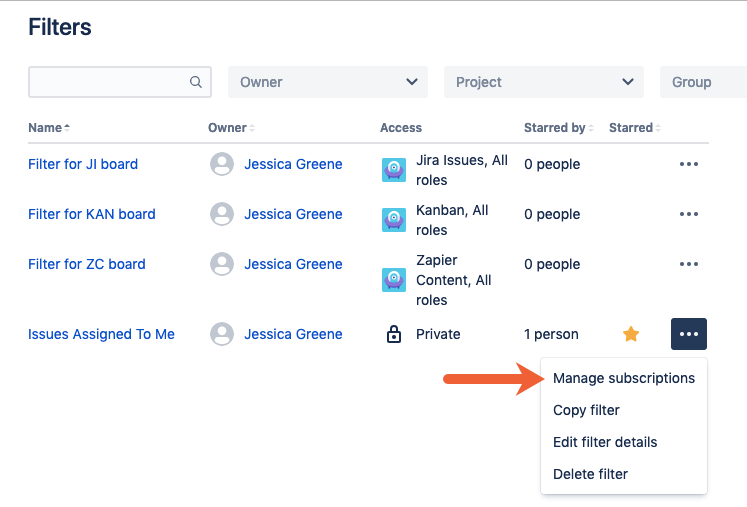
As above, click Issues and filters in the left navigation menu, and then scroll down and click View all filters. Next, click the three horizontal dots icon next to the filter you want to edit, then click Manage subscriptions.

subscribe to Jira filters

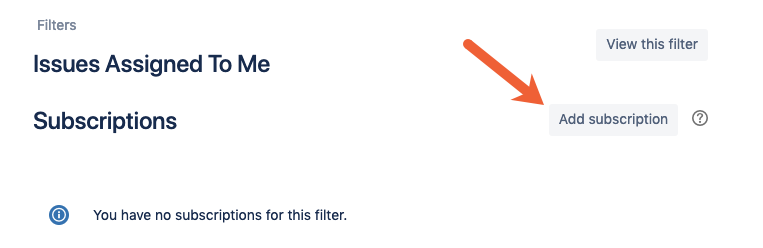
Click the Add subscription button.

add a filter subscription in Jira

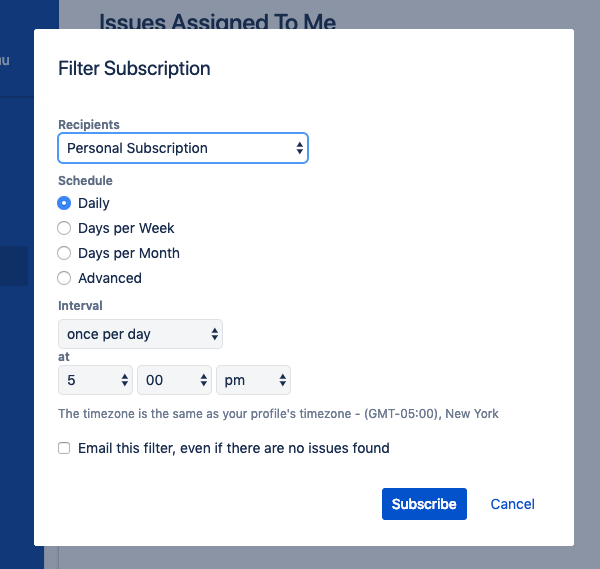
Fill out the overlay form to select email recipients, choose how often recipients receive email updates, and select the time the emails are sent. Then, click Subscribe to create the subscription.

Jira filter subscription form

You can also use these Zaps (automated workflows by Zapier) to get notifications of new Jira issues in Gmail, Outlook, or Slack:

Or if your team works in Jira but you use a different to-do app, use these Zaps to send Jira issues to your preferred project management app:

Browse all of our Jira integrations to connect Jira to 1,000+ apps.


Jira provides teams with a great way to collect and centralize all of their tasks, but a long list of everything everyone needs to do gets unruly quickly. With filters, you can create more customized lists of issues that help you stay on top of the tasks that are important for you.


source https://zapier.com/blog/jira-create-filter/
How to Use Google Drive

Google Drive is an online storage service that gives you 15GB of cloud storage for free. You can use it to store and create documents, share folders and files with other people, or as a middle ground for collecting and transferring data to external services.

What makes Google Drive special is the way it integrates with Google's other apps: Google Docs, Google Sheets, Google Slides, and more. In this tutorial, we'll walk you through the basics of Google Drive:

Google Drive Pricing: Free.

Getting Started with Google Drive

Drive can be used via a browser at drive.google.com, on the desktop using Google's Backup and Sync app, or using the Google Drive apps for iOS and Android. To get started, head to the Google Drive homepage, and create an account or sign in.

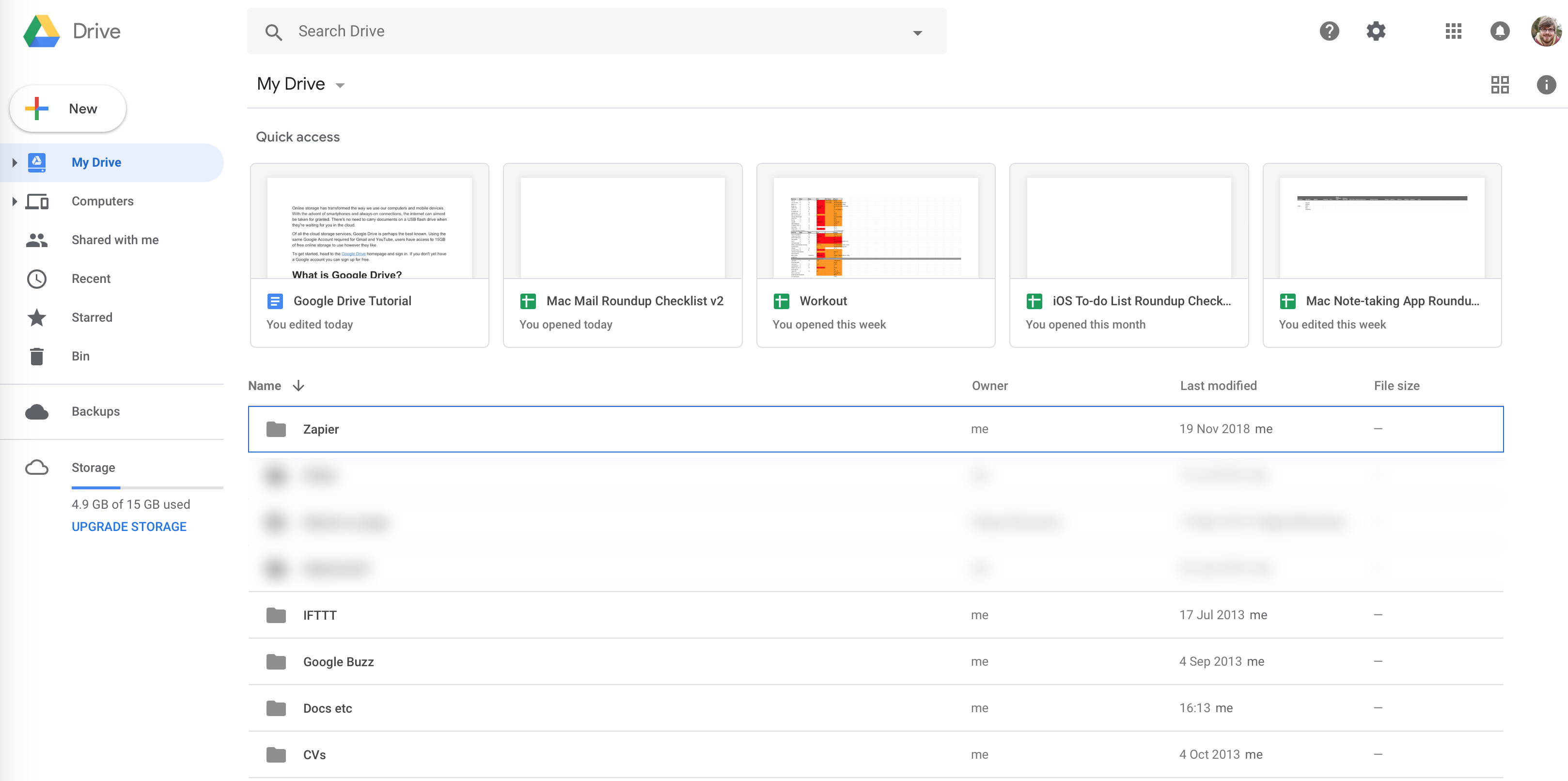
The first thing you'll see is your My Drive view and any folders or files you've already added. At the top will be a list of recently accessed files. If you've never accessed Google Drive, yours will look a little more…empty.

Google Drive initial view

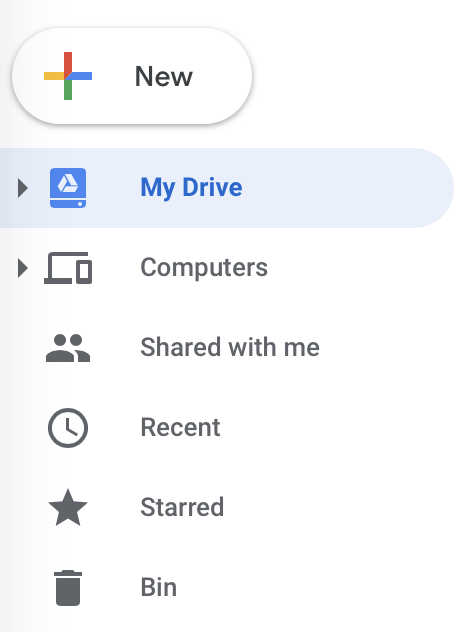
On the left sidebar, you'll see a few useful shortcuts.

  • My Drive: This is your personal storage: files and folders you have personally created or uploaded. Clicking it will return you to your root folder. Click on the arrow to expand its contents.
  • Computers: If you've installed Google's Backup and Sync app on a computer, it will show up here. This option is useful if you have multiple computers and would like to transfer files between them.
  • Shared with me: Sometimes people will share files and folders with you personally. When you are given permission to view or edit a new document, it will appear here. Use this option to quickly access files and folders that aren't your own.
  • Recent: A descending list of recently-accessed files. A file appearing here doesn't mean it was recently changed, only recently opened.
  • Starred: You can "star" any item in your Google Drive for quick retrieval later. Right-click on any item in your Drive, and select Star to add it to the list. Think of it like a favorites system for your files.
  • Trash/Bin: Anything you have deleted will be moved here, where it can be restored if you want. The trash is only permanently deleted when you manually empty it using the button at the top of the screen.

How to Create and Upload Folders in Google Drive

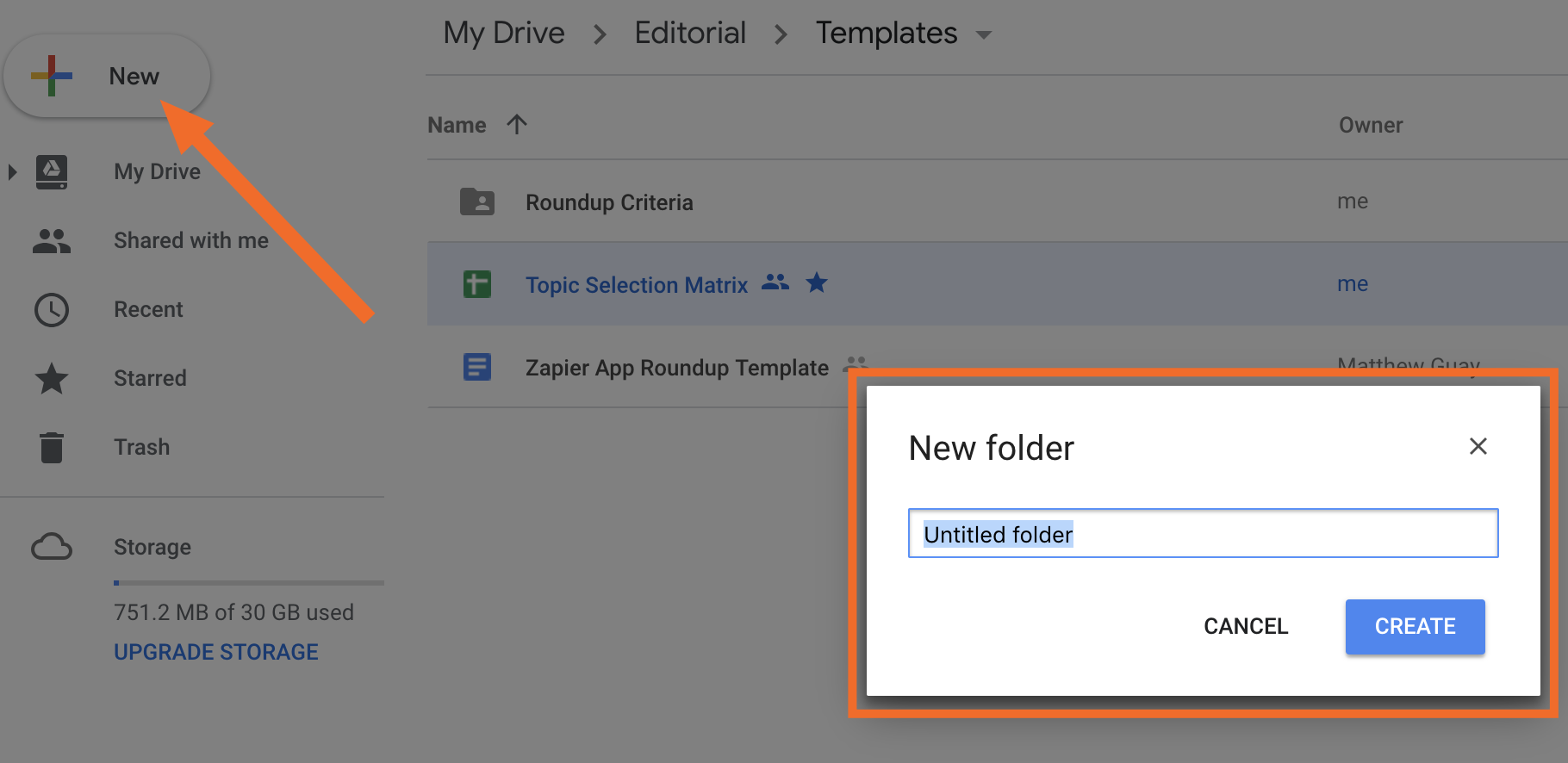
Creating folders will help you better organize your files. To create a folder, click New, and select Folder. In the box that appears, give your folder a name, and click Create.

Creating a new folder

Once you've created the folder, you can open it by double-clicking.

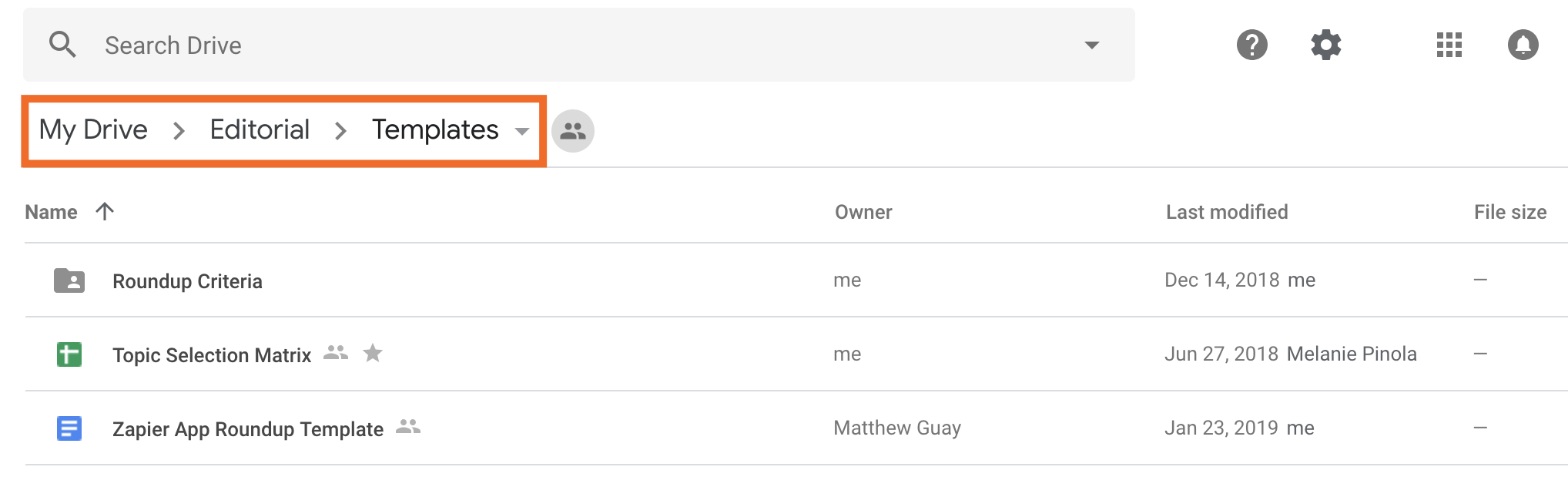
When you're inside a folder, you'll see any subfolders and files in that folder as well as the current path to the folder displayed along the top of the screen. You can click on any part of this path name (e.g., My Drive) to move around your Drive.

Breadcrumbs in Google Drive

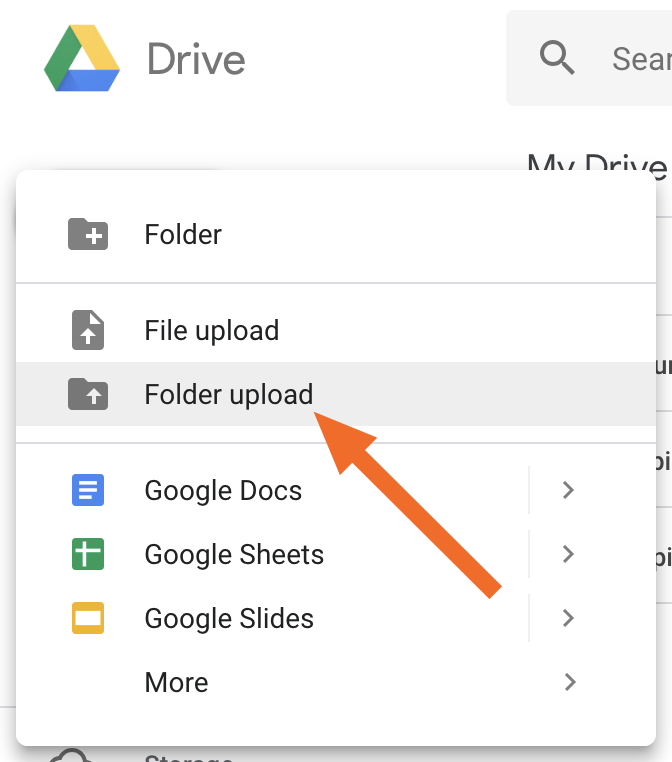
If instead of creating a new folder, you want to upload a folder and its contents from your computer, click New > Folder upload, and then select the folder from your computer.

If you're using Google's Chrome browser, you can drag and drop an entire folder into your Google Drive, and any folders within your folder will be preserved within Google Drive.

How to Create and Upload Files in Google Drive

Folders are great for organization, but files are the bread and butter of Google Drive.

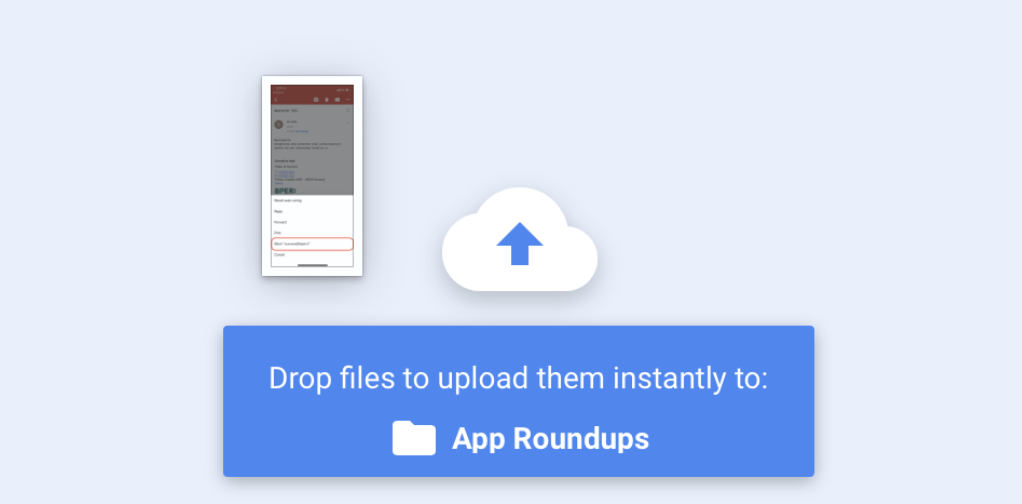
To upload an existing file, click New > File upload and select the file you want to upload. Alternatively, you can find the file on your computer (in Finder/Explorer or on your desktop), and then click and drag it into the browser window. You should see an on-screen notification informing you that your file is ready to be uploaded. Release the click to start the transfer. Files will be uploaded to whatever folder you are currently viewing.

Upload file

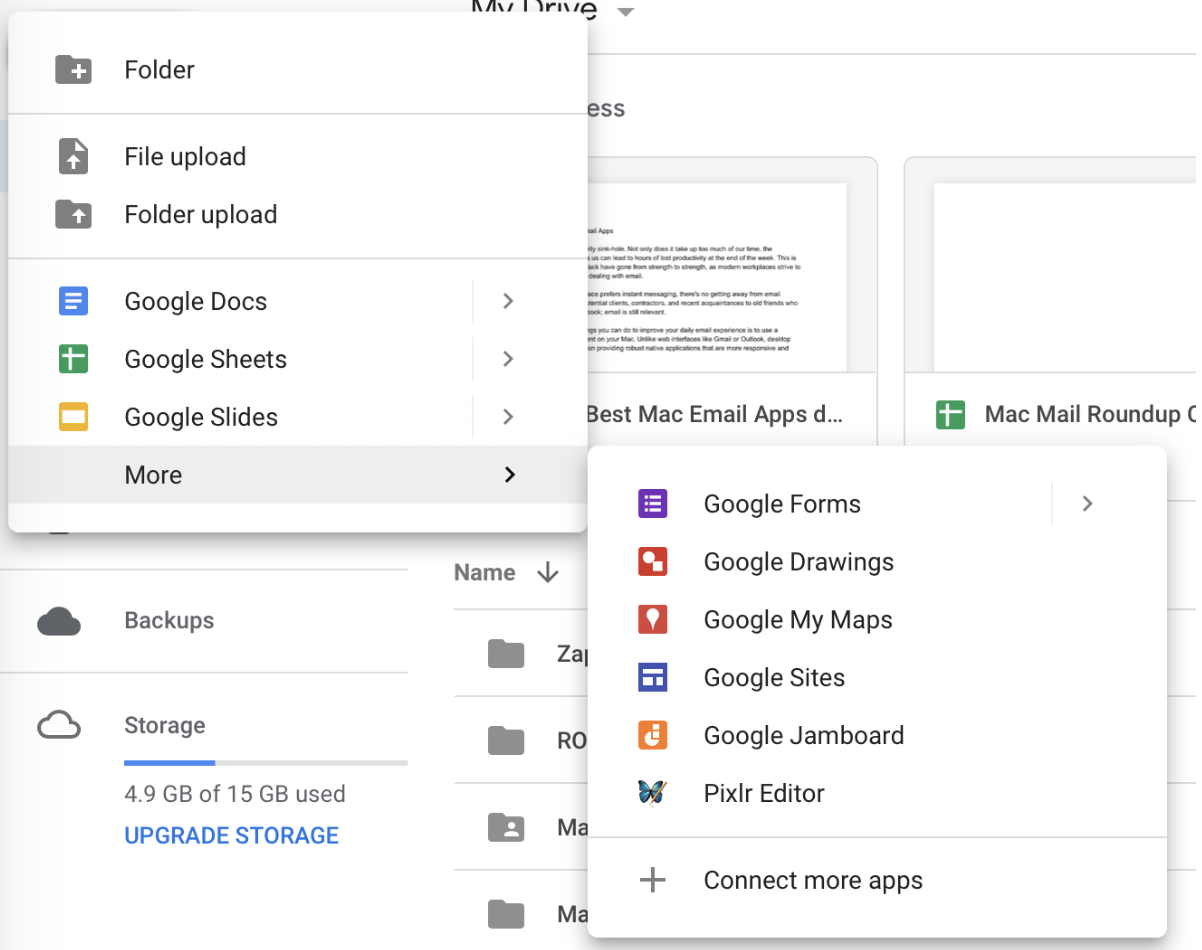
If you want to create a new file—not something that already exists on your computer—click New, and then select the type of file you want: Google Docs (word processing document), Google Sheets (spreadsheet), or Google Slides (presentation). If you hover over More, you'll see several other options, including Google Forms, Google Drawings, and Google Sites. Any third party web apps you have connected will also appear in this list.

Create a file of any kind from Google Drive

When you create a new file, Google Drive will pass the baton to the app in question. Your file will open in a new tab using the correct G Suite app (e.g., Google Docs or Google Sheets). That new app is still using Google Drive as the storage medium, but you're working within a different app to edit the file.

How to work with Word, Excel, and other file types

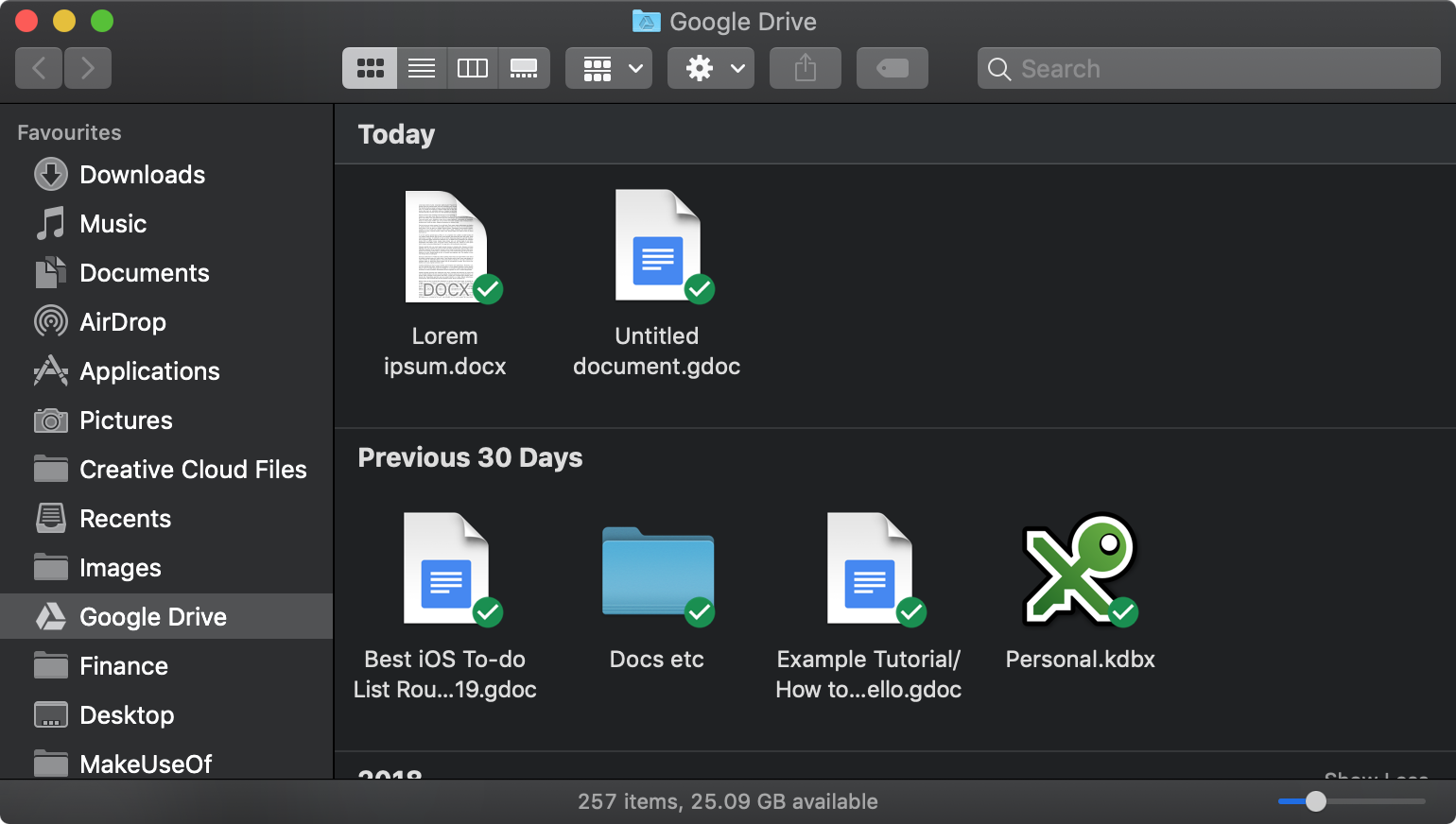
If you've uploaded a file from Word, Excel, or another non-Google application, you can preview it by clicking double-clicking on the file.

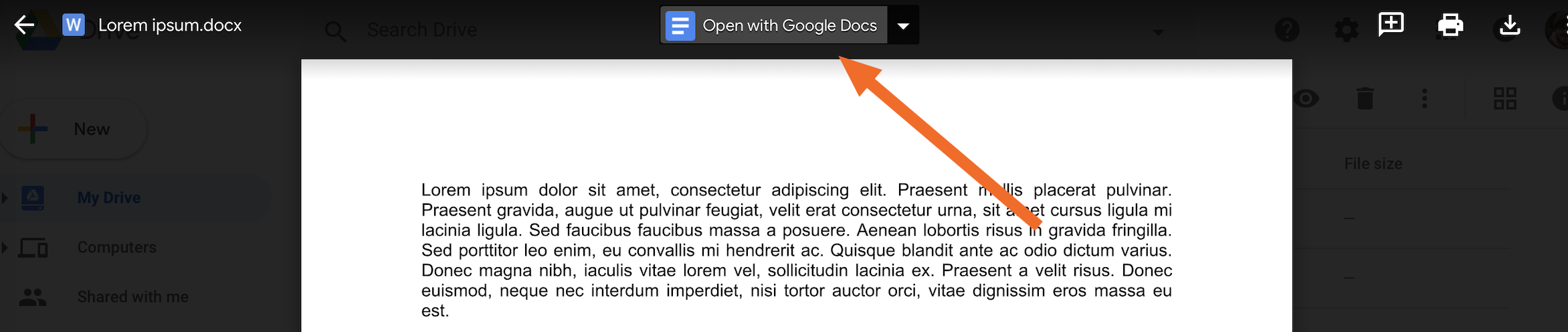
At the top of the preview window, click Open with Google Docs (or Open with Google Sheets for a spreadsheet), and your file will be converted to a Google file.

Preview

This new file will be editable in the target app. There may be some compatibility issues with certain elements—especially formatting—but most functions should work the same. (You can convert and download your file back to its original format under File > Download as in your chosen app.)

The new file will be saved in the same folder as the original file—and the original file will be maintained as well. You'll know it's the Google version because of the icon next to it.

How to Move Files and Folders in Google Drive

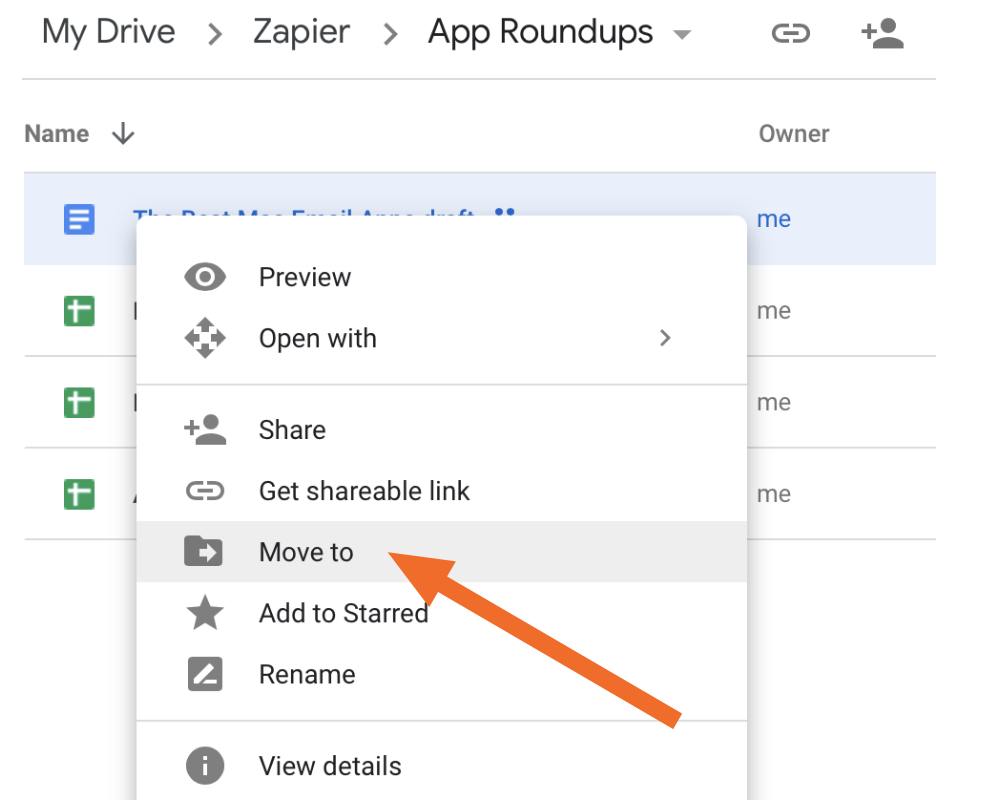
You can move files and folders around in Google Drive by dragging and dropping them to whichever folder you want. Or, you can right-click and choose Move to. Then you'll have the option of where you'd like to move the file or folder.

Move to

How to Download Files and Folders from Google Drive

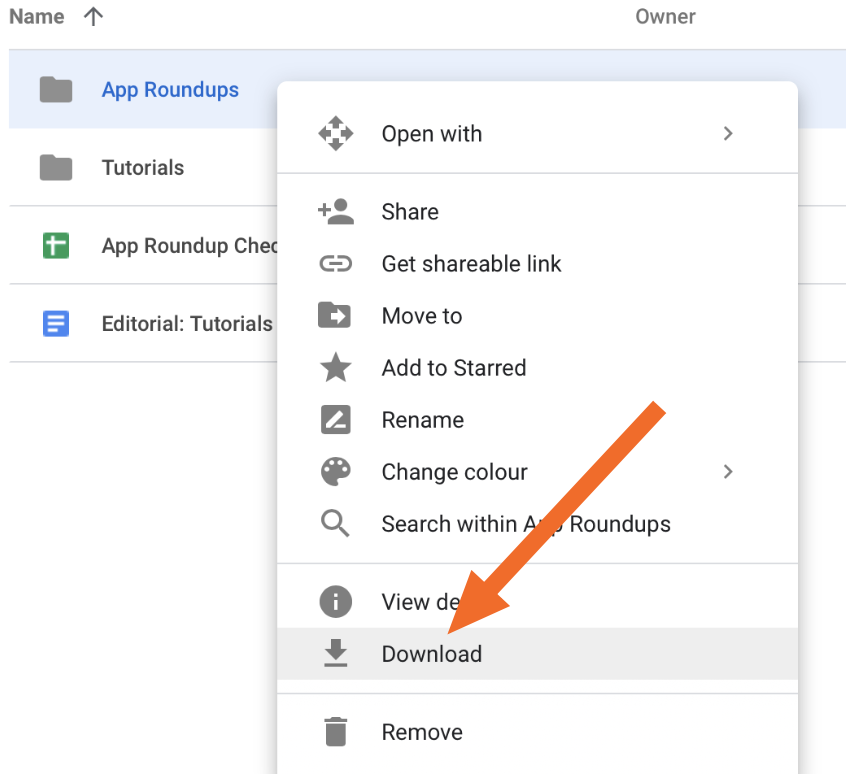
If you have a file in your Google Drive that you want to download to your computer, right-click it, and choose Download. You can download folders this way, too: Google Drive will compile them into a .ZIP archive, which you can expand in a click from Finder/Explorer.

Download a file

How to Search in Google Drive

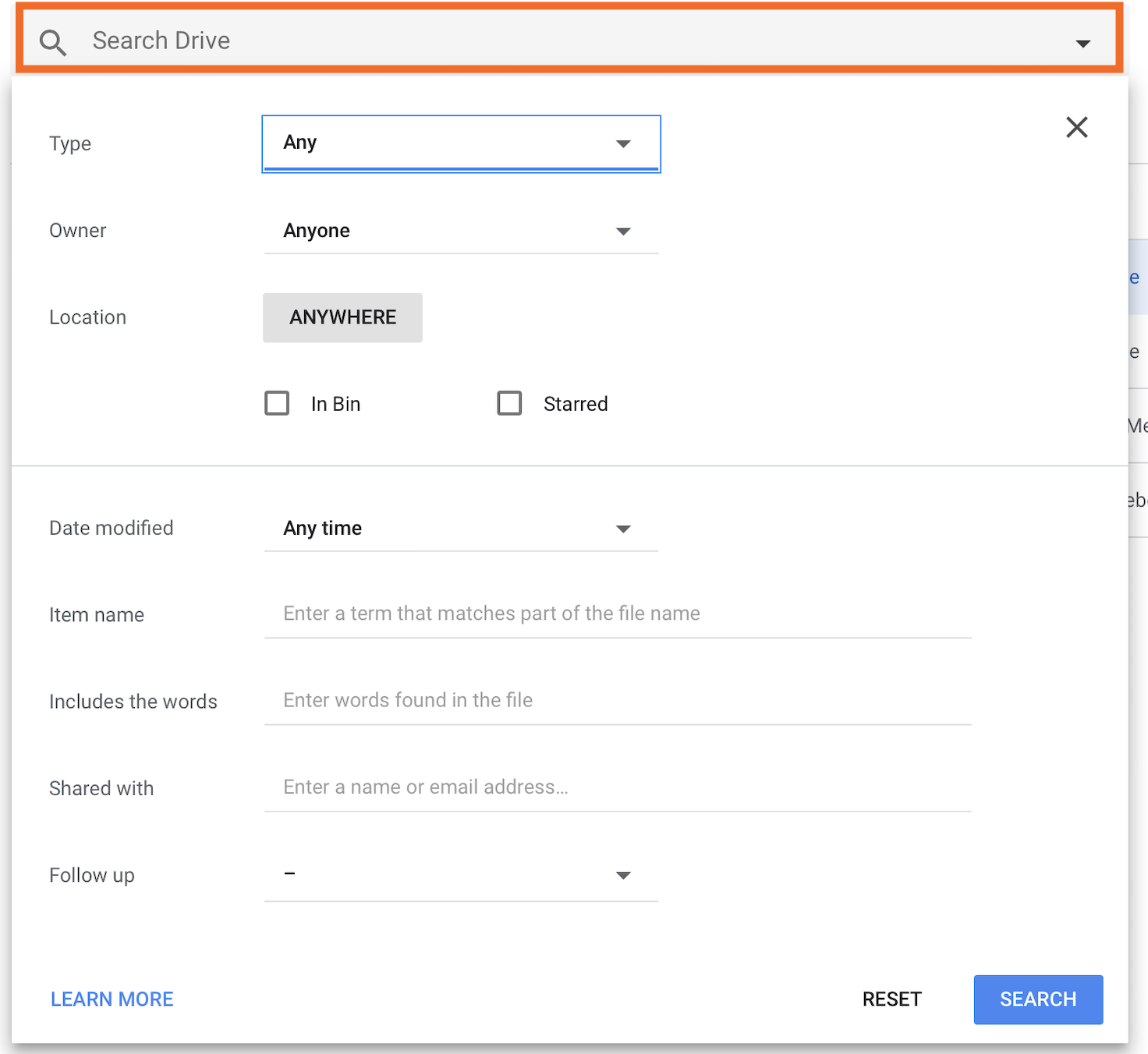
To quickly find a file or folder, use the Search Drive field at the top of the screen. You can conduct an advanced search by clicking the downward arrow in the search box and fine-tuning your criteria.

Search Google Drive

How to Share Files and Folders in Google Drive

Google Drive lets you share anything with anyone. You can share individual files to collaborate on Docs, Sheets, and Slides; share folders full of images with friends; or post a public link to a file that you want others to be able to view.

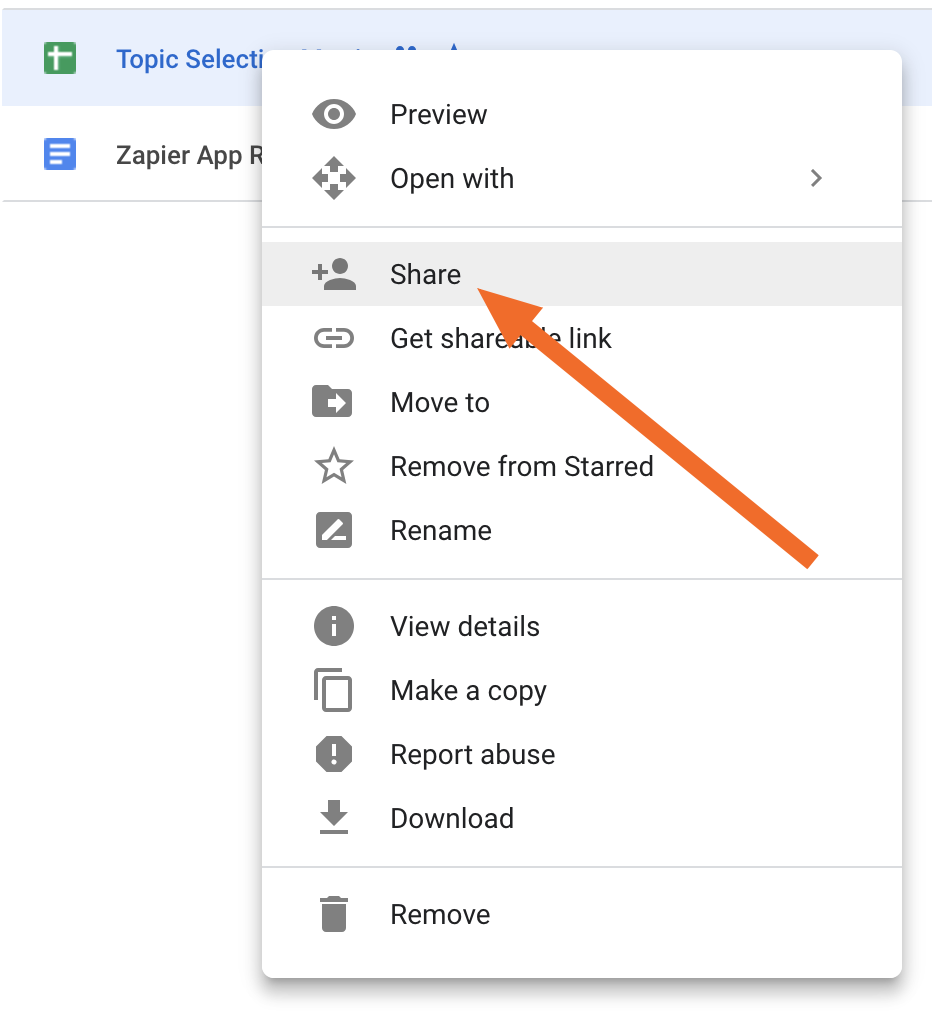
To share a file, right-click on that file, and click Share.

From there, you have a number of options.

Share files and folders with specific people

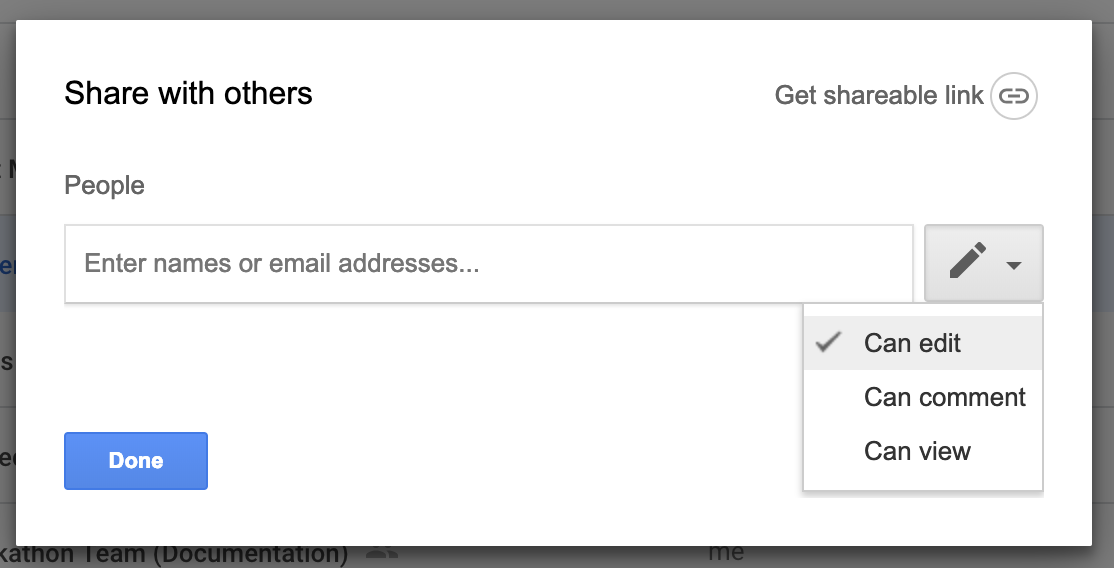
You can add specific people to files and folders using their names (for Google associates) or email addresses. Type their email address and press Enter/return.

The box next to the input field lets you define permissions.

  • If you're sharing a file, you can select from Can edit, Can comment, and Can view. (Note: depending on the type of file, these options might be different. For example, Google Forms only offers Can view.) This allows you to decide how much control these people have over your file.
  • If you're sharing a folder, you can select from Can organize, add, & edit and Can view only. Whatever permissions you give someone to a folder carry through to all the files within that folder as well.

The Notify people checkbox will be checked by default, meaning everyone you share with will receive an email. If you don't want them to receive an email, uncheck that box before clicking Done.

Share files and folders with a broader audience

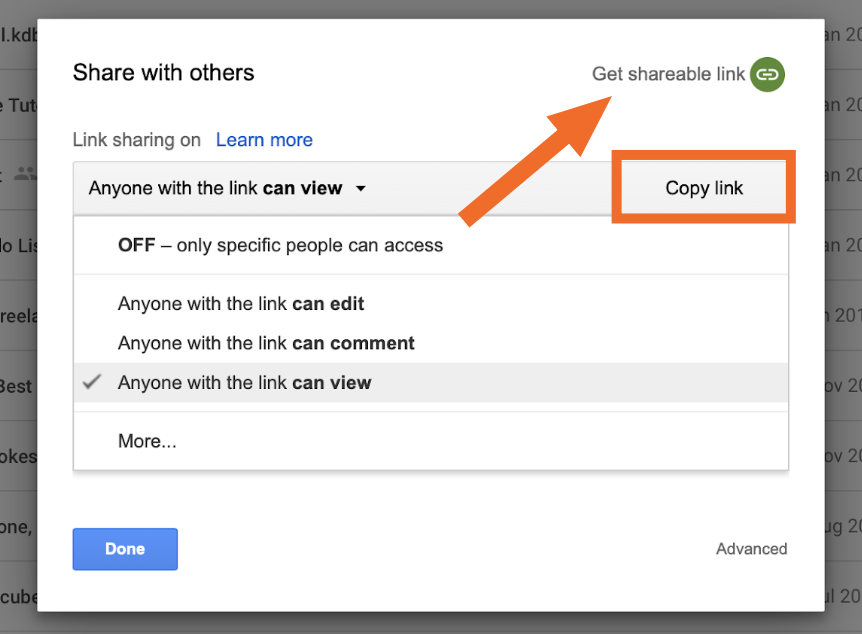
If you don't know who you are sharing with yet, or would rather grab a public link for posting on the web, click Get shareable link. You can define the permissions for this link using the dropdown list, and click Copy link to copy the link to your clipboard.

Adding Files to My Drive in Google Drive

When you create a file in Google Drive, that file lives in your personal Drive, called My Drive. You are the author, so you have ownership of the file. You can share it, rename it, and download it, and it will still remain in your Drive.

Shared files behave slightly differently. When you are given a public link or invited to collaborate on a file, that file isn't automatically added to your My Drive storage (which also means it doesn't count against your storage quota). To add one of these items to your drive, look for the Add to My Drive icon at the top of the file next to its title.

Add to my drive

Adding shared files to My Drive allows you to organize them into folders. It doesn't automatically transfer ownership of that file to you, but rather permanently places a shortcut among your own files.

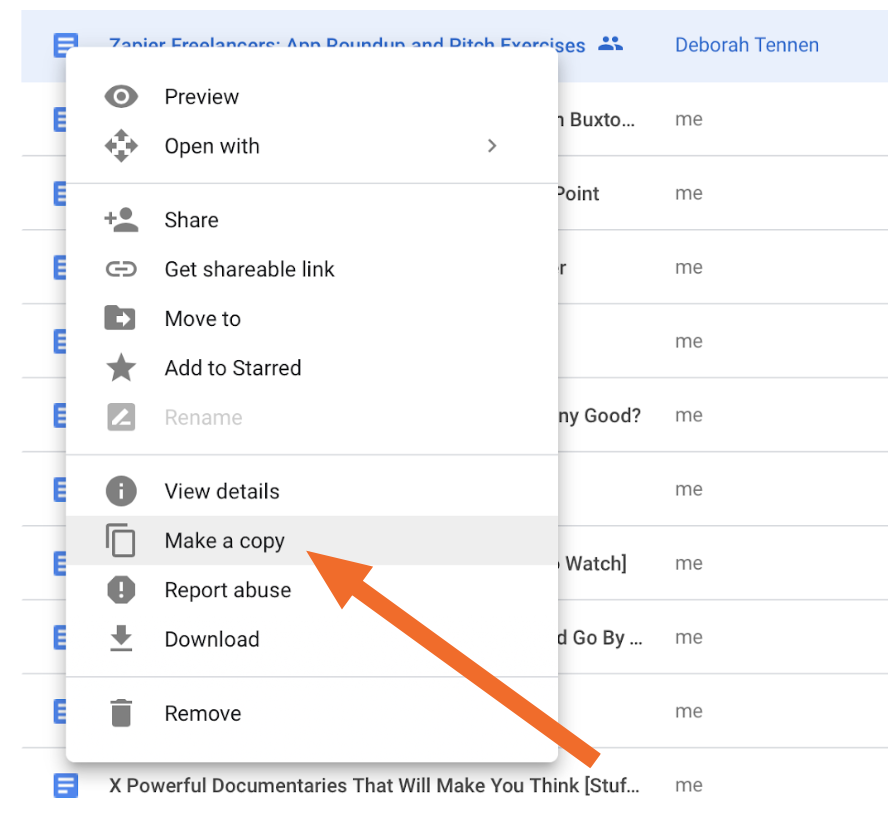
You can duplicate any file to create a new version where you are the owner by right-clicking and choosing Make a copy.

Make a copy

Google Drive on Desktop and Mobile

Google Drive is a web app, but it also offers desktop and mobile apps.

Backup and Sync

The desktop app, Backup and Sync, provides access to your My Drive storage on your desktop. When installed, Backup and Sync functions just like any other folder on your Mac or PC. The key difference is that it's connected to Google's folders, and it's always checking for changes to upload and download. (If you have Dropbox or Box on your computer, it works just like that.)

Backup and Sync app

If you want to upload files to or download files from your computer, Backup and Sync is a great way of doing so. There's no reliance on a web browser, and the process can happen in the background. You can also quickly access your Google files by browsing them like any file that's already on your computer.

Double-click on any Google file to open a web browser and start editing. Drag and drop a file to copy it to your desktop. Move things around using cut, copy, and paste, and your organizational changes will be reflected on the web as well.

Google Drive for Mobile

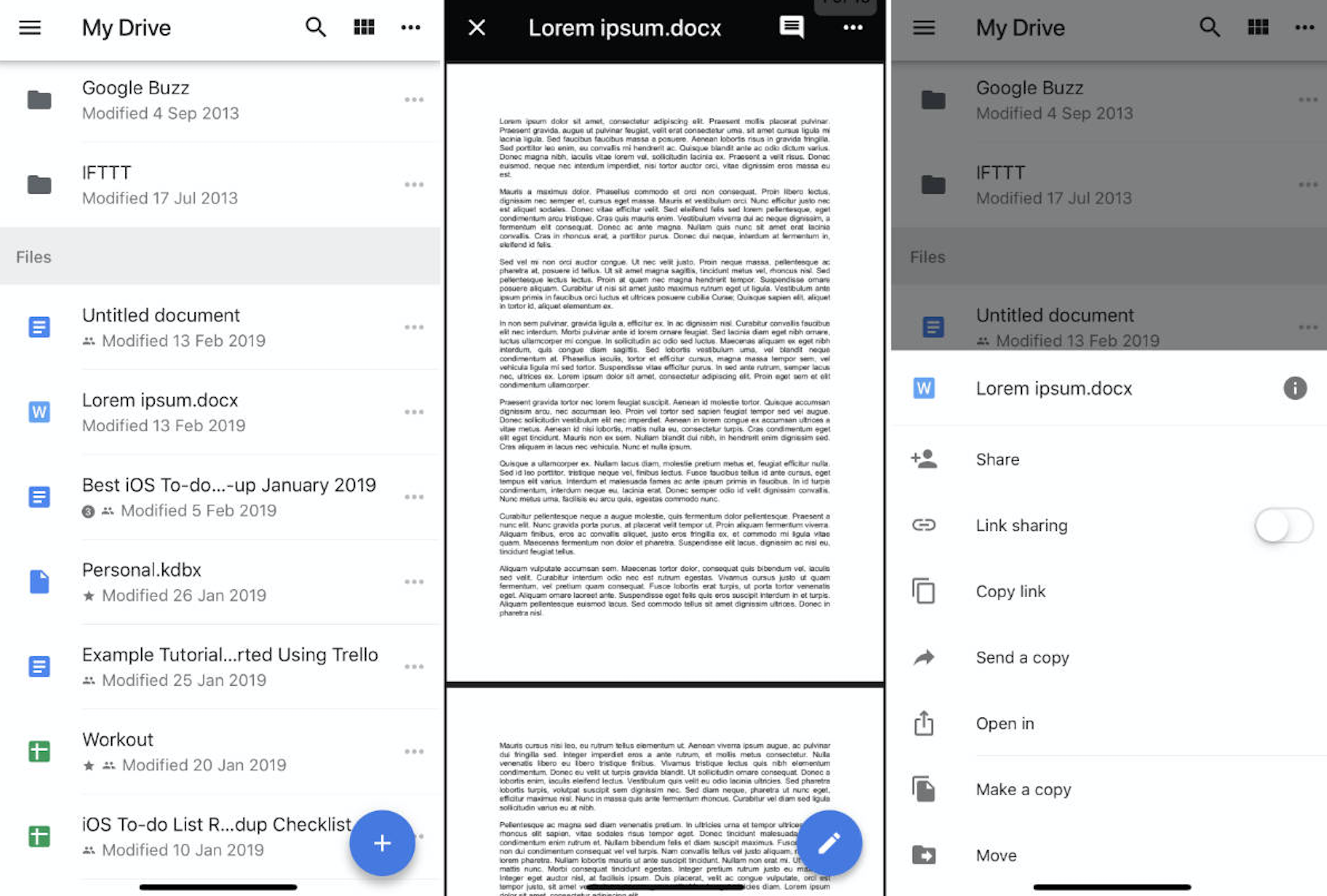
Google Drive for Android and iOS works similarly the desktop version, except it doesn't download the contents of your drive by default. You can access Google Drive through your device, share and organize items, download files, and view files.

Google Drive on iOS

You'll need to download each app's individual mobile app—e.g., Google Docs, Google Sheets, etc.—in order to edit the files.


Once you've mastered Google Drive, try your hand at automating your Google Drive workflows. For example, you can automatically create, copy, or move files based on actions you take in other apps. Check out Zapier's Google Drive integration for more ideas on how to automate your Google Drive.


source https://zapier.com/blog/how-to-use-google-drive/

How to Share Your Notes from Evernote

Evernote is a great place to collect thoughts, clippings, and notes, and sometimes you want to share those things. Here's how to share your notes and notebooks with other Evernote users, how to get a public URL for an Evernote notebook to share with anyone, and how to automatically send notes from Evernote to other applications.

How to Share an Evernote Note

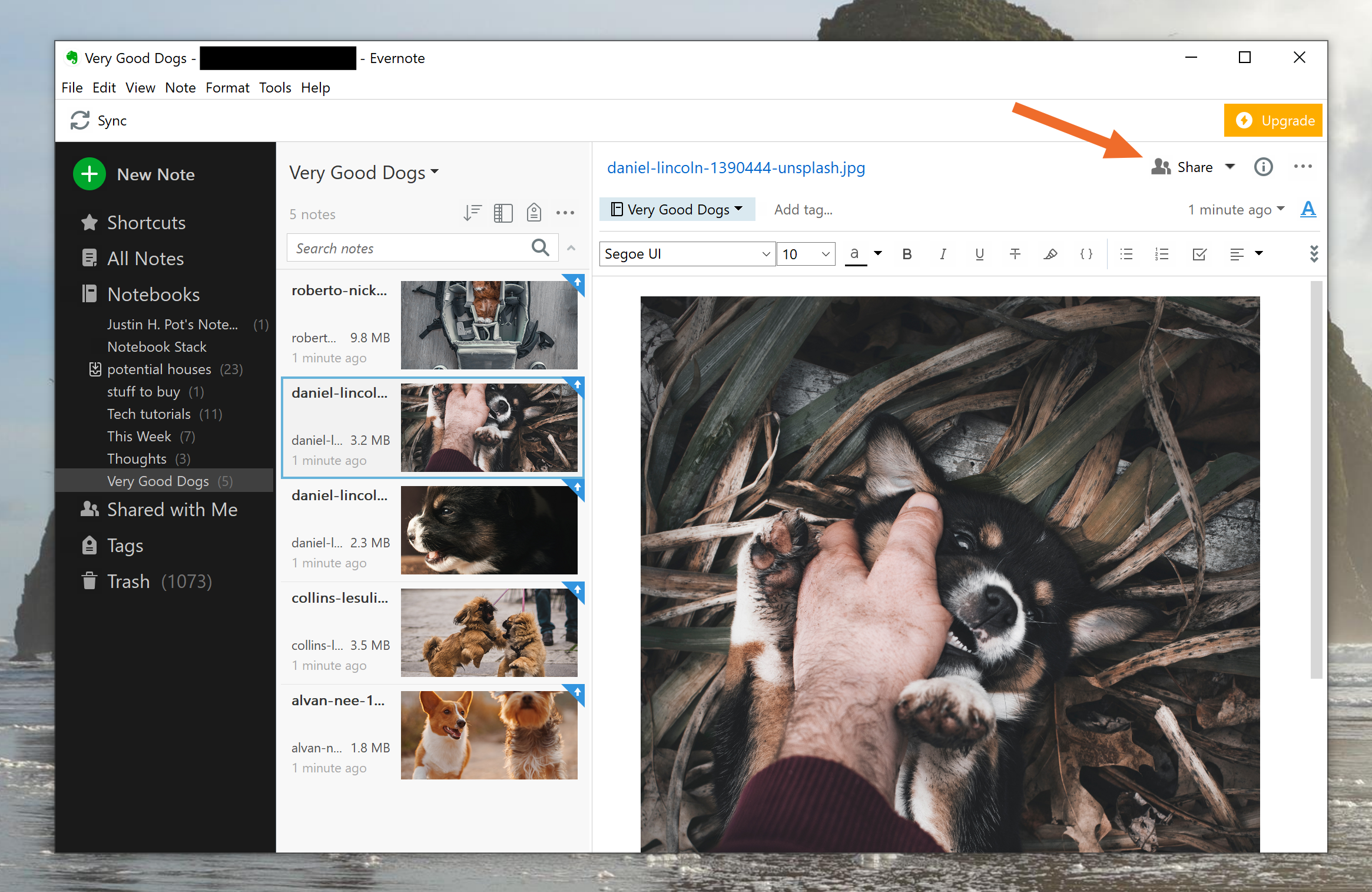
Open the note you want to share and click the Share button. Here's how that looks on the Windows version of Evernote:

Evernote share button

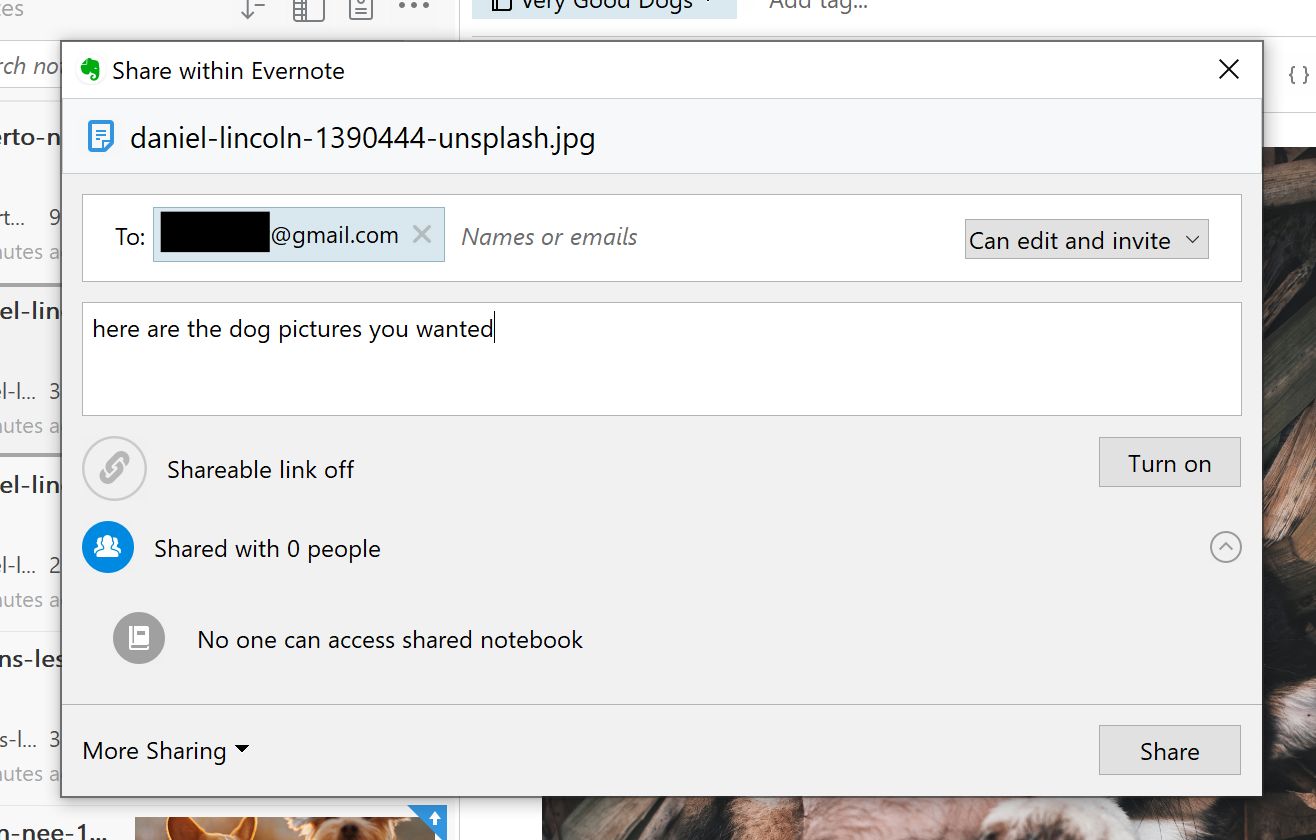
In the window that pops up you'll need to enter the email address of another Evernote user. You can also set permissions and add a note.

Evernote share window

Your recipient will get an email letting them know about the shared note. They will be able to access it in the "Shared with Me" section, in the Evernote sidebar.

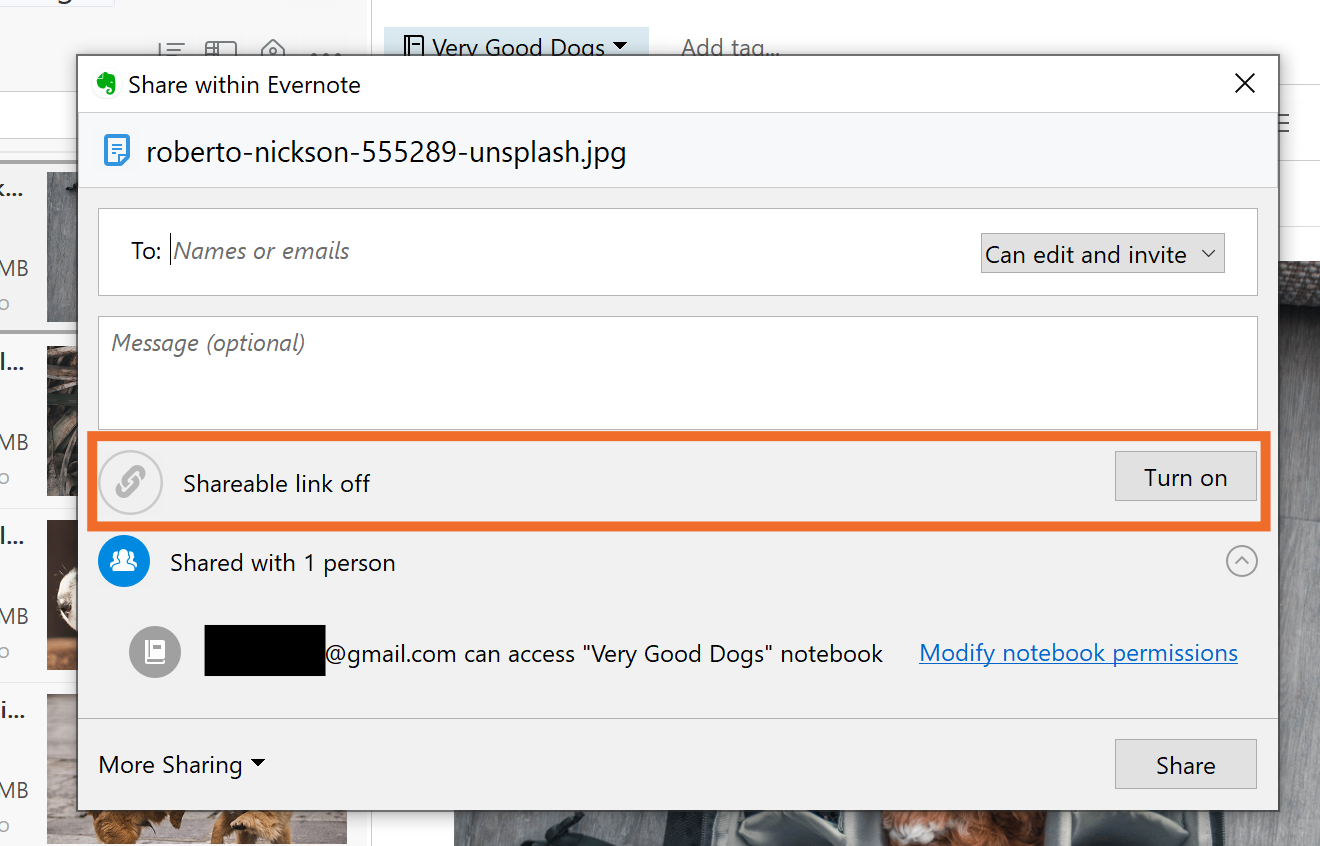
Want to share with someone who doesn't use Evernote? You can turn on a shareable link by clicking the Turn on button.

Evernote sharable link

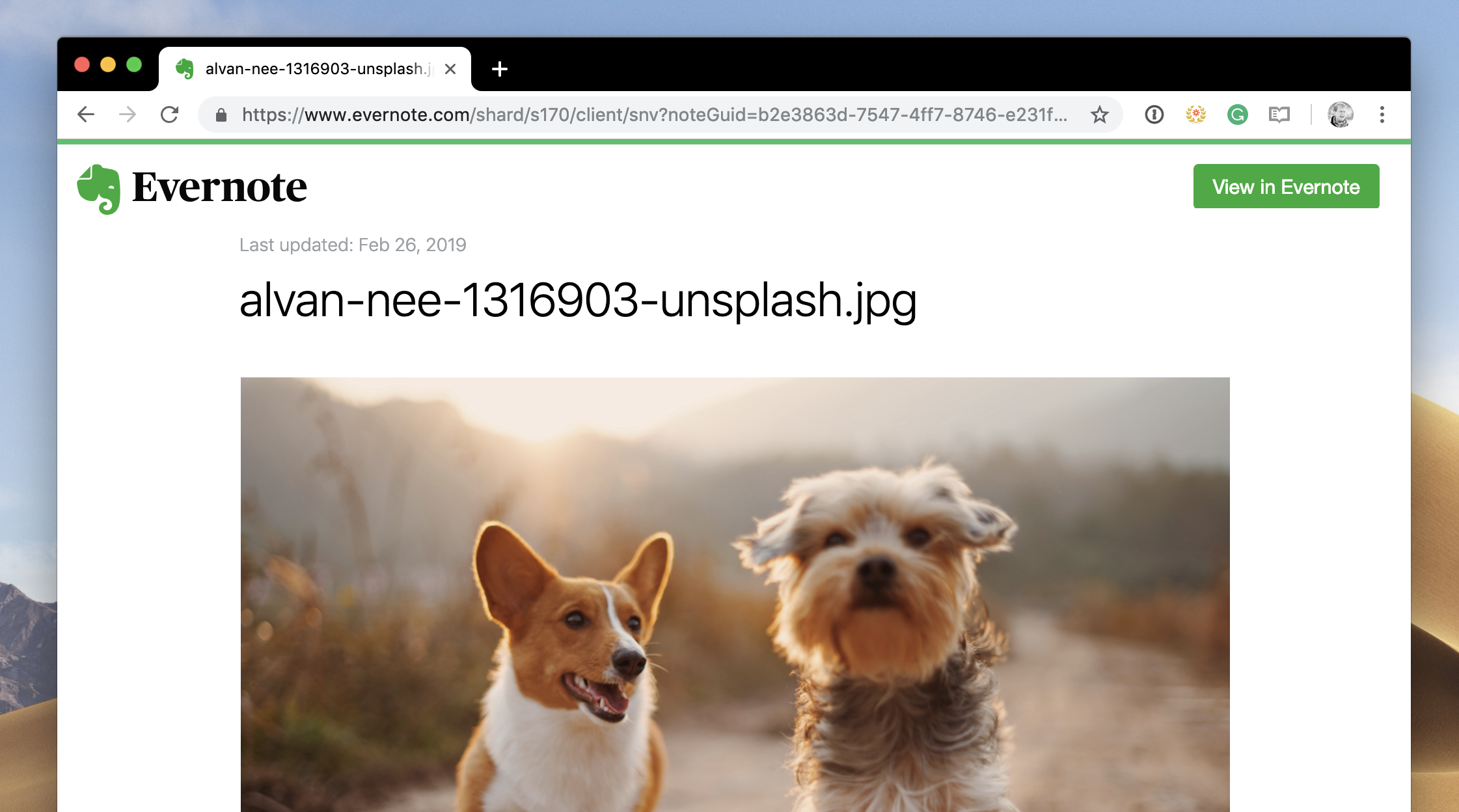
This will create a link that can be opened by anyone, whether they have Evernote or not. Here's what that link looks like when opened in a browser:

Evernote public URL

This is a public URL—meaning anyone with the link can access it—so don't use this method for any information you'd like to keep private.

How to Share an Evernote Notebook

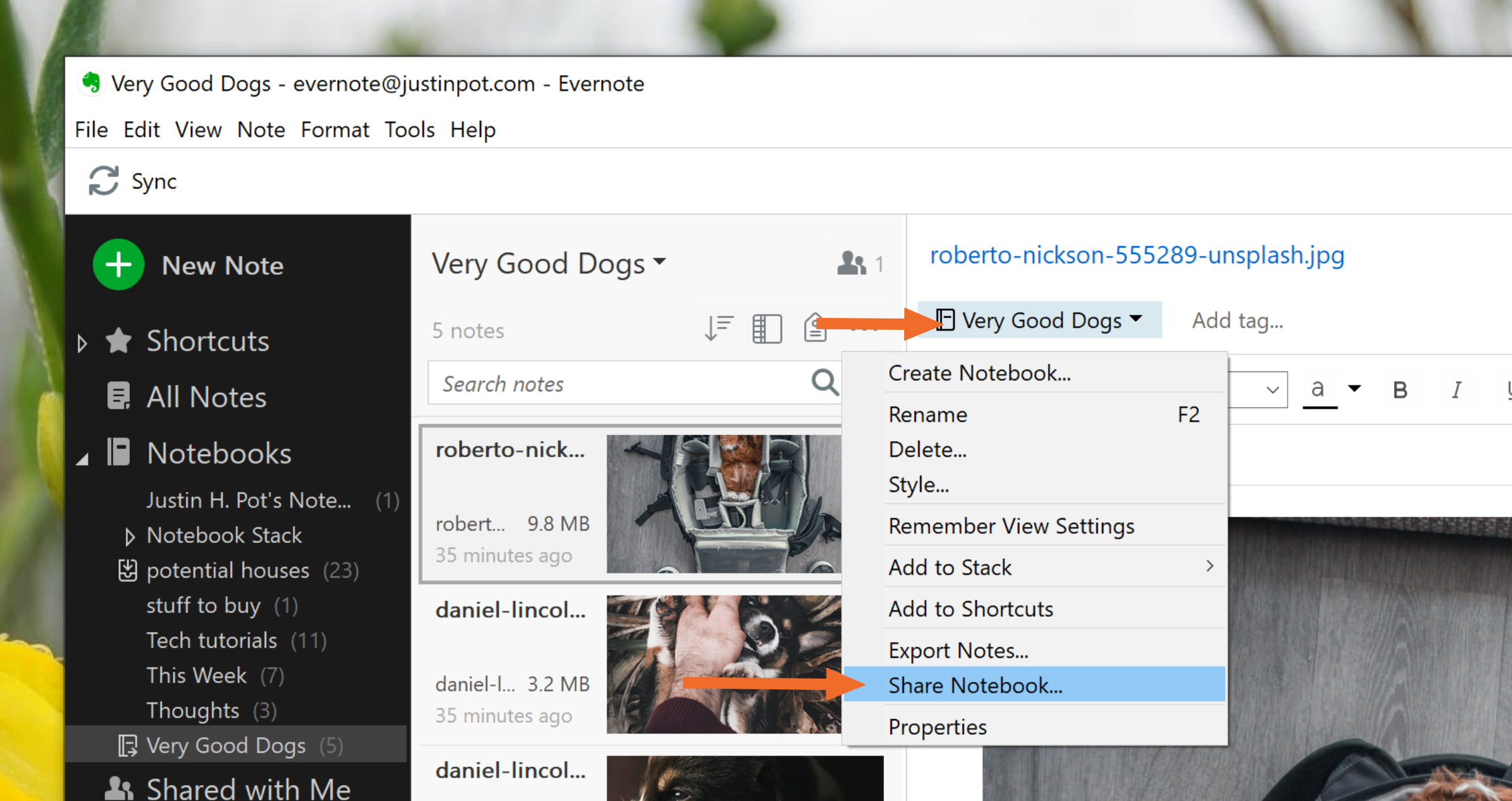
Want to share an entire Notebook, instead of just a single note? You can do that too. Open the Notebook you want to share, then click the ellipses in the header. Next click Share Notebook… Here's how this looks in the Windows version of Evernote:

Evernote share notebook

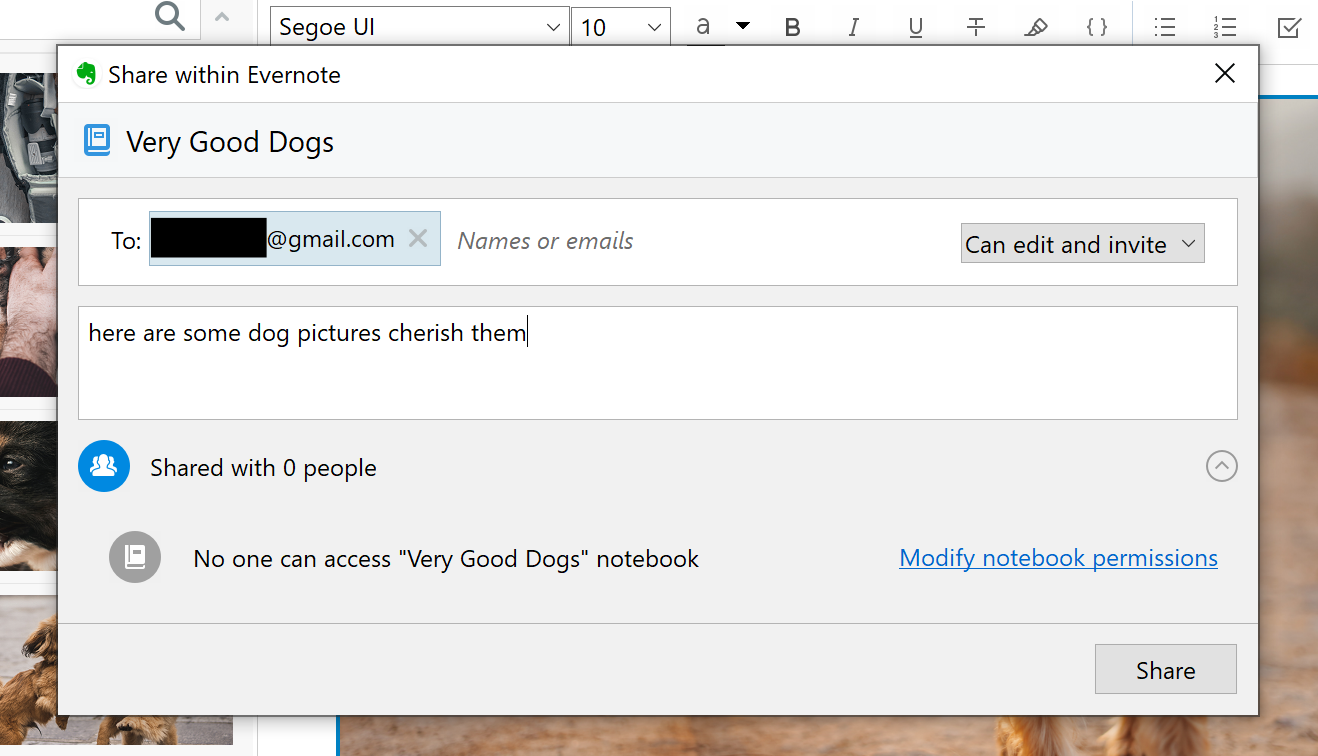
You'll see a window with sharing options. You can enter an email address, set permissions, and even add a message from here.

Evernote share notebook window

Just like when sharing a note, your recipient will get an email letting them know about the shared note. They will be able to access it in the "Shared with Me" section, in the Evernote sidebar.

Note that you can't create a public URL for an entire notebook, meaning notebooks can only be shared with other Evernote users.

Share Notes With Other Apps

Want to share your Evernote notes with other apps? You can do that with Zapier, a tool that connects apps to each other. For example: You can automatically turn your notes into Trello cards.

Or, if you're a OneNote user who needs to access notes from Evernote, you can automatically send them over.

You can even instantly save your notes to Google Drive, if you want.

This is just the beginning; check out more of our Evernote integrations to learn more.


source https://zapier.com/blog/how-to-share-notes-from-evernote/

Tuesday, 26 February 2019

How to Create an Issue in Jira

Planning project work in Jira starts with creating issues. In Jira, "issue" is an all-encompassing term that's used for any work your team needs to complete, including to-dos, stories, bugs, incidents, epics, and improvements.

How to Create an Issue in Jira

There are a lot of different ways to create issues in Jira, but the simplest way is to click the + icon in the left navigation menu.

create an issue in Jira

An overlay window opens that lets you add details to the issue:

  1. Select the project
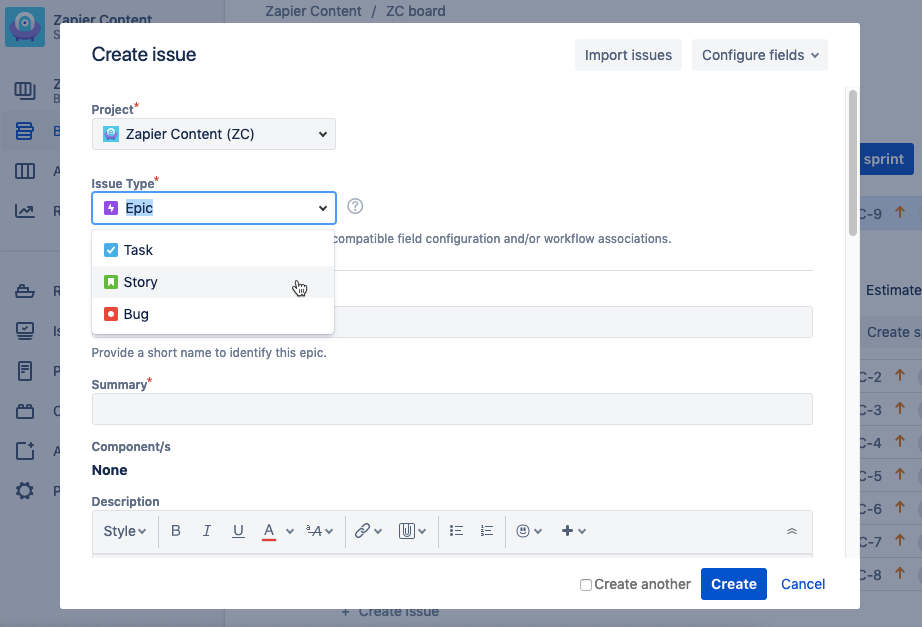
  2. Choose the issue type
  3. Add a summary
  4. Add optional details: a description, due date, sprint, priority, assignee, etc.
select issue type in Jira

How to Add Issue Types to a Jira Project

When creating a new issue in Jira, you'll have access to one or more issue types depending on the project template you selected when creating your project.

Jira offers six different issue types in total:

  • Task: For general to-do items
  • Story: For Scrum teams that list requirements in user stories
  • Epic: For very large tasks that need to be broken down into smaller tasks or stories
  • Bug: For defects that need to be addressed
  • New Feature: For product features that need to be developed
  • Improvement: For enhancements to existing features

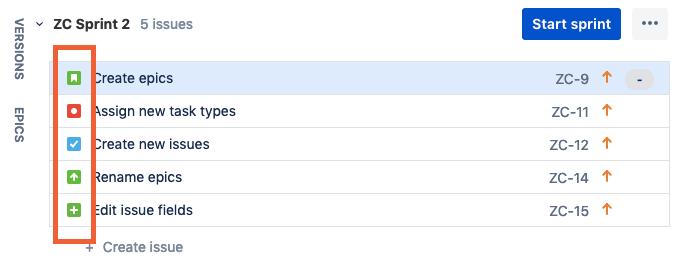
All of the issue types have the same field options. The big difference is that they each have a unique icon you can use as a quick visual indicator for the type of task.

Jira issue type icons

The project template you select when setting up your Jira project dictates what types of issues you see in the Issue Type dropdown. For example:

  • The "Task tracking" template only offers Task issues.
  • The "Scrum" template includes Epic, Story, Task, and Bug issues.
  • The "Bug tracking" template comes with Epic, Improvement, Task, New Feature, and Bug issues.

If you need a type of issue that isn't available in your template, you can add a new issue type:

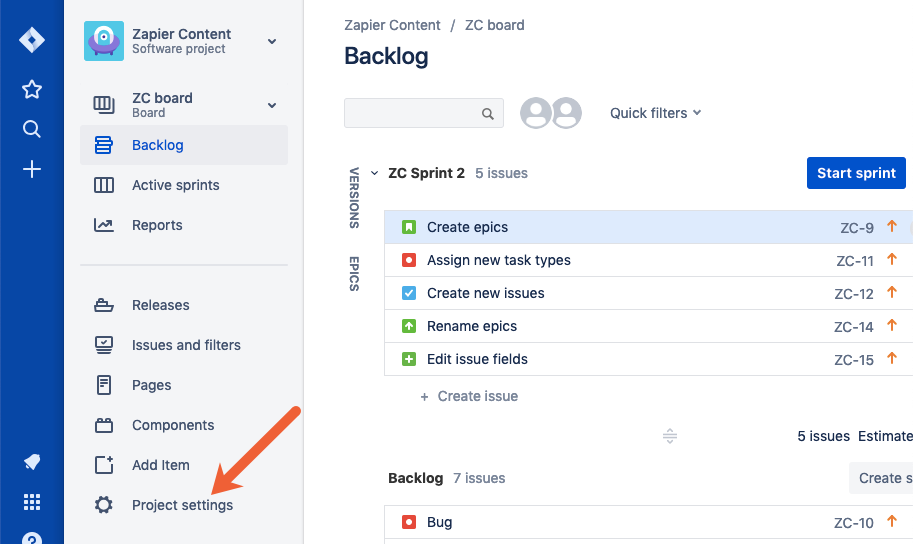
First, click Project settings.

open project settings in Jira

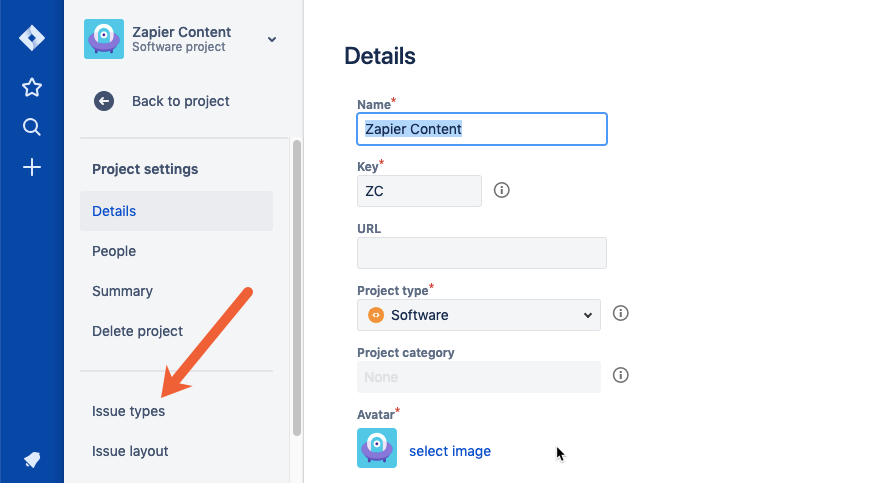
Then, click Issue types.

add new issue types in Jira

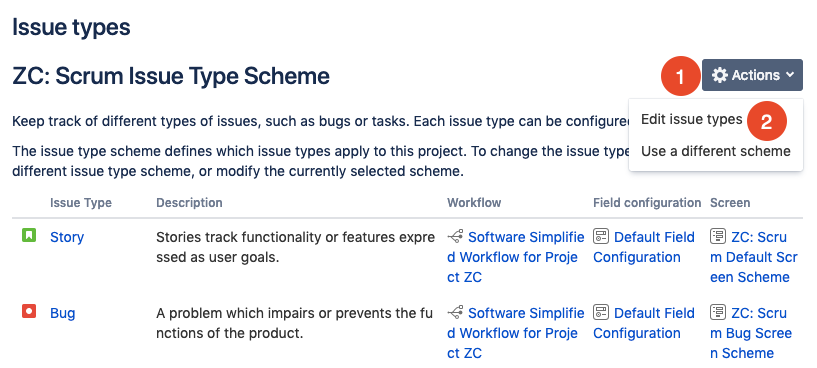
Finally, click Actions, then select Edit issue types.

add new issue types to projects in Jira

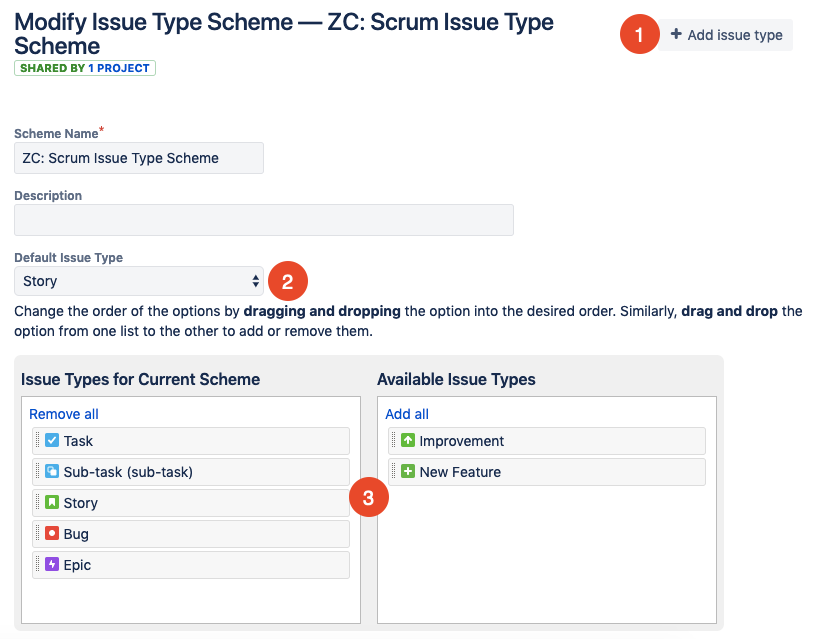
On the Modify Issue Type Scheme screen, you can:

  1. Add a custom issue type.
  2. Select your default issue type.
  3. Choose which issue types you want to be available for your project by dragging and dropping issue types into the appropriate columns. Issue types you want to be available should be in the left columns; those you don't need should be in the right column.
add or remove issue types in Jira

Click Save to apply your changes.

How to Make a Hierarchy of Issues

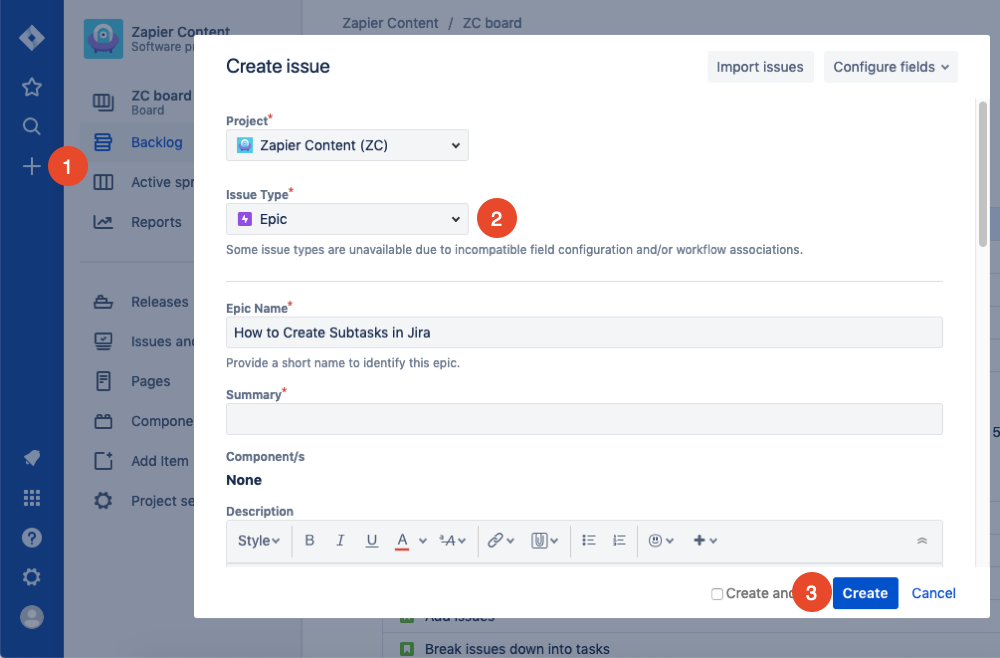
If you want to create an epic and then break it down into smaller issues, start by creating your epic. Create a new issue, and select Epic as the task type.

create an epic in Jira

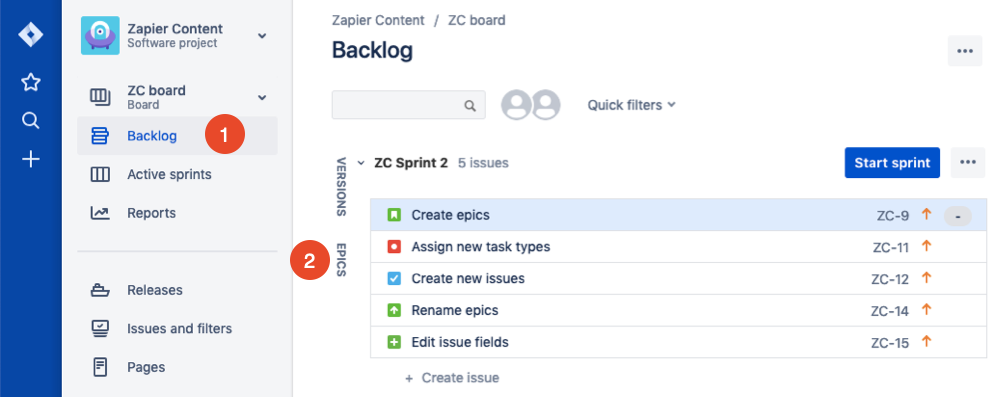
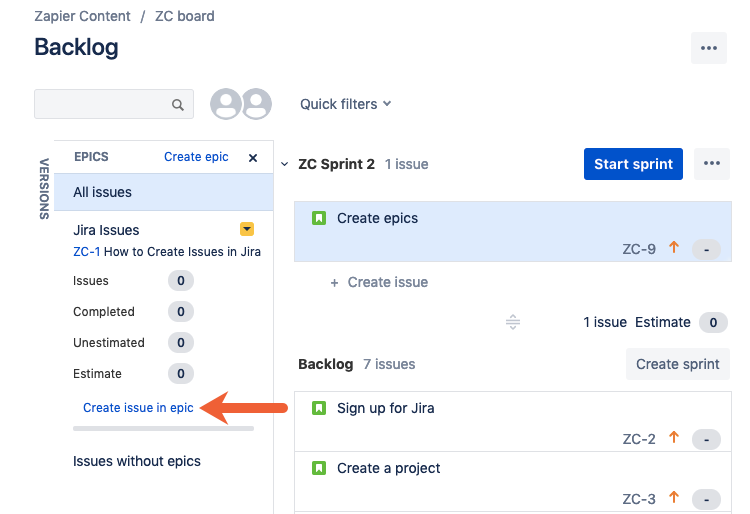
Next, click the Backlog menu item and select EPICS.

add issues to epics in Jira

Finally, click Create issue in epic.

create issue within epic in Jira

Type in the name of your issue, and press Enter or return. To edit the new issue and add more details, click the newly created issue, or continue typing issue names and pressing the Enter/return key to create several issues at once.

How to Create Subtasks for Issues

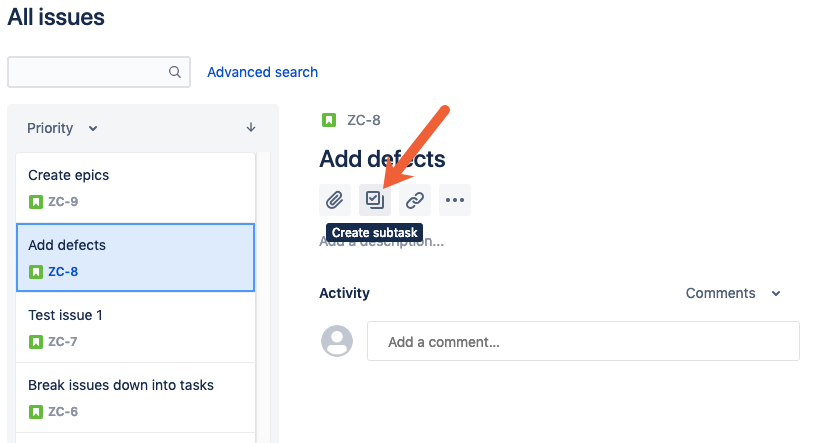
You can also break any individual issue down into subtasks by clicking on an issue to open it, then clicking the checkbox icon to add subtasks:

create issue subtasks in Jira

How to Customize Which Fields Display for Issues

Finally, if you want to customize which fields display for your issues:

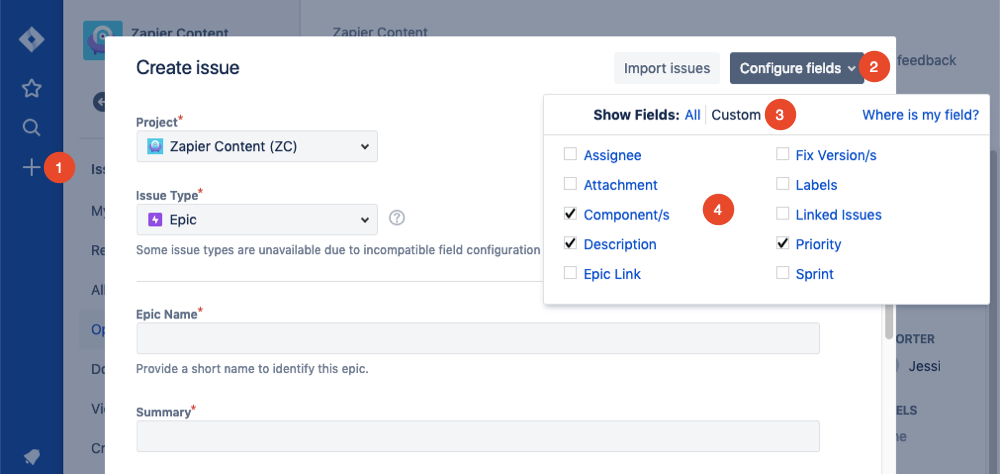
  1. Click the + icon to open the Create issue overlay.
  2. Click Configure fields.
  3. Click Custom.
  4. Check or uncheck the boxes for the fields you want/don't want to see.
configure issue fields in Jira

Then, click anywhere outside of the box to close it. Your changes apply automatically.

Creating Issues in Jira Automatically

If you're using a form app, messaging app, or spreadsheet to collect reports of issues, you can use the following Zaps (automated workflows on Zapier) to create issues in Jira automatically:

Or browse all of our Jira integrations to connect Jira to 1,000+ apps.


Issues form the groundwork for managing any project or task list in Jira. And since they're used for any type of task your team needs to complete, it really simplifies the terminology you need to use when telling people how to add new tasks and to-dos to the system.


source https://zapier.com/blog/how-to-create-jira-issue/