Tuesday, 30 May 2017

The Beginner's Guide to Microsoft Excel Online

Excel is synonymous with spreadsheets, and for good reason. Decades after its introduction on the original Macintosh, Excel continues to be the most powerful spreadsheet app. It's not just a desktop app anymore, either. Today, you can use Excel on Windows, Mac, iOS, Android, and even the web.

That latter version is perhaps the most interesting. Microsoft Excel Online is a free, online version of Excel that includes the functions, chart tools, and more that you'd expect from a spreadsheet. Similar to Google Sheets, Microsoft Excel Online lets you collaborate with others in real-time, gather answers in an online survey, and crunch numbers with Excel functions. Most importantly, though, Excel Online now lets you connect your spreadsheet with other web apps to gather data and start automated workflows—and since it syncs with traditional Microsoft Excel, you can use the Online version to add automations to any spreadsheet.

If you've used Excel for years, switching to a web app may sound scary. Don't worry. In this guide, we'll walk you through everything you need to get your spreadsheets in the cloud, so you can gather data and collaborate—and still use Excel on your desktop.


What is Microsoft Excel Online?

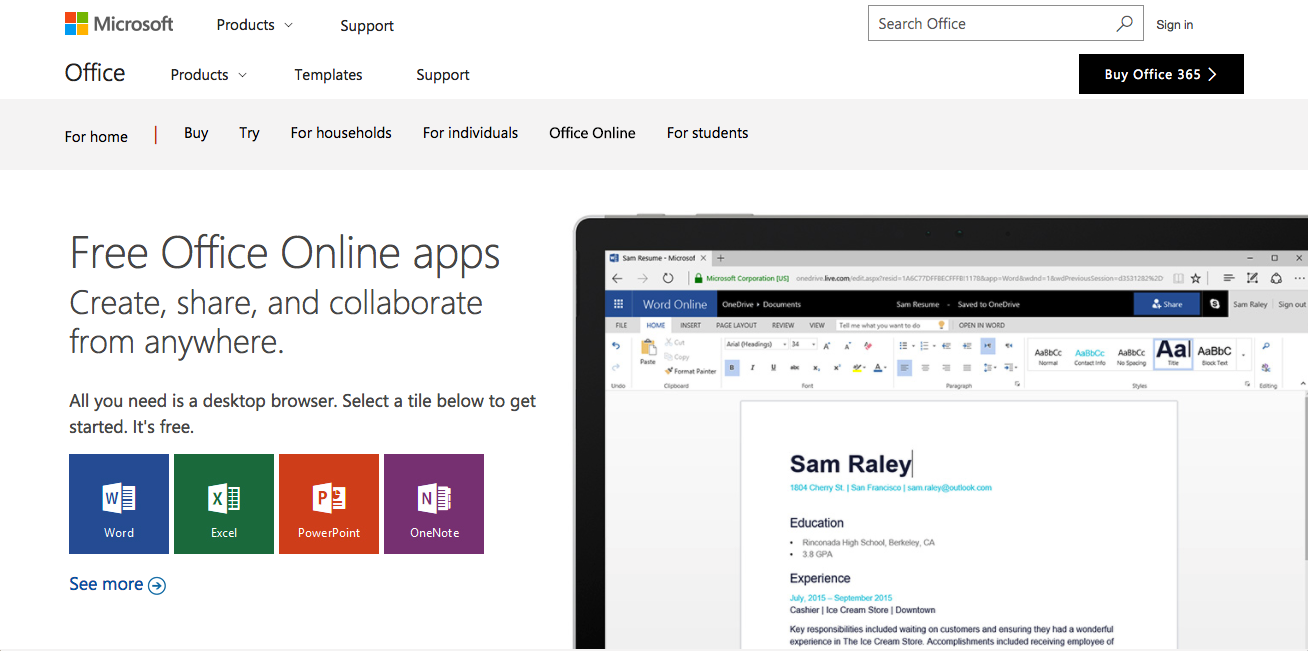
Microsoft Office Online
Microsoft Office Online gives you free, collaborative versions of Word, Excel, and more in the cloud

Microsoft Excel Online—along with the rest of Microsoft's Office Online apps—are a new take on the traditional Office suite you've used for years. Typically, you'd buy a copy of Office for a few hundred dollars and install it on your computer. That's how Office has been sold for years, starting with the first version of Excel for Macintosh in 1986. Microsoft Office is so ubiquitous, its bundled apps including Word, Excel, and PowerPoint are synonymous with documents, spreadsheets, and presentations—they're the standard business apps across most industries.

Microsoft Excel Online is the free version of Excel that works in your browser. It's a companion app to Excel, designed to let you view and edit your Excel spreadsheets online. And yet, it's still a full spreadsheet app that supports nearly every Excel function and includes charting and survey tools to help you gather and visualize data. It's better than Google Sheets for working with existing Excel files or sharing spreadsheets with other Excel users, and at the low cost of free, is the cheapest way to use Excel.

You can use all of Excel Online's features for free, as long as you don't have more than 5GB of files in OneDrive, Microsoft's online file storage. Or, if you still want a copy of Office installed on your computer as well, the best option today is subscribing to Office 365, which gives you the most recent versions of Office for your computer along with file sharing in OneDrive. You can store all of your files in OneDrive, then edit any of the Office files online with Office Online. And—with the Business versions of Office 365, for now—you can use Microsoft Excel Online integrations to connect your spreadsheets to your favorite apps.

Here are the Office 365 options you can choose from:

  • Office Online - Free: With a Microsoft account, you can use Office Online and save up to 5GB of files in OneDrive for free.
  • Office 365 Personal - $6.99/month: Get Office apps on your computer, and 1TB of OneDrive storage.
  • Office 365 Home - $9.99/month: Get Office apps for 5 people in your family, along with 1TB of OneDrive for each user.
  • Office 365 Business - $8.25/month: Get Office on your work computer, with 1TB OneDrive for Business storage with professional integrations.
  • Office 365 Business Premium - $12.50/month: Get Office on your work computer and 1TB OneDrive for Business storage, along with email and video conferencing.

No matter which account you have, you can use the all of Office Online—including Excel Online. So let's dive in.

Excel Online Basics

Excel Online recent files and templates
Just like Excel on your desktop, Excel Online starts out with templates and recent files

There are two easy ways to open Microsoft Excel Online: Go to products.office.com/office-online and click the Excel link to create a new spreadsheet, or open OneDrive and click on a spreadsheet you've saved online (we'll look at how to move your spreadsheets to OneDrive later on).

If you open Excel Online from Office.com, you'll see a variety of templates to start a new spreadsheet, along with a list of recently opened sheets on the left side. Click a template or the blank spreadsheet option to start making a new spreadsheet.

Edit spreadsheet online
The online viewer is a quick way to copy data from a spreadsheet

Alternately, if you open a spreadsheet from OneDrive or the Recent list, Excel will open it in an online viewer first. Click the Edit Workbook button then select Edit in Browser to open the spreadsheet in Excel Online. If you have Excel installed on your computer, you can select Edit in Excel to open the spreadsheet in traditional Excel and save the changes back to the web when you're done if you'd like, instead.

Excel Online Home tab
Excel Online includes the core Excel features—even the status bar for quick sums and averages

Microsoft Excel Online looks much like you'd expect. Your data is organized in rows and columns, with tools and features included in an Office ribbon toolbar. On the bottom right, the standard Excel status bar is included, with quick sums and averages of the cells you've selected.

Just click in a cell and type to start adding data to your spreadsheet. Or, paste in data from your computer or other spreadsheets, with the standard options to paste the formulas, values, or formatting.

To change the formatting, just click the toolbar buttons at top. You can tweak fonts, colors, text alignment, and number formats, or choose to wrap text and merge cells. Right-click to insert rows—or click the Insert button at the top for more detailed options. There's also Sort and Find tools to keep your data organized.

Find tools via search in Excel
A search box to find the tools you need

You should be able to find the tools you need quickly just by looking through the toolbars. Or, just click the search box at the top and start typing—Excel Online includes a handy tool to help you find the tool you need with search. That's also where you'll find Excel's documentation to help you learn how to use each tool.

Functions

Excel Online functions
Excel Online includes nearly all default Excel functions

There is one spot where Excel Online is full featured: Functions.

Excel 2016 includes 471 functions, including 11 new ones just added to this version (along with 51 functions added in 2013, and 57 added in 2010)—and they're all included in the Excel Web App.

There are only 411 functions listed in the Excel Web App's Functions menu, but it actually supports all but 3 built-in Excel functions: SQL.REQUEST, JIS, and EUROCONVERT. Everything else is supported; even if the function isn't shown in the auto-complete dropdown, it'll still work once you enter it correctly.

To add a function, just type = followed by your function name. Excel will auto-complete the function name—press the Tab key to accept the suggested function—and then give you tips on what data you should include in the function. Or, you can look through the included functions by clicking the fx button right under the toolbar.

You can click cells to add them to your function, just as in other versions of Excel. And, once you've added a function to a cell, just select it and drag down to add the function to all of the other cells you've selected.

Excel AutoSum
Quickly find sums and more with AutoSum

For a quicker way to add functions, just click the down arrow beside the AutoSum button to sum, average, count, or find the max/min numbers in a range. If you only need to glance at the data, just select a range of numbers and the bottom right toolbar will show you the sum, average, and count automatically.

Charts

Excel Charts
Excel Online includes most of Excel's chart features

Once you've added data to your spreadsheet and have crunched your numbers with functions, it's time to bring it to life with charts. Excel Online includes a wide range of charts—and most of the tools you need to customize their appearance.

Just select the data you want to visualize, then click the Insert menu and select one of the chart styles you'd like. Excel will automatically generate the chart—and if you don't like it, just click any of the other chart types in the new Chart tab.

customize chart
You can edit chart titles, legends, and labels in Excel Online

Then, you can customize your chart's title, legends, and labels. Just select the menu option for the item you want, and you can both add text and customize where it's displayed.

Unfortunately, there are no theme or color options for charts in Excel Online. If you want something different from the default colors, start your spreadsheet using one of the built-in Excel templates, and your charts will pick up the colors from that template. Alternatively, open your spreadsheet in Excel on your computer to change the design—then save it, and the changes will show up in Excel Online, too.

Tables

Excel Online Tables
Tables let you sort and filter data easily in spreadsheets

Or, perhaps you just need an easier way to sort through data. For that, Excel's Tables are the tool you need.

Select the data you want to sort through, and click the Format as Table button in the Home toolbar. You can then sort each column, filter for specific items (say, all items that include the text "tool"), or use number filters to find items that equal or are greater than/less than, above or below average, or the top 10 items in that column. Or, you can add custom filters to find exactly the data you want.

Gather Data with an Excel Survey

With your spreadsheets online, Excel can work in the background even when your computer is turned off. One of the handiest ways to use that is with Excel Online's built-in Surveys tool. It's one Excel feature you won't find in the other versions of Excel.

Just open a spreadsheet in Excel Online, click the Survey button in the Home tab, then select New Survey.

Excel Survey Editor
The simple survey editor in Excel

That opens an editor pop-over, where you can add a title and description to your form or survey, along with your survey questions. Excel Surveys includes text, paragraph text, number, date, time, yes/no, and multiple choice questions. Just add your question and an optional subtitle, along with choices if you selected that question type. Then, choose whether the question is required, and optionally provide a default answer.

Excel Online Survey
The Excel survey your respondents will see

Then, click the Share Survey button to copy a link to your survey. You can share that link privately in emails, or share it publicly to get a wider range of answers. Excel will automatically save your survey responses to a new sheet in your spreadsheet, with table formatting so you can easily sort through and filter your survey responses.

Share and Collaborate in Microsoft Excel Online

Sharing in Excel Online
Share your spreadsheet to collaborate with others

Need to crunch numbers as a team? Just click the big Share button in the top right corner of Excel Online to get started. You can share the spreadsheet via email, sending a message along with a private link to your colleagues. Or, you can get a view or edit link to share directly. Anyone with the link can view or edit your spreadsheet, depending on the link you chose.

Excel Online for Business Sharing
Office 365 for Business offers more detailed sharing options

If you have an Office 365 Business account, Excel offers more granular sharing options. You can restrict your file to only people in your company, or make it view-only. You can also add a link expiration date so it's not shared forever, or copy a QR code that your collaborators can scan to work with you.

co-editing in Excel
Work on your spreadsheet together in real-time in Excel Online

Once your colleagues have opened your spreadsheet, everyone can work on it together inside Excel Online—though you can't open the file in traditional Excel apps at the same time. You'll see a list of the names of collaborators in the top right along with the cell they're currently editing. As changes are made, you'll see cells currently being edited shaded in that users' color, and cells selected by another user highlighted with their color.

Add Comments to Your Spreadsheet

To work together a bit better, click the Review tab to open Excel's comment tools. You can add a comment to a cell, show or hide the comments sidebar, or edit and delete any comments already on the spreadsheet. You can't add a second comment to a cell that already has a comment, and can't reply to comments, so you might need to work a bit to find a system that works well for your team. It's a good way to let others know where you left off work—or to identify cells that need changed—at least.

Share a Copy of Your Spreadsheet

download copy of Excel Online spreadsheet
You can download your spreadsheets in Excel or Open Document formats

Want to share your spreadsheet with others offline so they can edit it in a traditional copy of Excel? You could either copy the spreadsheet from your OneDrive folder, or you can download a new copy from the web.

Just click the File menu in Excel Online, select Save As, then choose Download a Copy to download a .xlsx formatted copy of your spreadsheet. Alternatively, you can download an OpenDocument formatted .ods spreadsheet to use in alternative spreadsheet tools like OpenOffice and LibreOffice.

Moving Your Existing Spreadsheets to Excel Online

OneDrive
OneDrive syncs your files so you can view them anywhere

If you're already an Excel user, you'll likely want to move your existing spreadsheets to the web so you can view and edit them in Excel online. There are two ways to do that. You could open OneDrive.com, and drag-and-drop your Excel spreadsheets to save them online.

The best option, though, is to install the OneDrive apps, and sync your spreadsheets to the cloud. You can then edit them either with Excel on your computer or online with Excel Online, and have the changes saved to both places automatically.

To do that, just download the OneDrive app and install it, then log in with your Microsoft account. If you have multiple accounts—say a OneDrive for Business account for work and a free account for personal files—you can sync both of them at the same time. Then, copy your Excel files to the new OneDrive folder to sync them with Excel Online.

OneDrive online
Browse, organize, and view your files online

You can then open OneDrive online and see all of your synced files, organized into folders just like on your computer. And if you're ready to edit one, just click it to open it in Excel Online.

Any changes you make to the spreadsheet online will be saved back to your computer automatically. And if you make any new spreadsheets online, they'll also be saved to your computer in standard .xlsx format that you can open in any modern version of Excel. That's one of the best features of Excel Online: it saves your data in real files, so your spreadsheets aren't trapped in the cloud.

Opening Older Spreadsheets in Excel Online

One thing to note: Excel Online can only open .xlsx and .xlsm files, and with the latter it won't be able to run any macros included in the workbook. If you upload an older .xls file, or a .csv spreadsheet to OneDrive and then try to open it online, Excel will just download the file to your computer instead of opening it.

As such, you'll first need to convert any spreadsheets you want to use online to the newer .xlsx format. Just open them in Excel, open the Save as… dialog from the File tab or menu, then select Excel Workbook (.xlsx). You can then add those files to OneDrive to view and edit them online.

Excel Online file limitation
You can only open spreadsheets smaller than 10MB

Excel Online also can't open files larger than 10MB. That should be fine for most spreadsheets.

There is a workaround, though, if you have larger sheets. Just signup for Power BI, Microsoft's data analyzation tool, which offers a free 1GB account to get started. Then, you can add your larger spreadsheets (up to 250MB each) to Power BI, and open them in Excel Online.

Extend Microsoft Excel with Add-ins and Integrations

Excel Add-ins Store
Add extra features to Excel with Add-ins

Microsoft Excel Online may have as many functions as traditional Excel, but it doesn't include anywhere near as many features. You can fix that to a degree with Office Add-ins.

From the Office Add-Ins Store, you can find a wide variety of free and paid tools for Excel. Incredibly, the same add-ins designed for Excel 2016 run in Excel Online, so you can use many of the same powerful tools that would otherwise require desktop Excel.

To add an add-in to your Microsoft Excel Online spreadsheet, click the Insert menu in Excel Online and select Office Add-ins to browse the store right inside your spreadsheets. Once you've found an add-in you want to use, just click the Add button to install it—and occasionally you'll then need to click a Start button to enable the add-in.

Ablebits Trim Spaces Add-in for Excel Online
Ablebits' Trim Spaces Add-in removes extra spaces from your spreadsheet

You'll then see your add-ins from the sidebar along with any comments you've added to your documents. When you re-open this spreadsheet, those same add-ins should open in the sidebar again. If you don't see them, just open the Add-ins Store again, add the same add-in to your spreadsheet, and the sidebar will appear with any add-ins you've enabled.

There are a number of great add-ins, many of which connect to web apps and let your spreadsheets create invoices, manage projects, and more. Some of the most handy are those that add extra features to Excel, or replace built-in features you'd find in Excel 2016. Here are some of the best to try:

There is one thing you can't run in Excel Online: macros. Macros let you automate Excel, either by letting Excel record what you do in a spreadsheet or by writing simple code. For that, you'll need a traditional copy of Excel installed on your computer. Then, you can write your own Excel macros to make powerful spreadsheets, and sync them with OneDrive to still be able to view and edit their info online.

Connect Excel to 700+ Apps with Zapier Integrations

Zapier Excel Integrations

Another great way to do more with Excel Online is with Excel integrations using app automation tool Zapier. Zapier can watch your spreadsheet for new or updated rows, and then start workflows with over 600 other apps based on that data from your spreadsheet. Or, it can search through your spreadsheet, add a new row, or even update existing rows in your spreadsheets.

Find archived cards from Trello

Say you want to keep track of how many tasks your team finishes in Trello. You'd just make a Zap with the Trello integration, and have Zapier watch for cards that are archived in Trello.

Add row to Excel

Then, you'd add an Excel action step to the Zap, and have Zapier add a new row to your spreadsheet. Connect your Office 365 account to Zapier, then select the correct spreadsheet and worksheet where you'd like to store your data.

Add Trello data to Excel Zap

Now all you have to do is click the + icon beside each of the column names from Excel, and select the correct data from Trello to add to the spreadsheet. Once everything's customized the way you want, test and turn the Zap on, and Zapier will automatically log all archived tasks to your spreadsheet.

There are dozens of ways you can use integrations like these to save data to your Excel spreadsheet automatically and get work done right from your spreadsheet. Here are some of the most popular integrations—or check out Zapier's Excel integrations for more ideas and ways to connect your favorite apps.


Microsoft Excel Online may be designed as a sidekick to traditional Excel, but it's a powerful tool it its own right. You can create spreadsheets, crunch numbers, collaborate and more right from your browser for free. And with add-ons and integrations, you can add any extra features you want to your spreadsheet.

It's the perfect way to use Excel anywhere—and may be the best way to get started with Excel if you don't already have a copy installed.

Learn More About Spreadsheets with Zapier

Spreadsheets are incredibly powerful tools, no matter which app you create them in. They can manage your finances and mailing lists—or they can turn your website's analytics data and let you build your own custom apps.

In our new Ultimate Guide To Google Sheets book, you'll find a number of tutorials on how to get more out of spreadsheets. And don't worry: the same tutorials will work in Excel Online with only minor differences.

Here are some of the best tutorials to help you get started:

Or, you can download a copy to learn more about spreadsheets on your own anytime.


Excel for Macintosh ca. 1986 photo by Microsoft Sweeden via Flickr


source https://zapier.com/blog/excel-online-guide/

Monday, 29 May 2017

Slack Without Slacking: How to Automatically Update Your Slack Status

It's 5AM, and your colleague in Boston is wondering why you're not responding to their Slack messages, as your current timezone slipped their mind. You're sleeping, another colleague is on vacation, and the team lead in Sydney is having dinner. If only they knew to ask Beth in NYC instead.

Global teams mean someone's working at any given minute—but it also means someone's also offline, too. Small teams can easily remember varying schedules and timezones, but as teams grow you need a better way to know what everyone's doing.

AOL Instant Messenger solved this years ago with status messages, the early foreshadowings of Facebook and Twitter's endless feeds. Status messages were an easy way to let people know why you weren't responsive—that you weren't avoiding them, you were just out to lunch.

That feature is the newest thing in Slack, the popular team chat tool—this time powered by emoji. Instead of your colleague wondering why you're not online, they'll see a bed emoji and your status of zzz, and wait until later to get in touch.

Here's how to get the most out of Slack status updates, with automations that will help you keep your team up to date, even when you're in a rush.

How to Set Your Slack Status

You know how your phone includes pre-written SMS messages to send if you can't answer a call, like On my way and Sorry, I can't talk right now? Slack does the same with its status updates.

To set your Slack status, just open Slack, tap your name in the top left corner, hover over Edit status, then select one of the 5 suggested status updates. They cover the basics of In a meeting and Out sick with an accompanying emoji.

Or, set your own status. Type in what you're doing (in up to 100 characters—just shy of a Tweet) and select an emoji that fits.

View Slack Status.
Wondering what someone's up to? Hover over their emoji.

That emoji will now show up beside your name in Slack. Your colleagues can hover over it to see your status. Or, if they search for your name in Slack, they'll see the emoji and status—which just might keep them from messaging you if your status is Vacation or zzzzz.

Automatic on call status Slack
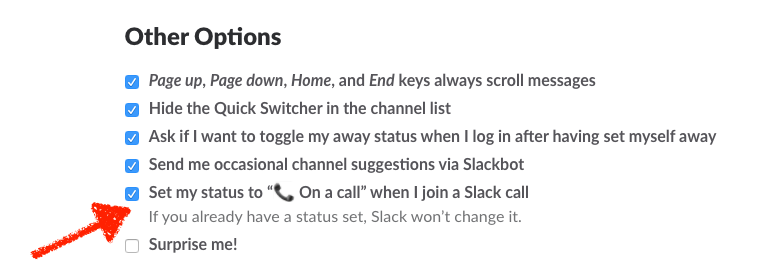
On a call? Slack will let your team know.

Slack will keep that same status on your account until you change it—except for one time. By default, it'll change your status to On a call if you're on a Slack call, and then will switch back to your normal status afterward. If you don't want Slack to change your status, you can turn this feature off from Slack's Advanced preferences.

How to Automatically Set Your Slack Status

What about when a client calls in Skype, or you're meeting a customer across town? And how about your vacation and out of office status updates?

Your calls aren't all in Slack—but you can still automatically set your Slack status if you want. All you need to do is connect your calendar, to-do list, and other tools to Slack with Zapier. With 700+ app integrations and a new Slack Set Status action, Zapier can handle your Slack status for you.

Let's build a simple Zap that updates your Slack status when you're in a meeting—and then look at some advanced ways to automate your Slack status.

Set Your Slack Status to Your Calendar Event

Zapier Google Calendar
Zapier can watch Google Calendar for upcoming events

Your calendar is perhaps the best indicator of what you're currently doing, with your appointments, vacation days, meetings, and more scheduled in one place. That makes it the perfect thing to power your Slack status.

All you need is a Zap that watches your calendar for new events, and changes your Slack status accordingly.

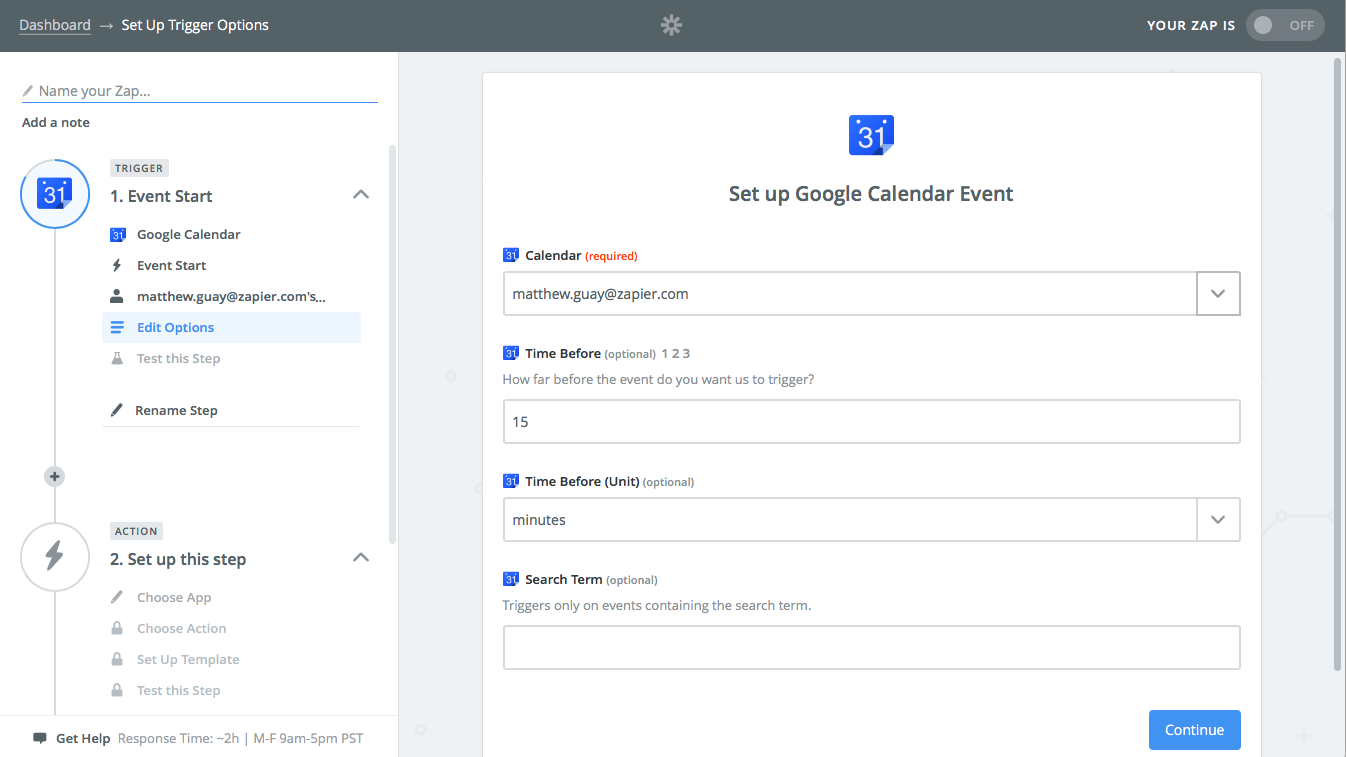
Just open Zapier, select Make a Zap, then select Google Calendar as the trigger app. Use the Event Start trigger, which lets Zapier watch for events right before they start.

Select the calendar Zapier will watch. You can use different calendars as an easy way to customize your Slack status—set your meetings in one calendar, your vacation days in another, and so on. Or, put everything in one calendar, then add a keyword to the Search Term field to watch for specific events (aka have Zapier search your calendar for events with the word Vacation).

Choose how long before the meeting you want to change your status—you might want to set your status to Vacation 8 hours before the vacation actually starts at midnight, while you likely only need to switch your status for calls 5 minutes before they start.

Update Slack Status from Zapier
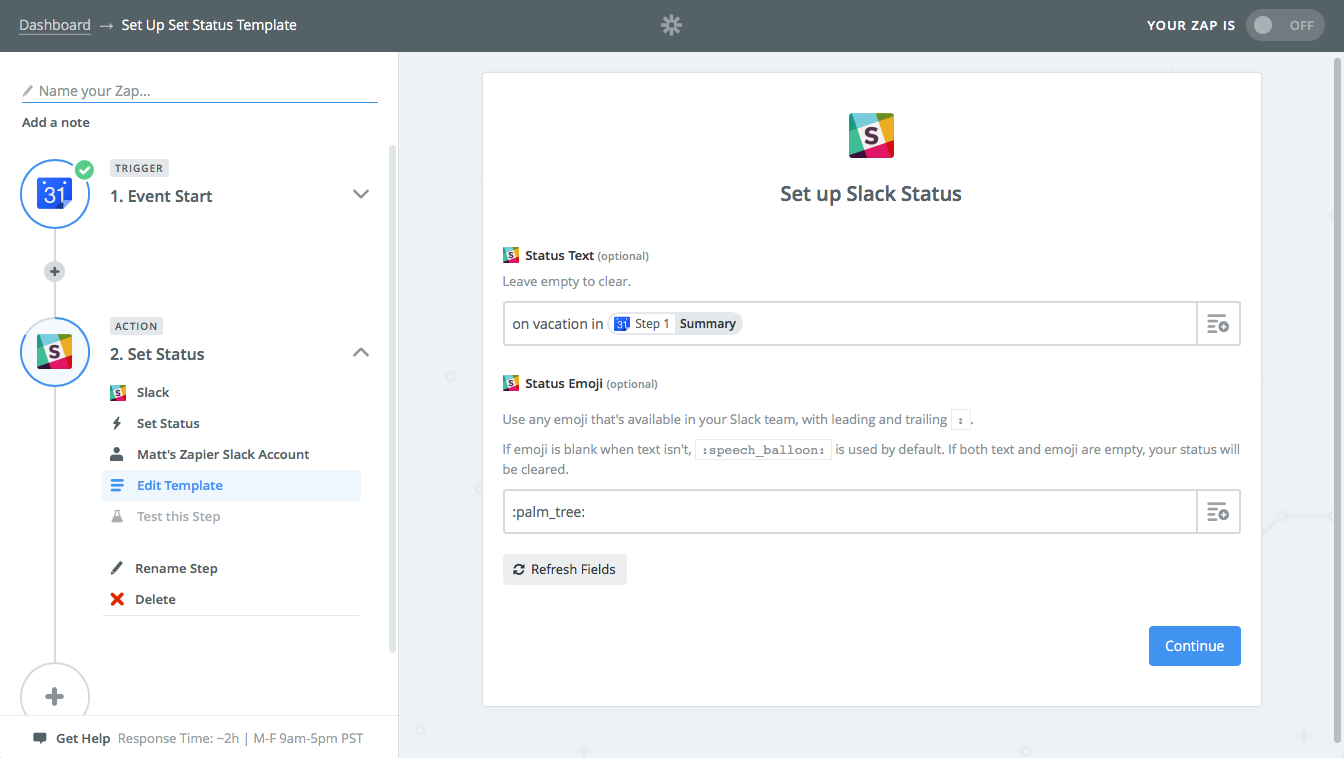
Make your event name your Slack status—or add a custom status

Next, add a Slack step to your Zap. Click the show less common options link at the bottom of the list, then choose the Set Status option.

Now for the fun part. You can type in a new status that fits this type of event—perhaps just On a call for your meetings, or On vacation for your out of office events. Or, tap the + button on the right and select your event summary to use that as your Slack status.

Find Slack emoji name
Find the Slack emoji name from the emoji box in Slack

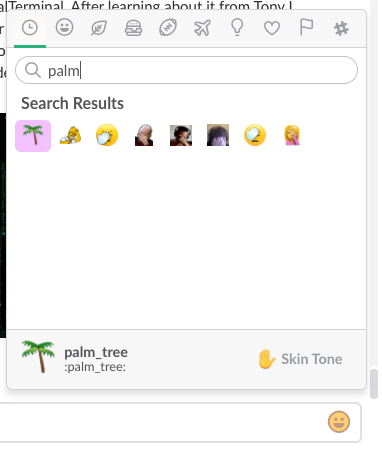
You'll also need to add an emoji to your status—and will need to type it in as a Slack-style emoji such as :simple_smile: or :palm_tree:. To find the emoji you want, open the emoji box in Slack, search for the emoji you want, and note its name from the bottom of the box. Then type that emoji name in your Zap.

Test and turn on your Zap, and now every time you have a new event in that calendar, your Slack status will change accordingly. You can add as many Zaps as you want to your different calendars, to make sure your status is always correct.

Clear Your Slack Status Automatically

Zapier Delay
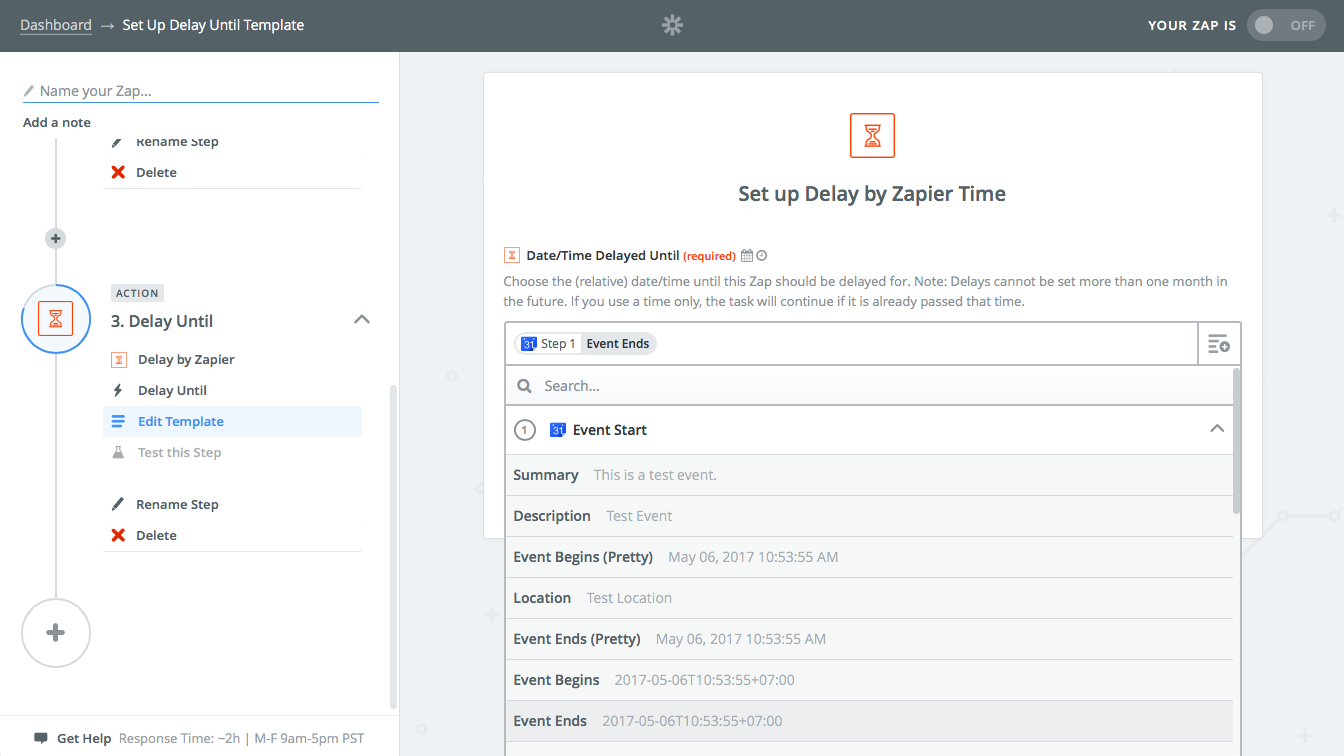
Get Zapier to wait until your meeting is over—and then change your Slack status back automatically

Want to set your status back to something generic when you're back from your meeting? Zapier can do that too. You'll just need to add two additional steps to your Zap.

First, add a Delay step, select Delay Until, then tap the + icon and select the Event Ends time from your calendar.

Then add another Slack Set Status step, with a new status and emoji letting people know you're back at work or off your call.


Need help setting this up? Here's a pre-made Zap that will watch your Google Calendar for events, set your Slack status accordingly, then change it back once the event's over:

Set Your Slack Status Every Morning and Evening

Set slack status every day
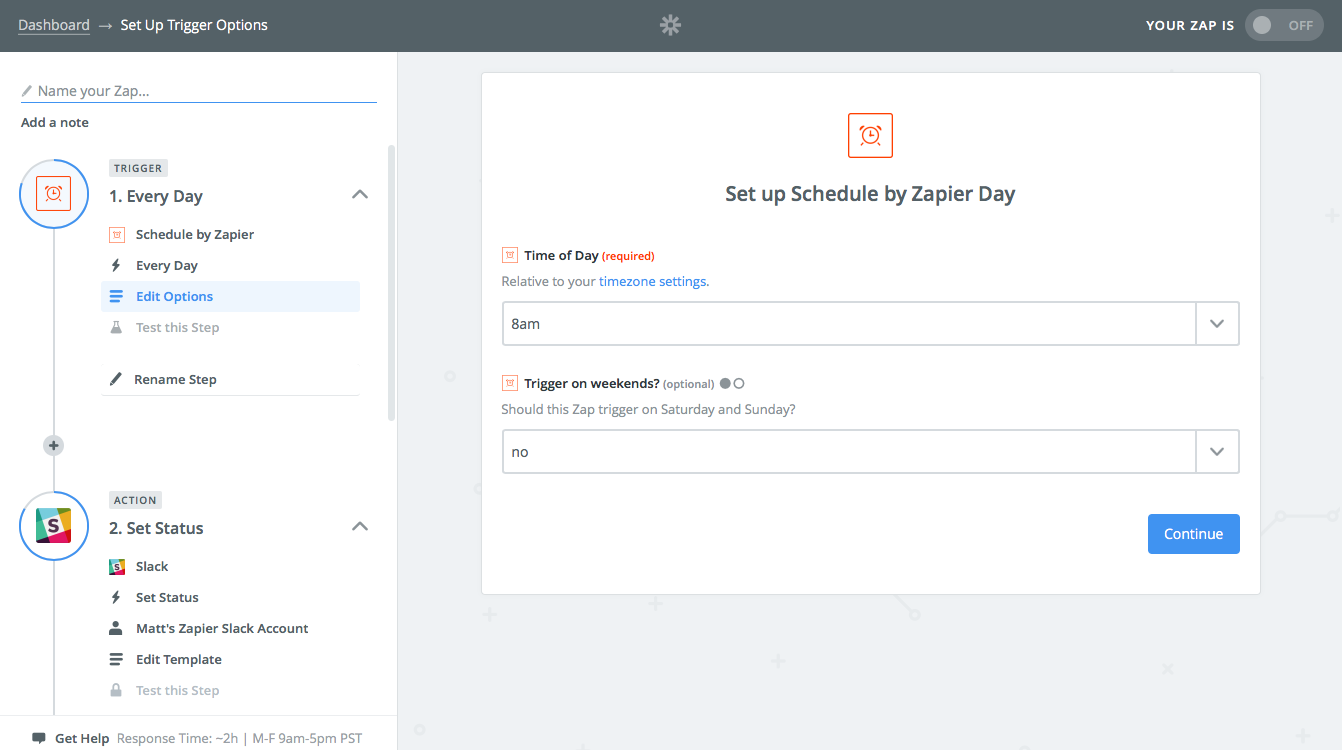
Zapier can set your Slack status every day, automatically

Keep the same schedule every day? Zapier can keep your Slack status up-to-date automatically with a Schedule Zap. Just start your Zap out with a Schedule trigger, have it run every day, and set the time you start work. You can even choose to not have it run on weekends.

Then, add a Slack Set Status action, and fill in your normal working status. Make another Schedule Zap that runs every evening, and have it set your status as out off office, too.

Switch Your Slack Status With a Click

Set Slack status from Chrome
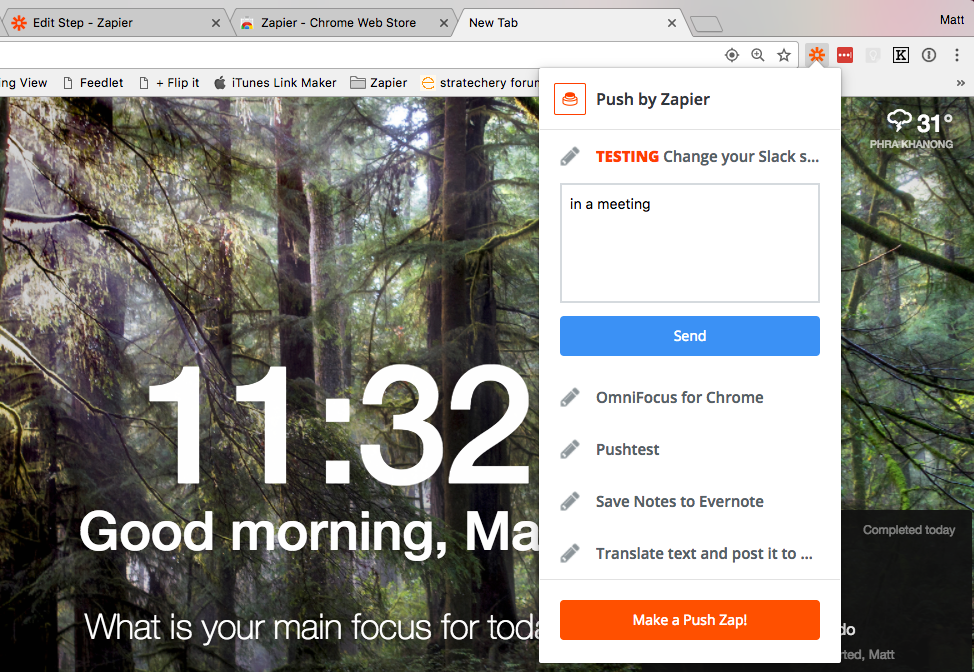
Set your Slack status right from Google Chrome

Want a simple way to set your Slack status without having to open Slack? The Zapier Chrome extension is just what you need.

Install it, then make a new Zap with the Push trigger. You can use the default push trigger where you only have to click the button—or you can use Push with Text to type in a custom status.

Add a Slack Set Status action with the emoji and text you want, or use the text from the Chrome extension if you want. Next time you're out of office—or working on any project in Chrome—just tap the button in Chrome and Zapier will update your status for you.

Away from your computer? You can use Zapier's SMS integration instead. Just send a message to your Twilio phone number, and it'll update your Slack status with whatever is in your text.

Use Twitter to let people know what you're doing? Zapier could set your Slack status to your latest Tweet—and with a filter, it could watch for Tweets with specific hashtags and only use those to update your status.

Add random emoji to your Slack Status
Add random emoji to your Slack Status with Zapier's Formatter

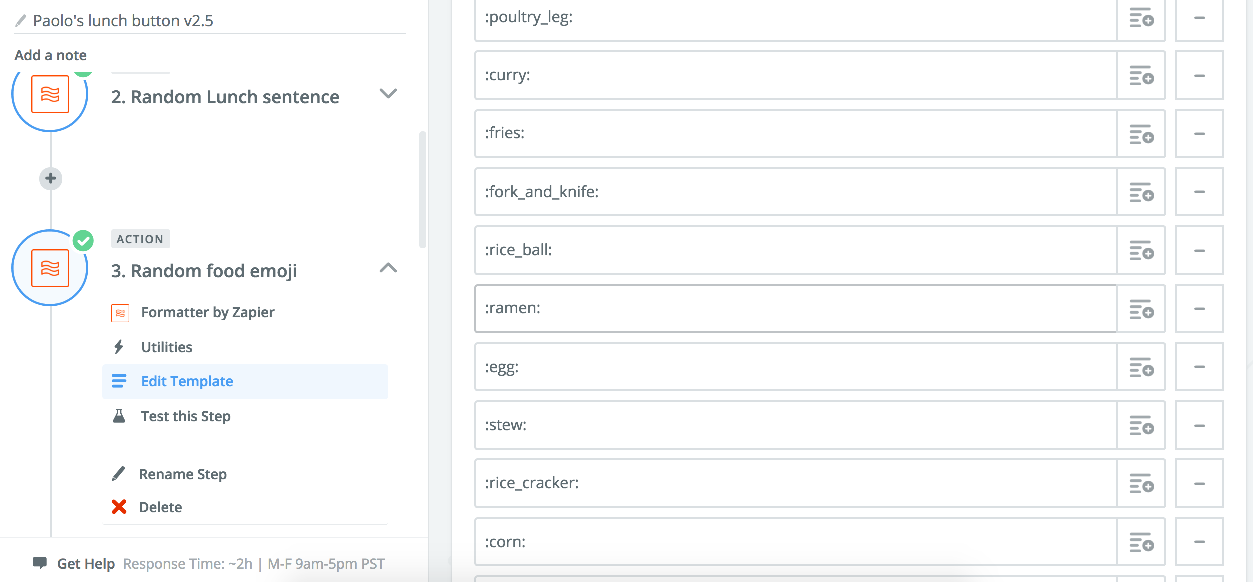
Or, you can go even further. Say you want to tell your team when you're out for lunch, and perhaps use a fun emoji in your Status. That's what Zapier customer champion Paolo Papa does with his Push Zap. Whenever he pushes his Zap's button in Chrome, Zapier picks a random emoji and sets his status as Lunch.

To do that, just add a Formatter step to your Zap before the Slack step. Select Utilities, then choose Pick from list. In the Operation field, select Choose Random to have Zapier pick a random option from your list each day.

Then, add as many emoji as you want to the Input section. You'll then have a random emoji to use every time you update your Slack status.

Build a Slack Status Update Workflow

If a simple scheduled Slack status update isn't enough for you, and your calendar doesn't include everything you're doing, it's time to build a workflow that fits your process. Perhaps you want a way to let your team know what task you're working on. Just have Zapier watch your to-do list or project management app for new tasks in a list.

Then, when you're working on a task, move it to that list and Zapier will update your Slack status with that task. Check it off, and Zapier can update your status again.

Writing a new document, editing a blog post, gathering notes, or crunching numbers in a spreadsheet? Just have Zapier watch for a new file in a folder, then whenever you start working on something new Zapier can update your status with that file's name.

You don't want to get disturbed when you're trying to focus. Just use a timer app, and let Zapier set your Slack status when your focused work sessions start and end. Perhaps use a :no_entry_sign: emoji so people know not to bug you.

With RescueTime, you could even have Zapier update your Slack status if you're not being productive as a little thing to keep you motivated to work throughout the day.

Or, you can build a fancy workflow with multi-step Zaps. Zapier support engineer Fokke Zandbergen built a set of Zaps that check his calendar for his role that day and the current time in his location. The Zaps then set his Slack status according to a list of Slack statuses in the Zap. He even added a Push Zap so he can manually override his automated Slack status updates if he wants.

Think through your workflow and the apps you use every day, then build your own custom Slack status update workflow. Your colleagues will never have to ping you to ask what you're working on again.


Let Zapier Catch the Slack

You shouldn't have to remember to change your Slack status when you're on vacation or out with the flu or on the call with a client—but you should keep your team in the know. With a few automations, you can tap one button to update your status, or let your calendar and other tools do that for you.

Do More with Zapier + Slack

There are dozens of other ways to use Zapier and Slack together. Here are some resources to get started:

  • Learn how to build your own Slack bot to add tasks, lookup contact info, and anything else you want to do with your apps from Slack.

  • Find Slack taking more and more of your time? Here's 12 tips to Slack productively—with ways to clear out your sidebar, catch up on what happened when you're out, and more.

  • Jealous of everyone else's cool custom Slack emoji? Our Emoji Like a Pro guide will teach you where emoji come from, how to use them professionally, and ways to use them in Slack (hint: you can search by emoji for a simple way to tag messages).

  • Speaking of search, check out our Slack Hidden Search Features Guide to uncover any message you need in Slack, anytime you need it.


source https://zapier.com/blog/automate-slack-status/

Friday, 26 May 2017

What to Do When You Can't Get Things Done

Whether you carefully plan every task in a Getting Things Done list or scribble reminders to yourself on the back of an envelope, your goal is the same: You've got stuff that needs doing and you're trying to get yourself organized enough to do it. With a task management system that works for you, you'll get more done with less frustration, fewer missed deadlines, and greater overall work satisfaction. That's something you should rely upon.

But what do you do when your system fails, when your productivity falters, and you risk dropping the ball on important work? Don't panic. It's easier said than done, but panic won't help you feel better or get stuff finished.

Instead, it's time for a tune-up of your systems. Let's pop the hood, look at some of our most common productivity complaints about time, tasks, and tools, and see what can be done to get back on track.

Time

clock
Tick, tock, tick, tock.

No productivity system, no shiny new app will ever give you more hours in the day. Time's the equalizer, the single factor that limits us all.

Don't expect the magical. Instead, figure out what time problem you're hoping a productivity method will help you solve—then fix that problem itself.

I Don't Have Enough Time to Do Everything

It's important to be realistic in determining what you can accomplish each day. Try to add an estimated duration for each task so you're not overextending yourself. You can even time yourself doing a task, and use that time to help schedule just how much you can do in a given time period.

Then, learn how to say no—or at least "not now"—to ensure you aren't taking on more than you can accomplish. As it turns out, you actually don't have enough time to do everything possible each day. By saying no, you free up time to prioritize your most important tasks and not waste time on the unessential.

I'm Not Getting Enough Done in a Day

You may be getting more done than you think. Take a few minutes at the end of your day to see what you have marked as completed or done. Or, use an app like RescueTime to track your workday, and see where every minute and hour goes.

Sometimes it's hard to tell what you've accomplished as you sprint through your day. When you view a list of completed items, you can appreciate your actual progress from each day—and you can inspire yourself to do more tomorrow.

I'm Always Busy Working, Shuffling Between Tasks

"There is time enough for everything in the course of the day, if you do but one thing at once"- Lord Chesterfield

Ah, the "myth of multitasking." Turns out, it's not as productive as previously believed. While it seems like tackling numerous things at once is the height of productivity, it actually slows you down as you move from task to task and back. "People who chronically multitask show an enormous range of deficits," says Stanford psycology professor Clifford Nass. "They're basically terrible at all sorts of cognitive tasks, including multitasking."

As Lord Chesterfield said, “There is time enough for everything in the course of the day, if you do but one thing at once, but there is not time enough in the year, if you will do two things at a time.” The time you spend juggling multiple tasks is time you are not fully devoting yourself to any of those tasks. You'll get less done and make yourself worse at everything you're doing.

My Workflow Is Frequently Interrupted

Any time you are pulled away from your tasks, it takes time to readjust to them when you jump back in—up to 25 minutes in many cases. These interruptions could be tiny things: Loud noises, your phone ringing, someone knocking on your door, or anything else that breaks your concentration. They could be your own fault, when you switch to check email or Facebook during work. They're just enough to pull your focus away and make you have to start over on what you're working on.

It's not always feasible to have a quiet interruption-free workspace but it is helpful to have one, especially if your work requires deep concentration. And while the internet can help with your work, it's also the world's greatest distraction source one click away.

This isn't to say that you shouldn't take breaks throughout your day. In fact, breaks can be helpful. Consider using a timer to force yourself to take breaks and give yourself a few minutes to do these sorts of activities. Think of it as a carrot for your hard work. Or, use an app to hide distractions and stay focused. Think of it as a stick to keep you on the productive path.

Tasks

tasks
No, there's likely not enough time for just one more task.

An overflowing to-do list makes it difficult to decide where to focus your energy. It can be so intimidating that you don't end up getting anything done, and decide to browse the App Store for a better to-do list app instead.

Don't do that. Instead, manage your tasks in a way that helps you get things done.

I Don't Know Where to Start

When your schedule is bursting at the seams, it's critical to prioritize your tasks. Every task isn't equally important.

Take consequences into account when prioritizing your task lists. What has to get done, and what tasks are keeping a larger project from getting finished? Use your to-do list's priority tools—or perhaps highlight tasks in a paper list—to reflect the most important things to focus on.

"Worrying about everything we must get done is unproductive," says author [Michael Hyatt] (https://michaelhyatt.com/what-to-do-when-you-find-yourself-over-committed.html#more-7323). "It only creates anxiety. Yes, my workload looked impossible, but I didn’t dwell on that. Instead, I focused on next most important thing—and kept moving."

Once you've listed the things that must be done first, you'll know where to dive in.

I Can't Tell What I Should Focus on

"If you set a date that’s fake, you’ll know it’s fake and you’ll ignore it."- Michael Lineberger

Due dates automatically make things look important. But there's no need to put due dates on all to-dos. It seems like it might be a good idea to schedule everything, but it'll also make you prioritize things just because they have a due date.

"If you set a date that’s fake, you’ll know it’s fake and you’ll ignore it," says author [Michael Linenberger] (https://www.michaellinenberger.com/blog/dont-use-a-due-date-use-a-start-date/). "In fact, you may miss some important deadlines because you’ll get in the habit of ignoring all due dates you write down."

If you are assigning "soft" or flexible due dates along with your firm due dates, it is easy to lose track of which items are actually due and those which are of the "would be nice to have done" variety. It's better instead to have a list of your less important tasks, and turn to those once the actually crucial due tasks are finished.

I'm Bogged Down With Tasks

It isn’t always necessary to break down a task into multiple steps—that's often what makes to-do lists look impossibly long. Sure, larger projects should be include tasks that are detailed enough to show individual steps, but finding that balance between too little information and too much information can be tricky. For the most part, individual tasks are just that, and don't need extra steps.

For example, you might have a task on your list to remind yourself to take out the garbage on Monday nights. That task is simple enough that you don’t need any additional steps to complete it successfully. It isn't necessary to specify that you need to unlock the back door and put on your shoes to know that you need to do those things first.

On the other hand, having tasks that are too vague can also be problematic. "If you find you’re not getting some of the things done on your to-do list, perhaps the problem is that the tasks are too big," says blogger Steph Caldwell. If the task has logical concrete steps that can be broken out of the larger task, creating subtasks is warranted. You're much more likely to attack a task called "vacuum the living room" than you would be when faced with one called "clean the house."

It Was Working Last Week…

Your task list isn't a set-it-and-forget-it prospect. Sure, you can put in repeating tasks list details for every project, but things will happen outside of your control. Projects can grow, shrink, or be postponed. Priorities change. Equipment fails, and the power sometimes goes out. It's important to reconcile these changes with your task list.

A periodic review can ensure that you are able to meet deadlines and focus your efforts on the appropriate tasks. Then, you can alleviate interruptions by having a contingency plan in place. Any tools needed for your daily work should be well-maintained and have a back up—even your to-do list. That will help you make sure you can keep getting things done.

Tools

software development
You need a way to track your tasks—but the most important thing is doing the work.

With only a handful of tasks you may be able to just store them in your head, but that won't be sufficient when you have multiple projects running concurrently. Thus, the world of to-do list and project management apps.

Those open a new productivity rabbit hole: The quest for just the right software. That can itself become a distraction. You may think new software will be the holy grail, the system to end all other systems. Or perhaps if you tinker with it and try to squeeze out every bit of potential time savings possible, then you'll be productive.

When your system becomes your most prominent task, rather than the items you have entered into it, you've created a monster rather than an efficient workflow.

Something simple like tasks on a pad of paper that you can review frequently could work, as could a full-featured to-do list app or project management system. It doesn't have to be fancy, just functional for you.

Once you've picked a tool, here's how to solve the problems you're bound to encounter:

I Can't Make This Tool Work for Me

If you're experiencing difficulty with your task software, you may be using the wrong system for your work. Everyone works differently, and the productivity system for one person may be the wrong one for someone else.

Productivity systems range from simple lists to complex Gantt charts with every bit of your time divided up. Failure to match your task app to your working style can lead to much frustration and loss of productivity.

First, find the right style for your work. Getting Things Done, or GTD, is a common system to manage personal tasks—here's a guide on how to manage your tasks in GTD. For a simpler alternative, try a grocery list, spreadsheet, or string-around-the-finger productivity methods. Or, for more order for your team work, this project management systems guide will help you decide if traditional, agile, or other work styles are best for your team.

Then, put it to work. Any task tracking method or software is only good if you use it. Watch for problems you encounter. You can have a prime system and the best intentions but if your system causes friction in your workflow, you won't be as likely to use it. Remember, systems like this are supposed to make your life easier, your workflow more streamlined. Any time it fails to work this way means perhaps it's time to change productivity systems—and get an app to fit it.

I Can't Find My Tasks

At this point you might be saying, "Yes, I've done all of this and it's still not enough." Let's talk about working smarter.

Switching between to-do lists is just as bad as multitasking and switching between tasks. One to-do list app might not be enough—you might need one tool for team projects and another for your personal tasks. You could copy and paste tasks between apps, but don't do that either.

Instead, use automation tool Zapier to copy tasks from one app to another, making sure every task is in the right place. You can even automate your project management, using Zapier workflows to create new projects, assign work, remind you to followup on tasks, and more. That frees you up to focus on your work without worrying about finding the right task or remembering what to do.

">


"Worrying about everything we must get done is unproductive. It only creates anxiety."- Michael Hyatt

No matter what system you implement to keep your tasks (and you) on track, there will always be challenges to that ideal state of organizational nirvana.

It's important to carefully consider—and frequently reconsider—your needs and what's really keeping you from being productive. When challenges to productivity strike, remember there's more than one solution to help you regain control, and a new app is often not the solution.

Remain true to the way you work and vigilant about areas your workflow may be lacking. That's how you can once again get things done.

To-do list by Breakingpic Clock photo by Bob Clark; Tasks photo by Startup Stock Photos; Computer photo via Negative Space.


source https://zapier.com/blog/how-to-get-things-done/

Leica Disto E7400x Review: A Trusty Sidekick?

We’ve reviewed a few different laser measuring devices on this site and have seen everything from the very basic to the most advanced. The Leica Disto E7400x finds itself slap bang in the middle as a highly accurate laser measuring tool but without the flamboyant extras such as the camera for outdoor use.

Product Description: Accurate and Solidly Built

We’ve used a few of these devices in our reviews and as always, the Leica Disto E7400x impresses with its build quality. The company proudly boasts that you can drop the gadget from 2 meters without causing any damage and as soon as you hold it, you’ll believe it! Add in the IP65 certified water and dust protection and you have a device that should last as long as you need it to.

The actual appearance is less impressive. It looks a lot like an old phone and is small, boxy and rubber. At least the small size is compact and easy to carry around – and the red and black make for a nice colorscheme.

To use the Leica Disto E7400x, you simply pull out the folding extension at one end and then use that to lay it flat against whatever you want to measure – whether that’s a piece of wood or an alcove in a room. Either way, it will then present you with a highly accurate reading that you can take to the bank.

The device is capable of 1/16” accuracy at 265 feet and also includes height tracking, smart horizontal and more algorithms and sensors to ensure it knows where it is pointing and what angle you have it at. It will remember its last 20 measurements and is quick and easy to use.

Pros and Cons: Basic but Good

So, there are no high end features here. A 20 item memory isn’t exactly amazing and the lack of level is a disappointment. There is also no camera or touchscreen, which is something you would get if you were to fork out for the truly expensive models.
But then again, these issues may not be a problem depending on your use case scenario. The camera functionality is really mainly useful for outdoor use and is frankly a little slow and awkward in its implementation.

For this price, you’re getting the things that really matter – the top end accuracy and useful features like the tilt sensor for measuring things that you can’t actually reach – point the laser and move it up and down to get the measure of a given banner or wall.

For many people, there just isn’t a need for any more features than that – but this does still represent a marked and useful step up from something like the D110 (the most basic model). And you still get all of the other great benefits that are common from Leica Disto laser measures. We love the inclusion of the IP65 resistance and think that will come in particularly handy in highly dusty home workshops.

We reviewed this over a period of a few weeks and we found it made taking measurements into a quick and easy joy.

Conclusions: A Handy Device to Keep Around

If you’re happy with the boxy design, lack of level and lack of camera functionality, then the Leica Disto E7400x is a very easy measuring tool to recommend. It has all of the most essential features for a product in its category, it is very well made and will stand the test of time.

You know how some products are expensive and yet they come with problems? It might be because they have so many features they keep going wrong, or maybe it’s due to QC issues at the manufacturing plant.

But then on the other hand, you have those ‘old reliable’ tools that just always work. Perhaps it’s a trusty drill driver, or maybe you have an old camera that has been taking awesome pictures for the last 10 years.

The Leica Disto E7400x has potential to be one of those trusty sidekicks and to our mind, offers one of the best balances when it comes to performance, durability and price. It’s not going to break the bank but it has incredible accuracy and it just works.


from Toolerant http://www.toolerant.com/leica-disto-e7400x-review-a-trusty-sidekick/

source https://toolerant.tumblr.com/post/161088712620

Thursday, 25 May 2017

The 16 Best Email Apps to Manage Your Inbox

Email is important. Your inbox is the one place where everything from receipts and newsletters to correspondence from colleagues and best friends comes together. Your email address itself regularly serves as your digital passport, too—it's how you login to most apps and sites.

It might not be the most important part of your day, but email has a way of making everything feel like a priority. Odds are you'll feel overwhelmed and unproductive when your inbox is a mess.

You need an email app that makes it easy to organize your messages, search through archives, and get to inbox zero. There are more email apps than ever—so we tried over thirty email services to see which ones work best. Here are the 15 best apps to manage your emails.


The Best Email Apps for Your Devices

Email apps are everywhere. Odds are, you already have a couple ready to use. Your email service—like Gmail or Outlook.com—includes an app to check email online, and your computer and phone likely include a built-in email app, often named Mail.

Those cover the basics. But the best email apps do far more. Some simplify things, helping you quickly clear out your inbox. Others bring together all the business productivity tools you need to get your work done, with powerful tools to sort messages, see details about a contact, schedule meetings, and archive emails offline. And all bring a new way to approach your email.

Here are the very best email apps you should try:

The Best Email Apps

Icon:  App Best for Works on Price
Outlook Outlook email, calendars, tasks, and notes in one app Android, iOS, Windows, Mac $6.99+/mo.; free on mobile
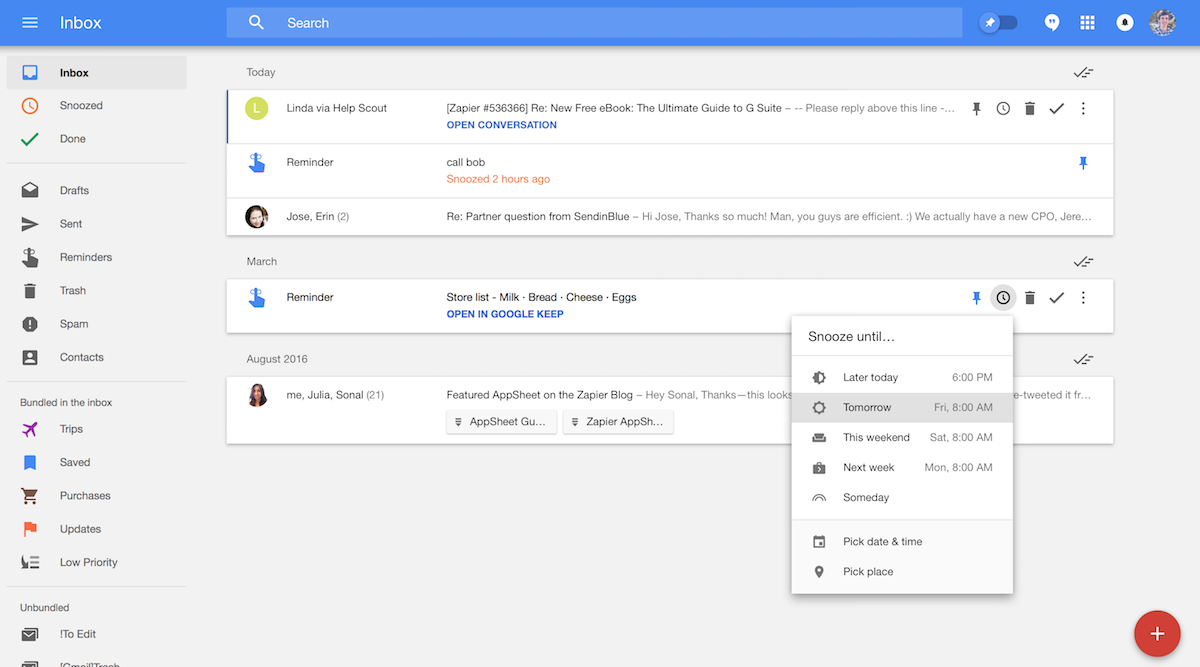
Google Inbox Inbox by Gmail turning your inbox into a to-do list Android, iOS, Web Free
Nylas Nylas Mail making sure your emails get read Windows, Mac, Linux Free; $12/mo.
Mail.app Mail.app annotating images and signing documents in your inbox iOS, Mac Free
Airmail Airmail a deeply customizable inbox iOS, Mac $9.99; $4.99
Spark Spark quick emoji-powered responses iOS, Mac Free
Spark Newton simple, text and voice powered email Android, iOS, Windows, Mac $49.99/yr
Postbox Postbox powerful email organization Windows, Mac $40
Polymail Polymail working on email with your team iOS, Mac Free; $13+/mo.
Unibox Unibox chat-style contact focused emails iOS, Mac $15.99; $4.99

Outlook (Android, iOS, Windows, Mac)

for email, calendars, tasks, and notes in one app

Outlook

If you've ever held an office job, you've probably already become acquainted with Outlook, Microsoft's premiere email application. It's not just for corporations anymore. Outlook's new mobile apps—based on the popular Accompli email app—and the redesigned Outlook for Windows and Mac in Office 365 are among the most powerful ways to manage your email from all of your devices.

Outlook gives you a productivity heads-up display. Here you'll find not just your email, but also your calendar, tasks, contacts, notes, and even RSS feeds all in a single interface. You can filter and search through everything together, to find a news update and a related email, then tie them together into a note that you add to next week's appointment on your calendar. It works great with Exchange and Office 365, the email services most common in enterprises, and integrates with Office apps, making it one of the best email apps for work.

Outlook Pricing: from $6.99/month with Office 365 Personal, or $119 for Outlook 2016 standalone; Free on iOS and Android

See Office 365 integrations and Microsoft Exchange integrations on Zapier

Inbox by Gmail (Android, iOS, Web)

for turning your inbox into a to-do list

Google Inbox

Gmail's labels, search, and nearly limitless storage changed how we use email. The new Inbox by Gmail app is designed to do that all over again by automatically sorting your mail and turning each message into a to-do.

Inbox bundles your trips, purchase receipts, and promotions into groups so you can peek at them, keep your tickets and check-in info in your inbox throughout your trip, or archive them all in a tap. You can add your own bundles, to group work messages and more automatically. Then, read and reply to emails as normal—or archive them with the checkmark. You can pin important emails to the top of your inbox, snooze emails until you need to work on them, or make new tasks to manage right alongside your emails.

There's only one issue: Inbox only works with Gmail and G Suite accounts. But if you use Google's email services, Inbox is one of quickest ways to clear out your email.

Inbox by Gmail Pricing: Free with a Gmail account

See Gmail integrations on Zapier, which work with your emails in Inbox

Nylas Mail (Windows, Mac, Linux)

for making sure your emails get read

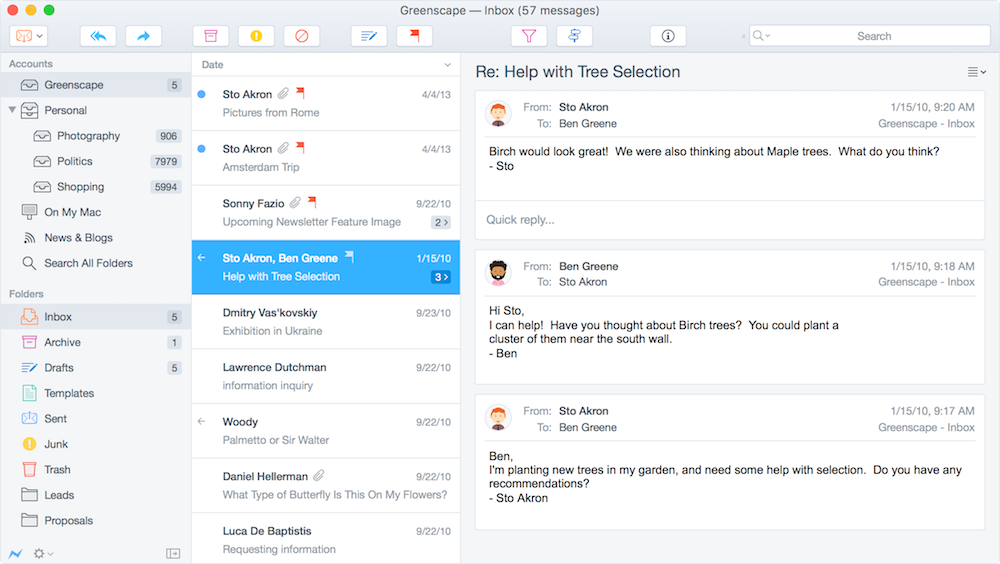
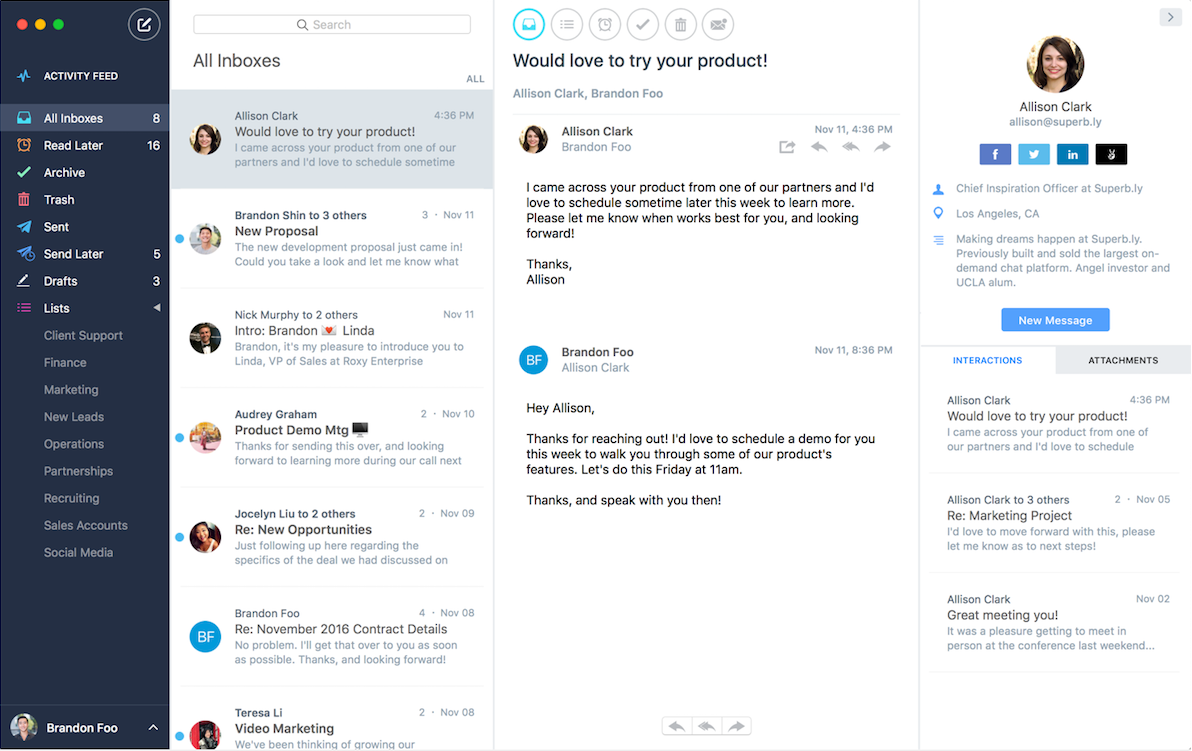
Nylas Mail

Ever wondered if your colleague actually read your email? Nylas Mail can help you find out. It tracks email opens and clicks on links in your emails, to make sure your recipient actually read everything you sent—and if they checked back on the email multiple times.

It makes sure you keep up with your messages, too, with a contacts sidebar that can pull in details from social networks and Salesforce, built-in translation so you can read everyone's messages, and a snooze tool to remind you about emails again later. Its quick reply templates will help you write back quicker—and its undo send tool will keep you safe even if you accidentally hit Send too soon. Plus, Nylas includes themes to make your inbox look like Gmail, Slack, or any other app you love for a consistent experience.

Nylas Mail Pricing: Free; $12/month Nylas Pro for unlimited send later, snoozed messages, and integrations with Salesforce and more

Apple Mail (iOS, Mac)

for annotating images and signing documents in your inbox

Apple Mail.app

The Mail app built into your Mac and iPhone—popularly referred to as Mail.app—may seem like a basic email tool, but its simplicity belies the powerful tools under the hood. With its Markup tools, you can add annotations to images and sign documents right from your Mail inbox. You can also use iCloud Mail's Mail Drop feature in all of your email inboxes, to can send as large of attachments as you want without taking up your inbox storage space.

Mail is a bit more basic on your iPhone and iPad, but it does let you swipe an email to delete or move it to a folder, and can search through your entire email inboxes on the go. On the Mac, Mail's filters and Smart Inboxes help organize your inbox automatically—and for everything else, you can install extensions or build Automator workflows to add the features you need to manage your mail.

Apple Mail Pricing: Free with iOS and macOS

Airmail (iOS, Mac)

for a deeply customizable inbox

airmail

Sparrow was the email app that made email fun again—until it was bought by Google and shut down. The next best thing is Airmail. It started out as a simple email app, one that could show just a list of your emails like Sparrow. Over time, Airmail's team has added so many features that today it's one of the most powerful, customizable email apps available.

Its customizable notifications let you only get notified when emails from your most important contacts come in—or you can let Airmail watch who you email most often, and notify you about emails from those people automatically. It lets you swipe emails to file them like Apple Mail—only here, you can set what happens when you swipe messages. It can help you write faster, with built-in templates for your most-used emails. And, it works with your favorite apps, with built-in integrations with Fantastical, Evernote, OmniFocus, Dropbox, and more, so you can turn emails into tasks and share files from your favorite tools.

Or, you can hide it all and just get a Twitter-style stream of your emails with the inbox theme you want. It's an email app that's as powerful or simple as you want.

Airmail Pricing: $9.99 for macOS; $4.99 for iOS

Spark (iOS, Mac)

for quick emoji-powered replies

Spark

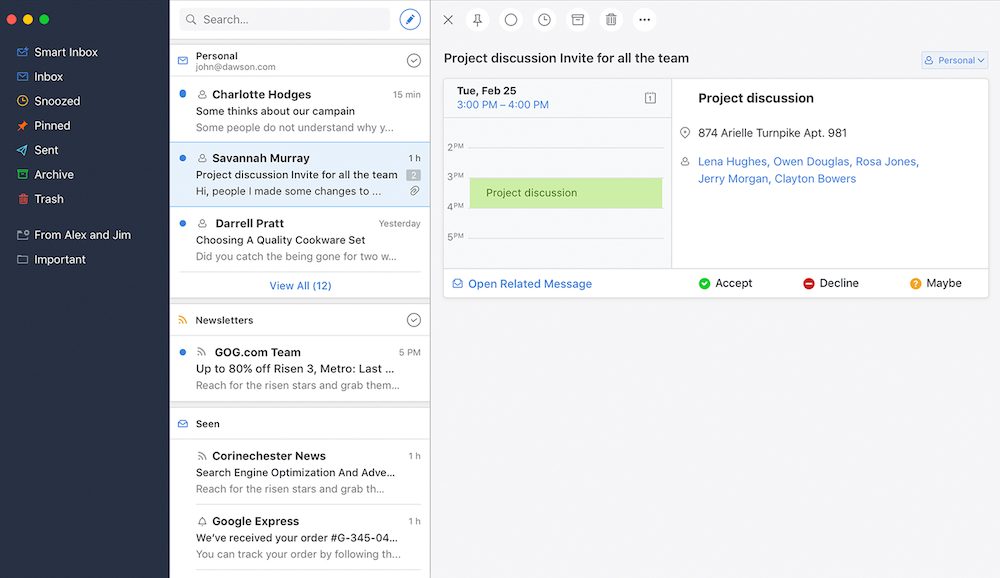
Every email doesn't need a full reply; sometimes a thumbs-up or Ok! is all you need. So, in Spark, that's all you have to send. Tap Quick Reply, then send an instant response with an emoji and archive the message in one step. Appointments are even better—instead of a standard calendar invite email, Spark will show you a preview of the event in your calendar with Accept and Reject buttons. Tap Approve to add the event to your calendar, let your contact know you're coming, and archive the email all at once.

Spark includes Gmail Inbox-style message groups so you can figure out what needs your attention and what should be swiped away. It can snooze messages, save them to Evernote or Pocket to read later, or clear away messages that aren't important. And when you do need to send a full email, just swipe over your signature to quickly switch to the one that's best for this message.

Spark Pricing: Free

Newton (Android, iOS, Windows, Mac)

for simple, text and voice powered email

Newton

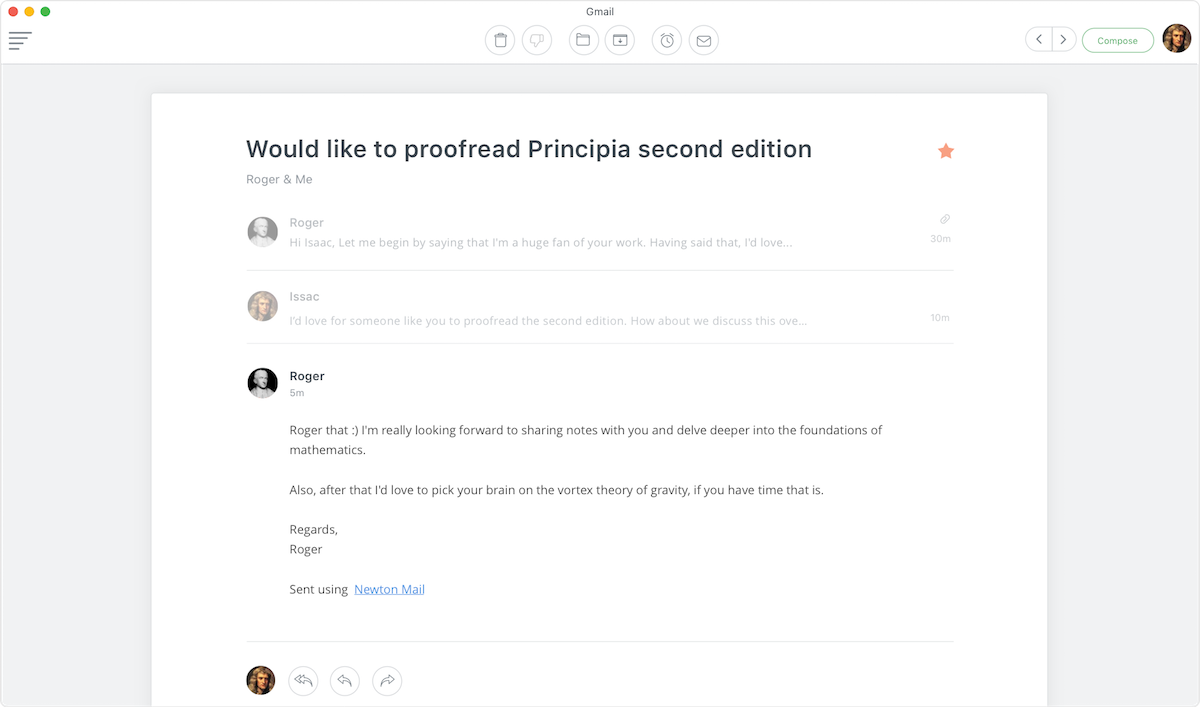
Newton—formerly called CloudMagic—includes all the fancy features the best mail apps today offer. Snoozed messages, scheduled sending, details about your contacts, app integrations, and notifications when your emails have been read will all keep your inbox focused. The best thing about Newton, though, is that you won't think about its features most of the time.

Instead, you'll quickly read through your emails with a Gmail-like list of messages that open into a full-window reading and writing view so you can take your time and craft the perfect reply. Or, you can go through your emails even easier, perhaps while making your morning coffee, with Newton's Alexa skill. Say Alexa, ask Newton who just mailed me, and Alexa can read you the email, archive or snooze it, then move on to the next email in your inbox.

Newton Pricing: $49.99 per year for all apps

Postbox (Windows, Mac)

for powerful email organization

Postbox

After starting out as an updated version of Thunderbird, the open-source email app from the team behind Firefox, Postbox has grown into a powerful email app that manages to make desktop email feel a bit more like working in a browser. You can open multiple emails in tabs, organize messages with tags (in addition to standard folders), jump to your most-used folders from the Favorites bar, and share files using file sync tools like Dropbox and Box.

Quickly dig into your email threads with its detailed contact info sidebar and an attachments view that shows every file you've received via email. Reply faster with templates, and a Quick Post tool to forward emails to Zapier's email automation workflows. And if you need more tools, Postbox addons let write in Markdown, import messages, encrypt emails, and more.

Postbox Pricing: $40 lifetime license

Polymail (iOS, Mac—Windows and Android coming soon)

for working on email with your team

Polymail

Polymail's core features feel like a mix between Spark and Nylas, with scheduled messages and read notifications in a simplified interface that makes browsing through your mail simple. It can even watch every single thing that happens with your emails, to know when each recipient opens your messages and who downloads your attachments—and it can do that with bulk emails for a quick mail merge option without needing a newsletter app. Booking a meeting? Polymail makes scheduling simple by showing you who's available, when, right inside your email editor.

Its best feature, though, is that you can use all of that with your team. Create email templates, and everyone can share them instead of having to make their own. You can track stats together to see how long your whole team is spending in their inboxes—and how likely each person is to get a reply.

Polymail Pricing: Free for core features; from $13/month Pro plan for per-recipient email tracking and 5 email campaigns per month, and $16/month per user for Team plans

Unibox (iOS, Mac)

for chat-style contact focused email

Unibox

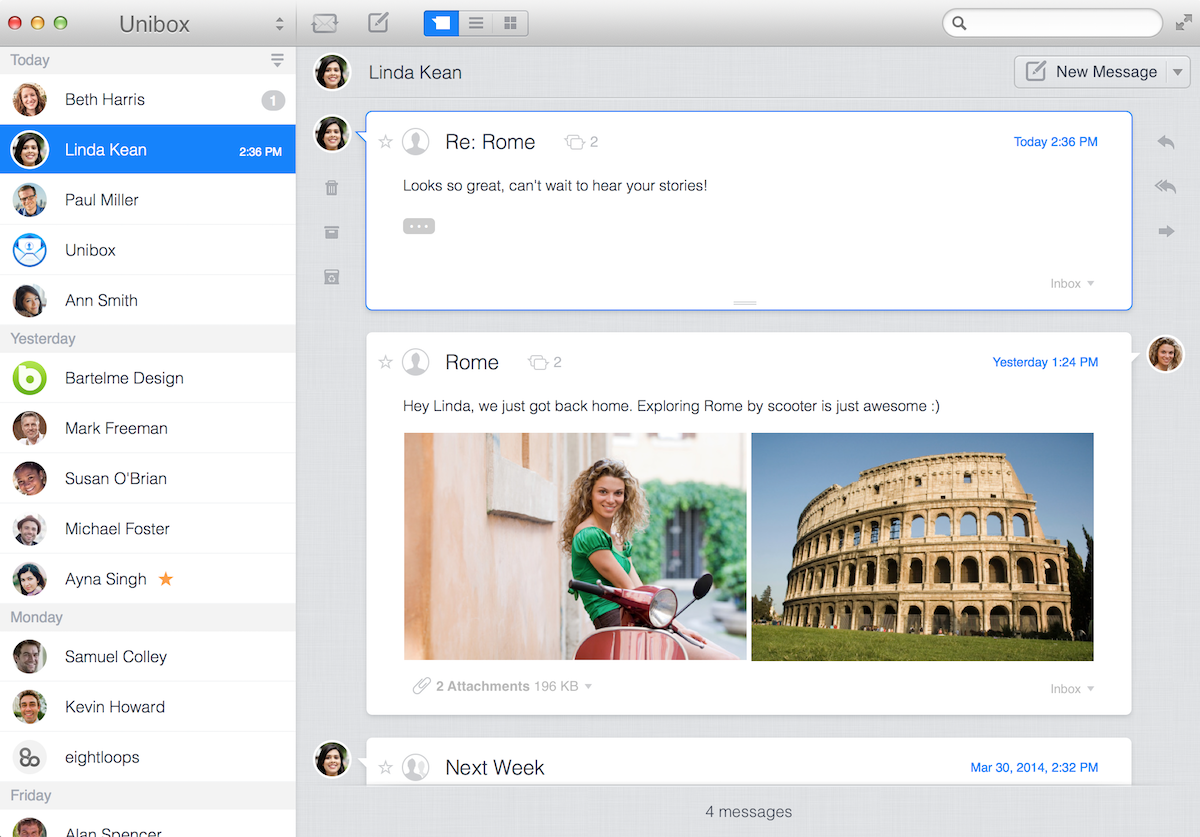
Email is too complicated for short messages. Sometimes you just need to send a quick message to a friend, and a subject and signature seem like way too much. And if you want to know what you'd said to that person last time, you'd have to search through your email archives.

Unibox changes all that, grouping your emails by contact. Instead of a list of unread emails, you'll see your contacts sorted by who's emailed most recently. Tap a contact to see every email you've sent back and forth in a chat-style conversation view, then quickly reply from the top of your conversation list.

There's nothing to organize, no pressure to hit Inbox Zero. All you'll have to do is see is who's gotten in touch recently.

Unibox Pricing: $15.99 for macOS; free or $4.99 for iOS

Alternative Email Apps

Still haven't found the perfect email app for your needs? Here are 11 more popular email apps that you might want to try:

Icon:  App Best for: Works on: Price:
mail Windows Mail and Calendar On your PC, there's another free email app that keeps things simple: Windows Mail and Calendar, the latest version of what used to be called Outlook Express. It has all the basics you'd expect—including threaded email conversations, notifications, and flags to mark your most important messages—along with Outlook-style calendar integration. And it's designed for touchscreens, too. Windows Free
Gmail Mobile Gmail Mobile Prefer Gmail's standard features over Inbox for Gmail's new task-centric design? Gmail's mobile app gives you the same tag-based organization and powerful search you'd expect in Gmail.com—in an app that works offline on your phone. iOS, Android Free
Mailbird Mailbird Another Windows email app with a modern design, Mailbird lets you personalize your inbox with custom layouts and sidebar theme colors. It also includes web app views of popular apps to work in Todoist, Slack, WhatsApp, and more from your email inbox. Windows Free; $1.58/mo. Pro plan
Dispatch Dispatch Dispatch helps you take action on your emails, with actions to send your messages to to-do list, calendar, or notes apps. You can then reply to messages faster on the go with snippets that include your signatures and any other text you often use in emails. iOS $6.99
MailMate MailMate MailMate is an app for email power users who love plain text. You can jump through your emails with keyboard shortcuts, visualize the entire conversation behind a message, and reply with Markdown formatting. Mac $49.99
Hop Hop Prefer txt to email? Hop is a good app to try. It turns email threads into conversations much like Facebook Messenger or iMessage, with GIFs, voice messages, one-tap image sharing, and everything else you'd expect in a chat app—only here, your messages are sent as emails. iOS, Android Free
Kiwi Kiwi for Gmail Like Gmail's web app, but want to use it outside of your browser? Kiwi puts Google's web apps in their own window to make Gmail.com feel more like a native app. It doesn't work offline—but it does keep you from having to open your browser to check your Gmail inbox. Windows, Mac Free; $9.99
BlueMail BlueMail Want to email the same group of people easily every time? BlueMail's Group Mail is a simple way to bulk email from your phone—and its Clusters let you group all of the replies into easy-to-manage sets. Android, iOS (Windows and Mac coming soon) Free; paid for business
Thunderbird Thunderbird The open source email app from the team behind Firefox, Thunderbird gives you a tabbed interface to manage your email and calendar together. It feels a bit dated, but its add-ons and themes let you customize it just like you customize your browser. Windows, Mac, Linux Free
IBM Notes IBM Notes Another desktop client with a stronger bent for business, IBM Notes—the successor to Lotus Notes, the original desktop email app—integrates email messaging with business applications. It will feel familiar enterprise PC users, with the added bonus of bring-your-own-device portability. Android, iOS, Windows, Mac, Linux $108+/yr.
eM Client eM Client Want an Outlook-style inbox on your PC for free? eM Client combines email, calendar, contacts, and instant messaging in one app. And if you already have a large archive of emails from other apps, it's a great tool to import and view them all. Windows Free; $49.95 Pro

The Best Online Email Services and Apps

No matter which app you choose to manage your email, it all starts with your email account, which likely comes with an online email app—otherwise known as webmail. If your email address ends in @gmail.com, @yahoo.com, or @outlook.com, for instance, then your email comes with an online email app—Gmail, Yahoo, or Outlook.com, respectively.

You likely already have an email service—and the simplest app you could use is the one that comes with it. But if you want a new email account, or just want to see what the other email services offer, here are the best services to consider—each designed to manage your email online in their webapp, or with any other email app you want.

The Best Webmail Services

Icon:  App Best for Storage Price
Gmail Gmail powerful email organization and search 15GB Free
Outlook.com Outlook.com Office Online and Skype integration 15GB Free
FastMail FastMail ad-free mail on your domain 2GB $3/mo.
iCloud Mail iCloud Mail sharing large attachments 5GB Free
Zoho Mail Zoho Mail a social take on email 5GB Free
Throttle Throttle unique email addresses for every service Unlimited $4.99+/mo.

Gmail

for powerful email organization and search

Gmail

Gmail is the gold standard in webmail. Its web app is good enough, it might be the best way to manage your email, no extra app needed.

With limitless ways to sort incoming email with filters and labels and exceptional spam filtering, Gmail makes it a breeze to get to your most important messages quickly. You can combine all of your email accounts in one Gmail accounts, forwarding messages and sending replies from other email services. You can also easily switch between other Gmail accounts easily for work and personal emails only a click away.

When it was first released in 2004, the 1GB of free storage Gmail offered at the time was hundreds of times more than Hotmail and other competitors offered. That made it possible to archive all of your email messages and search to find anything you need, rather than deleting old emails. Today, its free storage is standard—but still plenty to archive email for years without worry.

Gmail is great for personal email accounts, and its companion G Suite service lets you use Gmail's features for your work email accounts. You'll find extra features to manage your email and simplify your workflow in its settings, along with extras and addons you can add from other developers to make Gmail even better. If you want the best online email experience, it's hard to beat Gmail.

Gmail Pricing: Free with 15GB storage; from $5/month per user G Suite Basic plan

See Gmail integrations on Zapier

For a deeper look at Gmail's features and pricing, check out our Gmail review.

Outlook.com

for Office Online and Skype integration

Outlook.com

Microsoft's online email application has come a long way since its inception in the 1990s as Hotmail, the email service you likely ditched in the mid-2000s for Gmail. Outlook.com, its current incarnation, is now a slick and powerful webmail app that integrates with Microsoft's suite of online services, including OneDrive, Office Online, and Skype.

Those integrations are its shining features, especially if you're a heavy Office user. You can edit Microsoft Word documents or start a Skype chat in Outlook.com, right alongside your email messages. You can also share larger attachments with OneDrive. Outlook.com doesn't include as many power-user features for managing email as Gmail—it doesn't support labels and its filters aren't as powerful—but its new interface borrows some of its namesake desktop app's design, making it a nice online option if you use Outlook at the office.

Outlook.com Pricing: Free with 15GB storage; Office 365 Business Email from $5/month per user for a similar email experience at work

FastMail

for ad-free mail on your domain

Fastmail

If you're looking to move away from ad-supported email services or want to use your own domain name for email, FastMail is one of the best services to try. It includes many of the features you expect from other webmail apps, including filters for organization and "personalities" to manage separate email accounts in the FastMail interface. And, it lives up to the fast in its name, with search tools that dig through your full inbox even from mobile.

Unlike Gmail and Outlook, Fastmail charges for use—though just a reasonable $3/month for its core email features, or $5/month if you want to use your own domain. That gives you far more storage than its competitors, though, with your own professional email address and an ad-free experience. That makes it one of the best ways to get personal email on your own domain today.

FastMail Pricing: $3/month Basic plan for core email features with 2GB storage; from $5/month Standard plan to use your own domain name with 25GB storage

See Zapier's IMAP integrations to automate your FastMail inbox

iCloud Mail

for sharing large attachments

iCloud Mail

Chances are you already have an iCloud email account, if you've ever owned an iPhone, iPad, or Mac. iCloud and its companion email service comes free with any Apple device, with an @icloud.com email address and 5GB of storage. Then, you can check your email in your device's Mail app, or just go to icloud.com/mail in any browser and you'll get an online email experience that's almost just like the Mail app on your iPad.

Aside from its shiny interface, iCloud Mail's best feature is Mail Drop, which lets you send up to 5GB of email attachments—that's hundreds of times larger than most email services allow, and it doesn't count towards your iCloud email storage. That makes it a great way to send files, in an easy-to-use email tool that's a nice option if you want a simple email experience and already own Apple devices.

iCloud Pricing: Free for 5GB storage

Use Zapier's IMAP integrations to automate your iCloud Mail inbox

Zoho Mail

for a social take on email

Zoho Mail

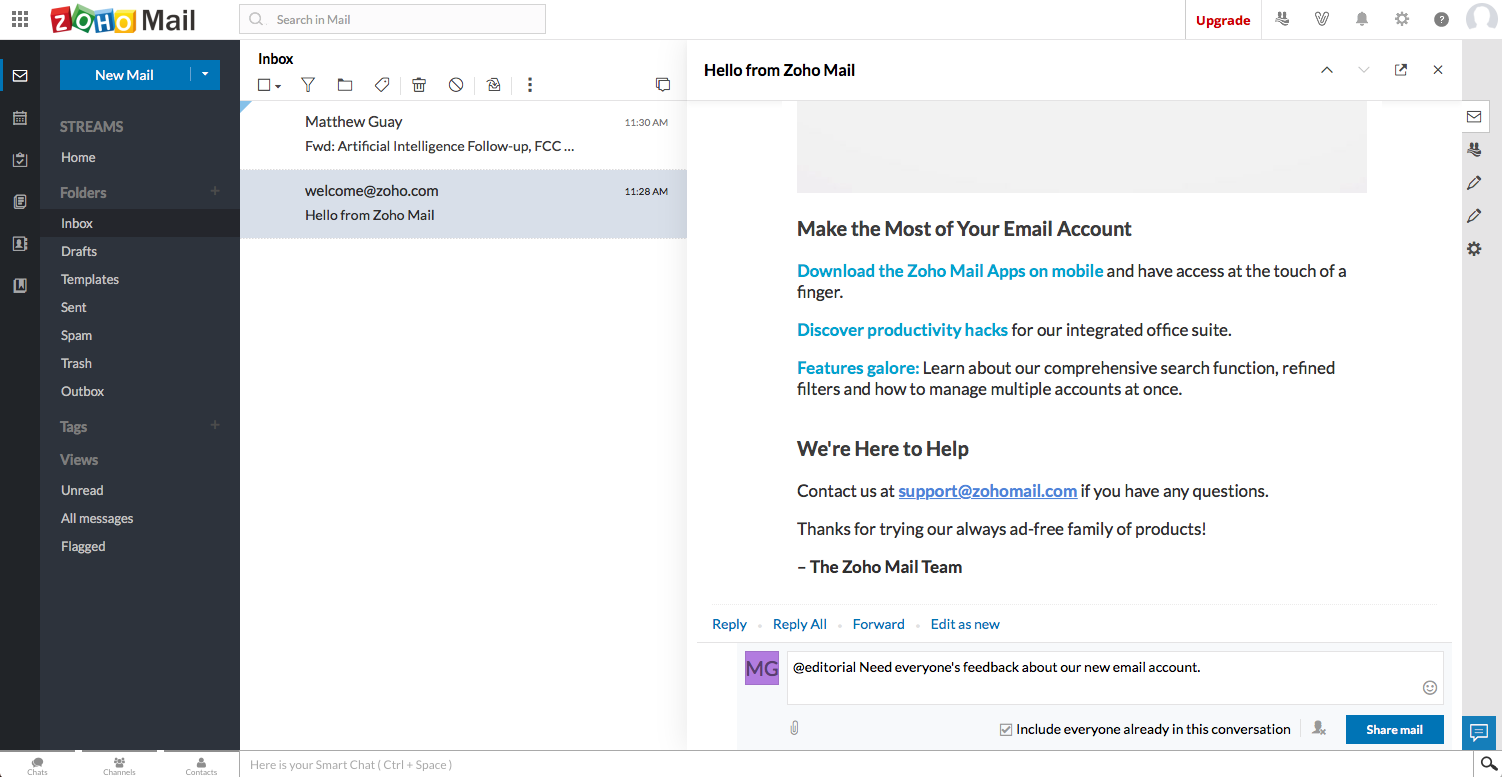
Want free email on your personal domain? Zoho Mail is the best option today. It's designed for business email, with tools to share messages and chat with your team without having to send full email messages. Instead, you'd just link your colleagues to a message, add a quick status update, and never have to worry about email subject lines again.

Those features won't work if you're using Zoho Mail for your personal email—but you'll still get Zoho Mail's newly redesigned webmail app along with IMAP sync that works with any other email app. And, you'll get email on your own domain for free, something few other services offer today.

Zoho Mail Pricing: Free with 5GB storage; from $3/month Standard plan for 30GB storage

See Zoho Mail integrations on Zapier

For a deeper look at Zoho Mail's features and pricing, check out our Zoho Mail review.

Throttle

for unique email addresses for every service

Throttle

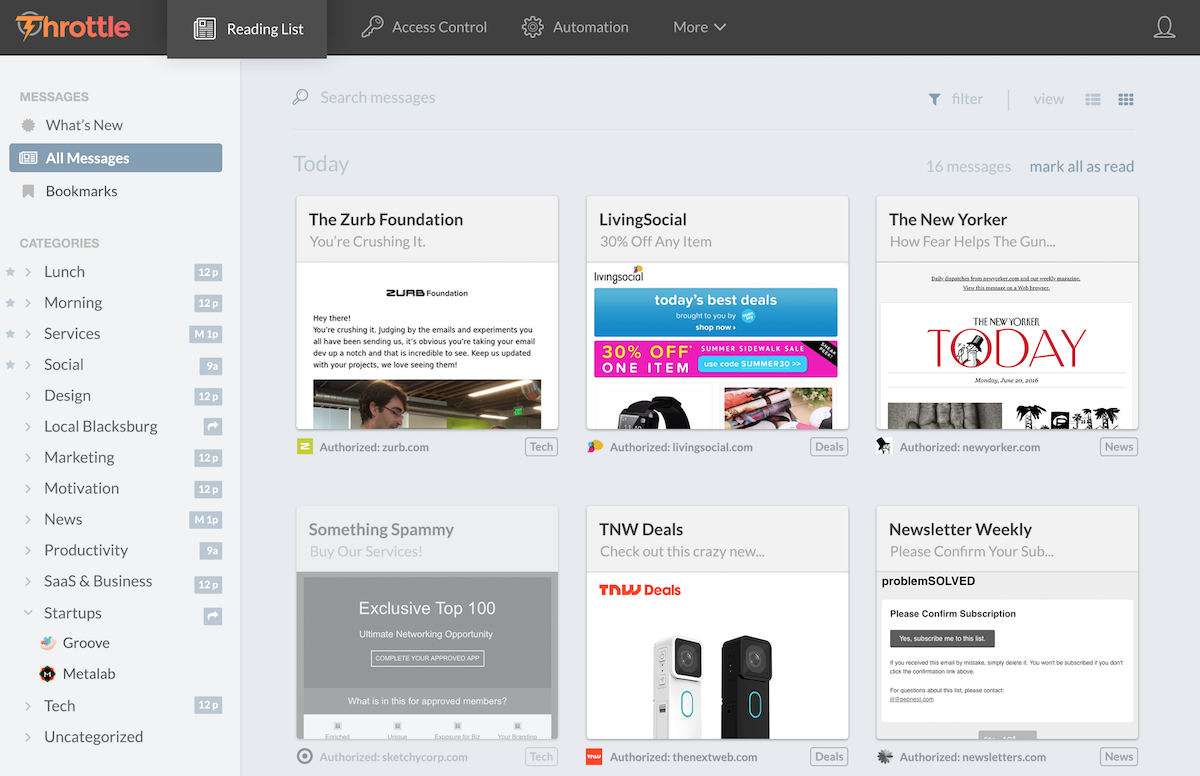
From the team behind Mail Pilot, a Mac app that attempted to simplify your inbox, Throttle turns your inbox around. Instead of 1 email address to use for everything, it gives you a new, unique email address for every service and newsletter you sign up for. It then organizes your messages into an RSS reader-style list of updates, with bookmarks for the messages you want to keep around and categories to group your messages.

You likely won't use it for all of your emails. Instead, you'll keep your standard email address for personal messages, and will use Throttle as your email address whenever you sign up for a new app or service. Then if you start getting spam, or can't unsubscribe from a list, just delete that email address in Throttle and you'll never get those messages again. And with a Pro account, you could add your own domain and use it as a unique way to manage your personal emails, too.

Throttle Pricing: from $4.99/month Plus plan for 100 addresses; $99/year for custom domain


Automate Your Email Inbox

Zapier Gmail Integrations
Zapier's app integrations can manage your inbox for you

No matter how great your email app, you won't want to spend all day in your inbox sorting email messages and downloading attachments. Instead, use your email app's filters and search tools to sort messages, and give them superpowers with Zapier workflows.

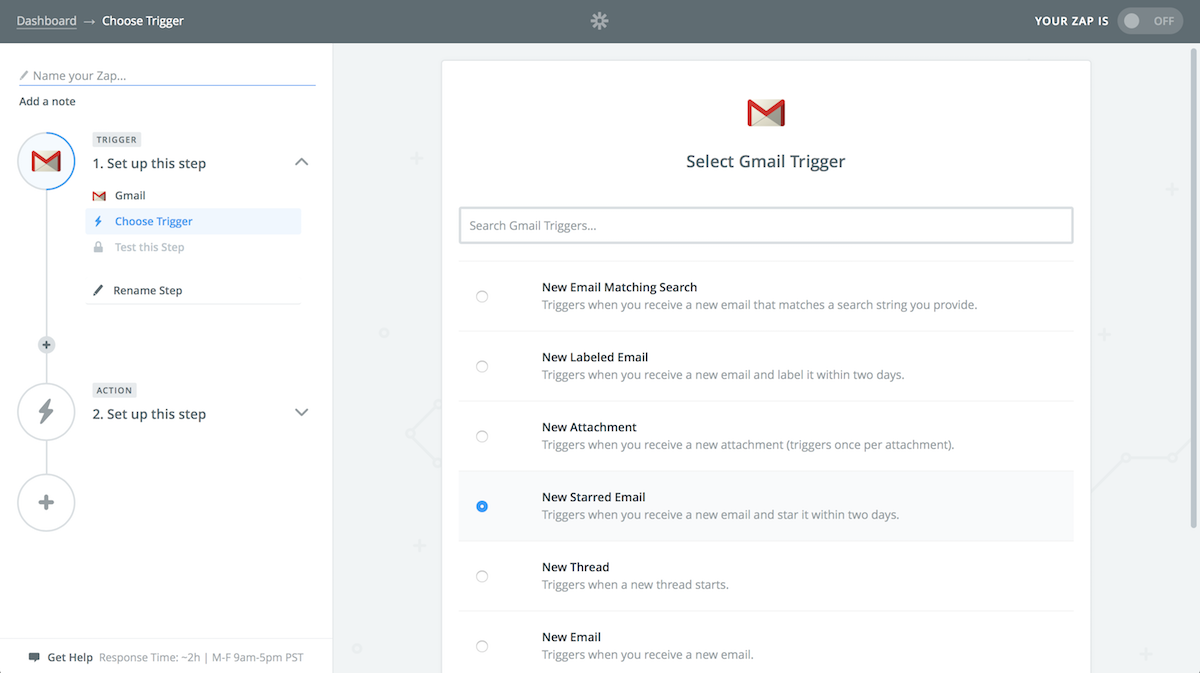
Zapier works by keeping an eye on your inbox, looking for a designated event to occur—like "New Email" or "New Starred Email"—at which point it triggers an event in another app. For example, each time you receive an email, you could get a private Slack notification that includes the sender's name and email address, the message's title and preview snippet, and a link to that email.

Gmail notification in Slack

Zapier works with Gmail, Office 365, and Microsoft Exchange—or any other email service through Zapier's IMAP integration. Those integrations can watch for new emails and notify you about them, or copy their details to share in chat, projects, and more. Or, using the free Zapier Email Parser, you can copy data directly from your emails—perhaps to list details from your form results or utility bills directly in a spreadsheet or accounting app.

Here are some popular Zapier email workflows to help you get started:

Get Custom Email Notifications and Share Team Emails

Turn Emails Into To-Dos

Never Hassle with Attachments Again

Archive Emails in Your Notes App

Parse Important Information Out of Emails

Get a Free Email Apps Cheat Sheet

Want a quick reference of the best email services and their best features? This downloadable infographic is just for you. It's a handy outline of the best email services from this article to share with your team.


The Best Email App for You

There are as many different email clients as there are ways to get things done. The key to picking the perfect email app is to isolate what you need out of email, then find an app that does just that.

Maybe you need something simple on your phone that lets you swipe through your inbox and triage emails. At work, you might need a more powerful email tool that filters messages, shows contact info, and helps you quickly find old correspondence. And at home, an online email app might be perfect so you can check your personal emails from anywhere. Or maybe, the best option is to pick a cross-platform app that works everywhere, for the same email experience on all of your devices.

What matters is that you can keep your inbox managed, without having to spend too much time in your email app. The best email app may, in fact, be the one you need to use least.


More Email Resources from Zapier

With your shiny new email app, checking your email every day might actually be fun. Don't let it get overwhelming again. These Zapier tutorials will help:

Keep Your Inbox From Overflowing

automate email

Tired of having a packed inbox, even though you spend so much time using email? This article includes 10 tips to help you keep your inbox under control. You'll learn how to separate your emails into zones, write purposeful emails that will get direct responses, uncover your most important email messages, and more.

10 Realistic Ways to Keep Your Overflowing Inbox Under Control

Optimize Your Gmail Inbox

gmail

The best thing about Gmail is the advanced features, hidden tools, and add-ons that you can add to your inbox. There's keyboard shortcuts for almost everything, options to customize how almost everything in Gmail looks, filters to store messages automatically, and so much more—and that's just Gmail's built-in features. Add some Gmail add-ons, and you may just find that Gmail is the only email app you need.

"A Guide to Optimizing Gmail: 30 of the Best Tips, Tricks, Hacks and Add-Ons"


Originally published 2 June 2015; updated 17 May 2017. Zapier senior writer and editor Matthew Guay contributed to this article.


source https://zapier.com/blog/best-email-app/