Your calendar app should remind you that your brother's birthday is next week. It should let you see your weekly meetings at a glance and stay on top of your work schedule from anywhere. And, ideally, it should do all of that and more without much involvement from you.
Having your calendar accessible on the go is a necessity. And while Apple's pre-installed calendar might do the trick, there are plenty of other options to consider for your iPhone calendar app. We tested dozens of apps made for your iPhone, and here we'll present the 12 best.
What Makes a Great Calendar App for iPhone?
There are iPhone calendar apps designed for just about every kind of person, from type A to Z. But there are a few must-haves when it comes to the best ones:
- Easy to use: No one wants to spend hours configuring their calendar or entering events and reminders. Your calendar app should be intuitive, easy to learn, and effortless to maintain.
- Designed with intention: Whether the goal is simplicity or dozens of features, iPhone calendar apps should be designed with a specific purpose—and everything should flow from that purpose.
- Customizable views: When it comes to something as personal and vital as your life's schedule, you should be able to manage it the way you want, tapping into the features you need and tailoring the look and feel to your taste.
- Notifications and alerts: Unlike giant wall calendars of old, your iPhone calendar isn't always right in front of your face. That doesn't mean you can afford to forget about that meeting next Tuesday. Your calendar app should have customizable notifications and alerts, so you can stay on top of your schedule—not the other way around.
- Maps integrations: When you're on-the-go, being on time is more complicated than just leaving X minutes before an event. The best iPhone calendar apps integrate with Maps to help you keep track of traffic and travel time.
- Siri compatibility: In the same vein, iPhone calendar apps should work with the rest of your apps seamlessly—and that includes Siri, your go-to for all things iPhone.
The 12 Best Calendar Apps for iPhone
Best iPhone calendar app for keeping your schedule, tasks, and notes together
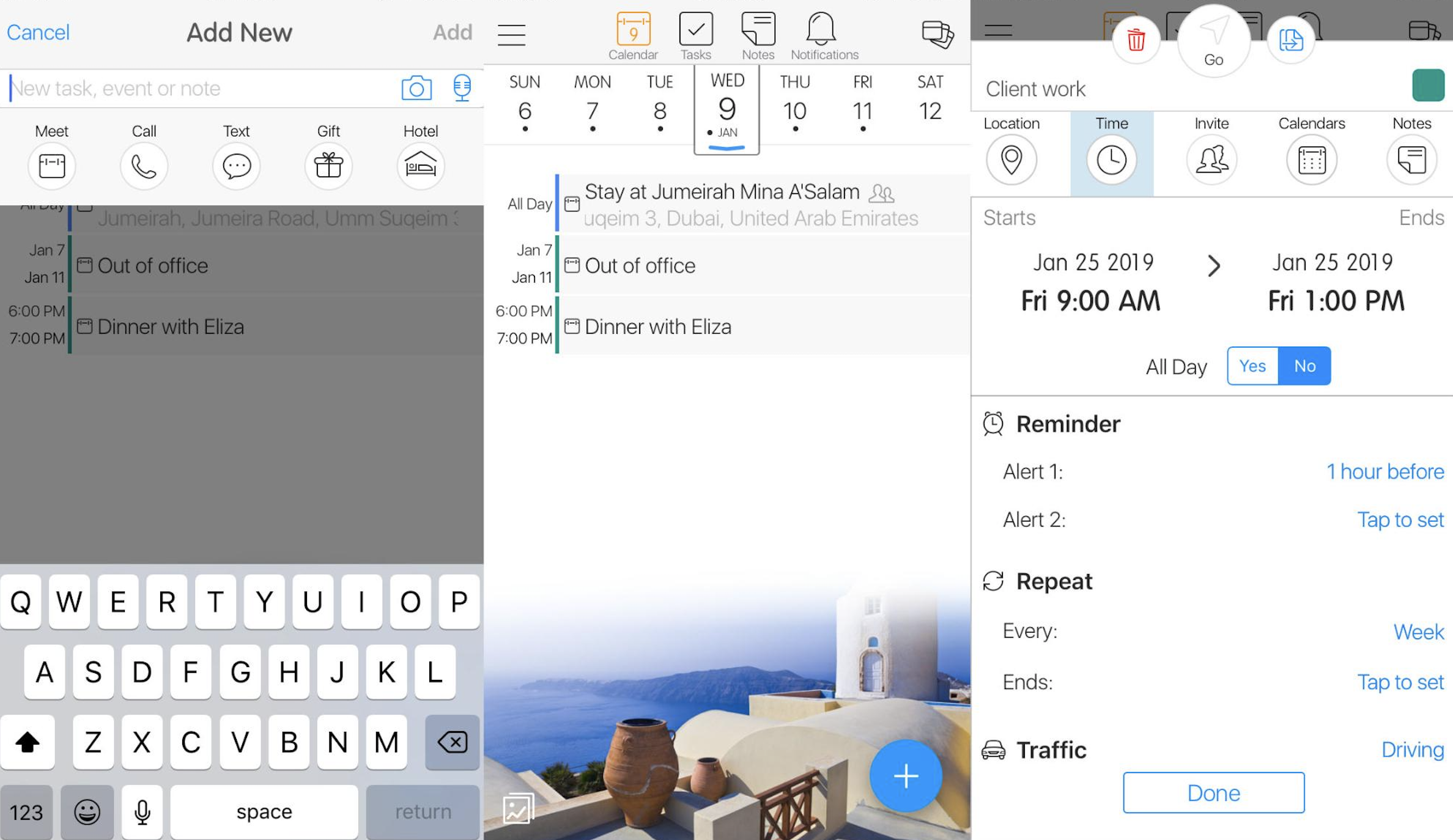
On a screen as small as your phone, simplicity often beats a crowded display, and 24me gets it right.
The design is simple, defaulting to a streamlined agenda view of your schedule. Creating new events is equally as intuitive: Tap the blue + in the bottom corner, and a new event opens. Start typing the title, and all of the details expand for editing.
But what sets 24me apart is the combination of calendar, tasks, and notes all in one app. Instead of hopping back and forth, you can tap once to switch and view your upcoming tasks for today, tomorrow, the coming week, and later. And the premium version of 24me makes it easy to create tasks directly from your email: Just forward the email to task@twentyfour.me, and it'll appear in the app.
One other stand-out feature: the automatic conference call-in. Instead of having to copy or write down your conference call numbers and access codes, a single tap in 24me calls and logs you in automatically. As long as conferencing info is included in the event details, you're good to go.
24me Price: Free for basic access; $4.99/month or $29.99/year for 24me Pro that includes creating tasks from emails, Nag alerts, and time zone support.
Best iPhone calendar app for bringing all your calendars into one place
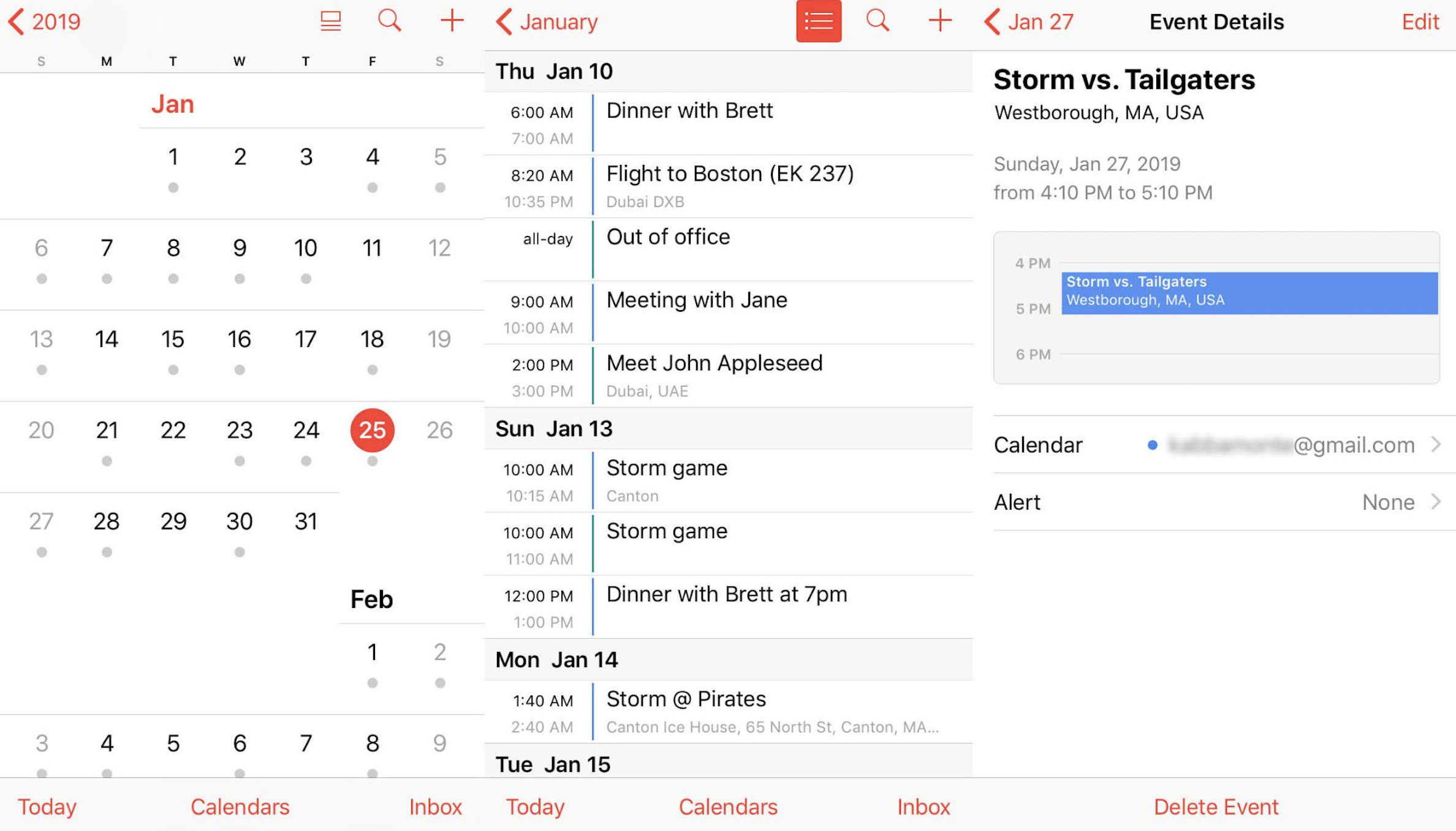
The pre-installed calendar app on your iPhone showcases all the simple views, ease of use, and design that Apple is known for. Tap the month or year in the top left corner to zoom out from day to month to year. Tap Today in the bottom left corner to return to today. It all makes sense.
It isn't designed to be pretty—it's designed to be seamless on iPhone, and it is. It's the perfect base calendar app with all the no-nonsense features you need and nothing you don't. Sync your other calendars to add and edit all your events, and create and share iCloud calendars with a few taps. Apple Calendar automatically syncs with Maps to offer you intelligent alerts that take travel time and current traffic into account and notify you when it's time to leave.
Apple Calendar syncs with other calendars like Google and Outlook, so you can bring work and home life together. Sync as many calendars as you need, and the native calendar app will show all your events. It's as easy as going into your settings, selecting Passwords & Accounts, and logging in to your email.
Plus, you can share any of your iCloud calendars by tapping Calendars and the information icon next to the one you want to share. Then tap Add Person and enter their email.
Apple Calendar Price: Free
Best iPhone calendar app for traditionalists who miss their Filofax
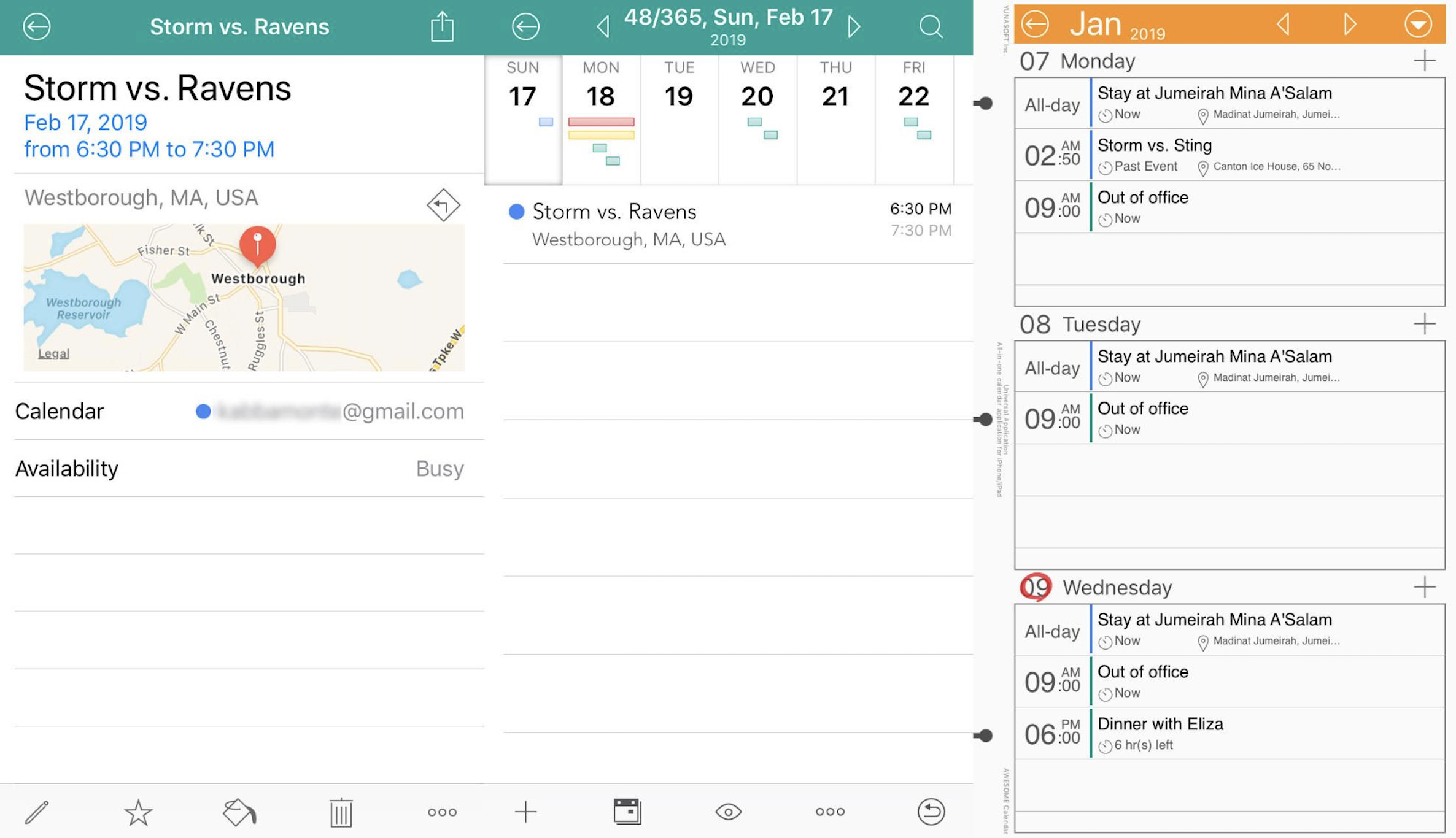
Awesome Calendar keeps it pretty simple with basic design and function. You can switch between a handful of view options (including Day, Week, and Agenda) by tapping the eye icon at the bottom of the screen. And the calendar syncs with Apple's native calendar, which makes it easy to make that initial switch.
The app fully supports natural language event creation—a feature that dramatically cuts down the time and effort it takes to create new events. Tap the +, type in something like "dinner with Sarah tomorrow at 5," and Awesome Calendar translates your text into the title, date, time, and other event details. Click Save, and you're done.
Of all the calendar apps we tested, Awesome Calendar had the best display of multi-day and overlapping events, representing them in bars at the top of the Day view. And for those who want quick access in your iPhone's Today view, Awesome's creators offer a separate widget app called WidgetCal.
Speaking of view options, Awesome Calendar claims one of the most unique features we found: Filofax view. It looks like the Filofaxes of yore—complete with 3-day view, page turning, and spiral binding—transcribed onto your iPhone. Awesome Calendar boasts one of the higher price tags of the apps we tested, but if you find yourself longing for your old Filofax, it might be worth the splurge.
Awesome Calendar Price: $9.99
Best iPhone calendar app for simplicity
The Calendars 5 app was our favorite no-fuss calendar. You won't find bells, whistles, or extensive visual customization here, but it gets the job done with a few stand-out features.
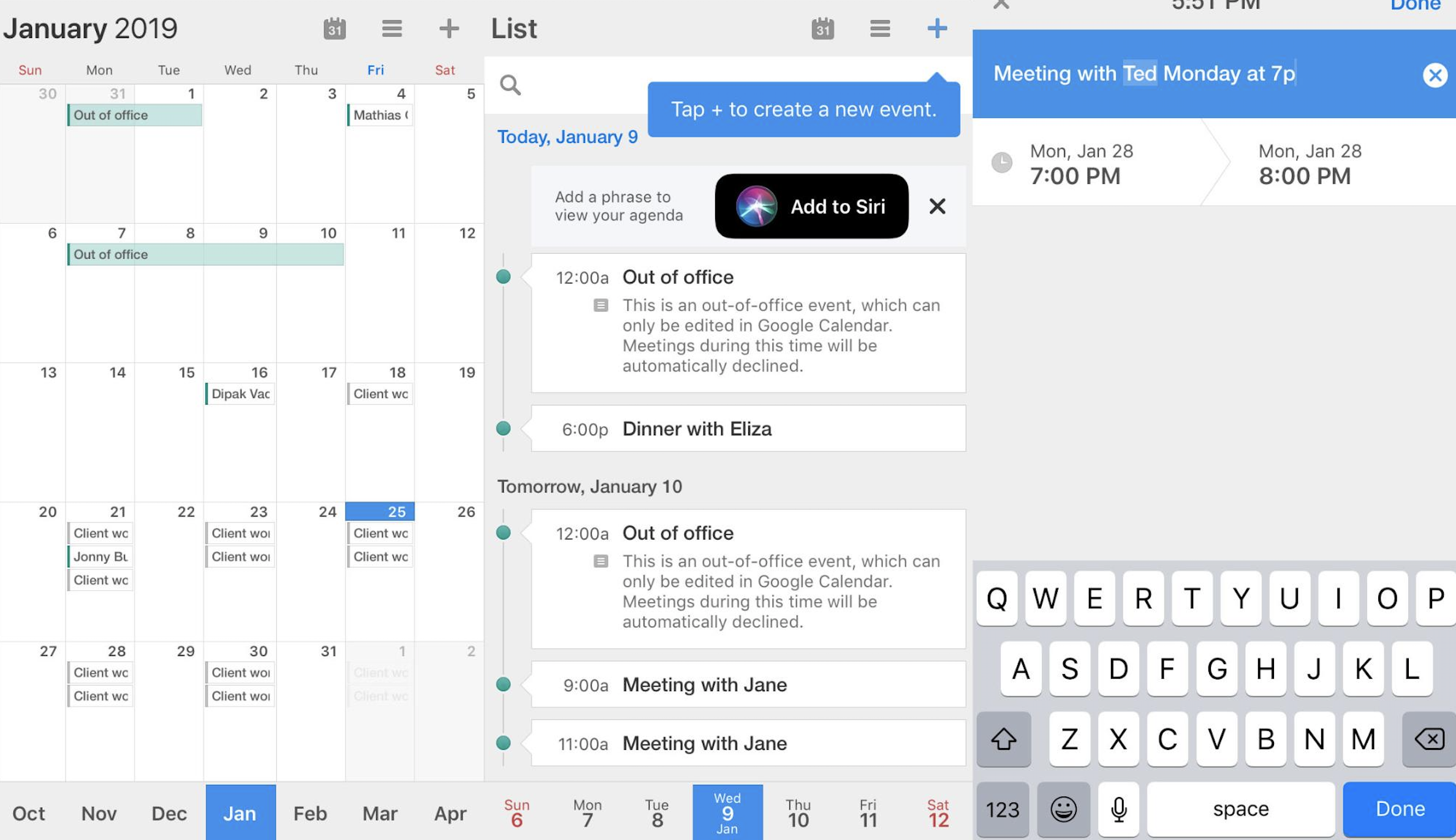
The List view makes it easy to get a sense of your upcoming schedule, and unlike many other calendar apps, Calendars 5 doesn't hide away the details inside the event. You can view location, web conferencing, and other event details without the extra step of opening up the event.
The natural language capability in Calendars 5 was among the best of the apps we tested. "Meet Brian at Lincoln Tavern Monday at 8am-10" automatically filled in date, time, location, and contact info without any extra clicks. Add in easy integration with Siri (the app automatically prompts you to Add a phrase to view your agenda, instead of burying the feature in settings), and Calendars 5 is a clear leader for iPhone.
Calendars 5 Price: $6.99
Best iPhone calendar app for power users
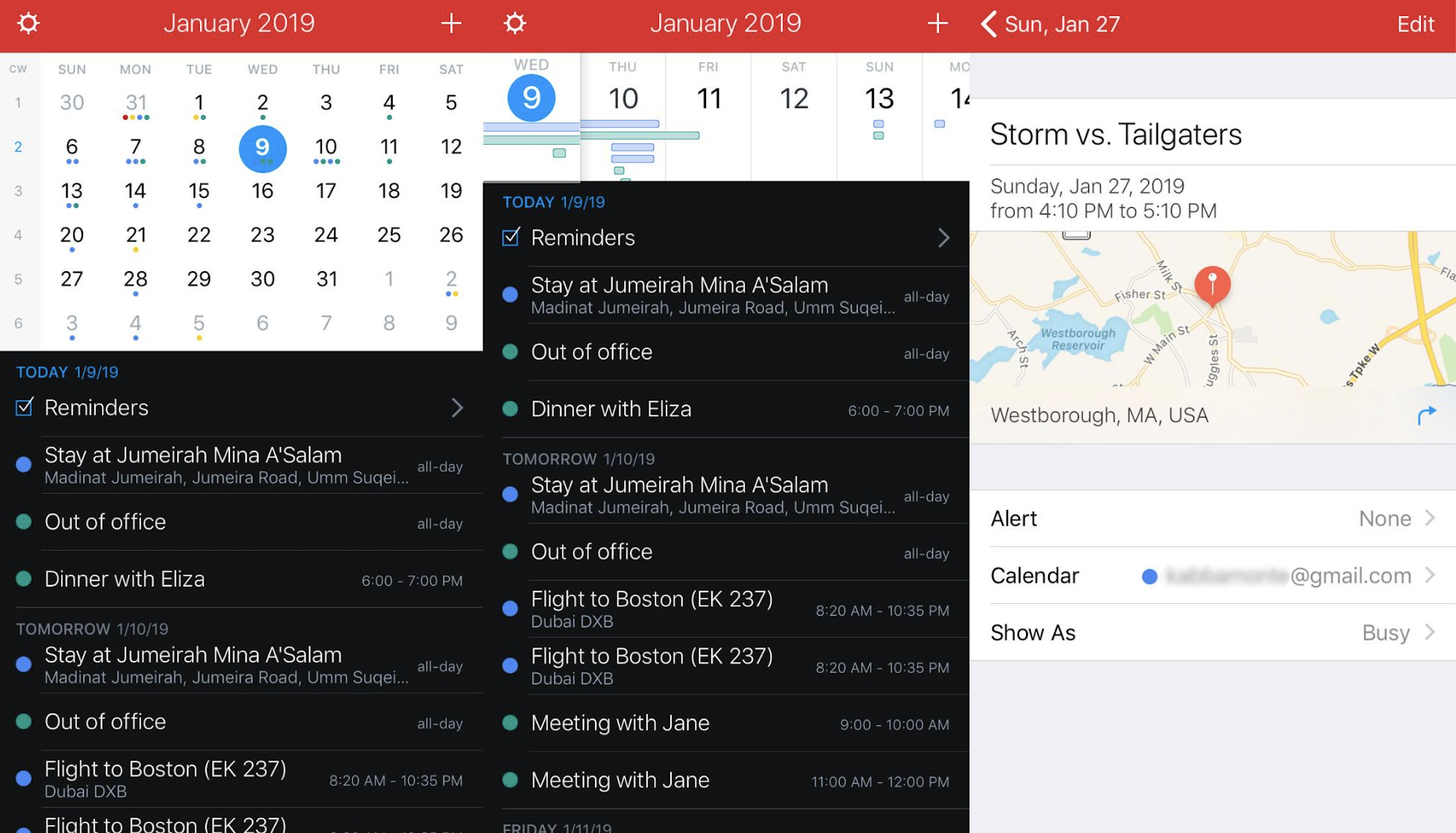
Fantastical 2 is one of those apps that makes it onto almost every "best of" list—and it more than lives up to the hype. The Fantastical 2 app marries attractive, intuitive design with the robust features power users need.
The standard agenda view is clean and succinct. Colorful bars along the top help you visualize multi-day and overlapping events and judge how busy a given day is with a glance. Colors show which calendar an event belongs to—in the screenshot, blue events are on our personal calendar and green on our work calendar. Pull down from the top to view the entire month. Tap Settings in the top left to enable Siri integration and create shortcuts.
Fantastical 2 has perfected natural language event creation: As you type, the app shows how your words "fall" into the event details below, so you don't have to double-check the details after the fact like you do with other apps that have natural language capabilities.
On top of that, Fantastical 2 is one of only a handful of calendar apps with a widget you can view in your iPhone's Today view. On the Today screen, scroll to the bottom and tap Edit, then enable Fantastical. Check out the events coming up next or tap Show More to view your entire month.
Fantastical 2 Price: $4.99
Best iPhone calendar app for Gmail and Google suite users
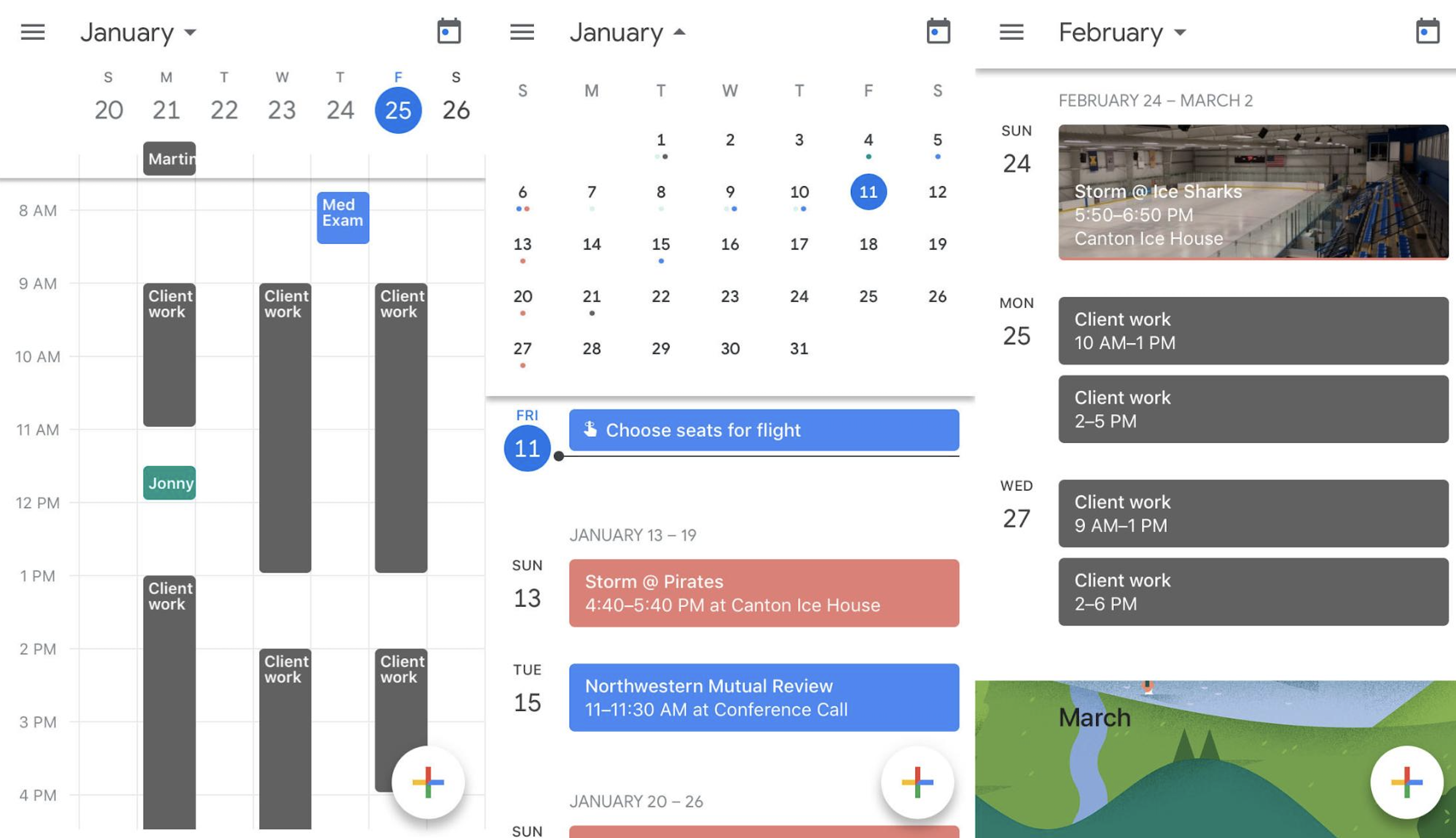
If you use the Google Calendar web app, you'll feel right at home in the iPhone app. It goes without saying that the calendar integrates seamlessly with the entire suite of Google products. Automatically add events—like flight reservations or out-of-office settings—from Gmail into your calendar. And when you start typing a location, the app will offer suggestions from Google Maps.
Tap the multicolored + in the bottom right, and you can choose to create a new out of office, goal, reminder, or (the default) event. Invite guests, add web conferencing details, or attach files from Google Drive right from the event creation screen.
One of our favorite features in Google Calendar is event illustrations. Google uses info from the event details to come up with a visual for the event—like an image of food for events that include "dinner." If you look at the far right screenshot above, you'll see how the app featured an image of the location for the hockey game on our schedule. It's a fun (and helpful) way to see what's coming up on your schedule.
Google Calendar offers five different view options (Schedule, Day, 3 Day, Week, and Month), and switching between them is as simple as tapping the top left menu and selecting the view you want to see. We're partial to the Schedule view (middle screenshot above), which is the right combo of detail and bird's-eye view. You can also enable the widget to view upcoming events in your iPhone's Today view.
Google Calendar Price: Free
Best iPhone calendar app for keeping your work email and calendar in one place
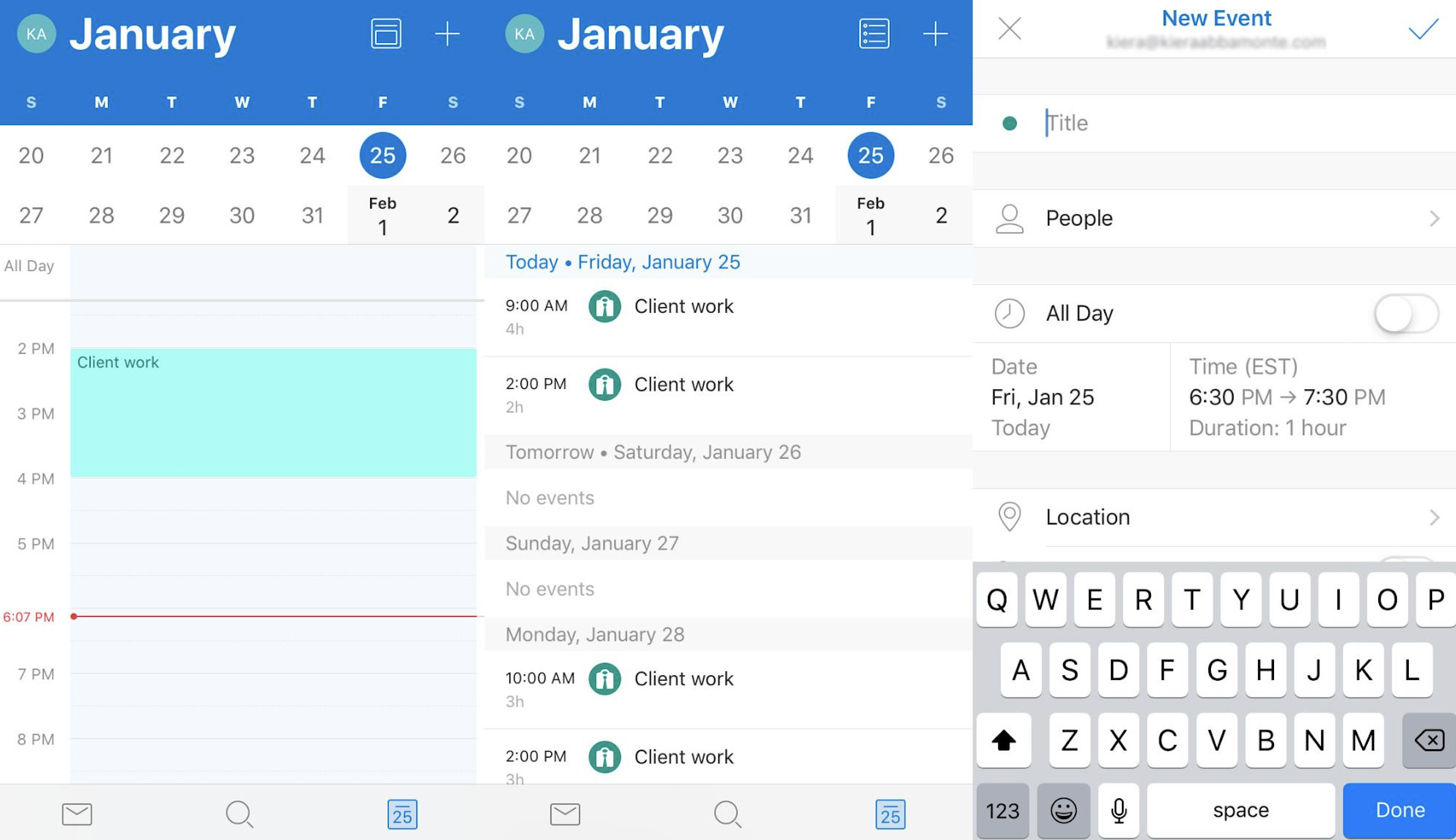
Microsoft Outlook is geared toward Windows users, but its calendar app is more than capable of being your go-to iPhone calendar. The design offers several view options (Agenda, Day, and 3 Day): At the top of your screen, tap the second icon from the right to switch views. On Agenda and Day views, the default shows you two-week blocks—pull down on those two weeks to see and scroll through months.
Using Outlook Calendar requires a Microsoft Office 365 subscription, which ranks it the most expensive app on our list. But if your company already uses Outlook email, it's the best calendar option to bring email, schedule, and contacts together in one place—making it a no-brainer download. On top of that, you can sync other calendars you may use with Outlook, so it's easy to centralize your work and personal schedule in one app. Your Outlook calendar is automatically shared with those across your company, too.
One other feature we loved: During event creation, toggle to enable Skype Call, and Outlook will automatically and instantly generate a unique Skype link for your event. You can do the same for Google Hangouts by enabling the feature in Settings > Add ins. Thanks to Microsoft Bing, you can even subscribe to your pick of public calendars to add your favorite professional sports teams or TV schedules to your calendar.
Microsoft Outlook Calendar Price: The iOS app is free, but you need a Microsoft Office subscription to be able to use it.
Best iPhone calendar app for gesture-based controls
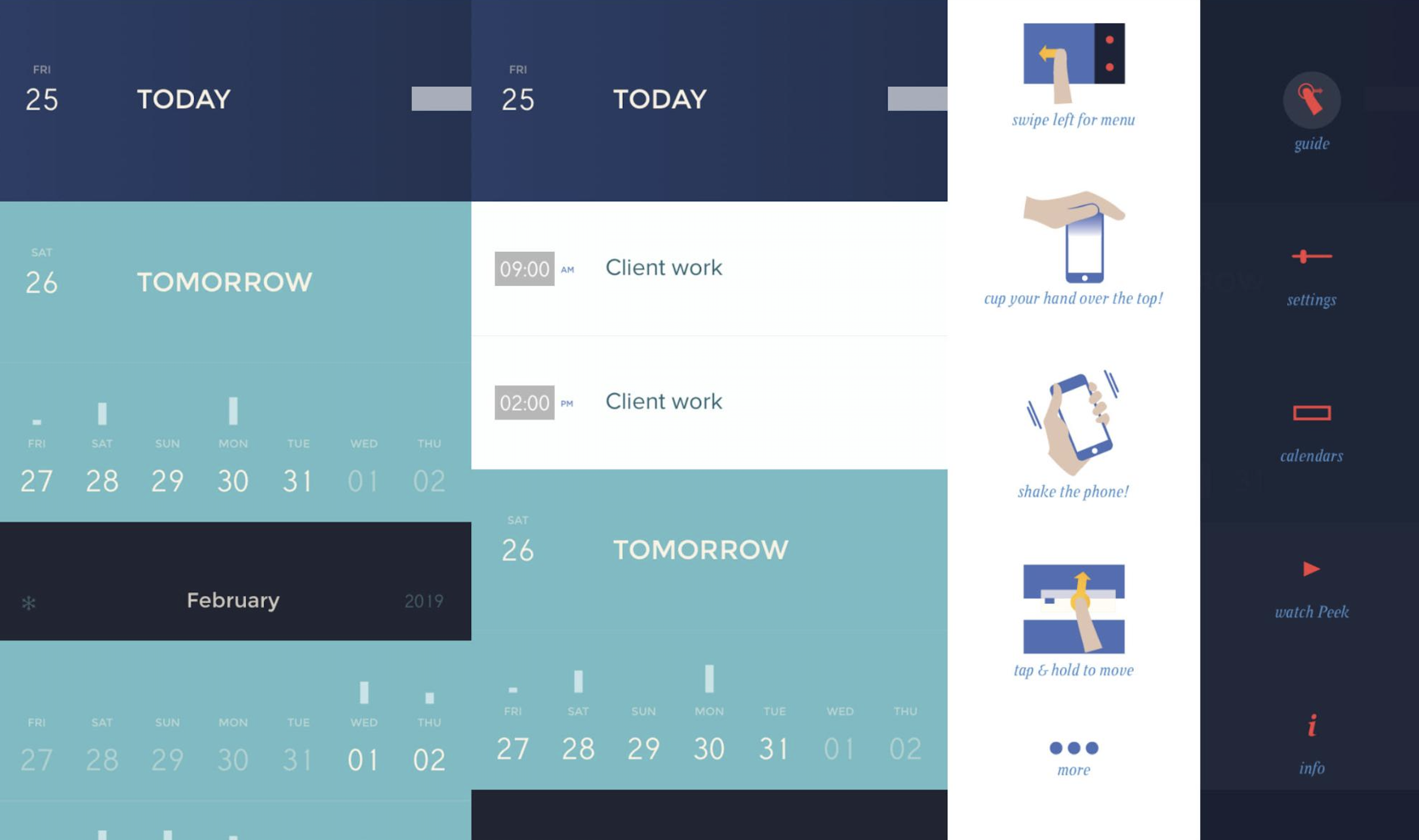
From the moment you open the app, it's obvious Peek was designed for simplicity. The default view in the screenshot above is your only option (though you can expand or close each day's events). When it comes to settings, you can change the color theme, turn sound and vibration on/off, turn shading gesture on/off, and set the week to begin on either Sunday or Monday. That's where the customizability begins and ends.
Many of the features and functions rely on gestures: Tap to open and close each day's agenda, tap and hold to create a new event, shake to view upcoming reminders, and swipe left for the menu. There's a bit of a learning curve with those gestures (swipe left and tap Guide to see the list), but they make room for the cleanest design on our list. In the main view, Peek only shows the most vital info—the date and an indicator of whether or not you have events scheduled on that day.
Peek Price: $2.99, with more in-app purchases for themes.
Best iPhone calendar app for busy and meeting-heavy schedules
On the surface, Pod is another iPhone calendar with simple design and predictable, easy-to-use functionality. It's quick to get set up and sync your other calendars to Pod, and most of the features work as you'd expect them to—no learning curve.
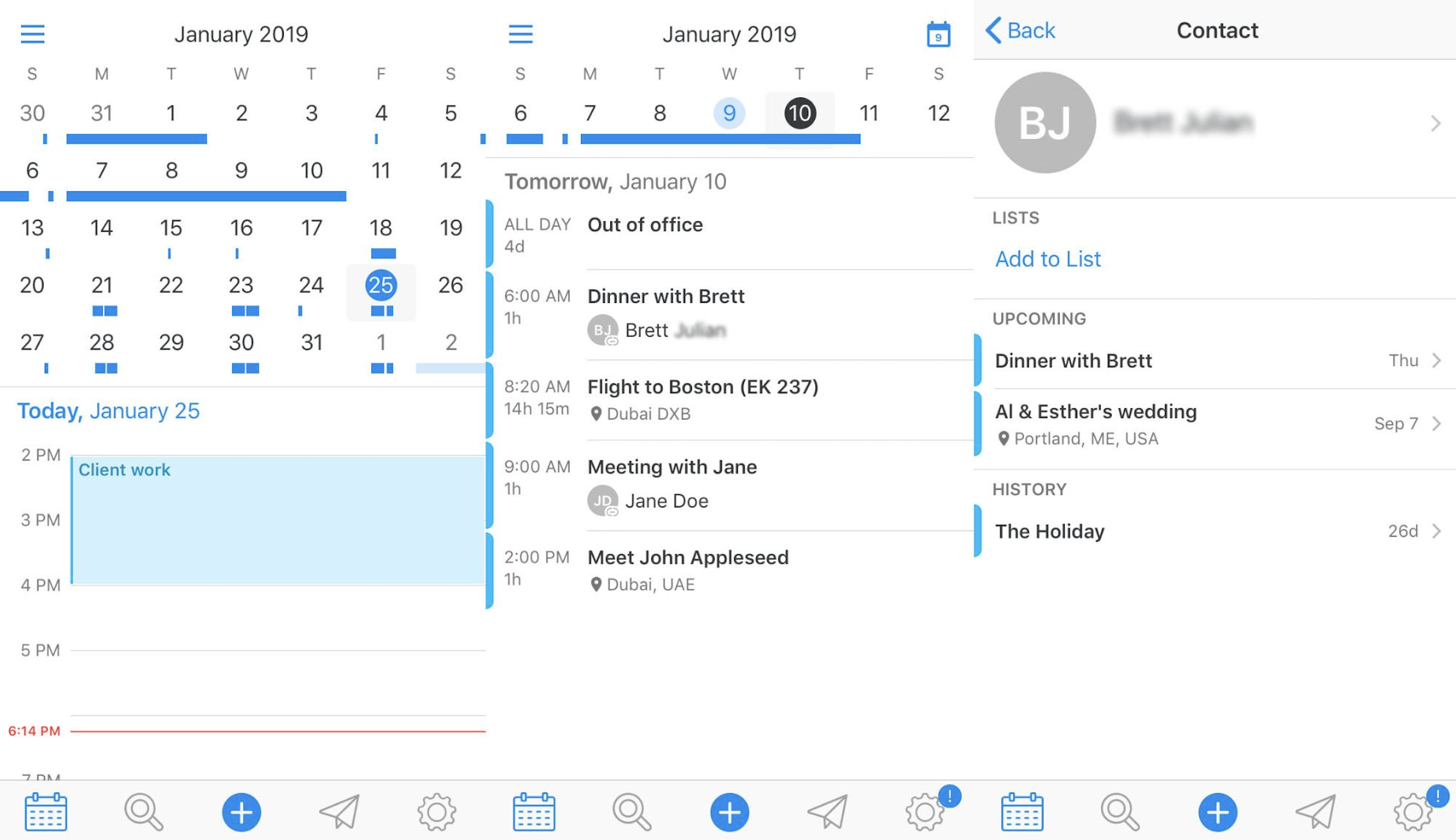
What earns the app a spot on our list are its relationship management features. Pod connects with both your phone and email contacts, so when you create a new event, you can easily connect a contact to the event—without inviting or notifying them. The context Pod offers for each contact takes the relationship management capability to the next level, quickly reminding you of past and upcoming events with that contact. Simply tap the contact's name, and Pod displays all events with them (see the far right screenshot above).
Pod also enables you to hide events when you don't need them, making it easier to manage a hectic schedule without getting overwhelmed. Open the event and tap Hide. A thin gray bar appears at the top—If you need to bring it back, tap the bar, and all of your hidden events appear, allowing you to unhide events as needed.
Pod Price: Free
Best iPhone calendar app for a visually appealing calendar
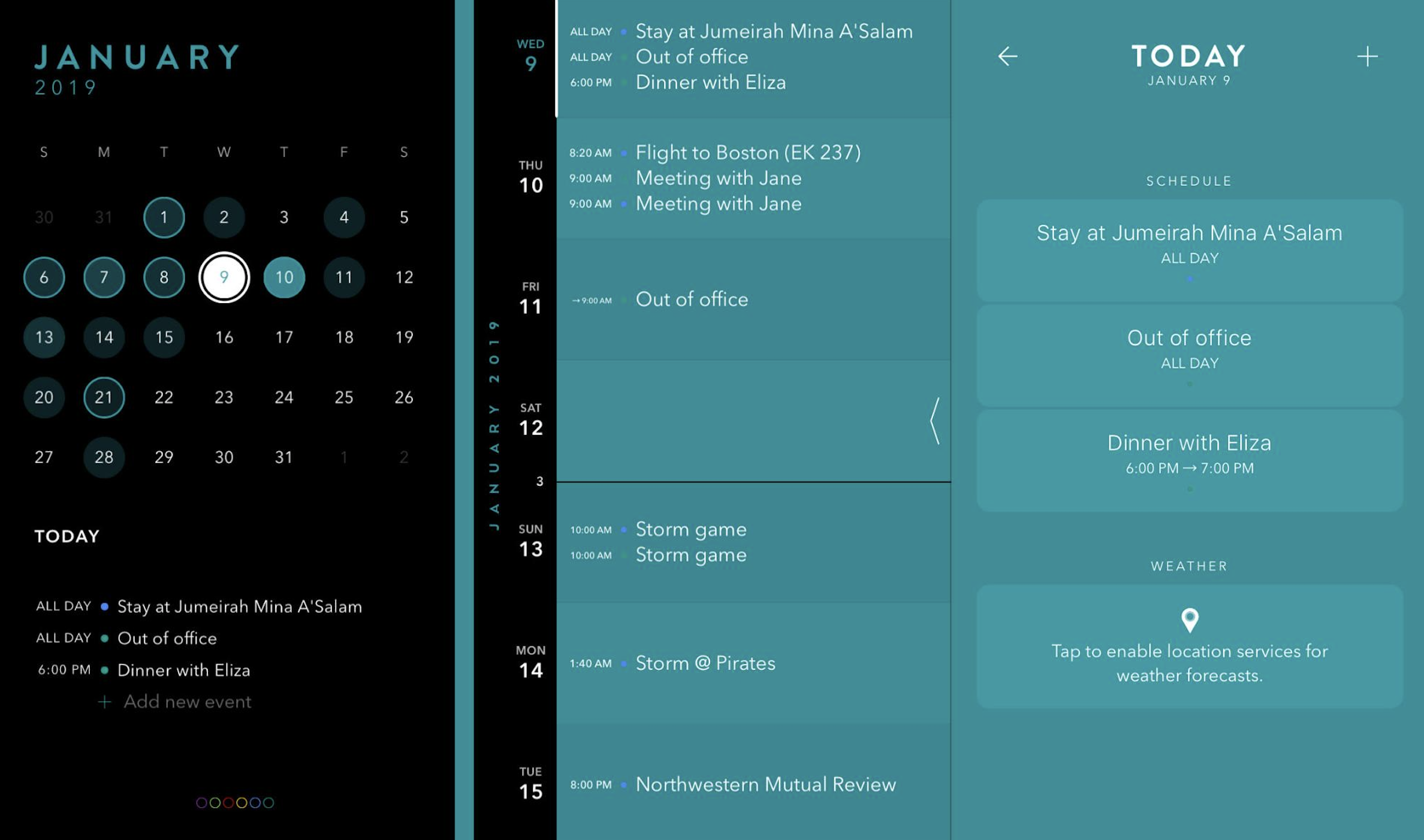
Moleskine's Timepage app is easily customizable when it comes to looks: You have your choice of 15 color themes or black and white and a toggle for brightness. The app only offers two main view options. It opens in Agenda view; swipe right to view the month and a round-up of today's events. Tap to expand the day's schedule or tap and hold to preview. Swipe left again to return to your agenda.
But Timepage is more than a pretty face. Unique features like a smart heatmap (shown in the top left screenshot above) make scheduling a breeze, showing you which days are jam-packed or wide open. The more opaque the circle around a date is, the more events you have scheduled for that day. And you can turn on Smart Alerts from the menu to get notified when it starts to rain or receive a daily briefing of your upcoming schedule.
The app is fully compatible with Siri, and offers a few Today view widgets to choose from, so you can manage and view your calendar without even opening the app. The only thing Timepage is missing is natural language event creation—but fingers crossed we'll see that in an update soon.
Timepage Price: Free to download; then $1.99/month or $11.99/year
Best iPhone calendar app for group scheduling
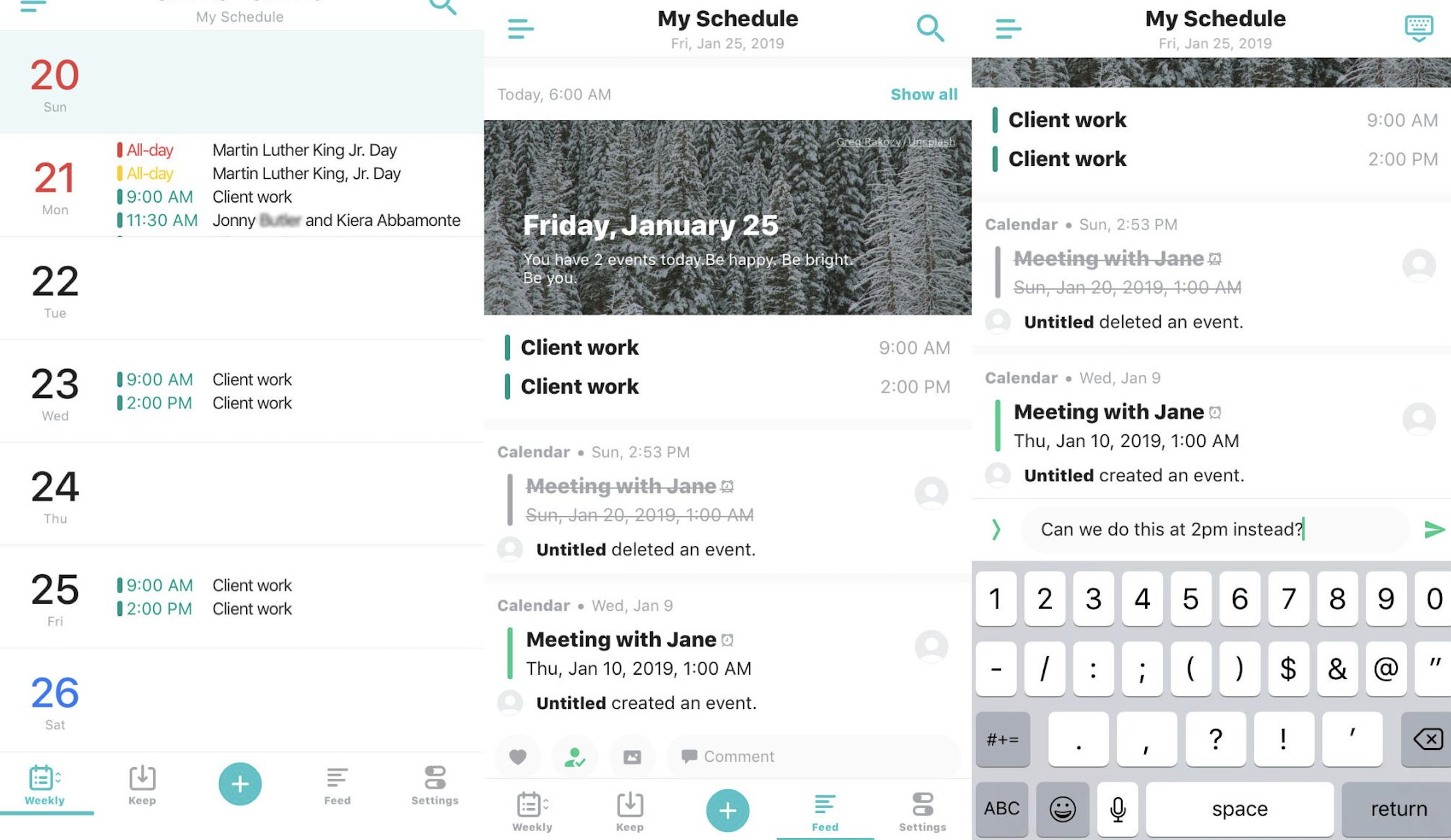
With TimeTree's calendar, your view options are limited to Weekly and Feed, but a small difference in week view (displaying the days vertically, while most apps do so horizontally) means you still see all of the events on each day of the week, without having to tap into individual days. Swipe left or right to view past and future events.
When you create a new event, tap Title, and TimeTree will offer suggestions and templates to make adding to your calendar a breeze. The standard suggestions are meeting, lunch, day off, part time job, date, and dentist—but TimeTree learns and improves these as you use the app. After testing the app for just a few days, it added "Meeting with Jane" to our suggested events.
The app really sets itself apart when it comes to scheduling and sharing your calendar. When you create an event, toggle Keep an event without a date. Once you save the event, friends and family can comment right inside TimeTree to find a time and day that works for everyone. It's built with group scheduling in mind, so sharing your calendar (or a single event) is effortless—even with people who don't use TimeTree. Simply open the event, tap the three dots to expand the menu, and tap Share.
TimeTree also incorporates some features similar to social networking, with a feed of shared events and the ability to like, note your attendance, and comment. If you spend a lot of time trying to schedule in groups, TimeTree will make your life easier.
TimeTree Price: Free
Best iPhone calendar app for a bird's-eye view of your schedule
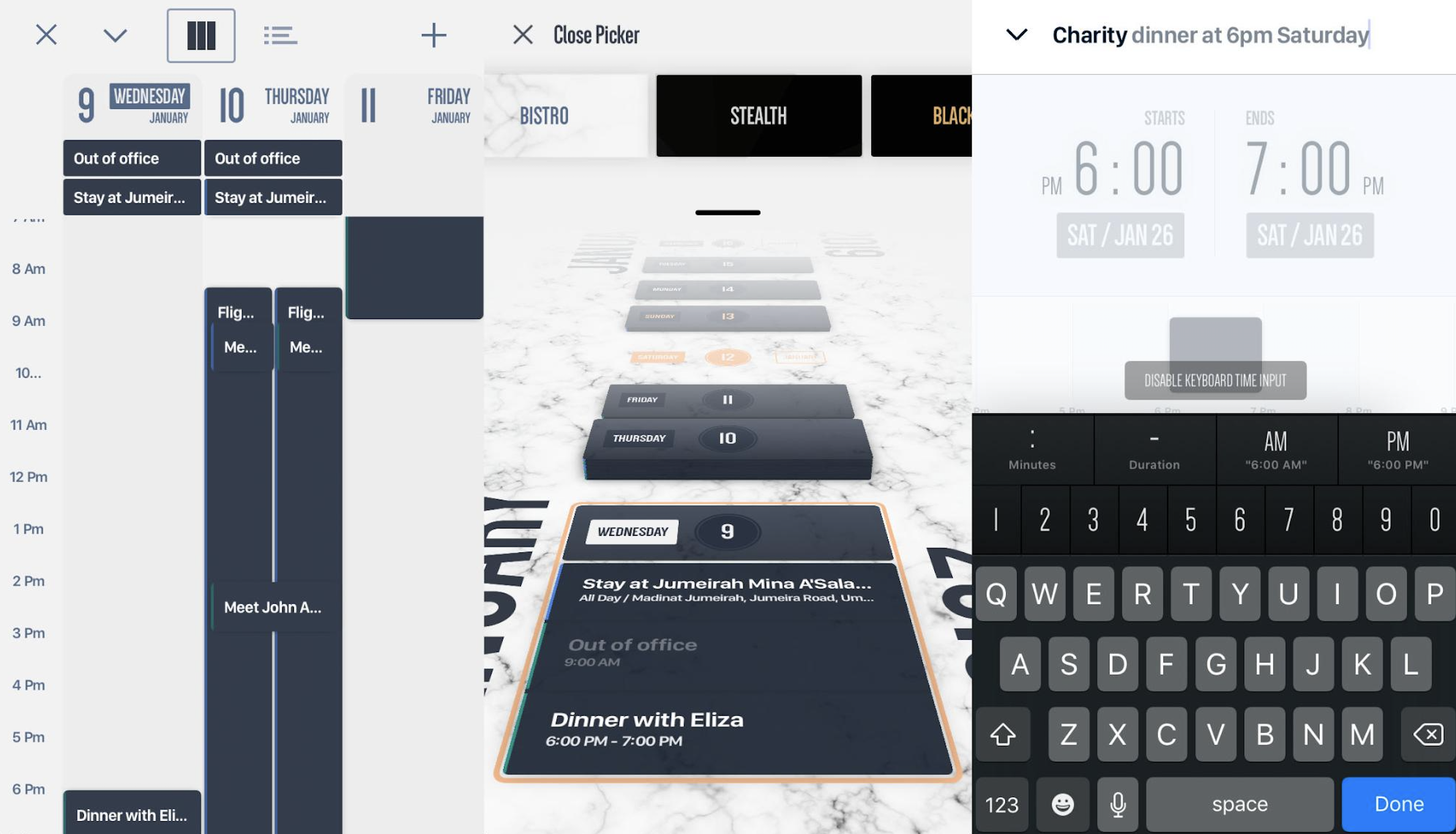
Vantage looks…different. You can choose from nine "color packs"—from Blue Suede to Pink to Bistro (featured in our screenshots)—each of which dramatically changes the aesthetics of the app.
Scroll through days, and the blocks give you a sense of how busy or free you are: The taller the block, the more events you have scheduled for that day. Tap the corner icons at the top to expand or condense your days. If you're a fan of more conventional ways to view your schedule, you can swipe left for agenda and 3-day views. Vantage also includes a to-do list (complete with optional reminders) if you swipe right. Combining this with the app's emphasis on a bird's-eye view of your schedule gives you task management capability most calendar apps don't offer.
Vantage is one of the more expensive apps in our roundup, but if its different design speaks to you, it's likely worth the price tag.
Vantage Price: $9.99
Your calendar should work for you, which means you need to pick one that feels easy. All of these apps offer the basics, so focus on things like aesthetic appeal, intuitive (for you) interface, and special features that make you say "ooh!" There's no shame in picking Google Calendar because you like the images it adds or Vantage because you want your calendar to be reminiscent of the Star Wars credits. Whatever works for you.
source
https://zapier.com/blog/best-iphone-calendar-apps/