Thursday, 18 April 2019

The Best Project Management Software for Small Businesses and Individuals in 2019

Managing projects in a small business setting can be even more challenging than doing so within a larger company. A big business might have a project manager for marketing, another for sales, another for product development. The small business project manager, on the other hand, oversees multiple departments and likely has another role as well.

Since the growth of a small business depends in large part on efficiency, it's important to find project management software that can help you maximize output while keeping your team's workload balanced. We waded through over 75 project management software solutions to find tools that have a feature set specifically designed to work in a small team or individual setting. Here, we'll present the best of the best.

What Makes Great Project Management Software for Small Businesses and Individuals?

Despite all the hype about popular project methodologies (Scrum, Lean, Agile—you name it), there's no real one-size-fits-all solution. Every team is different: Workflows, resources, and workday demands differ greatly from one company to the next. So how did we pick the best project management apps?

We started by ensuring that each app met some basic criteria we felt were indispensable.

  • A free version with no time limits - Budget is always of concern for a small business, so we wanted to be sure that each solution offered a free version with the ability to scale up as needed. You'll likely need to pay for each of these tools eventually, but the free plan will allow you to thoroughly test the software before committing.
  • Task management with dates - There are all sorts of features that help you manage tasks effectively, but the bare minimum is a task management system with the ability to add deadlines.
  • Collaboration for teams and/or clients - Successful projects don't happen in a vortex. All apps that made the list offer some level of in-app collaboration or a trusted integration with a tool like Slack.
  • Integration possibilities - Your project management workflows are at the heart of your company, so all of the apps need to integrate with the other apps in your tech stack.
  • Mobile App - You shouldn't have to be sitting in your office on your desktop to post a quick comment or question on a project. We picked project management apps that also offer a mobile app.

In addition to those dealbreakers, we asked ourselves a number of questions while testing the apps:

  • Is there an active development team behind the software keeping it up-to-date and bug-free?
  • Is the interface intuitive, or do you need to spend a significant amount of time reading to tutorials just to utilize basic features?
  • Does the app offer some flexibility so that you can create your own project management methodology, or does it try to force you into an inflexible flow?

From there, we arrived at a final list of nine project management apps that provide powerful support to small businesses and individuals.

The 9 Best Project Management Apps for Small Businesses and Individuals

  • Asana for supporting multiple project methodologies
  • Airtable for spreadsheet fanatics
  • Trellofor simple projects
  • Pipefy for a more customizable alternative to Trello
  • Pivotal Trackerfor Agile development teams
  • AND CO for freelancers
  • Paymo for complex projects that require invoices
  • Wrike for maintaining a balanced team workload
  • Zoho Sprints for teams that work in sprints

Asana (Web, iOS, Android)

Best project management software for supporting multiple project methodologies
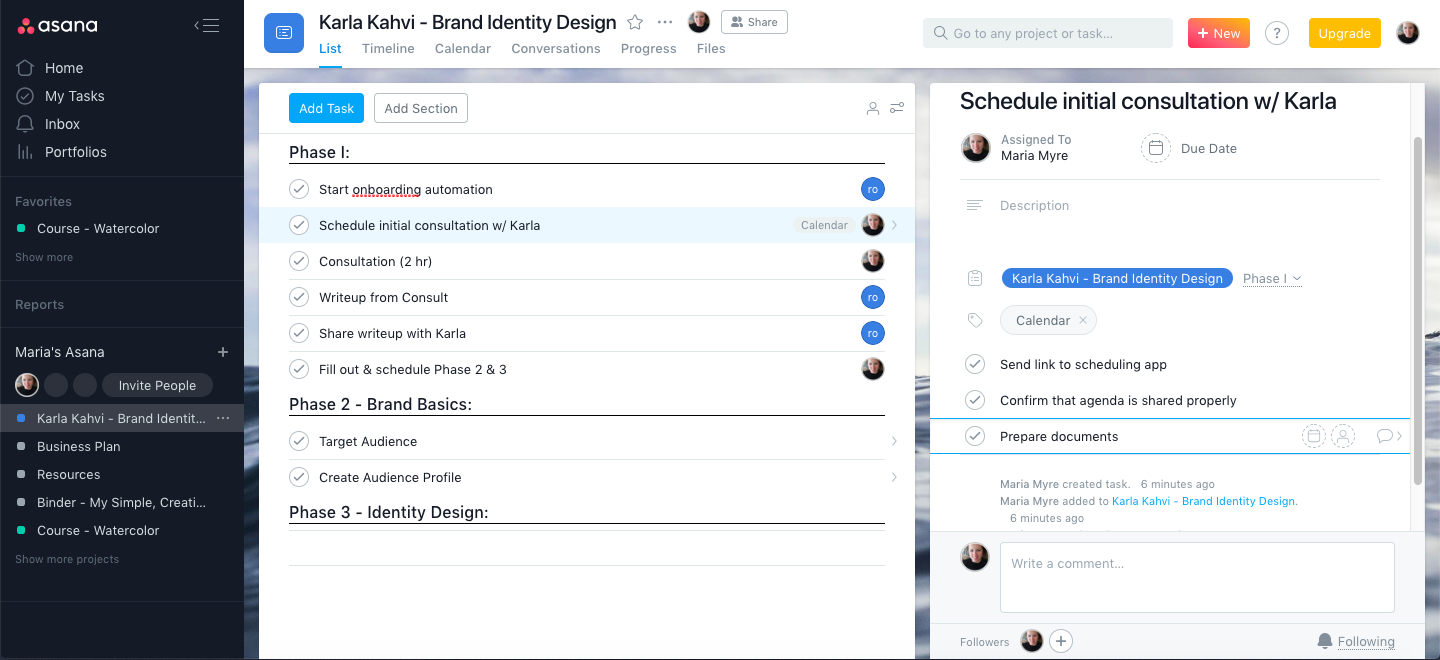
Asana interface

In a cluttered world of modern project management software, Asana stands out as a profoundly effective tool that supports multiple project management styles and methodologies.

Its interface is intuitive and well-designed, with an easy hierarchy of elements. On the far left is the navigation sidebar, where you can access the various projects, stats, message inbox, and your personal task list. The main area displays a list of tasks, their due dates, and who each task is assigned to. (Paid users can also create custom fields to show additional information in the list view.) Each task can be assigned to multiple projects in case of overlap and can have an infinite number of subtasks.

Once a task is selected, it opens up automatically on the right third of the screen, displaying all of the relevant details, from task descriptions to subtasks, file attachments, and a task-based comments thread. So far, a great framework to house complex task lists.

Where Asana shines most is in its flexibility: There's no right or wrong way to create your project, project sections, or tasks. The default view is the list format, which is clean and easy to scan for due dates and assignees. But you can also create projects with a Kanban board layout, or switch over to the calendar format for a Gantt chart view of project timelines and any potential overlap.

Asana allows you to create task and project templates, but its default setup is completely open-ended: The only required part of any task is a title. After that, you're free to add a description, organizational tags, custom fields (available with paid plans), due dates, assignees, and more. Still, with all the possibilities for adding information to your tasks, Asana's interface is relatively clean. This helps to keep the focus off the project management tool and on the work itself. (If you prefer a more structured task and project layout, check out Pipefy or Wrike, both below.)

Asana Price: Free for up to 15 team members and basic features; from $9.99/user/month (billed annually) for the Premium plan that includes additional features like advanced reporting, custom fields, and more.

Automate Asana with Asana's Zapier Integrations.

Airtable (Web, macOS, iOS, Windows, Android)

Best project management software for spreadsheet fanatics
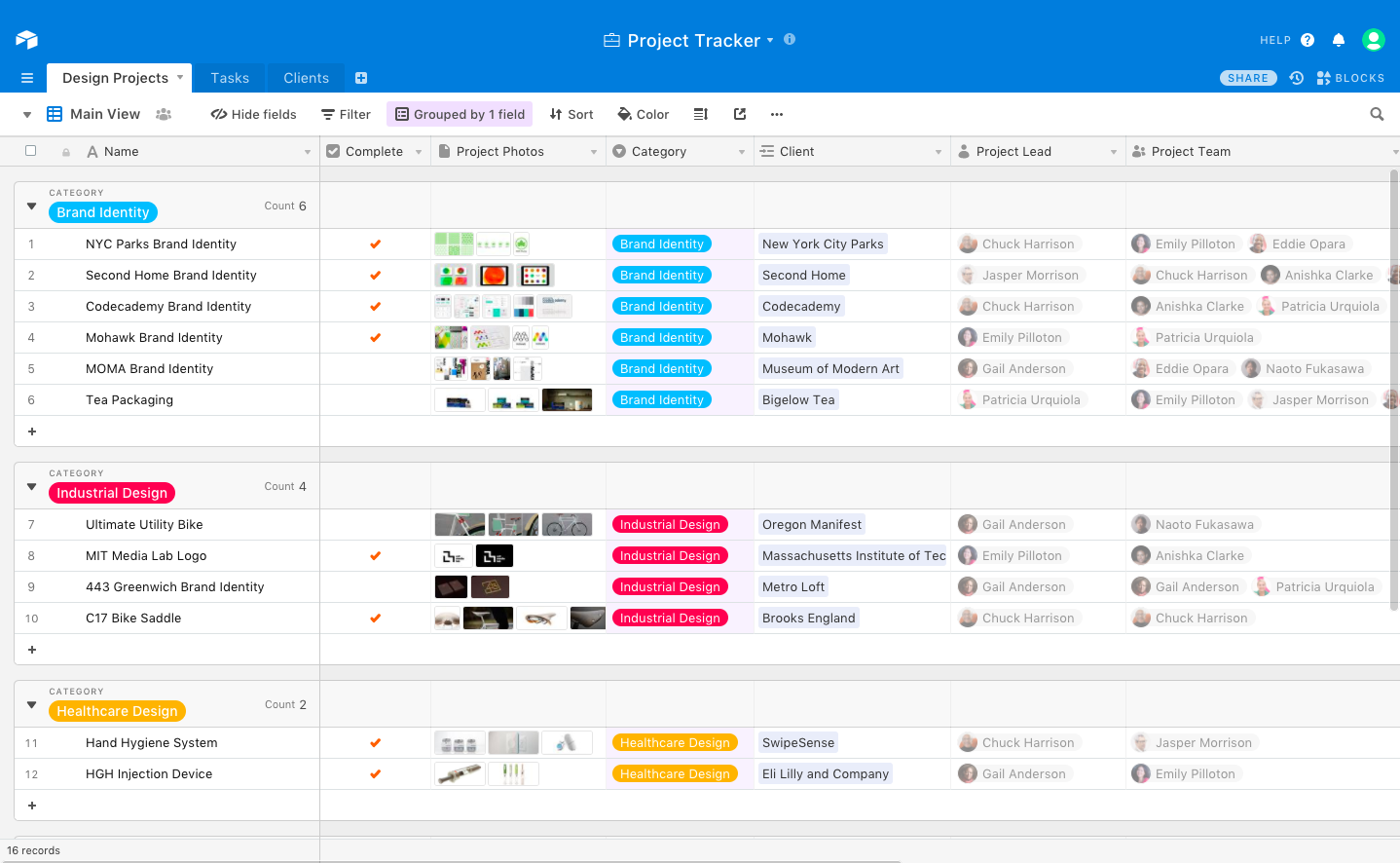
Airtable Interface

If you love the clean, ordered appearance of a spreadsheet but wish it had a little more power, try Airtable. It's a versatile spreadsheet-style database app that can help you manage any project, from editorial calendars to Scrum sprints for your product development projects.

Airtable projects are managed in bases. To create a base, you can choose from dozens of premade templates, import an existing spreadsheet, or start from scratch. The premade templates are well organized by project type, and are pre-filled with sample content so you can easily visualize how to run your project. Each row in a base constitutes a record, which can include any kind of customized field you can dream up.

Airtable offers all the things you love about spreadsheets (filters, equations, and pulling in data from other sources, to name a few) but in a format that's much easier to navigate. Each column has a specific designation, whether that's short or long text, file attachments, multi-selection tags, or checkboxes.

The best part for project management is that you can add multiple views, so you can toggle between the spreadsheet and other formats like a Kanban board or calendar. That means you can put all your detailed project data in the records and still view that information in several easy-to-scan formats.

Airtable Price: Free for unlimited users and up to 1,200 records per base; from $12/user/month for the Plus plan with up to 5,000 records per base and 5GB attachments.

Automate Airtable with Airtable's Zapier Integrations.

Trello (Web, macOS, iOS, Windows, Android)

Best project management software for simple projects
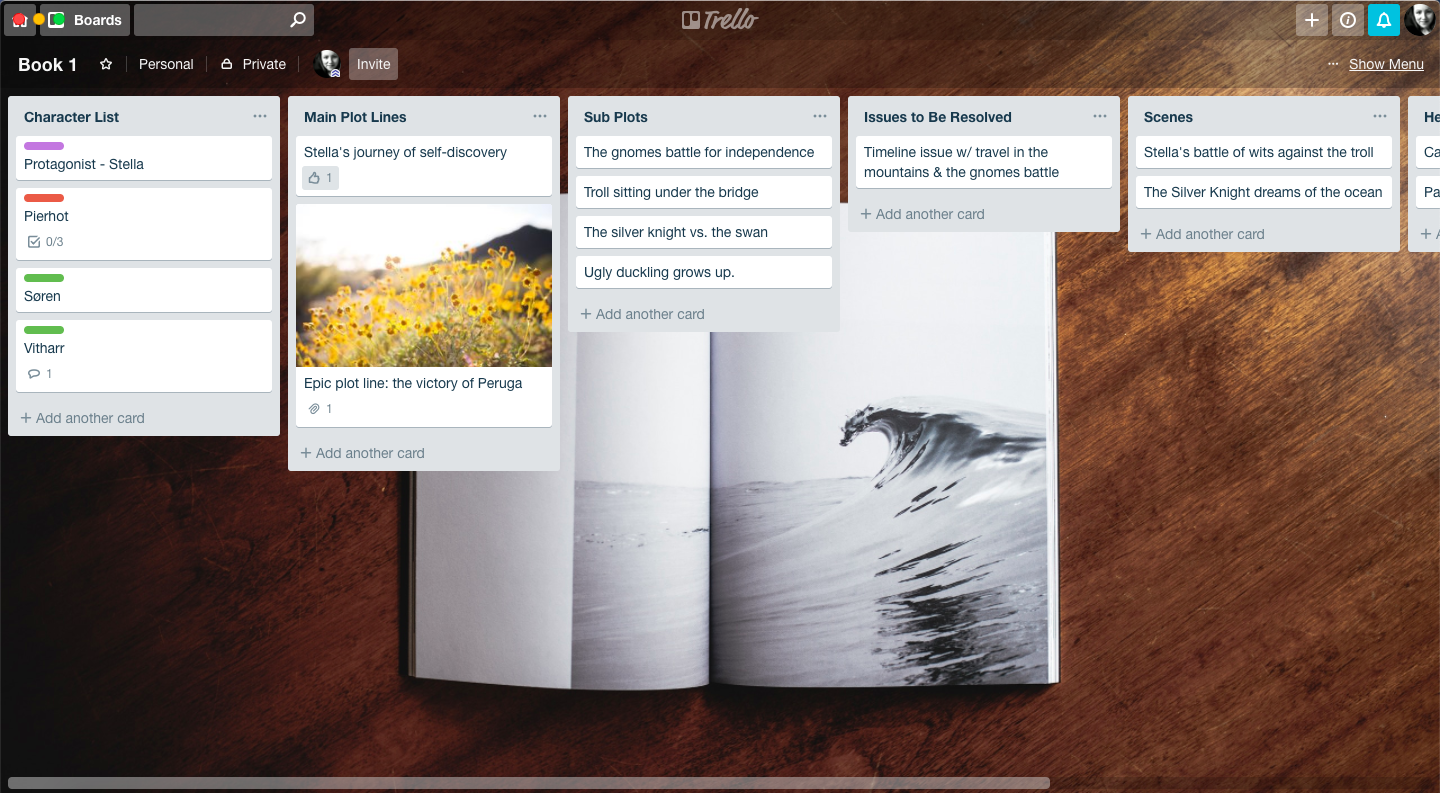
Trello Interface

If you find yourself gravitating toward the pipeline logic of Kanban boards, you'll want to give Trello a whirl for project management. The interface and overall flow are so well designed that it's fun to create new projects and see them through to completion, whether it's for business or personal use.

Each Kanban board can be set up to mimic the standard Agile format: the backlog, in-progress, and completed lists. Or, you might get imaginative and use the boards as ideation or collaboration tools, where team ideas are compiled, then sorted and approved as needed. Cards (i.e., tasks) can include checklists, due dates, tags, attachments, and more. The main shortcoming is that there's no formal way to assign tasks in Trello: You can add members, but you can't officially create an assignee.

Trello is the master of Kanban simplicity and has gained a positive reputation for that reason. But therein also lies its greatest weakness: If you have complex tasks with multiple dependencies, for example, Trello's features fall short. (Yes, there are workarounds, but they're not built in and can be complicated to configure.) Despite this weakness, Trello is a simple, effective project management tool for an individual or small business.

Trello Price: Free for unlimited boards and up to 10MB attachments; from $12.50/user/month for Business Class that includes up to 250MB attachments, priority support, and additional features.

Automate Trello with Trello's Zapier Integrations.

Pipefy (Web, Android, iOS)

Best project management software for a more customizable alternative to Trello
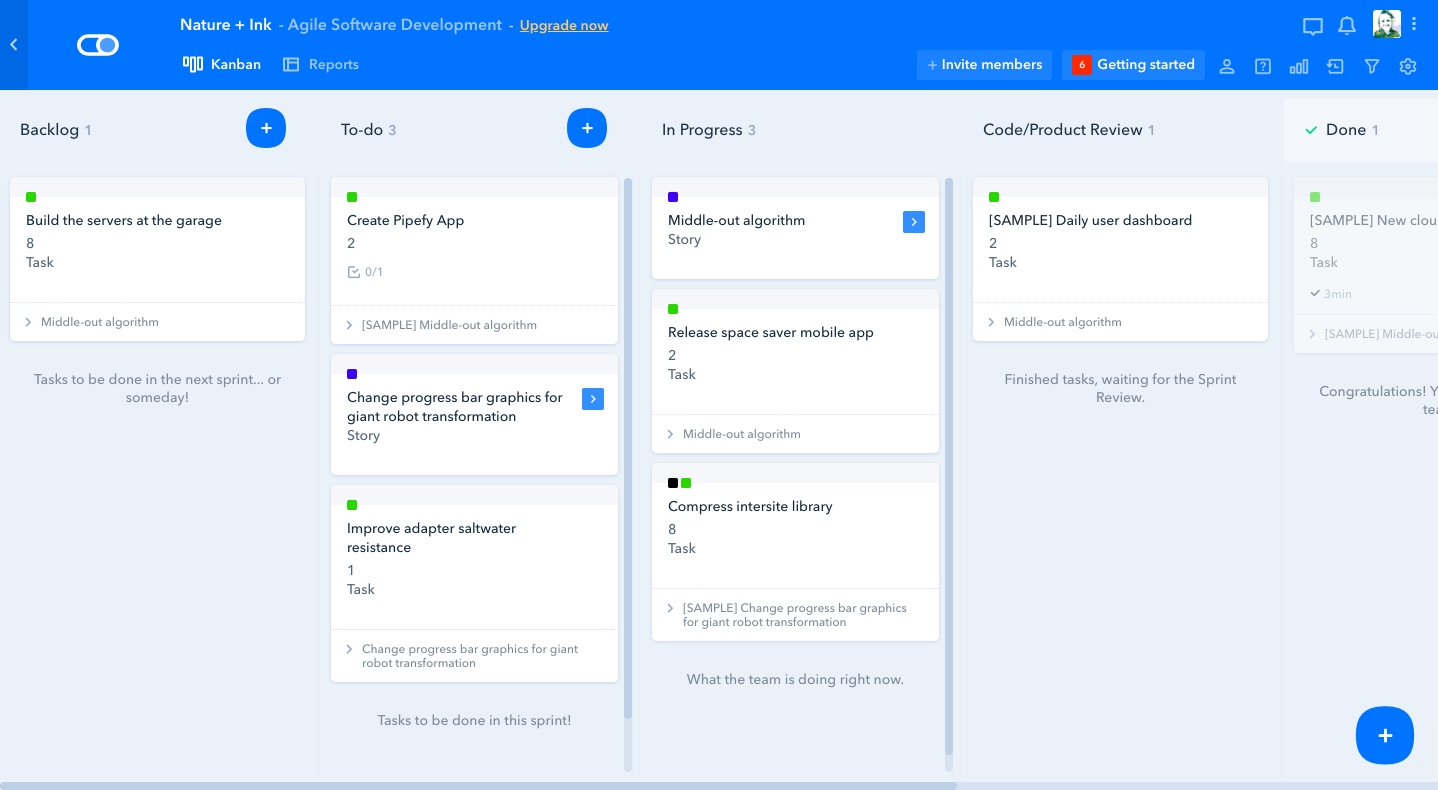
Pipefy Interface

Kanban cards are a perennial favorite because they're easy to use and follow a logical structure: Move tasks from one step to the next through the project lifecycle. But that doesn't mean you can't have a feature-rich tool that enhances a Kanban style workflow.

In Pipefy, there are a number of stand-out features. For example, you can create a unique set of questions associated with each column. Say you have two columns, labeled "Ideation" and "User Testing." When tasks are in the Ideation column, the assignee can view and record the responses to the questions associated with that column. Once the task card moves on to the User Testing column, a different set of questions will appear. As the task moves from stage to stage, all the information is saved with it, so you can always look back and see what happened at an earlier stage in the project.

In addition to having a variety of customization options for the tasks and workflow, Pipefy also includes a database feature, where you can store project and business information in a spreadsheet/table format, a reports page that gives a visual of the progress made in each pipe (i.e., project), and a helpful automation area, where you can set up automations that will trigger when a new card is created or updated, for example. These automations can be extremely helpful to a project manager who wants to be proactive about following up on time-sensitive or particularly complex projects.

The fluid setup of Pipefy makes it an excellent solution for multiple project needs, from Agile teams whose emphasis is on output to sales teams who want to use the database feature to create a customized table for sales contact information. It's simple enough to work for a small team, but still offers the features you want from a robust project management tool.

Pipefy Price: Free for up to five pipes and up to 10 users; from $12/user/month for the Professional plan that includes advanced reporting, unlimited pipe connections, and chat support.

Automate Pipefy with Pipefy's Zapier Integrations.

Pivotal Tracker (Web, iOS, Android)

Best project management software for Agile development teams
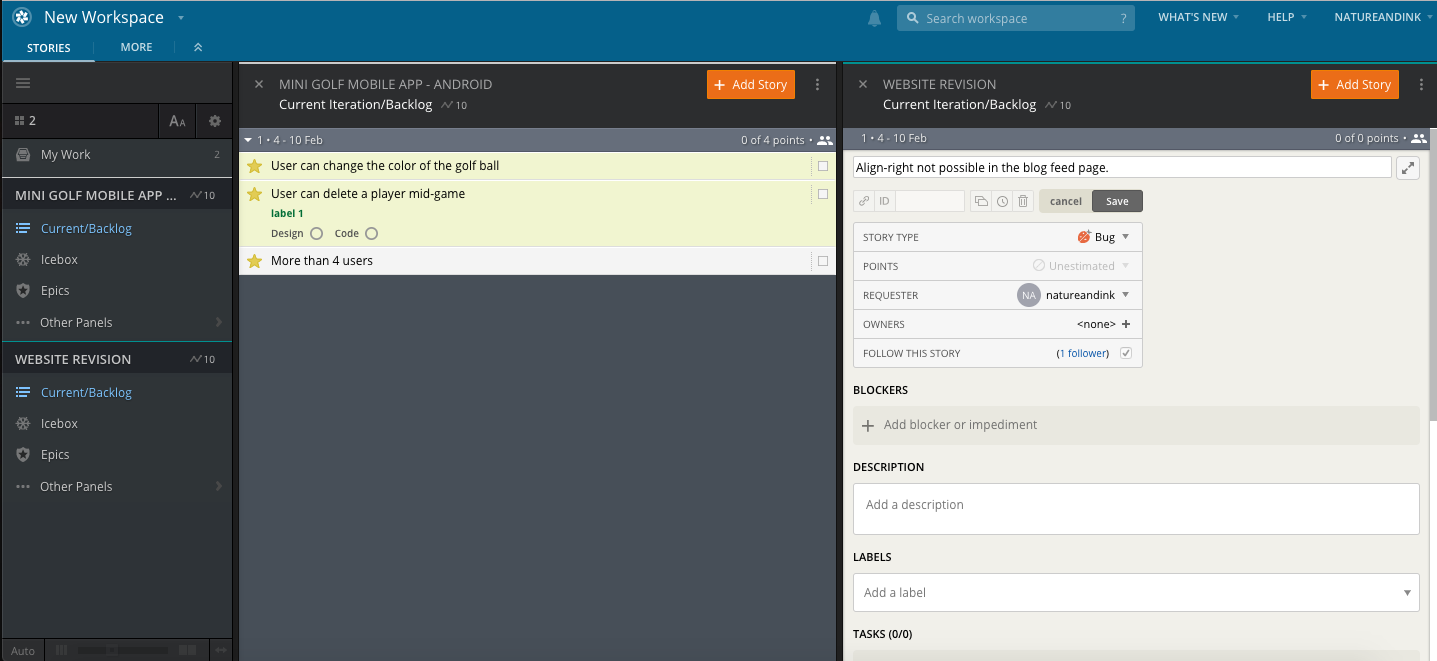
Pivotal Tracker Interface.

Pivotal Tracker is perfect for development teams or individuals that have a smaller budget and less complexity than a bigger organization.

The interface of each project area is broken down into the standard Agile format: the icebox, where each idea or task begins; the backlog, which houses all current or near future iterations; and the "done" folder, where tasks rest in peace upon completion.

Each task ("story" in Pivotal Tracker) can be labeled as a feature, bug, chore, or release, giving more context to the reason behind the work. While setting up the task, you can assign a point estimate for that particular story to indicate how much work/time/effort it will take to complete. From there, you can add additional descriptive elements as needed: Note whether the story's completion is impeded by another story, add more specific subtasks, and tag it with a custom label. If you use GitHub for your code, you can include a link to your GitHub resource in the story itself.

Once you start moving each story through the workflow (and there are dropdowns so you can indicate clearly whether a project is in process, waiting for review, or done and accepted), you can hop over to the analytics tab to review important metrics that will help you plan for future projects as well. For example, in the visual analytics dashboard, you can see the percentage of stories that are rejected after submission, helping you understand if there are habitual roadblocks, like incomplete instructions or changing guidelines. Or you can look at the number of features (versus bugs or chores) that have been accepted, to find out where most of your team's energy is being spent. (If it's all bug fixes and no new features, you might want to take a look at more quality control to free your team up for ideation and feature releases.)

In short: Pivotal Tracker provides fundamental tools and tracking to help you monitor the progress, successes, and failures of your development process, so you can establish more realistic projects in the future.

Pivotal Tracker Price: Free for three collaborators and two projects; from $12.50/month (billed annually) for the Starter plan that includes five collaborators, five private projects, and up to 5GB of storage.

Automate Pivotal Tracker with Pivotal Tracker's Zapier Integrations.

AND CO (Web, macOS, iOS, Android)

Best project management software for freelancers
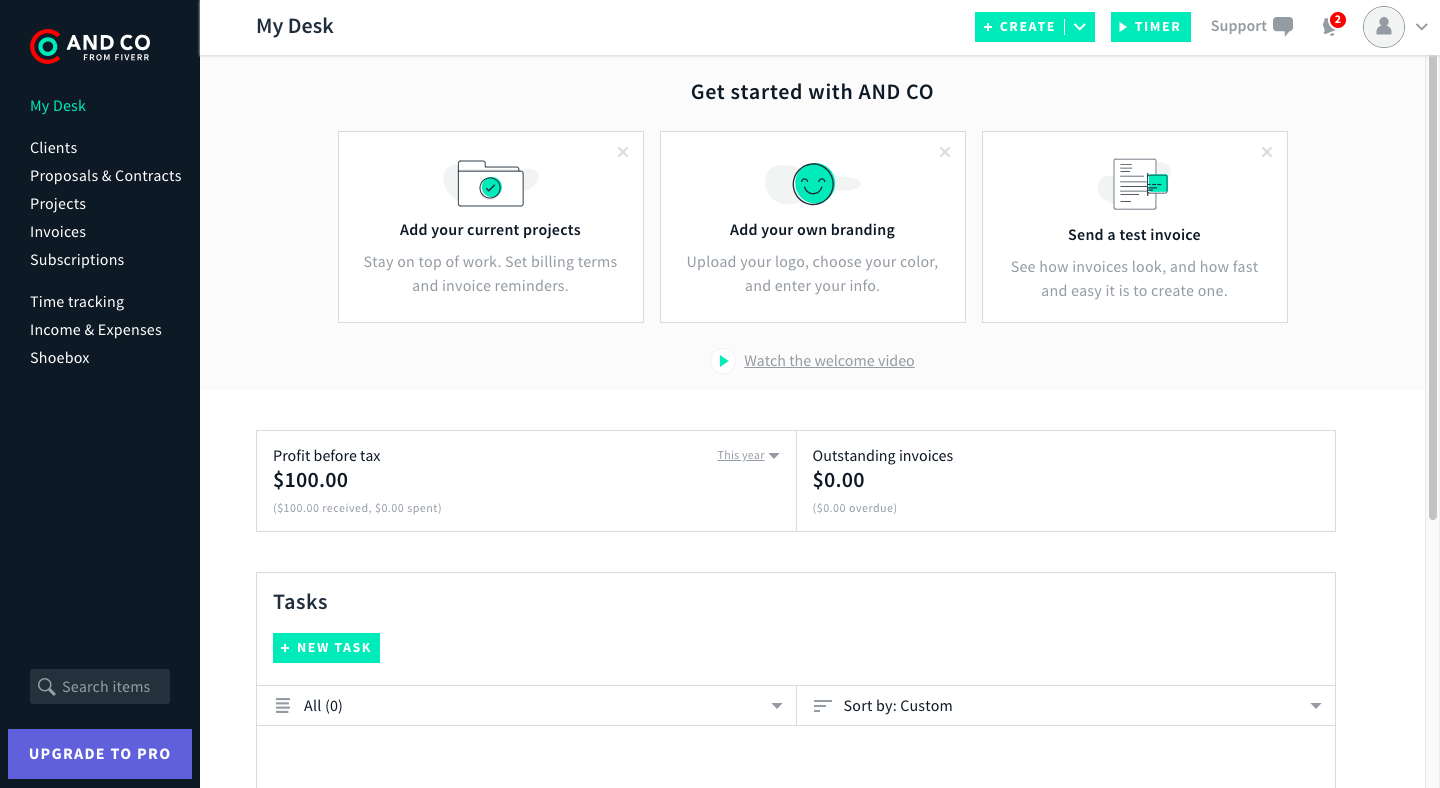
AND CO interface

As a freelancer, you may have the same needs as a larger business (contracts, invoices, complex projects, documentation), but you almost certainly don't have the same budget. AND CO is an all-in-one project management app that provides a lot of value for a reasonable investment.

The interface itself is clean and easy to navigate, with the left sidebar providing easy access to your clients, projects, invoices, and more. Upon creation, all projects are assigned to a particular client in your account and include billable items. You have total flexibility as to how you bill them, whether you have a single invoice due at the end of the project, or recurring invoices throughout. Tasks can also be assigned to projects—or not, if you want to use the task section as a general to do list.

AND CO includes a built-in time tracking tool, which means it will take care of the hourly rates and math for you. When it's time to invoice the client, you simply review the time spent and click Send.

AND CO Price: Free for one active client; $24/month for the Pro plan for unlimited active clients and editable contracts.

Automate AND CO with AND CO's Zapier Integrations.

Paymo (Web, iOS, Android)

Best project management software for complex projects that require invoices
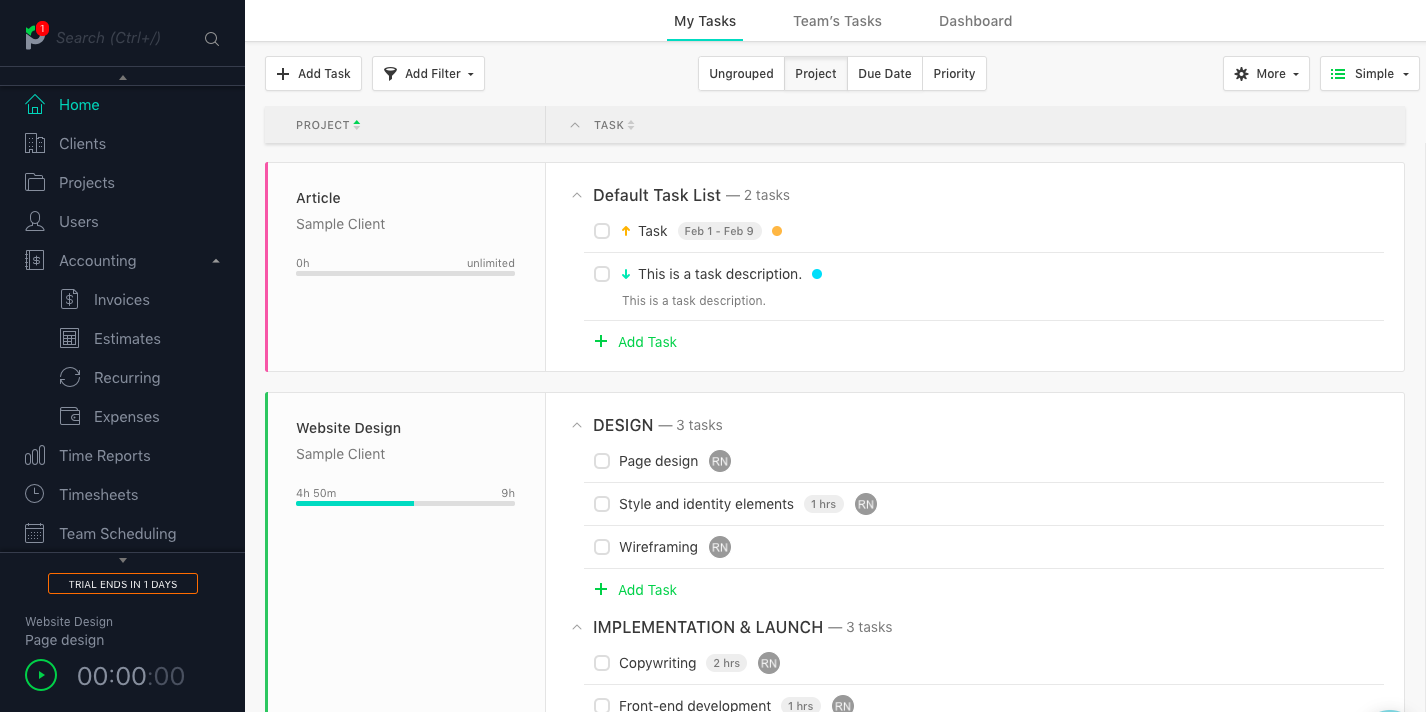
Paymo interface

If invoicing clients is tied to your project management needs, but you have more complex projects than the AND CO task format can support, Paymo will do the trick.

With its billing-centric format, projects are set up per client, and you can decide whether the project is billable based on hourly rates or a flat fee (or not at all). Since a timer is built into the interface, you can track the time spent on each task and project, and Paymo will automatically create the invoice based on that information.

Each project houses its associated tasks, which can be sorted according to priority and due date. You can also view timesheets, communicate with teammates, and save all related files for the project. The biggest drawback is that there are no subtasks, so you'll have to either create multiple tasks or utilize the task description area to spell out any multi-step requirements.

If the majority of your projects are services for clients that require billing and invoicing, Paymo stands out as an affordable but robust enough option to handle task lists for multiple team members.

Paymo Price: Free for one user, up to three saved invoices, and 1GB of storage; from $11.95/user/month for the Small Office plan that includes unlimited invoices, project templates, and more.

Automate Paymo with Paymo's Zapier Integrations.

Wrike (Web, iOS, Android)

Best project management software for maintaining a balanced team workload
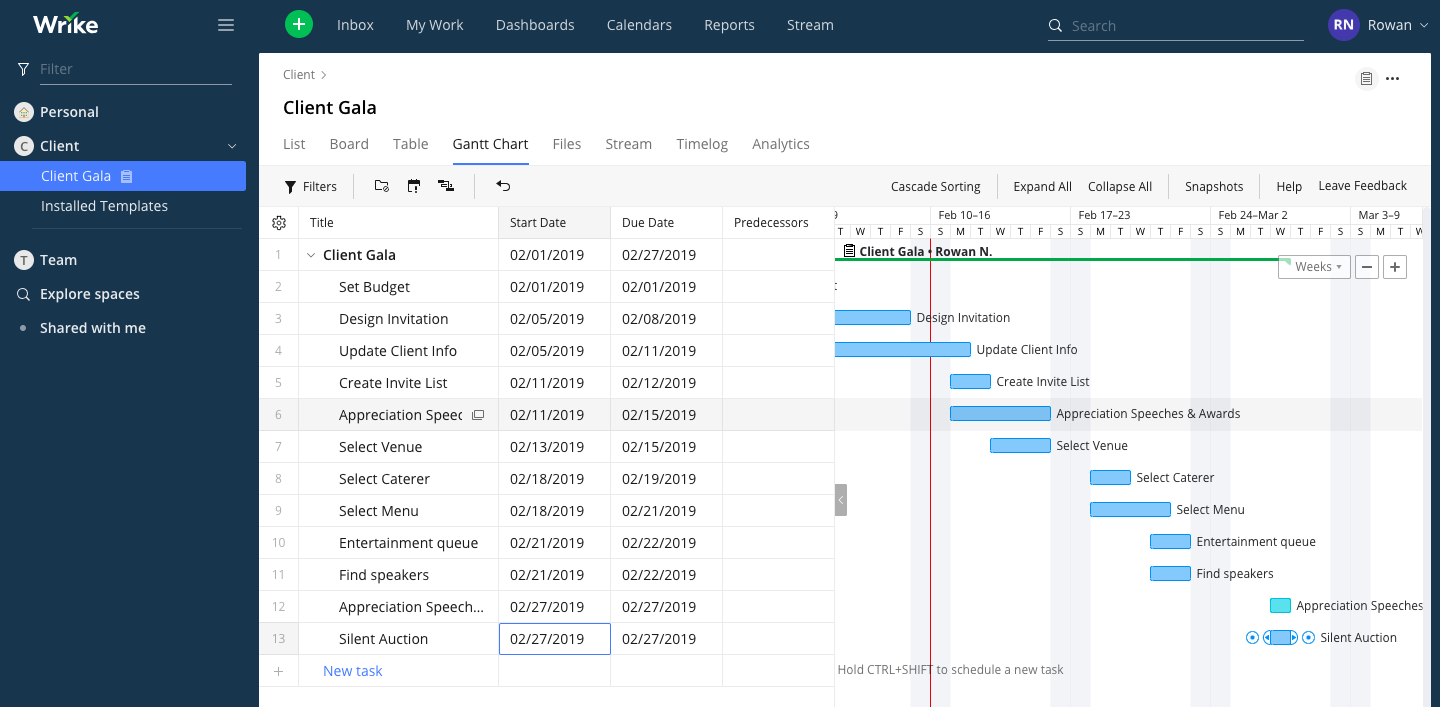
Wrike interface

If you find yourself struggling to balance your team's workload, you might find an ally in Wrike. At first glance, the layout of Wrike projects is similar to Asana (with the exception of relying on a folder/project/task hierarchy instead of the project/section/task hierarchy in Asana). But where Asana's flexibility comes from an open-ended structure, Wrike offers a more structured flexibility, enabling you to customize (and standardize) what information is a required part of each task.

For example, you can add multiple custom fields to each task (e.g., numerical priority level, currency, percentage, etc.). Once each task is set up, it appears in a multi-column list view, where each column represents a category of information in the tasks. For a development project, you might care more about priority levels and progress percentage, making the corresponding columns more prominent than others; for marketing, due dates might be most important. In either case, your team members will always know what information is required with every task assigned to them.

Once your projects are set up, you can head over to the Dashboard view to see your higher level stats and tracking metrics. The workload charts feature, available at the business subscription level or higher, gives you a customized view so you can make sure that none of your team members are overloaded (or overlooked) during projects. Within small teams, where the workload is spread across multiple projects, this is important to track.

Wrike Price: Free for up to five users and limited features; from $9.80/user/month (billed annually) for the Professional plan that includes subtasks, Gantt chart views, and advanced integrations.

Automate Wrike with Wrike's Zapier Integrations.

Zoho Sprints (Web, iOS, Android)

Best project management software for teams that work in sprints
Zoho Sprints

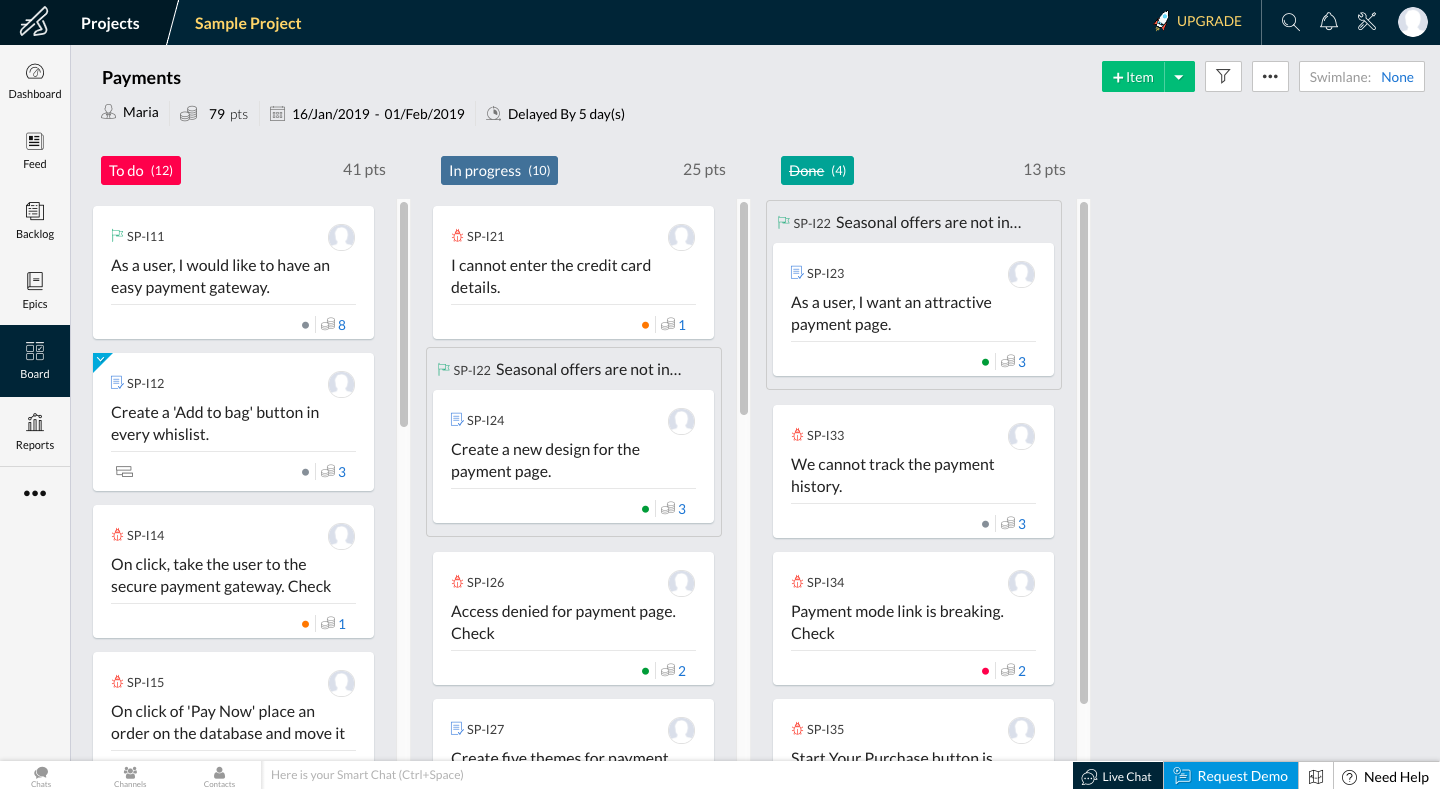
Zoho Sprints is a pared-down project management software tool that skips the fancy features without sacrificing the functionality that makes it easy to run an organized Scrum-style sprint. The sprint is a short, focused span of time where all hands are on deck to get the next feature or product ready to go.

When you first log in, you'll see the dashboard, which uses pie charts, bar charts, and other visual aids to show you how well your team is working through the tasks. It also makes it easy to see which team members are pulling their weight in the sprint. The main task area is then divided into a backlog (for ideas) and a sprint backlog (for current working tasks). Each task houses the standard description and file attachment area, plus prioritization and estimation points.

Once the ideas and tasks are all compiled, you can turn it into an active sprint with a single click. (Note: Only one sprint can be active in a project at a time, so if you have multiple teams, you'll want to create separate projects for each one.) While working on the tasks inside the sprint, you have access to a dashboard that gives an overview of key project areas: overall progress (determined by the number of tasks marked as Done), activity (a bar chart showing how much progress is happening per day), and a list that shows each user alongside the number of tasks assigned to them in the sprint and how many tasks they've completed so far.

Are there other project management tools that give you the ability to create sprint setups? Absolutely. But the benefit of using Zoho Sprints is that it helps you maintain focus on the present sprint, instead of getting lost in other features and projects.

Zoho Sprints Price: Free for two projects, three users, and 500MB of space; from $12/month for the Standard plan that includes up to 50 projects, five users, and access to additional features like meetings and timesheets.

Automate Zoho Sprints with Zoho Sprint's Zapier Integrations.

Which Project Management Software Should I Use?

As you select a project management app, ask yourself a few questions: Do you value flexibility or structure? Do you need detailed metrics on your projects? What type of data do you need to store about your projects?

Each app on this list offers a free version that lets you test it out for as long as you need. We suggest you pick the one that seems the most suited to you and give it a try for a month. If it doesn't work for you, move along to the next tool.

Just remember that the best methodology is the one that gives you the structure and mental support you need to get your projects out the door efficiently, with quality output.


source https://zapier.com/blog/best-project-management-software-small-business/

Wednesday, 17 April 2019

Turn Your Google Analytics Data into Actionable Tasks

Google Analytics is a powerful piece of software that monitors who's visiting your website and what they're doing when they get there. But unless you have a way to turn those metrics into actionable tasks for your marketing, UX, and sales teams, the only thing you really walk away with is the ability to confidently drop the term "bounce rate" into casual conversation.

Here, we'll offer six ways you can take your Google Analytics data and use it to make decisions—and changes—for your company.

1. Use Landing Page Data to Monitor SEO Strength

Screenshot showing how to monitor SEO growth with most popular landing pages

It's one thing to know which pages get the most views. But if you want to monitor how well you're performing with SEO, you'll want to look at your most popular landing pages.

On the left navigation menu, select Behavior > Site Content > Landing Pages.

The list of URLs shows the first page that a user lands on when they visit your site (i.e., landing pages). On its own, this list is a collection of "nice to know" data. It means people are finding these pages…somehow. But for the data to be useful, you need to dive a little deeper to see what's happening before the visitor lands on the page.

To get the before picture, click on the Secondary dimension button just above the column titles, and select Source/Medium from the dropdown options. This adds a new column that shows how your website visitors found that landing page in the first place, whether through a search on Google, by clicking a link in a Facebook post, or by typing it in directly.

To find out how well your SEO strategy is working to drive traffic, home in on the google / organic items. Any traffic coming from there is a result of your site's appearance on a Google search. That means that the landing page is doing something right when it comes to SEO, likely including the right titles, H1s, keywords, etc.

You might notice that Pareto's 80/20 principle applies: for example, a small handful of blog posts may bring in the bulk of your organic traffic. The big question that follows: What do you do with this data?

Review the 10 pages that are bringing in the most traffic via organic search. Then identify what keywords these posts were optimized for (if any) to spot keyword trends that are working for your website. For example, if you notice a series of long-tail keywords bringing in traffic, maybe that's what works best for you. Beyond the keywords themselves, you might also review the page/article formats and content style/depth to see whether there are any other similarities among your top performing pages. Google is always changing its algorithm, but if you can find patterns among your top-performing landing pages, you'll be able to adjust other pages to match.

2. Improve Referral Traffic Numbers by Strengthening Partnerships

Review landing page source/medium to identify partnership opportunities

In the same area where you monitor your organic searches (Behavior > Site Content > Landing Pages), you'll also be able to see how much referral traffic you're getting—and who's sending it your way.

A referral session is counted when someone is on an external site (whether that's a social media website like Facebook or Pinterest, or some other website) and clicks on a link that leads to your website. These referral links are quite easy to identify in Google Analytics: They consist of the referring website's base URL (e.g., zapier.com) followed by a slash and the word referral.

The social media referrals are valuable, but let's focus on the other referrals. In the example screenshot, we see that maplesaplingstudio.com has brought us nine visitors on separate occasions. Depending on your traffic numbers, this might be high enough to warrant some curiosity about why you're getting referrals from that site and whether there's opportunity to increase those numbers.

Referral traffic has the potential to be a lot "warmer" than organic traffic—that is, easier to convert into leads and customers. In fact, referral traffic for B2B companies has a 70% higher conversion rate and a 69% faster close time on sales.

So what can you do with this information?

First, you might compile a list of high-performing referral sites (based on the URLs in the Analytics report) to identify who your best advocates are. Then, start reaching out to them for additional partnership opportunities, which can take a variety of forms, depending on what's mutually beneficial for both parties. For example, if you're hoping to build more backlinks to your site, an outreach email might be as simple as pitching a blog post for their site. Or, if they have a complementary product, you might want to develop a more intricate partnership, where you cross-promote products in exchange for visibility with the other's audiences.

Here's an example of a good outreach email:

Hi Mukul,

My name is Maria, and I'm the founder of CopyDreamz, LLC, where we help aspiring writers gain professional-level copywriting skills.

I just wanted to say thanks for some of the traffic you're sending our way—really appreciate it!

I've been following your work at FreelanceDreamz for a while, and I love your approach to teaching freelancers how to run their own business. (That Business Plan 101 course you have is super powerful. I recommended it to a friend, and they've already seen a huge benefit from it after just three weeks.)

I'd love to chat with you a little more to see if there's any opportunity for me to refer some of my copywriting students your way, and if any of your students would like a discount on our copywriting courses. If so, let's connect, and I can get you (or your team members) a complimentary pass to our courses.

We have about 5K active students, with an email list of 25K+, an estimated 60% (based on our surveys) of whom are looking to quit a 9-to-5 and start freelancing full time.

Let me know—I'd love to connect either way!

Warmly,

Maria

There you have it: an outreach email that contains the most important relationship-building components:

  • A personal introduction, with a brief blurb that tells the recipient who you are and what your business is.
  • Acknowledgment and gratitude for the referral links. Keep it short and sweet, so that they know what prompted you to reach out but aren't distracted by the thanks. The emphasis should be on the rest of the email.
  • Sincere praise for what they're doing, along with a specific example of what you personally have found valuable.
  • A clear invitation for cross-promotion.
  • Specific numbers to prove that you promoting their business will be mutually beneficial (if you don't have impressive numbers yet, you can always emphasize things like "we'd love to promote you in our social media and on a prominent link in our sidebar").
  • A warm closing with no pressure to commit. The important thing is to touch base and build a relationship. The promotion might come down the road a little, when the company is more familiar with what you do.

Some businesses might be quick to build relationships; others might require a few follow-ups. Be persistent but respectful.

3. Optimize the Quality of Your Traffic With Multi-Channel Funnels

Use multi-channel funnels to see what traffic sources are the most valuable for your conversions

Our first two tips were about the volume of landing page sessions; now we'll switch over to talking about what visitors do once they're on your site. The multi-channel funnels overview gives you a quick look at where your marketing efforts are paying off, and where you might need to work on improving the quality of traffic sources.

To find this information, select Conversions > Multi-Channel Funnels > Overview. (If you don't see any data there, make sure you have the Goals feature set up for the opt-ins and order forms on your website.)

The first thing to note is which traffic sources are contributing the most to your goals. In the above screenshot, you can see that organic searches lead (or contribute) to over 50% of all goal completions, while referral traffic only amounts to a little over 30%. But you need to do a little more digging to get significant value from these numbers.

For example, if organic traffic amounts to 60% of all your traffic, and leads to 50% of your sales, that's a relatively solid traffic source. But compare that with referral traffic that amounts to only 10% of your total traffic—and 30% of your sales. It's clear that referral traffic outperforms organic traffic for conversion percentage and might be an untapped opportunity for your company.

To analyze this data, start with a spreadsheet that includes the time and money spent in each area:

Use a spreadsheet to help determine marketing opportunities

The numbers in this example are exaggerated, so it's easy to spot the opportunity: The company only spends 10 hours/week on organic search (e.g., keyword research), but sees 50% of conversions come from those 10 hours. In this case, it's easy to decide to put more effort into SEO strategy since you have the data to suggest it will be a high ROI effort.

If your opt-ins and sales are all tracked accurately and you're thorough in tracking the amount of time spent on each traffic source—making sure to include all team members—you should be able to see where your time is best spent in terms of revenue.

4. Use Engagement Metrics to Determine Content Quality

Engagement metrics can help you determine the quality of your website content

Two of the most powerful stats you'll find for your website are Average Session Duration and Bounce Rate. Both of these metrics can be found in multiple places throughout your Analytics account, for individual pages and groups of pages.

To access these metrics in a dashboard format, select Audience > Overview.

For a quick refresher:

  • You want a low bounce rate: This means that users are viewing more than one page at a time when they visit your website.
  • You want a high session duration: This means users are spending time reading/viewing your content.

Usually, if you see a high bounce rate, you'll also see a low session duration. In most cases—but not always—it means the user landed on your website, realized it's not what they were looking for, and clicked away quickly. If that's the case, you'll want to start by reviewing two possibilities.

  • The website visitor is not a good fit for your content or product. This is bound to happen, but if your bounce rate is high, it might mean you're attracting the "wrong" type of visitor. It's one thing to get people to your website using high-value keywords, for example, but if you can't draw them in further, it's all for naught.

  • Your website design or content appear untrustworthy. Ever land on one of those pages that looks like it's from 1998 and immediately click away? You don't want to be that site. Be sure that your design is clean and the copy on the page is clear and inviting.

  • Your website UX does not invite the user to click around. This could be due to a confusing layout, an unintuitive navigation menu, or a lack of call to action (CTA) buttons that lead each visitor to the next step. This is particularly likely if you see a high session duration and a high bounce rate. It's likely the user was engaged with that page but wasn't incentivized to move further.

In short: There are lots of actions you can take to improve the overall experience your website visitors have, while extending a strong invitation for them to keep clicking deeper into your site. Keeping an eye on your bounce rate and session durations—overall, or page-to-page if you are A/B testing on certain pages—can help you measure your success.

5. Review Page Depth Paths to Find UX Weaknesses

Find out where you're losing your website visitors with behavior flow.

Seeing what your website visitors do once they get to your website can be illuminating. There's session replay software that lets you watch literally every move your users make on your site (yep), but you can visualize this behavior in a broader sense in Google Analytics.

Go to Behavior > Behavior Flow. Here, you'll see a visual that illustrates how people are interacting with your website pages and where they're dropping off. You might notice, for example, that those who land on your most popular blog post typically go to the home page, then exit your site. But those who land on the About page first typically wander through two or three pages and eventually purchase one of your products. (By default, you might only see two or three interactions in your chart. To add more, click the + Step arrow that appears to the right of the columns.)

This view can inform a lot of your decisions, like what paths are naturally optimized to draw visitors deeper into your site, and where you might want to do some work to make the "next step" more appealing. Keep an eye out to see whether certain key pages are missing from the user flow.

For example, let's say the flow you've envisioned is supposed to lead a user from the Features page to the Pricing page, but they're clicking to the About page instead. That means you need to rework the copy, layout, or CTA of your Features page to get people where you want them to be.

6. Uncover New Opportunities with Site Search

Use site search to understand what your website visitors are thinking.

To see what terms your users are entering within your site's search, go to Behavior > Site Search > Search Terms. (If no data appears, make sure you have the Site Search function configured properly. It may take a few days for data to show up, depending on your traffic numbers and how prominent the search bar is.)

At first glance, it's a straightforward feature: Every term that appears is one that your visitors are looking for once they're on your website. But you can go a lot deeper, using some of the other metrics that appear alongside the search terms in the results table (e.g., % of Search Exits and Time after search). For example, you might see that a lot of people are looking for a basic term that you thought was addressed well on your site, but they're clicking away immediately after searching for it.

In this case, you might want to recreate that search to see what's happening. By recreating a search on your site for copywriting course, for example, you might discover that only your About page shows up, even though you have an entire set of pages dedicated to your courses on writing copy. So even when people are searching for the right topic on your site, they're not finding what you have for them. In this example, the solution is simple: Make sure to add the exact phrase—copywriting course—in appropriate places on the pages you want to show up in the search. Remember: Most website searches don't have the complex capabilities of Google. In most cases, they can only scan for exact word matches.

On the other side of the coin, an abundance of search terms for something you considered totally unrelated to your content might indicate a good opportunity for a blog post or FAQ section, enabling you to net those searches and help your visitors understand how your product or service works a little more clearly.


There's a wealth of information inside Google Analytics, enough so that you could have a full-time employee devoted just to monitoring the stats and performing an in-depth analysis on how this information can be used by your team. But you don't have to invest that much time for GA to be an invaluable tool for your business growth.

Instead of getting lost in the sea of reports, identify a small handful of areas to focus on. Maybe you have a big content campaign coming up, and you want to make sure your efforts are going to pay off. Or perhaps your team has successfully managed to triple your traffic without seeing a similar increase in sales, and you want to find out why. The data available in Google Analytics is sitting at your fingertips, waiting for you to unlock its potential.

Automate your Google Analytics data with the Zapier's Google Analytics integration.


source https://zapier.com/blog/google-analytics-tips/

Tuesday, 16 April 2019

The 8 Best Note Taking Apps for iPad and iPhone in 2019

What do you do when you have a spark of creativity or an idea you can't afford to forget? Most of us reach for the nearest device—often the smartphone in our pocket or the tablet on our coffee table. But there's a lot more to a note taking app than simply tapping out a quick note.

Both the iPhone and iPad offer excellent note taking apps that will change the way you record your thoughts, plan your days, and organize your life. Many of these apps are aimed exclusively at Apple users, while others offer an iOS-friendly window into a broader ecosystem.

We've put over 30 of the best note taking apps for iPad and iPhone under the microscope in a bid to find the absolute best of the bunch. Here they are.

What Makes a Great Note Taking App for iPad and iPhone?

Typing a note on your iPhone or iPad might not be the fastest method of entering text, but it's the best option you have when you're away from a keyboard. Snapping images or scanning documents with your phone or tablet and storing them in an easily searchable digital archive is a good habit to form. And that microphone allows your device to double as a dictaphone, with many note taking apps supporting audio.

For a more tactile experience, why not try hand-writing your notes? Most note taking systems support touch-based scrawl of some type, and others rely on it. The strides Apple has made with its Pencil stylus on the iPad Pro has not gone unnoticed by app developers. If you've previously written off the iPad as an effective drawing or handwriting tool, it might be time to try again.

In any case, no single app is perfect for every use case. It doesn't make a lot of sense to compare a free app that's light on features by design with a pricey heavyweight, particularly when both approaches have their merits. We've tried to find the best note taking apps to satisfy our main criteria, regardless of the approach taken by that app. We favor apps with unique features or those that are the best examples of their kind.

In order to be inclusive of all needs, we haven't limited our selection to plain or rich text apps. Notes may be web clippings, photos, typed markdown, scanned documents, audio logs, sketches, handwritten notes, or diagrams. In some instances, notes can be a mixture of all of these things.

All of the selected apps satisfy our requirements for a common-sense system of organization. This is usually achieved with some form of notebooks, folders, or tags. Access to a reliable search function is another important criterion for selection, and options like the ability to filter, sort, and save search results have also been considered. When it comes down to it, finding your notes is just as important as recording them in the first place.

You also need to be able to access your notes when you need them. All of our selected apps include the ability to sync over the cloud with other instances, either using the developer's servers or iCloud. Some include robust sharing options for providing copies of your notes to friends or colleagues, though this isn't a strict requirement for inclusion.

A sense of value is another important consideration. Some apps are free, others paid for outright, while some make use of an ongoing subscription model. Most of our paid-for recommendations come with a decent free tier or trial period. Not everyone can justify the expense of a pricey note taking app, but at the same time, some of the best apps aren't free.

While many apps can double as note taking apps, we avoided including apps for which recording notes is not the primary purpose. That means we excluded word processors, journaling apps, and sketchbooks, among others.

The 8 Best Note Taking Apps for iPad and iPhone

Apple Notes

Best ready-to-go iOS note taking app for Apple enthusiasts

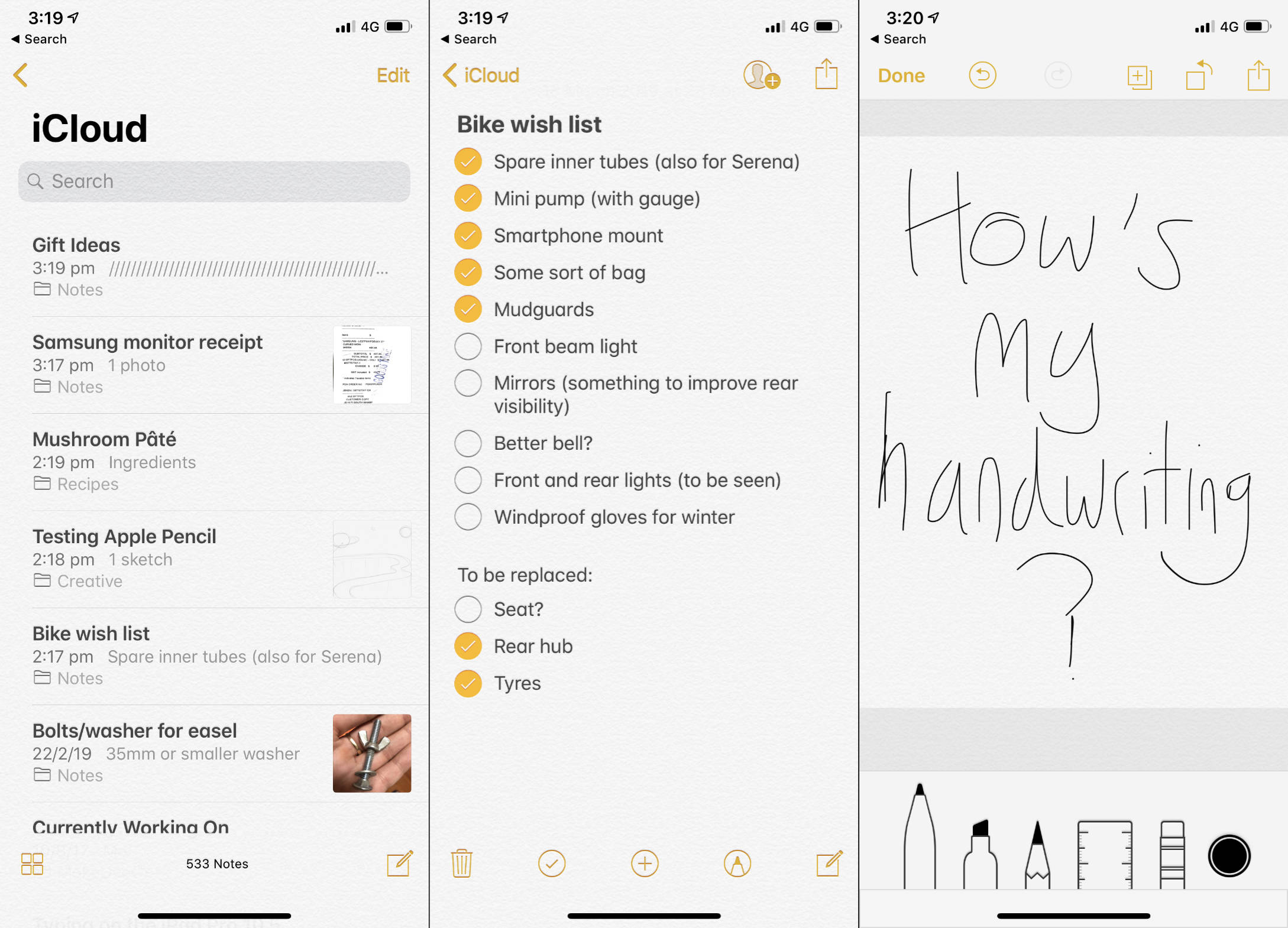
Apple notes screenshot

Apple Notes manages to win over many users simply by virtue of it being installed on every iPhone or iPad that leaves the factory. And that's okay. If you're looking for an easy-to-use note taking app that's ready to go, Apple Notes is an attractive option.

Apple Notes can capture rich text and mixed media notes from practically any corner of the iOS operating system. These notes can also contain checklists, tables, images, Apple Maps locations, audio recordings, and document scans by way of the included document scanner. Tap the plus button while composing a note, and then select Scan Documents and point your camera accordingly. You can also add your own drawings or handwriting by choosing Add Sketch from the same menu.

Your notes are organized into a system of folders of your choosing. Subfolders can be created, but not on iOS devices (you'll need to do so on a Mac or via the web interface at iCloud.com). You cannot organize your notes into tags, but there's nothing preventing you from deploying your own #hashtags and searching for them. While there's no optical character recognition (OCR) for scanned documents or images, handwritten notes are searchable—provided your scrawl is legible.

Apple Notes has a few other smart features for users who want more than basic note capture. You can lock notes by swiping them to the left and tapping the padlock. Add other users to your notes and collaborate by tapping Add People at the top of the note and entering their email. Because Notes is deeply integrated into iOS, you can save items as notes from almost anywhere using the Share button, then choosing Notes.

Sync takes place over iCloud, with all users receiving 5GB of free iCloud storage space. As long as you're logged in to the same iCloud account, synced notes will appear on any other iPhone, iPad, iPod Touch, or Mac devices and on the web at iCloud.com.

Apple Notes Price: Free

Simplenote

Best iOS note taking app for plain text notes

Simplenote screenshot

The clue is in the name when it comes to Simplenote. This is an aggressively simple note taking platform, with a version available for every major platform. The app allows you to capture plain text notes that take up very little space on your device. You can use Markdown by tapping the Information icon and enabling the Markdown toggle, then swipe the page to the right to view a Markdown preview.

You can't embed images or audio files, add PDF attachments, or include checklists. Since everything is stored in plain text, the app is highly responsive, and notes take very little time to render and display.

Organization takes place by way of tags alone. There are no notebooks or folders—simply deploy your own system of tags in the tag field on your notes. These tags then live in the sidebar to the left of the screen, so you can browse by tag with a tap if you want.

Since Simplenote is free, there are no features hidden behind in-app purchases or subscriptions: You get access to everything. That includes passcode or biometric security, a dark mode theme, and syncing with other instances of Simplenote. All you'll need to use and sync Simplenote is a free WordPress account.

If your idea of note taking relies on the typed word alone, Simplenote is the perfect tool for the job wrapped up in a delightful free package.

Simplenote Price: Free

Google Keep

Best iOS note taking app for a scrapbook-like approach

Google Keep is Google's own cross-platform note taking app, with other versions available for Android and the Chrome browser and OS. As of this writing, there are no desktop versions of Keep, which is a shame because the native iOS app is a pleasure to use. Google Keep places a strong emphasis on the visual aspect of note taking, presenting all of your notes in a scrolling list on the home screen—it ends up feeling like a scrapbook.

The app allows you to take simple text notes, but you can't add formatting. You can capture checklists, sketches and handwritten notes, audio recordings, and images from your device's camera or the Photos app. It's also possible to mix any combination of these things within a single note.

To keep your notes collection organized, Keep uses Gmail-like labels. The labels aren't color-coded, but you can apply multiple labels to a single note by tapping the three dots in the lower-right corner of a note and then choosing Labels and ticking all that apply. Tags can also be deployed anywhere within a note like a regular #hashtag, allowing you to filter by tag using the search engine. Finally, each note (not tag) can be color-coded with one of 12 background colors. These colors help differentiate your notes from one another on the slightly cluttered home screen.

There are other ways to keep notes top of mind. At the top of a note, tap the bell icon to turn your note into a reminder at a date and time or place of your choosing. You can also pin a note to the top of your home screen using the pin button.

Notes can be collaborative too. Tap the three dots on a note and tap Collaborators to add other users to a Keep note, allowing them to edit the note. You can also send notes from this menu without having to add users as collaborators.

Sync takes place for free over Google's own servers, with anything stored eating into your total Google account storage. Everyone with a Google account gets 15GB free storage for use with Google's other products like Google Drive, Gmail, and Google Photos.

Google Keep Price: Free

Drafts 5

Best iOS note taking app for creating actionable notes

Drafts5 screenshot

While technically a note taking app, Drafts 5 offers so much more in its unique approach to typing on your iOS device. The primary focus is on creating actionable notes, rather than storing anything and everything (though you could use it for that too). So what is an actionable note? In this case, it's an email you're drafting, a text message you need to send, a blog post you might be working on, or simply a passage of text that you want to use elsewhere.

When you first launch Drafts, you're greeted by a blank canvas where you can start typing. This is the first major change compared to most note taking apps: Drafts is always ready to go. In no time, you can capture plain text notes and audio recordings. All of your new notes are first stored in your inbox, and from there you can decide what to do with them.

Organization mostly involves tags, though it's also possible to flag and archive notes. Both flagged and archived notes appear in separate sections for easy perusal. You can search for your notes as you would in any other app, or use Drafts' system of filters for applying multiple tags to a search query.

The real magic of Drafts is what happens to your notes once you've written them. Tap on the Drafts icon in the top-right corner of the screen to see a list of one-tap actions you can perform with your note. These include sending the text to the Messages app, launching a new Mail draft with your text ready to send, or saving your text to Files as a separate file. This doesn't take place via the usual iOS share sheet, but instead instantly sends your text to the app of your choosing.

These actions are varied. You can use Drafts to search Google, create a new Reminder, save to third-party cloud services like OneDrive and Dropbox, compose a Tweet, or create a task in third-party apps like Things and OmniFocus. Not only is Drafts a note taking app on its own, but it's also an extension that plays nicely with some of the other big players like OneNote and Evernote.

Take Drafts to the next level with a Pro subscription that allows you to create and edit your own actions, unlock custom icons and themes, use additional widgets and share extensions, and more.

Drafts 5 Price: Free with limitations; Pro subscription is $19.99/year or $1.99/month.

Zoho Notebook

Best iOS note taking app for a cross-platform alternative to Apple Notes

Zoho Notebook screenshot

Zoho Notebook is another free note taking platform that strikes a great balance between ease of use and functionality. It's the perfect alternative to Apple Notes for users who don't solely reside within the Apple ecosystem. There are Zoho Notebook apps also available for Android, Mac, and Windows platforms, and they're all free to use.

Zoho takes a card-based approach to note capture. Every note you take is a card, with different cards used for different types of content. There are cards for rich text notes, checklists, audio recordings, photos and images, sketches, and files like PDFs. By composing a new text card, you can mix any number of these different elements in a single card.

Notebooks with customizable cover images are used to store your cards. It's also possible to deploy tags anywhere within a note by typing a #hashtag, then tapping on the tag box that appears. Individual notes can be color-coded using one of 14 pre-selected colors or a color wheel. These colors make it easy to differentiate different note types, provided you pick a system and stick to it.

Use the camera feature to take photos directly into notes, or scan documents and business cards for safe keeping. You can also use your fingers or a stylus to sketch or handwrite notes, but unfortunately, your handwriting isn't searchable. Syncing is fast and invisible. You'll need a Zoho account in order to use the app at all, which is how the Notebook handles syncing with other instances of the app. You can export your notes as a PDF, Zoho's ZNote format, or via the usual iOS share sheet options.

The whole platform is free, with no restrictions on the number of devices you can sync and no upload quotas.

Zoho Notebook Price: Free

Automate Zoho Notebook with Zapier's Zoho Notebook integrations.

Notability

Best iOS note taking app for handwriting and sketching, especially on an iPad

Notability screenshot

Notability is a complete note taking app with support for both typing your notes and writing them out by hand. The app is probably best for iPad Pro users with a Pencil since the inking technology has been optimized for use with Apple's stylus. But it's still easy to take handwritten notes on an iPhone or regular iPad, with or without a stylus.

The app supports simple text input with bullet points and checkboxes for creating lists or to-dos. Tap the input method icon at the top of a note to choose from handwriting, highlighting, an eraser, or a lasso tool. You can also tap on the camera icon to add images from your camera or Photos library.

On an iPad Pro, you can use the Apple Pencil to draw and write directly on the page. On an iPhone, an assistant in the lower-right corner of the screen allows you to enter handwriting with your finger. The assistant will scroll the page for you, allowing you to enter small and neat handwriting. In reality, it's a slow process, so Notability's handwriting prowess is best reserved for iPad users with a stylus.

In addition to recording text and handwritten notes, Notability also includes the ability to record audio. This is perfect for use in lectures or business meetings since you can use a feature called Note Replay to play back both the audio and the ink recordings in time with each other. When you replay an audio recording and enable Note Replay, your notes and drawings will appear just like they did when you initially made them. Notability's superior inking abilities are put to further use in its capacity as a PDF markup tool.

Organization takes place by way of dividers (folders) and subjects (subfolders). And you can search the entire contents of your notes—including handwriting—from the search bar. You can even convert your handwriting to text by selecting it with the lasso tool, tapping it, and choosing Convert to Text (you'll get a preview first too)—and it works surprisingly well.

Sync is performed over iCloud with other instances of Notability, including the separately-sold Mac app. Notability is a powerhouse of the note taking world, with excellent handwriting conversion and business-class markup features, at a sensible price point.

Notability Price: $9.99

Paper by Dropbox

Best iOS note taking app for collaboration

Dropbox Paper screenshot

Paper by Dropbox isn't the most feature-rich note taking app available. It supports rich text capture with the usual bullet point, checkbox, and text formatting options you need to author quick notes, to-dos, and lists. You can insert images directly from your camera or Photos app, but you can't record audio or create handwritten notes. What makes Dropbox Paper so special are its collaboration features.

Dropbox Paper allows you to invite other people to collaborate on notes with you: Tap your user icon at the top of a note, and type in email addresses to add users to a note. These notes are accessible via the Dropbox Paper apps for iOS and Android and using the web app at Dropbox.com. Once invited, users can edit notes and leave comments by highlighting an element and tapping the New Comment box at the bottom of the screen.

Notes (or Docs, as Dropbox Paper refers to them) are organized into folders. Folders can be shared with collaborators just like notes can, providing quick access to an entire folder's worth of notes in a few taps. You can star documents, which then appear in their own Starred tab for quick access. The Notifications tab should also bring you up to speed with any changes made to your notes recently.

There are a few other nice features that make Paper perfect for team use. Mention someone by their @username to draw their attention to the current note. Use templates to quickly take meeting notes, plan a project, or hold a brainstorming session.

Despite the collaborative and web-based nature of Dropbox Paper and the cloud storage platform it's built upon, Paper works well offline too. All of your docs are downloaded and stored locally, with changes pushed to the server when you get back online.

Dropbox Paper is free, though you'll need a Dropbox account in order to use it. Everyone who signs up for a free Dropbox Basic plan gets 2GB of storage for free.

Paper by Dropbox Price: Free

Evernote

Best iOS note taking app for heavyweight features

Evernote screenshot

Evernote is a titan of the note taking world. In fact, it's more than a note taking app—it's an entire ecosystem of apps and integrations that's been built upon and added to since it first debuted in 2008. For some users, this feature-heavy approach has resulted in the ultimate note taking app. For others, the heavyweight nature of Evernote is overkill.

The note taking platform is a depository for anything and everything. Capture rich text notes with full support for file attachments, in-line images, audio recordings, and sketches. Create tables within your notes, reference other Evernote notes with inter-note linking, and turn any note into a reminder by tapping the alarm clock icon at the top of the screen (Evernote will send you a push notification on a date and time of your choosing). The Share Note button lets you collaborate on notes with other users, but you can't work on them concurrently.

Organization is another Evernote strong point. The platform uses "Notebooks" to store your notes, with the ability to group Notebooks together into Stacks. Tap the Information icon at the top of a note to add tags. Add notes to your shortcuts for quick access from the Shortcuts tab. Evernote's search feature is second to none in its ability to search note titles, tags, body text, attached documents, and even images that contain text.

The iOS app also includes a handy document scanner, which can intelligently detect document edges as you snap them. Evernote works with Siri shortcuts, which means you can create audio commands for Siri to add items to a specific note.

But all of these features come at a price. Evernote's basic free plan has an upload limit of 60MB/month and two devices. That means you can sync your iPhone and your Mac, but not your office PC or iPad. Offline access also isn't included in the free basic plan, which means your notes become inaccessible without an internet connection. A premium subscription relaxes these restrictions and provides other benefits like app integrations with Slack and Outlook, the ability to link files on Google Drive, and more.

Evernote Price: Free with limitations; Premium plan starts at $9.99/month with a pricier business plan available.

Automate Evernote with Zapier's Evernote integrations.

Which Note Taking App Is Best for You?

For most users, Apple Notes provides more than enough features. Since Apple overhauled the app a few years back, Notes is a great platform for storing your thoughts, documents, and lists. It's collaborative and available on any Apple device, though non-Apple users will need to use the web version at iCloud.com.

If Apple Notes doesn't scratch your note taking itch, try any of the other apps on this list. Think about what you value most in your note taking—Simplicity? Handwriting ability? Visual appeal?—and then select the app that offers that feature.


source https://zapier.com/blog/best-note-taking-app-for-ipad-iphone/

Monday, 15 April 2019

Why You Hate Every To Do App (And How to Find Something That Works)

How many abandoned to do lists do you have? I'm talking about apps you've installed, added some tasks to, then promptly forgot to actually use. Abandoned bullet journals and sticky notes you never look at also count.

You tried to implement a system. It didn't work. And now you feel guilty about it. But I'm going to propose that this is not your fault.

Why do we abandon systems? Because they aren't working for us. And that's okay. When it comes to task management the important thing isn't which system you use, it's finding, testing, and refining a system that works for you.

Why You Need a System

Your brain, if it's anything like mine, is a swirling vortex of chaos. In my case, most of the debris is garbage: dumb things I said in high school and should probably apologize for, Pokemon trivia, or a catchy song I heard five months ago.

Some of the stuff that's whirling around, however, are things I need to do.

And that causes anxiety, because it's impossible to keep track of everything when I know my brain is inevitably going to drift back to Baby Shark (at which point I will forget absolutely everything else.)

This is why a to do list is helpful. You can pluck out the relevant bits of brain junk, put it in a tidy list, then actually do the thing that you need to do. But making a list isn't enough: you need to review the list regularly in order for it to be useful.

This is where systems tend to break down. We add things, but don't review the list. Part of this is trying to use a to do list app or system that doesn't fit with your workflow.

How to Find a To Do List That Works For You

Everyone works in different ways, which means that everyone keeps track of their work in different ways. This is why there are so many to do lists applications. Task management is intensely personal. A system that works for me isn't going to work for you. Todoist doesn't work for me but several of my colleagues swear by it. This is why I've had to find my own system.

I've spent the better part of the past three months testing and writing about to do list apps, and I've come to a conclusion: There are lots of different to do list applications because no one app will work for everyone.

Some people need nothing more than a list and find features beyond that to be visual clutter. Some people utterly depend on arranging tasks into projects, sorting the project using headers, and adding sub-tasks to every task. Some people live by due dates, to the extent where they need a to do list to basically be a calendar. Others ignore due dates entirely, preferring to set priority levels. And some people combine everything.

Emphasizing one of these things means, by necessity, downplaying another. For example, OmniFocus offers just about every feature you can imagine.

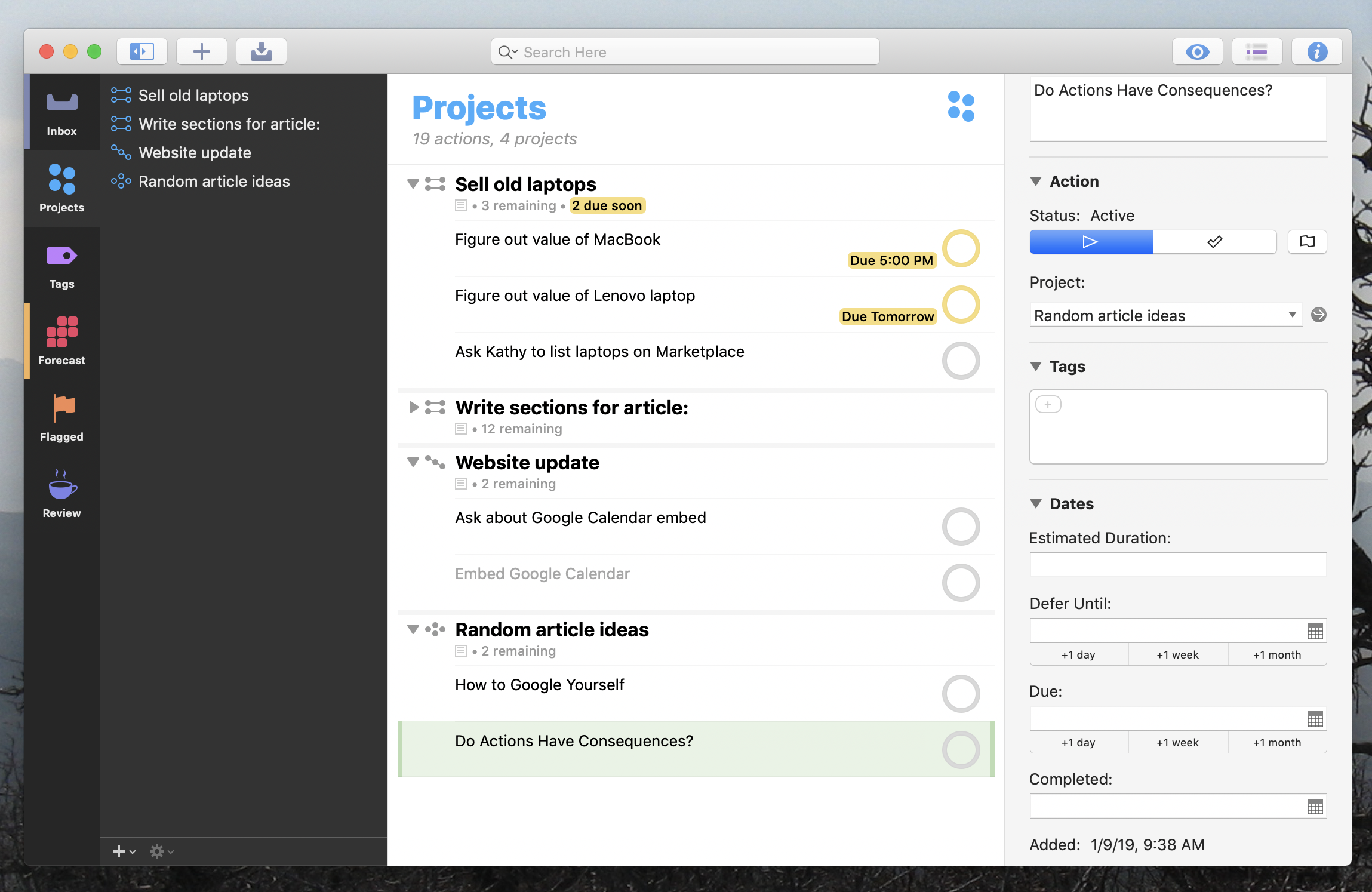
Omnifocus

Some will see this as exactly the kind of flexibility they need to organize tasks; others will see all of the options as clutter that gets in the way of actually doing stuff.

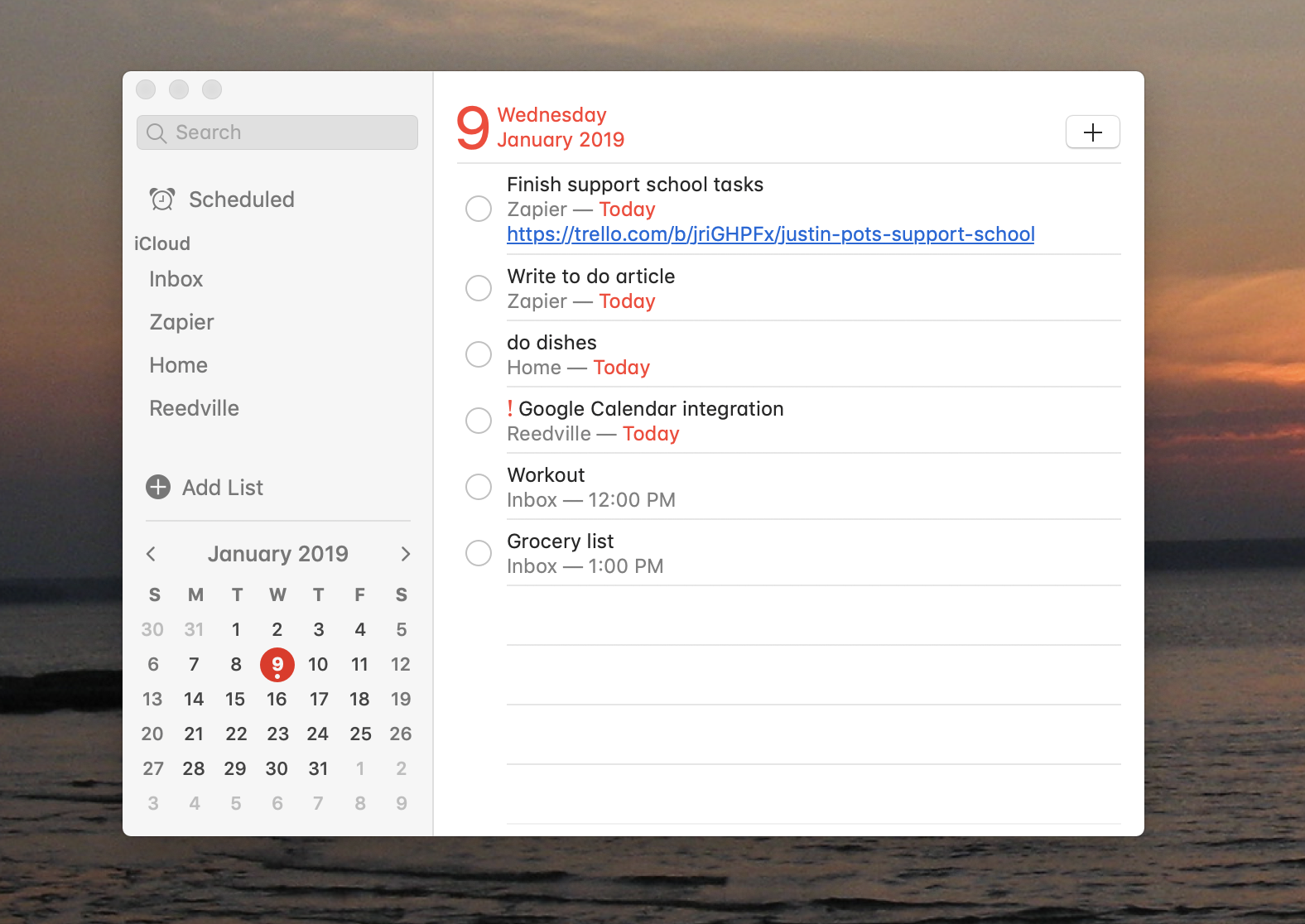
Apple's Reminders goes in the other direction, offering lists, due dates, and basically nothing else.

Apple Reminders

Some will find the lack of other organizational options limiting; others will appreciate being able to quickly get lists down onto paper.

These are just a couple of examples. Every to do list application prioritizes elements to varying extents, and I don't think it's possible for one application to combine everything into a single application that works for everyone.

Which is why it pays to take the time to try a few different applications out. We've outlined the best overall to do list applications alongside lists for Windows, Android, iPhone and iPad, and macOS. Try a few different systems out, paying attention to which organizational strategies make sense to you and which amount to nothing more than clutter.

What does trying out a to do list app look like? Here’s my strategy:

  • First, Empty your mind into the to do list. If you've been trying to remember something get that out of your brain—and into the app.
  • Next, Try to organize those tasks. Different applications emphasize different ways of organizing things; labels, due dates, and subtasks all work differently in different apps. Organize things a little using features the app makes obvious, noticing what you like and don't like.
  • Then, and this is key, Check your list regularly. There is no point in having a to do list if you're not going to look at it, so choose a time to review it every morning and every afternoon. Leave it open on your computer, pin a widget to your phone's home screen, enable notifications—whatever you need to do to remember to look at the list.
  • Take note of what works and what doesn't. Are there some features you wish were there, but aren't? Are there some features taking up mental energy without benefitting you? This is all useful to know if you decide to try out other apps.

My colleague Melanie went over choosing a to do list app, breaking apps down into a few categories. If you’re a visual thinker Kanban-style apps, which arrange tasks in columns, will work better for you. If you like fine-tuning systems you should consider GTD apps. Or, if you want to keep things simple, use a straight forward grocery list app.

Figure out what works best for you, then stick with it for a week or two. If you found a system that works, great! Keep using it. If it doesn’t work, however, don’t give up on finding a system: There is one right for you. You just need to keep trying.

The Other Option: Build Your Own To Do List

Can't find a to do list that works for you? It might be that you haven't tried the right one yet, but it also might be that your ideal list doesn't exist. That's not a problem: Just make a system that works for you.

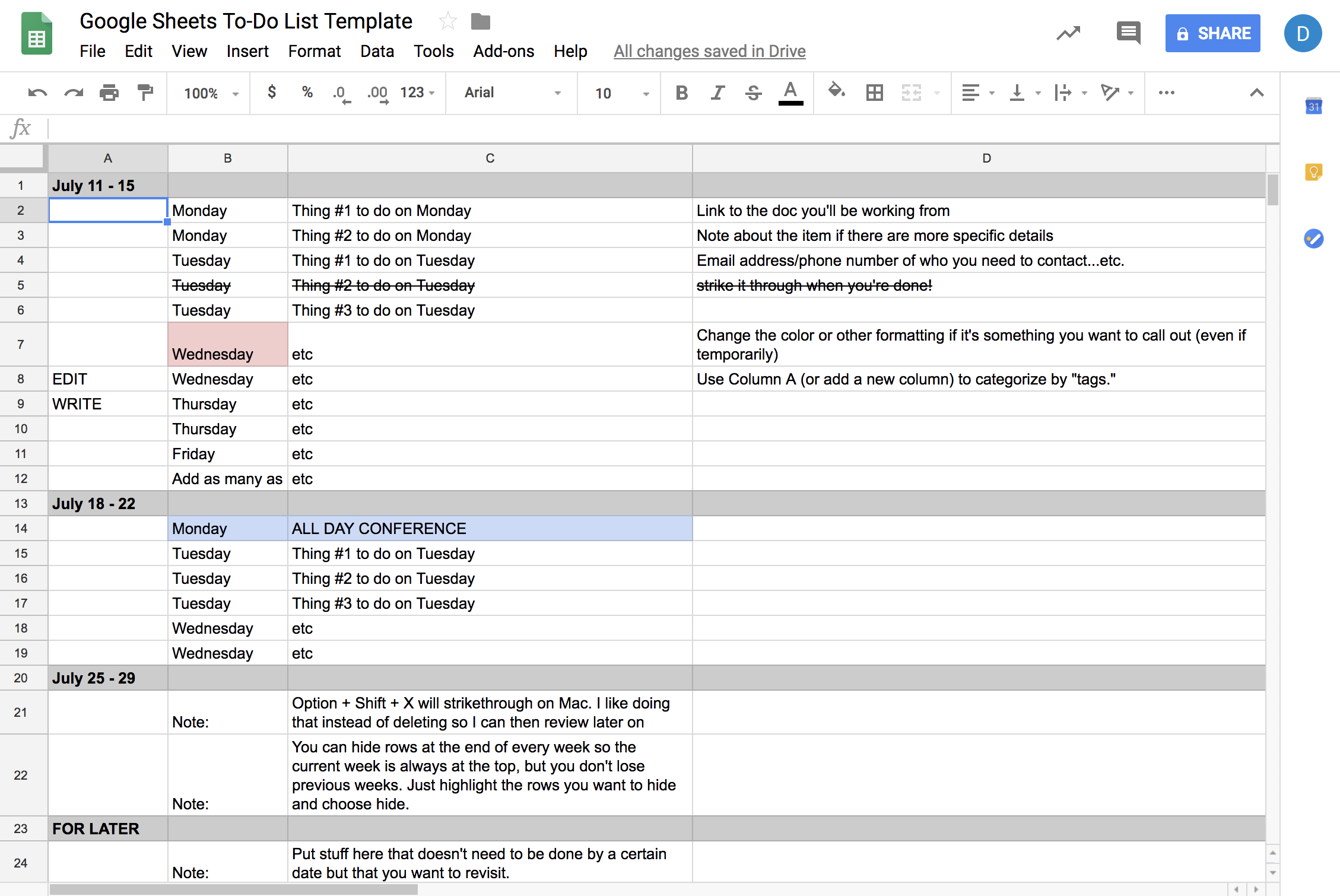
Deb, one of my colleagues here on the Zapier blog, thinks that Google Sheets should be your to do list. She built a system for herself from the ground up, and it works for her.

Google Spreadsheet to do list

I personally use a plaintext file as my to do list, thanks to todo.txt. I even set it up so today's tasks show up on my Mac's desktop, using Übersicht and a widget.

Todotxt with desktop widget

And there are other possibilities! Many people use Trello, outlining tasks in cards and dragging them to a "Completed" column throughout the week. Others use note taking apps like OneNote or Evernote for the job. I even know a few people who used Coda to build their own to do application from scratch.

The specific tools don't matter: What matters is that you find some way of organizing tasks that your brain won't reject. Take the time and find something that works for you and you'll eventually find something that sticks. It won't calm all the swirling chaos in your mind, and it won't get Baby Shark out of your head. But it will help you stay on top of things, which means it's worth the effort.


source https://zapier.com/blog/why-you-hate-every-to-do-list-app/

Friday, 12 April 2019

How Gyms Use Front and Zapier to Communicate with their Members

Whether it's CrossFit, barre, Orangetheory, Camp Gladiator, martial arts, yoga, or anything in between, group exercise has exploded in the last decade. And with the advent of ClassPass, it's easier than ever for anyone to try something new.

So how can a gym owner retain new members when trying somewhere different is as simple as clicking around in an app?

Communication. New members might be shy or intimidated or scared, so hearing from a coach at the gym, whether by email or text, can help that member feel welcomed and more inclined to stick around.

And finding a way to scale that communication can lead to more sign-ups and long-term gym members. This is especially true during busy times of the year, like January, when gym sign-ups spike thanks to New Year's resolutions.

Lots of the gyms running on Zapier rely on the shared email app, Front, to regularly email and even text new members. With features like a shared inbox, notes, and tags and labels, coaches and staff create clear communication channels with each other while connecting with new and existing members.

Immediately Talk to Your New Leads with Front

When a potential lead reaches out to your business, response time is critical. Think of it from their perspective: Would you rather work with an attentive business that quickly responds or one you have to follow-up with?

With Zapier, you can pair Front with your preferred lead generator, like Facebook lead ads, to create a contact for each new lead. Once the lead finishes responding to your ad, Zapier can even send a message from your team through Front just moments later, showing the lead that they have your complete attention and that their journey matters to you and your team.

With these Zaps, our term for automated workflows, you can include the lead's name to personalize the message and give it an even more friendly touch by including a video greeting or gifs.

If you collect information from your website with a form, like Typeform, these are the Zaps for you. You can create a contact and send them a message through Front, all without having to monitor Typeform for new responses.

Automatically Remind Clients of Upcoming Appointments

A lot of gyms with group fitness classes, like CrossFit, like to have a face-to-face meeting or phone call to work through goals and make sure it's the right fit for everyone. To help facilitate the meeting and make sure the client doesn't miss it, a lot of gyms use a scheduling app, like Acuity Scheduling, to send reminders ahead of the meeting.

You can get as granular as you like, too, sending an email 24 hours ahead of the meeting or a text an hour beforehand. Using the "Appointment Start" trigger in Acuity Scheduling in a Zap, you'll be able to specify how far in advance you'd like to send a message. When that time arrives, Zapier will send an email or text through Front to the client.

These messages help cut down on no-shows and help qualify the lead. After all, if they take the time to show up to the meeting, it's far more likely you can get them to sign up.

Plus, these Zaps are easy to adapt for any challenges a gym might host, reminding members to log workouts or record photos and measurements, for example.

Create an Automated Database of Customer Interactions from Front

Building a back-up database is smart business—systems inevitability hit downtime or experience an outage, but with a thorough backup, your team won't miss a beat. The best part? A database doesn't have to add any costs to your tech stack, and you're already using the apps you need to create one.

If you connect Front and Google Sheets in Zapier, your new Zap will log any new messages in Front to Google Sheets. You can even add a step to the Zap to search the sheet for an existing record from that specific customer and add it to their row. That way, you can catalog all the interactions you have with each customer—without needing to copy over every message by hand.


Front makes chatting with your customers a pain-free process—and with Zapier, speeds up the time it'd normally take to reply to each individual lead as they come in. While a lot of the above examples are strategies gyms have adopted, they're easy to apply to any business. Want to combine Front's powerful communication features with the easy automation of Zapier? Give Zapier a try for free.

Our stories explore how Zapier's users solve common problems. From marketers to CEOs, educators to real estate agents, millions use Zapier to automate their most tedious tasks. If you haven't yet, try Zapier for free to see what we're all about.


source https://zapier.com/blog/front-use-cases/

The 9 Best Free Form Builders and Survey Tools

Form and survey apps help you learn about your customers, get valuable feedback, and gather whatever data you're looking for. There are dozens of capable form builders and survey apps on the market, and—unlike in many other software categories—many of the best options are free. These tools allow you to create unlimited forms and surveys without breaking the bank.

Here are our picks for the best free form and survey builder apps.

What Makes a Great Free Form Builder/Free Survey Builder?

To find the best free form builders and survey tools, we investigated and tested nearly 40 tools and narrowed down our list of recommendations based on the following criteria:

  • They let you create unlimited forms/surveys for free. Some of our picks limit the number of questions you can ask or the number of responses you can receive, but in terms of the number of forms and surveys you can create, there's no limit.
  • They're designed for building website forms/surveys. There are plenty of remote data collection tools that let you collect data using your mobile device or tablet, but we wanted to focus on tools that help you build forms and surveys that you can embed on your website.
  • They're easy to use. Each app we selected is user-friendly and intuitive, letting you build forms and surveys quickly without having to read detailed how-to documentation.

With those criteria in mind and looking for unique features that set the apps apart, we narrowed down our list to the following nine options.

The 9 Best Free Form Builders and Survey Tools

  • Google Forms (Web) for simple and flexible data collection
  • Typeform (Web) for uniquely designed forms
  • Cognito Forms (Web, Windows) for forms with advanced features
  • Ninja Forms (WordPress) for customizable forms on WordPress sites
  • HubSpot Form Builder (Web, iOS, Android) for pop-up forms
  • Crowdsignal (Web, iOS) for simple surveys and polls
  • SurveyPlanet (Web) for people who plan to receive lots of responses
  • SurveyMonkey (Web, iOS, Android) for an extensive library of pre-written questions
  • Zoho Survey (Web, iOS, Android) for a large variety of response types

Google Forms (Web)

Best free form builder for simple and flexible data collection

Google Forms screenshot

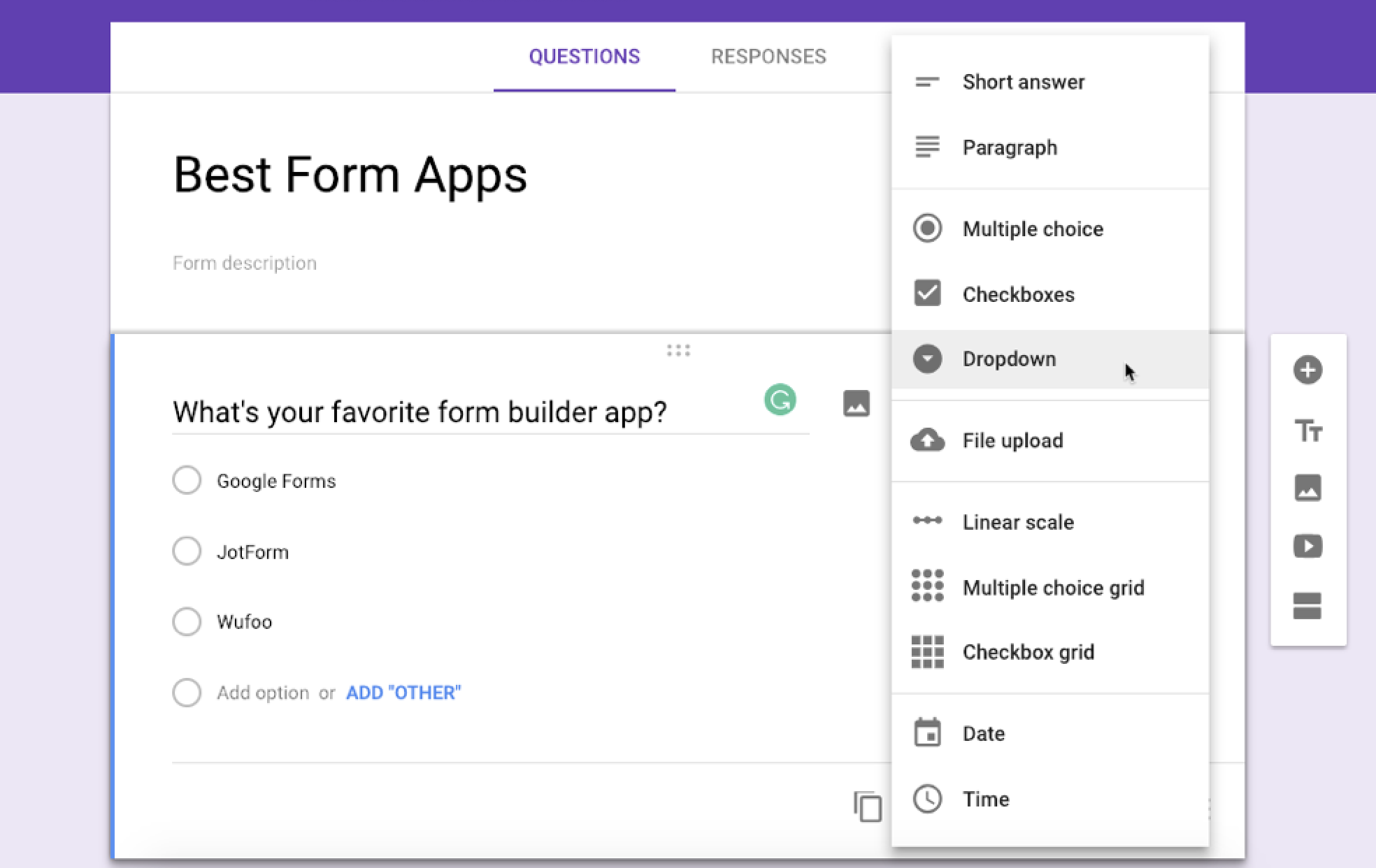
Technically, Google Forms is a form builder, but you can use it to create forms, surveys, polls, or even quizzes that get automatically graded. Collect short- and long-form questions, use linear scales to capture sentiment, or upload several images to let people choose from multiple options in a grid.

Google Forms offers 11 different field types—all of the major types you'd expect in a form or survey tool. It also has simple data validation checks for text fields and conditional logic that serves different questions based on previous answers. You can't accept payments through a Google form, but you can accept uploaded files and save them right to Google Drive.

If you need to collaborate with teammates on a form, you can share it with your colleagues so they can add and edit form fields too—even in real time. After your form is published, view responses as a report in Google Forms, get emails for new responses, and/or export responses to Google Sheets to sort, filter, or visualize your data in a more meaningful way.

Finally, you can use Google Forms' Zapier integrations to send your form responses to the right place. Connect Google Forms and Trello to add new form responses to your to-do list, automatically add responders to your email list by connecting Google Forms and Mailchimp, or see your form responses in Slack with a Google Forms and Slack integration.

Google Forms Price: Free with a Google account

Typeform (Web)

Best free form builder for uniquely designed forms

Typeform screenshot

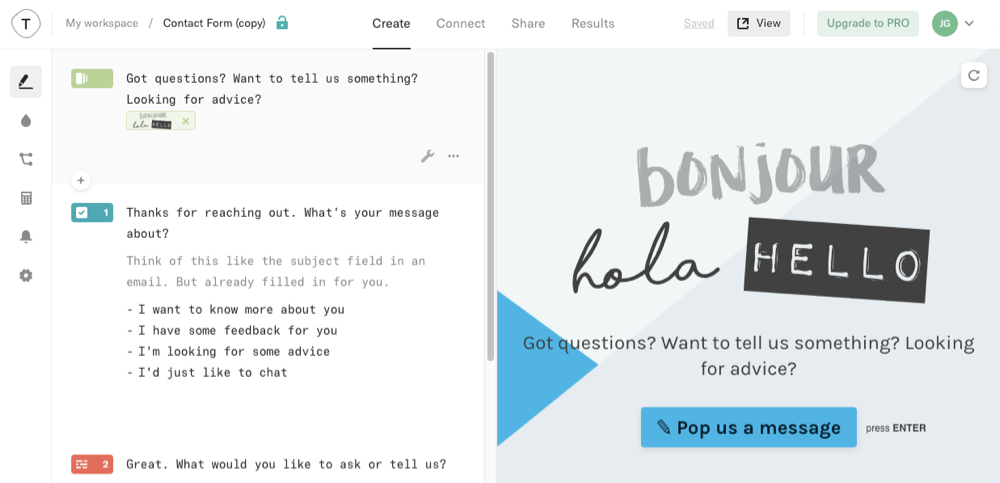
The one big disadvantage of Google Forms is that your design options are pretty limited, so if you're looking to build a unique form that matches your website's design, it's not ideal. Instead, consider Typeform—a form builder that lets you create customized and multi-page forms, surveys, questionnaires, polls, and quizzes.

Typeform offers tons of templates for every type of data you need to collect. Build a form from scratch and design it yourself, or grab a template designed specifically for collecting lead information or event RSVPs, personality quizzes or employee evaluation forms. Then, refine the design with various color schemes and font choices.

Build your entire form/survey on a single page, add a cover page and thank-you page, or create multiple-page surveys and forms. Then, build your form using nearly 20 question types, including traditional options like multiple choice questions and more advanced fields like question groups (e.g., 1, 1a, 1b, etc.) or picture choices.

Finally, you can make the most of the responses you collect with Typeform's Zapier integrations: log new responses in Google Sheets or Excel, automatically send follow-up emails to people who fill out your form, or save a copy of each of your form responses in Dropbox or Google Docs.

Typeform Price: Free for unlimited forms with up to 10 questions/form and 100 responses per month; from $35/month for the Pro plan that includes unlimited fields and responses along with logic jumps and payment fields.

Cognito Forms (Web, Windows)

Best free form builder for forms with advanced features

Cognito Forms screenshot

Google Forms offers only basic conditional logic and doesn't let you accept payment information. Typeform has more advanced logic and lets you accept payments—but only if you subscribe to a premium plan. So if you need more advanced features like these in a free form builder, Cognito Forms is an ideal choice.

You can split your form up with logic sections, figure out totals with calculated fields, build repeating sections to use on multiple forms, and accept payments using its built-in integrations with Stripe, PayPal, and Square. Cognito Forms can even turn your form results into a templated PDF document so you can send a formatted receipt to your customers.

All of these features are available in Cognito's free plan, minus payment processing fees if you use the form to collect payments. Forms are also relatively customizable: Insert page breaks to create multi-page forms, or edit fonts, colors, and columns widths. And like with Google Forms and Typeform, you can use Zapier to connect Cognito Forms to more than 1,000 other apps to streamline your form workflows.

Cognito Forms Price: Free for one user and unlimited forms with up to 500 form entries per month; from $10/month for the Pro plan that includes two users and up to 2,000 entries per month.

Ninja Forms (WordPress)

Best free form builder for customizable forms on WordPress sites

Ninja Forms screenshot

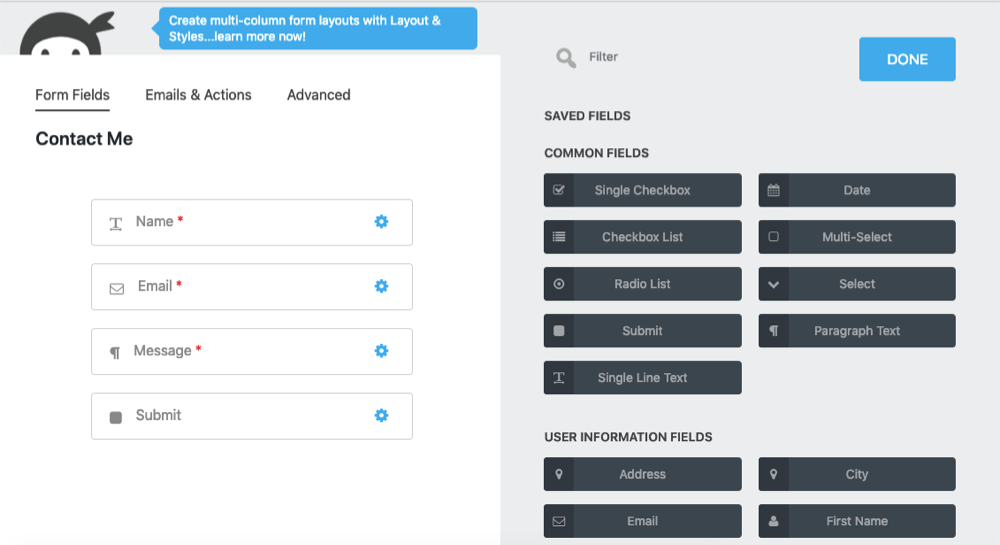
Unlike the other form builder apps on this list that work on any site regardless of what CMS you use, Ninja Forms is a plugin that only works on WordPress-powered sites. It offers a variety of templates for all sorts of needs: Create a basic contact form, accept job applications, or let users send data deletion requests so you can stay compliant with GDPR regulations.

And while all of those features are free, Ninja Forms sells a variety of add-ons that let you do a lot more: Accept payments through Stripe or PayPal, register new users on your WordPress site, or automatically sign up responders to your Mailchimp newsletter (though you can do the same for free using Ninja Forms' Zapier integrations).

Ninja Forms' form builder is easy to use and works much like other popular form apps, with options for multi-column forms and CSS styling. And you can make as many forms as you want and store as many results as you need right in your WordPress database alongside the rest of your content.

Ninja Forms Price: Free for unlimited basic forms and responses; purchase add-on extensions from $29 each, or subscribe to the Personal plan for $99/year to get core add-ons and support.

HubSpot Form Builder (Web, iOS, Android)

Best free form builder for pop-up forms

HubSpot Form Builder pop-up forms

If you want to create a form that pops up at a specific interval or when a user takes a specific action, HubSpot's Form Builder is the app for you. Create forms that appear in pop-up overlays on click or when a user shows exit intent, forms that drop in at the top of the page after a certain amount of time, or forms that slide in on the left or right side of your webpage.

HubSpot's pop-up forms are primarily designed to collect a few pieces of information, so the only available fields are email, first name, last name, and phone number (adding custom fields requires a premium plan). But if you're just collecting data for newsletter subscribers or new leads, that's probably all of the data you need.

You can also use HubSpot Form Builder to create more traditional, non-pop-up forms, and there's much more flexibility there. There are a few templates to choose from—mostly for marketing- or sales-related use cases—or build your own custom form using nearly 50 fields.

HubSpot Form Builder is part of its Marketing Hub product which comes with a free customer relationship management (CRM) tool, and you use the CRM to consolidate details from form responses. But if you prefer to use a different tool to view and manage your form responses, you can use one of HubSpot's Zapier integrations to send new contact details to Google Contacts, Mailchimp, Slack, Google Sheets, and more.

HubSpot Form Builder Price: Free for unlimited forms, questions, and responses and up to one million contacts; from $50/month for Marketing Hub Starter that includes custom pop-up form fields and lets you build forms without HubSpot branding.

Crowdsignal (Web, iOS)

Best free survey builder for simple surveys and polls

Crowdsignal

Crowdsignal (formerly Polldaddy) is an excellent tool for building simple, one-question ratings surveys and polls. For example, say you want to let your readers rate a piece of content published on your site. Use Crowdsignal to build a rating poll, choose between star ratings and Nero ratings (thumbs up/down), choose the size of your icon, and add text. Then, embed the widget on your site to start collecting ratings.

You can also use Crowdsignal to create single-question polls using either text or image multiple-choice responses. Allow people to enter their own answers, select multiple answers, or choose only a single answer. Crowdsignal polls can even include Facebook and Twitter sharing buttons that make it easy for people to share your poll on social.

If you need a more detailed survey or quiz, you can create those in Crowdsignal, too. Build full-length surveys with multimedia embeds and HTML snippets, validate responses, and close surveys automatically after a certain date. Choose from 13 field types to build your survey, drag and drop questions to reorder them, or create multi-page surveys with conditional branching.

Crowdsignal Price: Free for unlimited polls and surveys, though polls may be rate limited for excessive votes; from $29/month for the Pro plan for up to two whitelisted polls, advanced reporting, and priority email support.

SurveyPlanet (Web)

Best free survey builder for people who plan to receive lots of responses

SurveyPlanet pre-written questions

Most of the survey builders on this list limit the number of responses you receive to 100 per survey. SurveyPlanet stands out because its free plan puts no limit on the number of surveys you can create, the number of responses you can collect, or the number of questions you can ask, making it an ideal tool if you anticipate getting lots of responses to your surveys.

SurveyPlanet makes it easy to build surveys. You don't even have to write your own questions. For example, if you're trying to get product feedback, type product into its questions template search bar to see tons of pre-written questions you can grab and use in your survey. It's a great way to avoid writing leading questions and to build a survey quickly.

If you want to tweak more, SurveyPlanet lets you do that, too. Choose between a variety of themes that control your survey's color scheme, or have your questions display one at a time or all at once. The only downside is that you'll need to upgrade to export your survey results—but if its built-in reports are enough, SurveyPlanet is an excellent free option.

SurveyPlanet Price: Free for unlimited surveys, questions, and responses; from $20/month for the Pro plan to export survey results or build custom themes.

SurveyMonkey (Web, iOS, Android)

Best free survey builder for an extensive library of pre-written questions

prewritten questions in SurveyMonkey

There's no limit to the number of surveys you can create or responses you can receive in SurveyPlanet, but when it comes to volume of pre-written questions, SurveyMonkey has it beat—hands down. Type a keyword into its Question Bank search bar to get hundreds of results for pre-written questions, then click questions you like to add them to your survey instantly.

The downside: The number of questions you can ask and responses you can collect on SurveyMonkey's free plan is limited. You can only ask 10 questions and collect 100 responses per survey, and you'll have to upgrade to customize the design of your survey, add a logo, or export your results. However, with one of SurveyMonkey's Zapier integrations, you can send results to Google Sheets or Excel automatically, even if you're on the free plan.

In addition to its large library of pre-written questions, SurveyMonkey also provides one of the best mobile survey experiences. Each question has plenty of white space above and below it, the buttons are large so they're easy to click, and a step indicator lets respondents know exactly how many more questions they have to answer at each step along the way.

SurveyMonkey Price: Free for unlimited surveys, 10 questions/survey, and 100 responses/survey; from $37/month for the Standard plan that includes unlimited questions, up to 1,000 responses/month, skip logic, and data exports.

Zoho Survey (Web, iOS, Android)

Best free survey builder for a large variety of response types

Zoho Survey screenshot

Though it's technically a survey tool and not a form builder (Zoho has a separate product, Zoho Forms, designed specifically for building forms) Zoho Survey rivals Google Forms for most flexible survey and form builder. It has pretty much everything you need to create either detailed forms or simple polls and surveys, all with more options than you'll get in Google Forms.

To start, Zoho Survey lets you add more than 25 question types, including things like Net Promoter Score, ratings, and drag-and-drop rankings that Google Forms doesn't offer. It also offers pre-written questions like SurveyMonkey and SurveyPlanet, though Zoho Survey's questions are only available as part of their themes and can't be individually selected.

The only downside is that there's a limit to the number of questions you can add and responses you can collect in Zoho Survey: 10 questions and 100 responses/form. And while you can access responses in Zoho's app or export them as a PDF, you'll have to upgrade to download them as a CSV or XLS file. But overall, it's a flexible tool that could be perfect if you don't expect to get hundreds of survey responses.

Zoho Survey Price: Free for unlimited surveys, 10 questions/survey, and 100 responses/survey; from $29/month for the Plus plan that includes unlimited questions, 3,000 responses/month, and CSV and XLS exports.

Finding the Best Form App or Survey Builder

Each of the tools on this list makes it easy to create and share forms and surveys, so how do you choose the right one? It boils down to what features are most important to you.

If you need to create lots of form/surveys and accept unlimited responses, choose Google Forms or Survey Planet. If you need help writing questions, you'll probably have the best luck with SurveyMonkey. If you want something simple, Crowdsignal could be perfect, but for more advanced capabilities, choose Cognito Forms or Zoho Survey.

The best part: Since all of the tools are free, you can try as many as you like before choosing one to use long-term.


source https://zapier.com/blog/best-free-survey-tool-form-app/